Loading…


KnowledgeBase
Workflow Conditions & Branching: The If / Else Node
Adding logic to a workflow#
Conditions let a workflow make decisions. Instead of running the same actions for every record, you can branch: do one thing when the record matches your rules, and something else (or nothing) when it does not. Conditions are added with the If / Else node from the Conditions group in the palette.
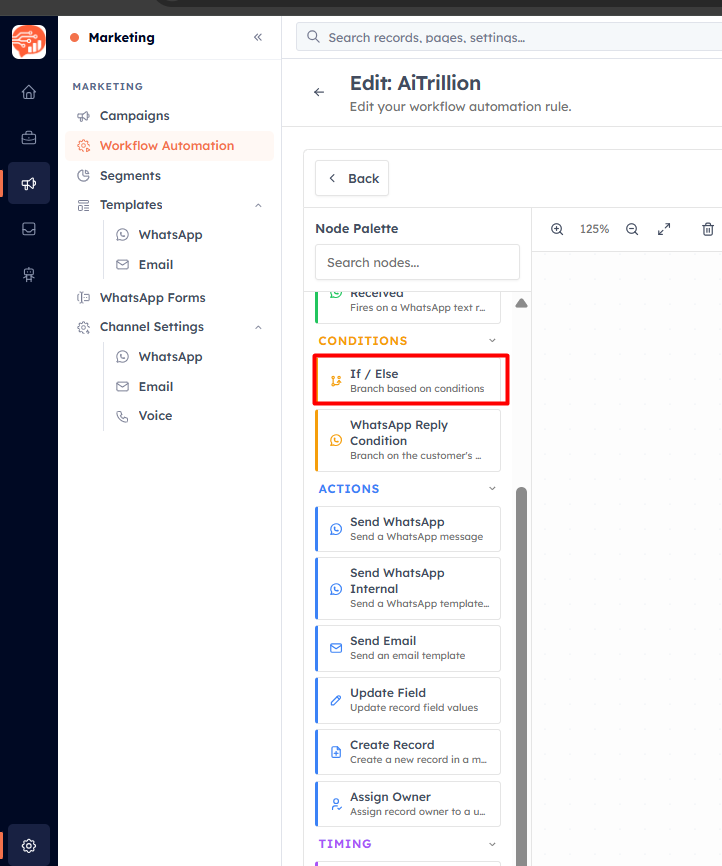
How If / Else works#
An If / Else node has one input and two outputs, labelled True and False:
Records that match your conditions flow out of the True path.
Records that do not match flow out of the False path.
You connect different blocks to each path — for example, send a VIP email on the True path and a standard email on the False path. You can also leave the False path empty to simply stop the workflow for non-matching records.
Building a condition#
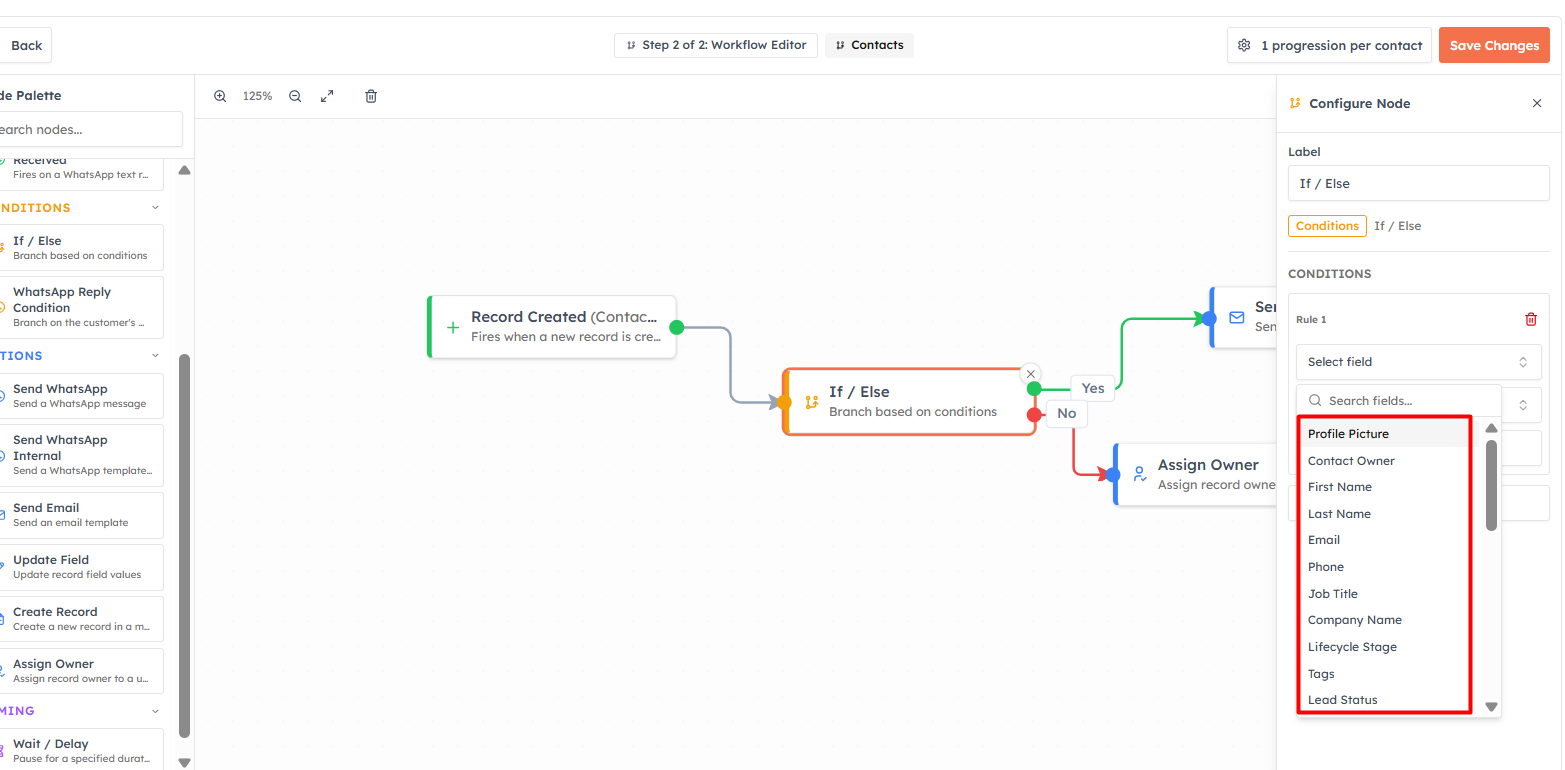
In the node's config panel, add one or more rules. Each rule has three parts:
Field — any field on the target module (and related-module fields via lookups).
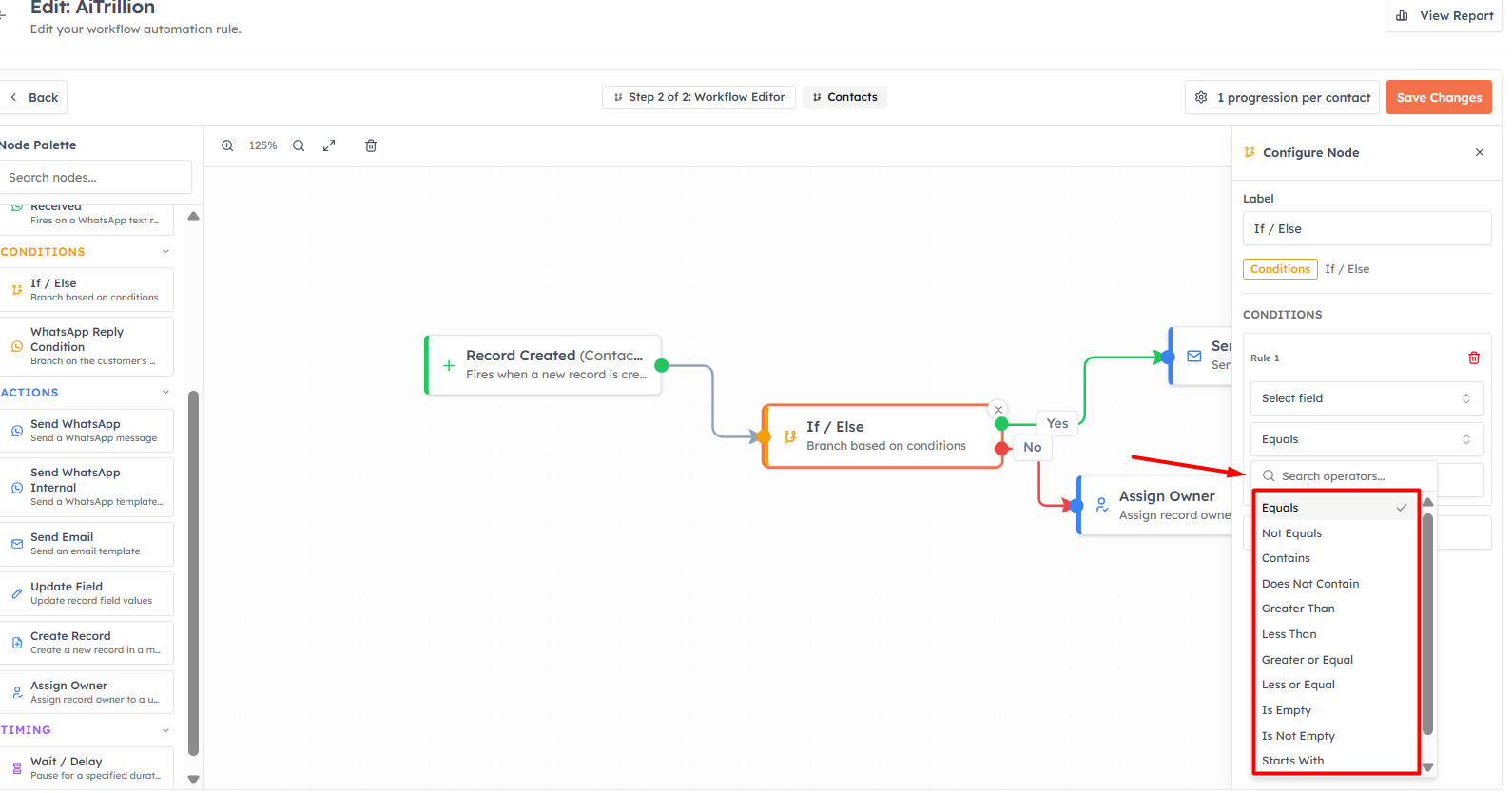
Operator — how to compare.
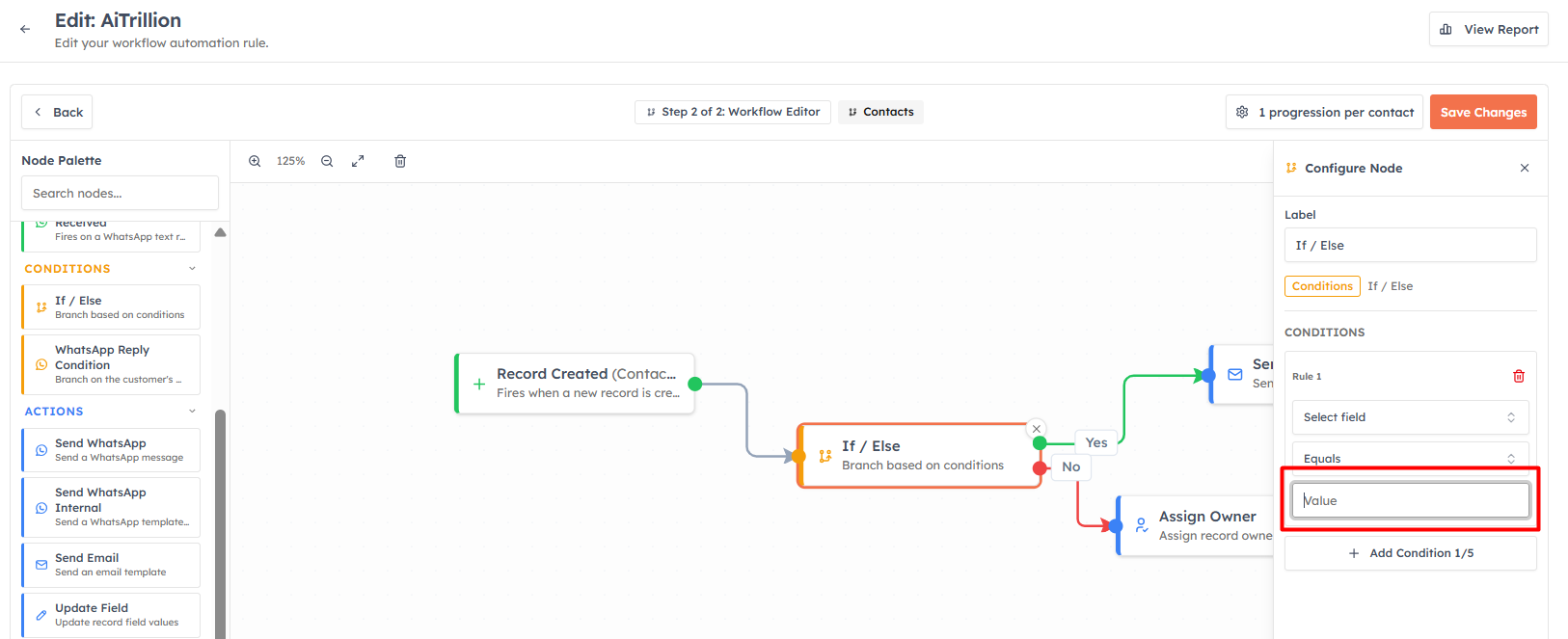
Value — what to compare against.
The available operators are:
Equals – Matches records where the field value exactly equals the specified value.
Not Equals – Matches records where the field value does not equal the specified value.
Contains – Matches records where the field includes the specified text.
Does Not Contain – Matches records where the field does not include the specified text.
Greater Than – Matches records where the field value is greater than the specified value.
Less Than – Matches records where the field value is less than the specified value.
Greater Than or Equal To – Matches records where the field value is greater than or equal to the specified value.
Less Than or Equal To – Matches records where the field value is less than or equal to the specified value.
Is Empty – Matches records where the field has no value.
Is Not Empty – Matches records where the field contains a value.
Starts With – Matches records where the field value begins with the specified text.
Ends With – Matches records where the field value ends with the specified text.
💡
Is Empty and Is Not Empty need no value — perfect for routing on missing data, like "Phone Is Empty".
Combining multiple rules (AND / OR)#
When you add more than one rule, a dropdown between them lets you choose AND (all rules must match) or OR (any rule can match). For more complex logic, a Criteria Pattern editor appears where you can write patterns by rule number, such as ( 1 and 2 ) or ( 3 and 4 ). The editor validates your pattern as you type.
💡
You can add up to five rules per condition. If you need genuinely different downstream actions for several cases, chain multiple If / Else nodes — one branch feeding into the next.
💡
Next: Workflow Actions Explained.
Was this article helpful?
Ready to implement this?
OpenAI Engage and apply what you just learned to your own workspace.
Open AI Engage CRM