Loading…


KnowledgeBase
Monitor Workflows: Reports, Status and Execution History
Seeing what your workflows are doing#
Once workflows are live, you will want to know they are firing and delivering. AI Engage CRM gives you three levels of visibility: the workflow list, per-workflow reports, and status controls.
The workflow list#
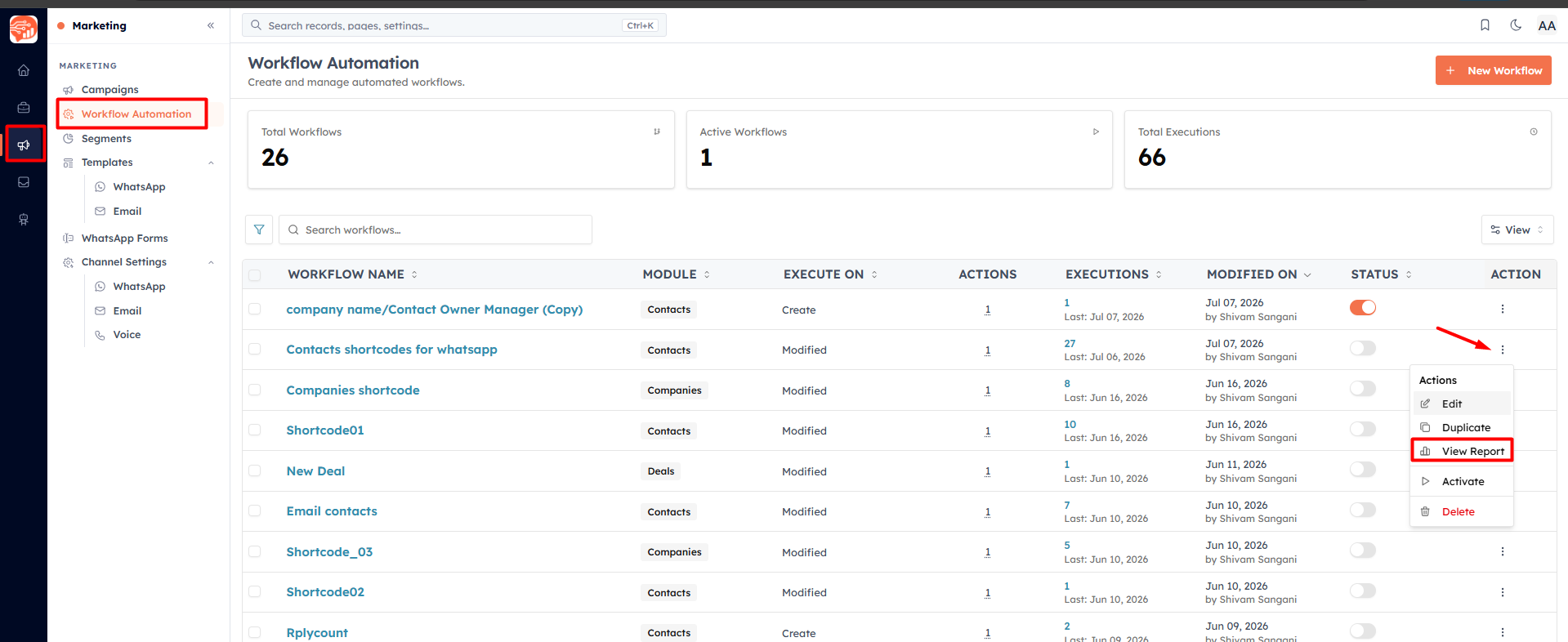
At Settings → Workflows, the top of the page shows Total Workflows, Module, No. of actions performed in a workflow, and Total Executions. Each row shows the workflow's status, target module, trigger, how many times it has run (with the last run date), and its email/WhatsApp performance.
To check the report, go to Settings → Workflows → click the Menu icon → click on View Report.
The workflow report#
Open a workflow's row menu and choose View Report for full analytics.
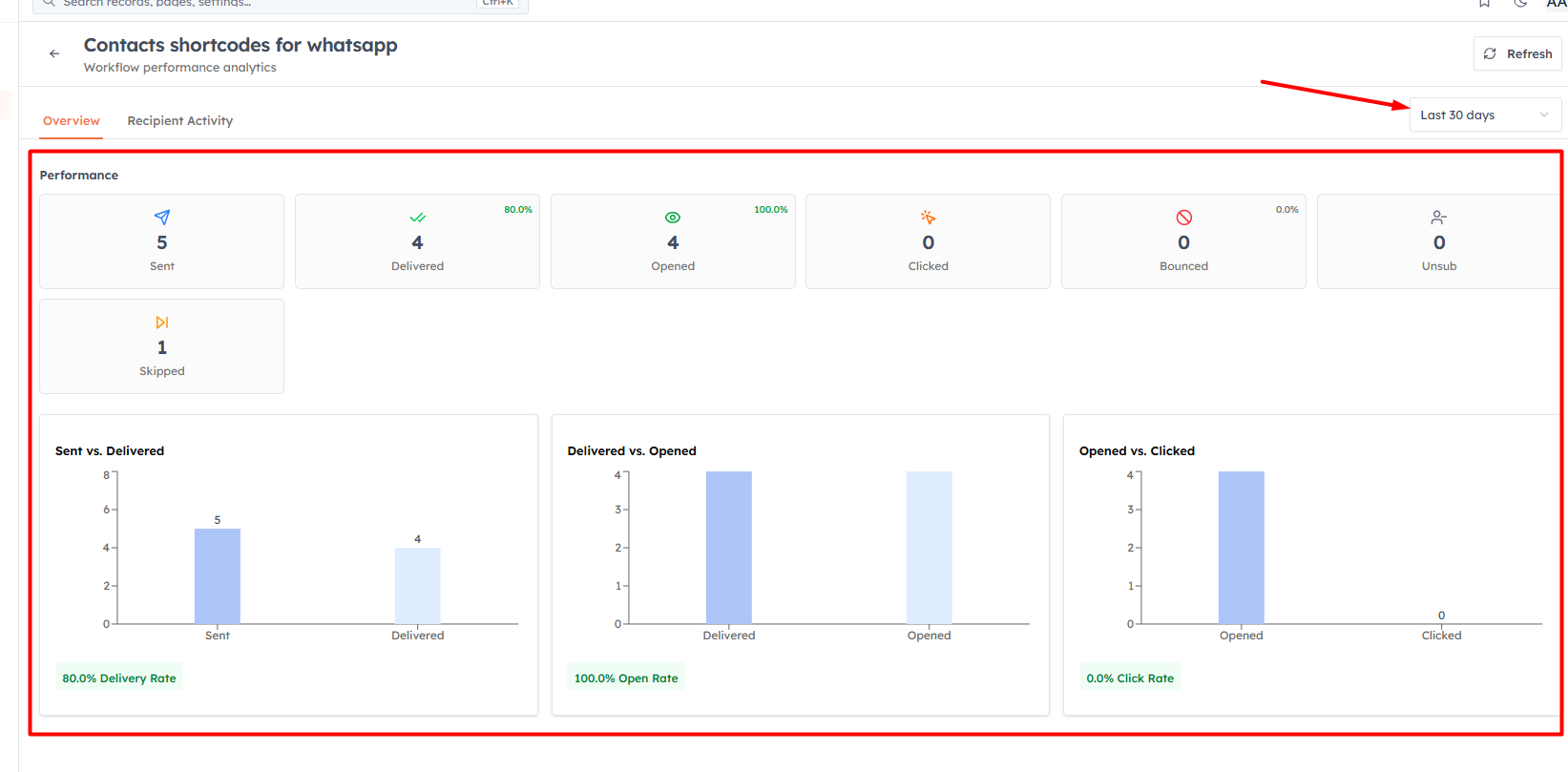
Date range — Today, Last 7 days, Last 30 days, All time, or a custom range.
Overview tab — headline stats and charts.
Recipient Activity tab — a per-recipient table you can search and filter by status.
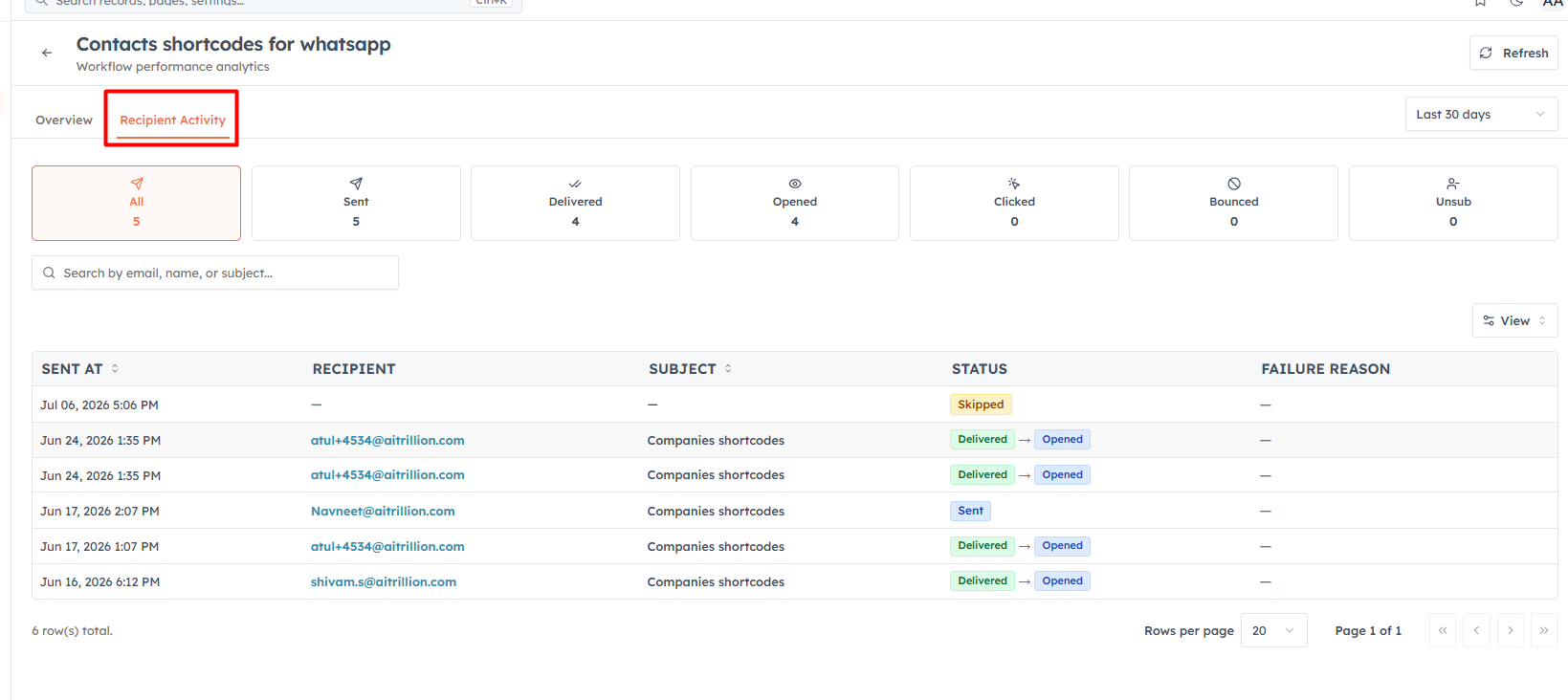
Status filter cards let you focus on a delivery stage — for WhatsApp: Delivered, Read, Clicked, Failed; for email: Delivered, Opened, Clicked, Bounced, Unsubscribed. Failed and bounced rows show a failure reason so you can see exactly what went wrong.
💡
Failed actions are retried automatically a couple of times before being marked failed — a transient hiccup usually recovers on its own. Persistent failures (a deleted template, a deactivated user) show up with a reason in the report.
Status: draft, active, paused, archived#
Every workflow has a status. New workflows start as Draft. From the row menu you can:
Activate — make the workflow live so it starts firing.
Deactivate — pause it. No new runs start, but records already mid-flow (for example, in a Wait step) continue to completion.
Duplicate — clone it as a new Draft named "… (Copy)" — the closest thing to a reusable template.
Edit, View Report, or Delete.
💡
Deactivating a workflow does not undo what it already did — emails sent, records created, and fields updated are not reversed. It only stops new runs from starting.
💡
Next: Common Workflow Examples — ready-to-build recipes.
Was this article helpful?
Ready to implement this?
OpenAI Engage and apply what you just learned to your own workspace.
Open AI Engage CRM