Loading…


KnowledgeBase
Create Related Records with Workflows
What you'll build#
In this guide you'll set up a workflow that watches for new Contacts and, each time one is added, automatically creates a Deal and links it to that Contact. The Deal is a related record — a record that belongs to another one — so your sales pipeline fills itself in without any manual data entry.
ℹ️
A related record is one connected to another through a lookup field — for example a Deal’s Contact Name field pointing at the Contact it belongs to.
Before you start#
If you want the two records linked, the module you create the record in must have a lookup field back to the trigger module. The Deals module already has a Contact Name lookup, so a Contact workflow can create a Deal and attach it to that Contact.
Step 1 — Open the Workflow builder#
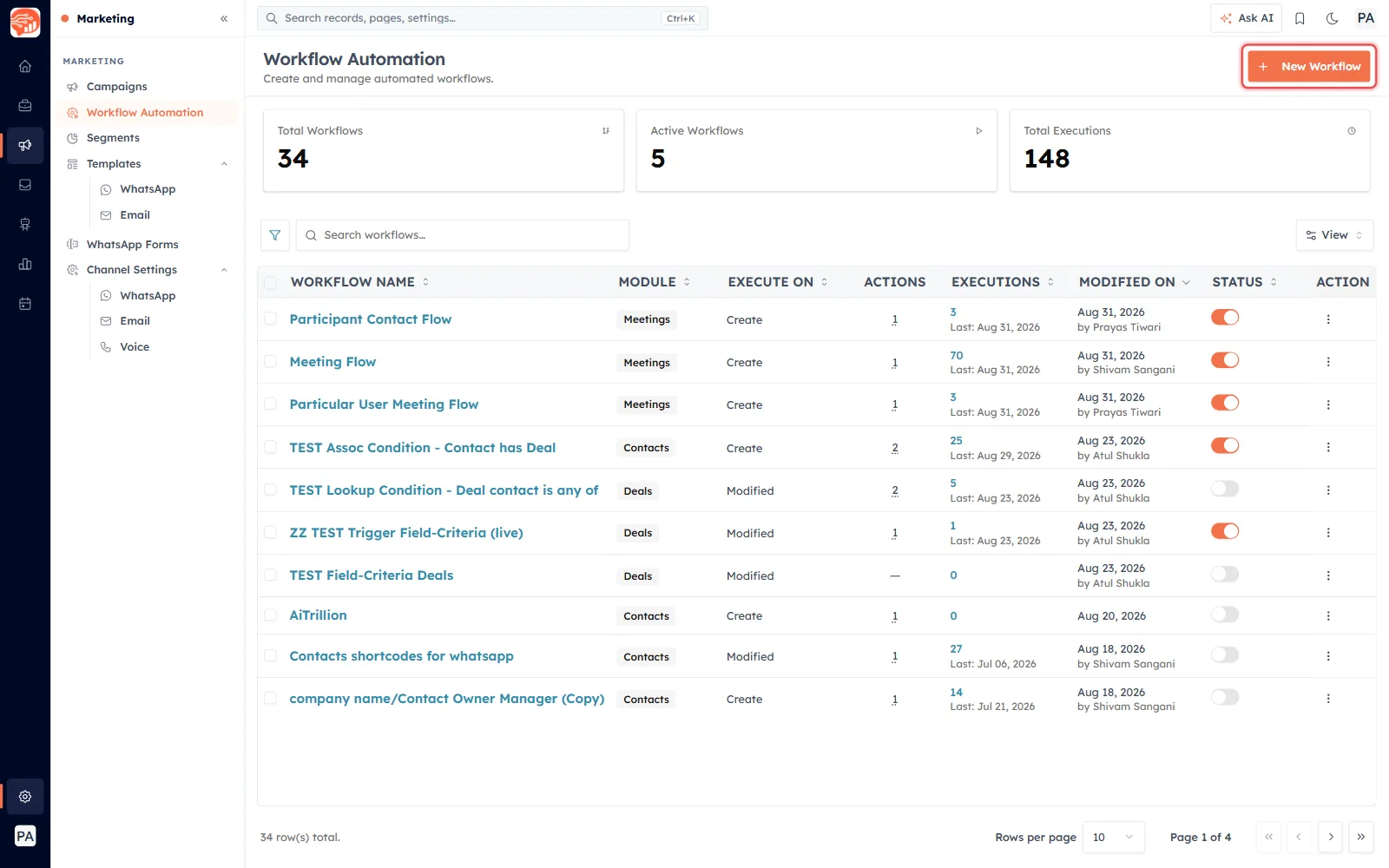
This is where all workflows are built. In the left sidebar, open Marketing → Workflow Automation. On that page, click New Workflow in the top-right corner.
Step 2 — Name it and pick the trigger module#
On the Basic Info screen, type a clear name (for example, “Create a Deal for every new Contact”). Set the Target Module to Contacts — this is the module whose records will start the workflow. Then click Next: Editor.
💡
The trigger module is locked once the workflow is created, so pick the right one now. Here it’s the module you want to react to — Contacts.
Step 3 — Add the “Record Created” trigger#
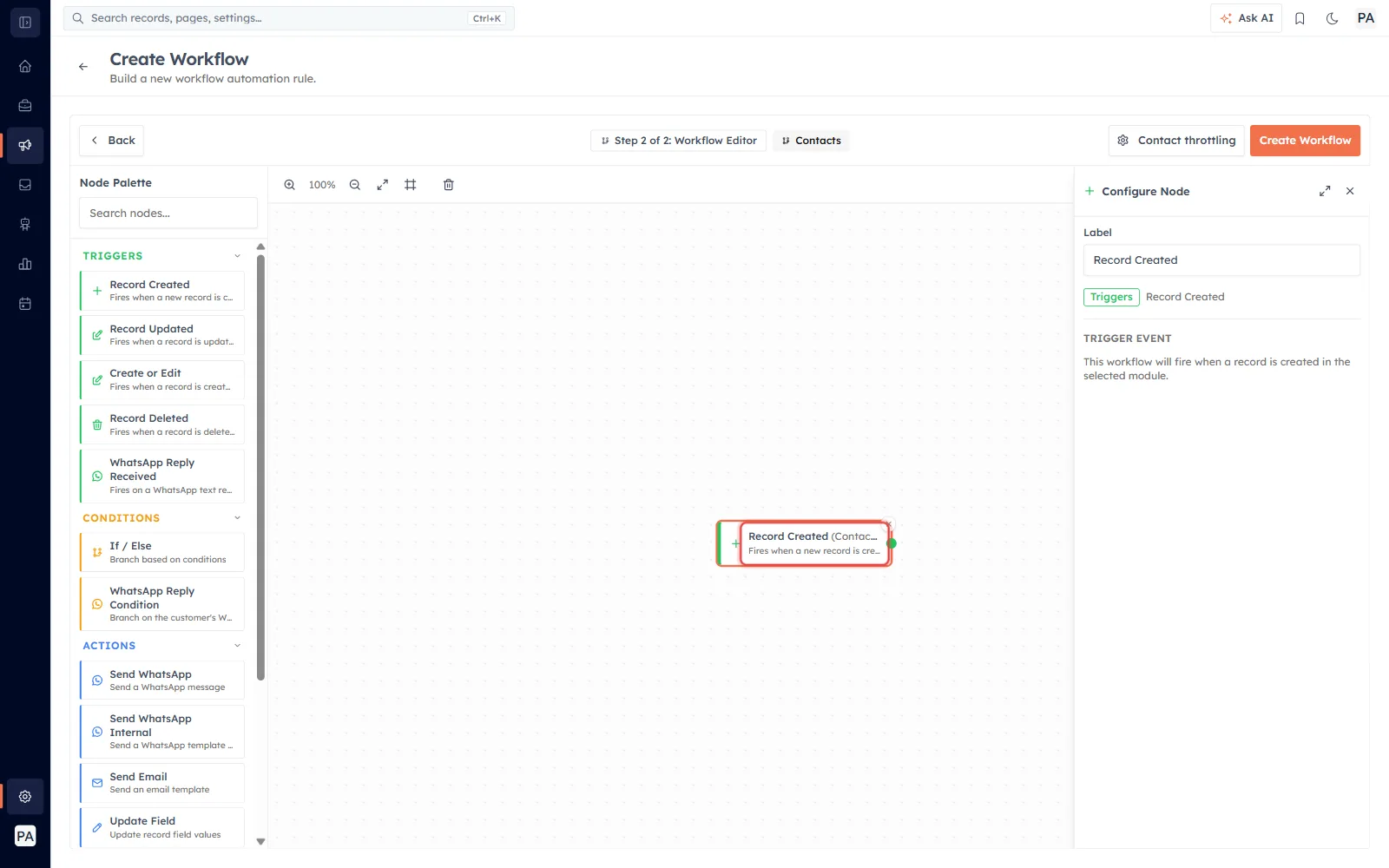
Every workflow starts with a trigger. From the Node Palette on the left, drag Record Created onto the canvas. This makes the workflow run whenever a new Contact is added. Click the node to see its settings in the Configure Node panel on the right.
Step 4 — Add a Create Record action#
Now tell the workflow what to do. From the palette under Actions, drag Create Record onto the canvas, then click it to open its configuration.
Step 5 — Choose the Target Module#
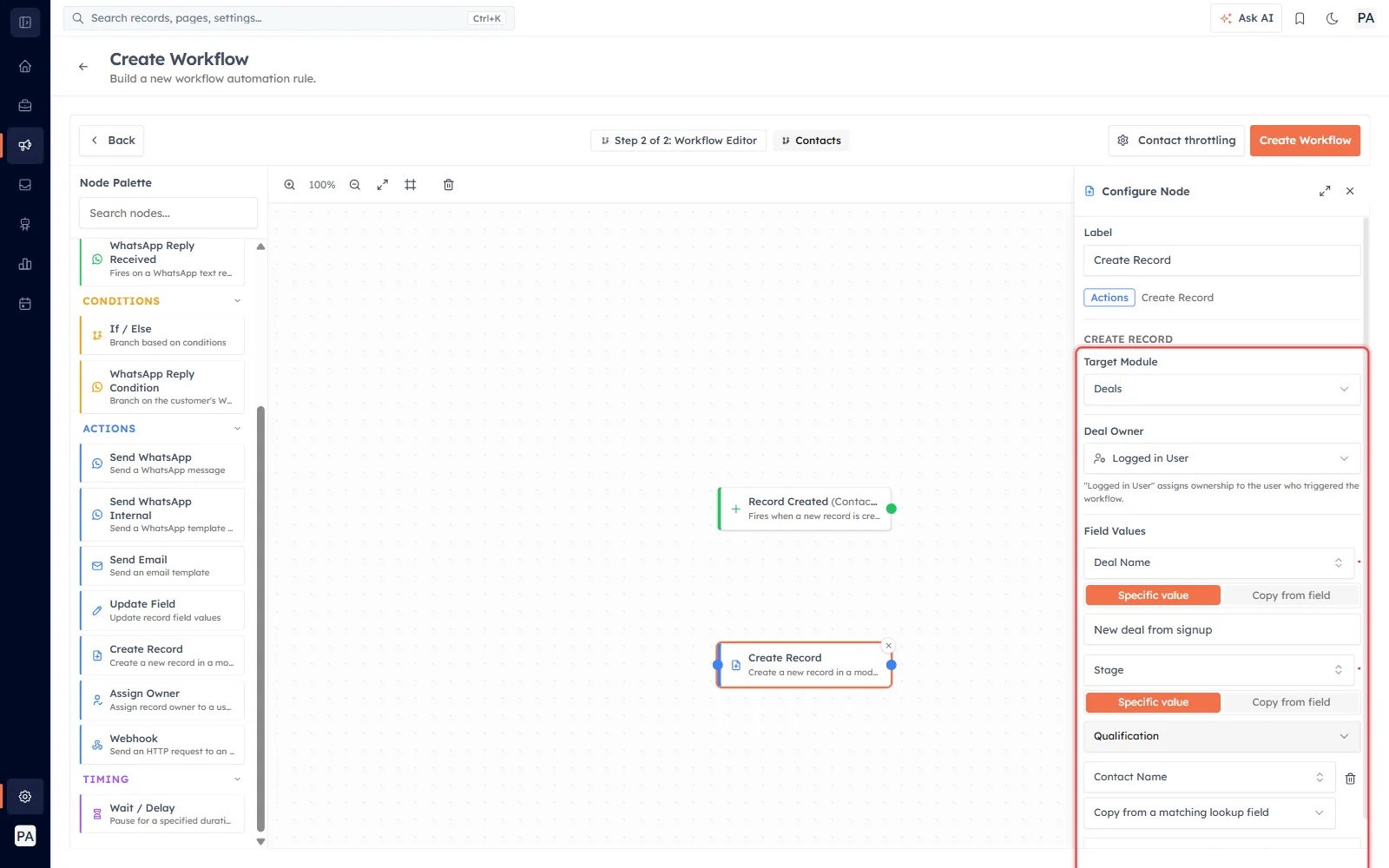
In the Target Module dropdown, choose the module the new record should be created in — for our example, Deals.
Step 6 — Set the owner#
Use the Owner dropdown to decide who owns the new record. Logged in User assigns it to the person who triggered the workflow; you can also choose a specific user or team.
Step 7 — Fill in the field values#
Under Field Values, set the fields the new record needs (required ones appear for you). For each field, pick how the value is set:
Specific value — type a fixed value. Values support
{{merge tags}}.Copy from field — bring a value across from the record that triggered the workflow.
Use Add Field Mapping to set as many fields as you need. In the example below, the Deal’s Name and Stage are filled in.
Step 8 — Link the new record to the Contact#
To connect the Deal to the Contact that started the workflow, add a mapping for the lookup field — here, Contact Name — and choose Copy from a matching lookup field. The CRM fills that lookup with the triggering Contact, so the Deal is created already attached to them.
✅
Choose Copy from a matching lookup field on the lookup and the new record links itself to the trigger record — no manual step, no second workflow.
Step 9 — Save (create) the workflow#
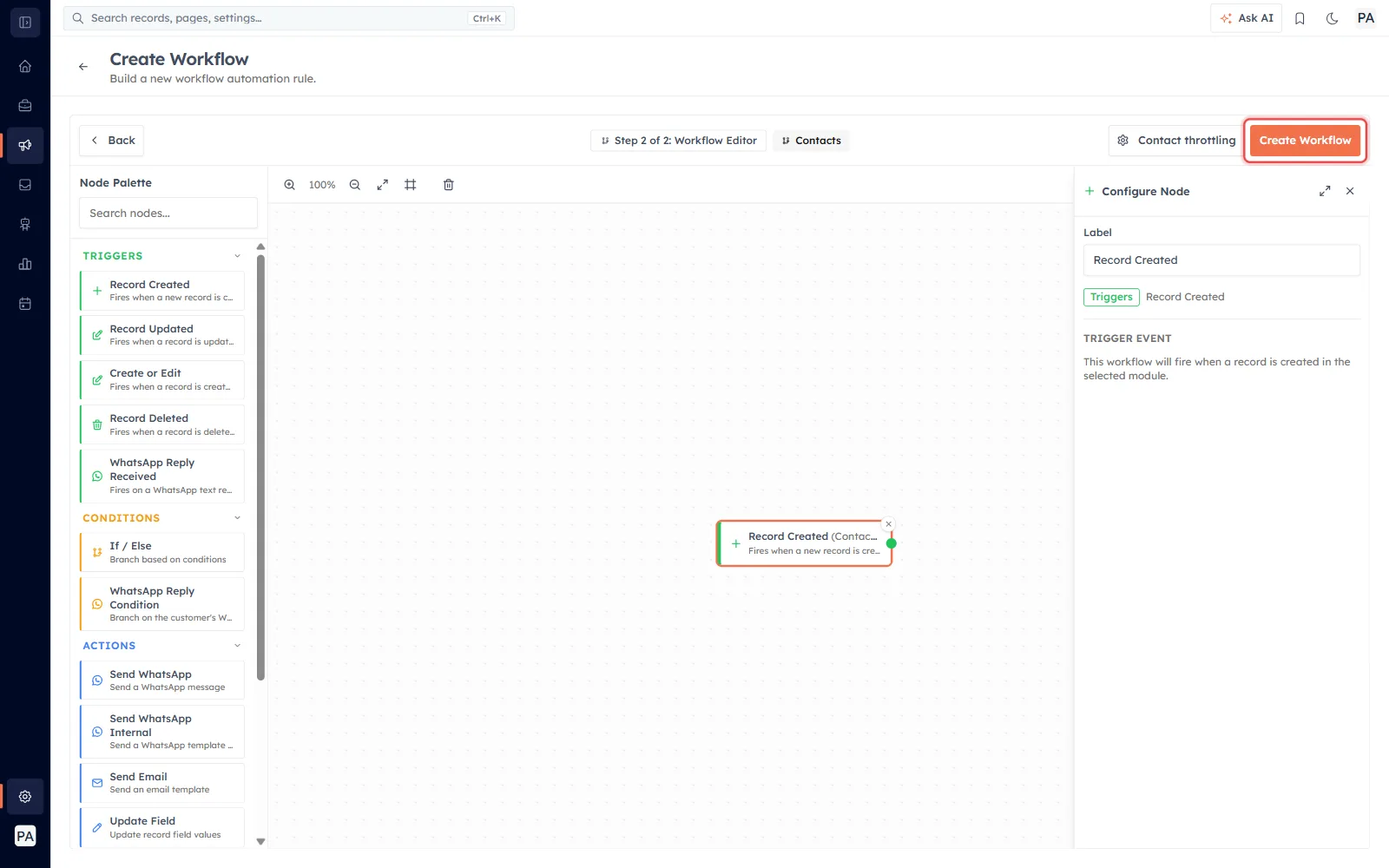
When everything looks right, click Create Workflow in the top-right to save it. Switch it on and, from now on, every new Contact will get a linked Deal automatically.
A quick recap of the example#
Trigger: Contact — Record Created
Action: Create Record → Target Module Deals, Owner Logged in User
Deal Name: New deal from signup · Stage: Qualification
Contact Name: Copy from a matching lookup field → links the Deal to the new Contact
⚠️
Create Record makes a new record every time the workflow runs. Add conditions (or choose the right trigger) so you don’t create duplicates, and test on a single record before turning it on for everyone.
Was this article helpful?
Ready to implement this?
OpenAI Engage and apply what you just learned to your own workspace.
Open AI Engage CRM