Loading…


KnowledgeBase
Workflow Actions Explained: Email, WhatsApp, Fields, Records & Owners
What actions do#
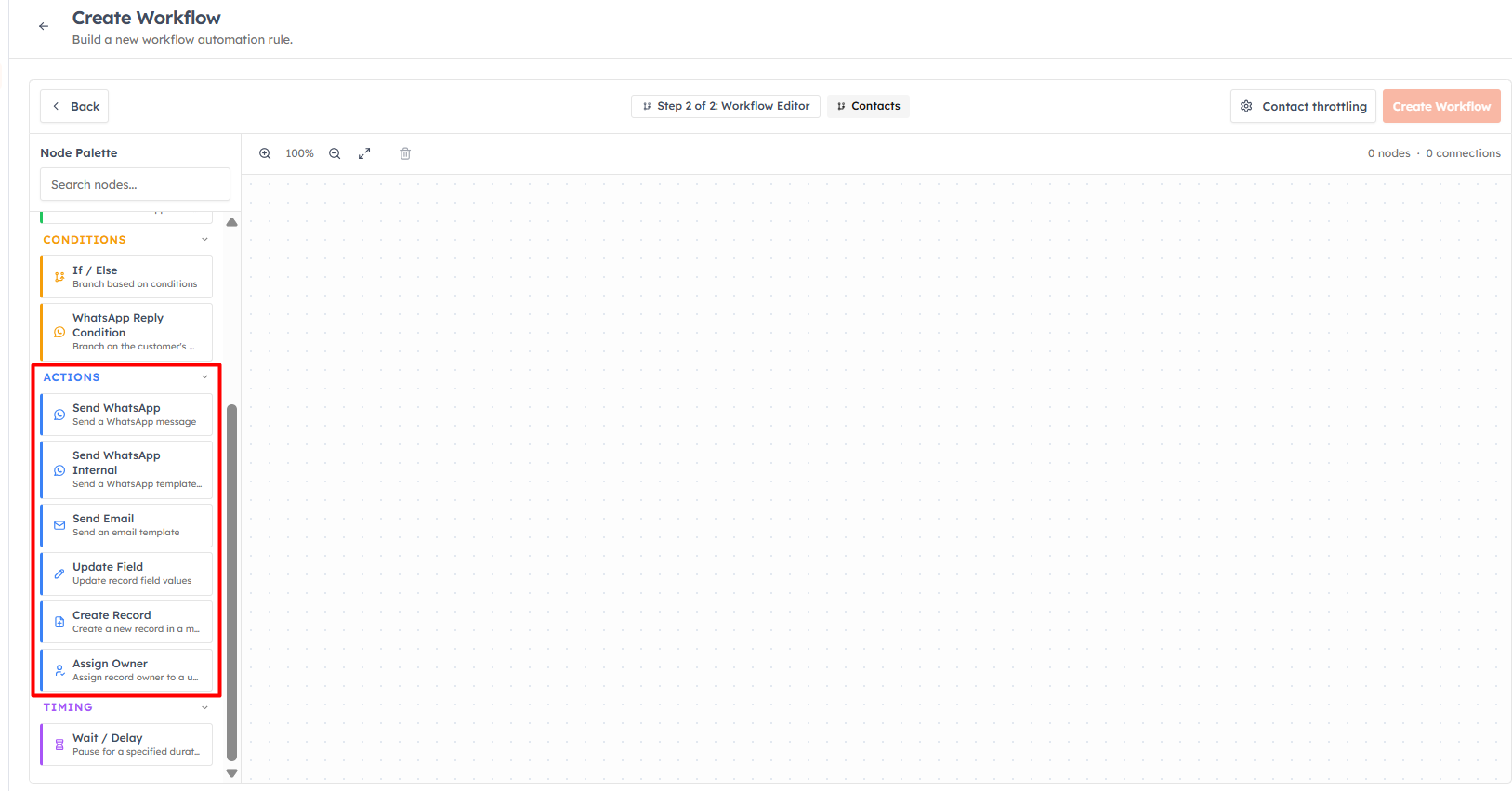
Actions are the blocks that make a workflow do something. They live in the Actions group in the palette, and you can chain several together — they run in the order you connect them. Here is every action available today and how to configure it.
Send Email#
Sends an email using one of your email templates. Configure:
From Email — which of your verified email accounts it sends from
Recipient — Record Email Field, Record Owner, Internal Team Members, or a Custom Email address
Email Template — the template to send
💡
Always send from a template. Update the template once and every future workflow send automatically uses the new content.
Send WhatsApp#
Sends a WhatsApp message using an approved WhatsApp template (a companion Send WhatsApp (Internal) action can instead notify your own team on WhatsApp). Configure:
Recipient — Record Phone Field, Record Owner, or a Custom Phone Number
WhatsApp Template — only Meta-approved templates appear here
💡
When a trigger matches multiple contacts, WhatsApp is sent as a separate message per contact (a broadcast), up to 50 per execution — a Meta limitation.
Update Field#
Changes one or more field values on the record — for example, set Lead Status to "Contacted" after the first email. Add each update with a Field and a Value (values support {{merge tags}}), or tick Set as Empty to clear a field. You can build a reusable library of common field updates and apply saved ones across workflows.
Create Record#
Creates a brand-new record in any module — the standard way to auto-create a follow-up task, a deal, or any other record. Configure the Target Module, the new record's owner (defaults to the user who triggered the workflow), and the field values for the new record. Required fields are added automatically and merge tags are supported.
Assign Owner#
Sets the owner of the record. Choose an Assignment Type:
Specific User — always assign to one chosen person
Team (Round Robin) — rotate assignment evenly across a team
An optional checkbox sends an email notification to the new owner. This is the action to use for automatic lead routing — see Assign Owner: Automatically Route Leads.
💡
Combine actions freely — for example: Assign Owner → Send Email → Wait 2 days → Create Record (a follow-up task). Add a Wait / Delay between actions to space them out over time.
💡
Next: Workflow Delays & Timing.
Was this article helpful?
Ready to implement this?
OpenAI Engage and apply what you just learned to your own workspace.
Open AI Engage CRM