Loading…


KnowledgeBase
Date-Based Trigger in Workflow Automation: Run Workflows on Birthdays, Renewals and Other Dates (Step-by-Step)
Introduction#
Most workflow triggers react to something that just happened: a record was created, a field was updated, a customer replied. But a lot of good follow-up depends on a date instead: a customer’s birthday, the day a subscription renews, the end of a free trial, a follow-up date your team agreed with a lead.
The Date-Based Trigger is built for exactly this. You point it at a date field on the record (for example Date of Birth or Renewal Date) and tell it when to run: on that date, a number of days before it, or a number of days after it, at the time of day you choose. AiEngage CRM then runs the workflow for each record on its own date. It can run once, or repeat every week, month or year.
In this guide you will build a real example step by step: a “Birthday Wishes” workflow that emails every contact on their birthday at 9:00 AM, every year. Along the way, every option of the trigger is explained, so you can adapt it for renewals, reminders and anniversaries.
Example | Date field | When | Repeat |
|---|---|---|---|
Birthday greeting | Date of Birth | On the date, 9:00 AM | Every 1 year |
Renewal reminder | Renewal Date | Before, 30 days | Once (or every 1 year) |
Thank-you after a visit | Site Visit Date | After, 1 day | Once |
Monthly payment reminder | Payment Due Date | Before, 3 days | Every 1 month |
ℹ️
Before you start: the module you automate must have at least one Date or Date-Time field, and that field must be filled in on the records. If you also want to send an email, as in this example, set up a sender email account and an email template first.
Step 1: Open Workflow Automation and Click New Workflow#
Open the Marketing menu from the left-hand rail and click Workflow Automation. You will see the list of all your workflows. Click the orange + New Workflow button at the top right.
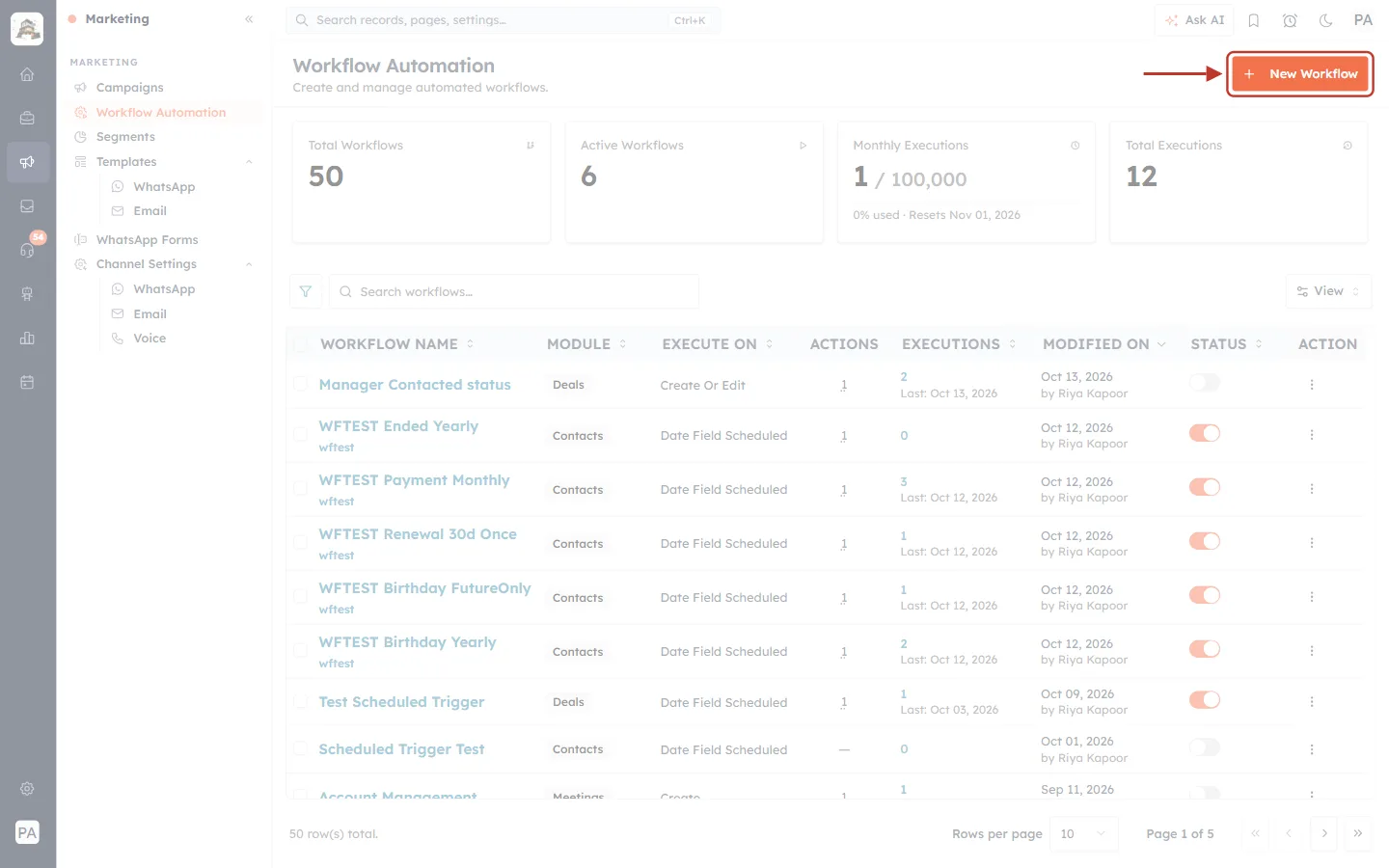
What this screenshot shows. The Workflow Automation page, with the + New Workflow button highlighted at the top right.
Left menu: Workflow Automation is selected under Marketing.
Summary cards: Total Workflows, Active Workflows, Monthly Executions (used against your plan’s monthly allowance) and Total Executions.
Workflow list: each row shows the workflow name, its Module, what it Executes On, the number of Actions, Executions, when it was last modified, and a Status switch. Workflows that use the Date-Based Trigger show Date Field Scheduled in the Execute On column.
New Workflow (highlighted): starts a new workflow.
Step 2: Name the Workflow and Choose the Module#
The first screen is Basic Information. Fill it in and click Next: Editor.
Workflow Name (required): a name your team will recognise, for example Birthday Wishes.
Description (optional): one line on what it does, for example Sends a birthday email to every contact on their date of birth. It appears under the name in the workflow list.
Target Module (required): the module whose records carry the date. For birthdays that is Contacts. For a renewal date stored on deals, choose Deals.
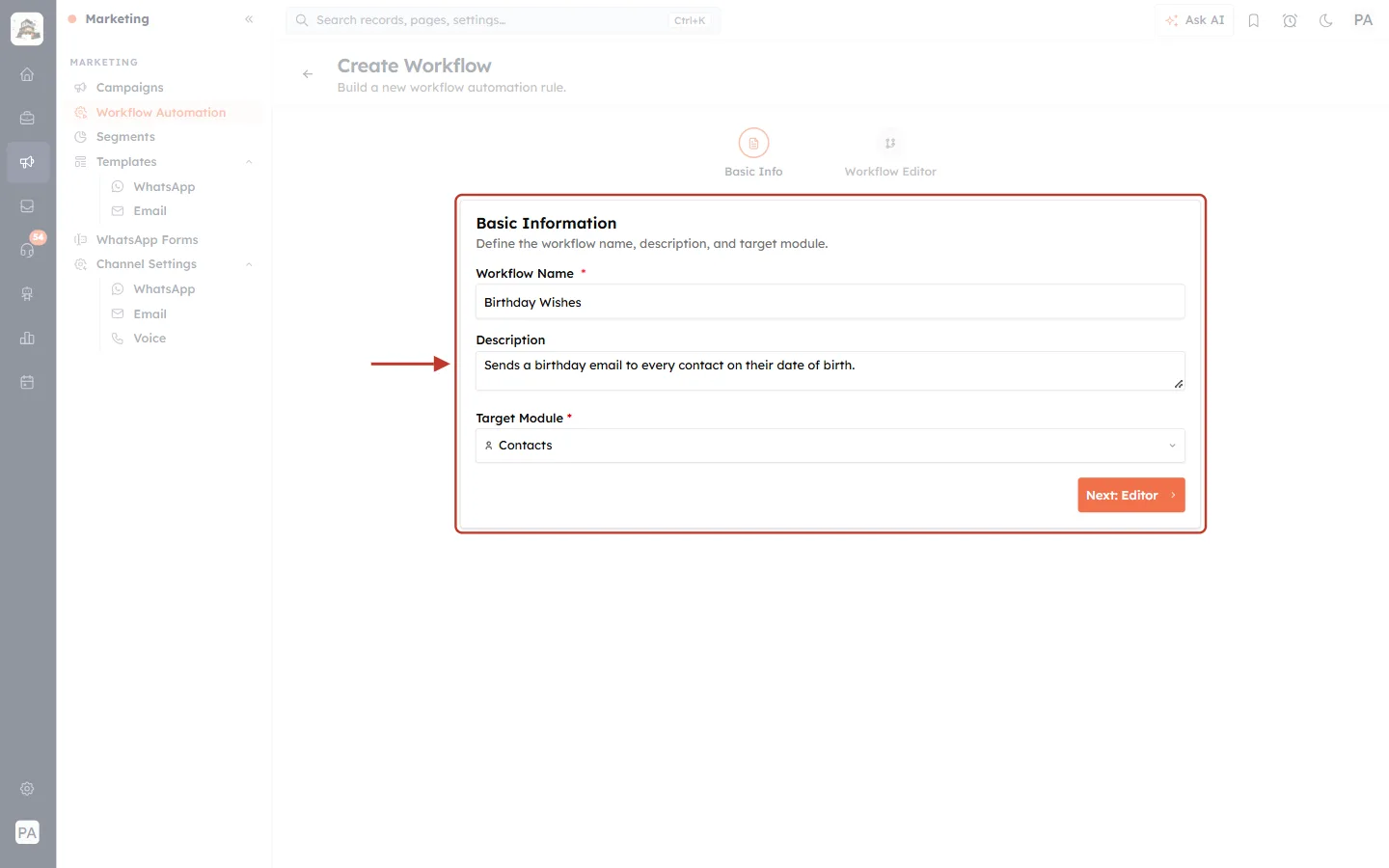
What this screenshot shows. The Basic Information step of Create Workflow, filled in for the birthday example.
Progress steps at the top: Basic Info (this step) and Workflow Editor (next).
Workflow Name: “Birthday Wishes”.
Description: a short explanation of the workflow.
Target Module: Contacts. The Date-Based Trigger will only offer the date fields of this module.
Next: Editor: opens the visual workflow editor.
⚠️
Choose the module carefully. The trigger can only use date fields of the Target Module, so if the date you need lives on another module, create the workflow on that module instead.
Step 3: Drag the Date-Based Trigger onto the Canvas#
The editor has three areas: the Node Palette on the left, the canvas in the middle and, once you select a node, the Configure Node panel on the right. Under TRIGGERS in the palette, find Date-Based Trigger (“Fires at a set time relative to a date field on each record”).
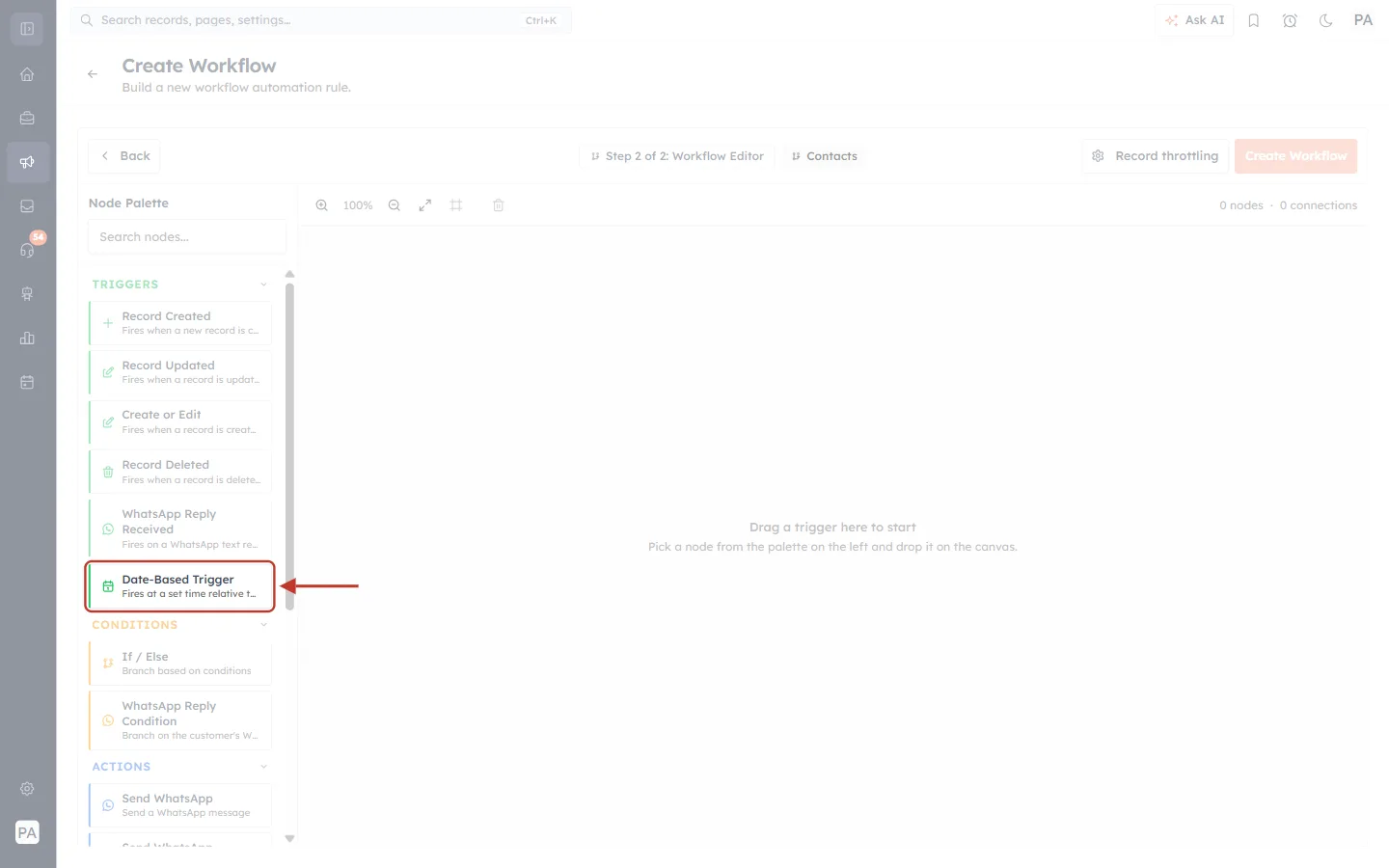
What this screenshot shows. The empty editor, with Date-Based Trigger highlighted in the TRIGGERS group of the Node Palette.
Top bar: Back, the step label Step 2 of 2: Workflow Editor, the module (Contacts), Record throttling and Create Workflow (greyed out until the workflow has a trigger).
Node Palette: a search box, then TRIGGERS (green), CONDITIONS (orange), ACTIONS (blue) and TIMING.
Date-Based Trigger (highlighted): the trigger this guide is about. The other triggers react to records being created, updated or deleted, or to WhatsApp replies.
Canvas: says “Drag a trigger here to start” while it is empty.
Press and hold on Date-Based Trigger, drag it onto the canvas and let go. The trigger node appears and the Configure Node panel opens on the right.
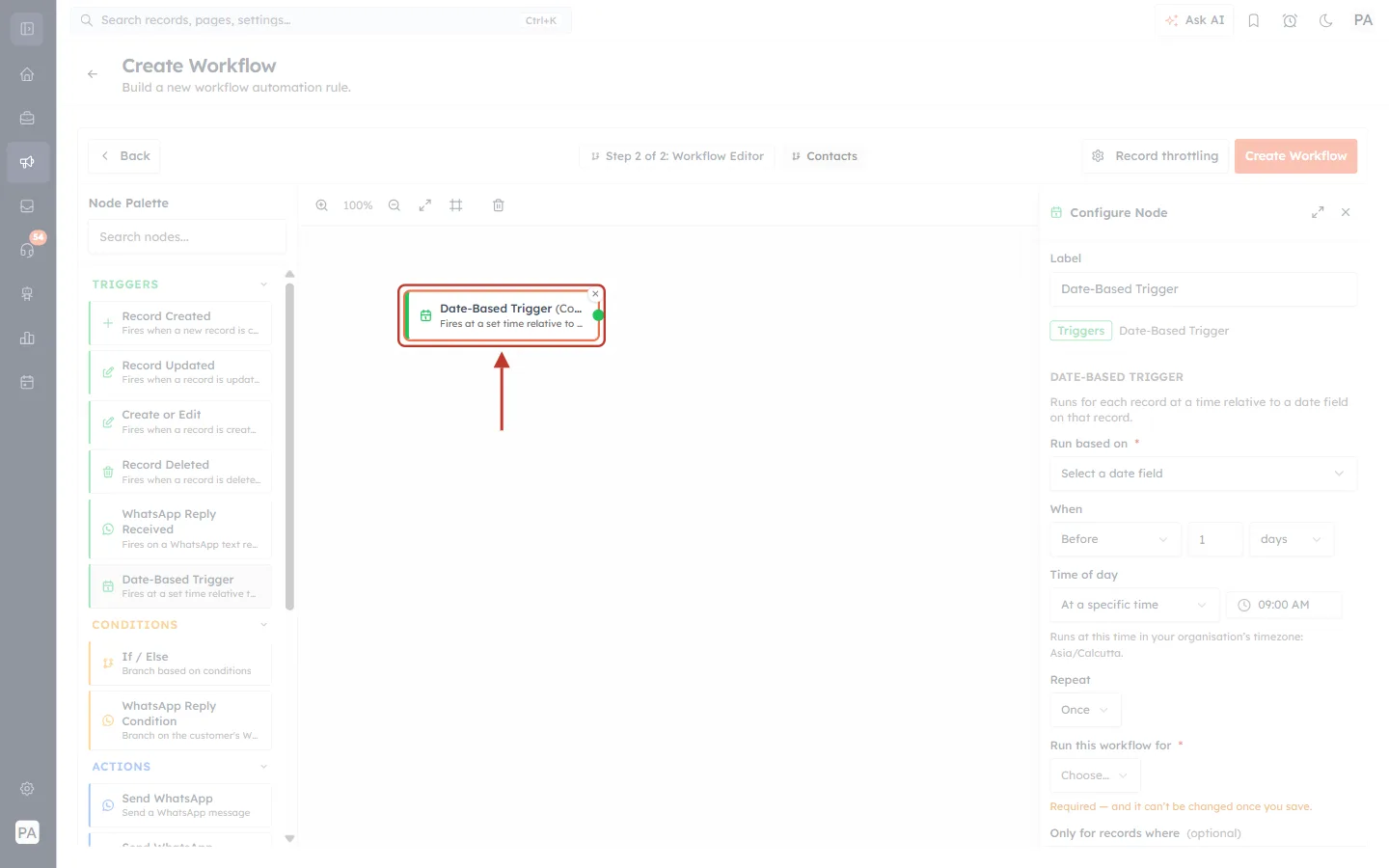
What this screenshot shows. The Date-Based Trigger (Contacts) node on the canvas, just after it was dropped.
The node (highlighted): shows the trigger name and the module in brackets. Until you pick a date field, the second line reads “Fires at a set time relative to…”.
Green dot on the right edge: the output connector. You drag from it to connect an action later.
Small × at the top right of the node: removes the node from the canvas.
Canvas toolbar: zoom in, zoom level, zoom out, fit to screen, grid and delete.
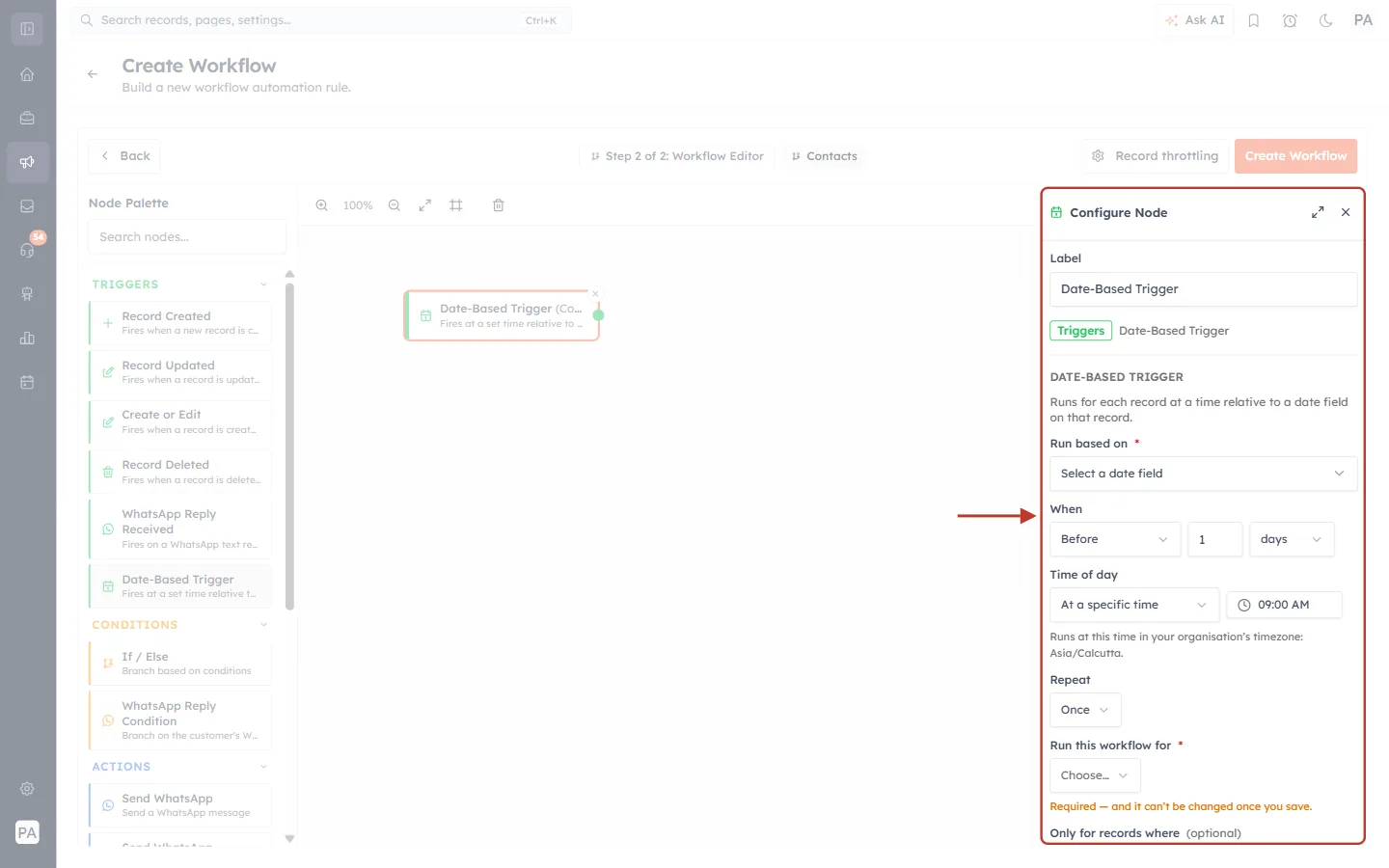
What this screenshot shows. The whole Configure Node panel for the trigger, before any settings are chosen.
Label: the node’s name on the canvas. You can rename it, for example to “On birthday”.
Triggers · Date-Based Trigger: confirms the node type.
DATE-BASED TRIGGER: “Runs for each record at a time relative to a date field on that record.”
Run based on *, When, Time of day, Repeat, Run this workflow for * and Only for records where: the settings explained in Steps 4 to 9. Fields marked * are required.
Expand (⤢) and close (×) icons at the top right of the panel: widen the panel or close it. Click the node again to reopen it.
Step 4: Run Based On – Pick the Date Field#
Click Select a date field under Run based on. The list shows only Date and Date-Time fields of the module; you can type in Search date fields… to narrow it. Choose the field that holds the date for each record. For the birthday example, choose Date of Birth.
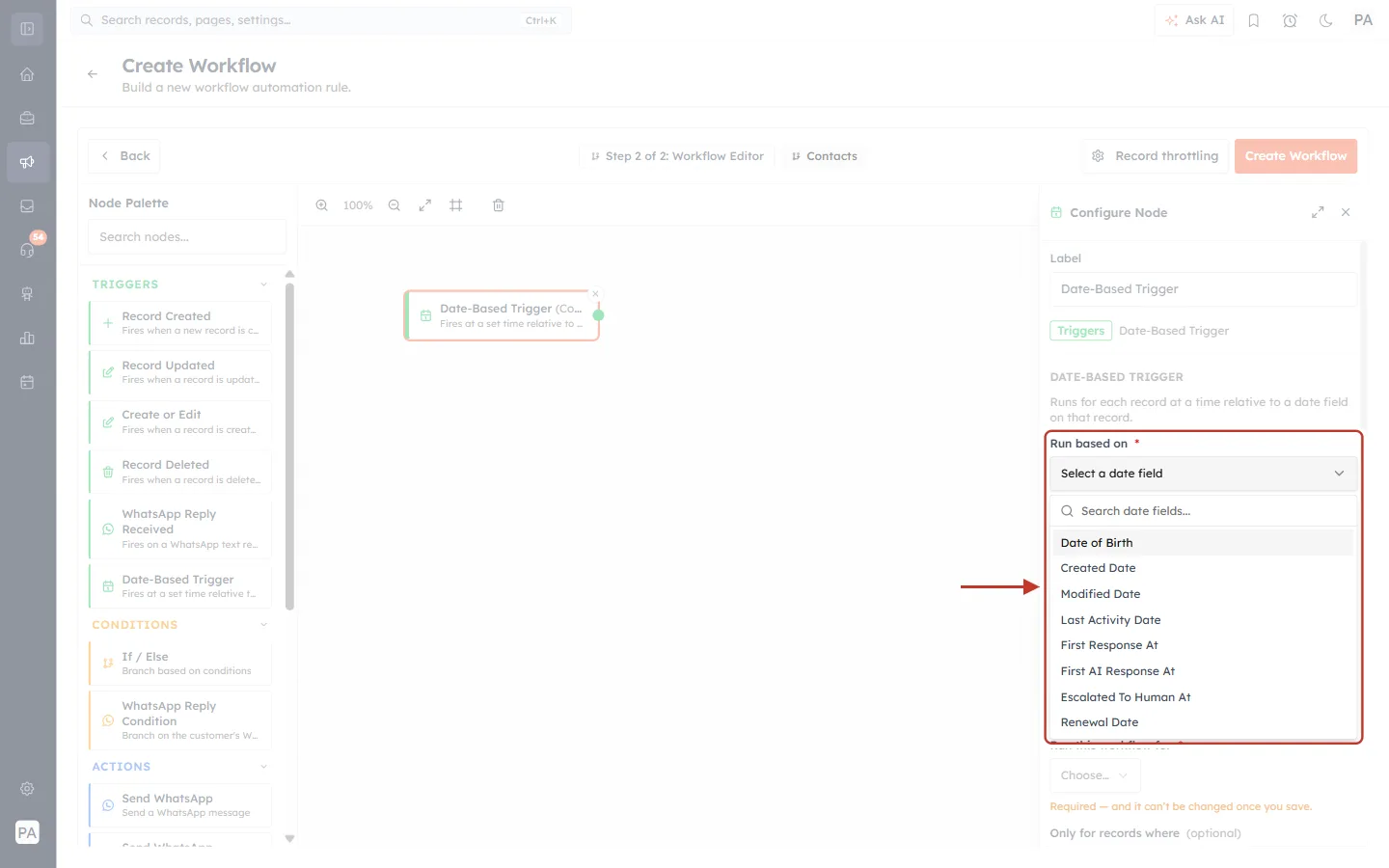
What this screenshot shows. The Run based on dropdown open, listing the date fields of the Contacts module.
Search date fields…: filters the list as you type.
Your own fields, such as Date of Birth and Renewal Date: custom date fields you created on the module.
System date fields, such as Created Date, Modified Date and Last Activity Date: filled in automatically by the CRM. They are useful for things like “30 days after the contact was created”.
Text, number and other field types are not listed, because the trigger needs a real date.
ℹ️
If the list is empty you will see “This module has no date or date-time field to anchor the schedule.” Add a Date field to the module (Setup → Modules and Fields) and come back.
Step 5: When – On, Before or After the Date#
The When setting moves the run day relative to the date in the field. Open the first dropdown and choose:
On the date: runs on the date itself. Use it for birthdays and anniversaries.
Before: runs a number of days before the date. Use it for reminders, such as 30 days before a renewal.
After: runs a number of days after the date. Use it for follow-ups, such as a thank-you 1 day after a visit.
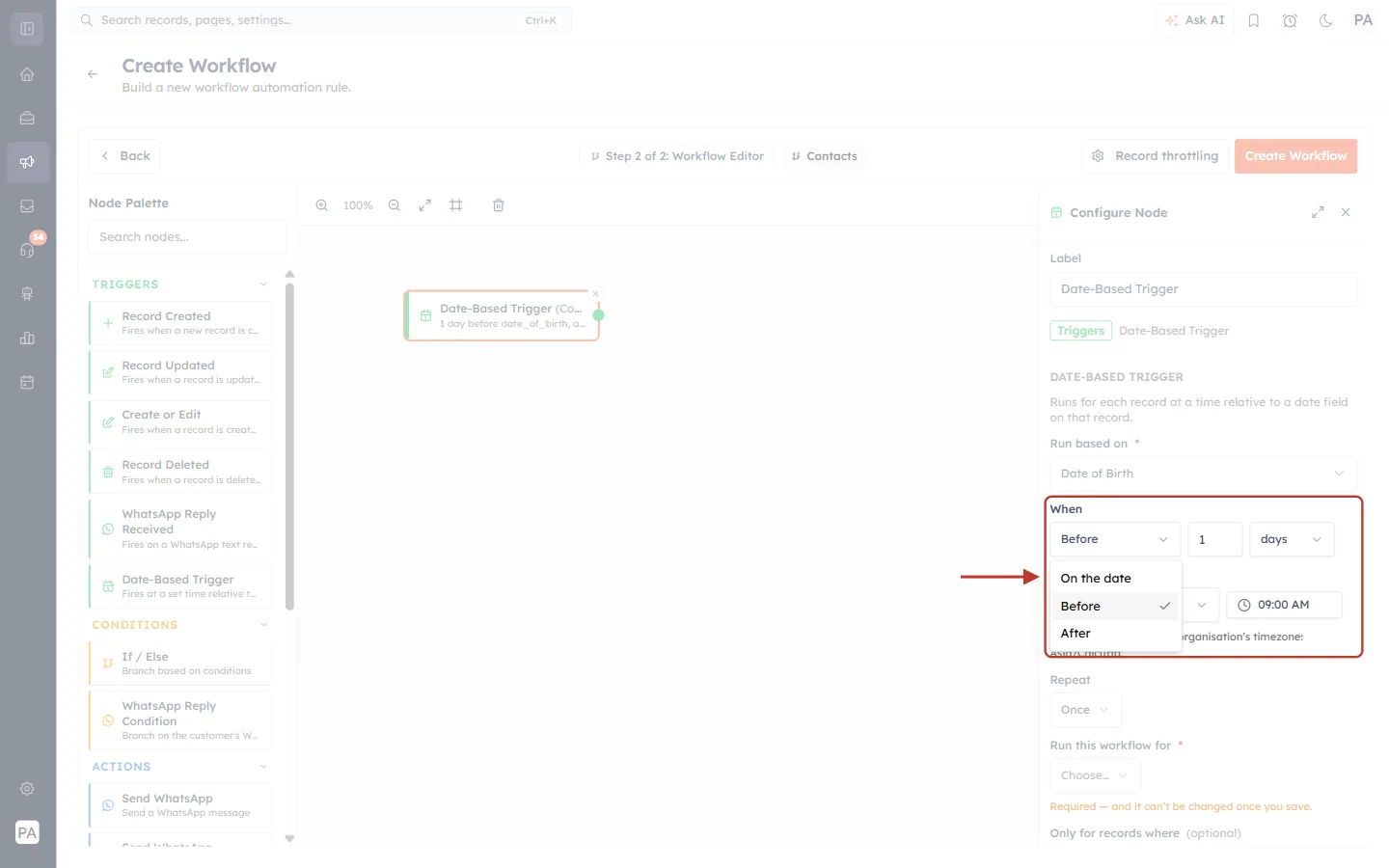
What this screenshot shows. The When dropdown open, with its three choices.
On the date / Before / After: the three ways to place the run relative to the date field. The tick shows the current choice (Before is the default).
Number box (1) and “days”: how many days before or after. They are only shown for Before and After.
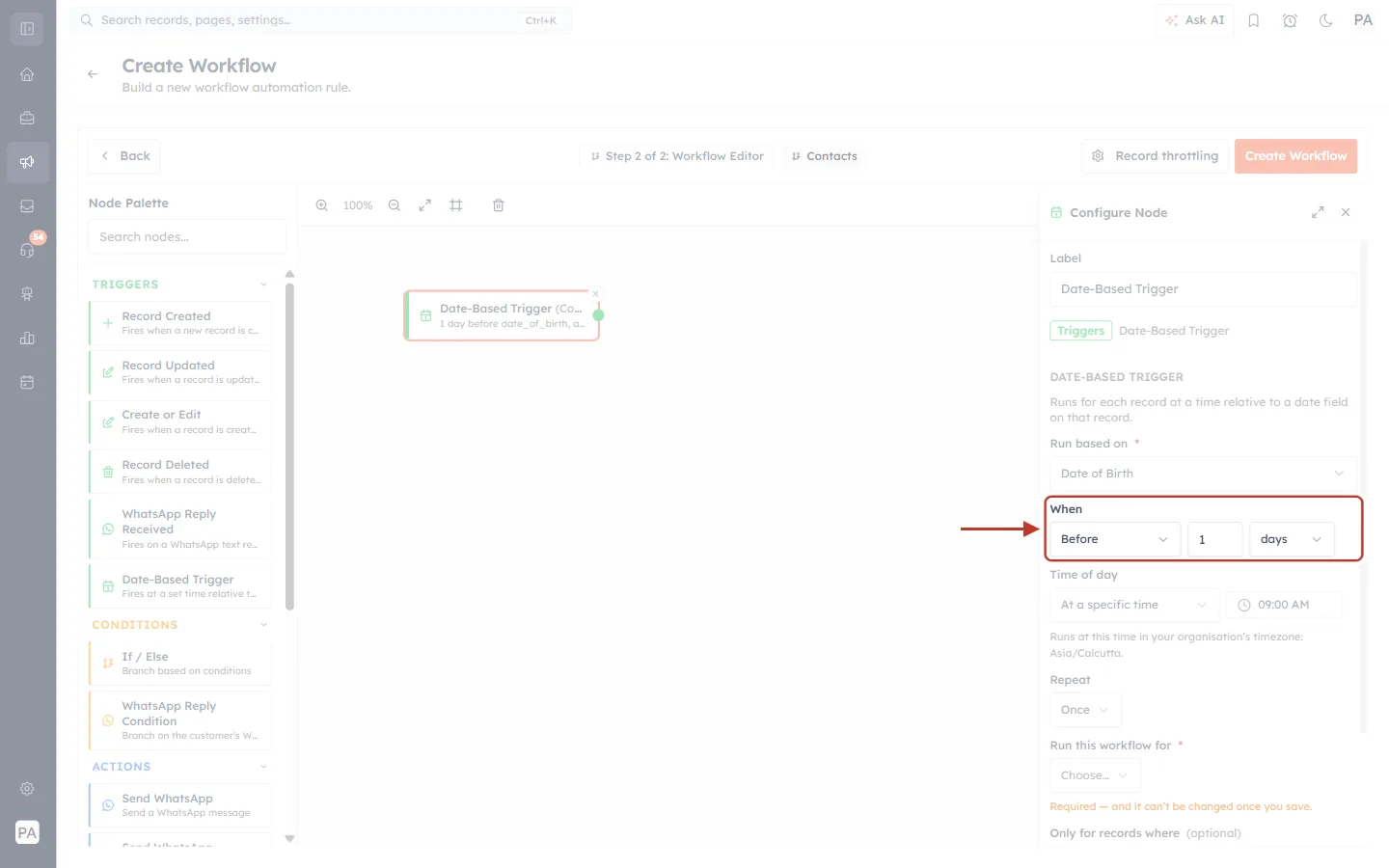
What this screenshot shows. The When row set to Before · 1 · days, which runs the workflow one day before the date.
Before: the direction.
1: the number of days. Type any whole number of 1 or more (for example 30 for a renewal reminder).
days: the offset is always counted in days.
The node on the canvas now reads “1 day before date_of_birth, at…”. The node shows the field’s internal name (here date_of_birth); the panel shows its label.
For the birthday example, set When back to On the date.
Step 6: Time of Day#
Next choose what time the workflow runs on that day.
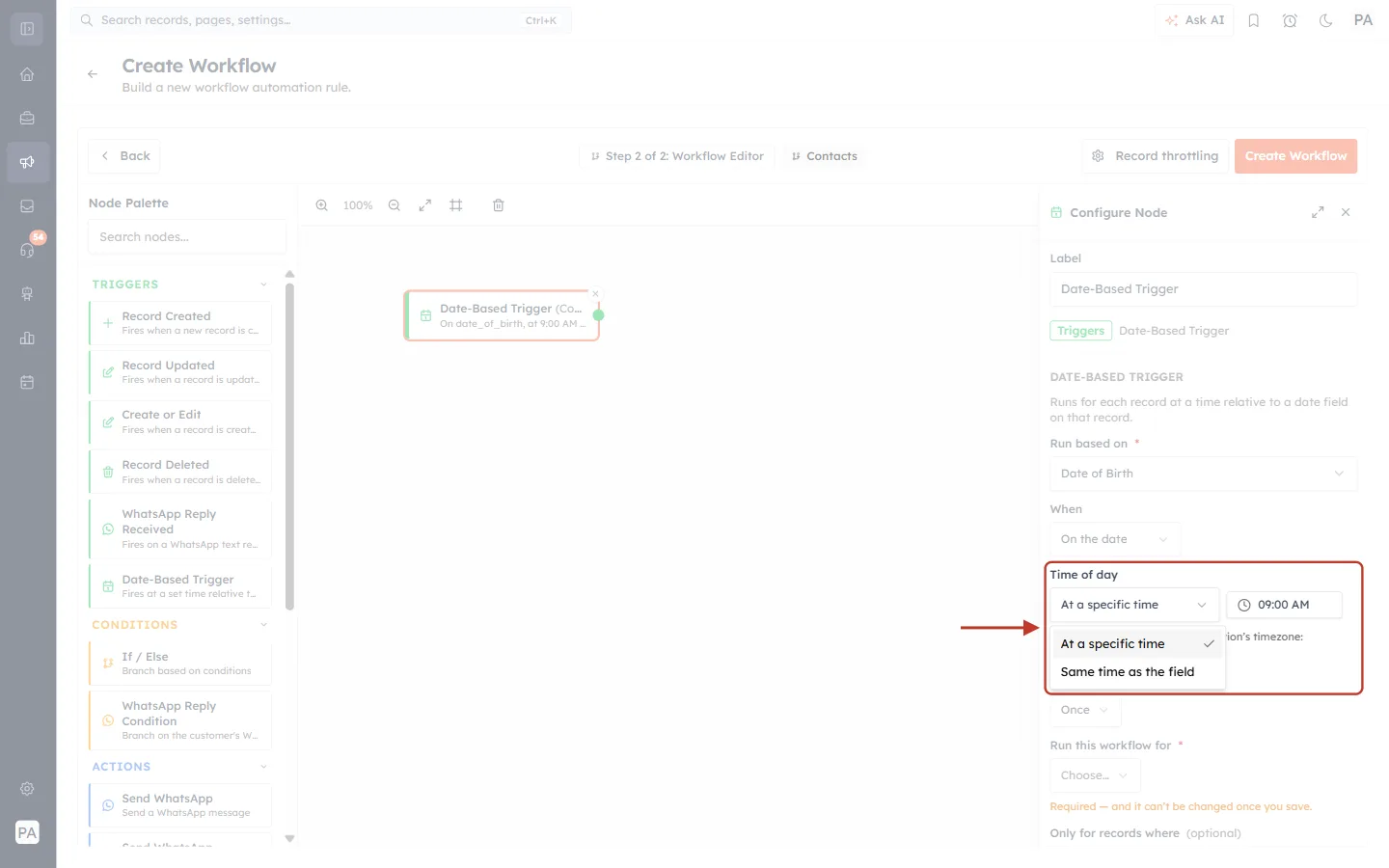
What this screenshot shows. The Time of day setting with its dropdown open.
At a specific time: runs at the time in the clock box next to it. The default is 09:00 AM; click the box to choose another time, in 15-minute steps.
Same time as the field: runs at the time stored in the field itself. Use it with a Date-Time field, for example to send something at the exact time of an appointment.
Timezone note under the setting: “Runs at this time in your organisation’s timezone”, followed by the timezone (here Asia/Calcutta).
⚠️
The time always follows your organisation’s timezone, not each customer’s. If the note shows UTC and that isn’t where your business is, set your organisation timezone in Settings first, or 9:00 AM may arrive in the middle of the night.
For the birthday example keep At a specific time · 09:00 AM.
Step 7: Repeat – Once or Every Week, Month or Year#
Repeat decides whether the workflow runs a single time for each record or keeps coming back.
Once (default): runs one time for each record, then stops. Good for a one-off reminder before a trial ends.
Every…: runs again on a regular schedule. Choose a number and a unit: weeks, months or years.
When you choose Every…, an Ends * setting appears, and it is required. Pick one:
On + Pick a date: stops repeating after that calendar date.
After + a number + times: stops after that many runs for each record (12 by default).
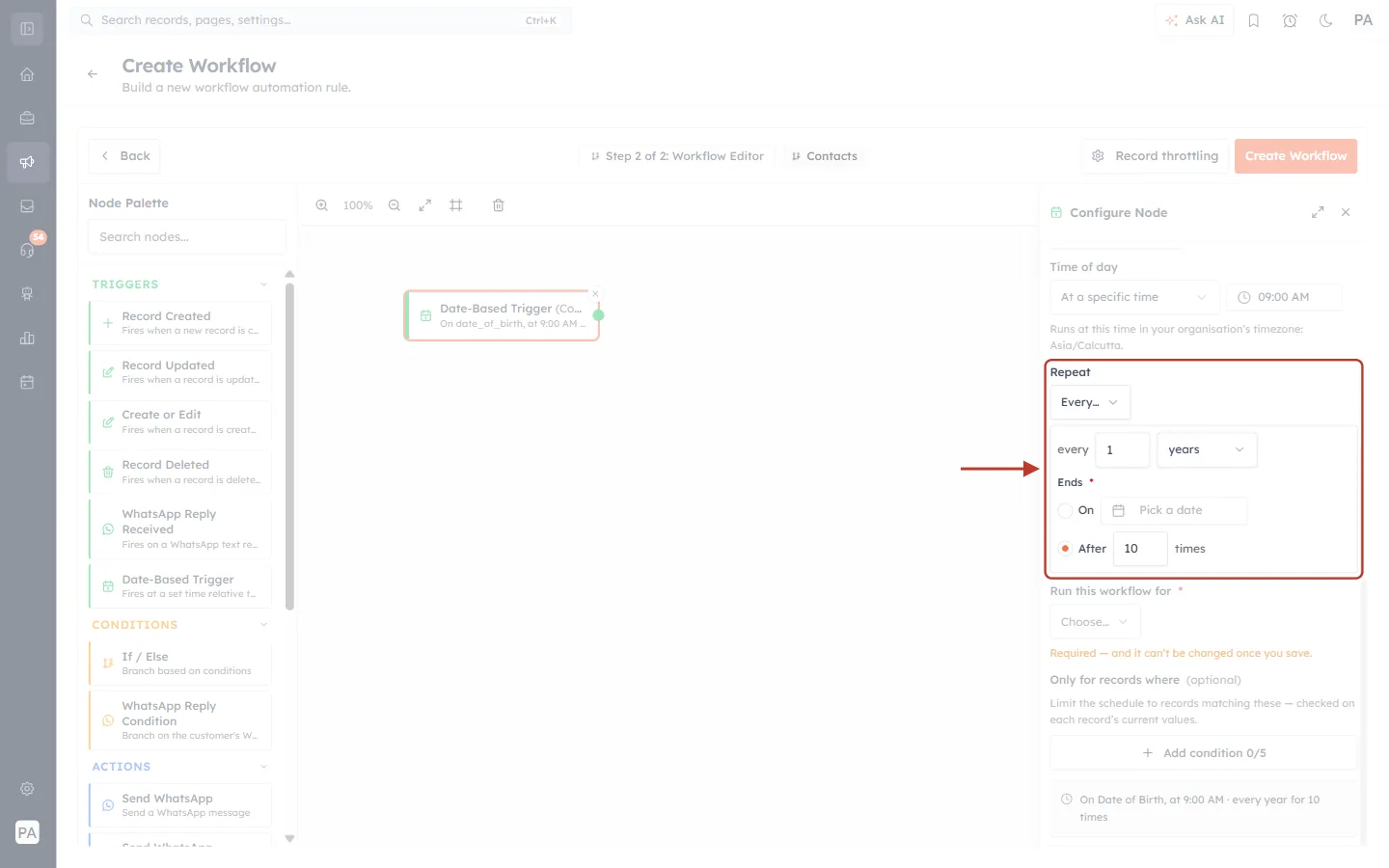
What this screenshot shows. The Repeat setting for the birthday example: Every… · every 1 years, Ends After 10 times.
Every…: turns on repeating.
every 1 years: the gap between runs. For birthdays this is one year, so the email comes back every birthday.
Ends *: the required end of the schedule. On (with a date picker) is not selected; After 10 times is selected, so each contact gets at most ten birthday emails from this workflow.
The node on the canvas now reads “On date_of_birth, at 9:00 AM…”.
⚠️
A repeating schedule must have an end and can repeat at most every 2 years (that is up to 104 weeks, 24 months or 2 years). If either rule is broken the panel shows “A recurring schedule needs an end — pick an end date or a number of times.” or “A recurring schedule can repeat at most every 2 years.”, and the workflow can’t be saved.
Step 8: Run This Workflow For – New Records Only or Existing Records Too#
This required setting decides which records get scheduled. Open Choose… and pick one:
Only new records from now on: only records created after you save the workflow are scheduled. Contacts already in your CRM are ignored.
Existing records too: records that are already in the CRM are scheduled as well as new ones. Choose this for birthdays, so every current contact gets their greeting.
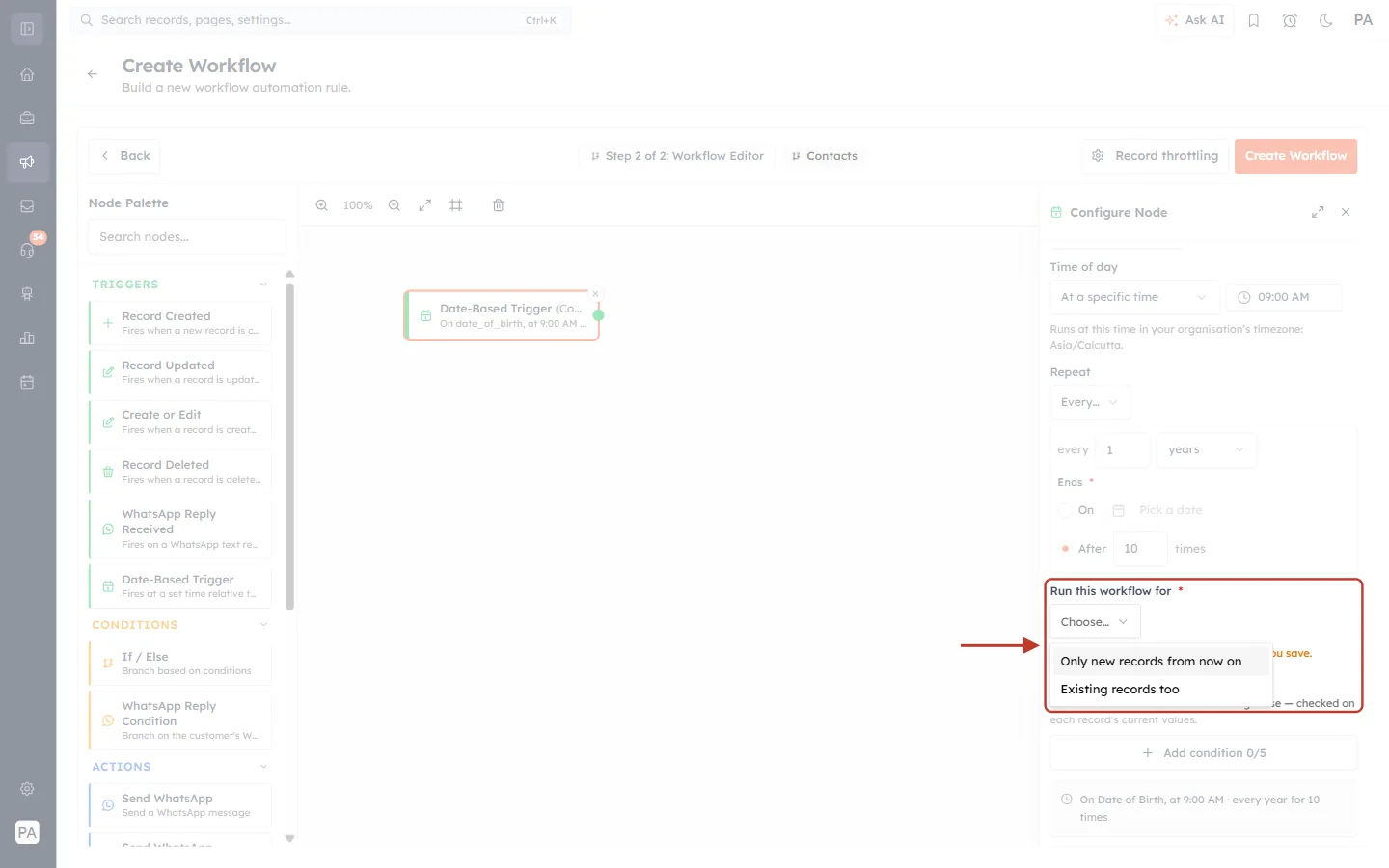
What this screenshot shows. The Run this workflow for * dropdown open, showing both choices.
Choose…: nothing is selected yet. The workflow can’t be saved until you choose.
Only new records from now on and Existing records too: the two choices explained above.
Orange note (partly behind the list): “Required — and it can’t be changed once you save.”
⚠️
Think before you save: this choice can’t be changed later. After saving, the setting shows “Locked — this can’t be changed after the workflow is saved.” (see Step 13). If you need the other option, create a new workflow.
Step 9: Only for Records Where (Optional Conditions)#
Use Only for records where to limit the schedule to records that match up to five conditions. The conditions are “checked on each record’s current values”, so a record that stops matching (for example someone clears the email address) is skipped.
Click + Add condition 0/5.
Under Condition 1, click Select field and choose a field. For the birthday example choose Email.
Click Condition and choose an operator. Choose is not empty, so only contacts with an email address are scheduled.
If the operator needs a value (for example is or greater than), enter it in the box that appears.
To add more rules, click + Add condition again. With two or more, choose Match all of these conditions (every rule must be true) or Match any (one is enough).
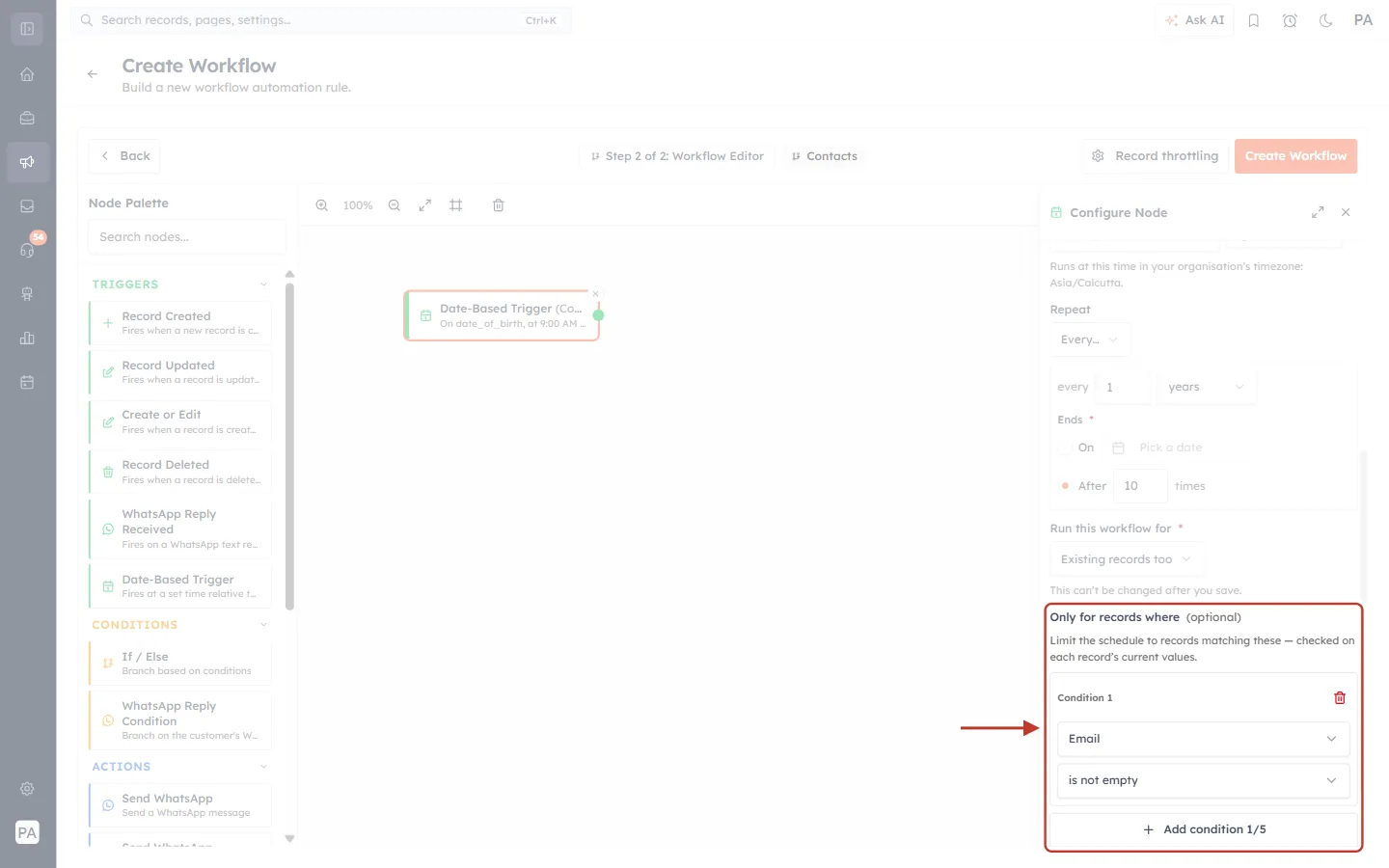
What this screenshot shows. The Only for records where (optional) section with one condition: Email · is not empty.
Explanation line: “Limit the schedule to records matching these — checked on each record’s current values.”
Condition 1: the field (Email) and the operator (is not empty). The red bin icon deletes the condition.
+ Add condition 1/5: adds another rule; the counter shows you have used one of five.
✅
Use conditions to keep the workflow focused: for example Lead Status is Customer for a renewal reminder, so leads who haven’t bought yet are left out.
Step 10: Check the Schedule Summary#
At the bottom of the panel, next to a clock icon, AiEngage CRM writes your schedule out in plain words. Read it before you continue: it is the quickest way to spot a mistake.
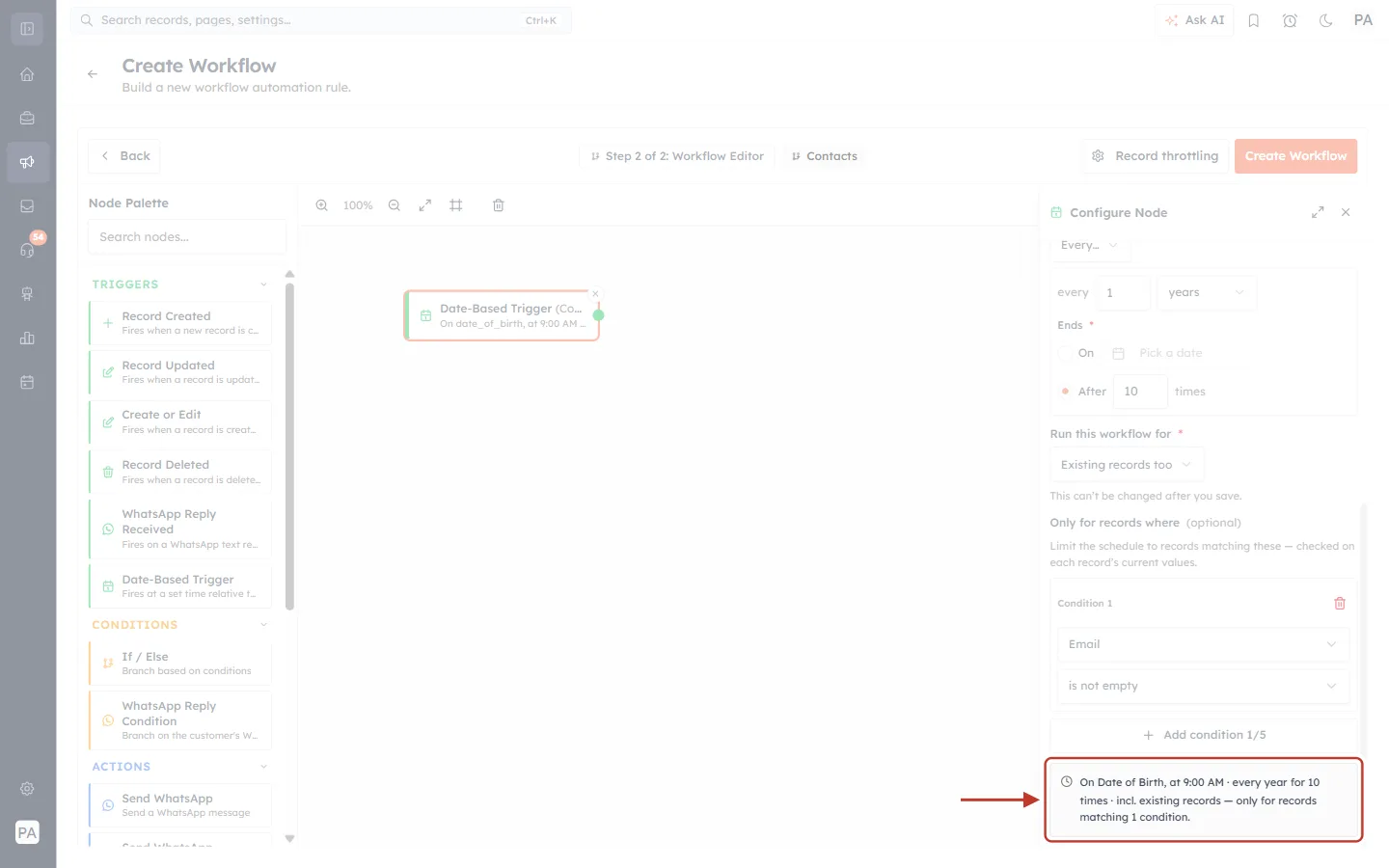
What this screenshot shows. The schedule summary for the birthday example.
“On Date of Birth, at 9:00 AM”: the date field, the When and the Time of day.
“every year for 10 times”: the Repeat and Ends settings.
“incl. existing records”: Run this workflow for is set to Existing records too (it would say “new records only” otherwise).
“only for records matching 1 condition”: one condition is set under Only for records where.
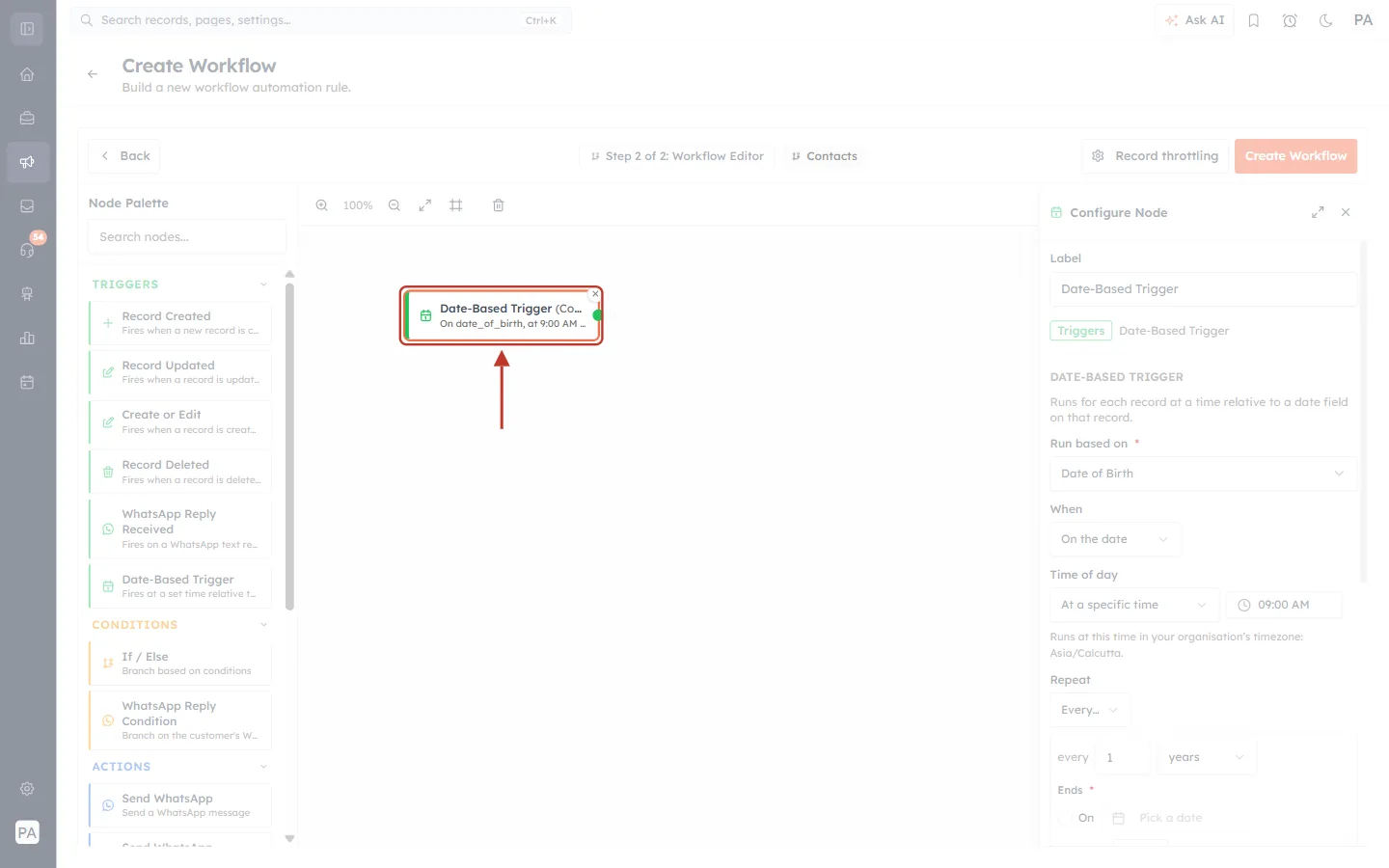
What this screenshot shows. The trigger node on the canvas after it has been configured.
Second line of the node: a short version of the summary (“On date_of_birth, at 9:00 AM…”), so you can read the schedule without opening the panel.
Hover over or click the node to see or change the full settings.
Step 11: Add the Action – Send the Birthday Email#
A trigger only decides when; the actions decide what happens. In the palette under ACTIONS, drag Send Email onto the canvas below the trigger. Then connect them: press on the trigger’s green dot on its right edge and drag the line to the blue dot on the left edge of Send Email.
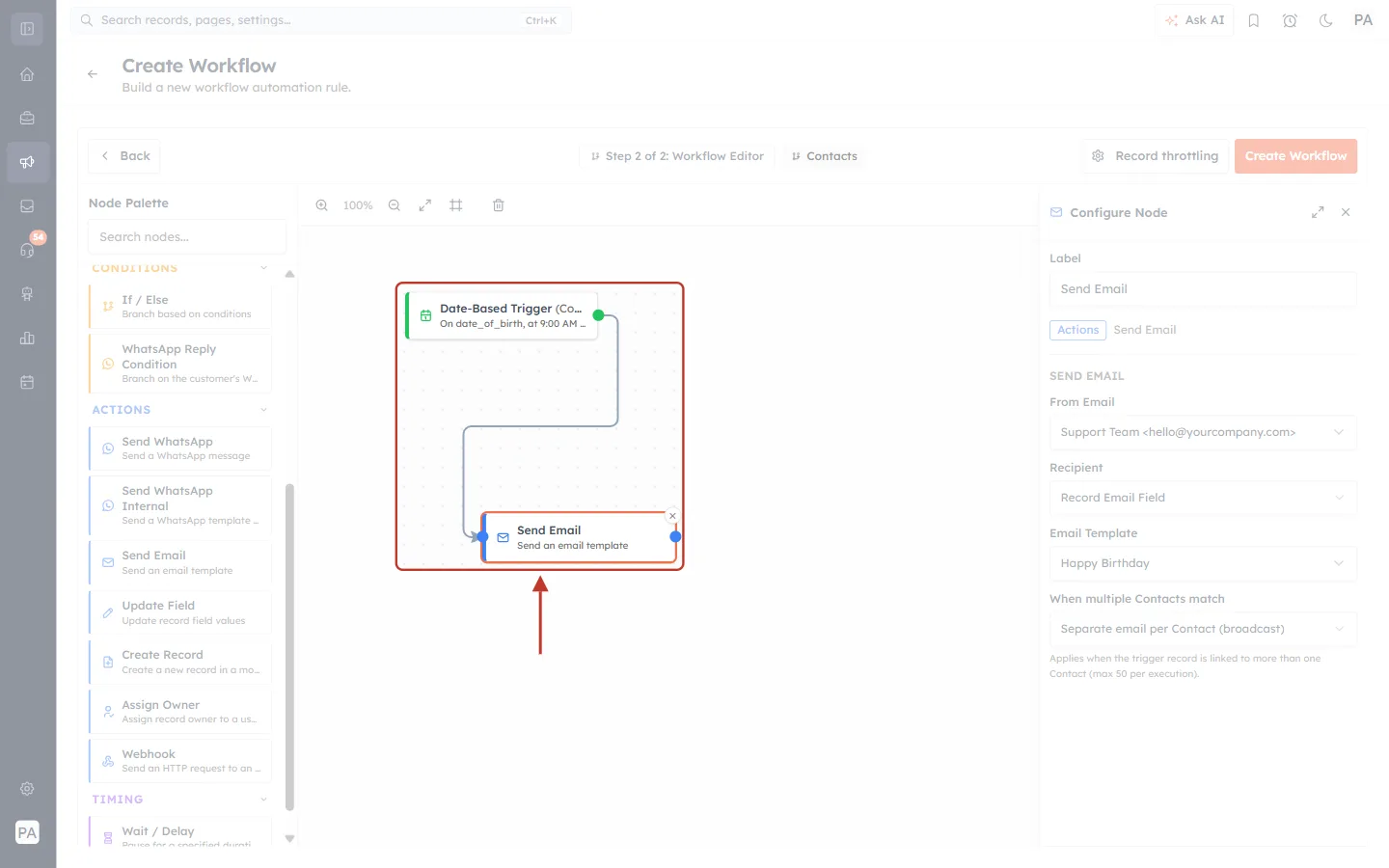
What this screenshot shows. The finished flow: Date-Based Trigger connected to Send Email.
Date-Based Trigger (green edge): the schedule from Steps 4 to 9.
Connecting line: runs from the trigger’s green output dot to the action’s blue input dot. Every node must be connected, or the workflow can’t be saved.
Send Email (blue edge): the action that runs for each contact at the scheduled time.
Palette on the left: now scrolled to ACTIONS, where you can also find Send WhatsApp, Update Field, Create Record, Assign Owner, Webhook and, under TIMING, Wait / Delay.
Click the Send Email node to configure it:
From Email: the sender account the email is sent from.
Recipient: Record Email Field sends it to the contact’s own email address. (Other choices are Record Owner, Custom Email and Internal Team Members.)
Email Template: the template to send, here Happy Birthday.
When multiple Contacts match: leave Separate email per Contact (broadcast). It only matters when the trigger record is linked to more than one contact (maximum 50 per execution).
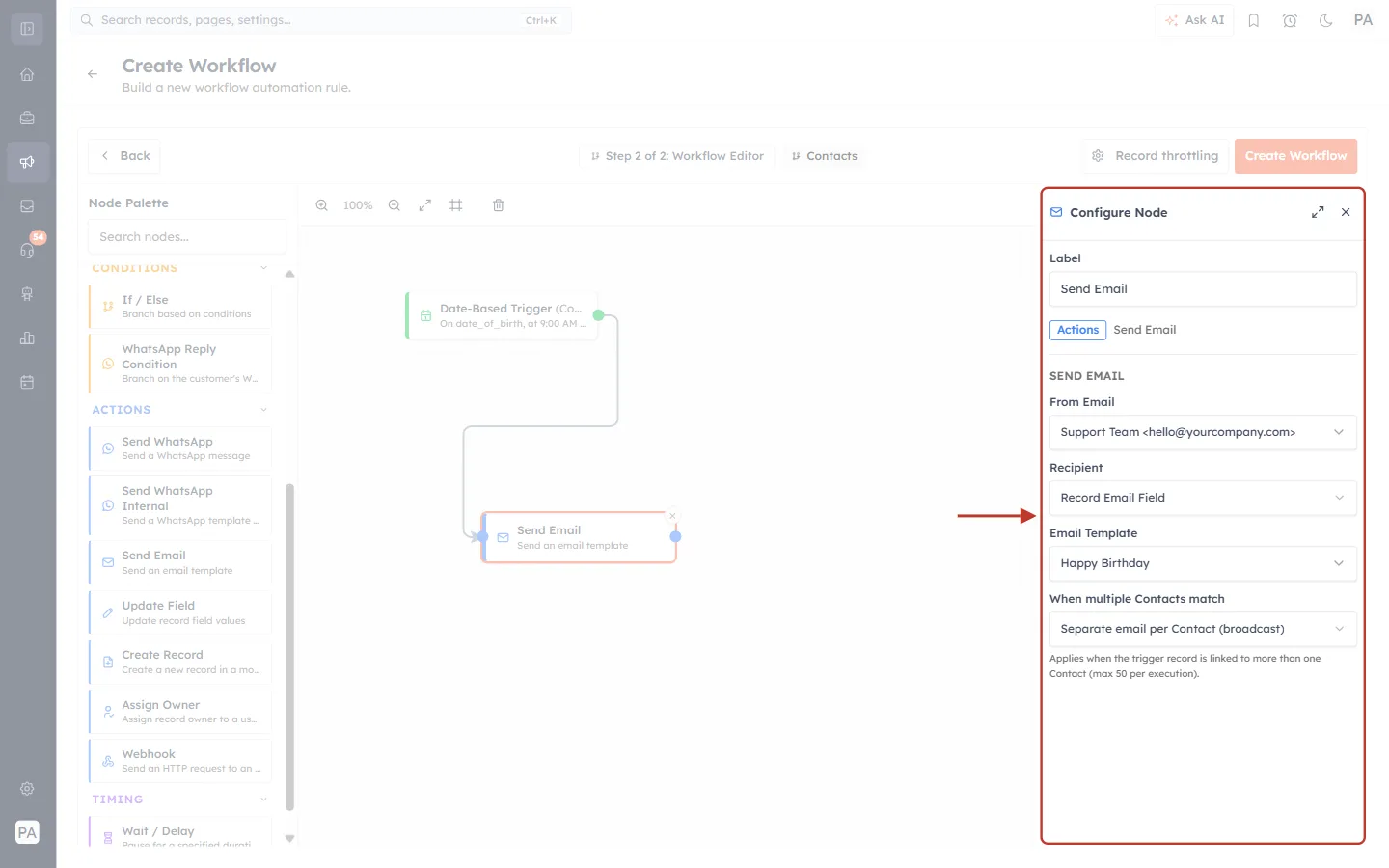
What this screenshot shows. The Configure Node panel for Send Email, filled in for the birthday example.
Label and Actions · Send Email: the node’s name and type.
From Email: “Support Team <hello@yourcompany.com>” (your own connected sender appears here).
Recipient: Record Email Field, the contact’s email.
Email Template: Happy Birthday.
When multiple Contacts match: Separate email per Contact (broadcast), with the note about linked contacts underneath.
ℹ️
You can add more steps after the email, for example a Send WhatsApp greeting, or an Update Field action that records “Birthday email sent”. See Workflow Actions Explained: Email, WhatsApp, Fields, Records & Owners for every action.
Step 12: Save the Workflow and Switch It On#
Click Create Workflow at the top right of the editor.
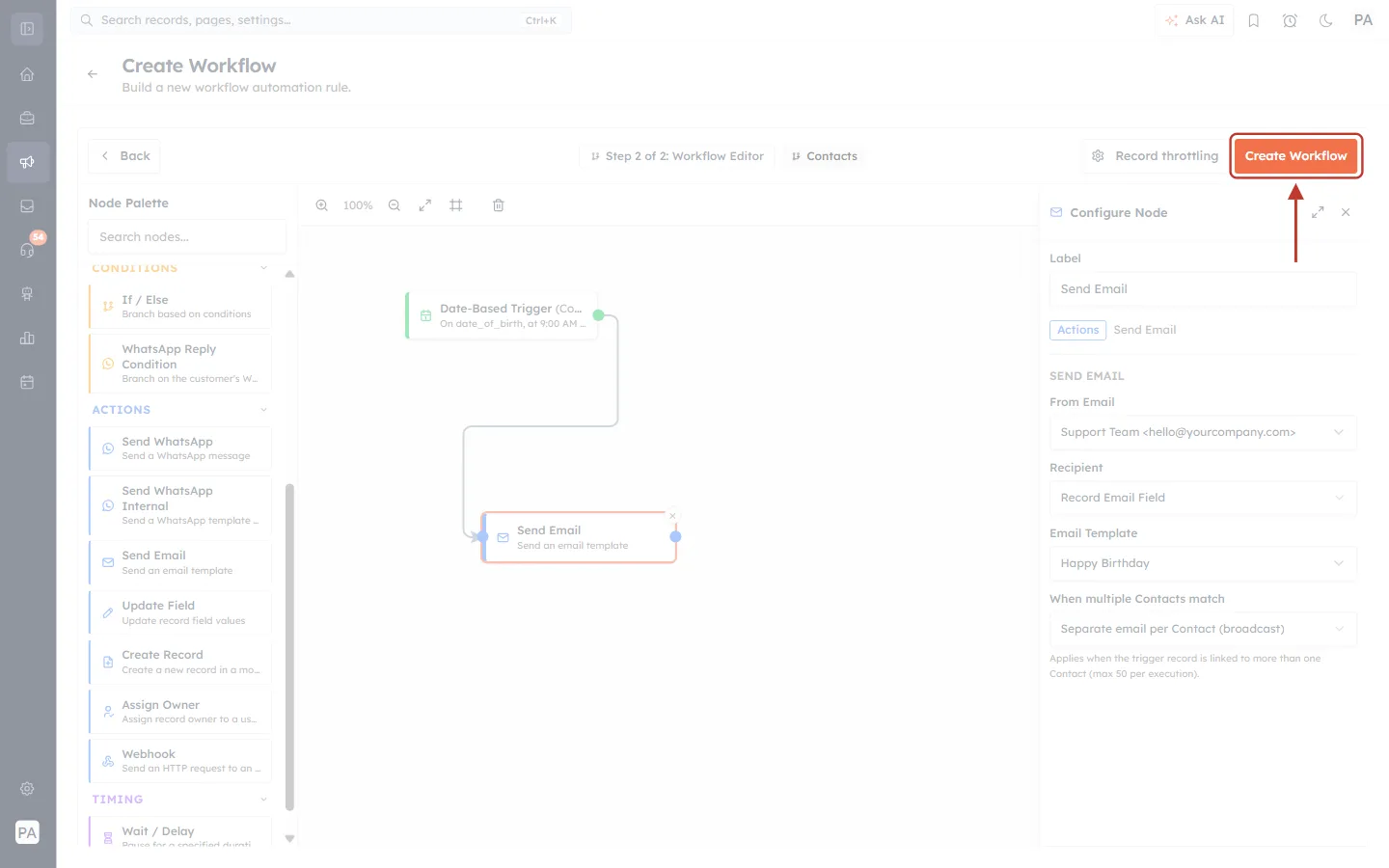
What this screenshot shows. The editor ready to save, with the Create Workflow button highlighted.
Create Workflow (highlighted): checks the workflow and saves it.
Record throttling (next to it): optional limits on how many records the workflow handles at once or per period. See Contact Throttling & Workflow Enrollment.
Configure Node panel: still shows the Send Email settings from Step 11.
Before saving, AiEngage CRM checks the trigger. If something is missing, a message names the node and the problem, and nothing is saved:
Message | What to do |
|---|---|
“Please select the date field to schedule on” | Choose a field under Run based on (Step 4). |
“Choose whether this runs for new records only or existing records too” | Choose an option under Run this workflow for (Step 8). |
“A recurring schedule must end on a date or after a number of occurrences” | Under Repeat → Ends, pick a date or enter a number of times (Step 7). |
“A recurring schedule can repeat at most every 2 years” | Lower the repeat number (Step 7). |
“All nodes must be connected before saving” | Connect every action to the trigger (Step 11). |
Once saved, you return to the Workflow Automation list, and your workflow is at the top.
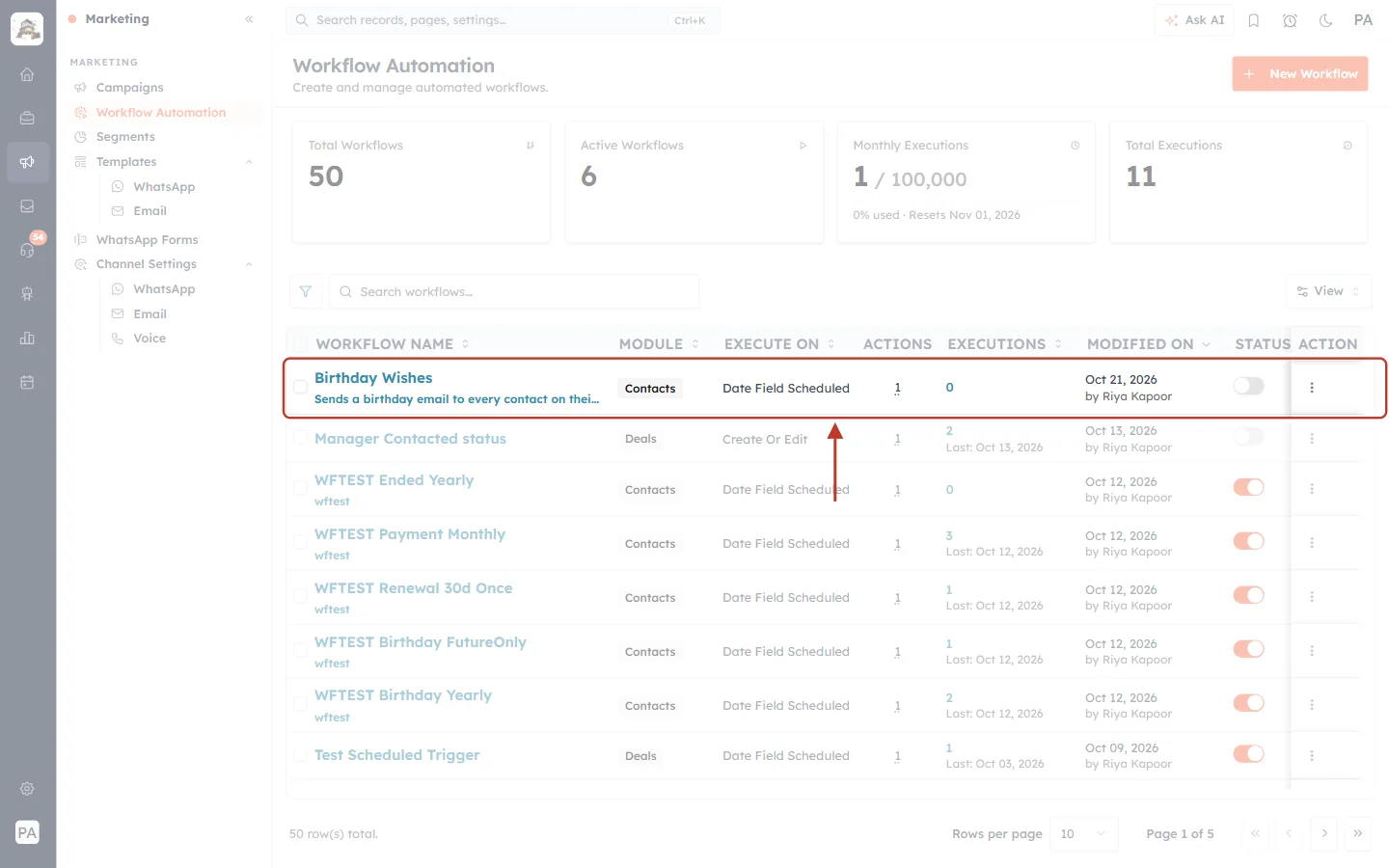
What this screenshot shows. The workflow list after saving, with the new Birthday Wishes row highlighted.
Workflow name and description: “Birthday Wishes” with its description underneath.
Module: Contacts.
Execute On: Date Field Scheduled, the list’s name for the Date-Based Trigger.
Actions: 1 (the Send Email step) and Executions: 0, because no birthday has come round yet.
Modified On: today’s date and who saved it.
Status: the switch is off. A new workflow is saved switched off.
A new workflow is saved switched off, so nothing is sent until you are ready. When you have checked everything, click the Status switch on the workflow’s row to turn it on (it turns orange).
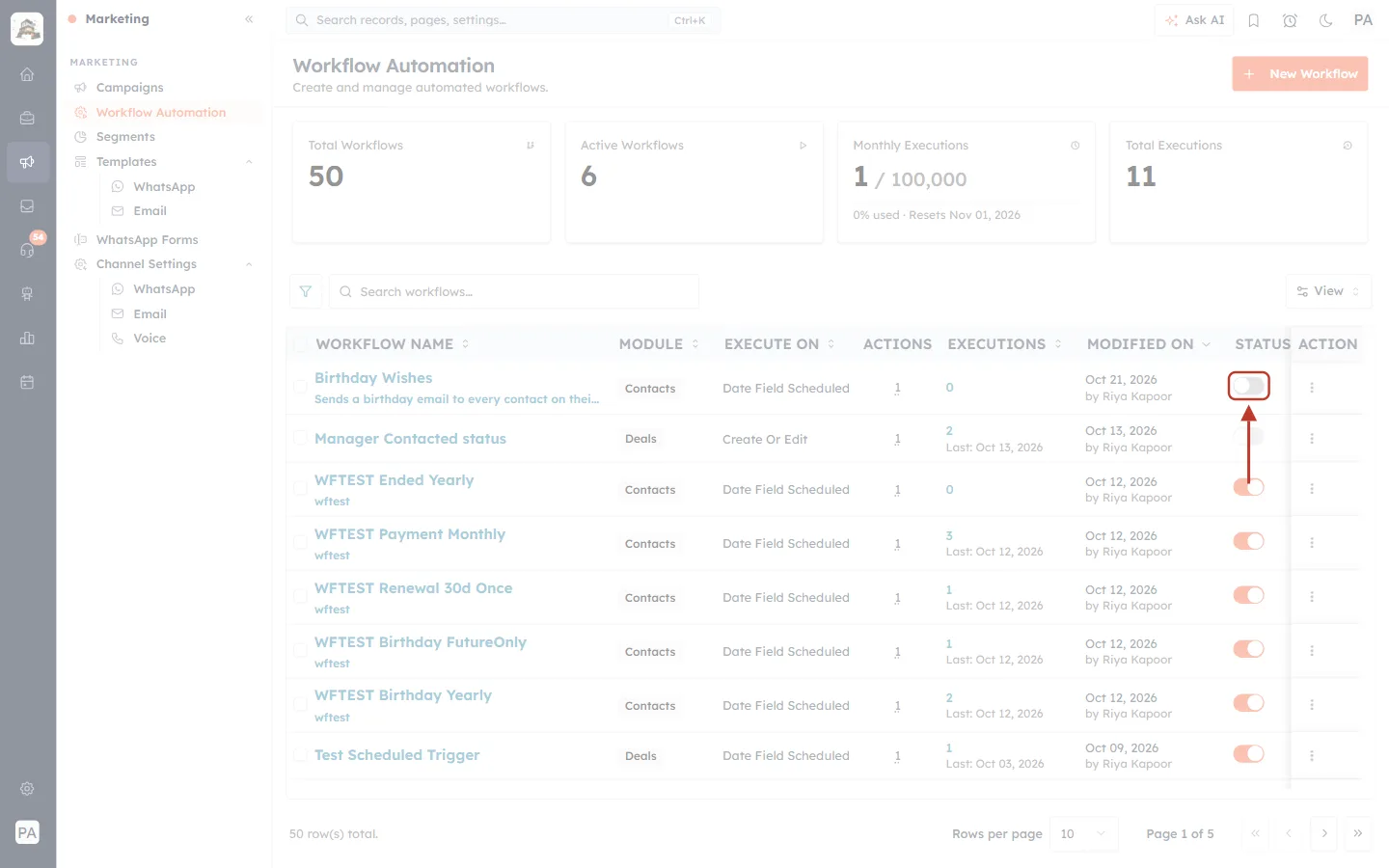
What this screenshot shows. The Status switch for Birthday Wishes, still off (grey).
Grey switch (highlighted): the workflow is off and nothing is scheduled to run.
Orange switches on other rows: those workflows are on.
⋮ (Action) at the end of the row: more options for the workflow, such as viewing its report.
✅
Want to test first? Create a test contact with your own email address and a Date of Birth a few days away, set When to Before the right number of days so it runs soon, switch the workflow on and check that the email arrives. Then change the settings back.
Step 13: Edit the Workflow Later#
To change the workflow, click its name in the list. The editor opens as Edit: Birthday Wishes. Click the trigger node to see its settings. You can change the date field, the timing, the repeat and the conditions, then click Save Changes. The View Report button at the top right shows how the workflow has run (see Monitor Workflows: Reports, Status and Execution History).
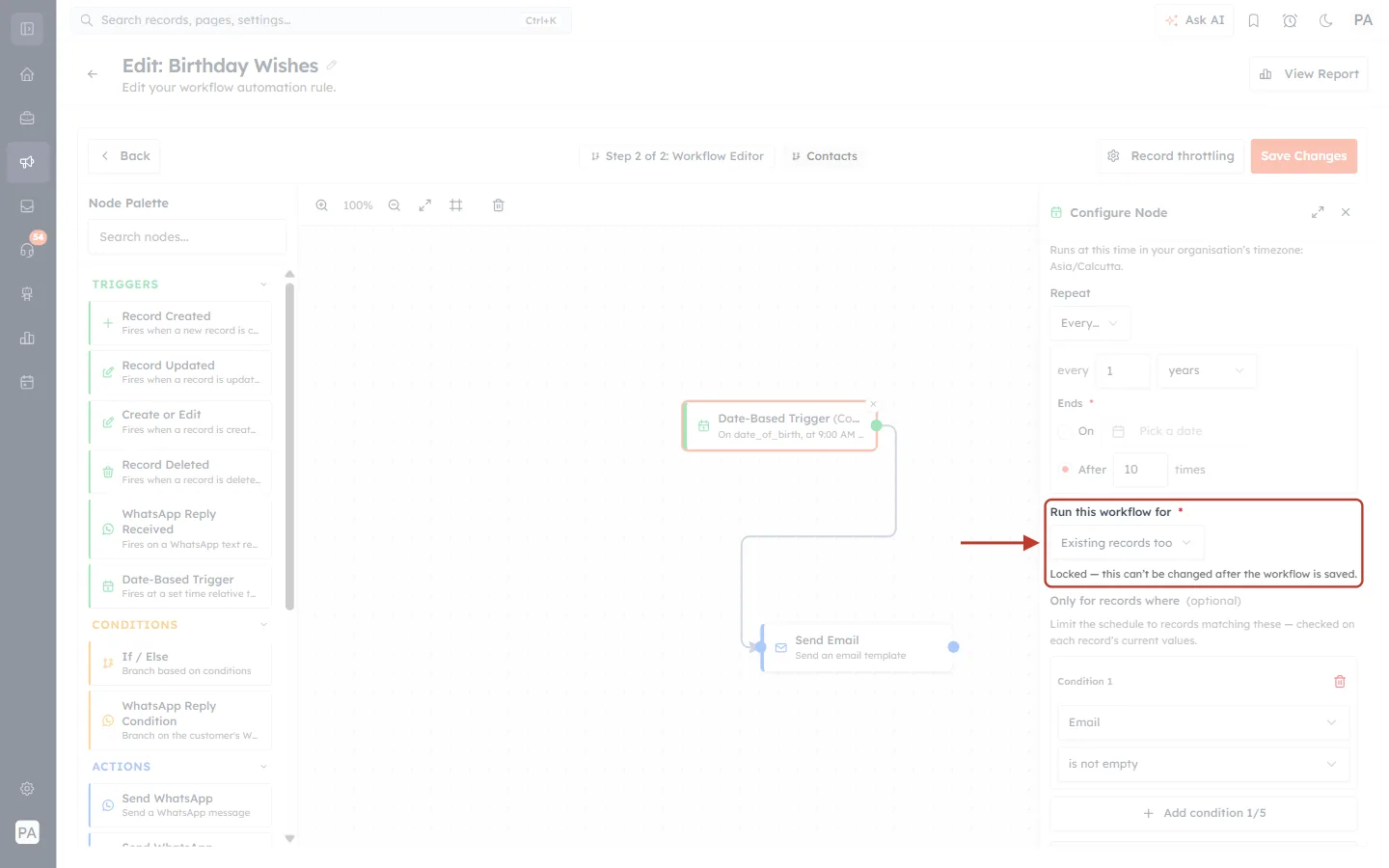
What this screenshot shows. The trigger settings of a saved workflow, with Run this workflow for highlighted.
Page title: Edit: Birthday Wishes, with View Report at the top right and Save Changes in the editor bar.
Run this workflow for (highlighted): shows Existing records too and can’t be opened. The note reads “Locked — this can’t be changed after the workflow is saved.”
Repeat and Only for records where: still editable.
Canvas: the trigger connected to Send Email.
Quick Reference#
Setting | Options | Notes |
|---|---|---|
Run based on * | Any Date or Date-Time field of the module | Includes system dates such as Created Date |
When | On the date · Before N days · After N days | Offset is counted in days (1 or more) |
Time of day | At a specific time · Same time as the field | Organisation timezone; 15-minute steps |
Repeat | Once · Every N weeks / months / years | Needs an end (On a date, or After N times); at most every 2 years |
Run this workflow for * | Only new records from now on · Existing records too | Locked after the first save |
Only for records where | Up to 5 conditions, Match all / any | Checked on each record’s current values |
Best Practices#
Keep your date fields clean. The trigger can only schedule records whose date field is filled in. Records with an empty date aren’t scheduled.
Pick a sensible time. Morning sends (9–11 AM in your organisation’s timezone) usually get the best response.
Always add a “has email” or “has phone” condition when the action sends a message, so the workflow doesn’t try records it can’t reach.
Use Before for reminders and After for follow-ups. For example 30 days before a renewal, and 1 day after a site visit.
Give the trigger a clear Label, such as “30 days before renewal”, so the canvas explains itself.
Decide on “Existing records too” before saving, because it can’t be changed later.
Check the report after the first scheduled day to confirm the workflow ran as expected.
Troubleshooting#
My date field isn’t in the “Run based on” list#
Only fields of type Date or Date-Time are listed. A date typed into a text field won’t appear. Also check that you chose the right Target Module in Step 2.
The workflow didn’t run for some records#
Check that the workflow’s Status is on, that those records have a value in the date field, and that they match your Only for records where conditions. If you chose Only new records from now on, records that existed before you saved the workflow are not included.
The workflow ran at the wrong hour#
The time follows your organisation’s timezone, shown under Time of day. Correct the organisation timezone in Settings, or change the time.
I can’t change “Run this workflow for”#
That is expected: it is locked once the workflow is saved. Create a new workflow with the option you need, and switch the old one off.
I see “Unlock More Date-Based Triggers”#
Your plan allows a limited number of date-based trigger workflows and you have reached it. Switch off or delete one you no longer need, or upgrade your plan for more date-based workflows.
Frequently Asked Questions#
Can I use a date-time field?
Yes. Both Date and Date-Time fields are listed. With a Date-Time field you can also choose Same time as the field.
Can the offset be in hours or weeks?
The When offset is always in days. For 2 weeks before, enter 14 days. To wait a few hours after the trigger, add a Wait / Delay step (see Workflow Delays & Timing: Building Sequences with Wait Steps).
How do I run something every year, like a birthday?
Set Repeat to Every… 1 years and choose when it ends, either a date or a number of times.
Can I branch the workflow, for example VIP customers get a different email?
Yes. Add an If / Else node after the trigger and connect different actions to its Yes and No outputs. See Workflow Conditions & Branching: The If / Else Node.
Does the trigger work on modules other than Contacts?
Yes. It works on any module that has a Date or Date-Time field, such as Deals, Companies or your own custom modules.
Previous and Next#
Related Articles#
Was this article helpful?
Ready to implement this?
OpenAI Engage and apply what you just learned to your own workspace.
Open AI Engage CRM