Loading…


KnowledgeBase
Introduction to Workflow Automation
What is Workflow Automation?#
A workflow is a rule that tells the CRM: "When this happens, do that — automatically." You build it once and the CRM runs it for you, day and night, without anyone on your team lifting a finger.
A simple example#
Without a workflow: a new contact signs up on your website → someone notices → they manually assign a sales rep → the rep is busy so the lead sits for two days → the lead goes cold.
With a workflow: a new contact signs up → the CRM immediately assigns them to the next rep in rotation, sends a welcome email, and can wait a set time before the next step → the lead is contacted the same day.
The four building blocks#
Every workflow is built on a visual canvas from four kinds of blocks (called "nodes"):
Triggers — the event that starts the workflow (for example, a record is created). Every workflow has exactly one trigger.
Conditions — an If / Else block that splits the workflow into a "True" path and a "False" path based on the record's data.
Actions — what the workflow actually does: send an email or WhatsApp message, update a field, create a record, or assign an owner.
Timing — a Wait / Delay block that pauses the workflow for minutes, hours, or days before the next step.
💡
You arrange these blocks on a canvas and connect them together — trigger first, then any mix of conditions, actions, and waits flowing from it. This is called the workflow definition.
What can a workflow do?#
The actions available today are:
Send Email — using one of your email templates
Send WhatsApp — using an approved WhatsApp template
Update Field — change a field value on the record (e.g. set Status to "Contacted")
Create Record — create a new record in any module (for example, a follow-up task)
Assign Owner — assign the record to a specific user or round-robin across a team
Wait / Delay — pause before the next step to build timed sequences
💡
Workflows can be built on any module — Contacts, Leads, Deals, Companies, Tasks, and more. You pick the target module when you create the workflow.
Where to find Workflows#
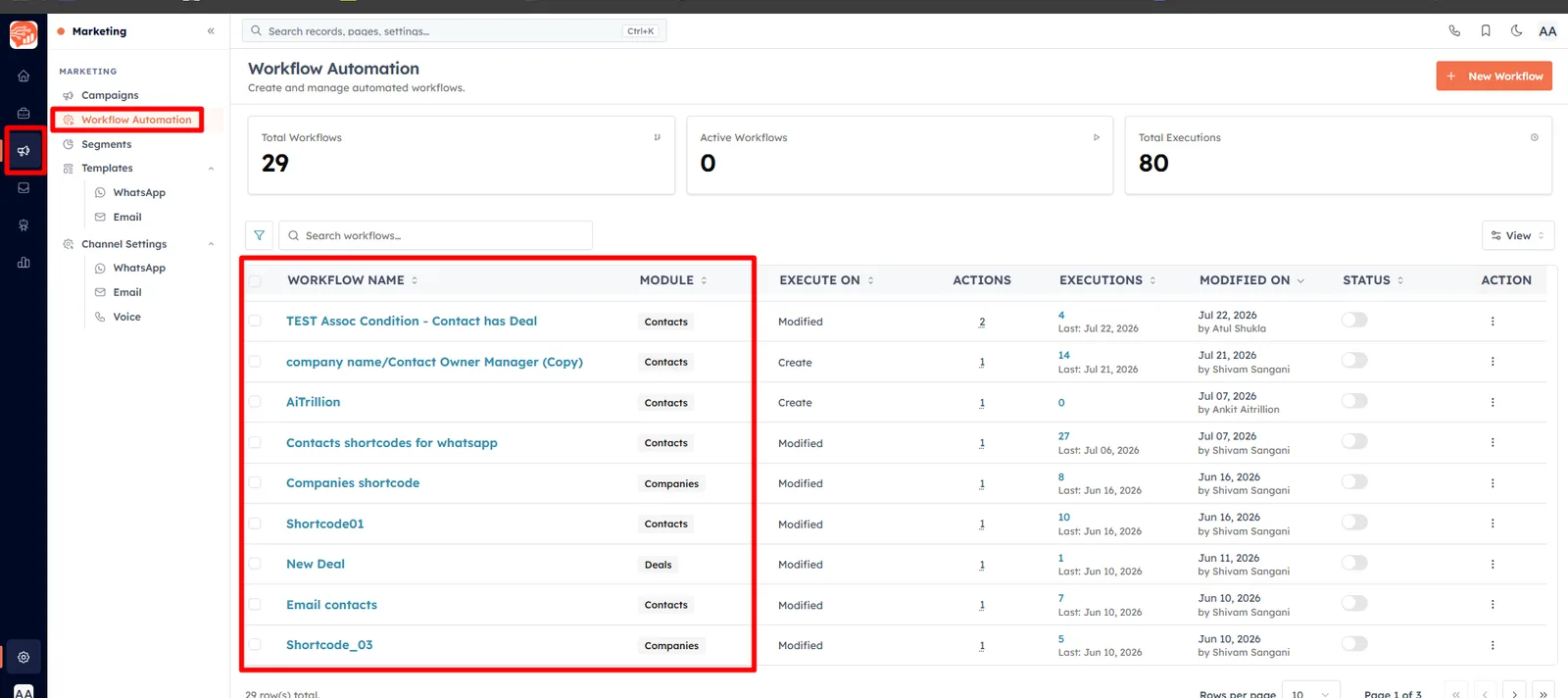
Go to Settings → Workflow Automation in the CRM. The list shows every workflow with its target module, status, how many times it has run, and its email/WhatsApp performance at a glance.
💡
Next: How to Create a Workflow — build your first one on the visual canvas.
Was this article helpful?
Ready to implement this?
OpenAI Engage and apply what you just learned to your own workspace.
Open AI Engage CRM