Loading…


KnowledgeBase
The Task Board (Kanban for Tasks): Sections, Moving and Creating Tasks on Your Dashboard (Step-by-Step)
Introduction#
A long list of tasks makes it hard to see what is waiting, what is underway and what is finished. The Task Board, called Task Kanban Board in the app, shows your tasks as cards in three sections (columns), so you can see your whole workload at a glance:
Section | Means | Task Status |
|---|---|---|
To Do | Not started yet | Not Started |
In Progress | You are working on it | In Progress |
Done | Finished | Completed |
To move a task forward, drag its card into the next section, and its status is updated for you. You can also create, edit and delete tasks right on the board.
The Task Board is a dashboard widget. You add it to any dashboard once, and it stays there. Every screenshot below uses sample tasks and is followed by a description of the whole screen, so you can match it with your own.
Before You Begin#
The board shows your own tasks: the same tasks you see under My Tasks in the Tasks module.
You need to be able to edit the dashboard you add it to (for example, a dashboard you created). See Dashboards & Report Components.
Moving, creating, editing and deleting tasks follows your usual task permissions.
For the basics of tasks themselves, see Create and Complete Tasks.
Part 1: Add the Task Board to a Dashboard#
Step 1: Open Dashboards#
In the left menu, under ANALYTICS & REPORTS, click Dashboards.
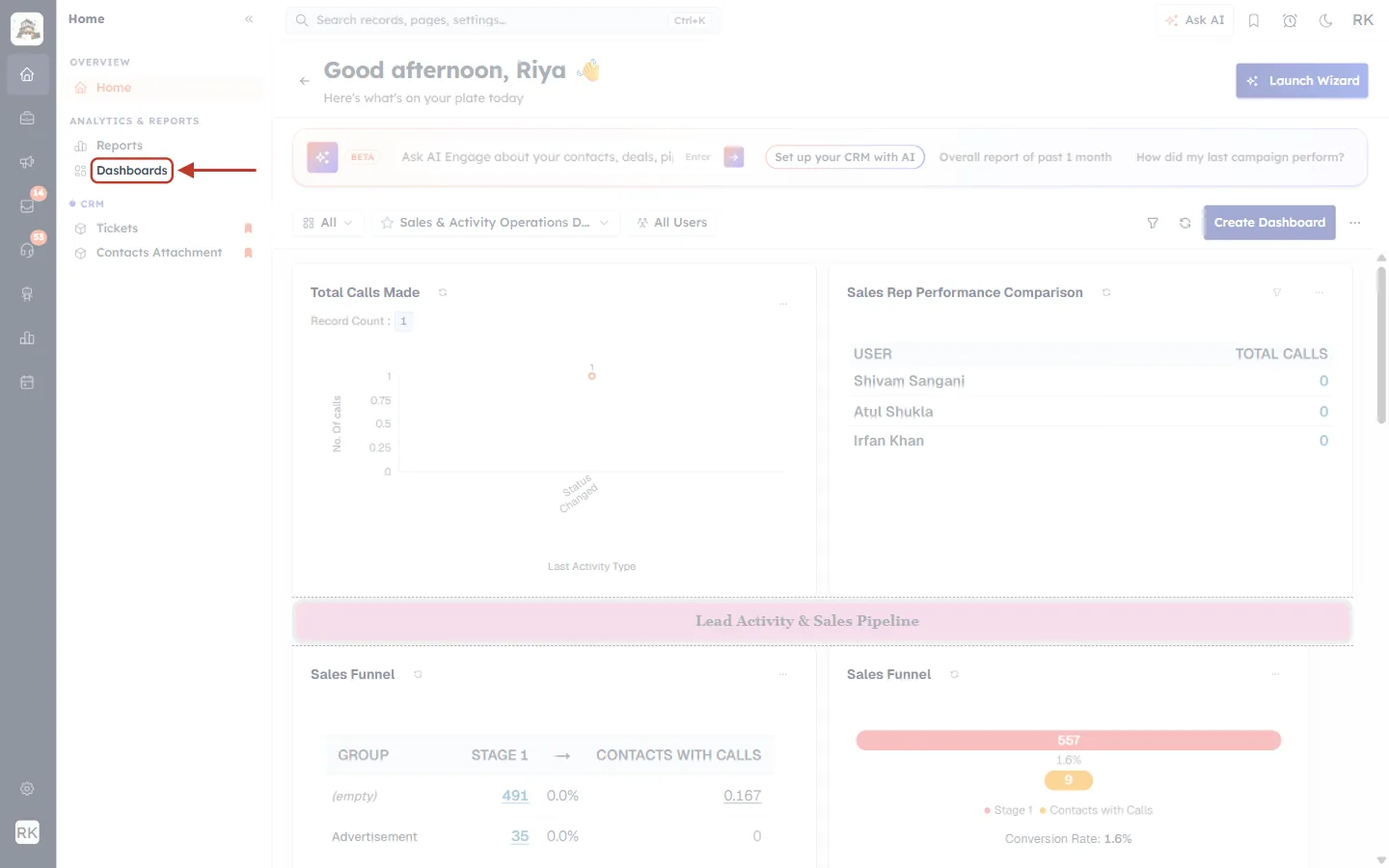
What this screenshot shows. The ringed item is Dashboards in the left menu. The arrow points at it.
It sits under the ANALYTICS & REPORTS heading, below Reports.
Above it, under OVERVIEW, is Home. Below are your bookmarked CRM items (here Tickets and Contacts Attachment).
The rest of the page is faded. It is the dashboard area, with the greeting, the Ask AI bar and the dashboard toolbar.
Step 2: Choose the dashboard#
Use the dashboard picker (the button with the ☆ star) to open the dashboard you want to add the board to. In this example it is Sales Overview.
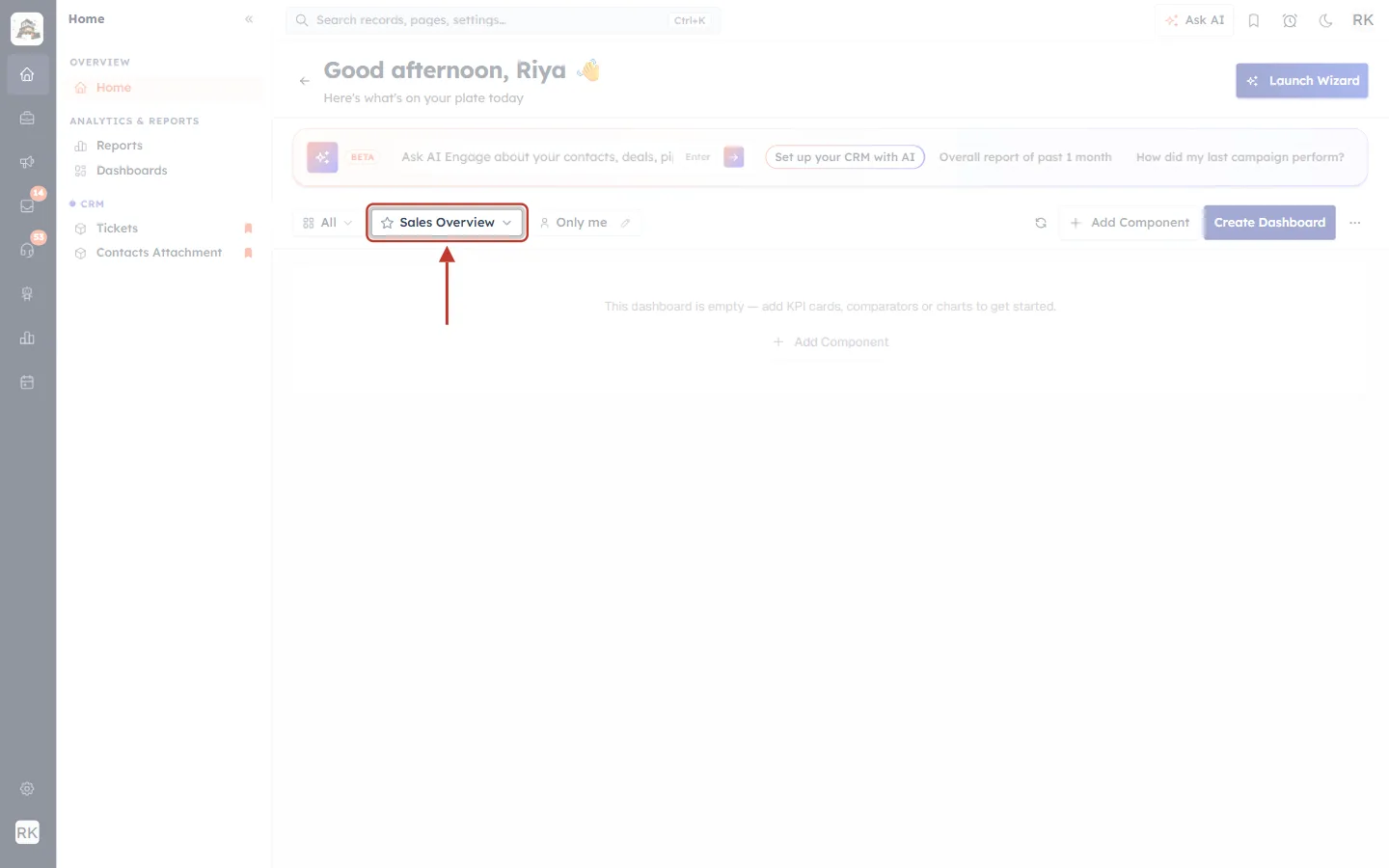
What this screenshot shows. The ringed button is the dashboard picker, now showing Sales Overview. The arrow points down at it.
To its left, All filters which dashboards are listed. To its right, Only me shows who the dashboard is shared with, and the pencil changes that.
On the right of the toolbar are the refresh button, + Add Component, Create Dashboard and the ⋯ menu.
This sample dashboard is still empty.
Step 3: Click Add Component#
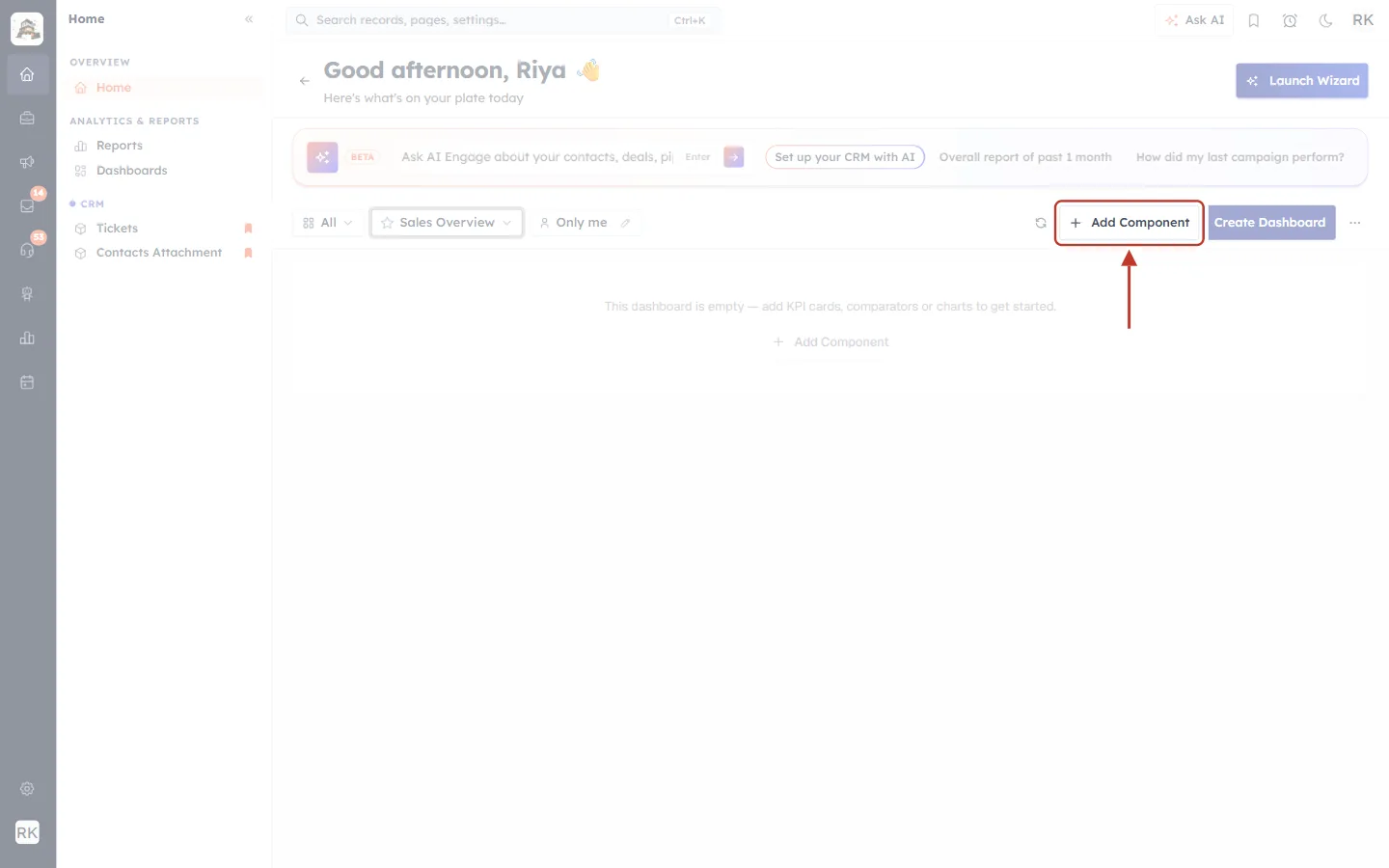
What this screenshot shows. The ringed button is + Add Component in the dashboard toolbar. The arrow points down at it.
It is between the refresh button and the dark-blue Create Dashboard button.
An empty dashboard also shows an Add Component link in the middle of the page. Both do the same thing.
Step 4: Pick System Widgets → Task Kanban Board#
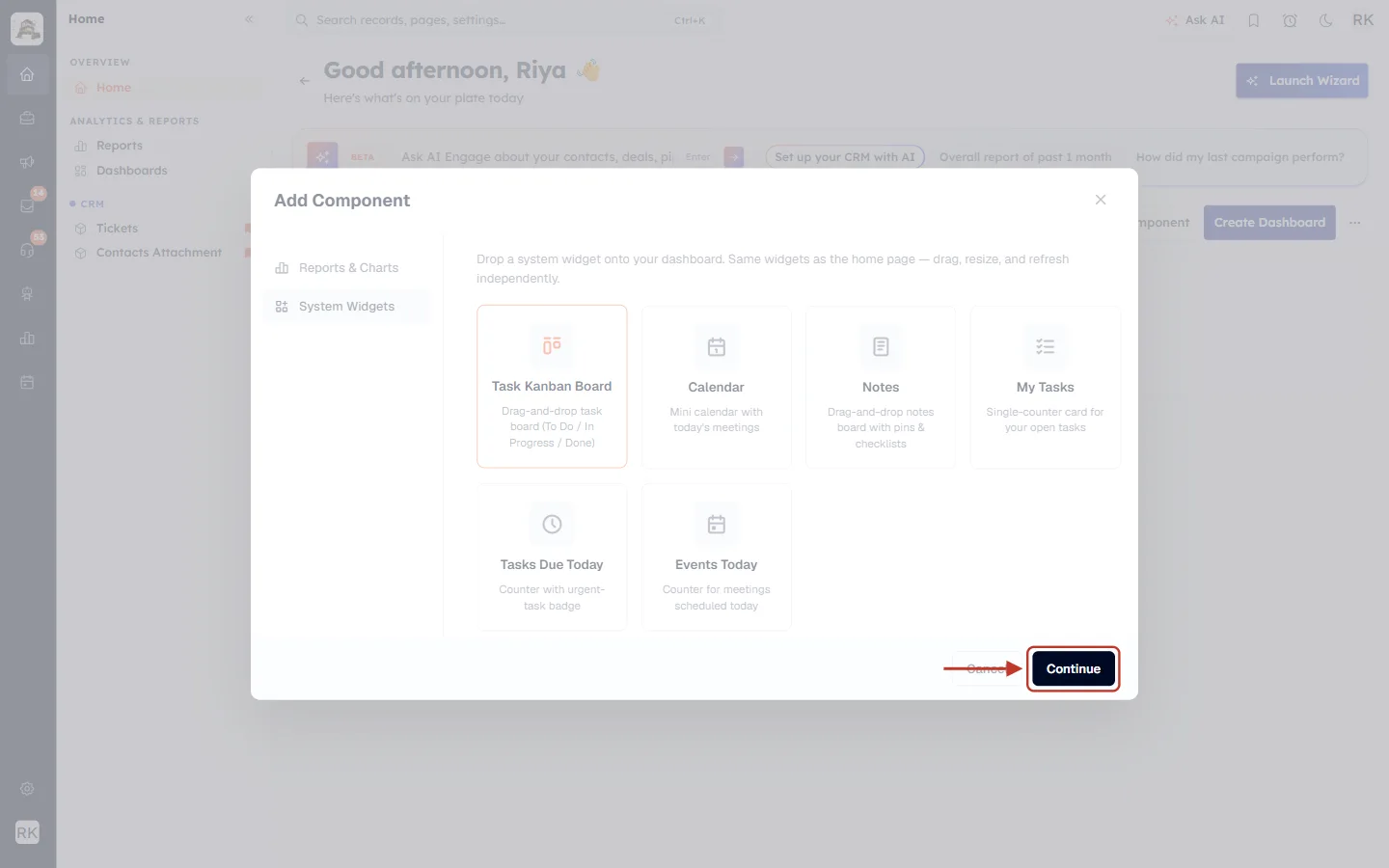
In the window that opens, click System Widgets on the left, then click the Task Kanban Board card.
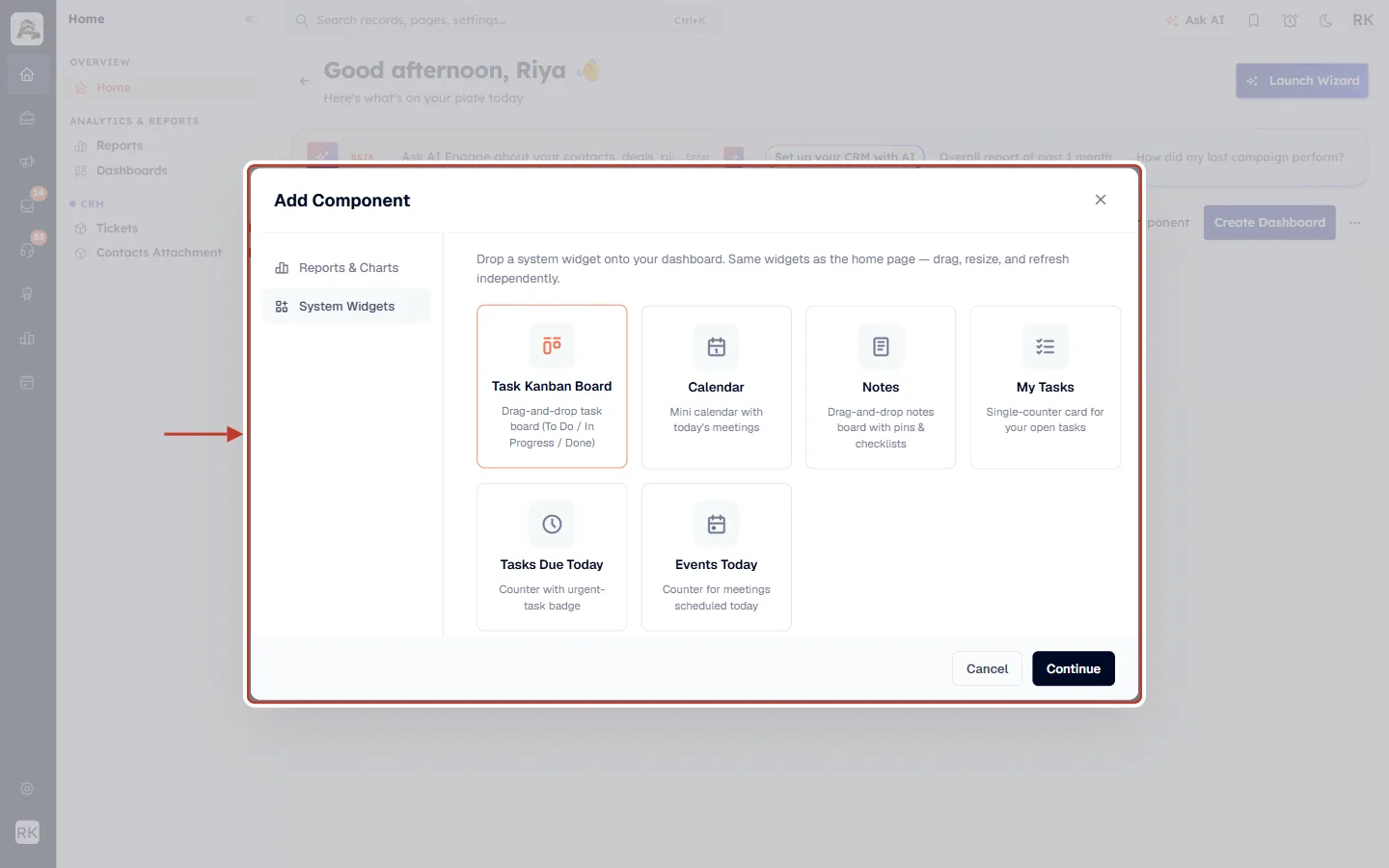
What this screenshot shows. The ringed window is Add Component. The arrow points at it from the left.
The left side has two tabs: Reports & Charts and System Widgets. System Widgets is selected.
The text at the top reads: Drop a system widget onto your dashboard. Same widgets as the home page — drag, resize, and refresh independently.
The first card, Task Kanban Board (Drag-and-drop task board (To Do / In Progress / Done)), has an orange border because it is selected.
The other widgets are Calendar, Notes, My Tasks, Tasks Due Today and Events Today.
At the bottom are Cancel and the black Continue button.
Step 5: Click Continue#
What this screenshot shows. The black Continue button at the bottom right of the window is ringed.
Click it to add the board to the dashboard. The window closes and the board appears straight away.
Cancel, next to it, closes the window without adding anything.
Part 2: Read the Board#
Step 6: The whole board#
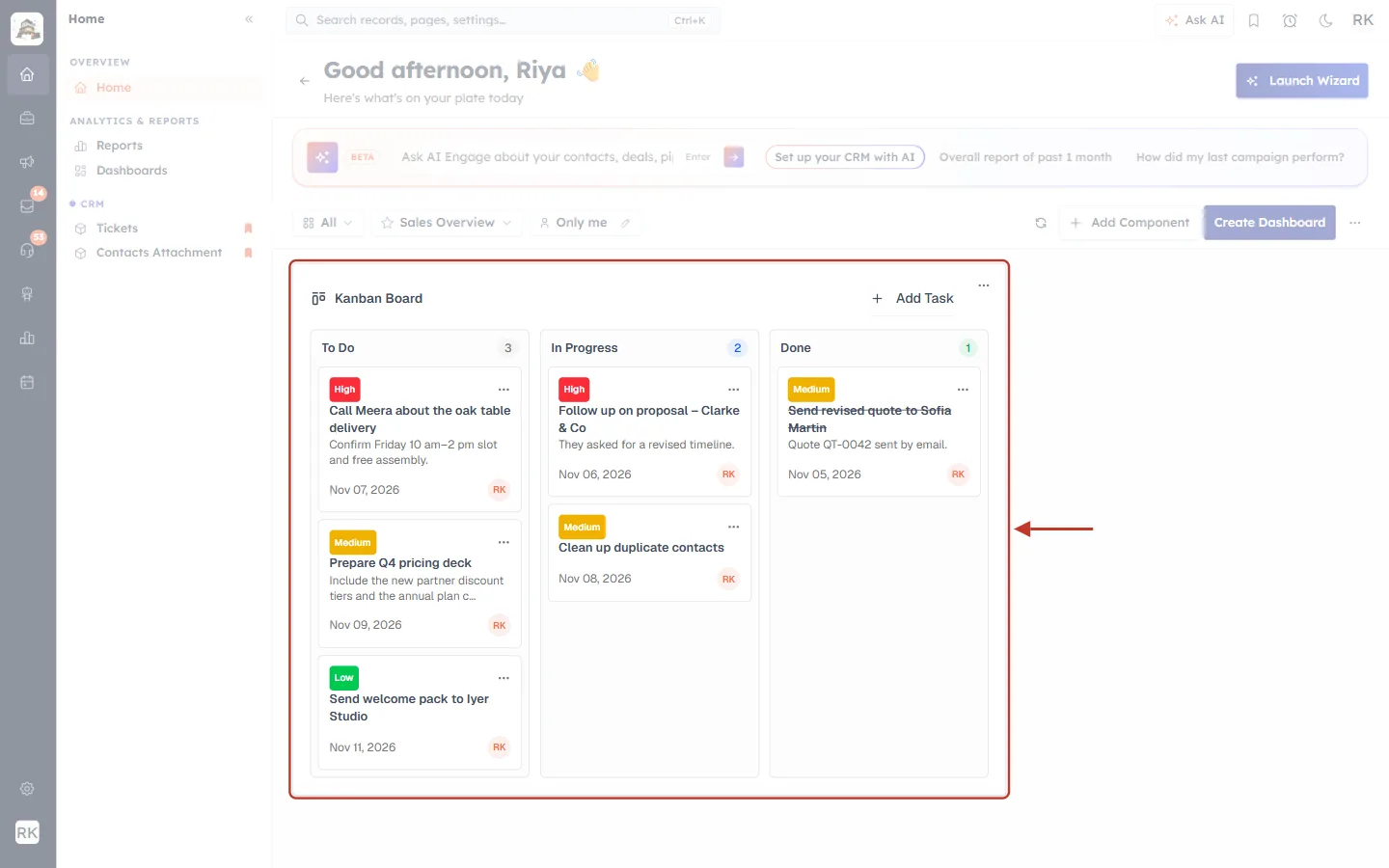
What this screenshot shows. The ringed tile is the Kanban Board on the dashboard. The arrow points at it from the right.
The title Kanban Board is at the top left with a board icon. + Add Task is at the top right (Part 4). The ⋯ in the corner is the tile’s own menu, for managing it as a dashboard component.
To Do (3) holds Call Meera about the oak table delivery, Prepare Q4 pricing deck and Send welcome pack to Iyer Studio.
In Progress (2) holds Follow up on proposal – Clarke & Co and Clean up duplicate contacts.
Done (1) holds Send revised quote to Sofia Martin, crossed out because it is finished.
Like any dashboard tile, you can move and resize the board on the dashboard.
Step 7: The three sections#
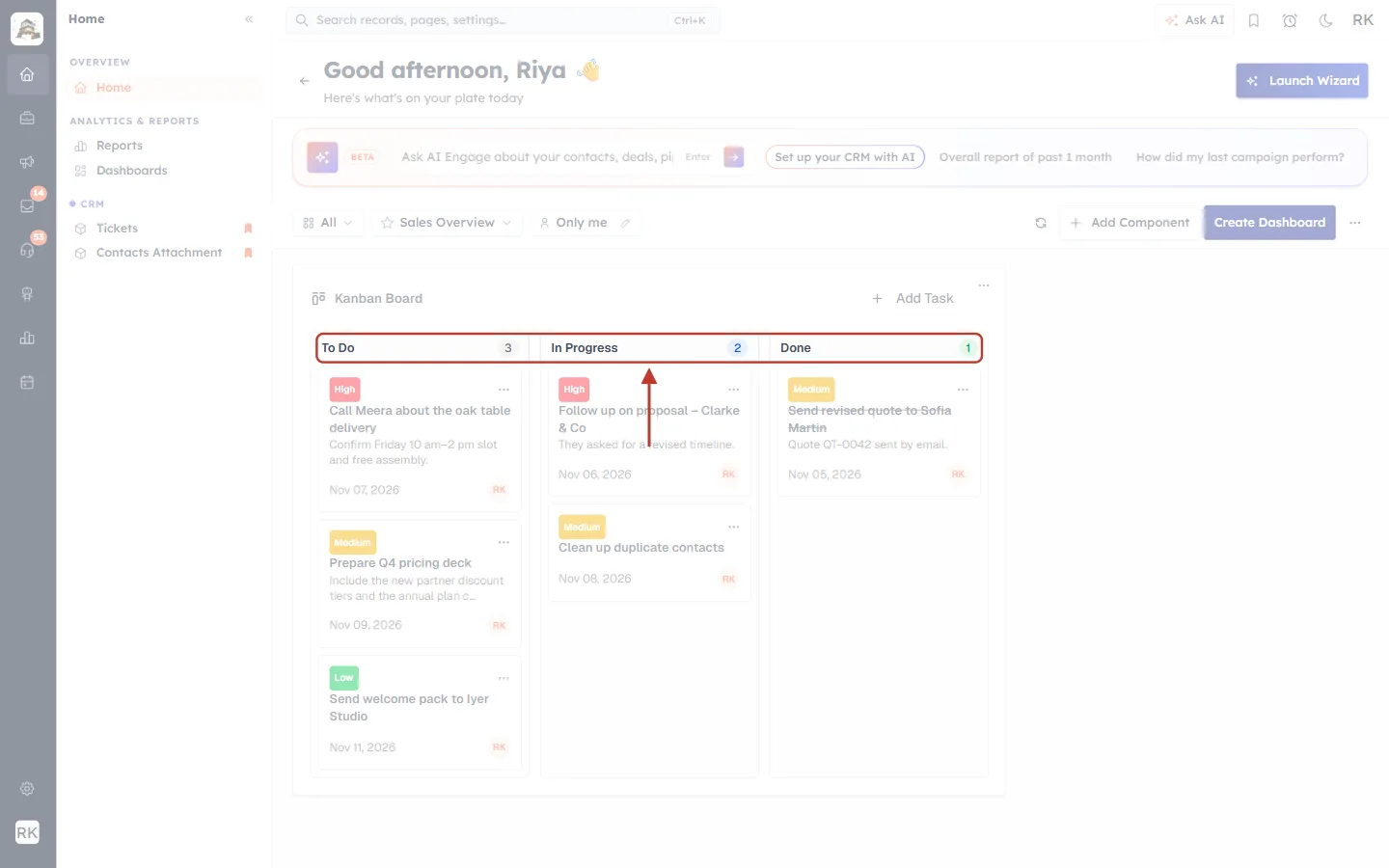
What this screenshot shows. The ring covers the three section headings across the top of the board. The arrow points down at them.
To Do has a grey count, In Progress a blue count and Done a green count.
The count is the number of cards in that section right now. It updates as you move cards.
The sections are fixed and match the task Status: To Do = Not Started, In Progress = In Progress, Done = Completed. A task with no status is shown under To Do.
ℹ️
The three sections can’t be renamed, and you can’t add more sections. They always mirror the three task statuses.
Step 8: What a card tells you#
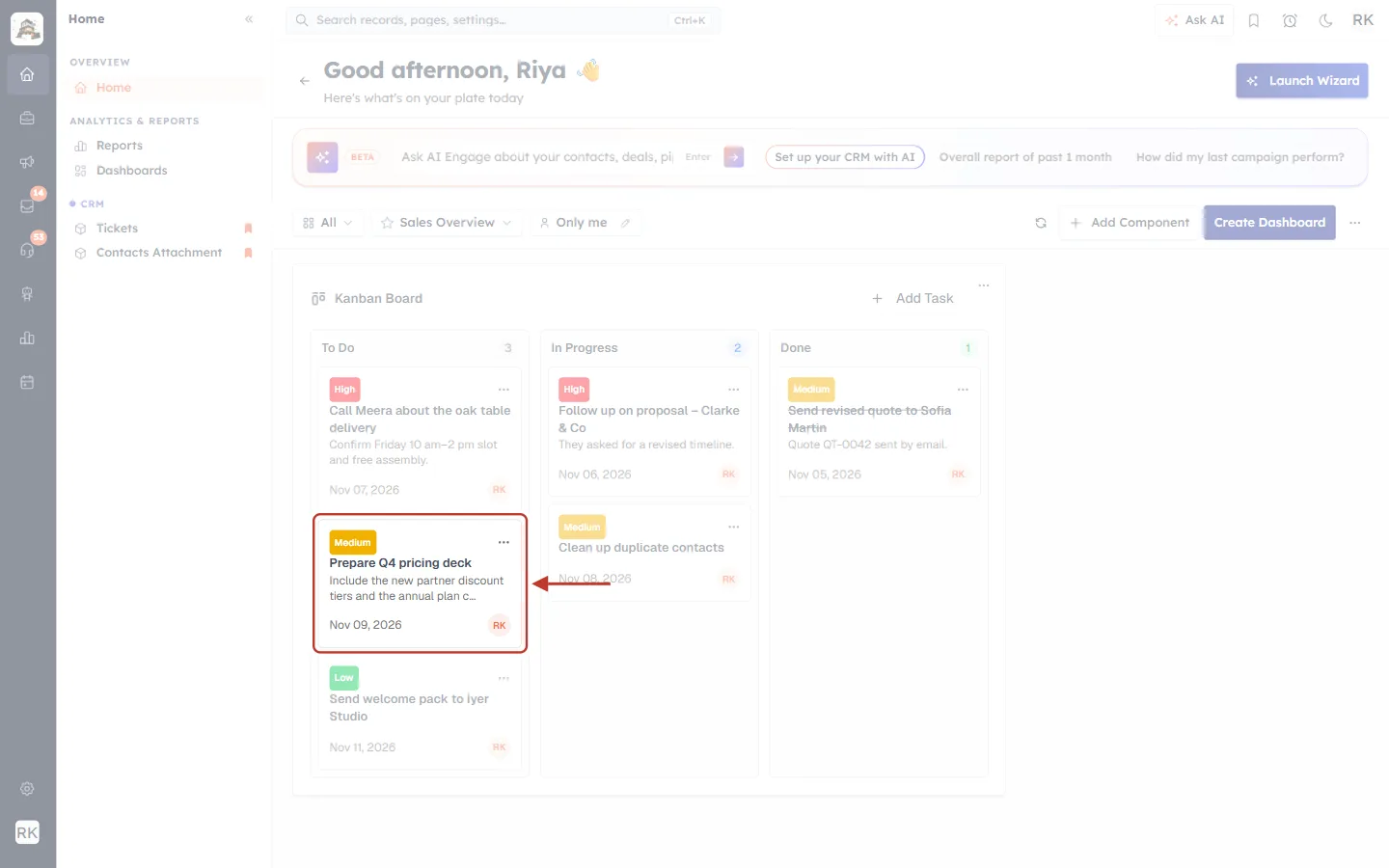
What this screenshot shows. The ringed card is the task Prepare Q4 pricing deck in To Do.
Top left: the priority badge, here a yellow Medium. High (or Hot) is red, Low is green, and any other priority is grey.
Top right: ⋯, the card menu with Edit and Delete (Part 5).
In bold: the task Subject.
In grey: the start of the Description. Long descriptions are cut after 60 characters and end with “…”.
Bottom left: the Due Date (here Nov 09, 2026). Bottom right: the owner’s initials (RK for Riya Kapoor). Point at them to see the full name.
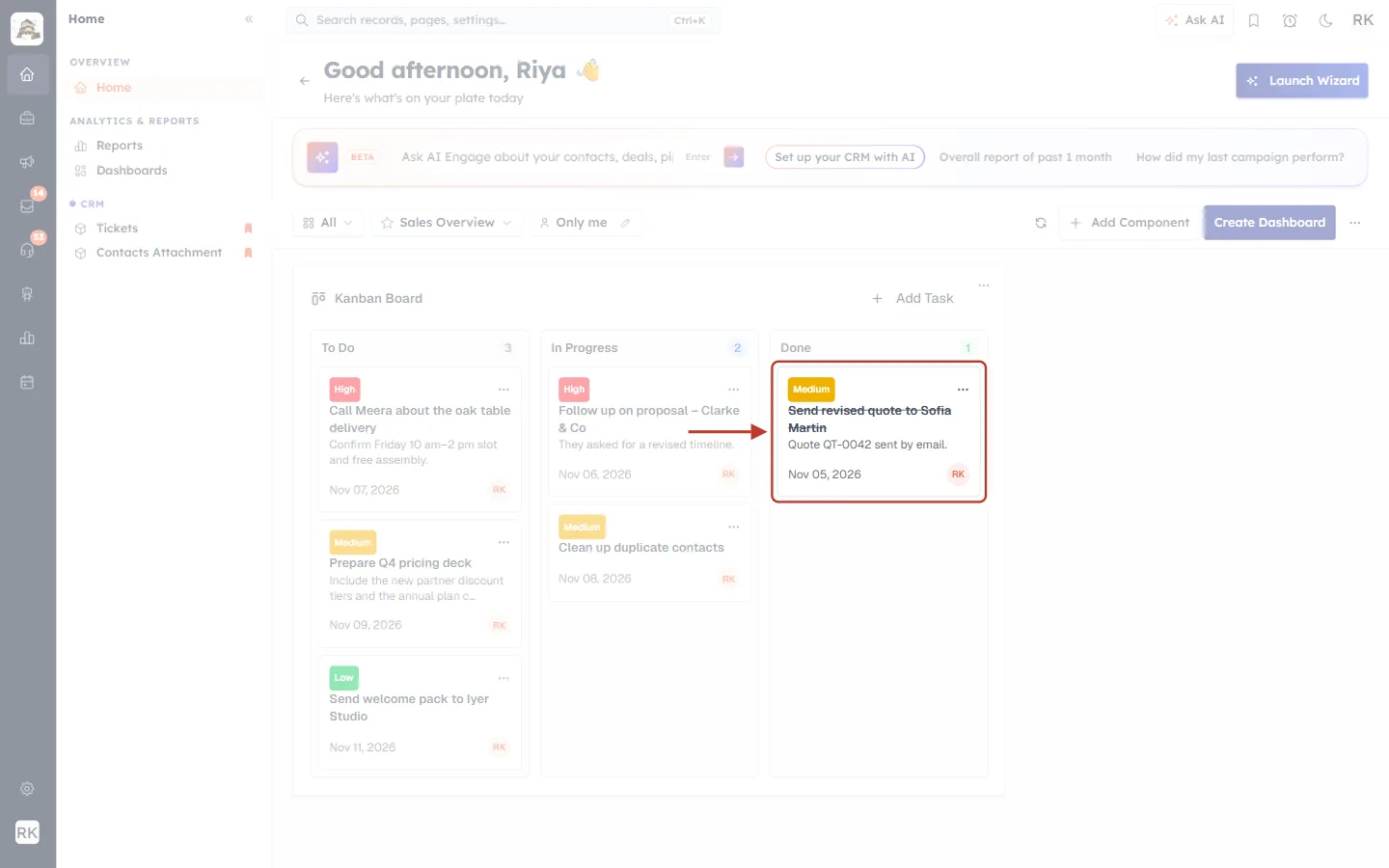
What this screenshot shows. The ringed card is in the Done section.
Its subject, Send revised quote to Sofia Martin, is crossed out, and the card is slightly faded. That is how finished tasks look.
It still shows its priority (Medium), description (Quote QT-0042 sent by email.), due date and owner.
Part 3: Move Tasks Between Sections#
Step 9: Drag a card to the next section#
Press and hold anywhere on a card (not on its ⋯ button), move it over another section, and let go. On a phone or tablet, touch and hold the card for a moment before dragging.
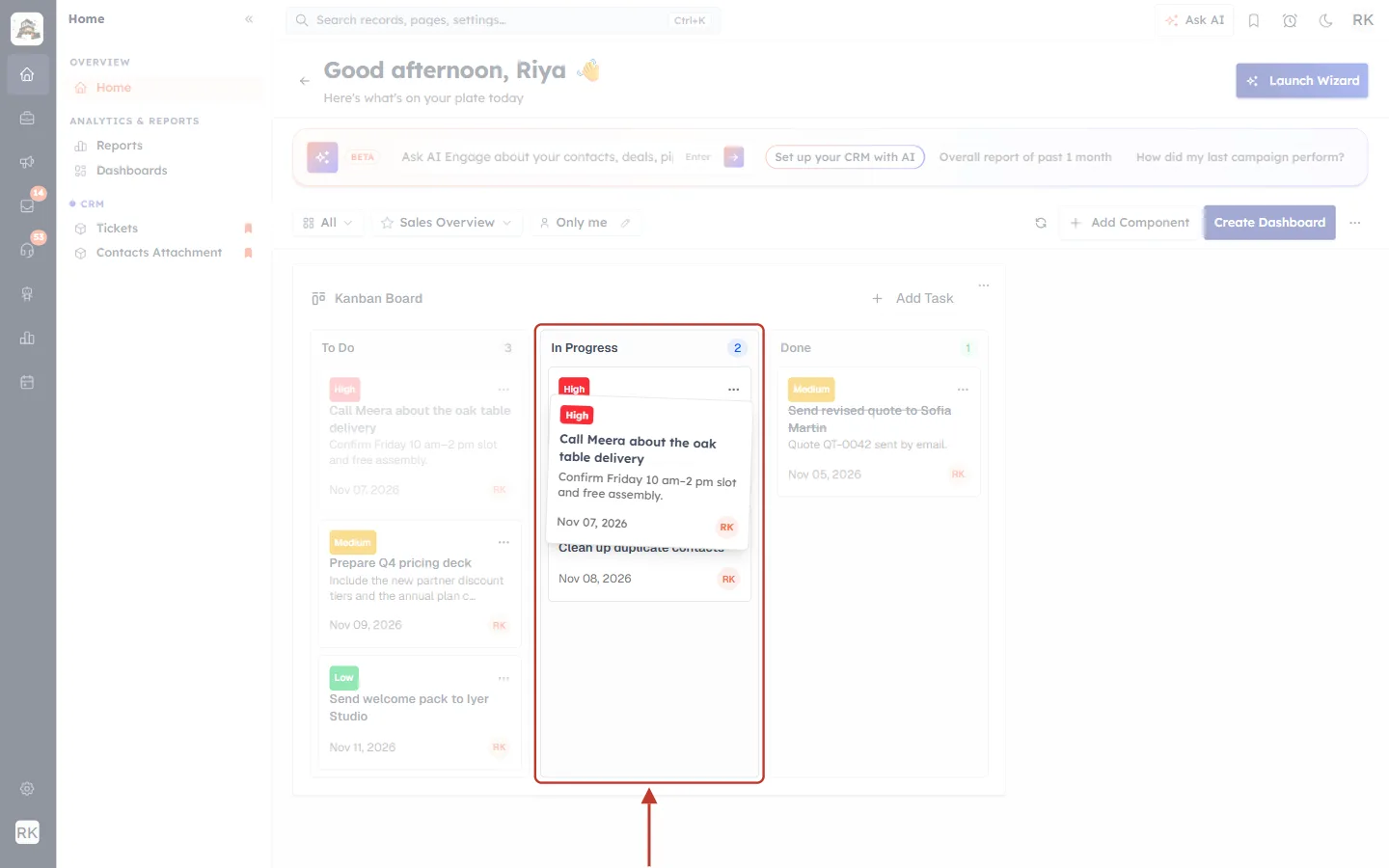
What this screenshot shows. The task Call Meera about the oak table delivery is being dragged from To Do into the ringed In Progress section. The arrow points up at it.
The card you are dragging floats above the board, slightly tilted, showing its High badge, subject, description, date and initials.
Its original place in To Do is faded while you drag.
Let go while the card is over the section you want.
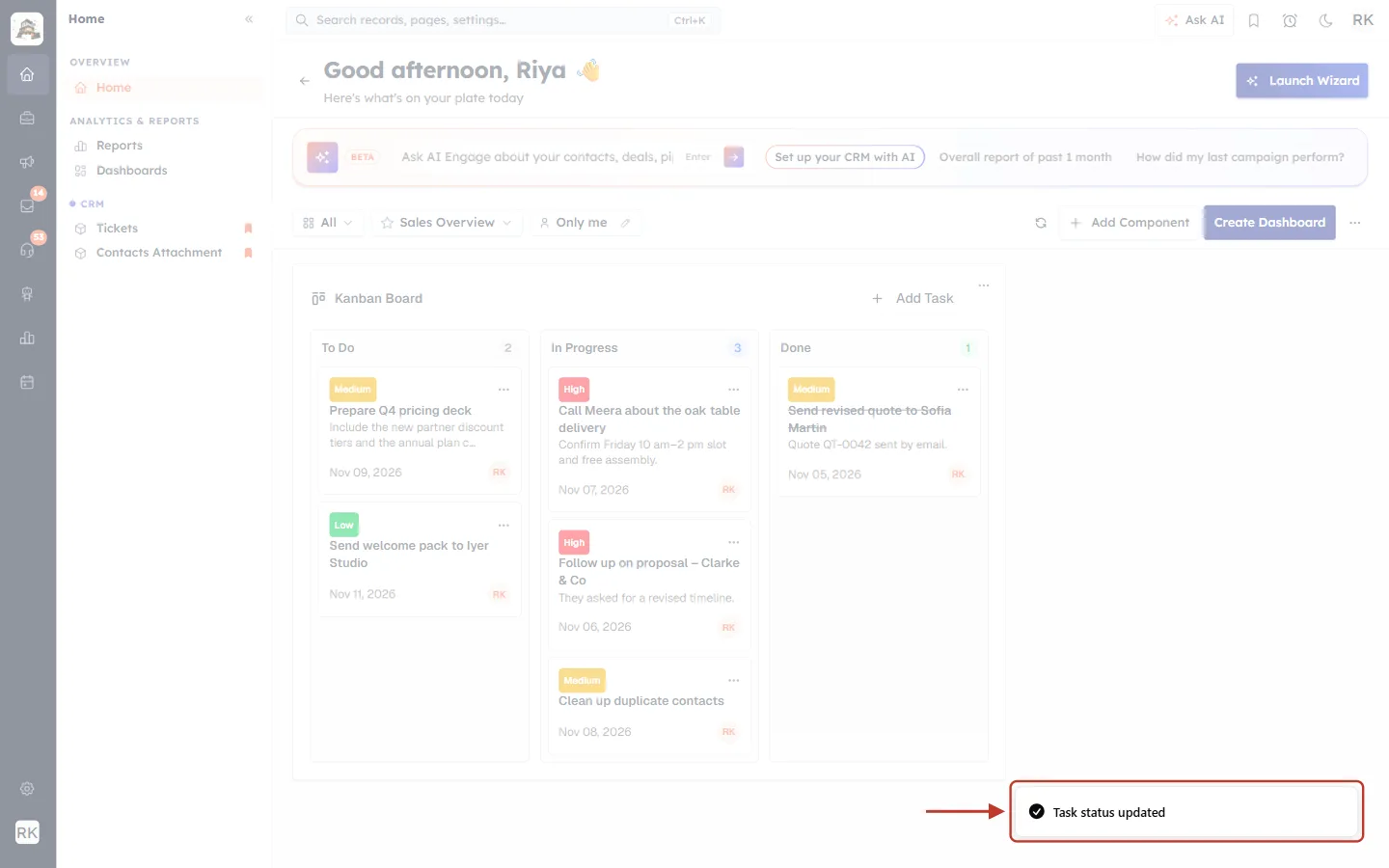
What this screenshot shows. Right after you let go, a message appears at the bottom right of the screen. It is ringed here.
It reads Task status updated. The task’s Status has been saved as In Progress, the same as if you had edited the task and changed Status yourself.
If the change can’t be saved, the card jumps back to where it was and a message such as Failed to update task status appears instead.
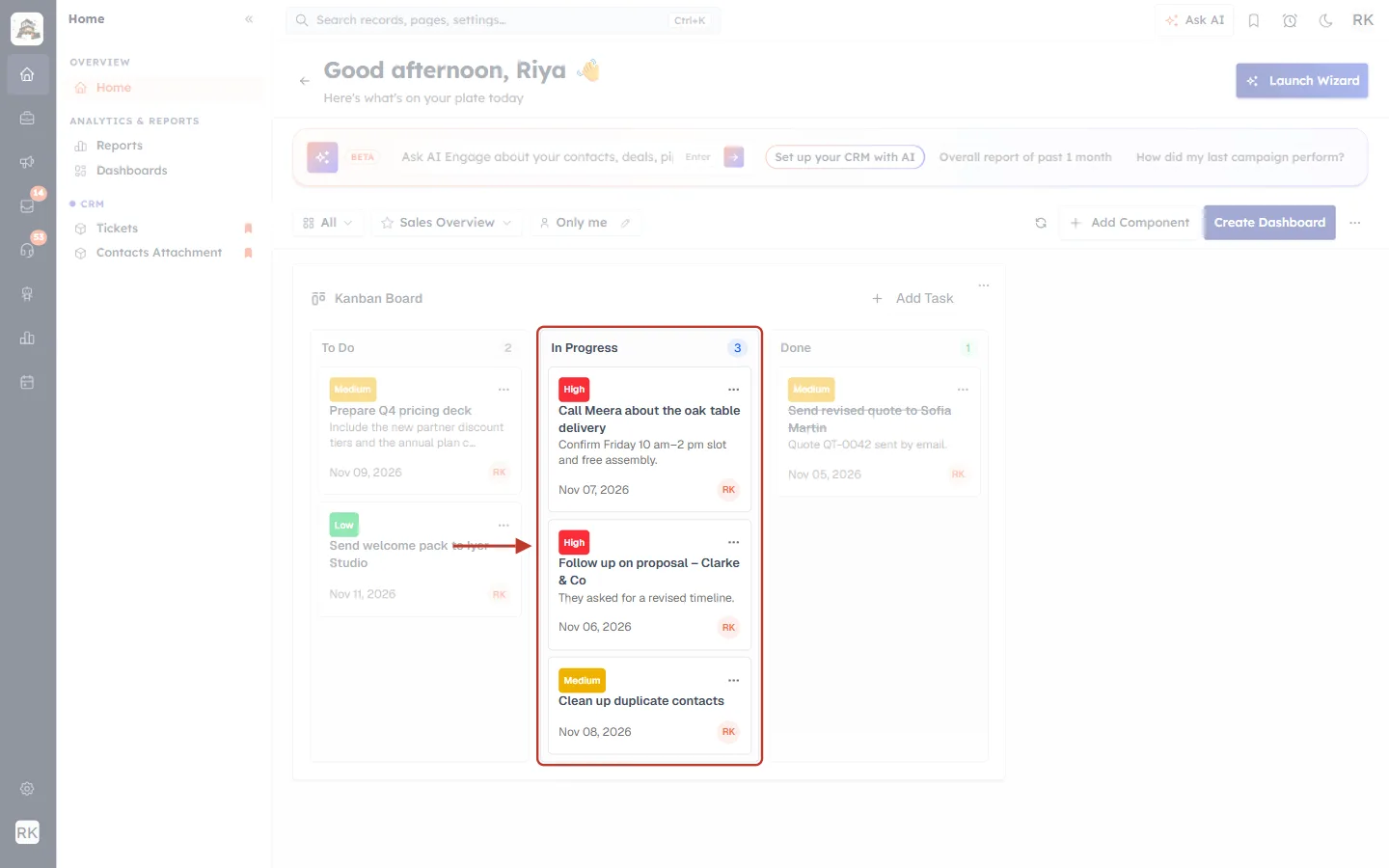
What this screenshot shows. The ringed section is In Progress after the move.
Call Meera about the oak table delivery is now the first card in In Progress. A moved card always lands at the top of its new section.
The In Progress count went up to 3, and To Do went down by one.
Step 10: Mark a task done#
When a task is finished, drag it into Done. Its Status becomes Completed.
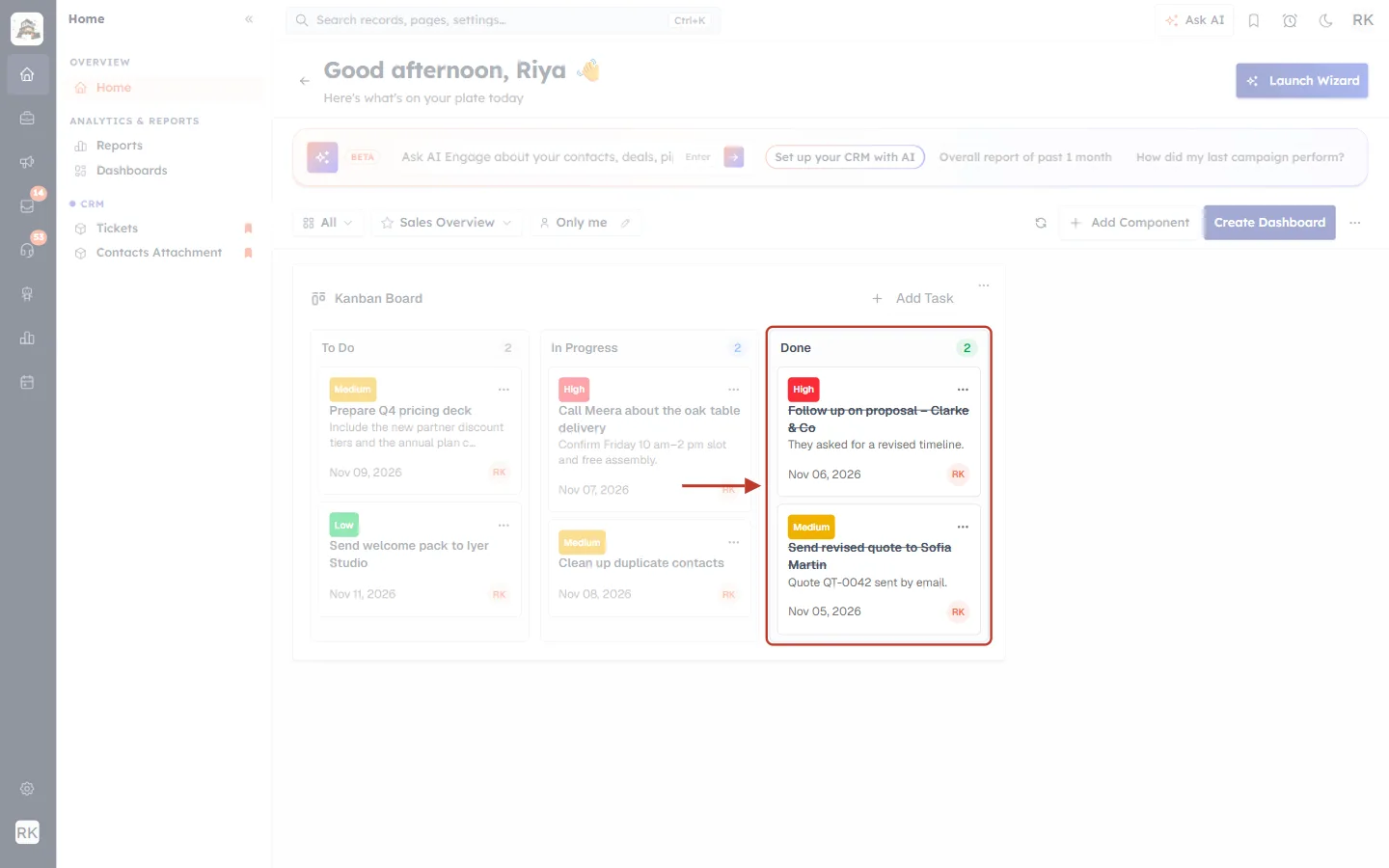
What this screenshot shows. The ringed section is Done, now with two cards.
Follow up on proposal – Clarke & Co (High) was dragged here from In Progress. It is at the top, and its subject is now crossed out.
The Done count shows 2. To Do shows 2 and In Progress shows 2.
Changed your mind? Drag the card back to To Do or In Progress, and the status changes back.
ℹ️
Order inside a section isn’t saved. Dragging a card up or down within the same section doesn’t change anything. Only moving it to a different section updates the task.
Part 4: Create a Task from the Board#
Step 11: Click Add Task#
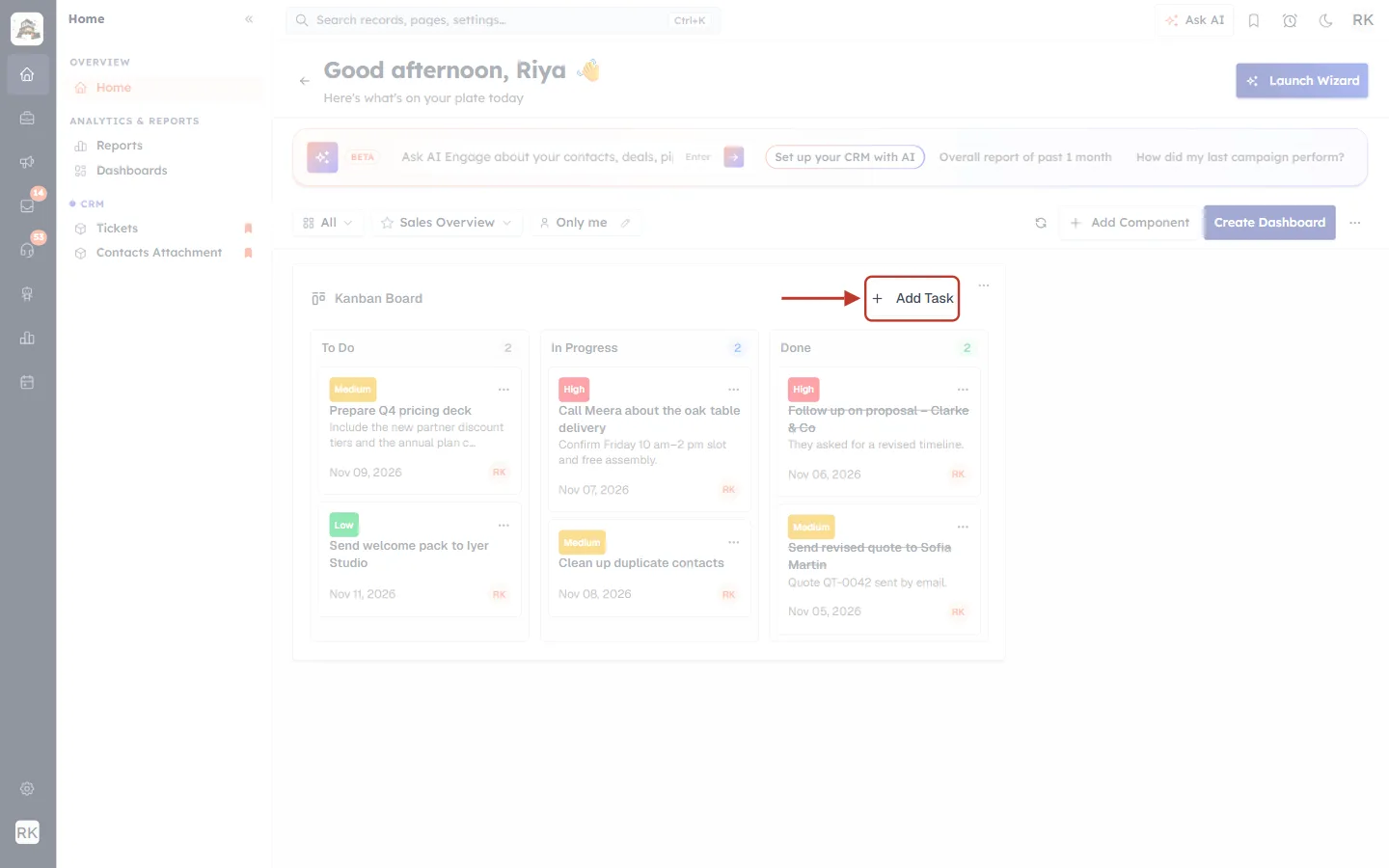
What this screenshot shows. The ringed + Add Task button is at the top right of the board.
Click it to create a new task without leaving the dashboard.
When the board is empty, the same button appears in the middle of the board (Part 6).
Step 12: Fill in the New Task form#
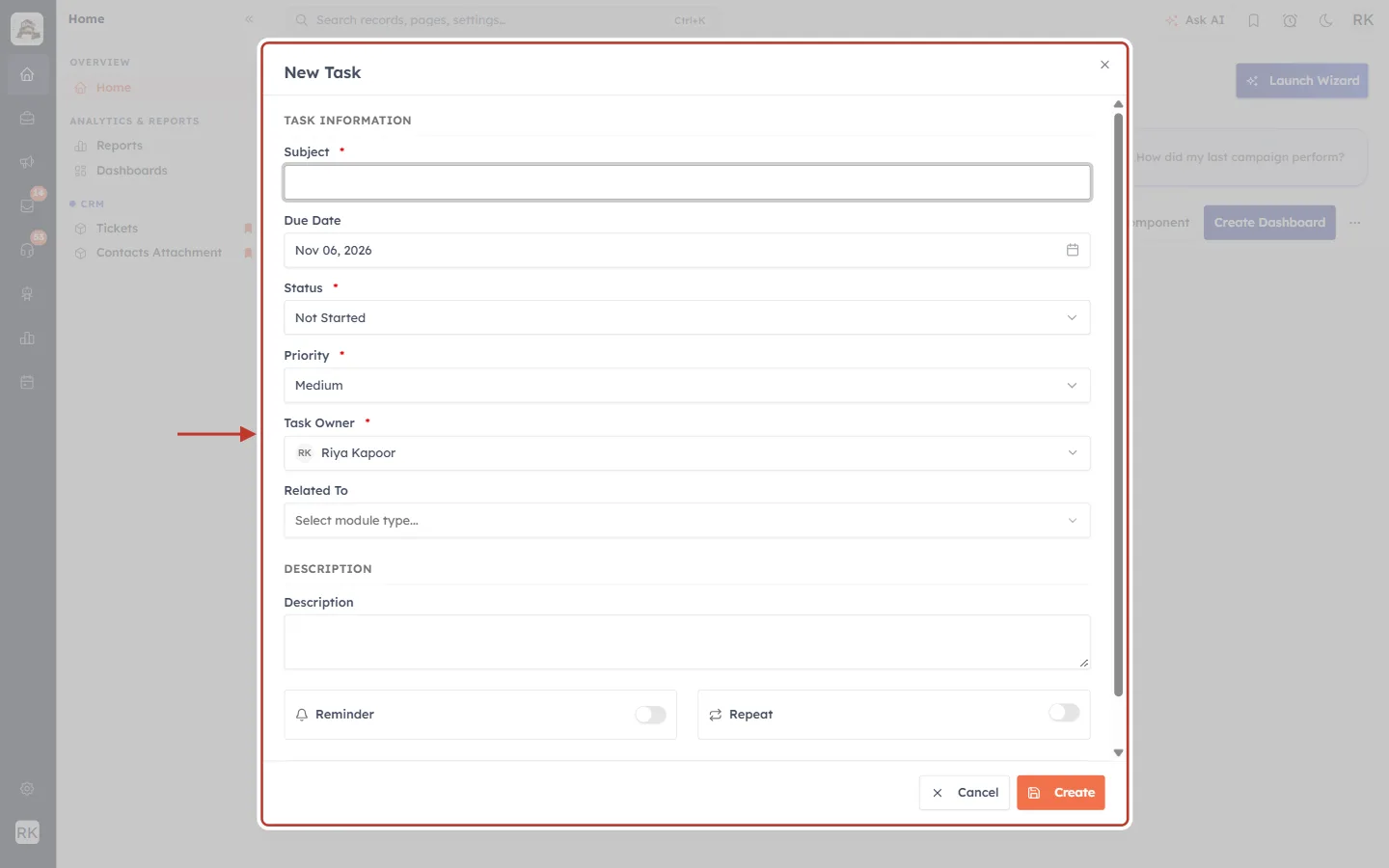
What this screenshot shows. The ringed window is New Task. It is the same form as Create Task in the Tasks module.
Subject (required) is empty and ready for you to type.
Due Date starts as today. Click it to pick another date.
Status (required) is Not Started, so the task lands in To Do. Choose In Progress or Completed to place it in another section.
Priority (required) starts as Medium. Task Owner (required) is you.
Related To links the task to a contact, deal or another record. Below are Description, the Reminder and Repeat switches, and More Fields.
At the bottom are Cancel and the orange Create button.
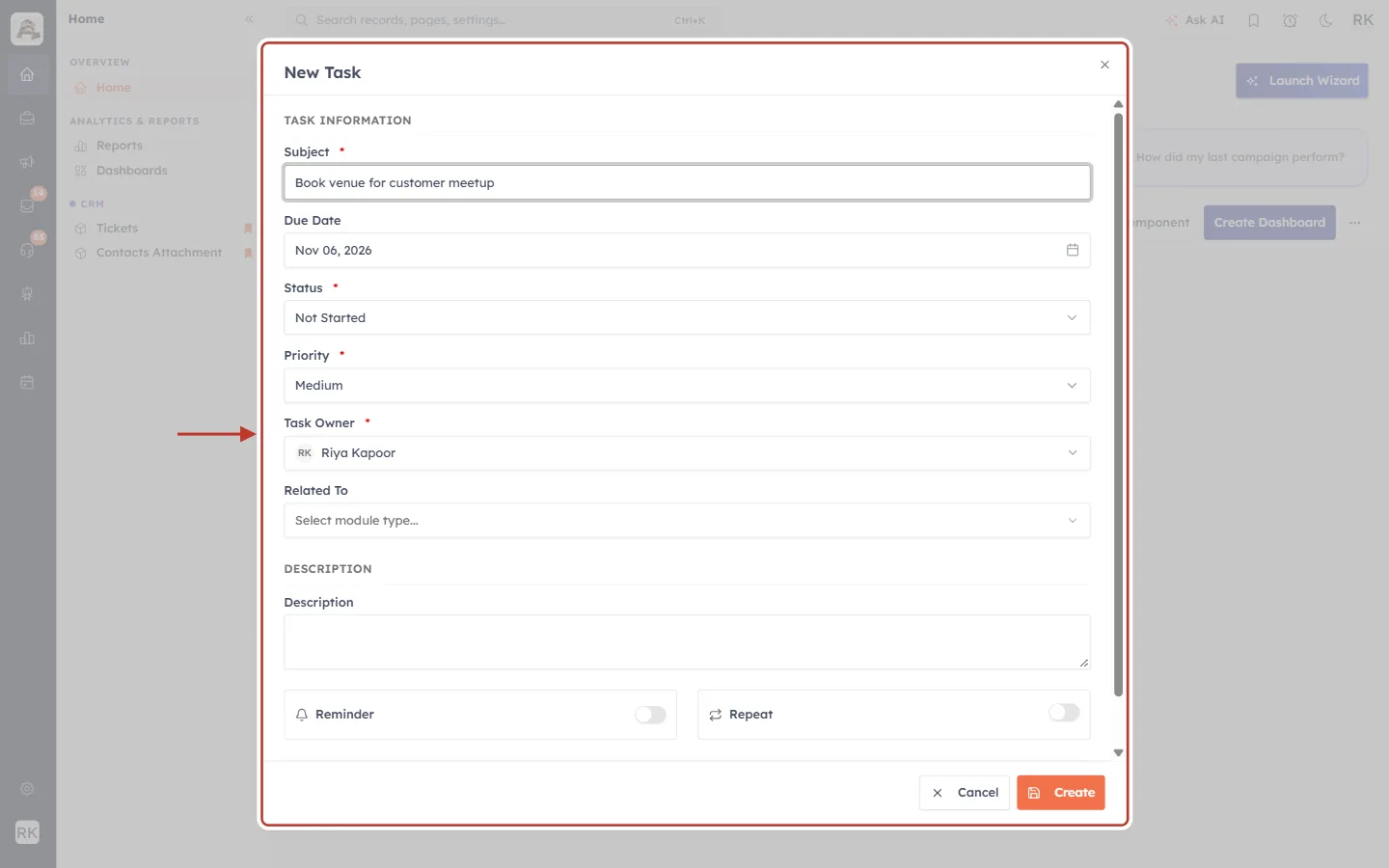
What this screenshot shows. The same form, now with the subject Book venue for customer meetup typed in.
Everything else was left at its default: today’s date, Not Started, Medium, and owner Riya Kapoor.
The arrow points at Task Owner. If you choose someone else here, the task leaves your board, because the board only shows your own tasks.
Click Create to save.
✅
Want a nudge before it is due? Switch on Reminder in this form. See Set a Reminder on a Task, Meeting or Call.
Step 13: See the new card#
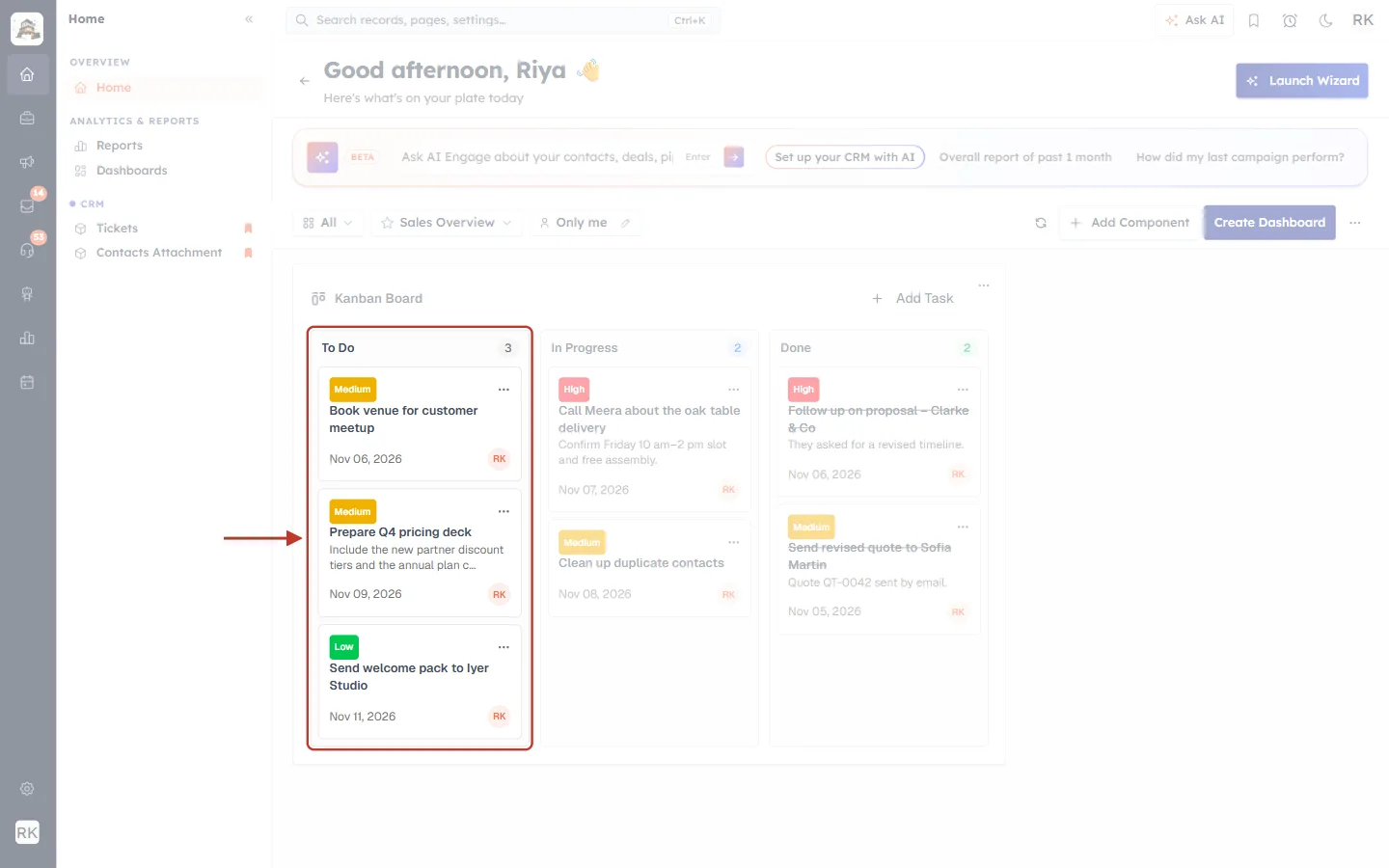
What this screenshot shows. The ringed section is To Do after the task was created.
The new card, Book venue for customer meetup, appears with a Medium badge, today’s date (Nov 06, 2026) and the initials RK.
The board reloads by itself after you click Create, so the other cards and counts are up to date too.
Part 5: Edit or Delete a Task#
Step 14: Open the card menu#
Click ⋯ at the top right of a card.
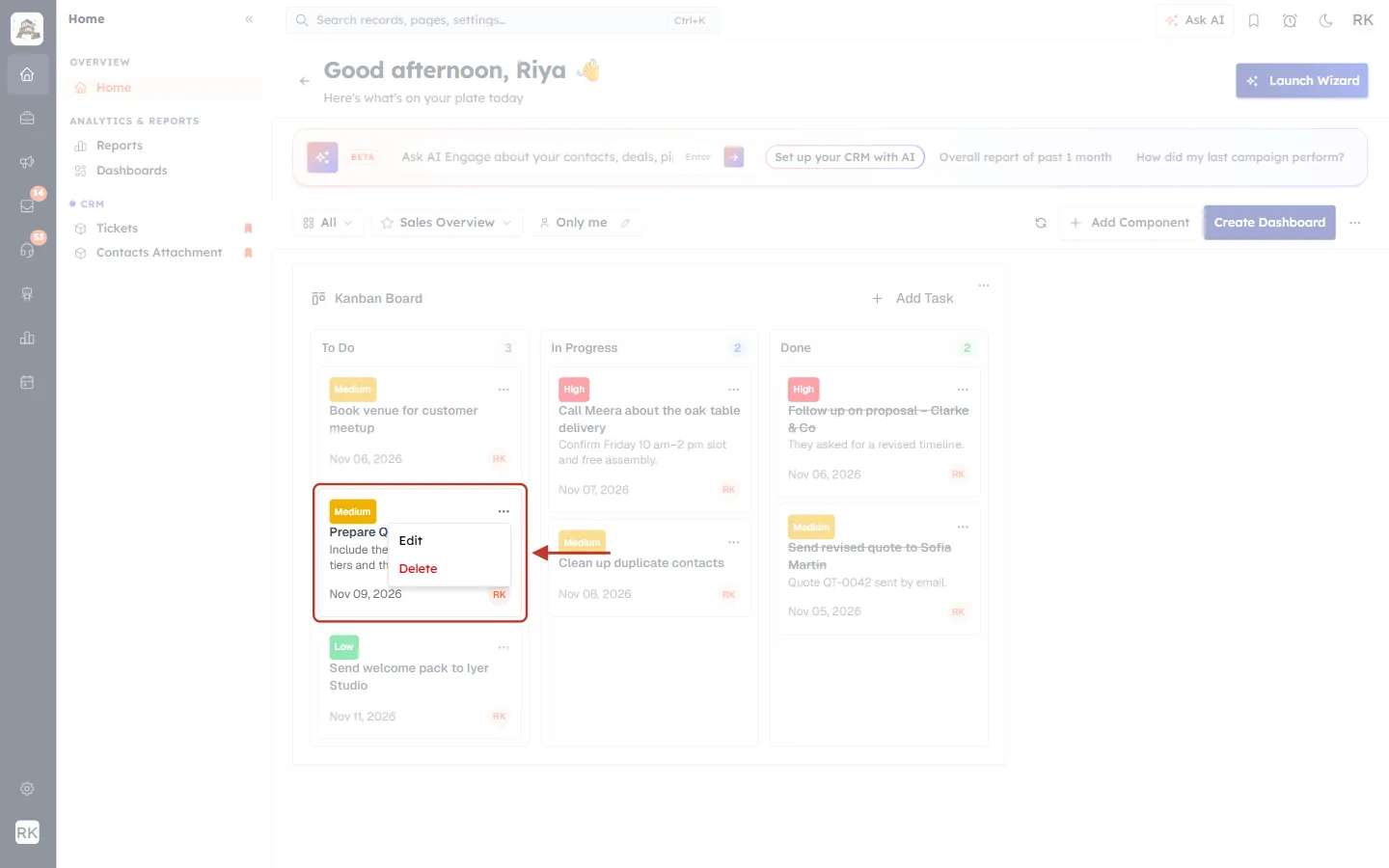
What this screenshot shows. The ringed area shows the card Prepare Q4 pricing deck and its open menu. The arrow points at them.
Edit opens the task in a form so you can change anything.
Delete (in red) removes the task.
Step 15: Edit the task#
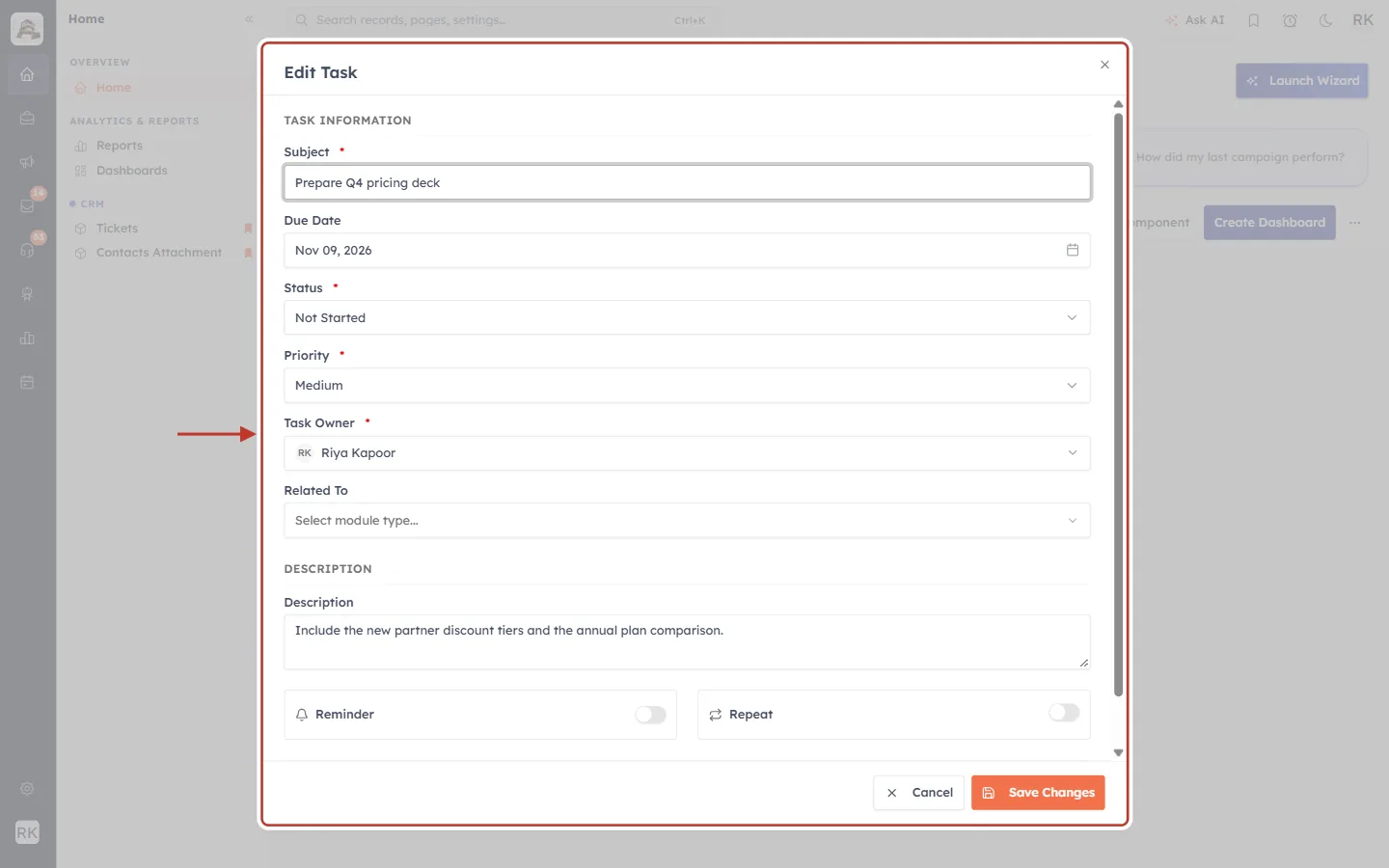
What this screenshot shows. The ringed window is Edit Task, filled with the card’s details.
Subject Prepare Q4 pricing deck, Due Date Nov 09, 2026, Status Not Started, Priority Medium, the Task Owner field (marked by the arrow) and the Description.
Change what you need. For example, set a new Due Date or Priority, or change Status to move the card to another section.
Click Save Changes to save, or Cancel (or ✕) to close without saving.
Step 16: Delete a task#
Choose Delete in the card menu.
⚠️
There is no “Are you sure?” step. Delete removes the task straight away, so check that you picked the right card. If you only want it off your active list, drag it to Done instead.
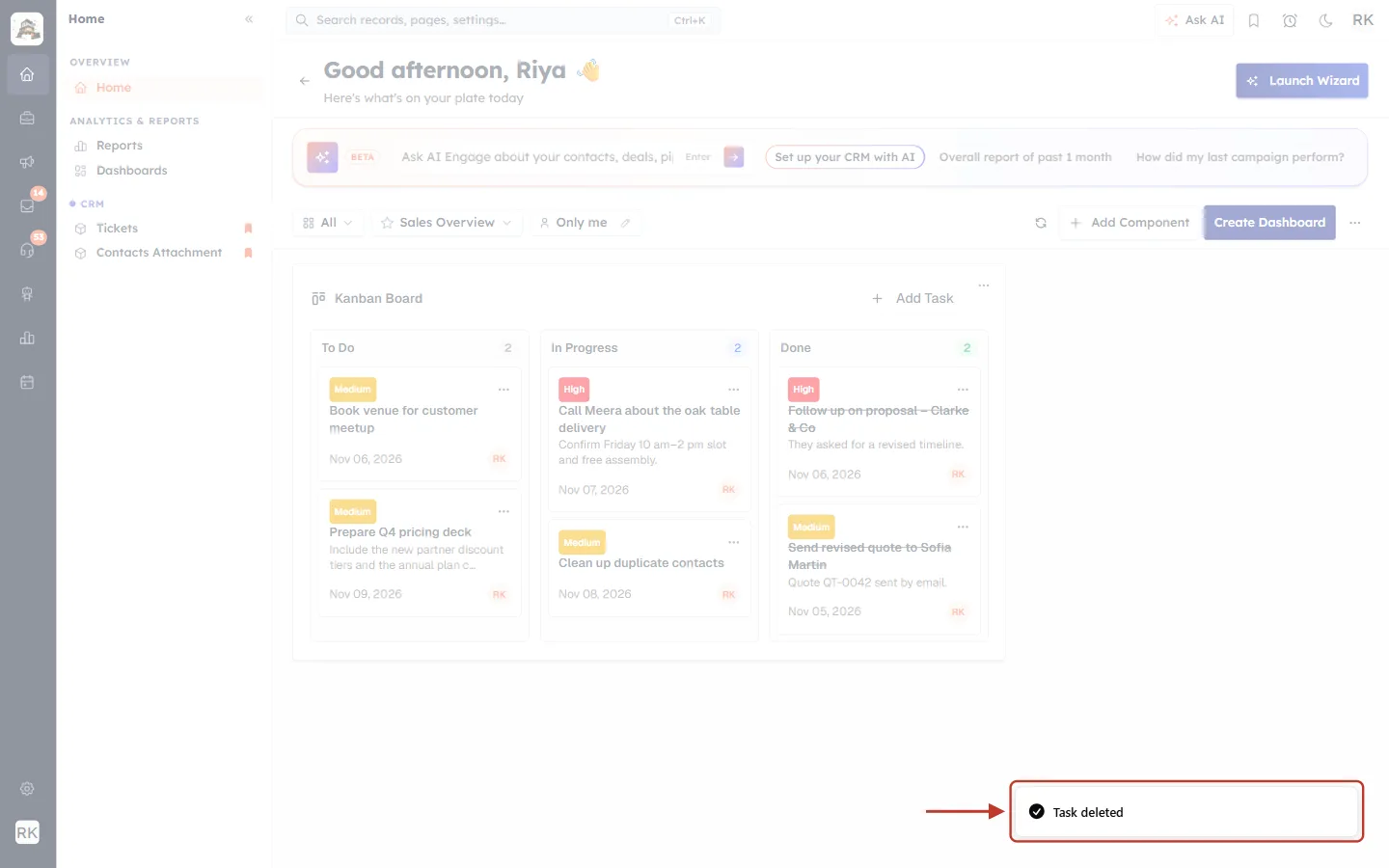
What this screenshot shows. The ringed message at the bottom right confirms the deletion.
It reads Task deleted. Here the task Send welcome pack to Iyer Studio was deleted. Its card disappears and the To Do count drops by one.
The task is deleted from the Tasks module too, not just from the board.
Part 6: When the Board Is Empty#
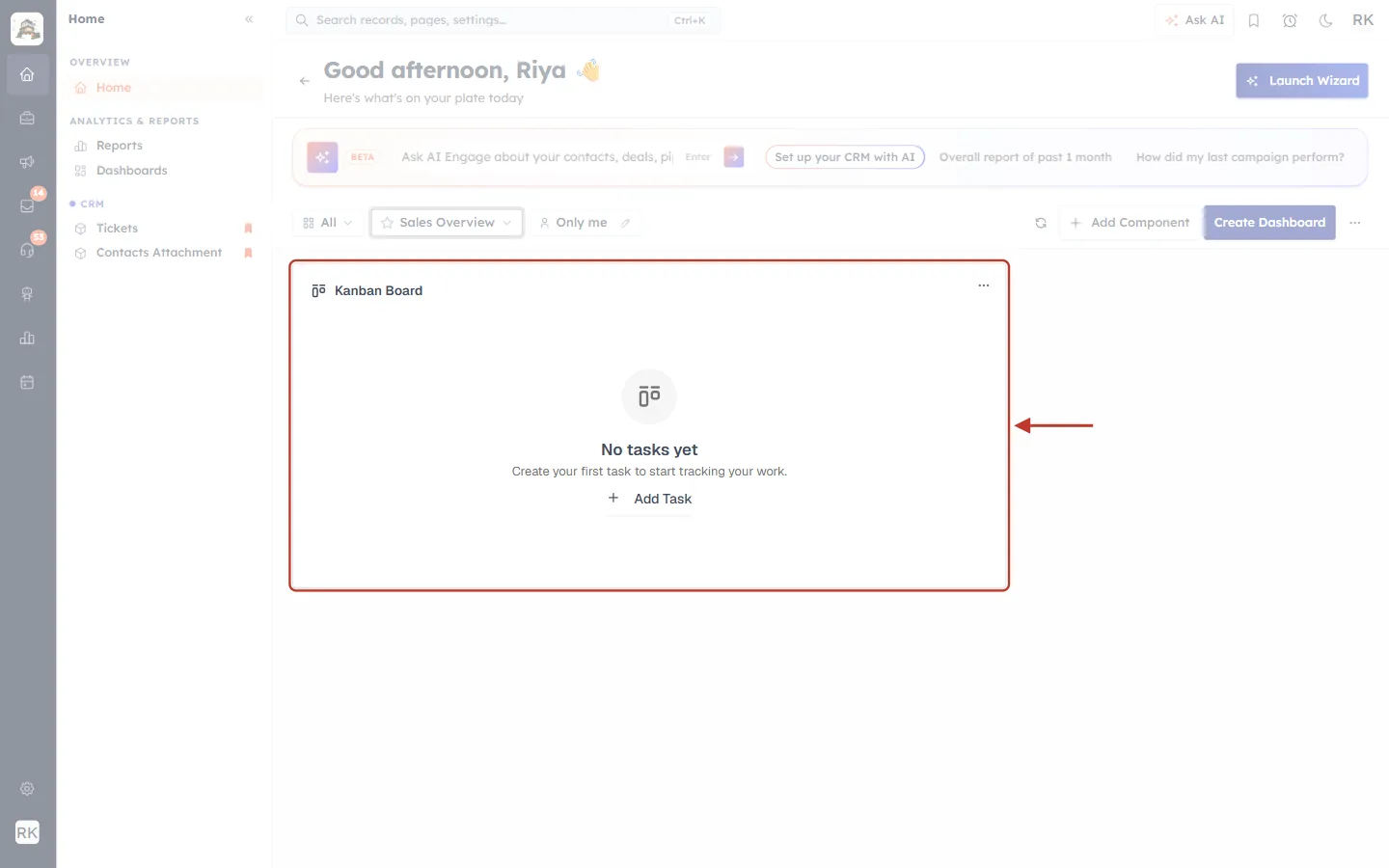
What this screenshot shows. The ringed tile is the board when you have no tasks.
It shows a board icon, No tasks yet and Create your first task to start tracking your work.
The + Add Task button in the middle opens the same New Task form as in Part 4.
If you expected tasks here, check that they are owned by you. The board shows only your own tasks.
Quick Reference#
I want to… | Do this |
|---|---|
Put the board on a dashboard | Dashboards → pick dashboard → + Add Component → System Widgets → Task Kanban Board → Continue |
Start working on a task | Drag it from To Do to In Progress |
Mark a task done | Drag it to Done |
Reopen a task | Drag it from Done back to To Do or In Progress |
Create a task | + Add Task → fill the form → Create |
Change a task | Card ⋯ → Edit → Save Changes |
Remove a task | Card ⋯ → Delete (no confirmation) |
Best Practices#
Keep In Progress short. A few cards at a time helps you finish work instead of starting more.
Set a priority and a due date on every task, so the colours and dates on the cards tell you what to do first.
Move cards as you go. The board, the Tasks list and reports all use the same Status, so everyone sees the latest picture.
Use Done, not Delete, for finished work, so you keep a record of it.
Put the board on the dashboard you open every day, next to widgets such as Calendar or Tasks Due Today.
Troubleshooting#
A task is missing from the board#
The board shows only tasks owned by you. Open the task in the Tasks module and check its Task Owner. Tasks owned by teammates appear on their boards, not yours.
The card jumped back after I dropped it#
The status change couldn’t be saved, for example because of a network problem or because you don’t have permission to edit that task. Read the message at the bottom right, then try again.
I can’t find Add Component#
Make sure a dashboard you can edit is open in the picker. See Dashboards & Report Components.
I want different columns, such as “Waiting”#
The Task Board always uses the three task statuses (Not Started, In Progress, Completed). For a board with your own stages, use a pipeline instead. See Work Your Pipeline on the Kanban Board.
Frequently Asked Questions#
Is the Task Board a separate list of tasks?
No. It shows the same task records as the Tasks module. Changes made on the board appear in the Tasks list, and the other way round.
Can I see my team’s tasks on it?
No. The board shows the signed-in user’s own tasks.
Does dragging to Done complete the task?
Yes. It sets the task’s Status to Completed.
Can I add the board to more than one dashboard?
Yes. Add it from Add Component on each dashboard where you want it.
Can I undo a delete?
No. A deleted task can’t be brought back from the board.
Previous and Next#
Previous: Create and Complete Tasks
Next: Schedule Meetings
Related Articles#
Was this article helpful?
Ready to implement this?
OpenAI Engage and apply what you just learned to your own workspace.
Open AI Engage CRM