Loading…


KnowledgeBase
Create and Manage Deals
Before you start#
Make sure your pipeline is ready — see Set Up Your Deal Pipeline Stages. Then open the Deals module.
Create a deal#
Click Create Deal and fill in the form:
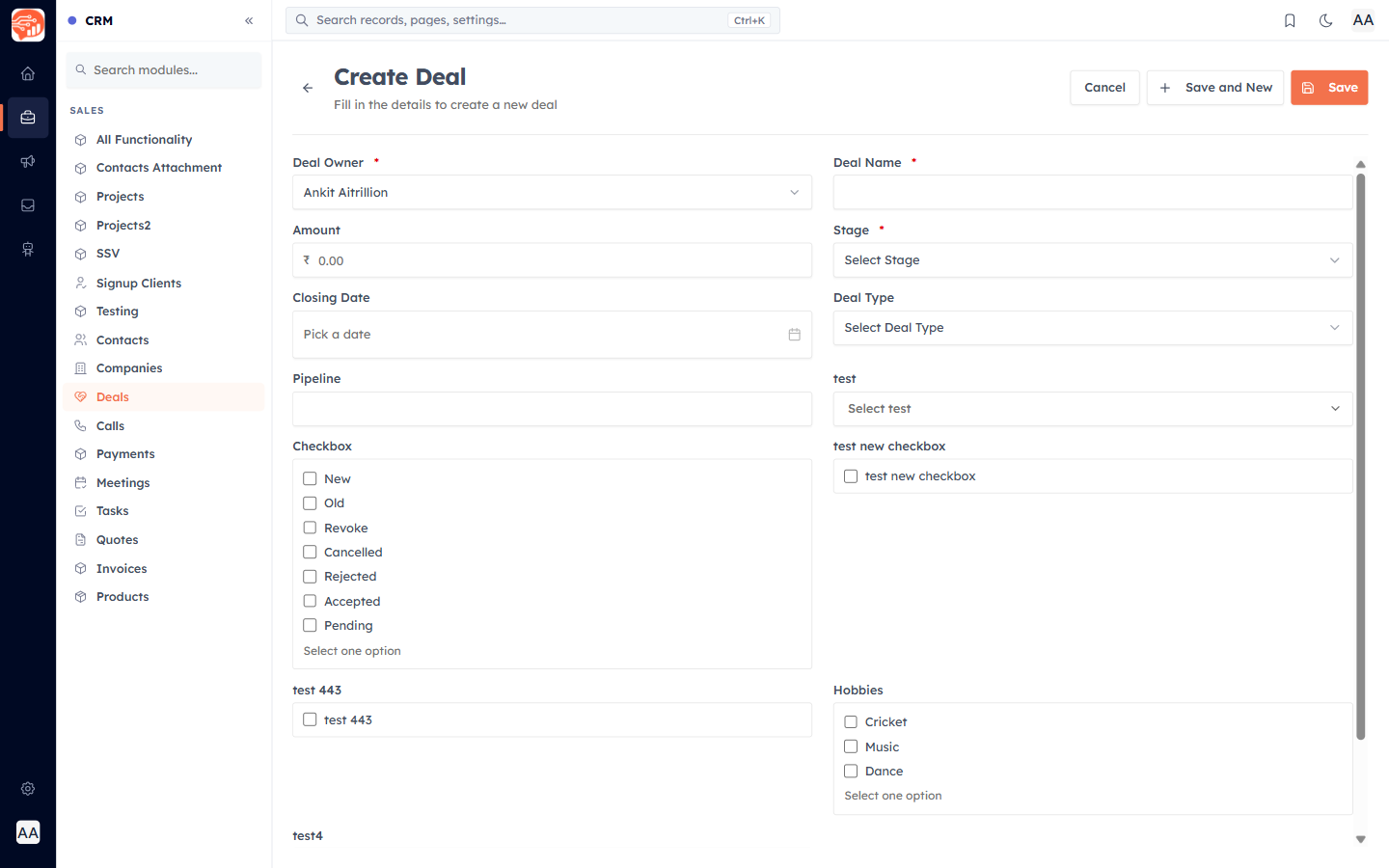
- Deal Owner (required) — defaults to you; change it to assign the deal to a teammate.
- Deal Name (required, must be unique).
- Amount — the deal value.
- Stage (required) — where it sits in your pipeline.
- Closing Date — the expected close date.
- Deal Type — New Business or Existing Business.
Click Save (or Save and New to add another).
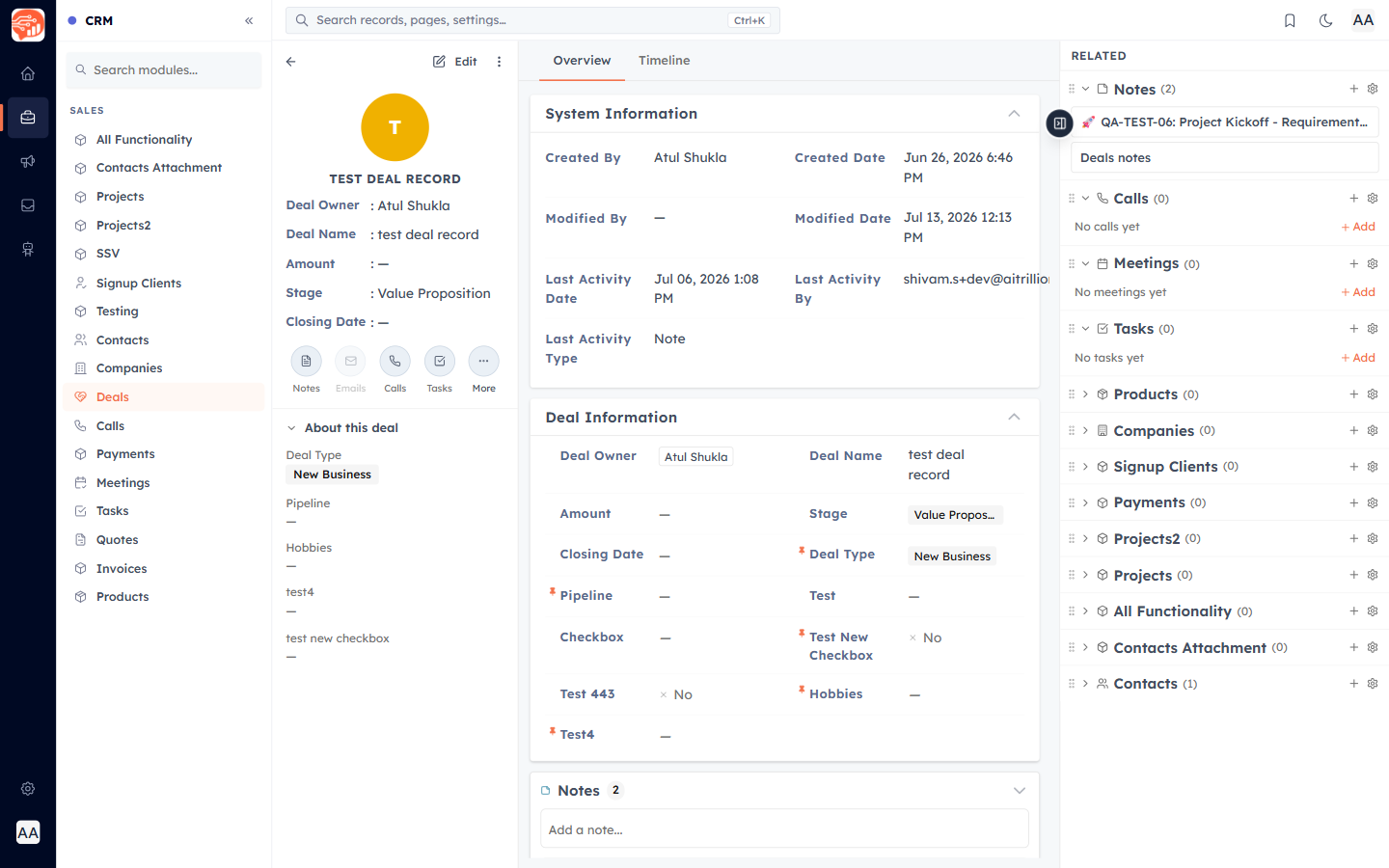
🎉 Now, your deal is created — here is how it appears:
Manage a deal#
The detail page has an Overview tab (all the deal’s fields) and a Timeline tab (its full history — see the activity timeline). Use Edit to change fields, the quick-action chips to add a task, call, or meeting, and the Related sidebar to link records.
💡
To move a deal forward, change its Stage here — or drag its card on the Kanban board. Move it to Closed Won or Closed Lost to close it.
Was this article helpful?
Ready to implement this?
OpenAI Engage and apply what you just learned to your own workspace.
Open AI Engage CRM