Loading…


KnowledgeBase
Schedule Meetings
Settings first: meeting statuses & venues#
Meetings use pick-lists you can adjust in the Module Builder (Settings → Customization → Modules and Fields → Meetings → Edit Module):
- Meeting Status — Scheduled, In Progress, Completed, Cancelled (default Scheduled).
- Meeting Venue — Office, Client Location, Online, Restaurant, Other.
Schedule a meeting#
Open the Meetings module and click Create Meeting — or use the Meetings quick-action chip on a contact or deal, or New Meeting on your Home calendar.
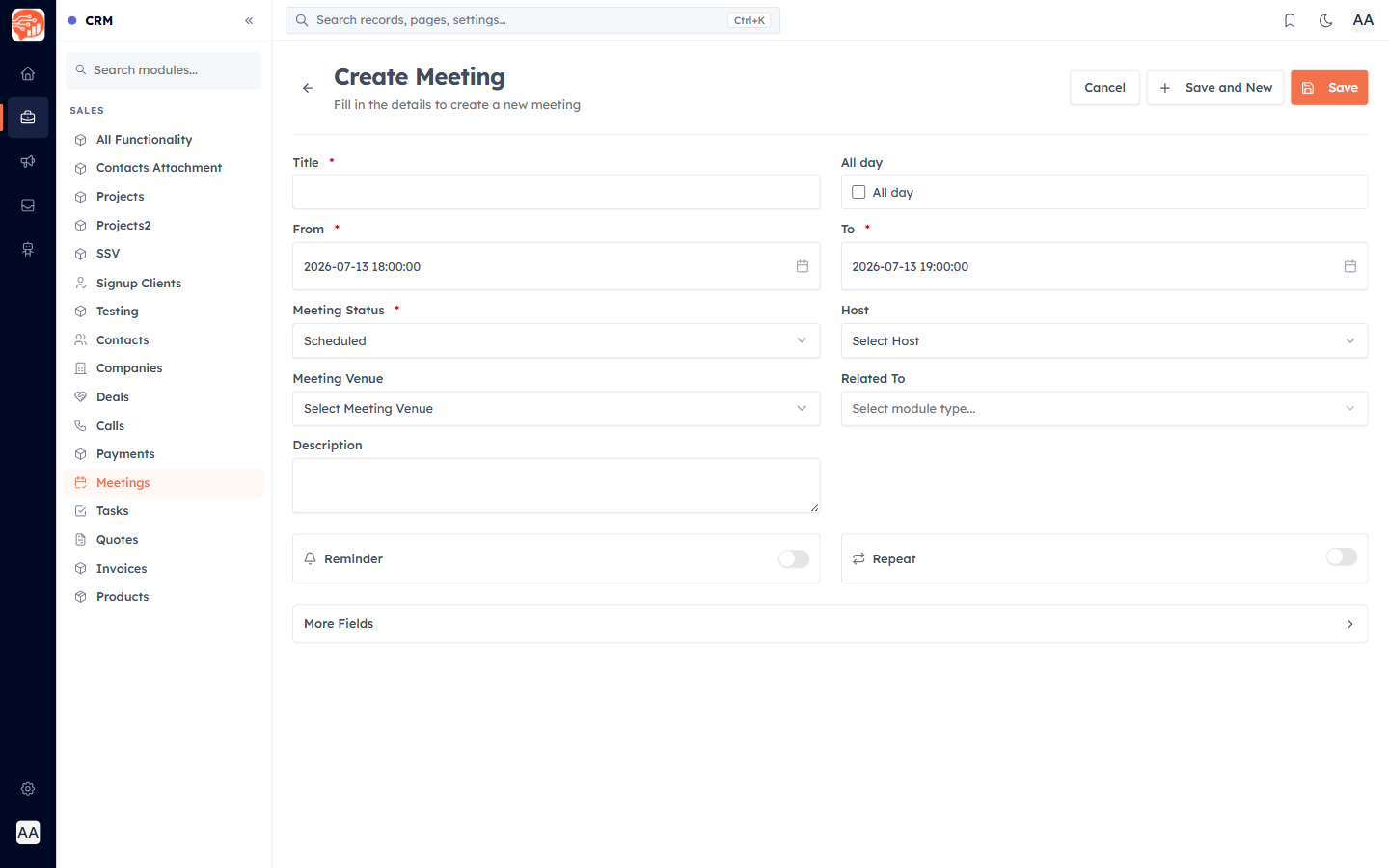
- Title (required).
- From / To — start and end time (defaults to the next half-hour for an hour). Tick All day for an all-day event.
- Meeting Venue, Host, and Participants.
- Reminder & Repeat — a reminder before it starts, and recurrence if it repeats.
💡
Two-way Google Calendar sync is on the roadmap (shown as "Coming soon" in Integrations). For now, meetings live in AI Engage and appear on your Home calendar.
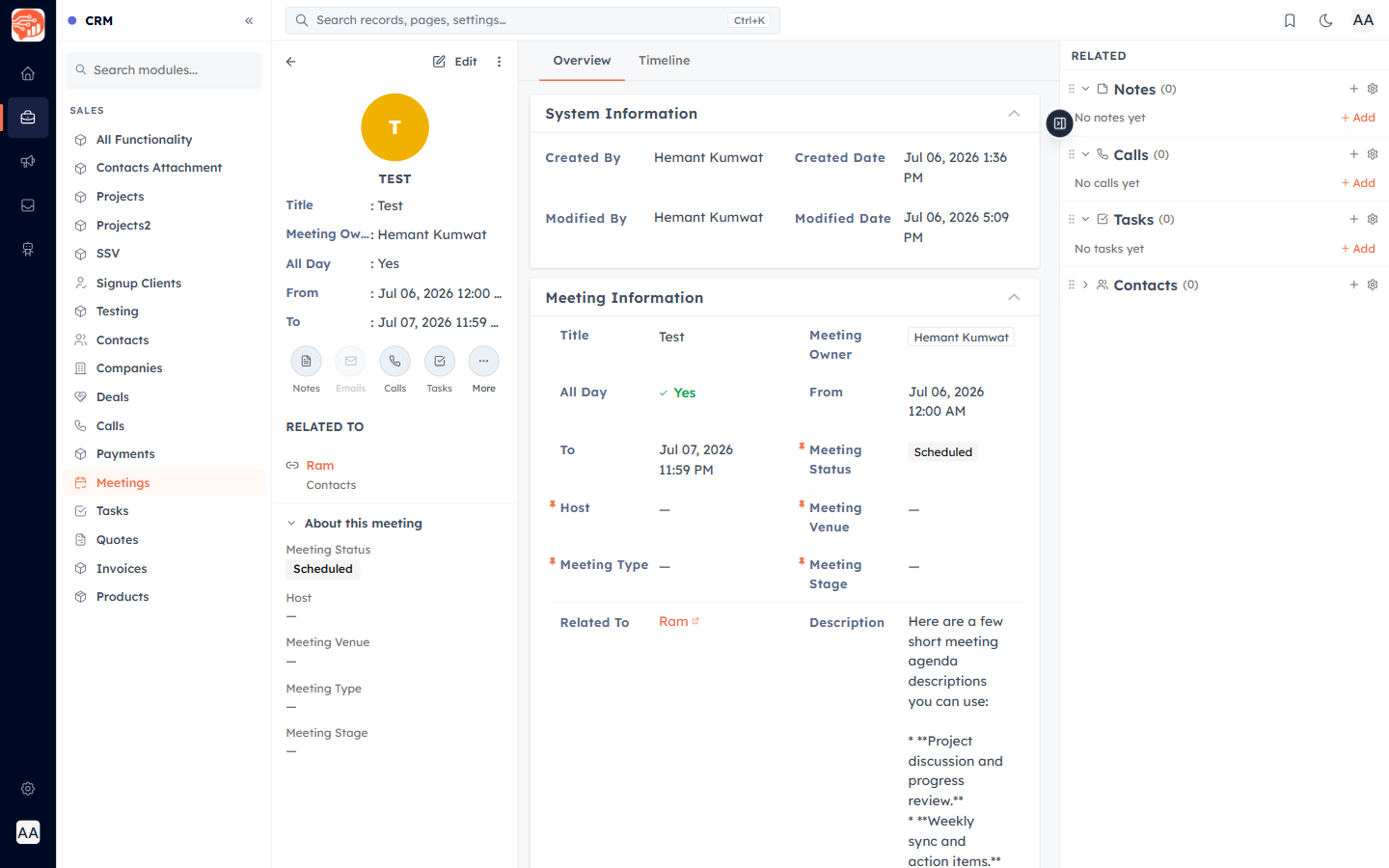
🎉 Now, your meeting is created — here is how it appears:
Was this article helpful?
Ready to implement this?
OpenAI Engage and apply what you just learned to your own workspace.
Open AI Engage CRM