Loading…


KnowledgeBase
Dashboard Labels & Sections
What is a Label / Section?#
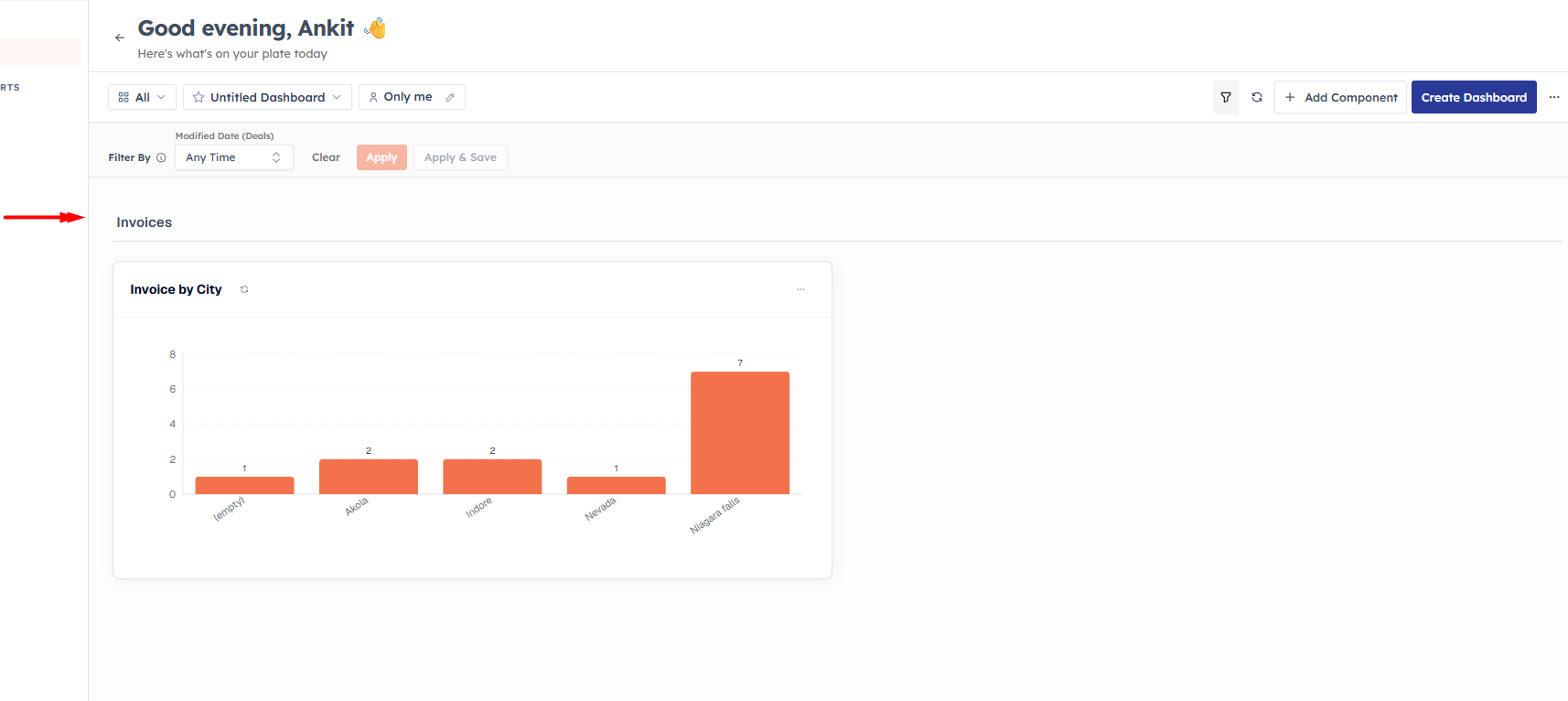
A Label / Section is a full-width heading you place between tiles on a dashboard to segregate the components below it — for example a "Sales" band above your pipeline tiles and a "Marketing" band above your campaign tiles. It turns a wall of charts into an organised, readable page.
Add a Label#
On your dashboard, click Add Component and choose Label / Section, then Continue.
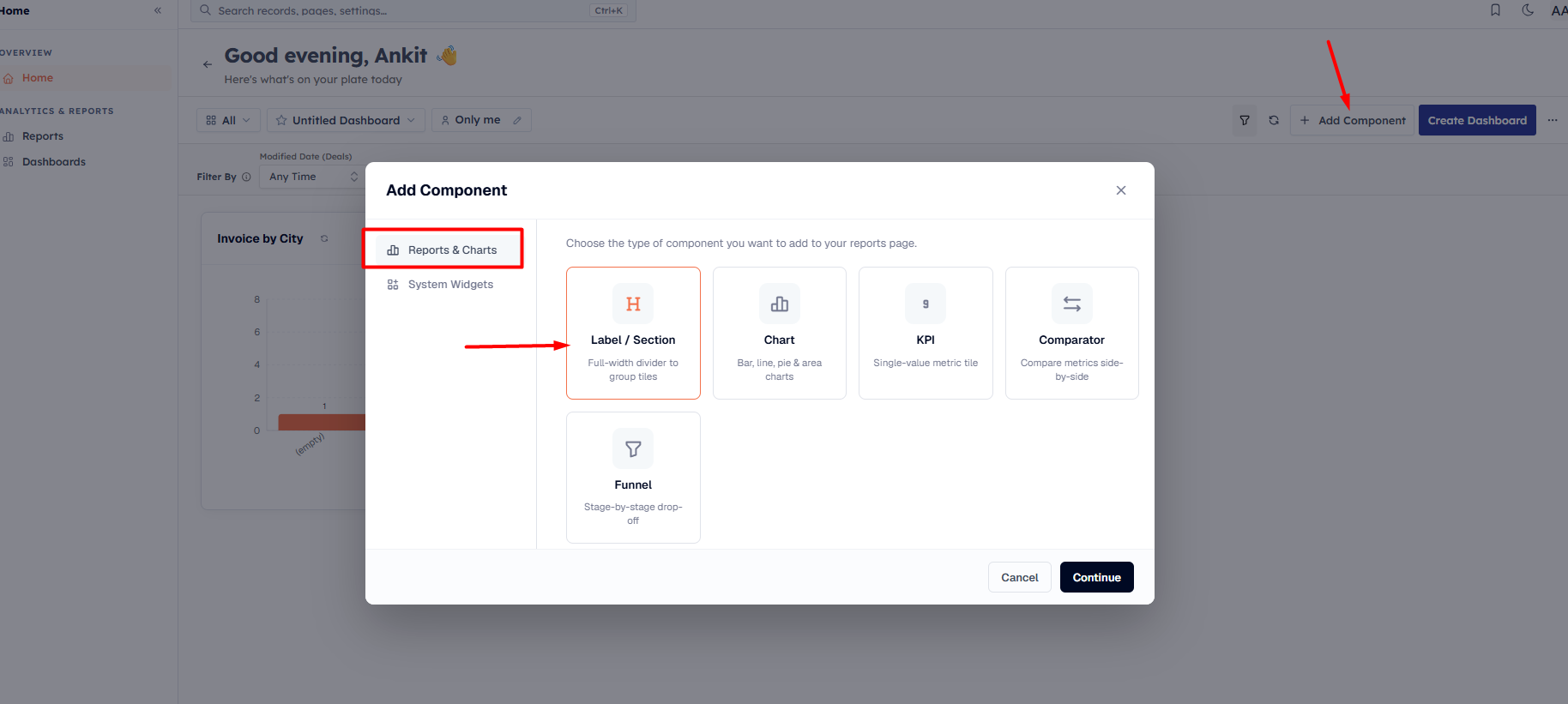
Write and style the label#
In the Add label editor, type the label text at the top. Everything else is styling, grouped into collapsible sections with a live preview on the right that renders exactly how the label will look:
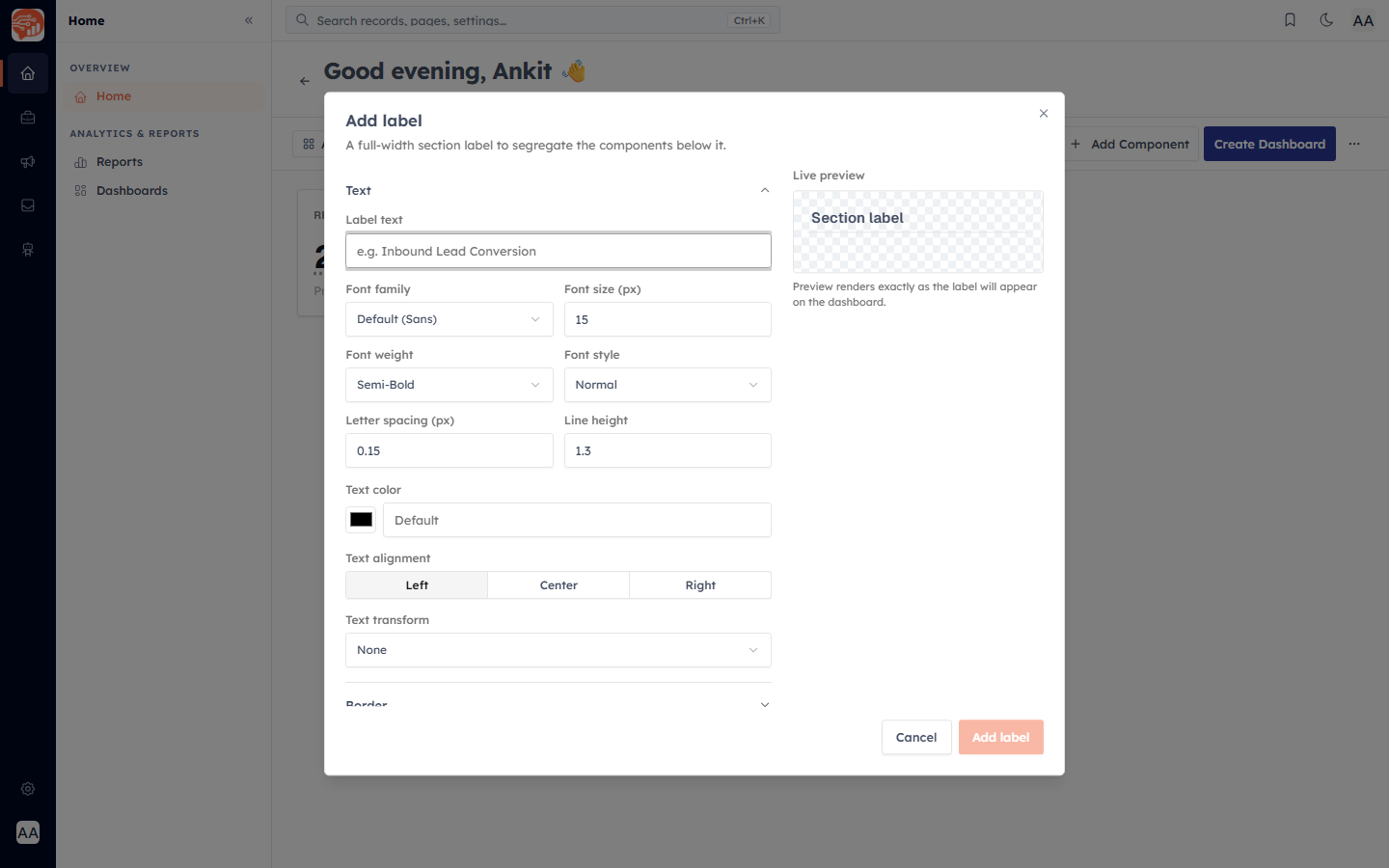
Text — font family, size, weight, style, letter spacing, line height, colour, alignment, and transform (e.g. UPPERCASE).
Border — turn a border on and set its position, thickness, style, radius, and colour.
Background — a solid colour with opacity, or a two-colour gradient at any angle.
Spacing — padding and margin on each side.
Divider — an optional rule line above, below, or both.
Advanced — width, height, shadow, and overall opacity.
💡
You do not need to touch most of the styling — type a short heading, keep the defaults, and click Add label. Reach for the style options only when you want a coloured band or a divider.
Was this article helpful?
Ready to implement this?
OpenAI Engage and apply what you just learned to your own workspace.
Open AI Engage CRM