Loading…


KnowledgeBase
Work Your Pipeline on the Kanban Board
Switch to the Kanban board#
Open the Deals module. In the toolbar are three view icons — List, Kanban, and Grid. Click Kanban.
First time: create a Kanban view#
The first time, you are asked to create a board. Give it a name and — most importantly — set Categorize By to your Stage field so the columns become your pipeline.
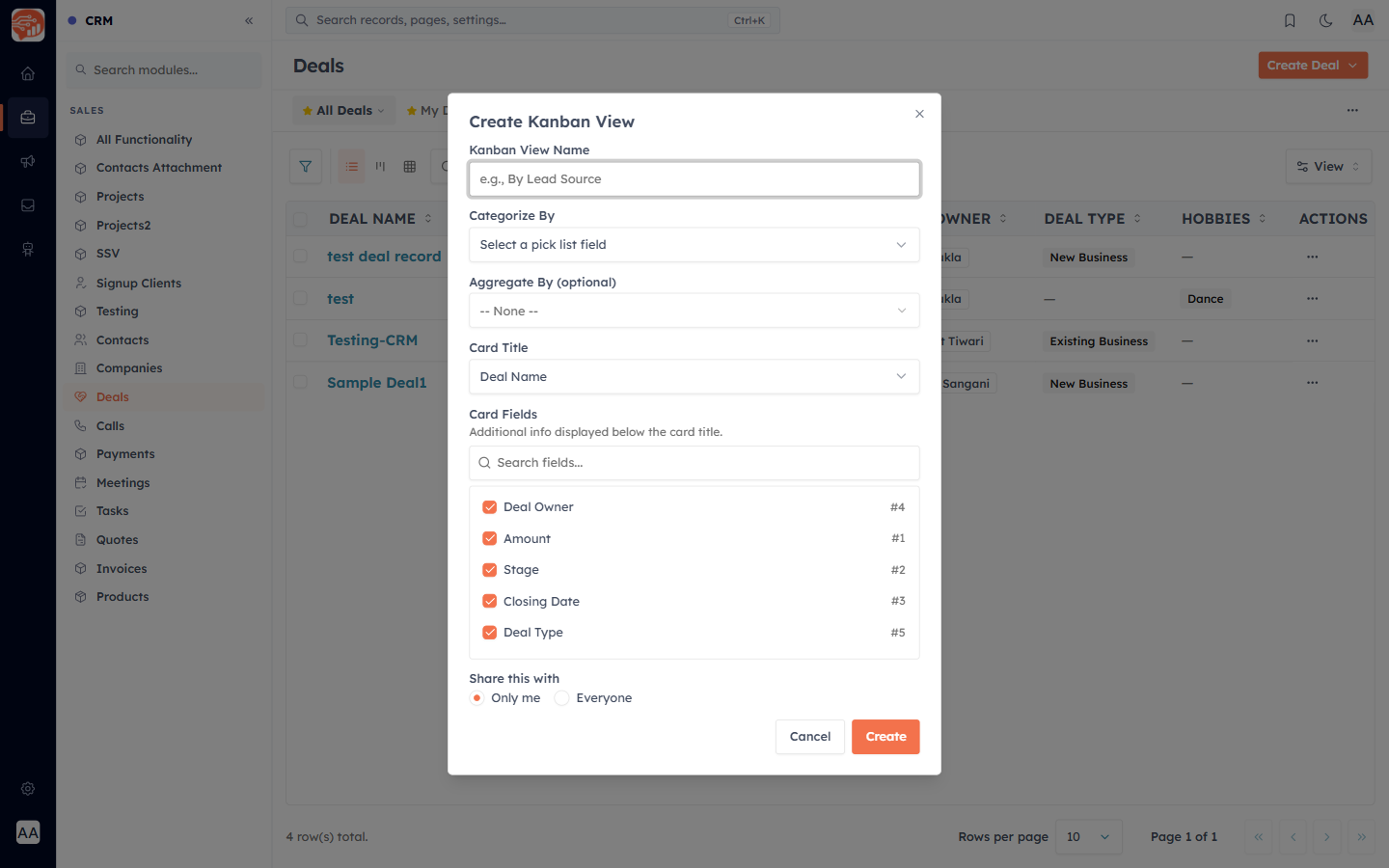
- Categorize By — pick Stage (the columns).
- Aggregate By (optional) — choose Amount with Sum to total each column’s value.
- Card Title and Card Fields — what each card shows.
- Share this with — just you, or everyone.
Work the board#
Each column is a pipeline stage, in the order you set in your stage setup, with a card per deal and a count in the header.
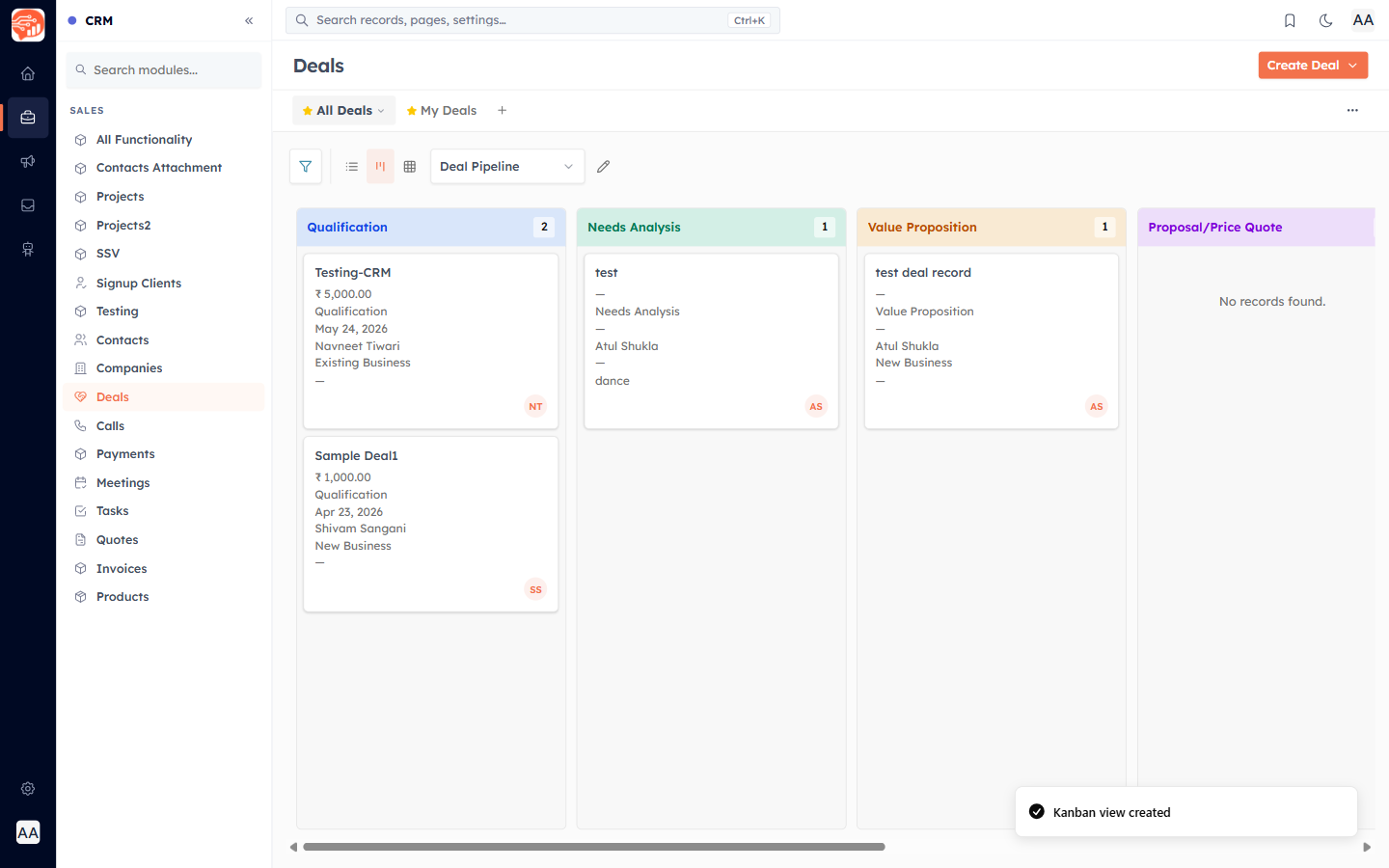
- Drag a card to another column to move that deal to a new stage — the change saves instantly.
- Drag a deal into Closed Won or Closed Lost to close it.
- If you set an aggregate, each column header shows its total (e.g. Sum: 6,000).
ℹ️
The board respects the same filters and search as the list view, and you can save more than one Kanban view (for example, one grouped by a different pick-list field).
Was this article helpful?
Ready to implement this?
OpenAI Engage and apply what you just learned to your own workspace.
Open AI Engage CRM