Loading…


KnowledgeBase
Add Notes to Deals and Records
Add a note#
Every record has a Notes card on its Overview tab. Open a deal (or any record), find Notes, and click "Add a note…".
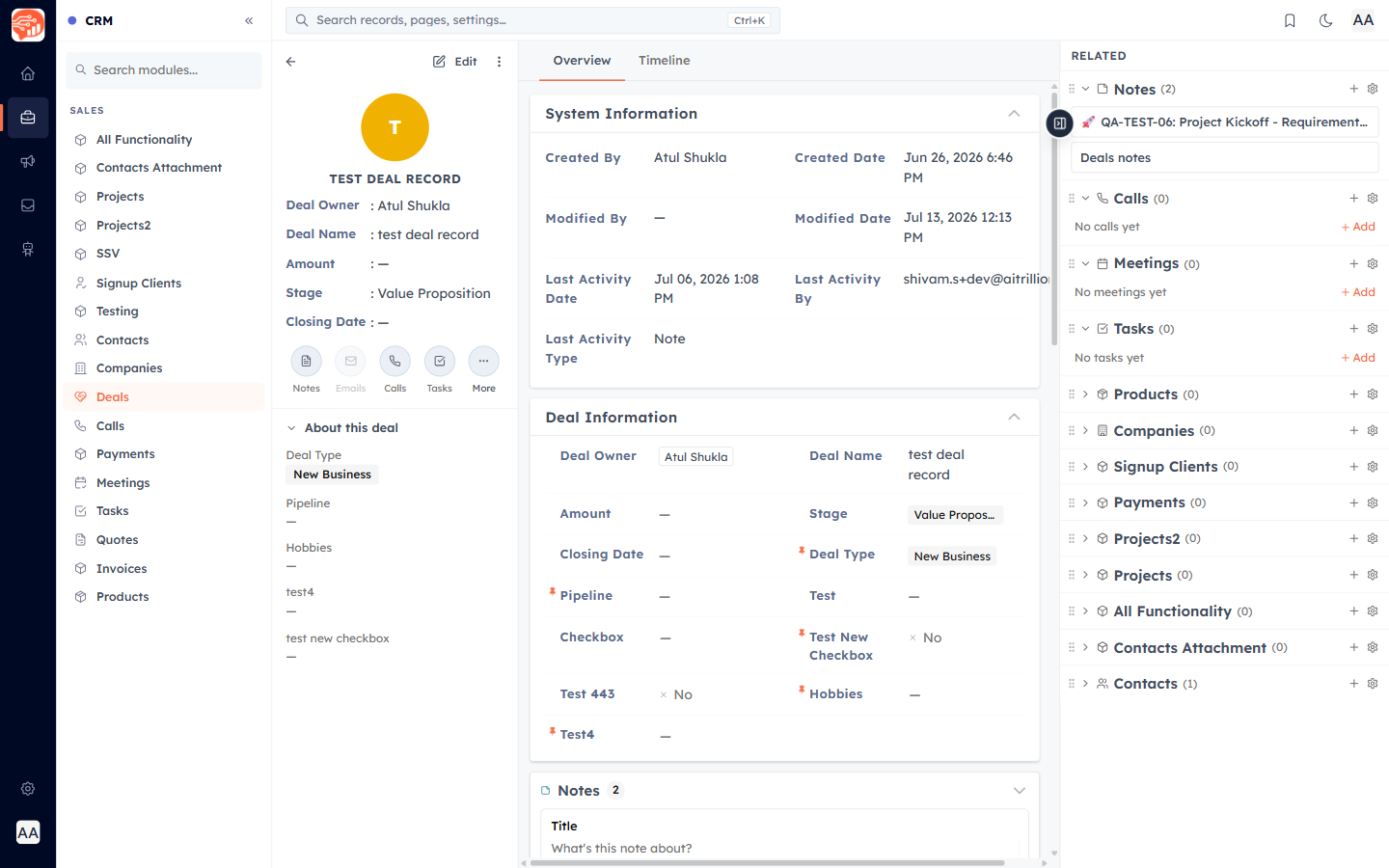
- Give the note a Title and write the body as rich text (with @mentions) or switch it to a checklist.
- Attach files with the paperclip (up to 10 MB each).
- Tick Pin this note to keep it at the top, then click Save.
Edit or delete#
Click a saved note to edit it inline — changes autosave. Each note is stamped with who wrote it and when. Use the trash icon to delete (you will be asked to confirm).
🔗
On a contact, the Notes card has two tabs — Notes and All Related Notes — so you can see notes from every record linked to that person. See The Related Notes View in the Contacts collection.
Was this article helpful?
Ready to implement this?
OpenAI Engage and apply what you just learned to your own workspace.
Open AI Engage CRM