Loading…


KnowledgeBase
Preview Your Help Center Privately Before Customers See It: Open, Check and Refresh the Preview (Step-by-Step)
Introduction#
Before you share your help center with customers, or after you change its look, you want to see it exactly as they will. Open preview does that: it opens your help center in a new browser tab with a private link that only works for you, while you are signed in to the CRM.
The preview works even while Make my help center public is off, so you can set everything up in private and only switch the help center on when you are happy with it.
In this guide we open the preview, then walk through the pages a customer sees: the home page, the theme menu, the search, a collection page and an article, with a checklist of what to look for on each.
ℹ️
The screenshots use a sample help center for a business called YourCompany. Your preview shows your own brand, collections and articles.
Private preview | Public help center | |
|---|---|---|
Who can open it | Only you, while signed in to the CRM | Anyone with the address |
Works when the help center is switched off | Yes | No |
Shows | Published articles in published collections, with your saved settings | The same |
How to open it | Settings → Preview → Open preview | Your help-center address or your own domain |
Before you begin#
Permission: you need the Knowledge Base permission (admins always have it).
Publish a few articles in published collections, so the preview has something to show. Drafts are not shown in the preview.
Save your settings first. The preview shows your saved branding and settings. See Brand and Publish Your Help Center.
Allow pop-ups for the CRM in your browser, because the preview opens in a new tab.
Step 1: Go to the Preview tab#
Open Knowledge Base → Settings. The Preview tab opens first.
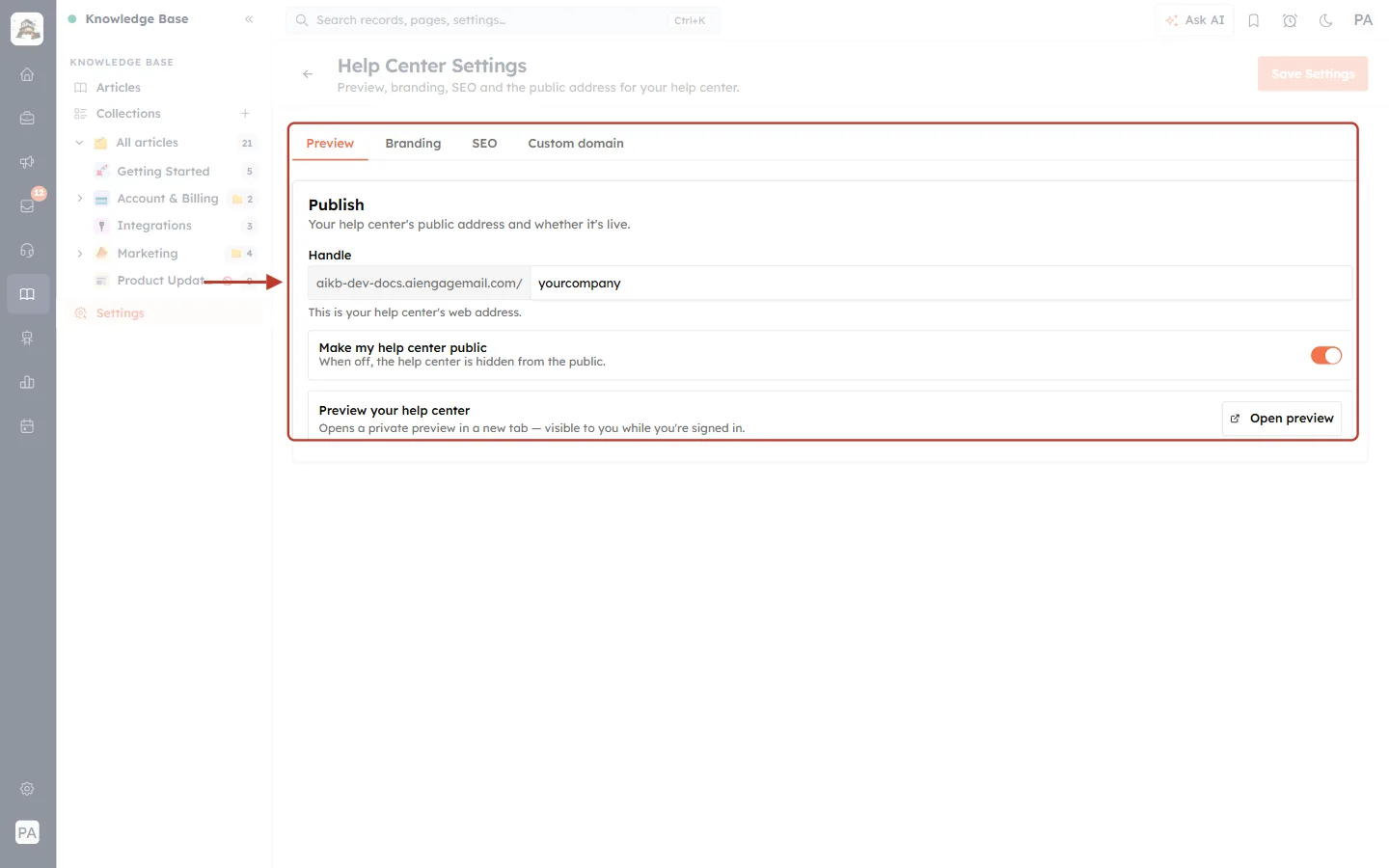
What this screenshot shows. The Preview tab and its Publish card, ringed.
Preview is the first of the four tabs (Preview, Branding, SEO, Custom domain) and is underlined in orange.
Publish — “Your help center’s public address and whether it’s live.”
Handle: the help center’s built-in address. The preview opens at this address.
Make my help center public: the on/off switch for customers. The preview works whichever way it is set.
Preview your help center with the Open preview button at the bottom.
Step 2: Save any changes first#
If you have just changed something on any tab, for example the tagline, a note appears under the preview row:
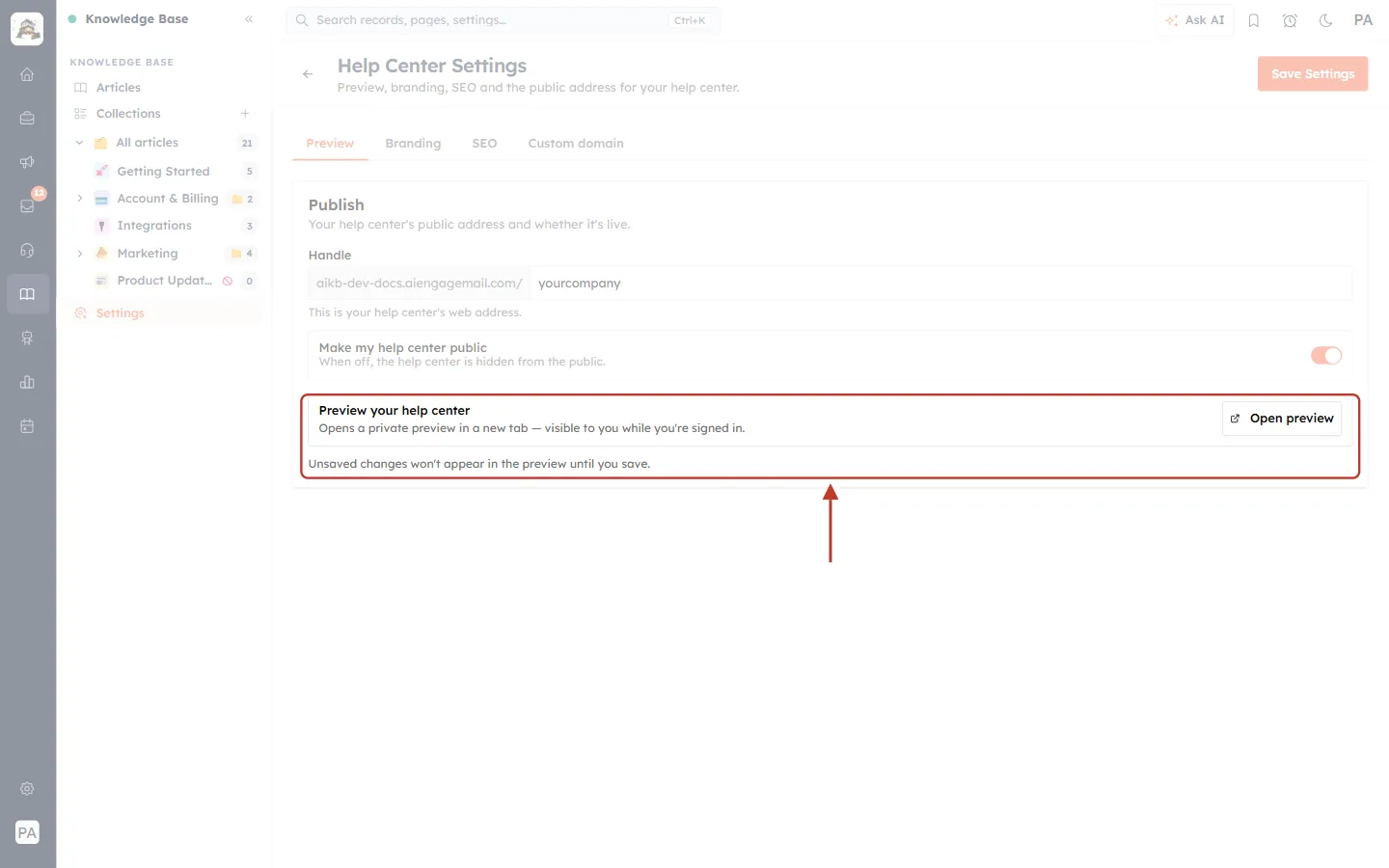
What this screenshot shows. The Preview your help center row and the note under it, ringed.
“Opens a private preview in a new tab — visible to you while you’re signed in.”
“Unsaved changes won’t appear in the preview until you save.” This note means you have changed something but not saved it yet.
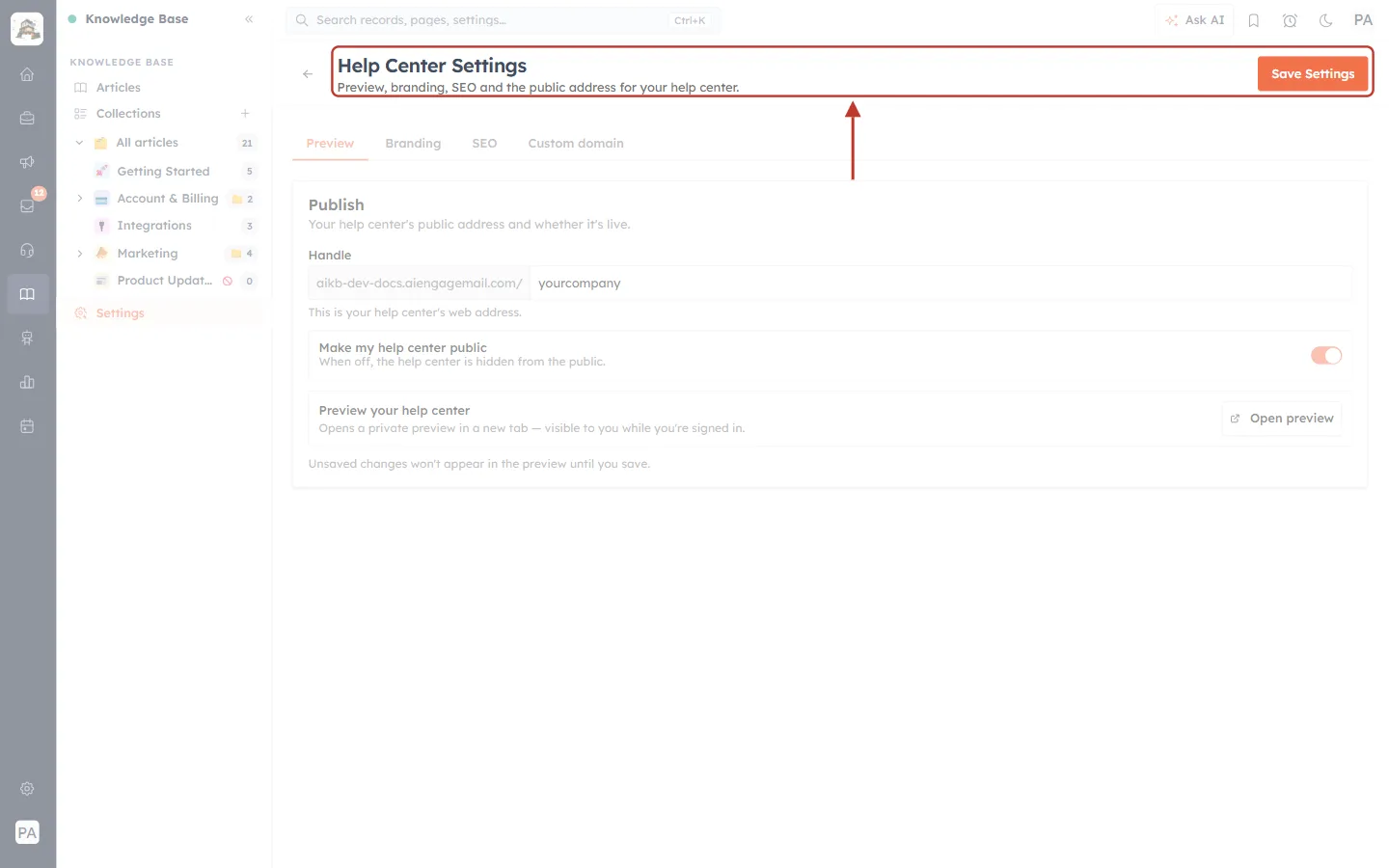
What this screenshot shows. The top of the page, ringed, with Save Settings active (bright orange).
Click Save Settings. A message confirms “Settings saved”.
Now the preview will show your latest changes.
Step 3: Click Open preview#
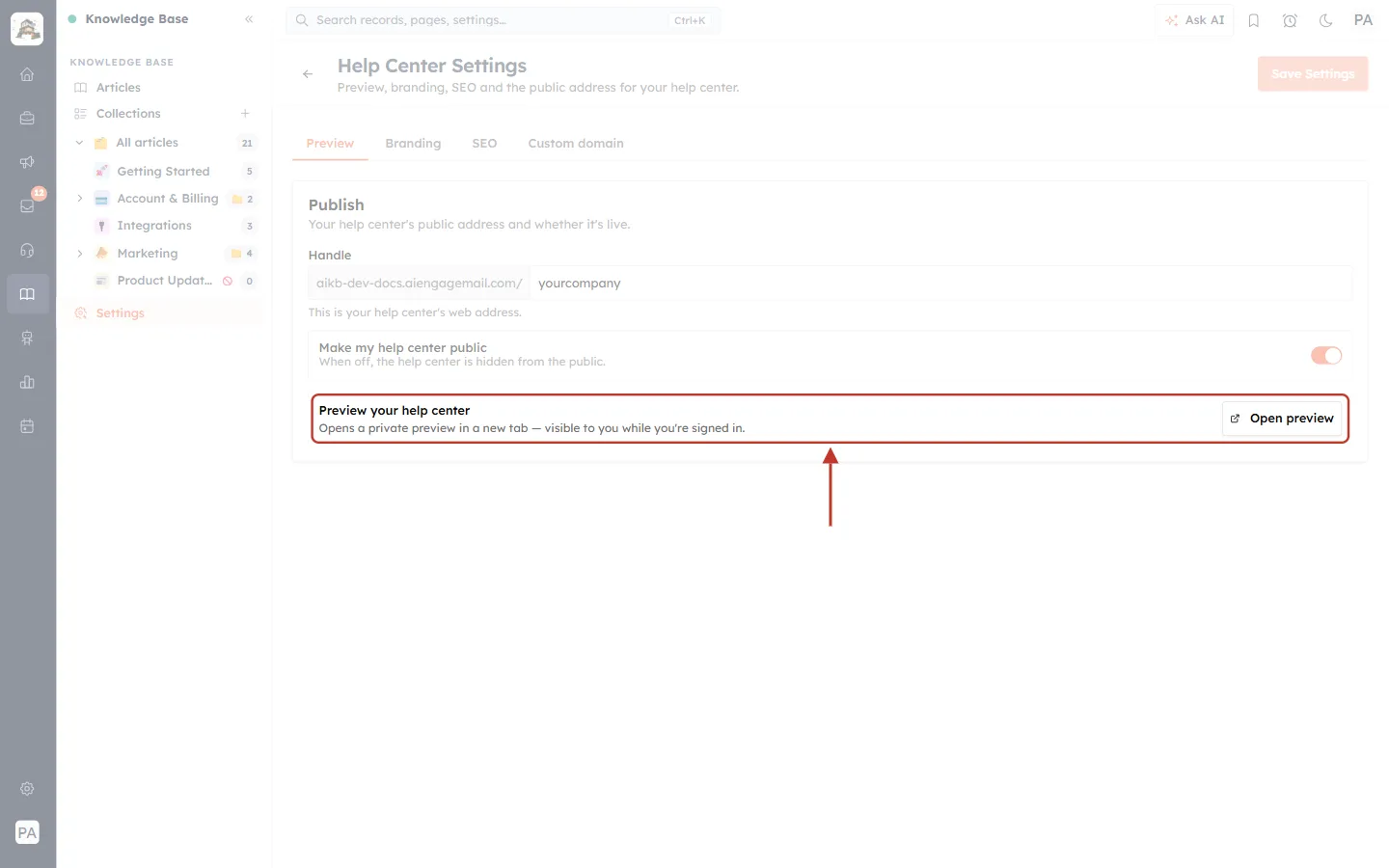
What this screenshot shows. The Preview your help center row and the Open preview button, ringed.
Click Open preview. The CRM creates a private link for you and opens it in a new browser tab.
The new tab shows your help center at its built-in address (the help-center host followed by your handle).
Your CRM tab stays open, so you can switch between the two: change something in the CRM, save, then check it in the preview tab.
ℹ️
The private link itself is only valid for a few minutes, so don’t bookmark or share it. Once the preview tab is open you can keep browsing it. If you come back later, click Open preview again for a fresh one.
Step 4: Check the home page#
The preview opens on the help center’s home page:
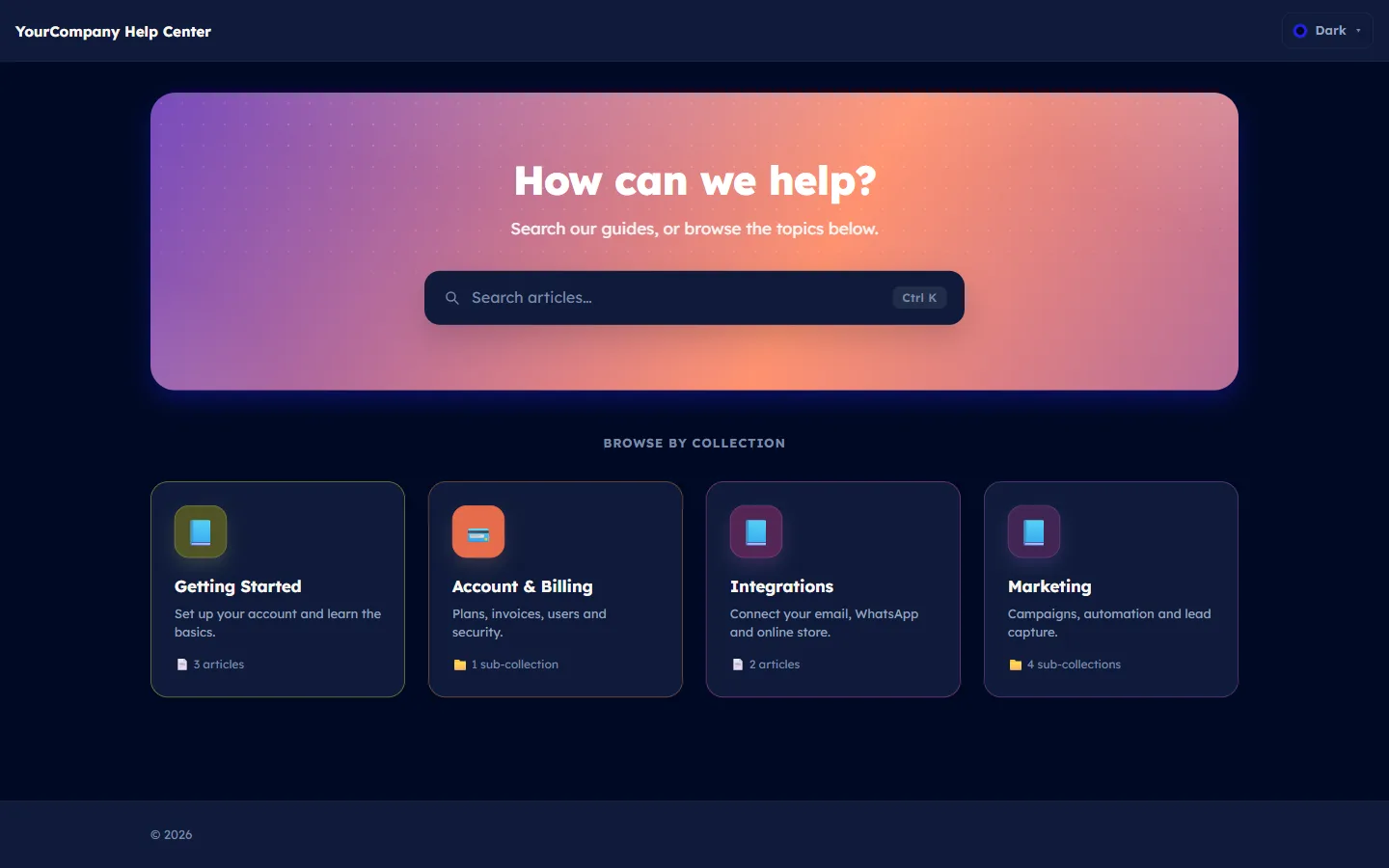
What this screenshot shows. The home page of the help center in the preview tab.
Top bar: the brand name (“YourCompany Help Center”) and your logo if you uploaded one, and the theme menu (Dark ▾) on the right.
Hero: the heading “How can we help?”, the subheading and the big search box with Ctrl K.
BROWSE BY COLLECTION: a card for each published top-level collection with its icon, name, description and count (“3 articles”, “1 sub-collection”).
Footer at the bottom with your footer text and links.
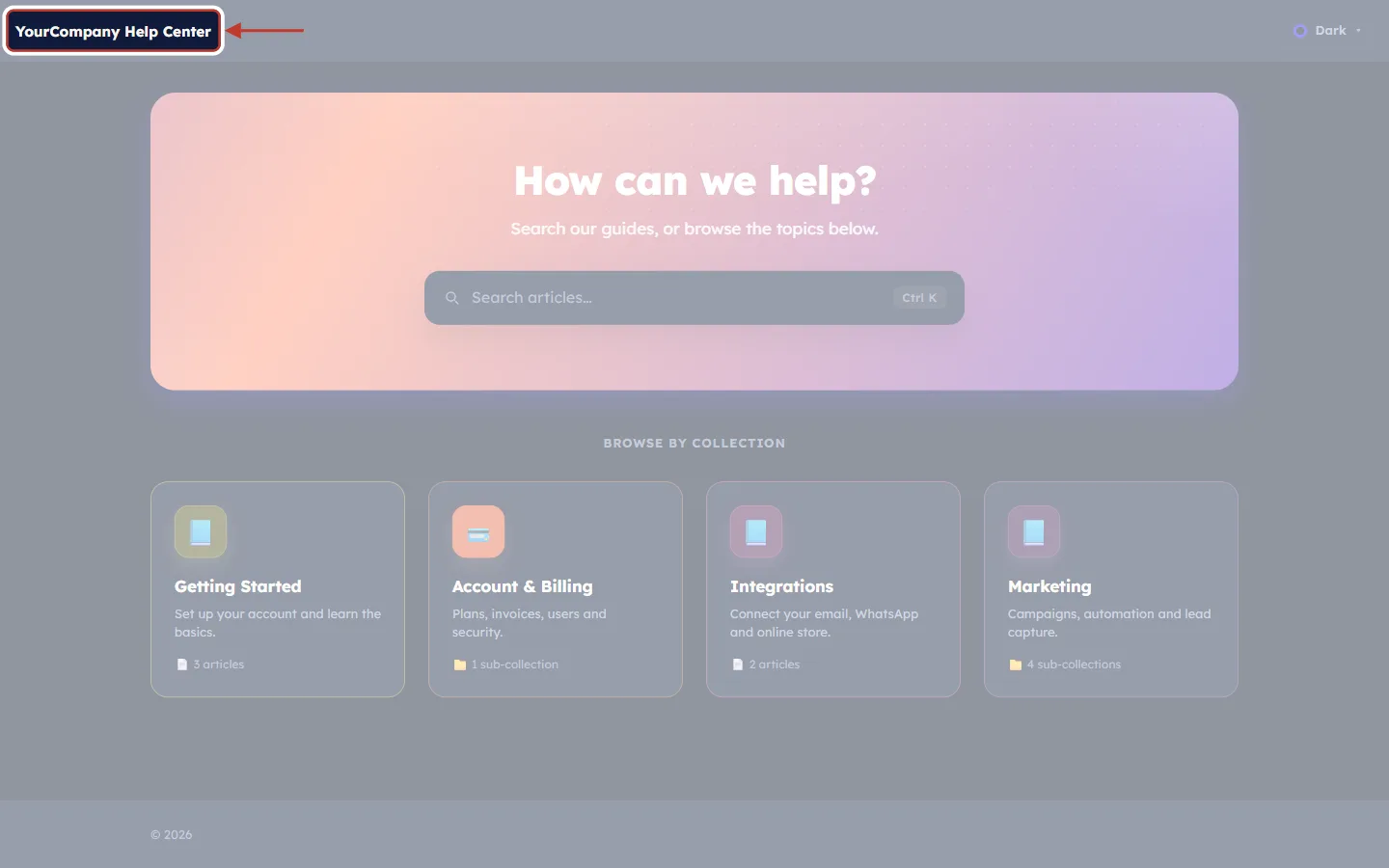
What this screenshot shows. The brand name at the top left, ringed.
Check the brand name and logo look right and aren’t cut off.
Clicking the name always brings customers back to this home page.
✅
Home-page checklist: brand name and logo, hero wording, every collection card has a clear description, the counts look right, and the footer links work.
Step 5: Try both themes#
Click the theme menu at the top right:
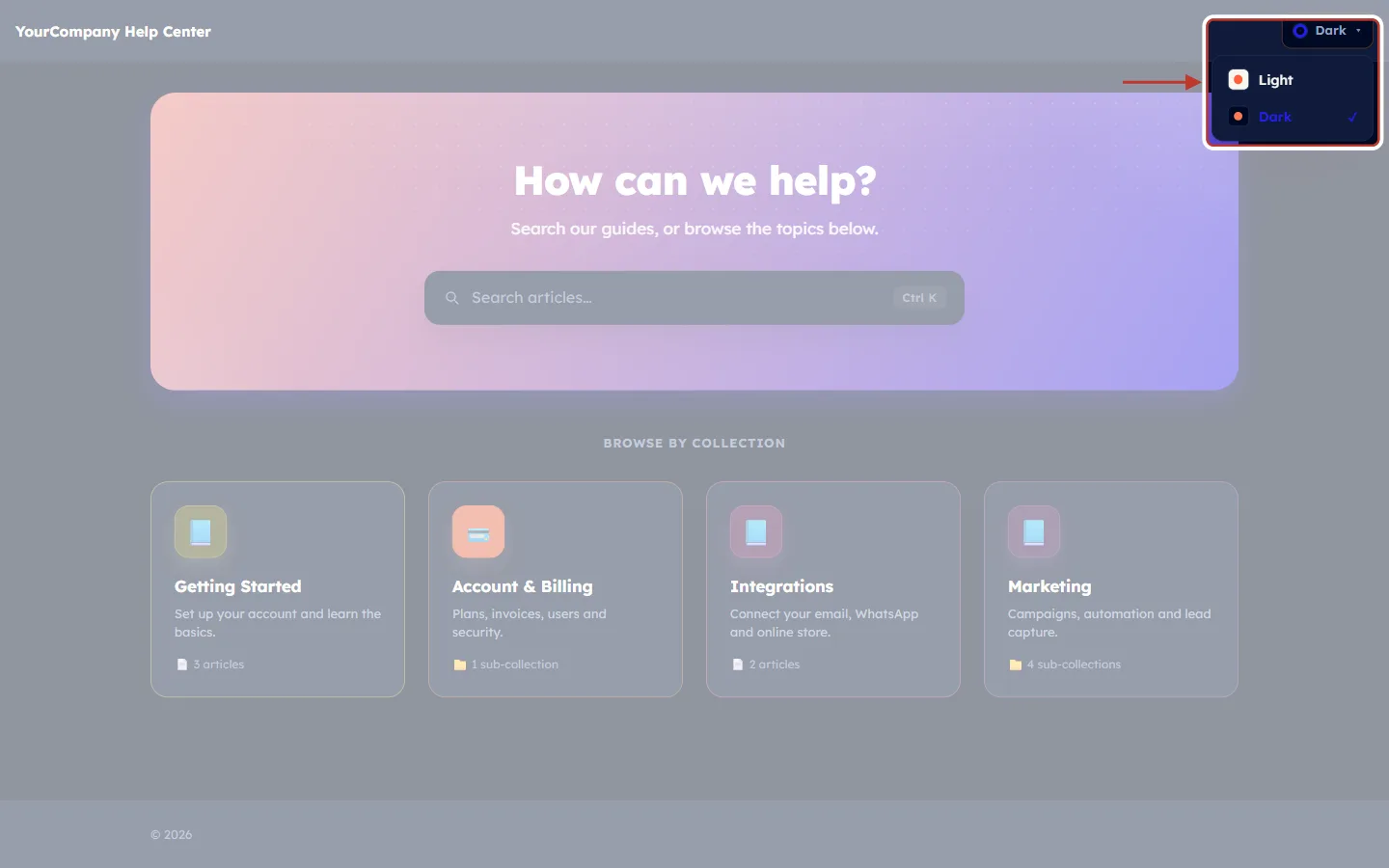
What this screenshot shows. The theme menu open, ringed.
Light and Dark. The tick shows the current theme; it starts on the Default theme you chose in Settings → Branding.
Switch to the other theme and look around: your logo, accent colour and images should be easy to see in both.
Customers can switch theme the same way, so check both.
Step 6: Test the search#
Click the search box (or press Ctrl K) and type a word your customers would search for:
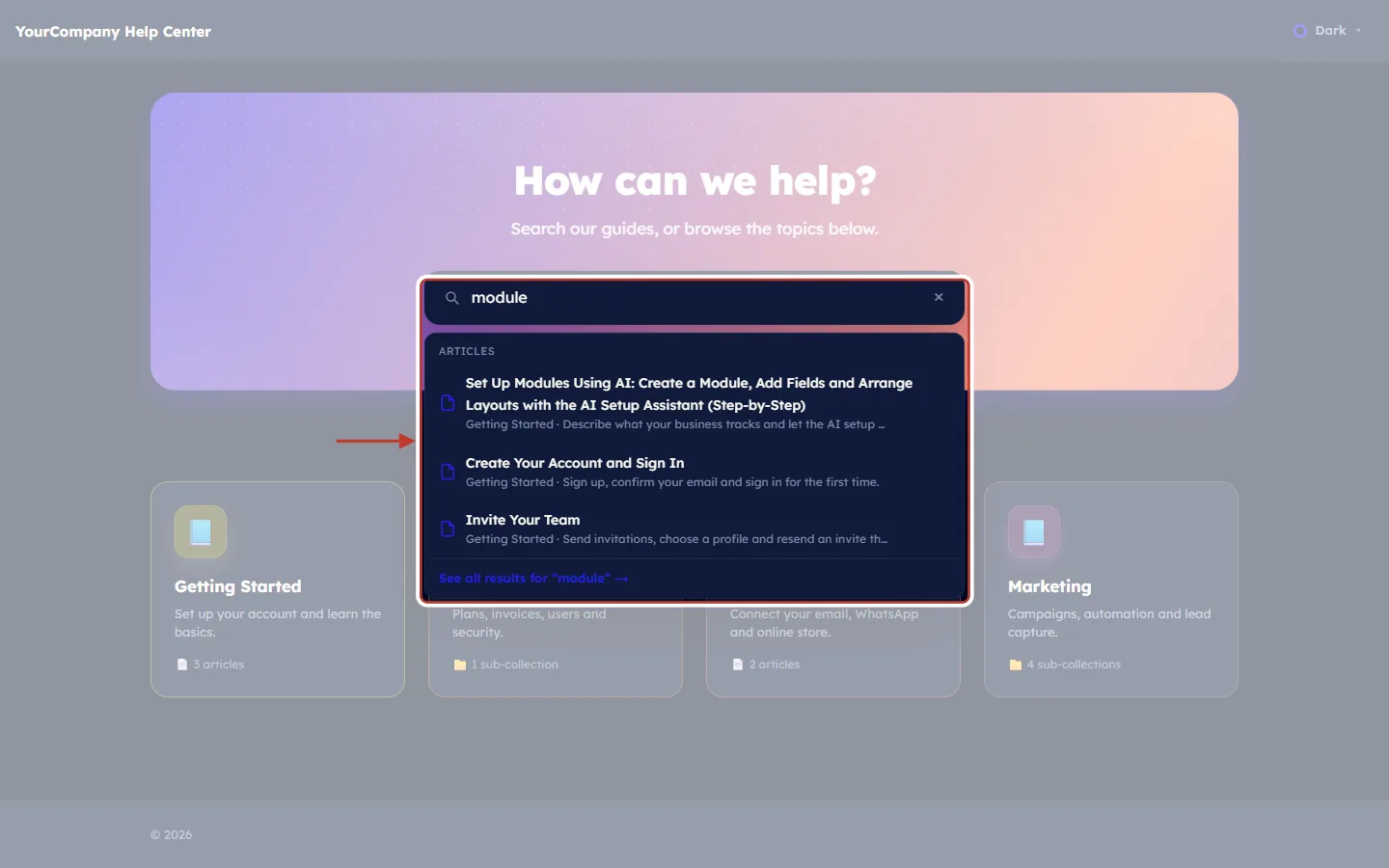
What this screenshot shows. The search box and its results, ringed, after typing “module”.
Results appear while you type, under ARTICLES.
Each result shows the article title and, underneath, its collection and excerpt (“Getting Started · Sign up, confirm your email…”).
See all results for “module” → opens a full results page. The × clears the search.
If a search finds nothing useful, improve the article titles and excerpts so they use your customers’ words.
Step 7: Open a collection#
Click a collection card. The collection page opens:
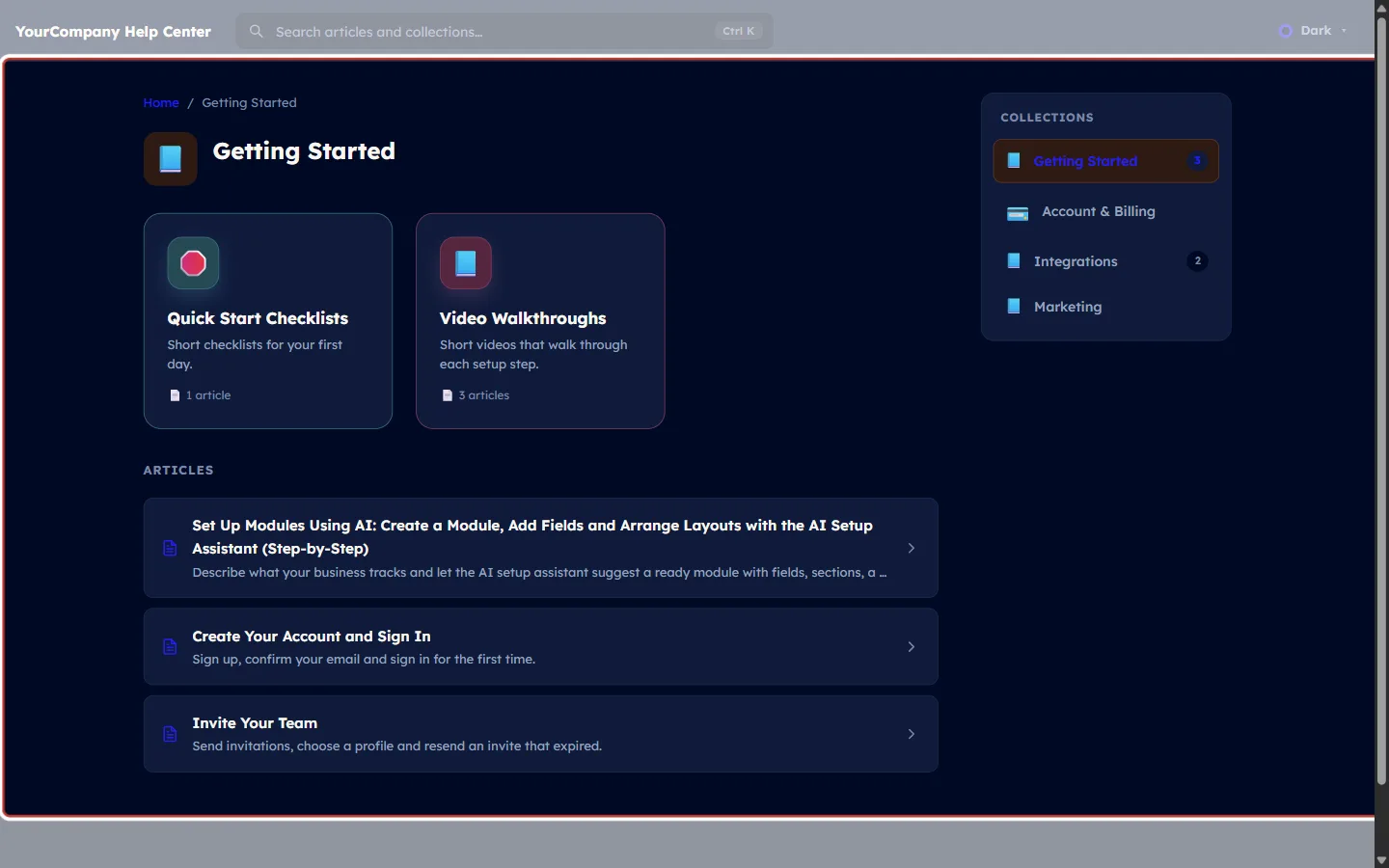
What this screenshot shows. The Getting Started collection page, ringed.
Breadcrumb: Home / Getting Started.
Sub-collection cards first (Quick Start Checklists, Video Walkthroughs) with their article counts.
ARTICLES: the published articles in your drag order, each with its title and excerpt.
COLLECTIONS on the right: all top-level collections, with the current one highlighted.
Check the order of the articles. If it is wrong, change it in the CRM by dragging the articles in the collection (see Article SEO and Navigation).
Step 8: Read an article#
Open an article from the list:
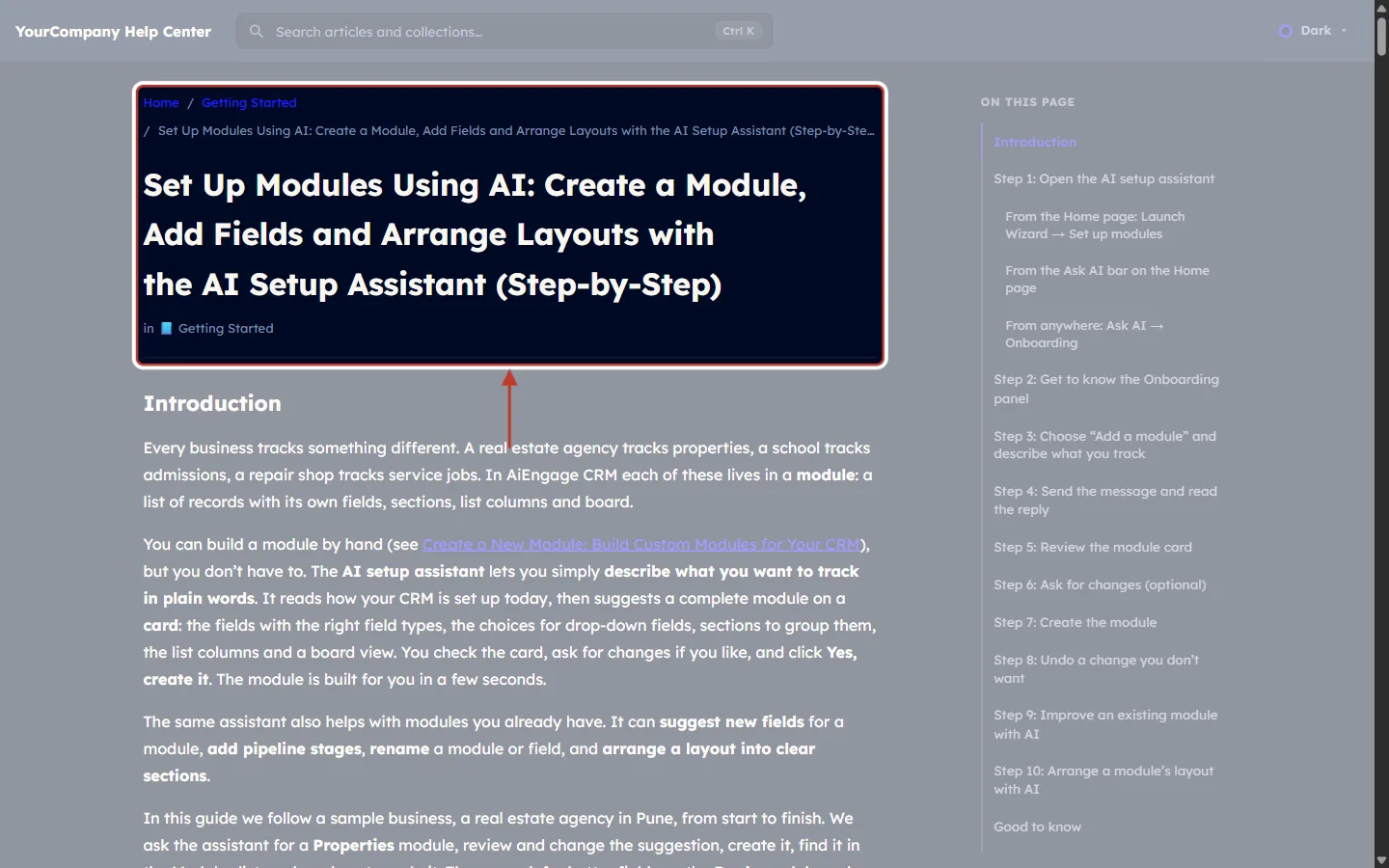
What this screenshot shows. The top of the article page, ringed.
Breadcrumb: Home / Getting Started / article title.
Title in large text and the collection it belongs to (in 📘 Getting Started).
On the right, ON THIS PAGE lists the article’s headings. Click one to jump to it.
Read the content: headings, lists, images, tables, links and callouts should all look as you intended.
Scroll to the end of the article:
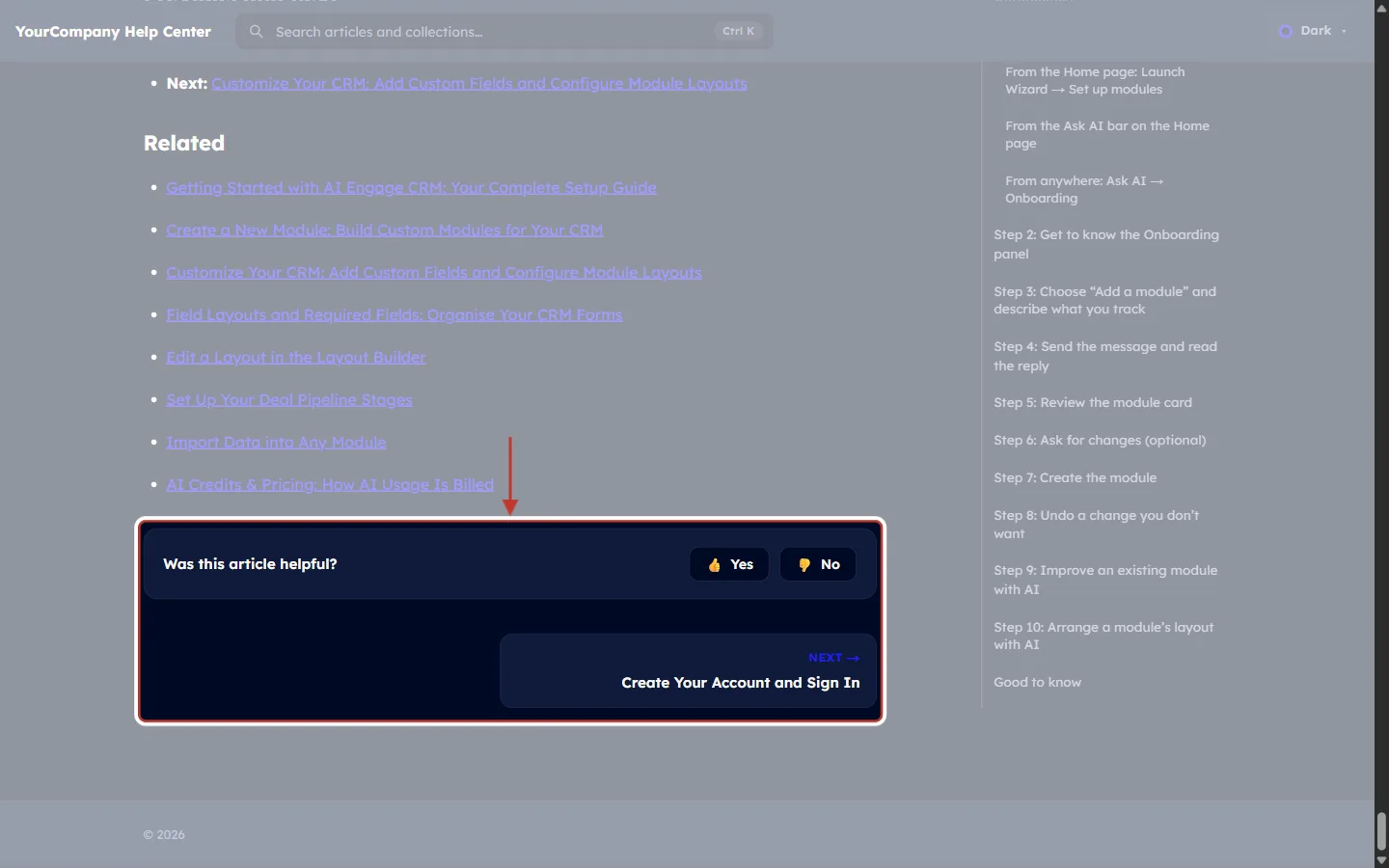
What this screenshot shows. The end of the article, ringed.
Was this article helpful? with Yes and No.
NEXT → card: Create Your Account and Sign In, the next article in the collection. A PREVIOUS card appears on the left when there is one.
If you turned on the article call-to-action in Settings, its banner appears here too.
Click the cards to check that the reading order makes sense.
Step 9: Fix, save and refresh#
Found something to change? Switch back to the CRM tab.
Change it: an article in the article form, a collection on the Collections page, or the look in Settings.
Click Save Changes (articles) or Save Settings (settings).
Switch to the preview tab and refresh the page (F5, or Cmd R on a Mac). If the preview has expired, click Open preview again.
Step 10: Go live#
When everything looks right, go back to Settings → Preview, turn on Make my help center public and click Save Settings. Your customers can now open the help center at its address, or on your own domain if you connected one.
Preview checklist#
Page | What to check |
|---|---|
Home | Brand name and logo, hero text, collection cards and descriptions, footer text and links |
Theme | Logo, colours and images readable in both Light and Dark |
Search | Common customer questions find the right article; titles and excerpts make sense |
Collections | Sub-collections and articles in a sensible order; no empty collections |
Articles | Headings, images, tables, links and callouts; Previous / Next cards lead somewhere useful |
Phone | Open the preview on a phone-sized window too: text, images and tables still fit |
Good to know#
The preview is private. It only works in your browser while you are signed in to the CRM.
It shows saved settings and published content only. Draft articles and draft collections aren’t shown, just as on the public site.
It works while the help center is switched off, so you can prepare everything before launch.
The preview link expires after a few minutes. Click Open preview again whenever you need a new one.
Troubleshooting#
Nothing happens when I click Open preview#
Why it happens: your browser blocked the new tab as a pop-up. How to fix it: click the blocked pop-up icon in the address bar, allow pop-ups for the CRM, and click Open preview again.
My changes don’t show in the preview#
Why it happens: they aren’t saved yet, or the preview tab wasn’t refreshed. How to fix it: click Save Settings or Save Changes, then refresh the preview tab.
An article I wrote is missing#
Why it happens: it is a draft, has no collection, or its collection is a draft. How to fix it: publish the article, give it a collection, and make sure the collection is published.
The preview doesn’t open or shows an error after a while#
Why it happens: the private link is only valid for a few minutes, or you are no longer signed in to the CRM. How to fix it: go back to the CRM (sign in again if needed) and click Open preview to get a fresh link.
The preview looks fine but customers can’t open the help center#
Why it happens: the preview works even when the help center is switched off. How to fix it: turn on Make my help center public and click Save Settings.
Frequently asked questions#
Can I send the preview link to a colleague?
No. The link is personal and expires after a few minutes. Your colleague can open their own preview from the CRM if they have the Knowledge Base permission.
Does the preview show draft articles?
No. It shows what customers will see: published articles in published collections. Publish an article to see it in the preview.
Does opening the preview make my help center public?
No. Only the Make my help center public switch does that.
Previous and next#
Related#
Was this article helpful?
Ready to implement this?
OpenAI Engage and apply what you just learned to your own workspace.
Open AI Engage CRM