Loading…


KnowledgeBase
MCP Troubleshooting: Fix Connection, Sign-In, Authorization and “Refused” Errors in Claude, ChatGPT and Cursor
Introduction#
Connecting an AI assistant such as Claude, ChatGPT or Cursor to AiEngage CRM through MCP usually takes about a minute. When something goes wrong, the problem is almost always in one of four places:
Where it goes wrong | What you see | Go to |
|---|---|---|
Adding the server in the assistant | The assistant cannot reach or “discover” the server. | Step 2 |
Signing in and approving | A CRM error page, a sign-in loop, or an “expired” message. | Steps 3–5 |
Using the connection | The assistant is connected but every question is refused, or it cannot find records. | Steps 6–8 |
Later on | The assistant keeps asking you to authorize again. | Step 9 |
This guide walks through each problem, shows the exact screen or message you will see, explains why it happens and tells you how to fix it. All screenshots are from the CRM and its sign-in service; each has a red ring and arrow on the important part, followed by an explanation of the whole screen.
ℹ️
None of these problems can damage your data. The MCP connection is read-only: it can never create, change, delete or send anything. Every error page you see below means the request was stopped safely.
Before You Begin#
Make sure you followed the setup guide for your assistant: Connect Claude to AiEngage CRM (MCP) or Connect ChatGPT, Cursor, VS Code and Other MCP Clients to AiEngage CRM.
Have the CRM open in the same browser the assistant uses for sign-in, and know which CRM account you sign in with.
Some checks (plan, usage, other people’s connections) need an administrator. The steps say when.
Step 1: Start with the Built-In Troubleshooting List#
The CRM has its own quick answers. Go to Setup → AI Centre Hub → MCP and scroll to the bottom of the page.
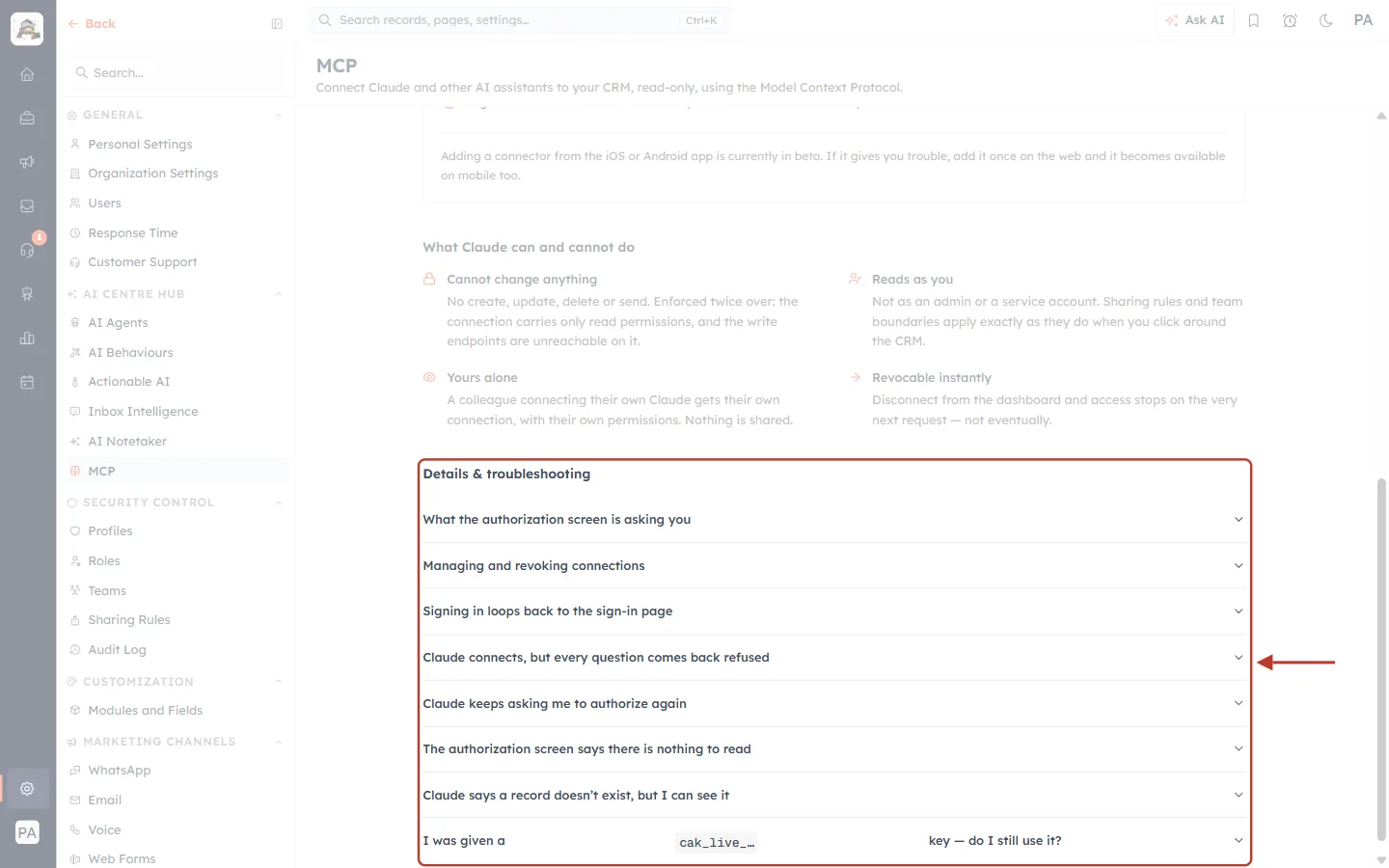
What this screenshot shows. The Details & troubleshooting section of the MCP page, ringed, with all items closed.
Click any line to open it, and click it again to close it.
What the authorization screen is asking you and Managing and revoking connections explain how approval and connections work.
Signing in loops back to the sign-in page, Claude connects, but every question comes back refused, Claude keeps asking me to authorize again, The authorization screen says there is nothing to read and Claude says a record doesn’t exist, but I can see it are the common problems. The page says “Claude”, but the same answers apply to ChatGPT, Cursor and every other MCP client.
I was given a cak_live_… key — do I still use it? covers the older key-based connection.
Above are What Claude can and cannot do (the four read-only promises) and, further up, the server address and setup tabs.
Step 2: The Assistant Cannot Add or Reach the Server#
If your assistant shows an error as soon as you add the server (for example “couldn’t connect”, “discovery failed” or “invalid resource”), check the address first:
Copy the address again from Setup → AI Centre Hub → MCP with Copy address. It is
https://mcp-api.aiengagecrm.com/mcp.Make sure there is no slash at the end, no space before or after it, and that it starts with
https://.In apps that use a configuration file (Cursor, VS Code), check that the address is inside quotes and that the file is valid JSON (no missing commas or brackets). Do not add an
Authorizationheader.Choose the remote / HTTP server type, not a local command (“stdio”).
If your company network blocks unknown websites, ask your IT team to allow
mcp-api.aiengagecrm.com.
✅
If the assistant only offers to connect with an API key or a custom header and has no sign-in option, it does not support MCP sign-in (OAuth). New MCP keys are no longer issued, so use an assistant that supports sign-in, such as Claude, ChatGPT, Cursor or VS Code.
Step 3: An Error Page Appears Instead of the Sign-In#
Before you can sign in, the CRM’s sign-in service checks which application is asking and where it wants to send you back. If either check fails, it stops and shows a plain error page.
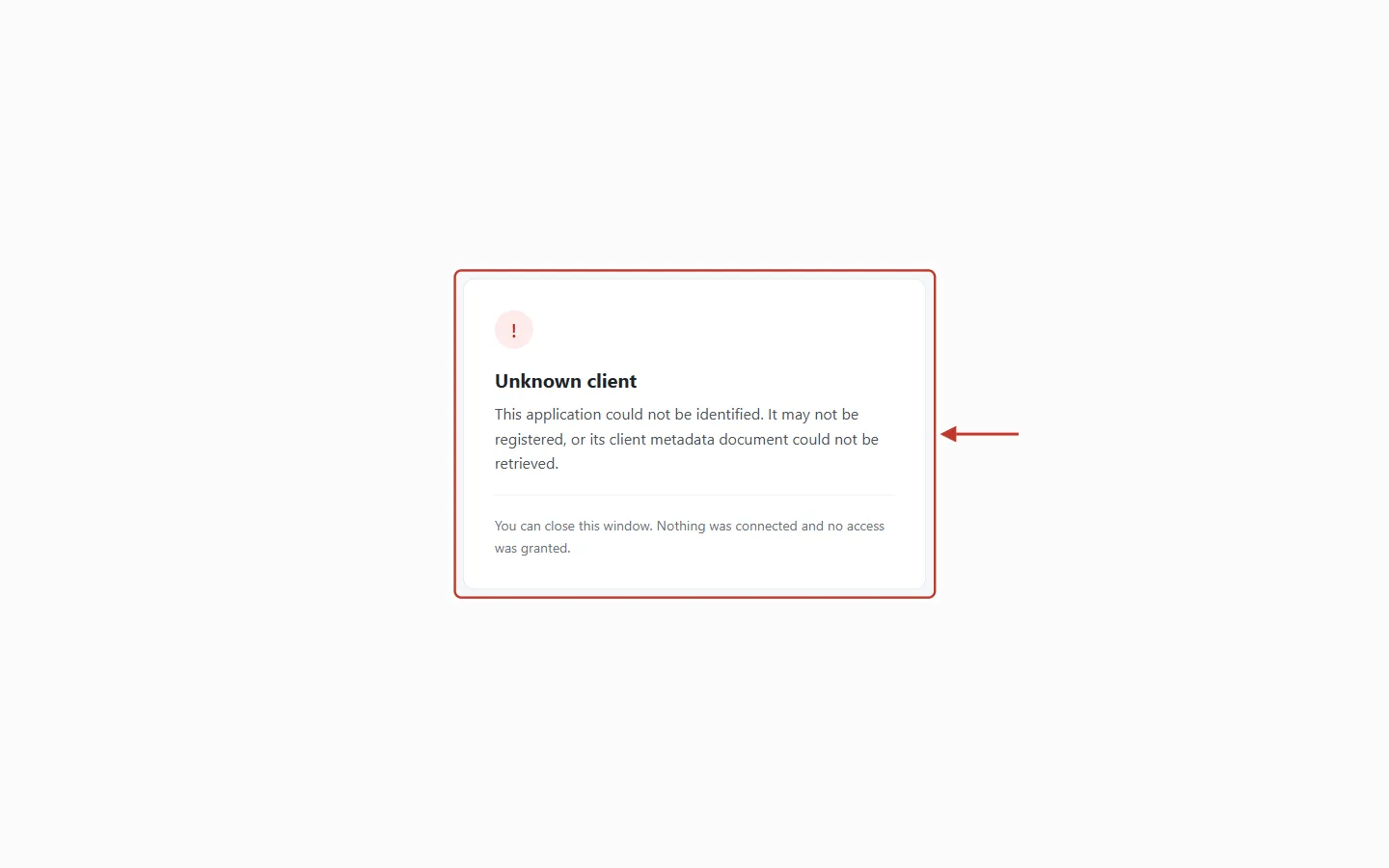
What this screenshot shows. The Unknown client error page, ringed.
Unknown client — “This application could not be identified. It may not be registered, or its client metadata document could not be retrieved.”
The grey note at the bottom: “You can close this window. Nothing was connected and no access was granted.”
Why it happens: the assistant did not register itself correctly with the CRM, or the CRM could not download the assistant’s identity file (for example because of a temporary network problem).
Fix: close the window, remove the AiEngage server from the assistant, add it again with the address from Step 2, and connect once more. If it keeps happening with one particular assistant, that assistant may not fully support MCP sign-in.
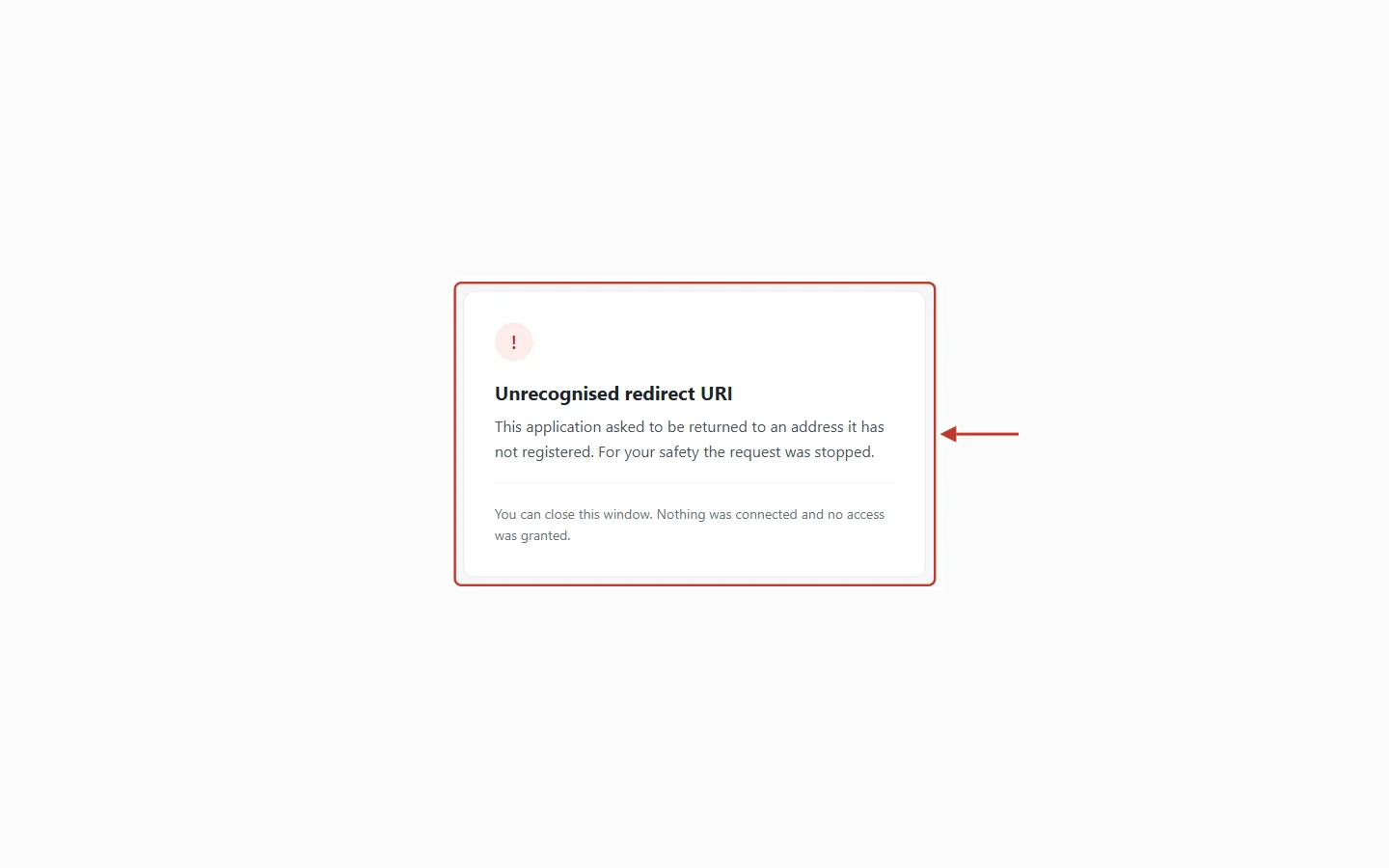
What this screenshot shows. The Unrecognised redirect URI error page, ringed.
Unrecognised redirect URI — “This application asked to be returned to an address it has not registered. For your safety the request was stopped.”
Again: “Nothing was connected and no access was granted.”
Why it happens: the assistant asked to send you back to a different address from the one it registered. This is a safety check that protects you from look-alike applications.
Fix: start the connection again from inside the assistant itself (not from an old link or bookmark). If you did not start this connection, simply close the window.
A third page of the same kind, Missing redirect URI (“The application did not tell us where to send you back to.”), has the same fix: start again from the assistant.
Step 4: “Nothing to Authorize” or “This Request Has Expired”#
After the checks in Step 3, you are sent to the CRM’s approval (consent) page. It can show two messages instead of the approval form:
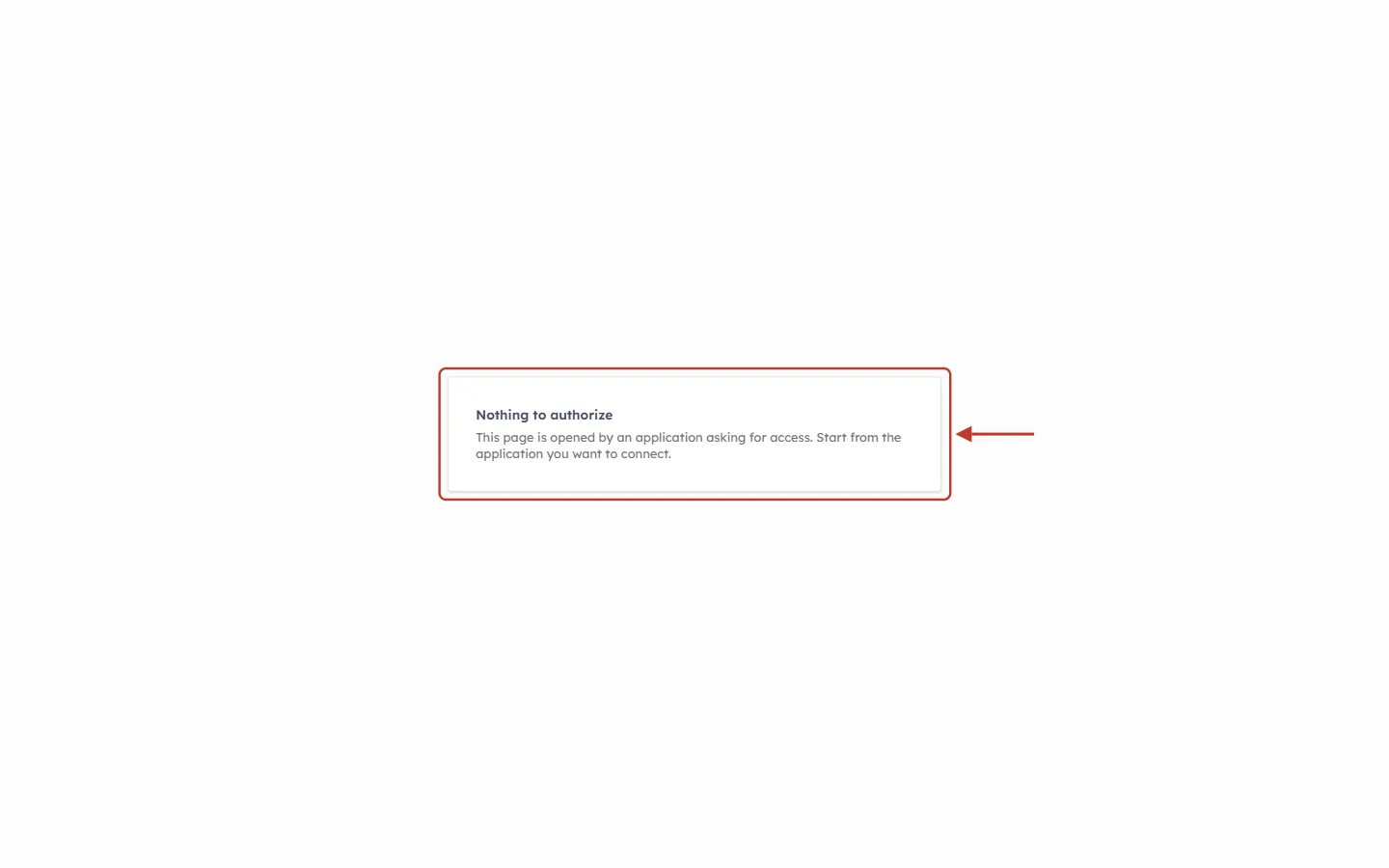
What this screenshot shows. The approval page showing Nothing to authorize, ringed.
“This page is opened by an application asking for access. Start from the application you want to connect.”
Why it happens: the approval page was opened directly — from a bookmark, a copied link or browser history — instead of by the assistant.
Fix: go back to your assistant and click Connect (or add the server again). The assistant opens the right link for you.
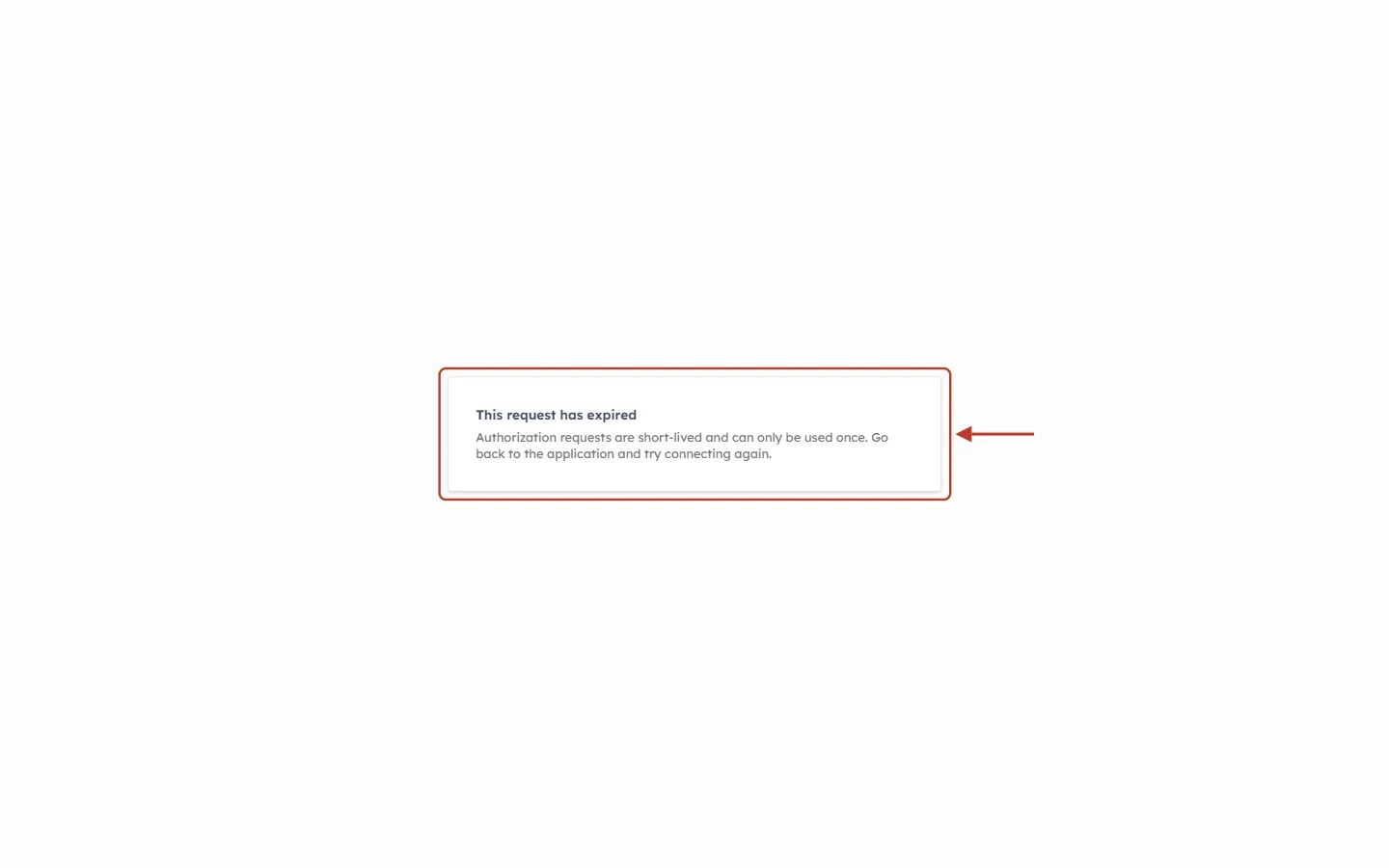
What this screenshot shows. The approval page showing This request has expired, ringed.
“Authorization requests are short-lived and can only be used once. Go back to the application and try connecting again.”
Why it happens: each approval link works only once and only for 10 minutes. You may have waited too long, used the browser’s Back button, refreshed the page after approving, or opened the link in a second tab.
Fix: close the page and start the connection again from the assistant. Complete the sign-in and approval in one go.
⚠️
If clicking Allow access shows a red “Something went wrong. Please try again.” message, the request has usually expired in the meantime. Start again from the assistant rather than clicking the button repeatedly.
Step 5: Signing In Loops Back to the Sign-In Page#
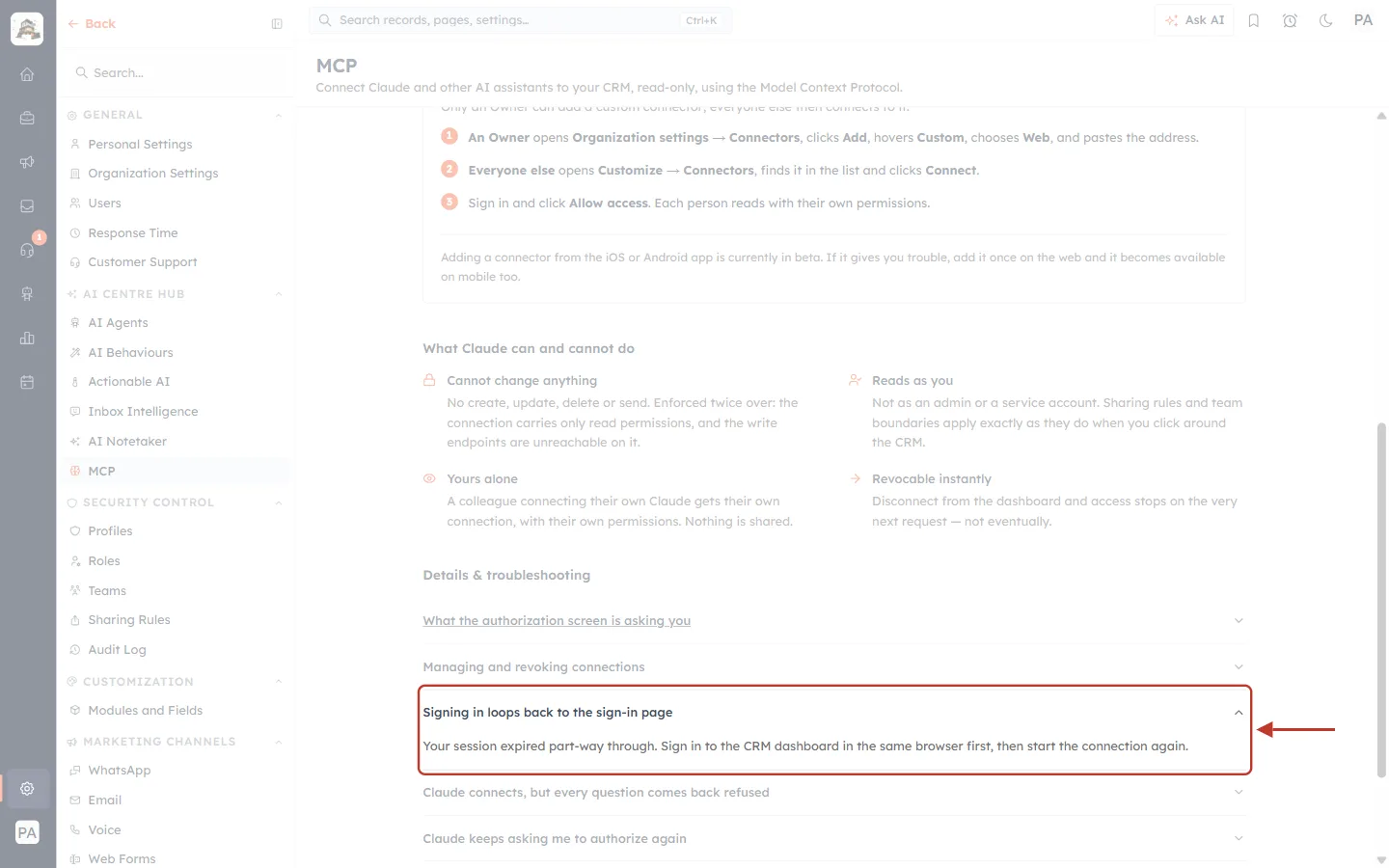
What this screenshot shows. The troubleshooting item Signing in loops back to the sign-in page, expanded and ringed.
“Your session expired part-way through. Sign in to the CRM dashboard in the same browser first, then start the connection again.”
This also happens when the assistant opens a different browser (or a private window) from the one where you are signed in to the CRM.
Open the CRM in your normal browser and sign in (complete the email code if your account asks for one).
If your assistant opens a different browser, sign in to the CRM in that browser too.
Start the connection again from the assistant.
Two other approval-page messages need an administrator:
Your plan does not include AI assistant connections — “Connecting an AI assistant to your CRM is not included in your current plan. Upgrade your organisation, then connect again from the application.” An Upgrade plan button is shown. Ask your administrator to upgrade, then connect again.
Nothing is available to share yet — no modules are published to the API (see Step 7).
Step 6: Connected, but Every Question Is Refused#
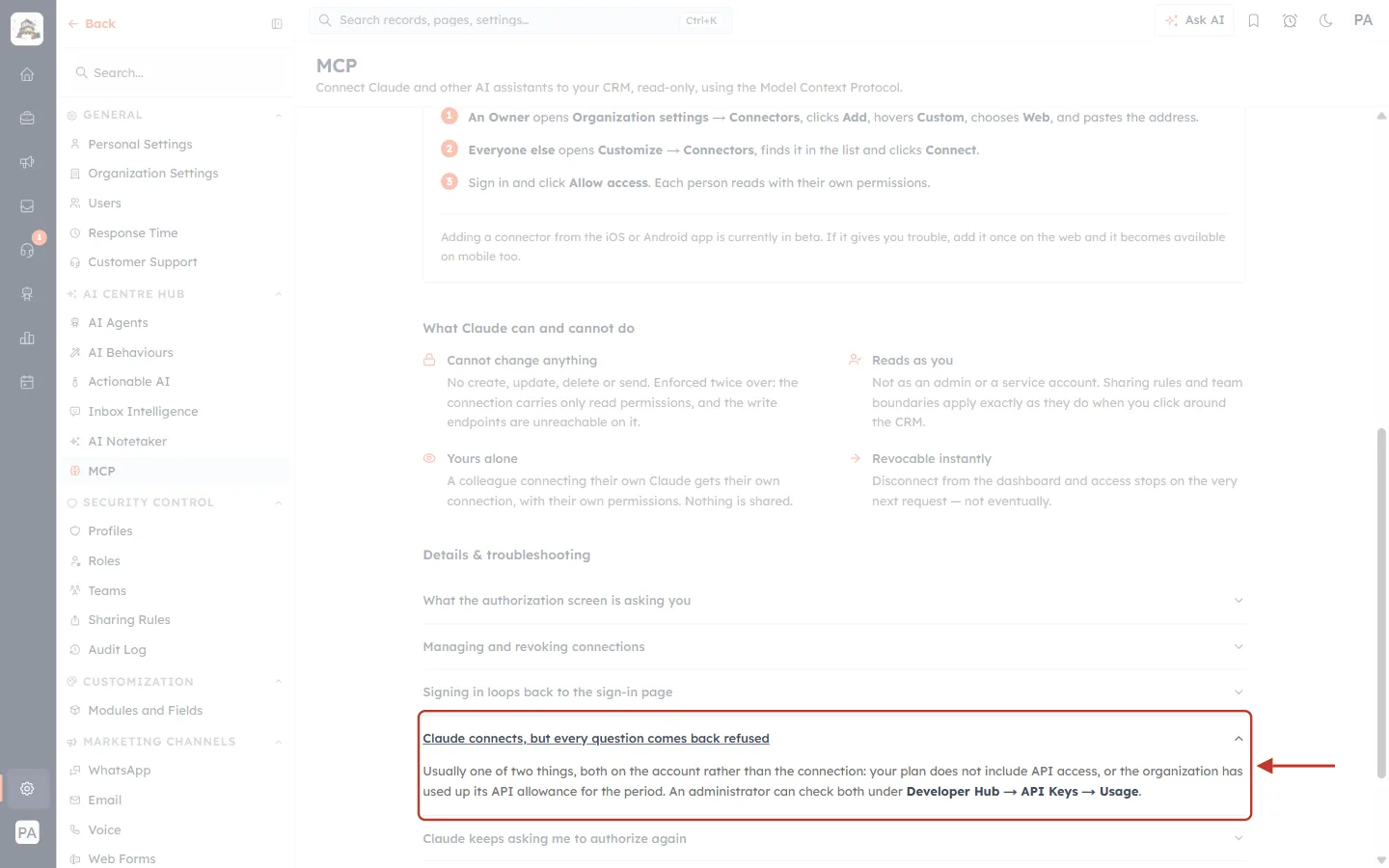
What this screenshot shows. The troubleshooting item Claude connects, but every question comes back refused, expanded and ringed.
“Usually one of two things, both on the account rather than the connection: your plan does not include API access, or the organization has used up its API allowance for the period.”
“An administrator can check both under Developer Hub → API Keys → Usage.”
The assistant may show this as “access denied”, “forbidden”, “403”, “429” or “too many requests”, or simply say it could not get the data.
An administrator can check the allowance on the Usage tab:
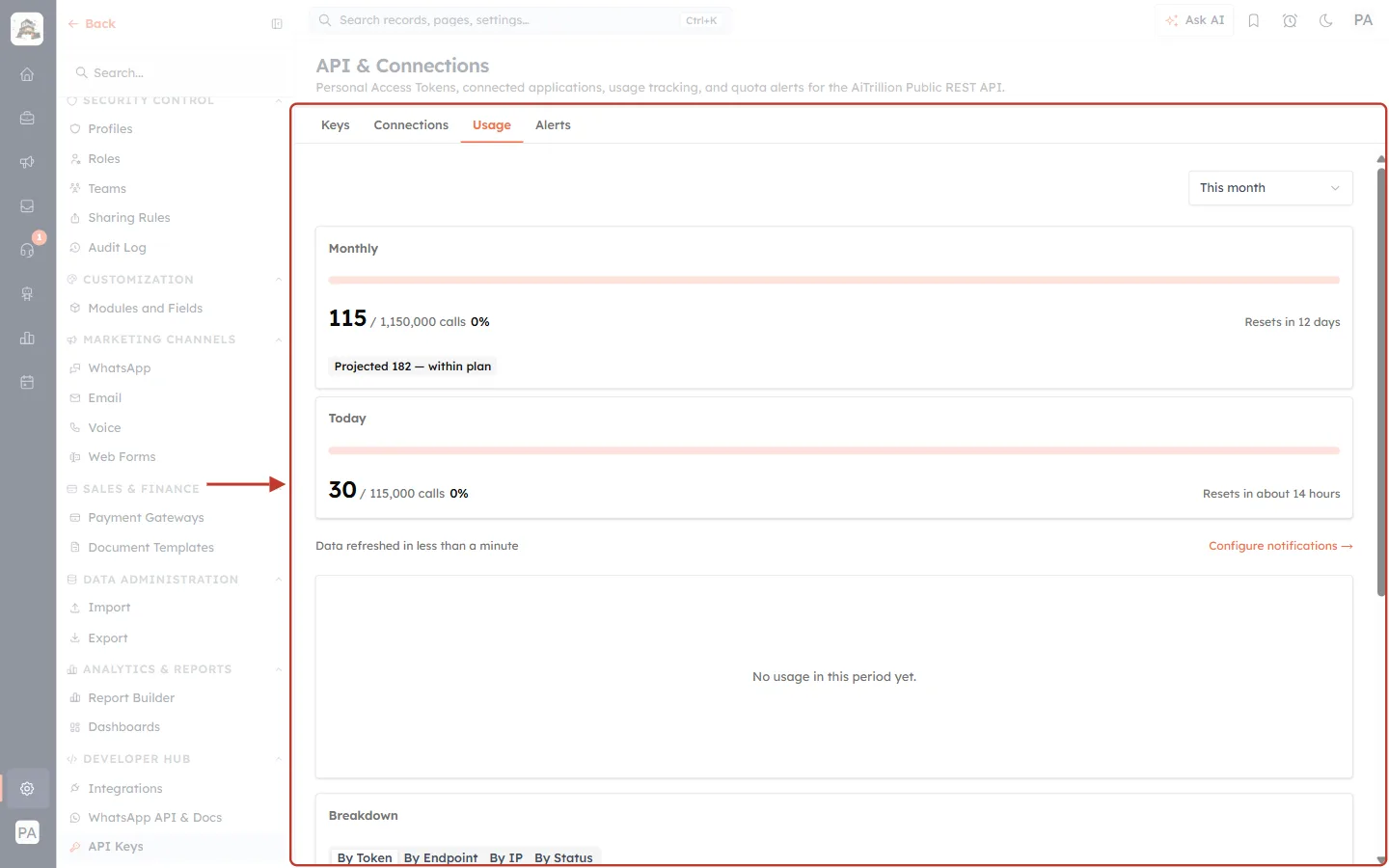
What this screenshot shows. The Usage tab under Setup → Developer Hub → API Keys, ringed.
The period picker (top right) shows This month.
Monthly — calls used against the monthly allowance (here 115 of 1,150,000, 0%), when it resets (“Resets in 12 days”) and a projection (“Projected 182 — within plan”). If this bar is full, every request is refused until it resets.
Today — calls used today against the daily limit (here 30 of 115,000) and when it resets.
Configure notifications → sets up warnings before a limit is reached.
Further down, Breakdown (By Token, By Endpoint, By IP, By Status) and Recent activity show what is using the allowance. MCP connections count against the same allowance as API keys.
What the assistant reports | Meaning | Fix |
|---|---|---|
403 · | The organization’s plan has no API access. | An administrator upgrades the plan. |
429 · | Too many requests in a short time. | Wait a minute and ask again; ask the assistant to fetch less at once. |
Refused with the monthly or daily bar full | The API allowance is used up. | Wait for the reset or ask an administrator to raise the limit. See Monitor API Usage & Set Quota Alerts Step by Step. |
The assistant says a tool is not available | That group of tools was unticked when you approved, or later with Change access. | Open Connections → Change access and tick it. See MCP Authorization (OAuth), Connections & Revoking Access. |
More on limits in API Rate Limits & Quotas.
Step 7: The Approval Screen Says There Is Nothing to Read#
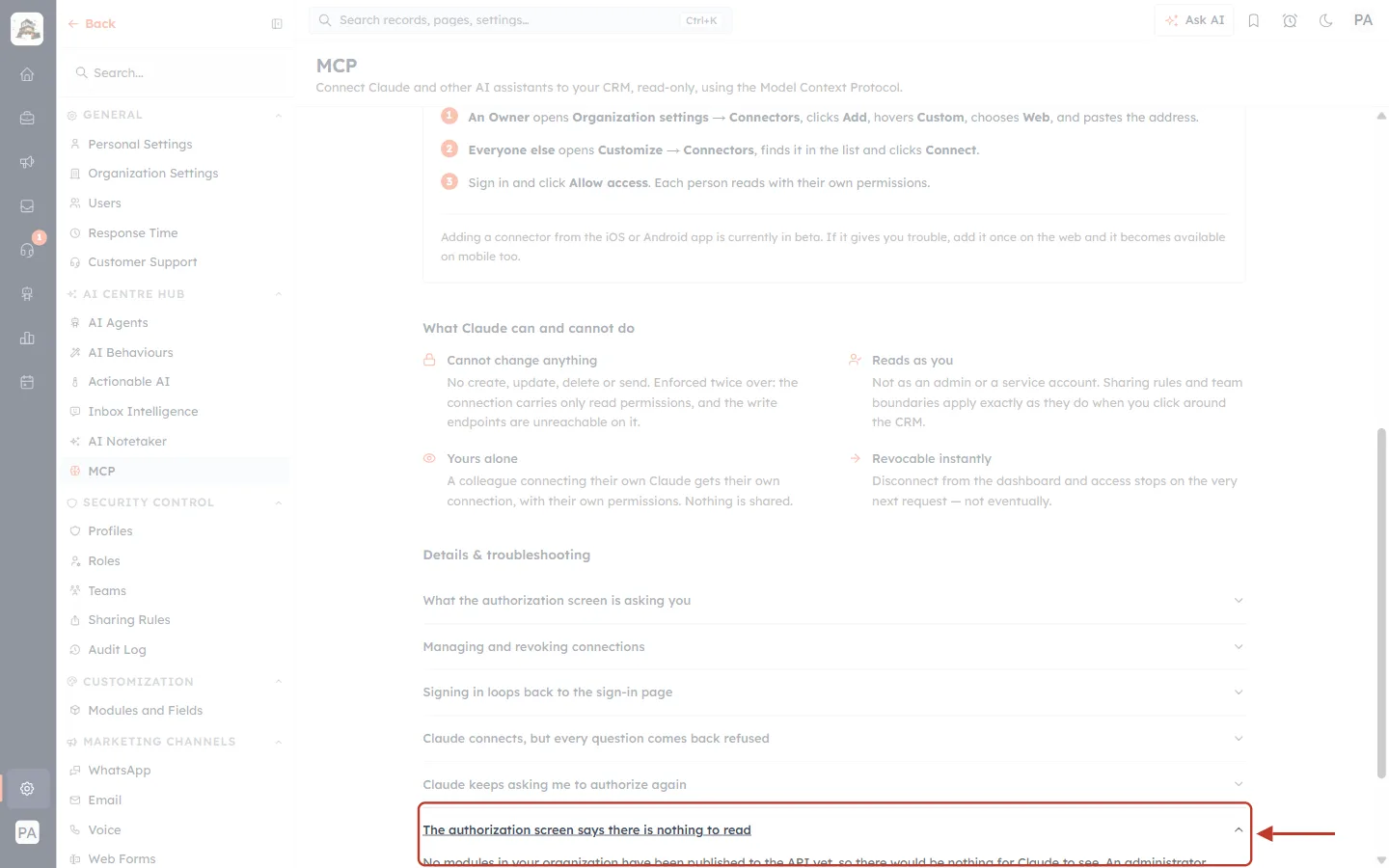
What this screenshot shows. The troubleshooting item The authorization screen says there is nothing to read, expanded and ringed.
“No modules in your organization have been published to the API yet, so there would be nothing for Claude to see.”
“An administrator publishes them in Module Settings; once they have, connect again.”
On the approval page itself this appears as Nothing is available to share yet, with only a Cancel button.
After an administrator has published the modules, start the connection again from your assistant.
Step 8: The Assistant Cannot Find a Record You Can See#
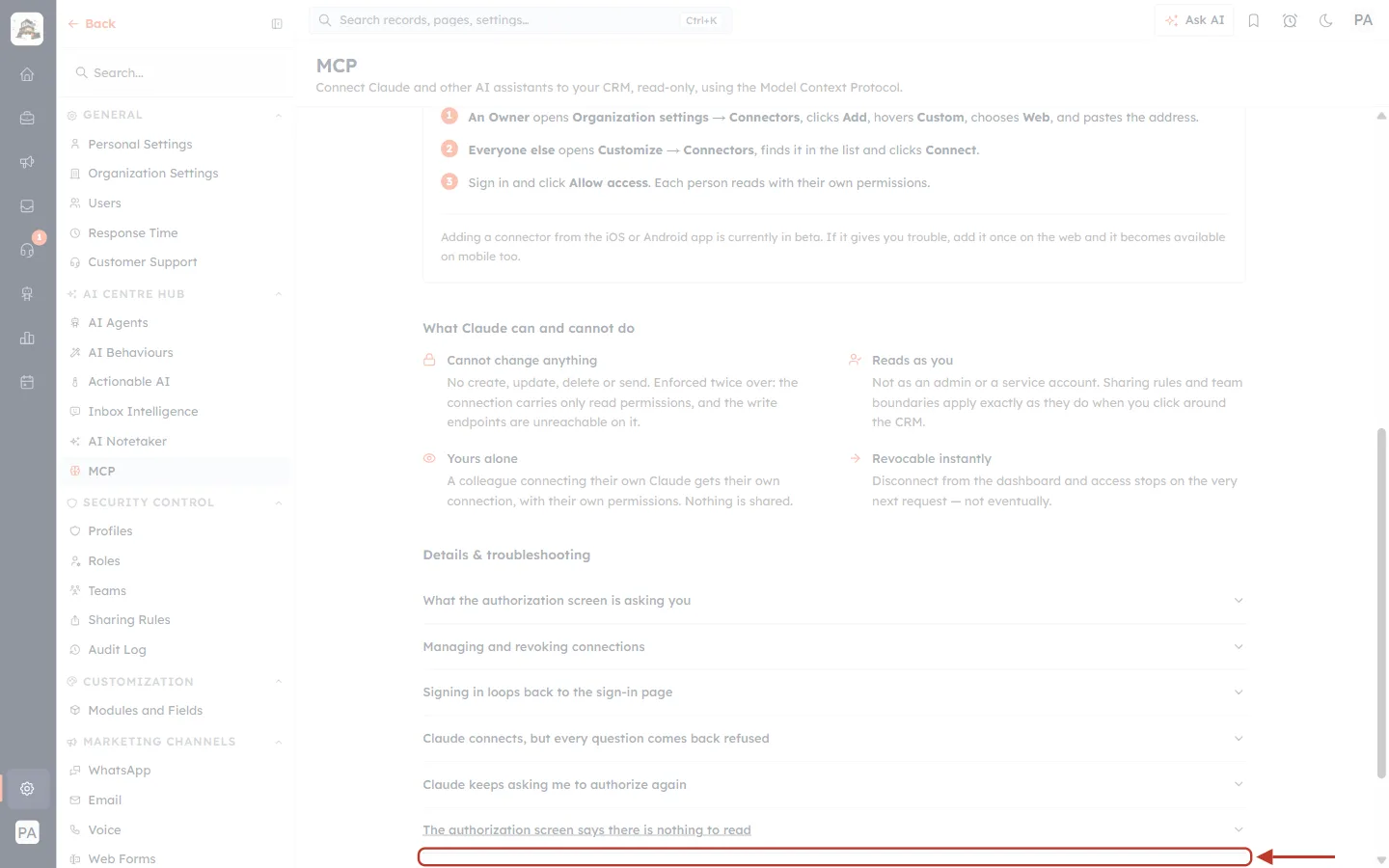
What this screenshot shows. The troubleshooting item Claude says a record doesn’t exist, but I can see it, expanded and ringed.
“Check you are both looking at the same account. Claude reads with the permissions of whoever authorized the connection, so a record visible to a colleague but not to you is the system working correctly.”
Check which CRM user authorized the connection (Setup → Developer Hub → API Keys → Connections shows “Authorized by”). If it was a colleague’s login, connect again with your own.
If you belong to more than one organization, make sure you approved the connection in the right one.
Open the record in the CRM with the same user. If you cannot open it there, sharing rules or team boundaries hide it — the assistant correctly cannot see it either.
Check the tool groups: if a module’s group was unticked on the approval screen, the assistant cannot read that module.
Ask more precisely, for example the exact name, email or record number, and the module (“the contact named …”, “the deal called …”).
See MCP Overview & Available Tools for what each tool can read.
Step 9: The Assistant Keeps Asking You to Authorize Again#
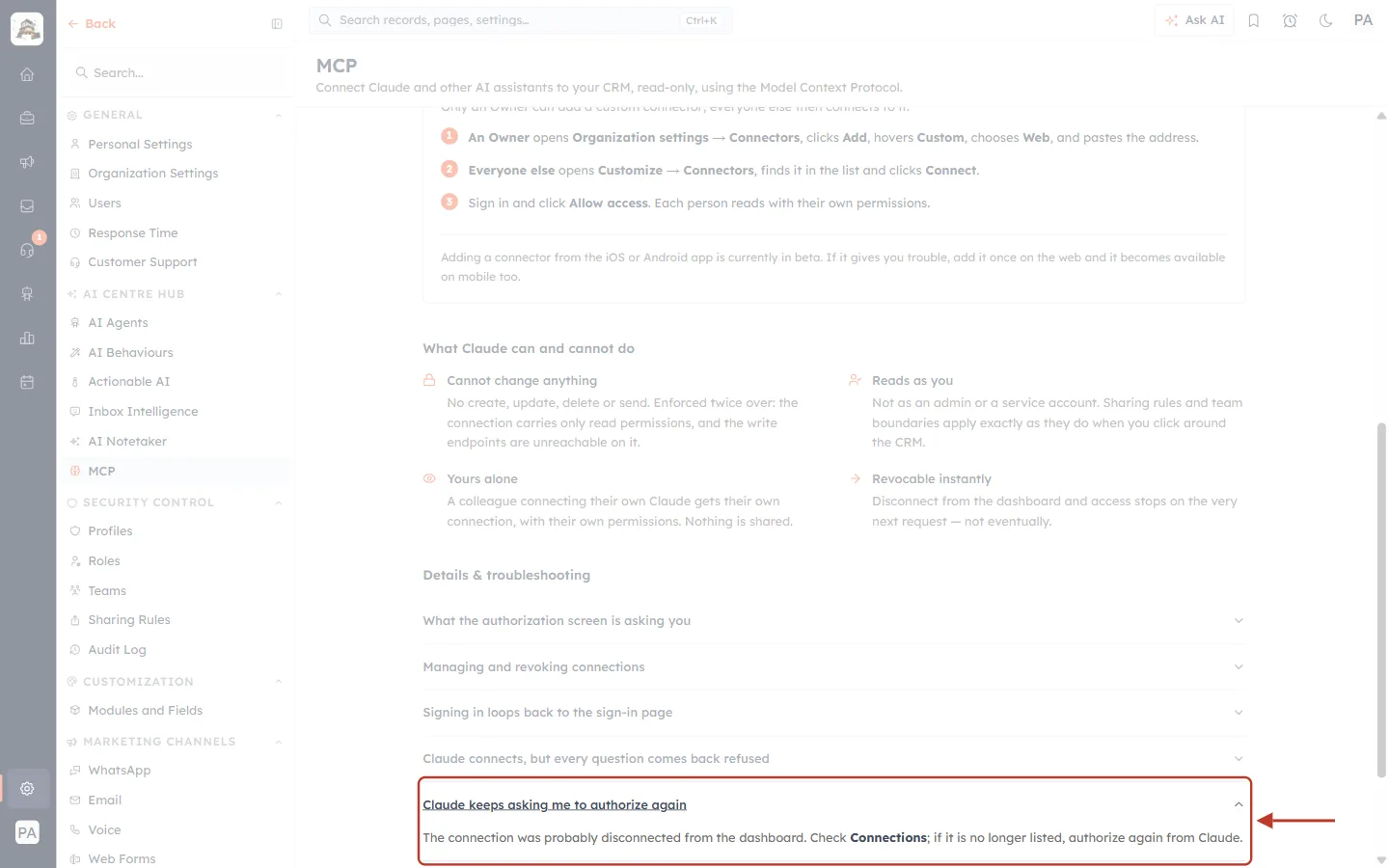
What this screenshot shows. The troubleshooting item Claude keeps asking me to authorize again, expanded and ringed.
“The connection was probably disconnected from the dashboard. Check Connections; if it is no longer listed, authorize again from Claude.”
Open Setup → Developer Hub → API Keys → Connections and find your connection:
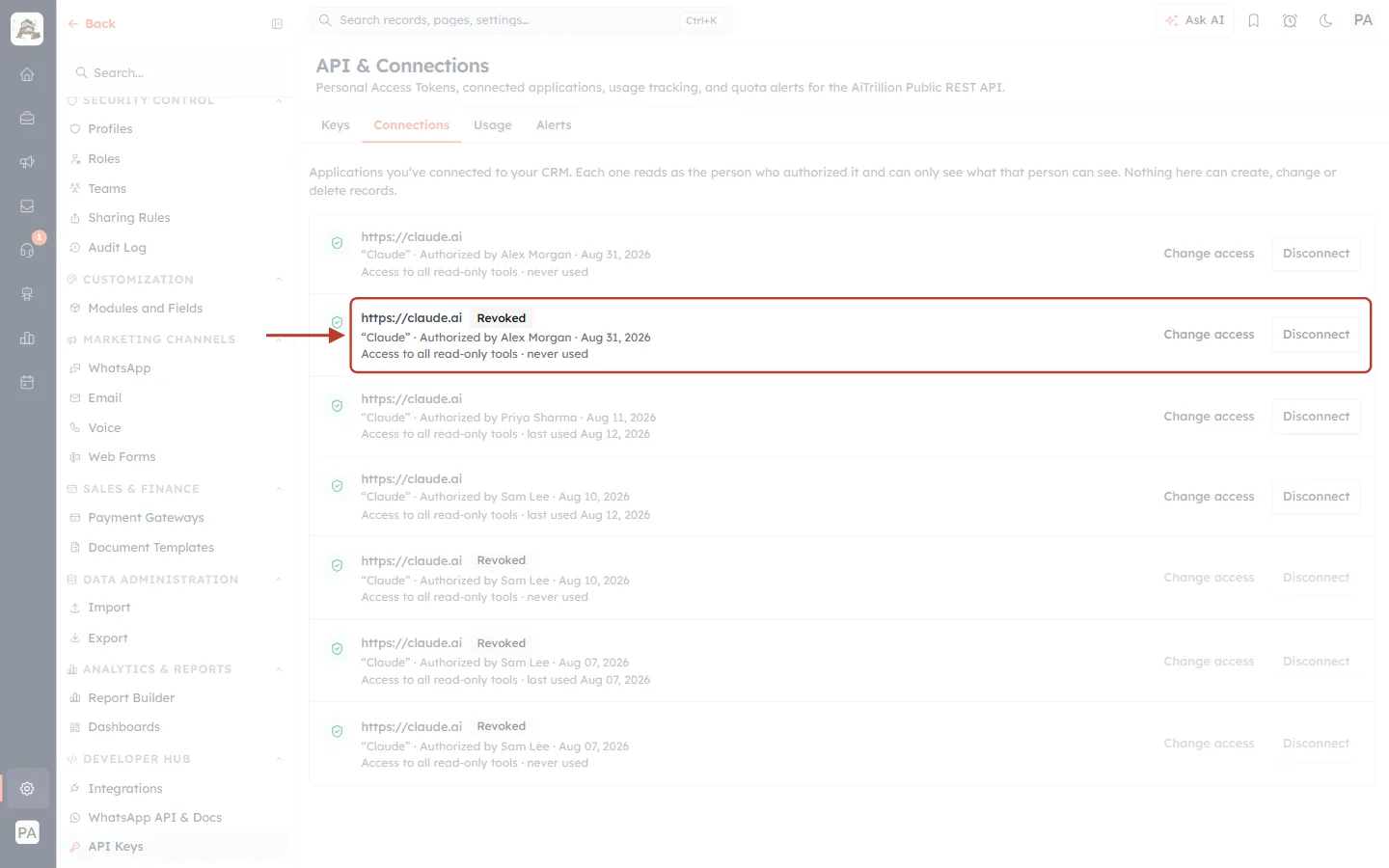
What this screenshot shows. A connection with a Revoked badge on the Connections tab, ringed.
The bold web address (here
https://claude.ai) is the application; the line below shows its name, Authorized by and the date it was connected.The grey Revoked badge means the connection was disconnected — by you, by a colleague with the manage-organization permission, or automatically. Its Change access and Disconnect buttons are greyed out because it can no longer be used.
Active connections above and below have normal, clickable buttons.
A connection also stops working on its own when:
it has not been used for 60 days, or
it is 365 days old (the maximum lifetime), or
the user who authorized it can no longer sign in to the CRM (for example after being deactivated).
In every case the fix is the same: start the connection again from the assistant and click Allow access. The short-lived access token (1 hour) is renewed automatically in the background, so you should not be asked to sign in again during normal daily use.
Quick Reference: Every Message and Its Fix#
Message | Where | Fix |
|---|---|---|
Discovery / connection error when adding the server | Assistant | Re-copy the exact address, no trailing slash, HTTP type, no headers (Step 2). |
Unknown client | CRM error page | Remove and re-add the server in the assistant (Step 3). |
Unrecognised / Missing redirect URI | CRM error page | Start again from inside the assistant (Step 3). |
Nothing to authorize | Approval page | Start from the assistant, not a saved link (Step 4). |
This request has expired | Approval page | Start again and finish within 10 minutes (Step 4). |
Sign-in loops | CRM sign-in | Sign in to the CRM in the same browser first (Step 5). |
Your plan does not include AI assistant connections | Approval page | Administrator upgrades the plan (Step 5). |
Nothing is available to share yet | Approval page | Administrator publishes modules to the API (Step 7). |
Every question refused / 403 / 429 | Assistant | Check plan and Usage; wait for limits (Step 6). |
Record not found | Assistant | Check the authorizing user, organization and tool groups (Step 8). |
Asked to authorize again | Assistant | Connection revoked or expired; connect again (Step 9). |
Best Practices to Avoid Problems#
Always start from the assistant, never from a saved approval link.
Finish sign-in and approval in one go, in one browser tab.
Connect with your own CRM login, so the assistant sees exactly what you see.
Use the assistant at least every couple of months, or expect to reconnect after 60 idle days.
Administrators: set up usage notifications, and review Connections when people join or leave.
Frequently Asked Questions#
Did an error page connect anything?
No. Every error page says “Nothing was connected and no access was granted.”
Can a failed connection change my CRM data?
No. MCP connections are read-only even when they work.
Do I need an administrator to connect?
No, any user can connect. An administrator is only needed for plan, usage and module-publishing problems.
Who do I contact if nothing here helps?
Contact AiEngage support with the name of your assistant, the exact message you see and the time it happened.
Previous and Next Articles#
Previous: MCP Authorization (OAuth), Connections & Revoking Access
Next: API Errors & Troubleshooting: Fix 400, 401, 403, 404, 409, 429 and 500 Errors Step by Step
Related Articles#
Was this article helpful?
Ready to implement this?
OpenAI Engage and apply what you just learned to your own workspace.
Open AI Engage CRM