Loading…


KnowledgeBase
Connect ChatGPT, Cursor, VS Code and Other MCP Clients to AiEngage CRM: Step-by-Step Setup
Introduction#
AiEngage CRM has an MCP server. MCP (Model Context Protocol) is an open standard that lets AI assistants and AI coding tools read data from other systems. Once you connect an MCP client to your CRM, you can ask it things like “Which deals are closing this month?”, “Summarise my open tickets” or “List contacts from Mumbai created last week”, and it reads the answer straight from your CRM.
Claude has its own guide (Connect Claude to AiEngage CRM (MCP): Ask Your CRM Questions in Plain English). This article covers everything else: ChatGPT, Cursor, VS Code (GitHub Copilot) and any other MCP-capable client. They all connect the same way:
One address —
https://mcp-api.aiengagecrm.com/mcp.No API key. You sign in to the CRM in your browser and click Allow access.
Read-only. A connected client can never create, change, delete or send anything.
Your own permissions. The client sees exactly what you can see in the CRM — no more.
Per person. Each colleague connects their own client once, with their own account.
In this guide you will, step by step:
Find the MCP page and copy the server address.
Read what a connected client can and cannot do.
Connect ChatGPT.
Connect Cursor.
Connect VS Code and other clients.
Sign in and approve the connection.
Manage, limit or disconnect connected applications.
Fix common problems.
The screenshots come from the CRM (Setup → AI Centre Hub → MCP and Setup → Developer Hub → API Keys → Connections). Each has a red ring and arrow on the part to look at, followed by a description of the whole screen. ChatGPT, Cursor and VS Code are other companies’ products and change their menus often, so their steps are written as text; if a menu name differs slightly in your version, look for the closest match (usually “Connectors”, “Apps” or “MCP”).
Before You Begin#
Your organization’s AiEngage plan must include API access. Without it the connection still succeeds, but every question is refused.
You need a normal CRM login. You do not need an API key or admin rights to connect.
Your MCP client must support remote MCP servers over HTTP with sign-in (OAuth). ChatGPT (with developer mode), Cursor and VS Code do.
An administrator must have published your modules to the API, otherwise there is nothing to read. See MCP Overview & Available Tools: What Claude and Other AI Assistants Can Read in Your CRM for the list of tools a client can use.
Step 1: Open the MCP Page and Copy the Server Address#
Click the Setup (gear) icon at the bottom of the left rail.
In the settings menu, find AI Centre Hub and click MCP.
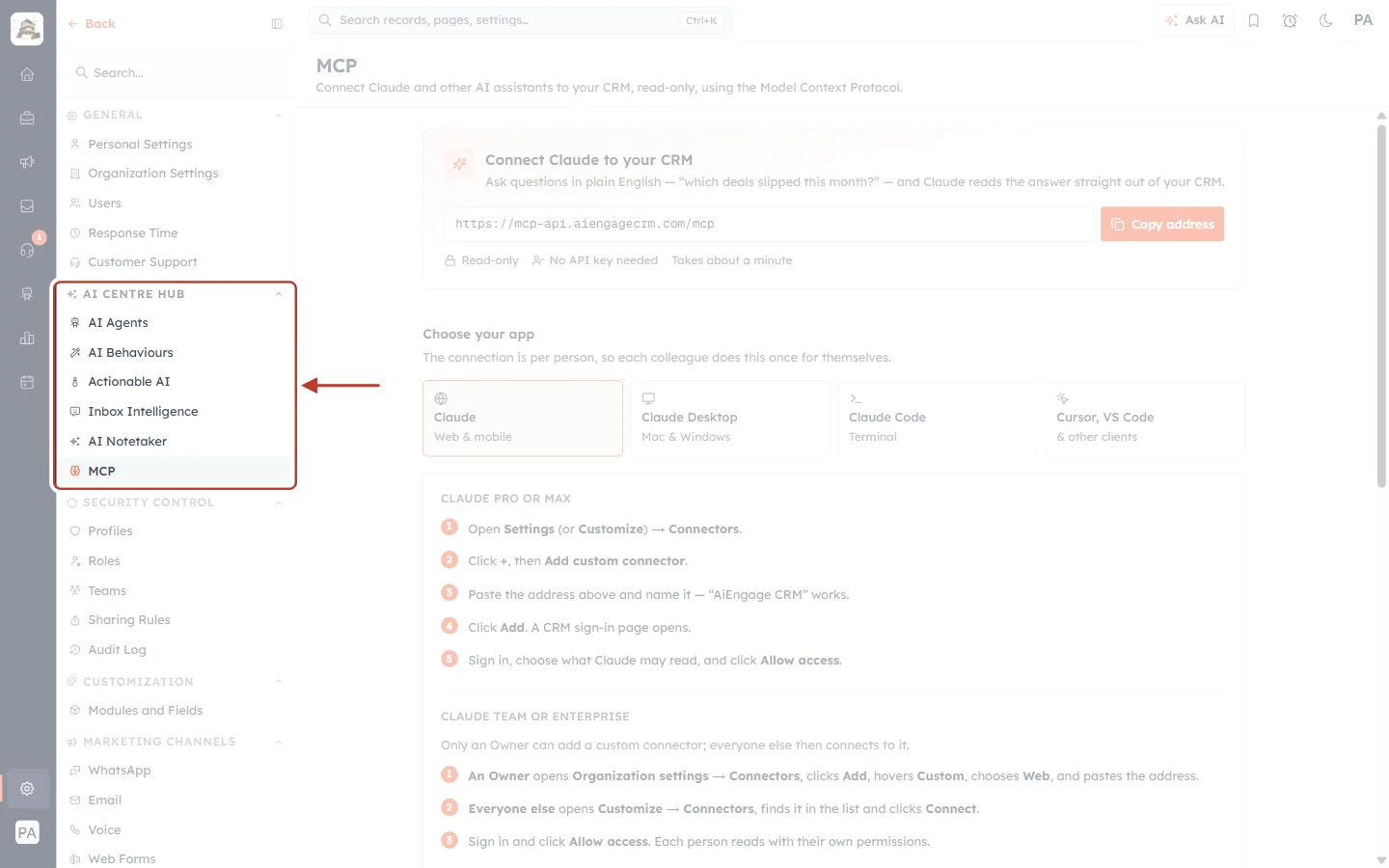
What this screenshot shows. The settings menu with the AI CENTRE HUB group ringed and MCP selected at the bottom of it.
AI Centre Hub holds all AI settings: AI Agents, AI Behaviours, Actionable AI, Inbox Intelligence, AI Notetaker and MCP.
Above is the General group (Personal Settings, Organization Settings, Users …); below is Security Control (Profiles, Roles, Teams …).
On the right, the MCP page opens with the title MCP and the subtitle “Connect Claude and other AI assistants to your CRM, read-only, using the Model Context Protocol.”
Every signed-in user can open this page — you do not need a special permission.
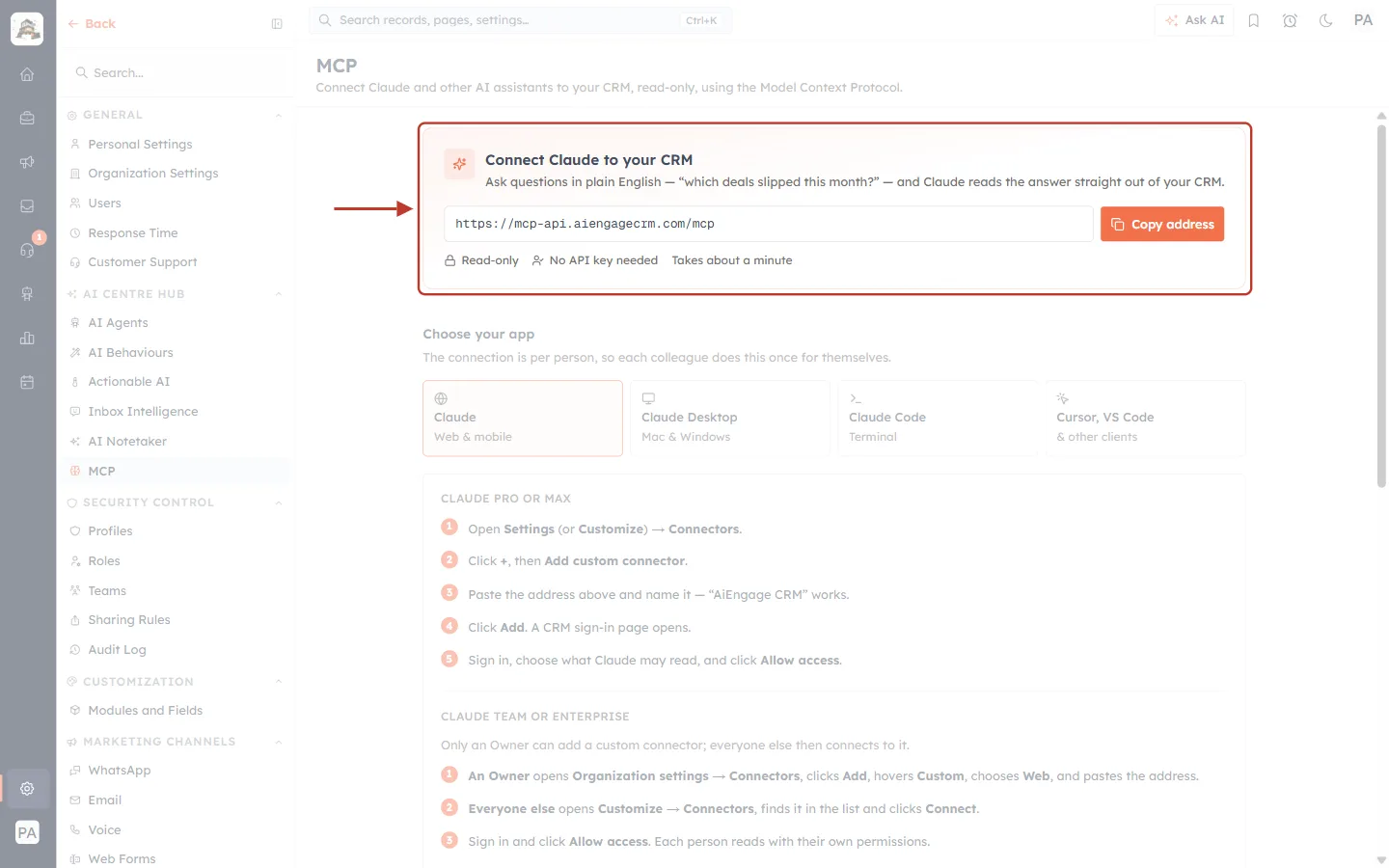
What this screenshot shows. The connect card at the top of the MCP page, ringed.
The heading says “Connect Claude to your CRM”, but the same address works for every MCP client in this guide.
The address box shows
https://mcp-api.aiengagecrm.com/mcp. Click the orange Copy address button; a “Address copied.” message confirms it (the button briefly reads Copied). If copying fails, select the address with your mouse and copy it.The three notes under the address: Read-only, No API key needed, Takes about a minute.
If your plan does not include API access, a red notice “Your plan does not include API access” appears below this card — talk to your administrator before continuing.
⚠️
Copy the address exactly, without a slash at the end.
https://mcp-api.aiengagecrm.com/mcp/ (with a trailing slash) can make some clients fail with a confusing “discovery” error.Under Choose your app, click the Cursor, VS Code & other clients card:
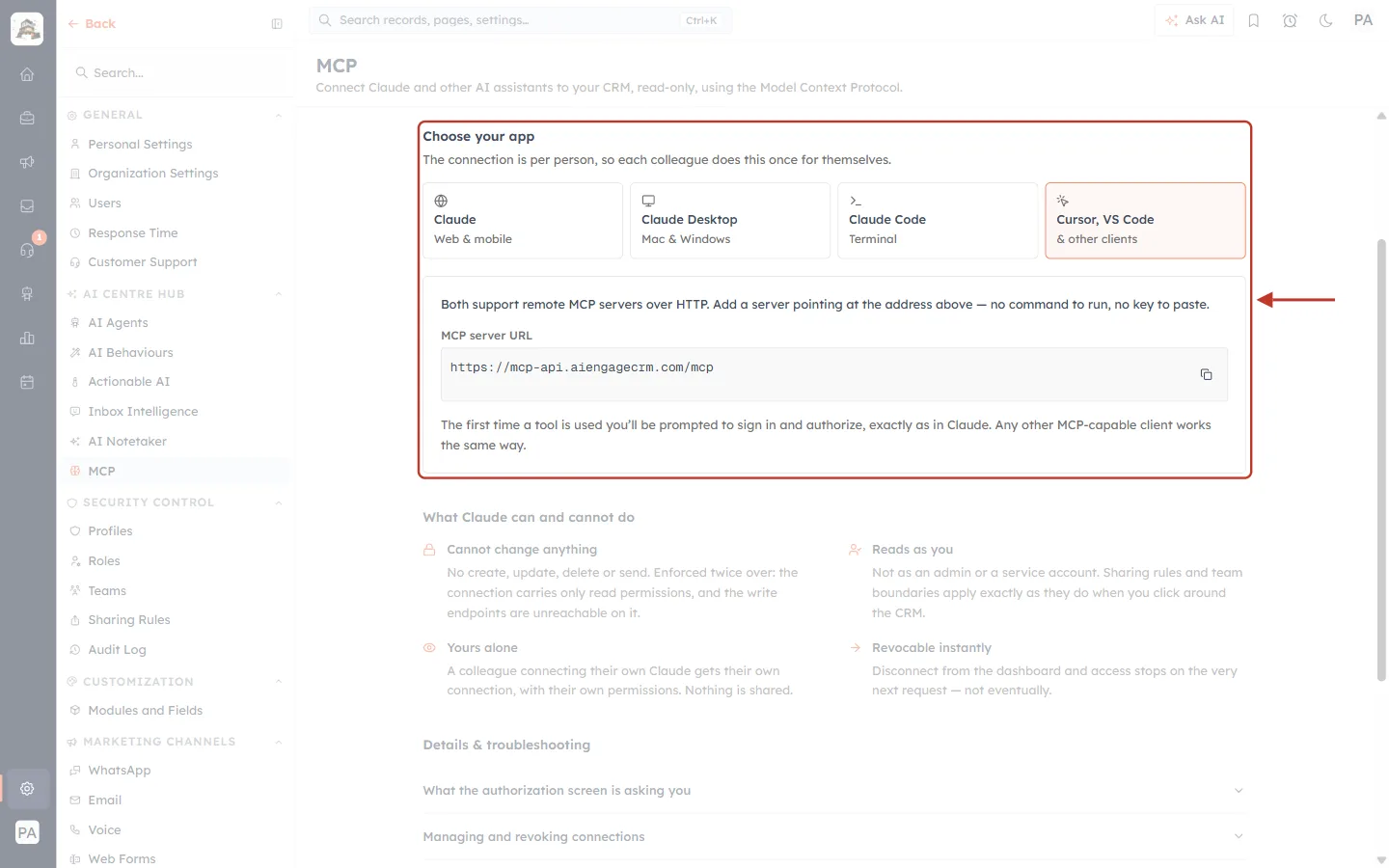
What this screenshot shows. The Choose your app section with the Cursor, VS Code card selected, ringed.
The note under the heading: “The connection is per person, so each colleague does this once for themselves.”
Four cards: Claude (Web & mobile), Claude Desktop (Mac & Windows), Claude Code (Terminal) and Cursor, VS Code (& other clients). The selected card has an orange border.
The panel explains: “Both support remote MCP servers over HTTP. Add a server pointing at the address above — no command to run, no key to paste.”
MCP server URL shows the same address with a copy icon on the right.
The last line: “The first time a tool is used you’ll be prompted to sign in and authorize, exactly as in Claude. Any other MCP-capable client works the same way.” — this is also how ChatGPT works.
Step 2: Understand What a Connected Client Can Do#
Scroll down to What Claude can and cannot do. These rules apply to every MCP client, not only Claude.
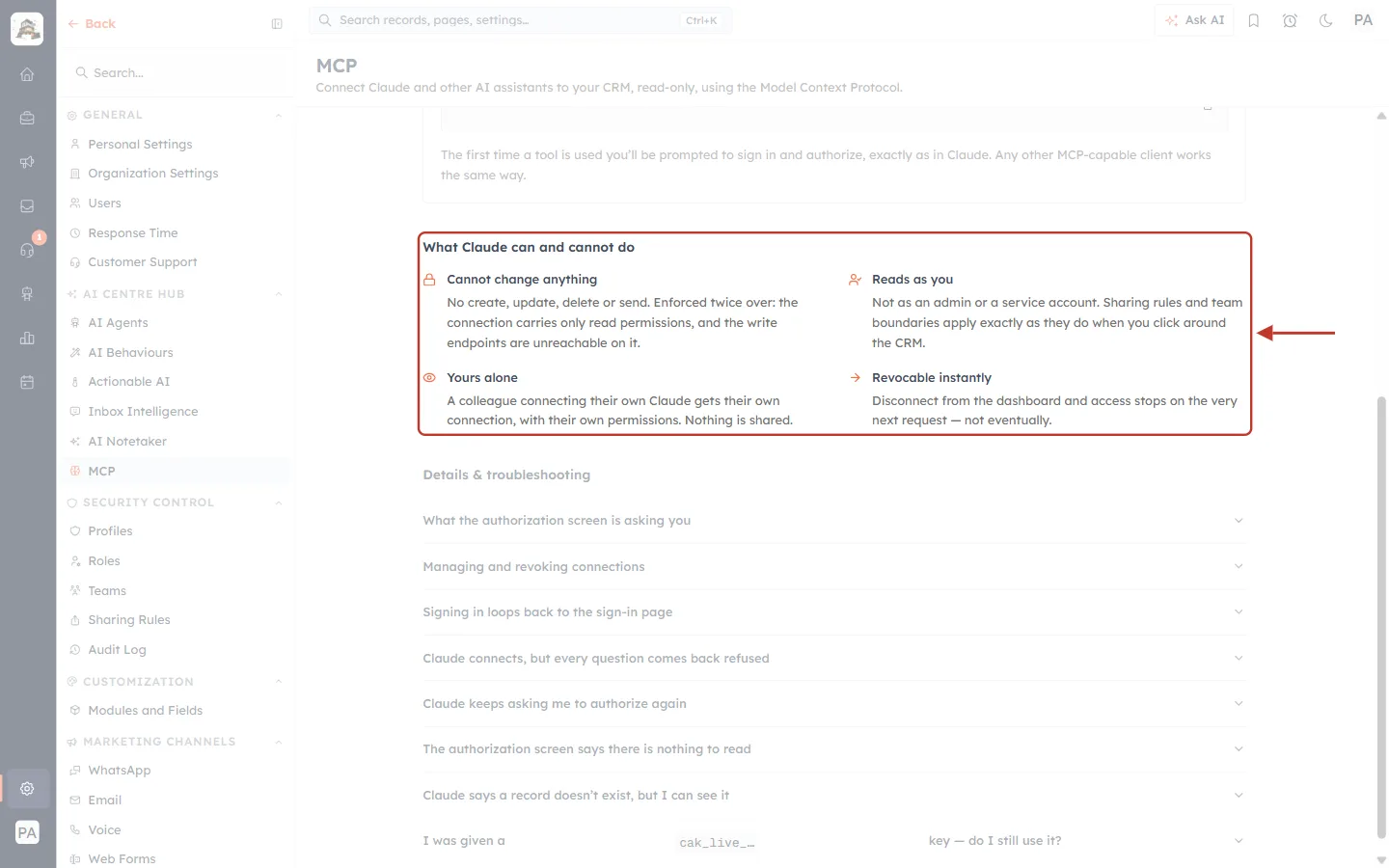
What this screenshot shows. The four promises of the MCP connection, ringed.
Cannot change anything — “No create, update, delete or send. Enforced twice over: the connection carries only read permissions, and the write endpoints are unreachable on it.”
Reads as you — “Not as an admin or a service account. Sharing rules and team boundaries apply exactly as they do when you click around the CRM.”
Yours alone — a colleague who connects their own client gets their own connection with their own permissions. Nothing is shared.
Revocable instantly — “Disconnect from the dashboard and access stops on the very next request — not eventually.”
Step 3: Connect ChatGPT#
ChatGPT connects to custom MCP servers through developer mode. It is available on paid ChatGPT plans; on Business and Enterprise workspaces an admin may need to allow it first.
In ChatGPT, open Settings → Apps & Connectors (called Connectors in some versions).
Open Advanced settings and switch on Developer mode.
Go back to Apps & Connectors and click Create (or Add custom connector).
Fill in the form: Name “AiEngage CRM”, a short Description such as “Read my AiEngage CRM records”, MCP Server URL
https://mcp-api.aiengagecrm.com/mcp, and Authentication OAuth.Tick the box confirming you trust the application, then click Create.
A sign-in window opens on the AiEngage CRM. Sign in, check what ChatGPT may read, and click Allow access (see Step 6).
To use it, start a new chat, click + next to the message box, choose Developer mode (or More) and switch on AiEngage CRM. Then ask your question.
✅
Try a first question such as “Using AiEngage CRM, how many open deals do I have and what is their total value?”. Mentioning the connector by name helps ChatGPT choose it.
ℹ️
ChatGPT may show a warning that developer-mode connectors are not reviewed by OpenAI. That is expected for every custom connector. Our server is read-only, so ChatGPT can look at your data but never change it.
Step 4: Connect Cursor#
Open Cursor Settings (Ctrl+Shift+J on Windows, Cmd+Shift+J on Mac) and go to Tools & MCP (called MCP in older versions).
Click New MCP Server (or Add Custom MCP). Cursor opens its
mcp.jsonfile.Add the AiEngage server and save the file:
{
  "mcpServers": {
    "aiengage": {
      "url": "https://mcp-api.aiengagecrm.com/mcp"
    }
  }
}
Back in Tools & MCP, aiengage appears in the list. Click Connect / Login next to it (or switch it on) — your browser opens.
Sign in to the CRM and click Allow access (Step 6). Return to Cursor: the server shows a green dot and its list of tools.
Open the Agent chat and ask, for example, “Use aiengage to list my deals closing this month.” Cursor asks before running a tool unless you have allowed it to run automatically.
ℹ️
If your
mcp.json already has other servers, add "aiengage": { … } inside the existing mcpServers block — do not create a second one. A project-level file at .cursor/mcp.json works the same way.Step 5: Connect VS Code and Other Clients#
VS Code (GitHub Copilot agent mode)#
Open the Command Palette (Ctrl+Shift+P / Cmd+Shift+P) and run MCP: Add Server….
Choose HTTP, paste
https://mcp-api.aiengagecrm.com/mcp, name it aiengage, and choose whether it is for all workspaces (Global) or just this one.VS Code saves an entry like the one below. Click Start above it; when asked to authenticate, click Allow, sign in in your browser and click Allow access.
Open Copilot Chat, switch to Agent mode, and make sure the aiengage tools are ticked in the tools picker.
{
  "servers": {
    "aiengage": {
      "type": "http",
      "url": "https://mcp-api.aiengagecrm.com/mcp"
    }
  }
}
Any other MCP client#
Windsurf, Zed, Cline, Goose and many other tools work too. In each one, add a remote MCP server (it may be called “HTTP”, “Streamable HTTP”, “URL” or “SSE/HTTP”) with the address https://mcp-api.aiengagecrm.com/mcp and no headers. The first time it uses a tool, it opens the CRM sign-in. If the client asks for an Authorization header or an API key instead of signing in, it does not support OAuth — see the troubleshooting section.
Client | Where to add it | What to enter |
|---|---|---|
ChatGPT | Settings → Apps & Connectors → (Developer mode) Create | MCP Server URL + OAuth |
Cursor | Cursor Settings → Tools & MCP → New MCP Server |
|
VS Code | Command Palette → MCP: Add Server… → HTTP |
|
Claude | See Connect Claude to AiEngage CRM (MCP): Ask Your CRM Questions in Plain English | Custom connector URL |
Others | Their MCP / tools settings | Remote HTTP server URL, no key |
Step 6: Sign In and Approve the Connection#
Whichever client you use, it sends you to an AiEngage CRM page to approve the connection. Sign in with your normal CRM login if asked. The approval screen is explained on the MCP page itself — expand What the authorization screen is asking you:
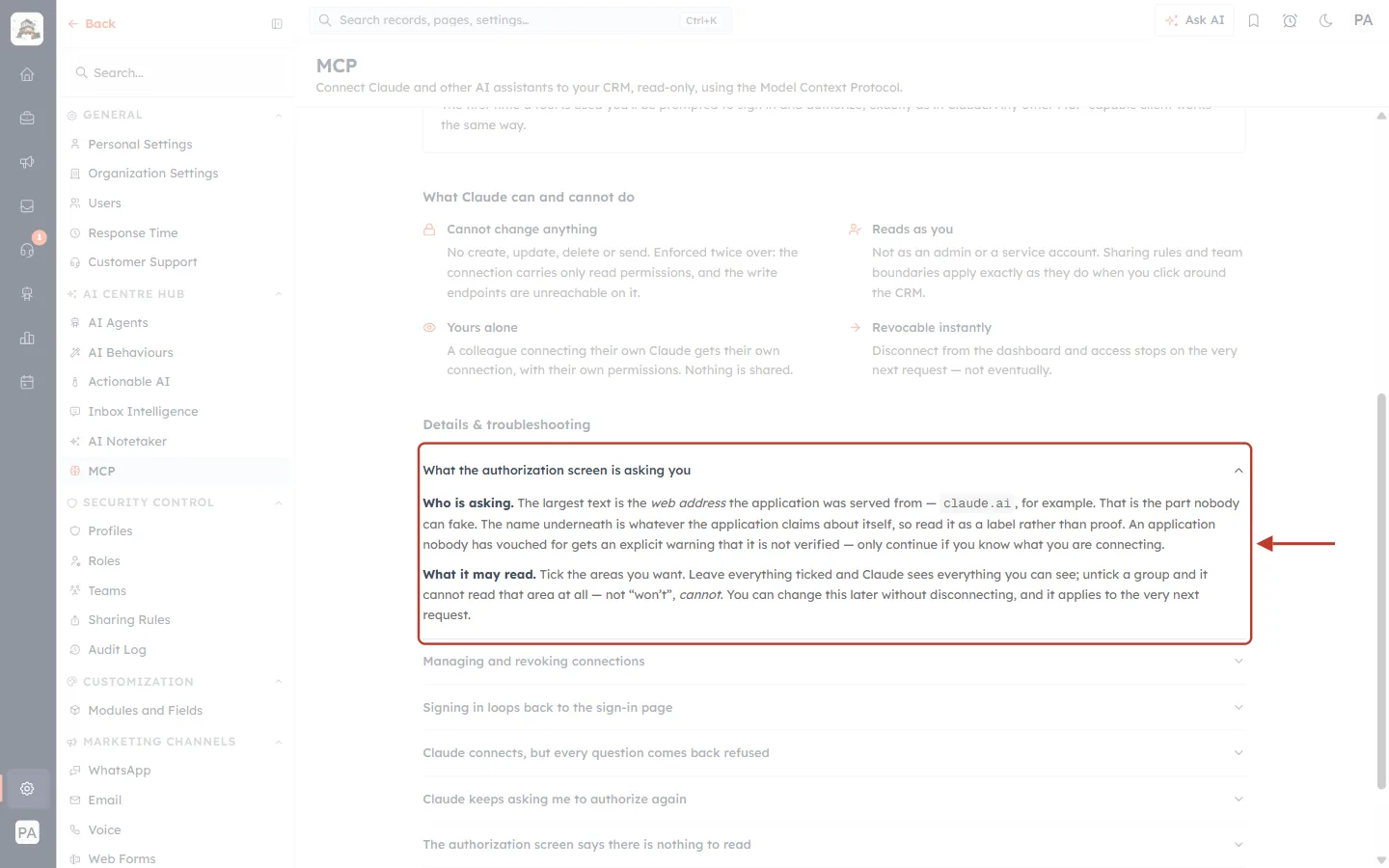
What this screenshot shows. The What the authorization screen is asking you item of Details & troubleshooting, expanded and ringed.
Who is asking. The largest text on the approval screen is the web address the application came from — for example
chatgpt.comorclaude.ai. That part cannot be faked. The name under it is what the application says about itself, so treat it as a label, not proof.An application nobody has vouched for shows an explicit not verified warning. Only continue if you started this connection yourself and know what you are connecting.
What it may read. Tick the areas you want the client to read. Leave everything ticked and it sees everything you can see; untick a group and it cannot read that area at all.
You can change these choices later without disconnecting (Step 7). Finally click Allow access; your browser hands control back to the client.
To see the full list of tools on the approval screen, read MCP Overview & Available Tools: What Claude and Other AI Assistants Can Read in Your CRM.
Step 7: Manage, Limit or Disconnect Applications#
Every connected client is listed under Setup → Developer Hub → API Keys → Connections. (Viewing this screen needs the API access permission; if you cannot open it, ask an administrator — it does not stop you connecting.)
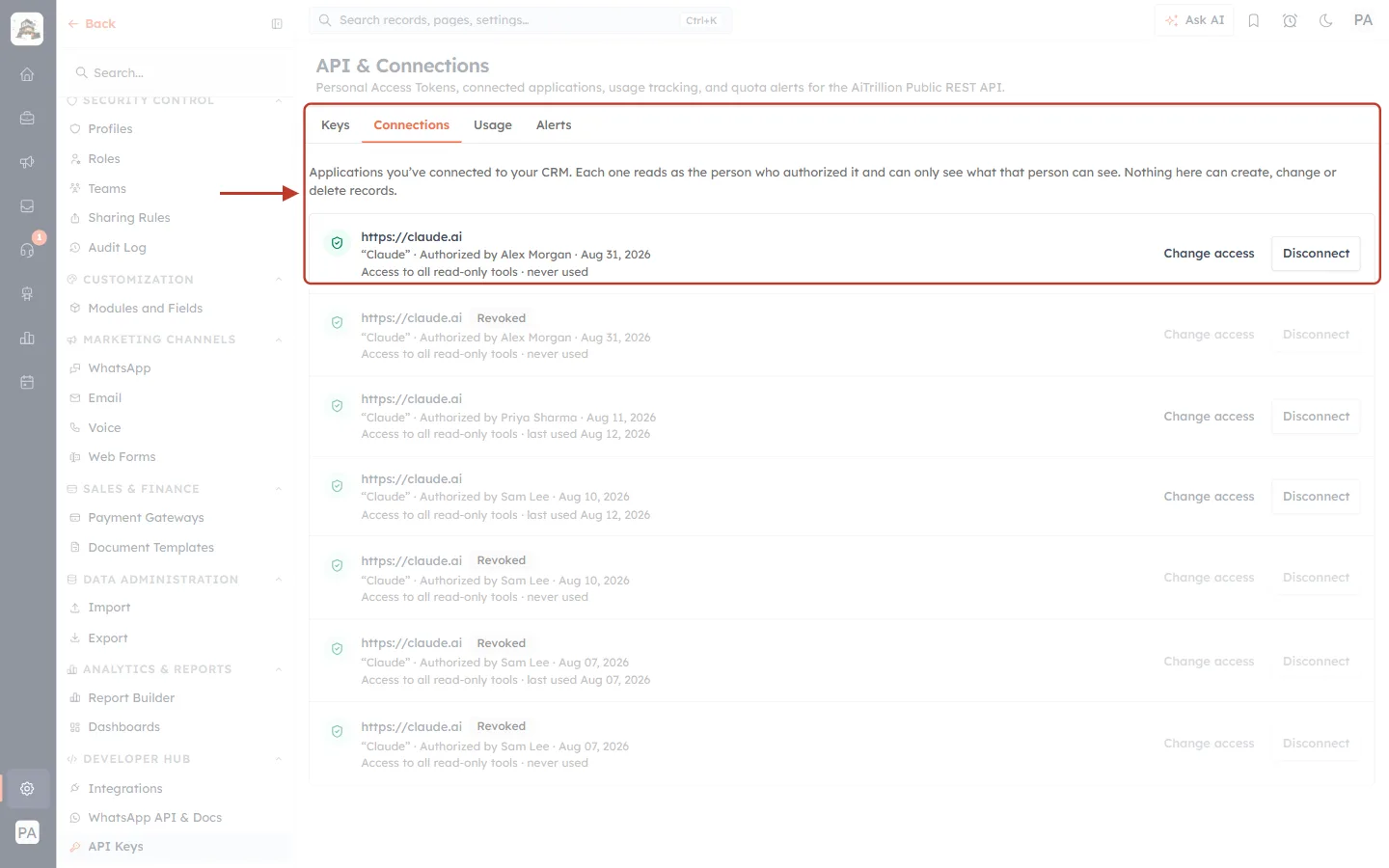
What this screenshot shows. The Connections tab of API & Connections, ringed with its first connection.
Four tabs: Keys, Connections, Usage and Alerts.
The note: “Applications you’ve connected to your CRM. Each one reads as the person who authorized it and can only see what that person can see. Nothing here can create, change or delete records.”
Each row shows the application’s web address in bold (here
https://claude.ai; a ChatGPT or Cursor connection shows its own address), its name in quotes, Authorized by (the person who connected it) and the date.The second line shows how much it can read (“Access to all read-only tools”) and when it was last used (“never used” or “last used …”).
A Revoked badge marks a connection that was disconnected; its buttons are greyed out.
On the right: Change access and Disconnect. Users with the manage organization permission also see their colleagues’ connections, which helps when someone leaves.
Click Change access to limit what a client may read:
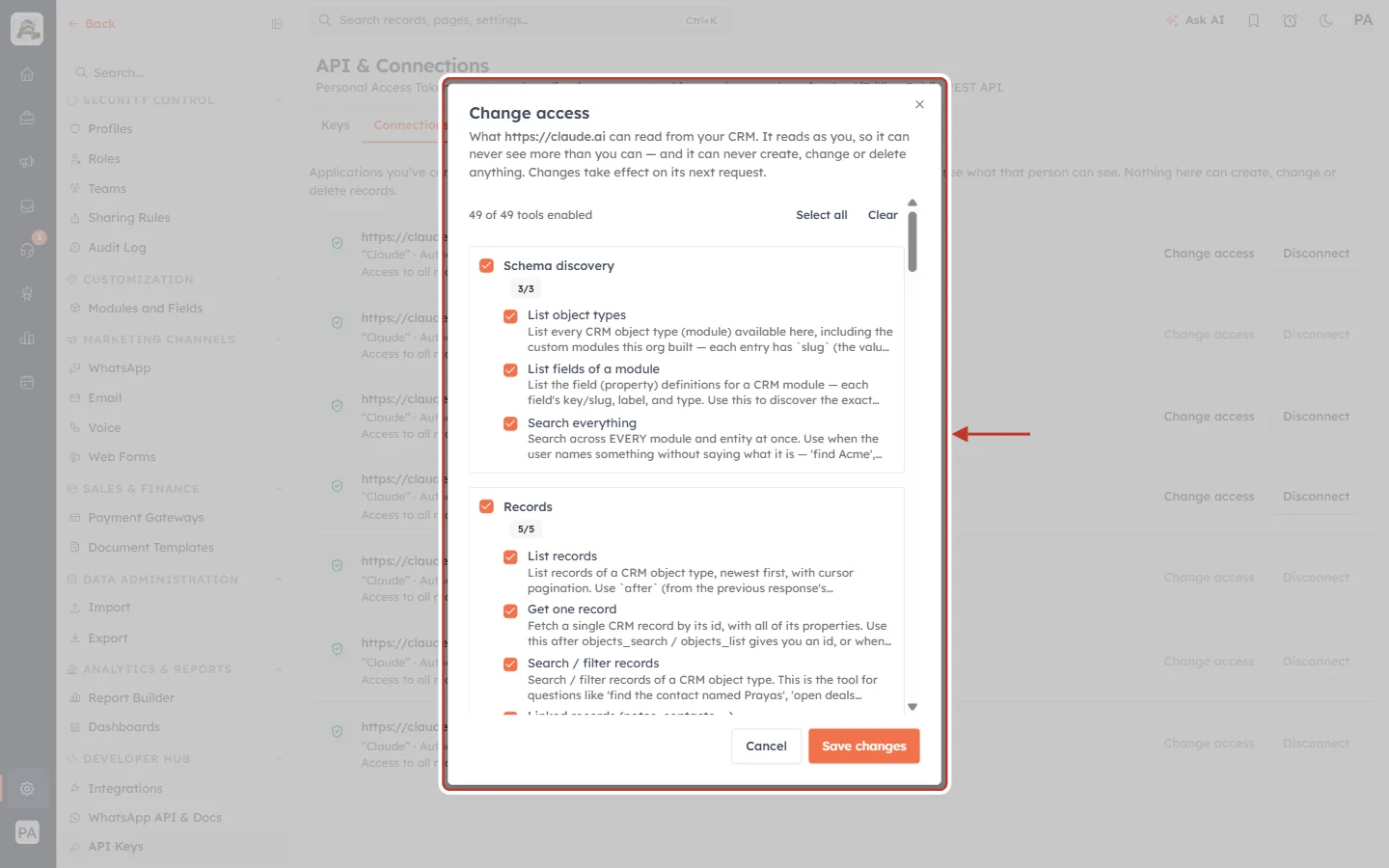
What this screenshot shows. The Change access dialog, ringed.
The description: “What https://claude.ai can read from your CRM. It reads as you, so it can never see more than you can — and it can never create, change or delete anything. Changes take effect on its next request.”
49 of 49 tools enabled with Select all and Clear links.
Tools are grouped, for example Schema discovery (3/3: List object types, List fields of a module, Search everything) and Records (5/5: List records, Get one record, Search / filter records …). Untick a group or a single tool to block it.
Click Save changes to apply, or Cancel to leave everything as it was.
To stop a client completely, click Disconnect. Access ends on its very next request. To use it again later, just connect it again from the client.
Step 8: Fix Common Problems#
The MCP page lists the most common problems under Details & troubleshooting. The one people meet most:
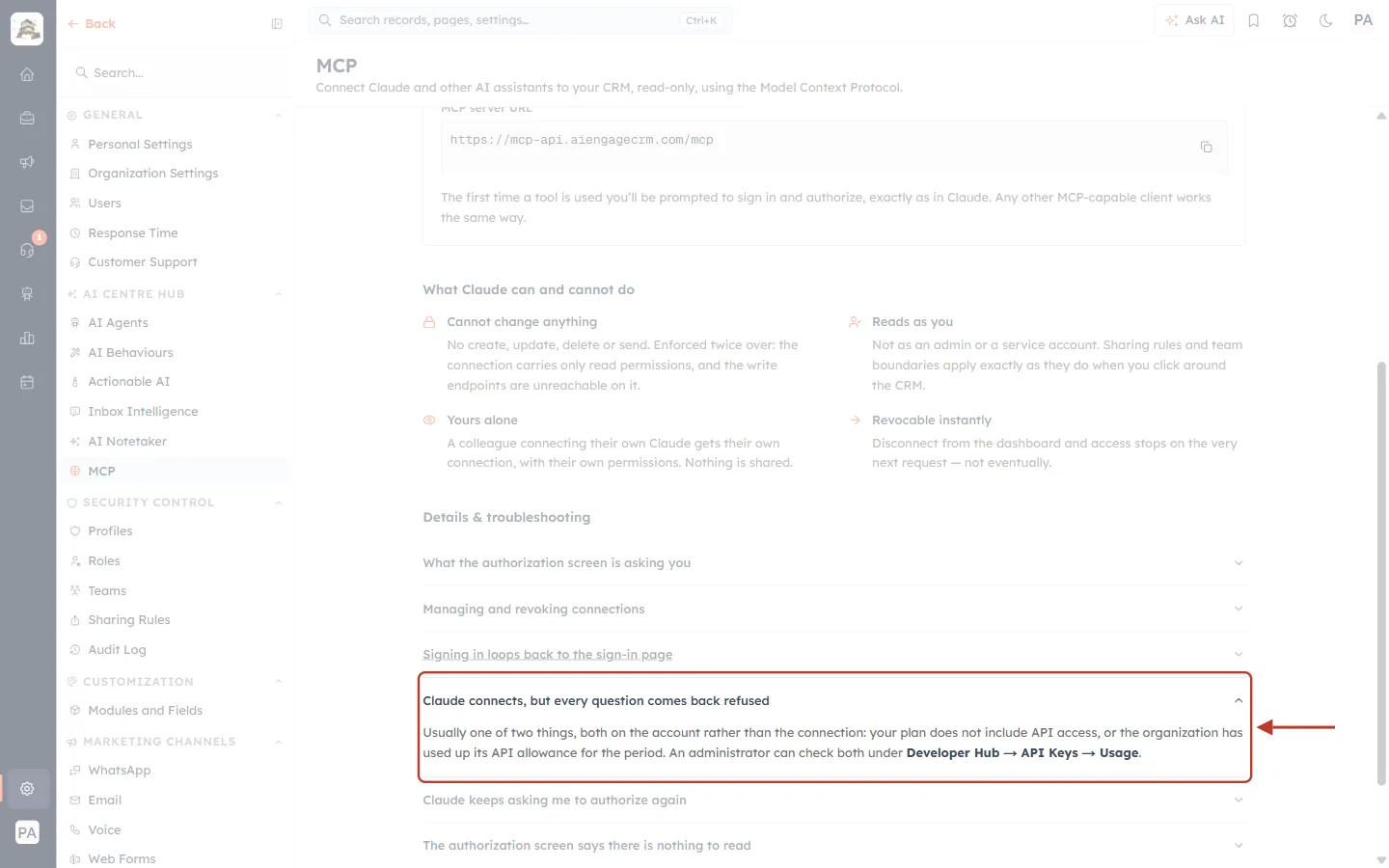
What this screenshot shows. The troubleshooting item Claude connects, but every question comes back refused, expanded and ringed. It applies to every client.
“Usually one of two things, both on the account rather than the connection: your plan does not include API access, or the organization has used up its API allowance for the period.”
An administrator can check both under Developer Hub → API Keys → Usage.
Read more in Monitor API Usage & Set Quota Alerts Step by Step.
If your client can only use an API key (it has no sign-in support), expand I was given a cak_live_… key — do I still use it?:
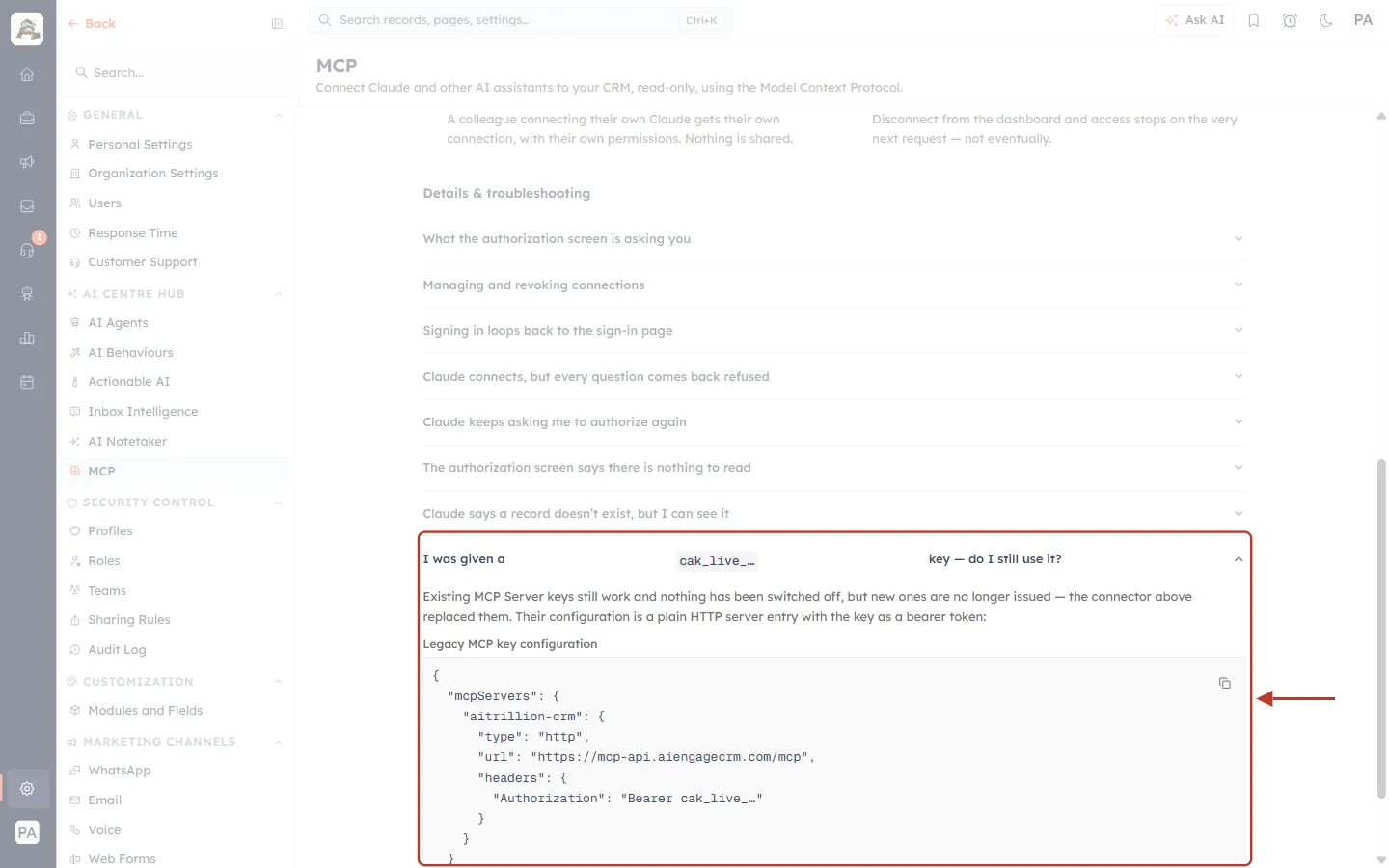
What this screenshot shows. The legacy-key item, expanded and ringed.
“Existing MCP Server keys still work and nothing has been switched off, but new ones are no longer issued — the connector above replaced them.”
The Legacy MCP key configuration box shows a plain HTTP server entry with the key sent as
Authorization: Bearer cak_live_….Because new MCP keys are no longer issued, a client that cannot sign in with OAuth cannot be connected with a new key. Use a client that supports remote MCP sign-in instead.
Moving to the connector is better anyway: no secret to store or leak, it reads with your own permissions, and you revoke it per application.
Problem | Cause | Solution |
|---|---|---|
Signing in loops back to the sign-in page. | Your CRM session expired part-way through. | Sign in to the CRM dashboard in the same browser first, then start the connection again. |
Every question is refused. | No API access on your plan, or the API allowance is used up. | Ask an administrator to check Developer Hub → API Keys → Usage. |
The client keeps asking me to authorize again. | The connection was disconnected in the CRM. | Check Connections; if it is gone or Revoked, authorize again from the client. |
The approval screen says there is nothing to read. | No modules have been published to the API yet. | An administrator publishes them in Module Settings; then connect again. |
The client says a record doesn’t exist, but I can see it. | You may be signed in to a different account, or the record belongs to someone you cannot see. | Check which account authorized the connection — the client reads with that person’s permissions. |
“Discovery” or “resource” error when adding the server. | The address was typed with a trailing slash or a typo. | Paste exactly |
The client asks for an API key or Authorization header. | It does not support MCP sign-in (OAuth). | Use ChatGPT, Cursor, VS Code, Claude or another OAuth-capable client. |
ChatGPT does not offer “Create” for connectors. | Developer mode is off, or your workspace admin has not allowed it. | Turn on Developer mode in Advanced settings, or ask your ChatGPT workspace admin. |
Best Practices#
Connect with your own login. Never connect a shared client with an admin account — the client would see everything that admin can see.
Limit what each client reads. Untick groups you do not need on the approval screen or with Change access.
Check the web address on the approval screen before clicking Allow access.
Disconnect clients you no longer use, and ask administrators to review Connections when someone leaves the team.
Remember answers come from AI. The client reads real CRM data, but always double-check important numbers in the CRM before acting on them.
Frequently Asked Questions#
Can ChatGPT or Cursor change my CRM data?
No. The connection is read-only and the write endpoints are unreachable on it. It cannot create, update, delete or send anything.
Do I need an API key?
No. You sign in and click Allow access. New MCP keys are no longer issued.
Will my colleagues see what I ask?
No. Each person connects their own client, with their own permissions. Nothing is shared.
Can I connect more than one client?
Yes. Each client you authorize appears as its own row under Connections, and you can limit or disconnect each one separately.
Does using MCP count against our API allowance?
Yes. Requests from connected clients use your organization’s API allowance, which an administrator can watch under Developer Hub → API Keys → Usage.
What is the address for my account?
Always copy it from Setup → AI Centre Hub → MCP. For AiEngage CRM it is https://mcp-api.aiengagecrm.com/mcp.
Previous and Next Articles#
Previous: MCP Overview & Available Tools: What Claude and Other AI Assistants Can Read in Your CRM
Next: API Errors & Troubleshooting: Fix 400, 401, 403, 404, 409, 429 and 500 Errors Step by Step
Related Articles#
Was this article helpful?
Ready to implement this?
OpenAI Engage and apply what you just learned to your own workspace.
Open AI Engage CRM