Loading…


KnowledgeBase
The Related Notes View (All Related Notes)
See every note in one place#
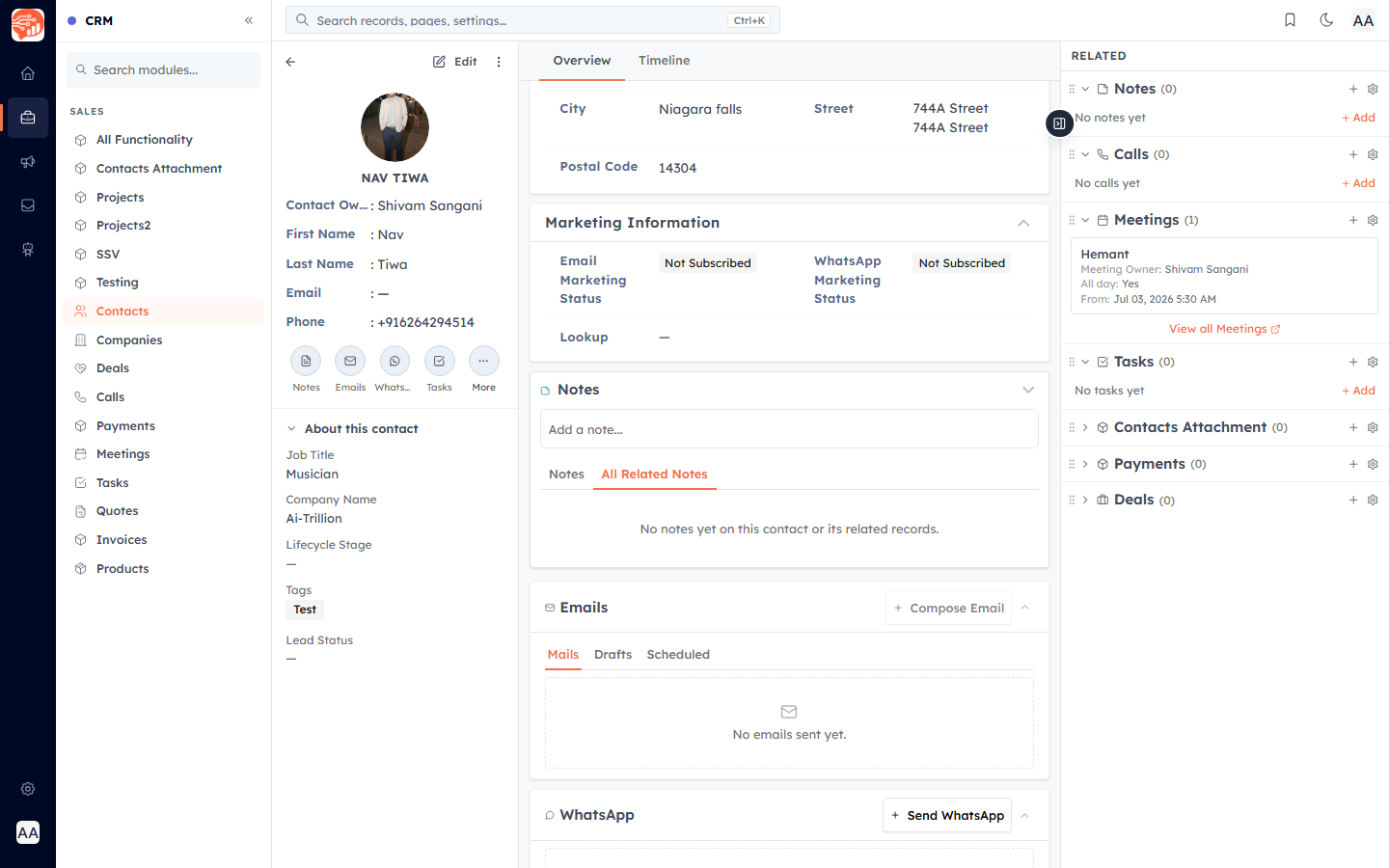
On a contact, the Notes card has two tabs. This lets you switch between just this contact's notes and a rolled-up feed of notes from everything connected to them.
- Notes — only the notes written directly on this contact.
- All Related Notes — the contact's own notes plus notes attached to every record directly related to them (their deals, tasks, meetings, company, and any other linked records), combined into one feed.
Why use it#
Instead of opening each related deal or task to find a note, All Related Notes brings the full history together — so you get the complete context on a person and everything they're involved in, at a glance.
Where each note comes from#
Every note in the feed shows a source chip so you always know where it lives:
- On this contact — the note was written directly on the contact.
- On <Module> · <Record> — the note lives on a related record (for example "On Deal · Website Redesign"). This chip is a link — click it to jump straight to that record.
ℹ️
The All Related Notes feed is read-only — it gathers notes from other records so you can read them in one place. To add or edit a note on a related record, open that record (or use the chip link). To add a note to the contact itself, use the "Add a note" box on the Notes tab.
💡
The feed is paginated, so on busy contacts it loads more as you scroll. Notes from related records only appear here — they are never duplicated onto the contact.
🔗
This is part of the Contact Detail Page. See also Organize Contacts with Lists.
Was this article helpful?
Ready to implement this?
OpenAI Engage and apply what you just learned to your own workspace.
Open AI Engage CRM