Loading…


KnowledgeBase
Table Chart on Dashboards: Build a Grouped Summary Table with Totals in Analytics & Reports (Step-by-Step)
Introduction#
Charts are great for spotting a trend, but sometimes you simply want the numbers in a table: how much pipeline value sits in each stage, how many leads each source brought in, how many tickets each agent closed. Until now you had to open a report to see that. The new Table Chart component puts that table straight onto your dashboard, next to your KPIs and charts.
A Table Chart is a grouped summary table. You pick a module (for example Deals), choose up to three fields to group by (for example Pipeline, then Stage), and choose what to calculate for each group: a count of records, or the sum, average, minimum, maximum and more of a number field such as Amount. The table shows one row per group, merges repeated group names so the table is easy to read, and ends with a Total row.
In this guide we build a sample Table Chart called “Pipeline value by stage” on a dashboard named Sales Overview: Deals grouped by Pipeline and Stage, showing the Sum of Amount. Every option is explained along the way so you can build your own tables.
Example table | Module | Group by | Measure |
|---|---|---|---|
Pipeline value by stage | Deals | Pipeline → Stage | Sum of Amount |
Leads by source and owner | Contacts | Lead Source → Contact Owner | Count |
Average deal size per owner | Deals | Deal Owner | Average of Amount |
Tickets by status and priority | Tickets | Status → Priority | Count |
ℹ️
Before you start: you need a dashboard you can edit. If you are new to dashboards, read Dashboards & Report Components first.
Step 1: Open your dashboard#
In the left-hand menu, under Analytics & Reports, click Dashboards. Use the dashboard picker at the top of the page to open the dashboard you want to add the table to. In our example it is Sales Overview, which is still empty.
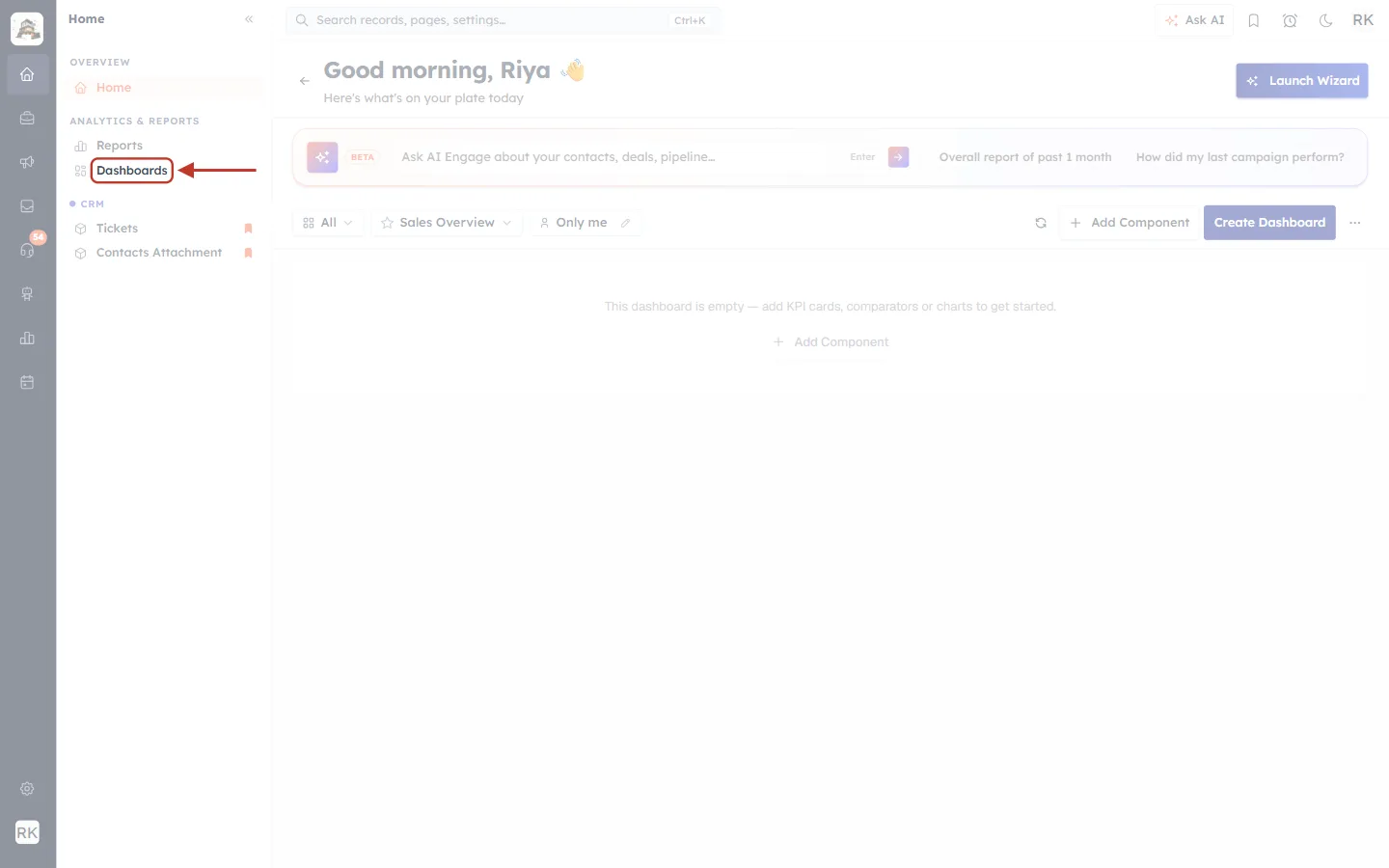
What this screenshot shows. The left-hand menu, with Dashboards ringed under Analytics & Reports.
Reports (just above) opens your saved reports; Dashboards opens your dashboards.
At the top of the page, the picker shows the open dashboard, Sales Overview, and the Only me chip shows who it is shared with.
The empty dashboard reads “This dashboard is empty — add KPI cards, comparators or charts to get started.”
Step 2: Click Add Component#
Click + Add Component in the toolbar at the top right of the dashboard.
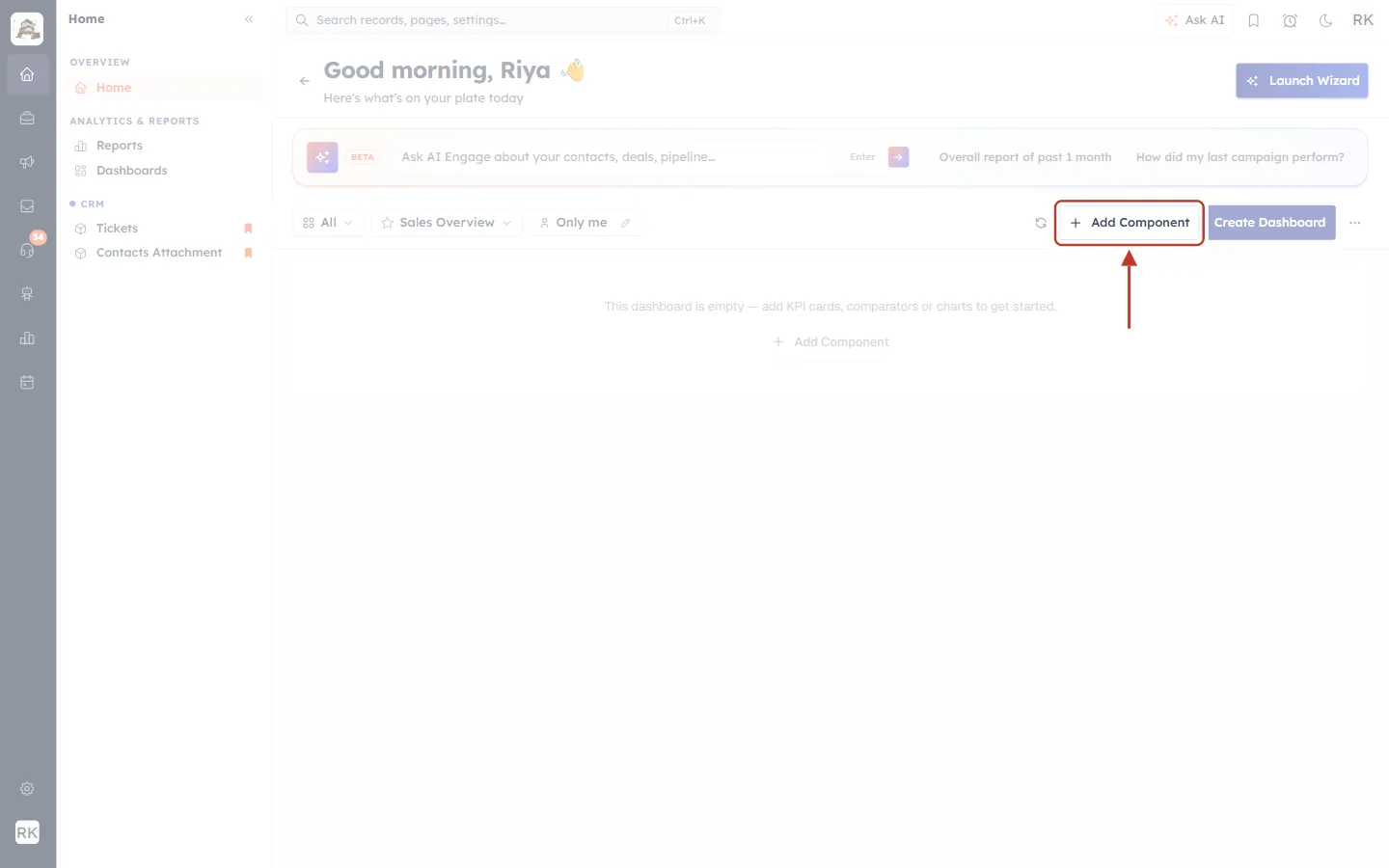
What this screenshot shows. The dashboard toolbar, with + Add Component ringed.
The circular-arrow icon to its left refreshes every tile on the dashboard.
Create Dashboard (to the right) makes a new, separate dashboard. You don’t need it here.
Step 3: Choose Table Chart#
The Add Component window opens on the Reports & Charts tab. Click the Table Chart card, then click Continue.
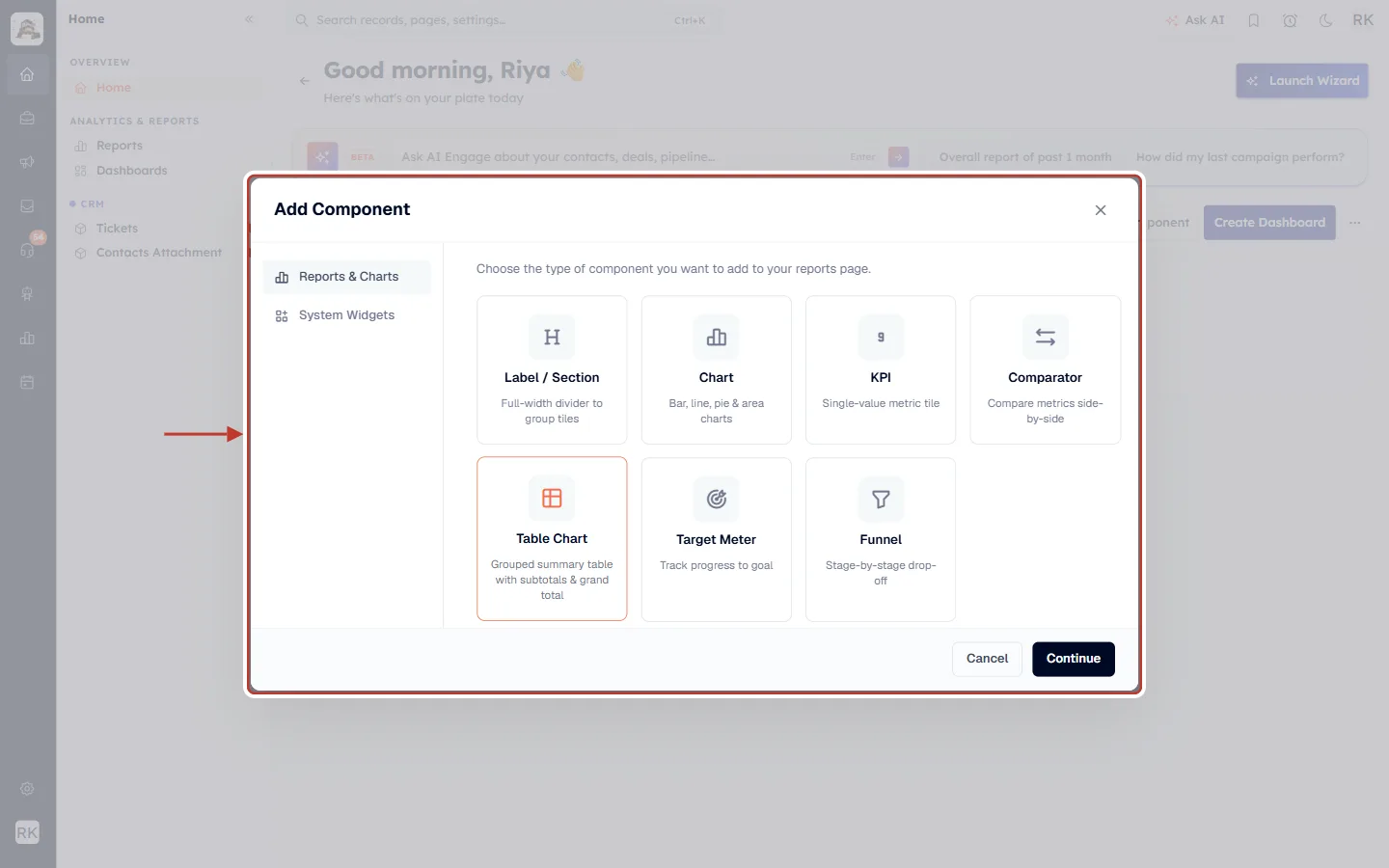
What this screenshot shows. The Add Component window with all component types.
Reports & Charts (left) lists data components; System Widgets lists ready-made widgets such as the task board.
The cards: Label / Section, Chart, KPI, Comparator, Table Chart, Target Meter and Funnel.
Table Chart is selected (orange border). Its description reads “Grouped summary table with subtotals & grand total”.
Cancel closes the window; Continue opens the builder for the selected type.
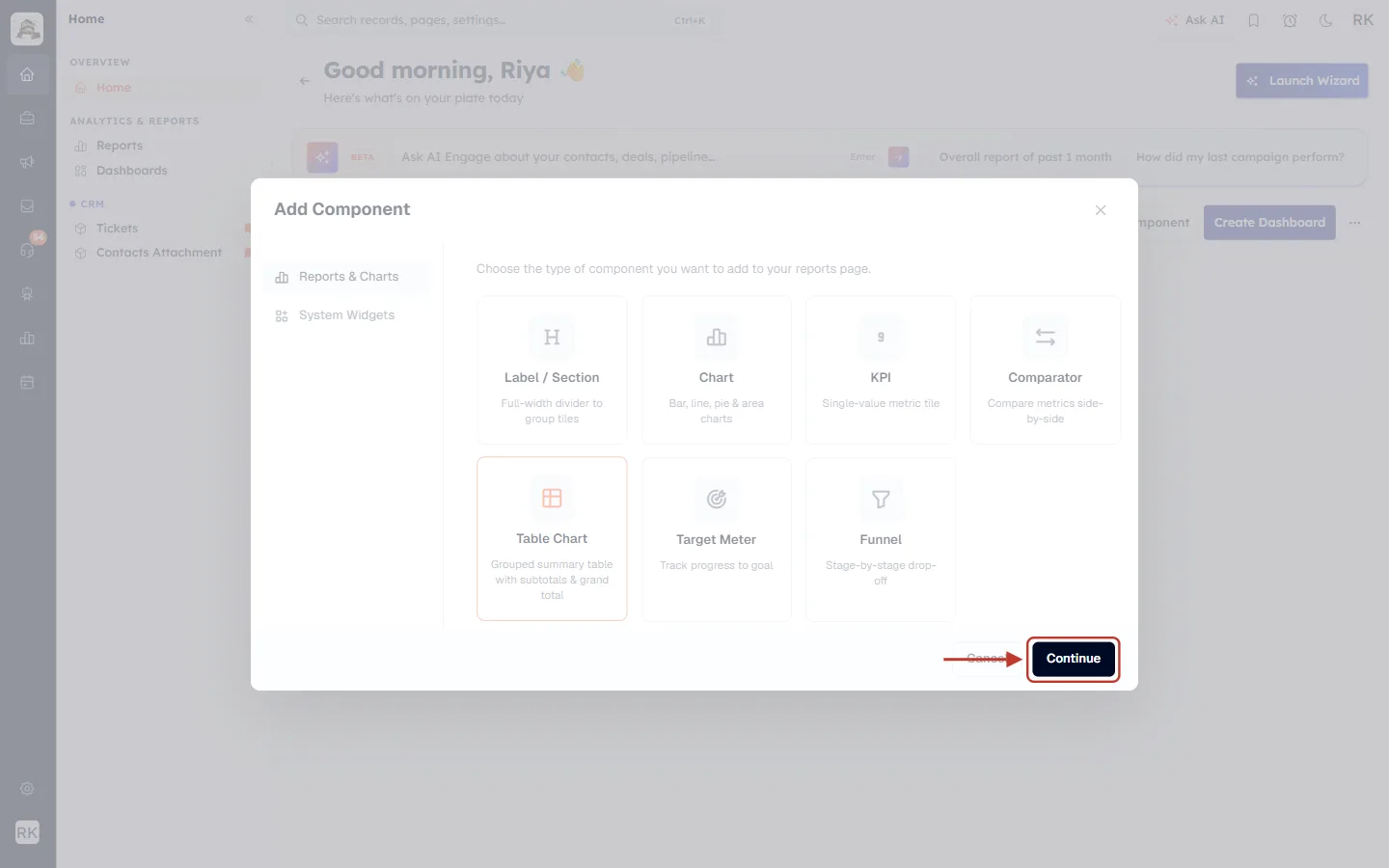
What this screenshot shows. The Continue button, ringed. Click it to open the Table Chart builder.
If you picked the wrong card, just click another card before you continue.
Step 4: Get to know the Table Chart builder#
The Edit Table Chart window has your settings on the left and a live preview on the right that updates as you build.
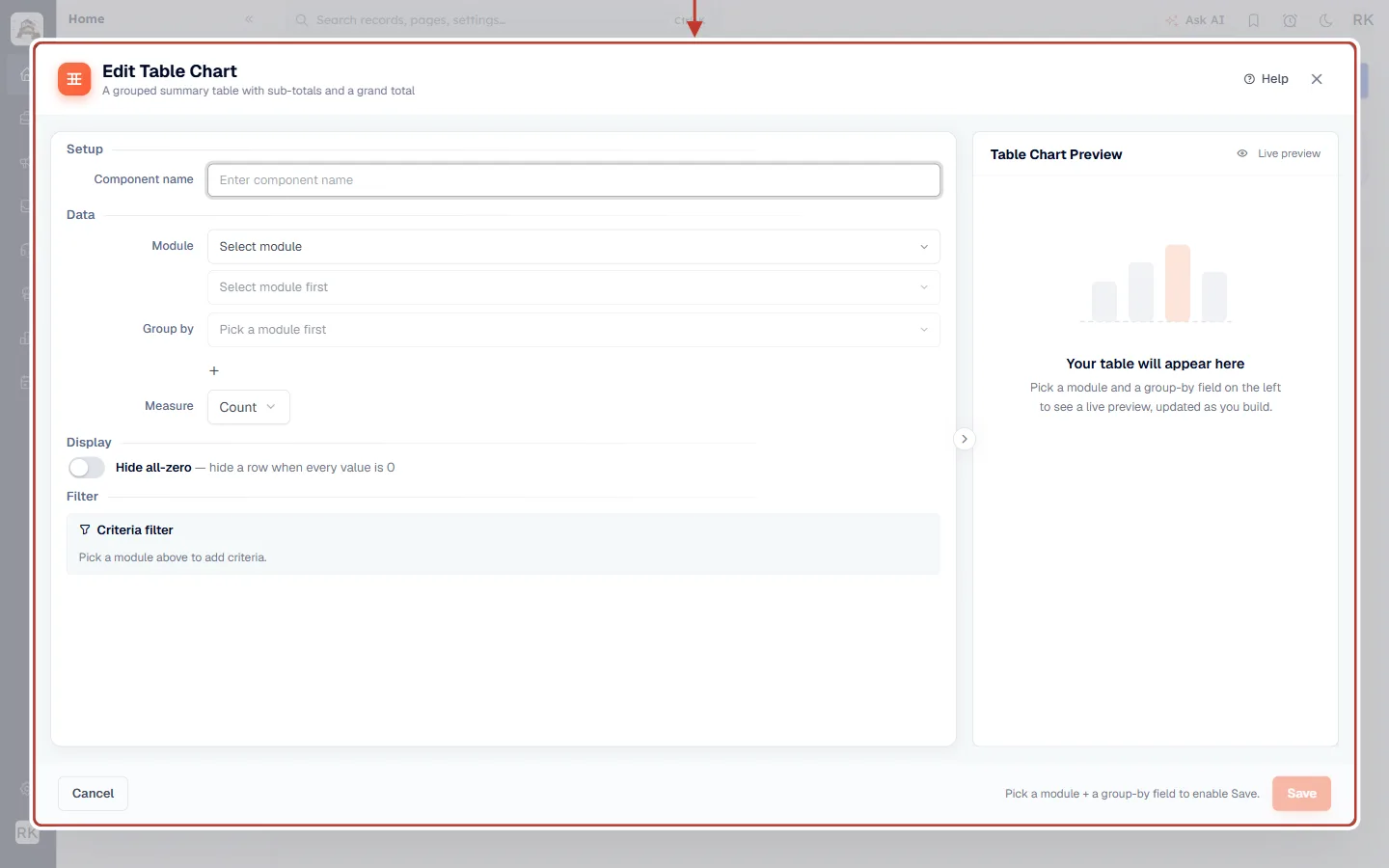
What this screenshot shows. The builder before anything is filled in.
Setup → Component name: the title shown on the dashboard tile.
Data → Module: the module whose records the table summarises. The box under it (Select module first) lets you bring in a related module once a module is picked.
Group by: the field(s) that form the table’s rows. The + below adds another grouping level.
Measure: what is calculated for each row. It starts as Count.
Display → Hide all-zero and Filter → Criteria filter are optional extras (Steps 9 and 10).
Right side: Table Chart Preview reads “Your table will appear here” until a module and a group-by field are chosen.
Bottom: Save is disabled, with the hint “Pick a module + a group-by field to enable Save.” The small arrow on the divider hides or shows the preview.
Step 5: Name the table and choose a module#
Type a clear Component name, then open the Module list and pick the module to summarise. We name ours Pipeline value by stage and pick Deals.
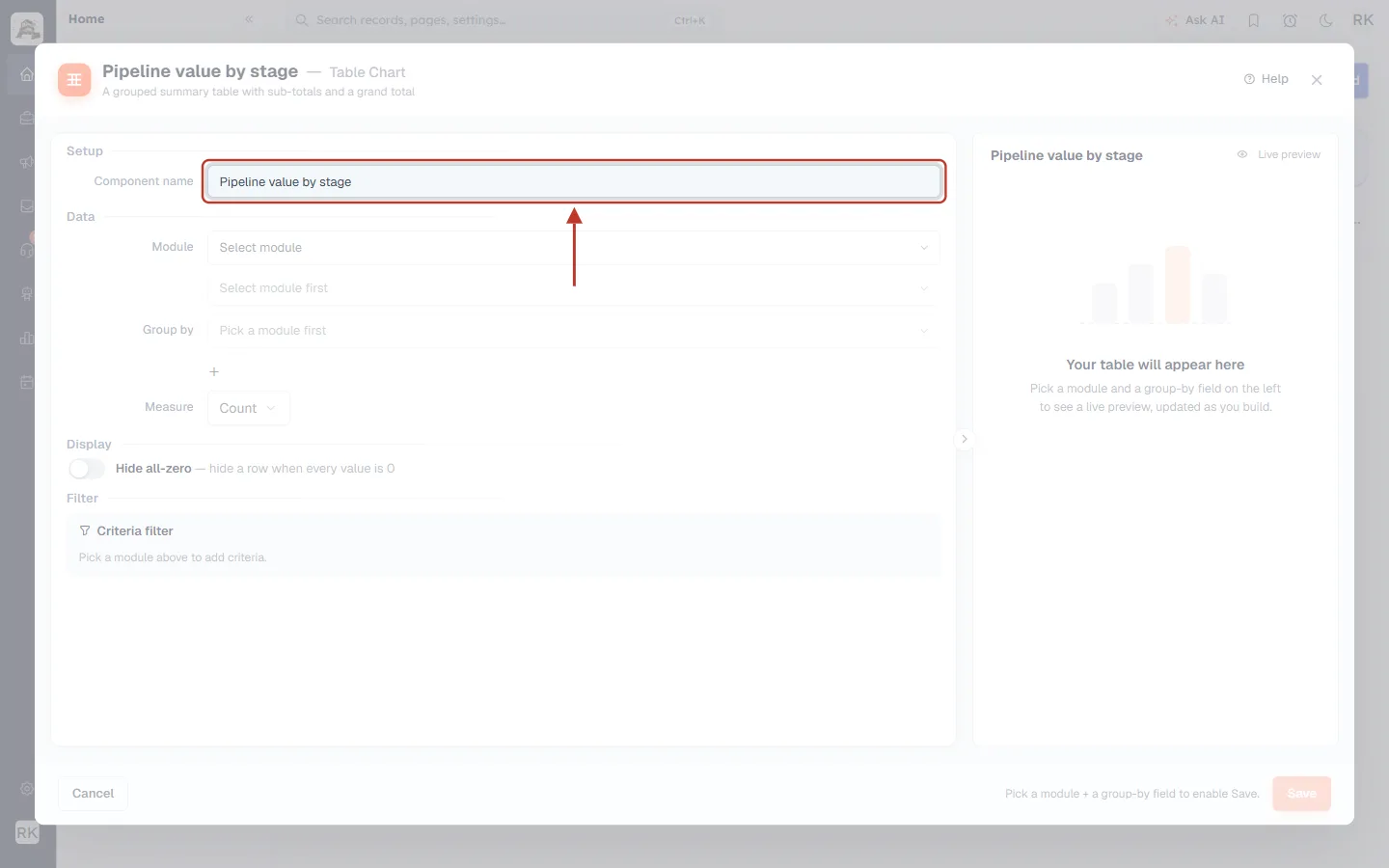
What this screenshot shows. The Component name box with Pipeline value by stage.
This name becomes the tile title on the dashboard and the heading of the live preview.
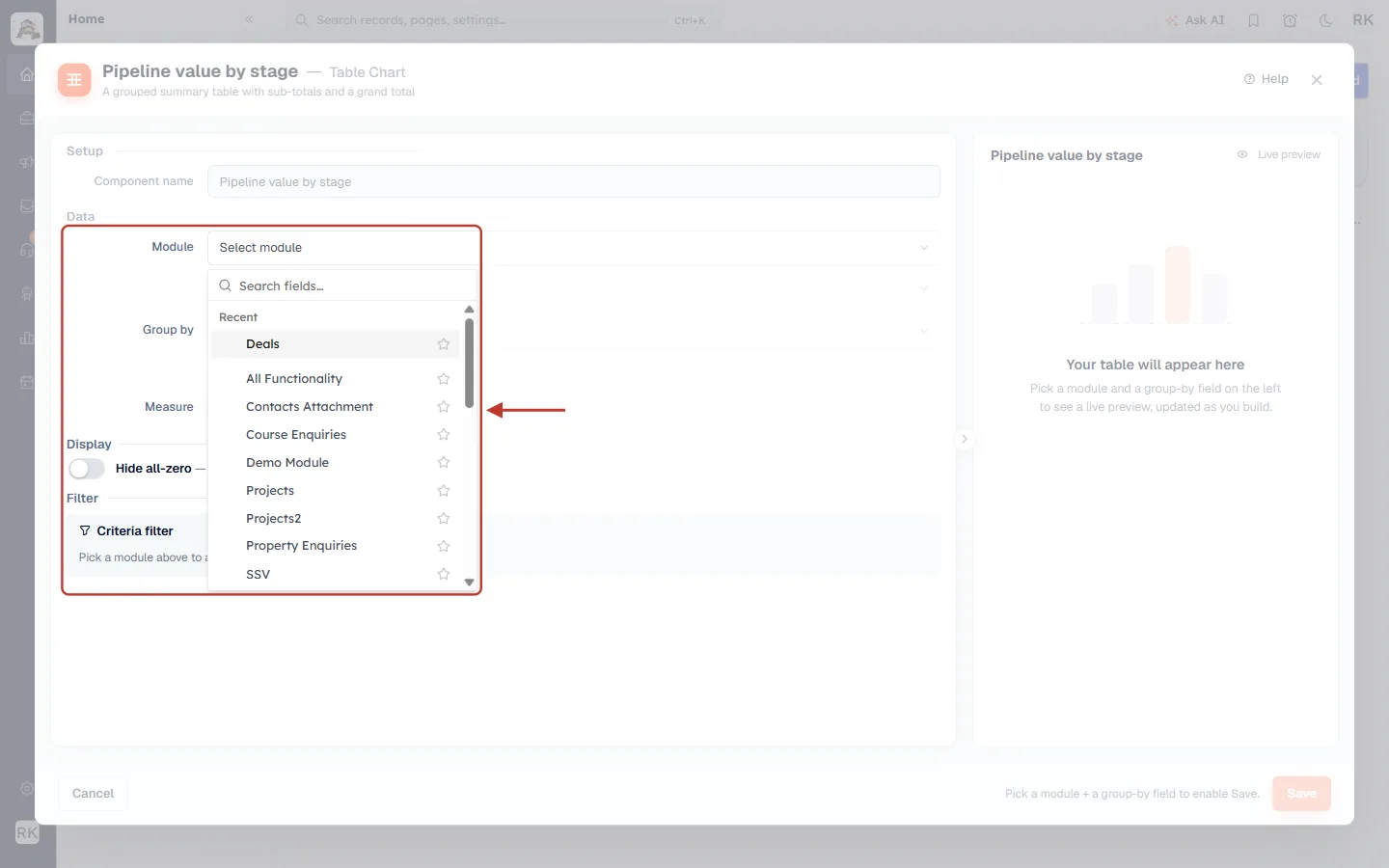
What this screenshot shows. The Module list, open.
It lists every module you can report on: standard modules such as Contacts, Companies, Deals, Tickets, Quotes and Invoices, plus your custom modules.
Pick Deals. The group-by and measure pickers then show Deals fields.
Step 6: Choose the first field to group by#
Click Pick a field to group by and choose the field that should make the first column of the table. We choose Pipeline, so there is one row per pipeline.
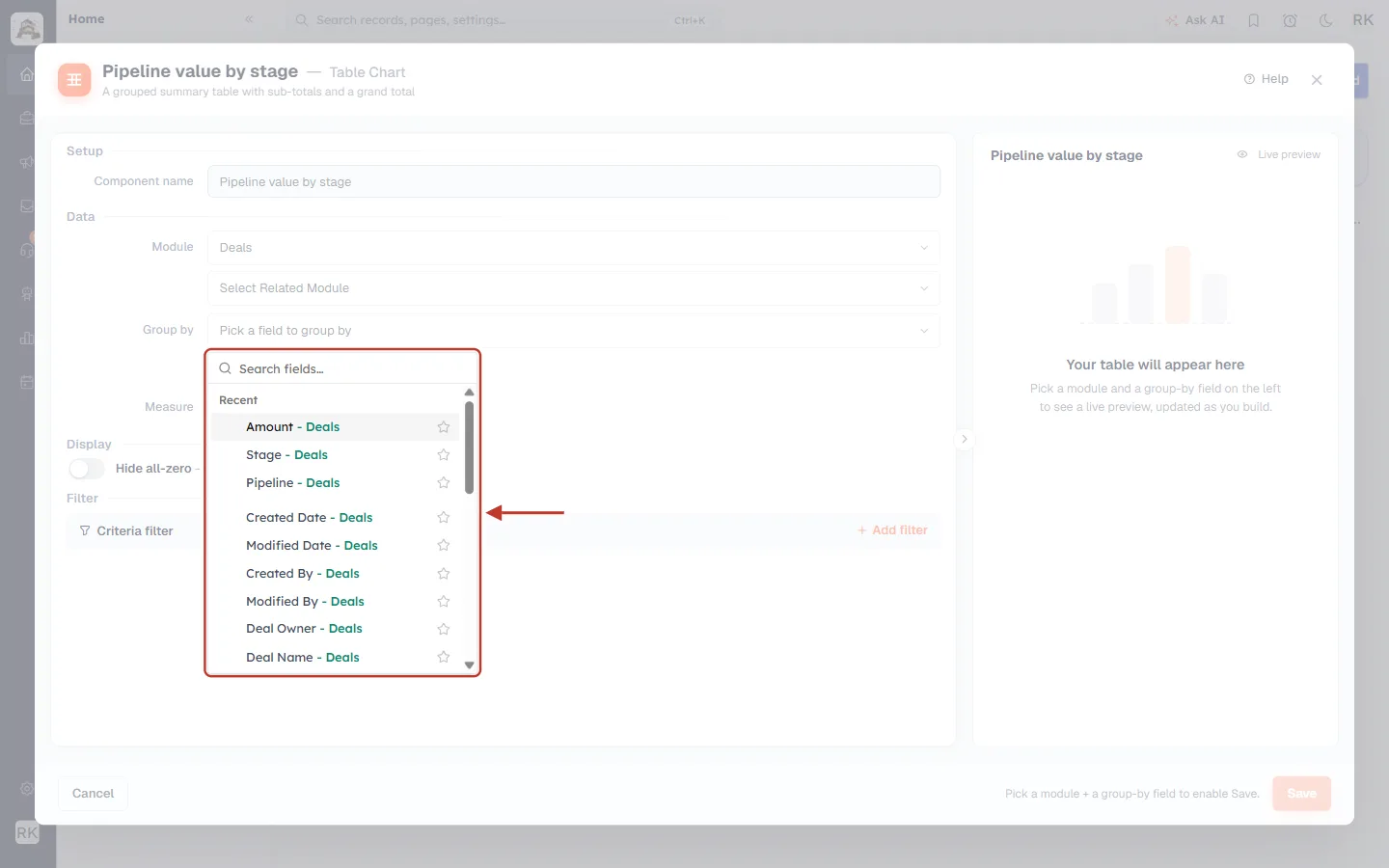
What this screenshot shows. The field list for Group by.
A search box at the top filters the fields as you type.
Each field is shown as Field - Module, for example Pipeline - Deals or Stage - Deals, so you always know which module it comes from.
Recent at the top lists fields you used lately.
Good group-by fields are ones with a limited set of values: pick lists (Stage, Lead Source), owners, pipelines, or dates.
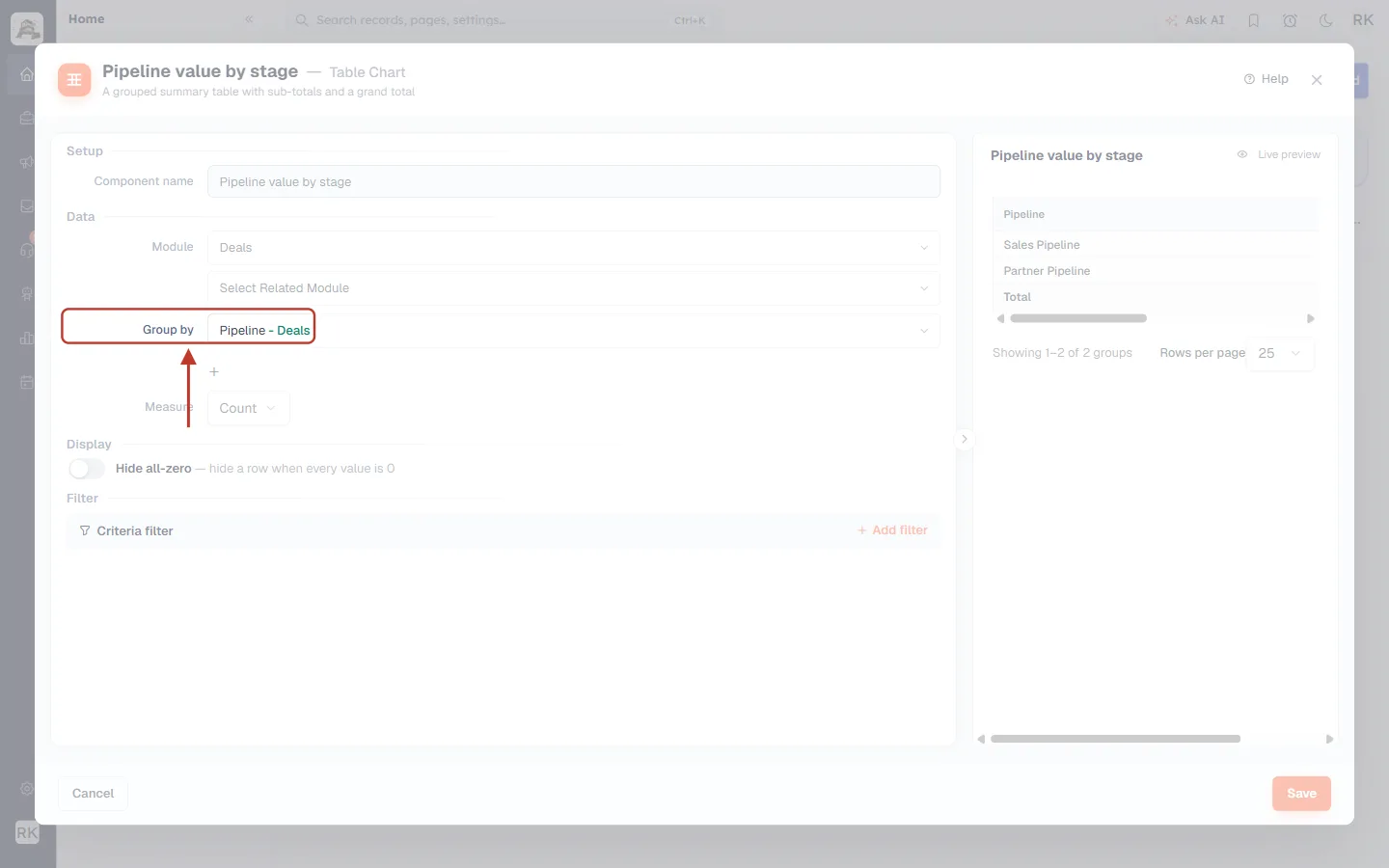
What this screenshot shows. The Group by row with Pipeline - Deals chosen.
As soon as a module and a group-by field are set, the live preview fills in and Save becomes available.
Step 7: Add a second (and third) grouping#
To break each group down further, click the + under the group-by field and choose another field in Then group by. We add Stage, so each pipeline is split into its stages.
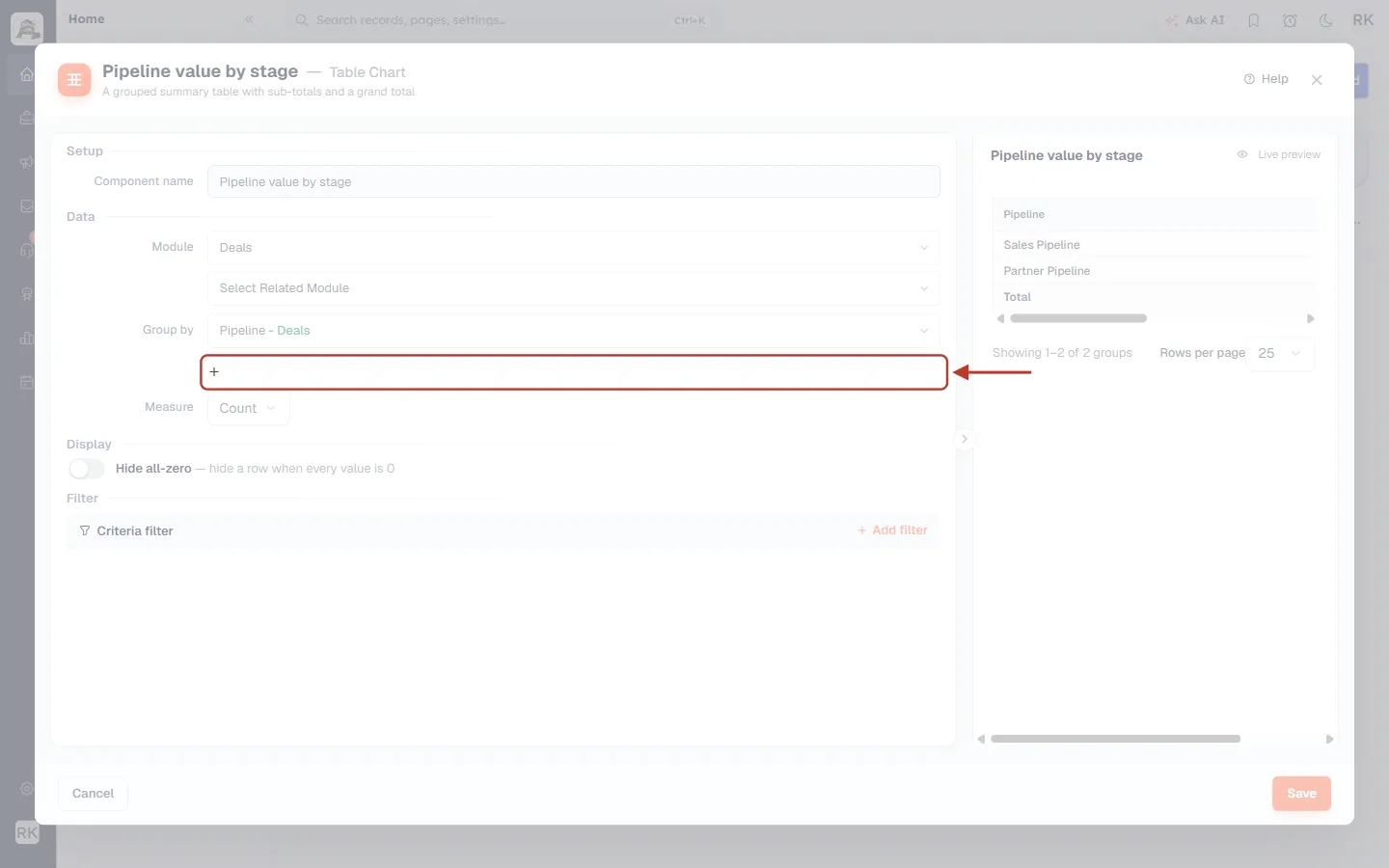
What this screenshot shows. The + (Add another grouping) button, ringed.
Each click adds a Then group by box. You can have up to three grouping levels; after the third, the + disappears.
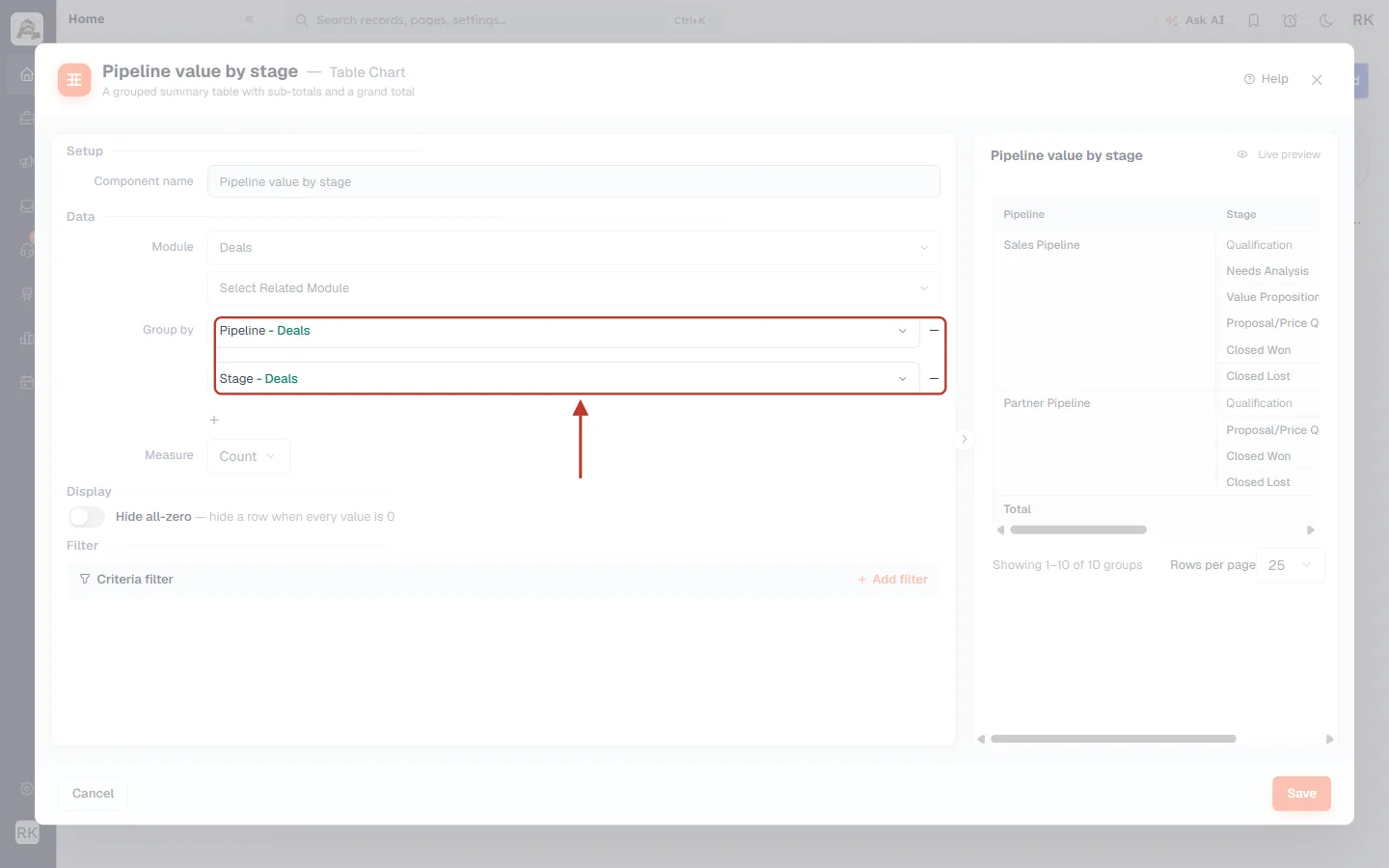
What this screenshot shows. Two grouping levels.
First level: Pipeline - Deals. Second level: Stage - Deals.
The − button at the end of each row (Remove this grouping) removes that level. The order of the rows is the order of the table’s columns, from left to right.
Step 8: Choose what to measure#
By default the table counts the records in each group. To add up a number instead, open the Measure list and choose a calculation, then pick the number field. We choose Sum of Amount.
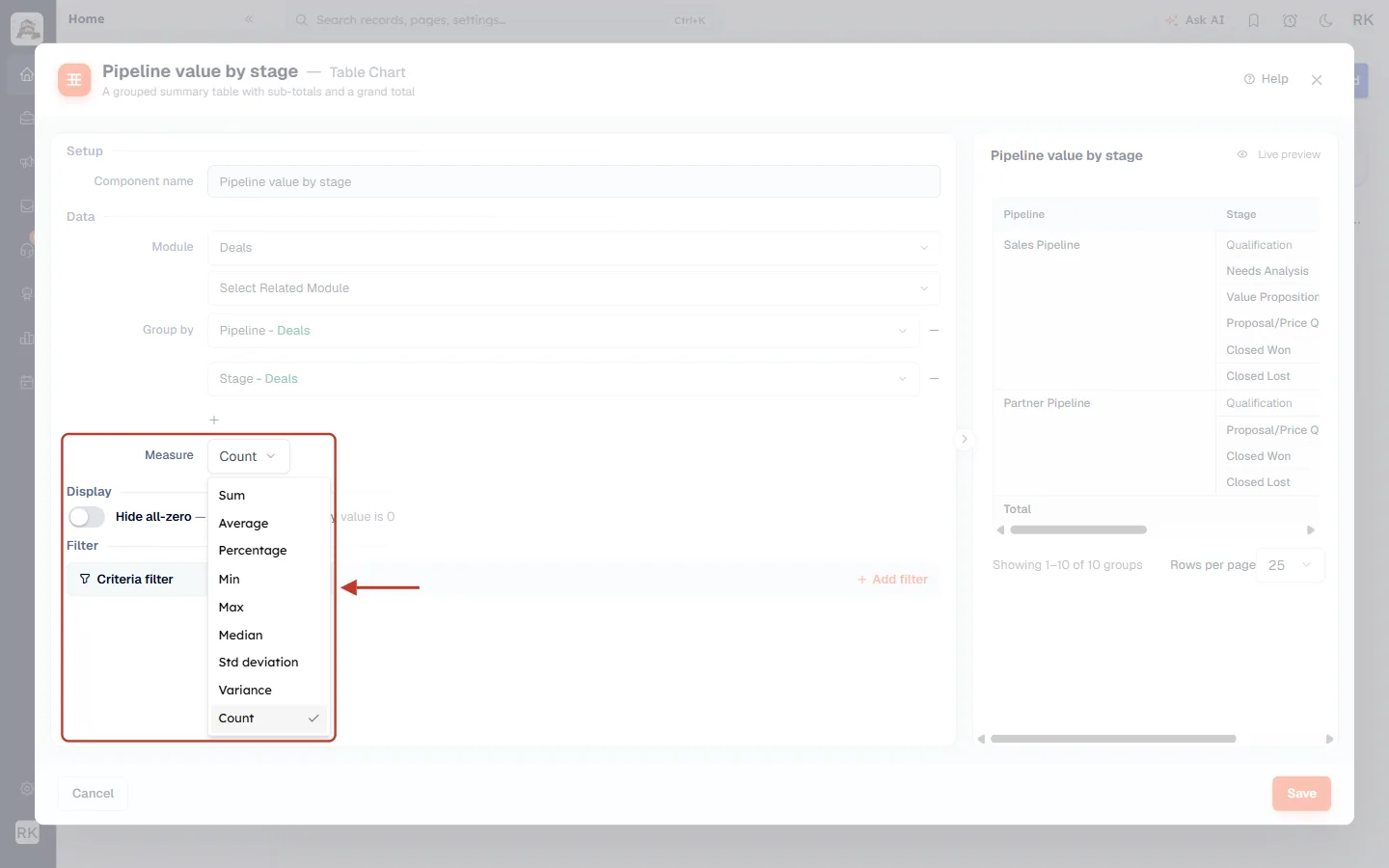
What this screenshot shows. The Measure list, open.
Count (ticked, the default): the number of records in each group. No field is needed.
Sum, Average, Min, Max and Median: calculated from a number field, for example the total, average or largest deal Amount in each group.
Percentage, Std deviation and Variance: for more statistical summaries of a number field.
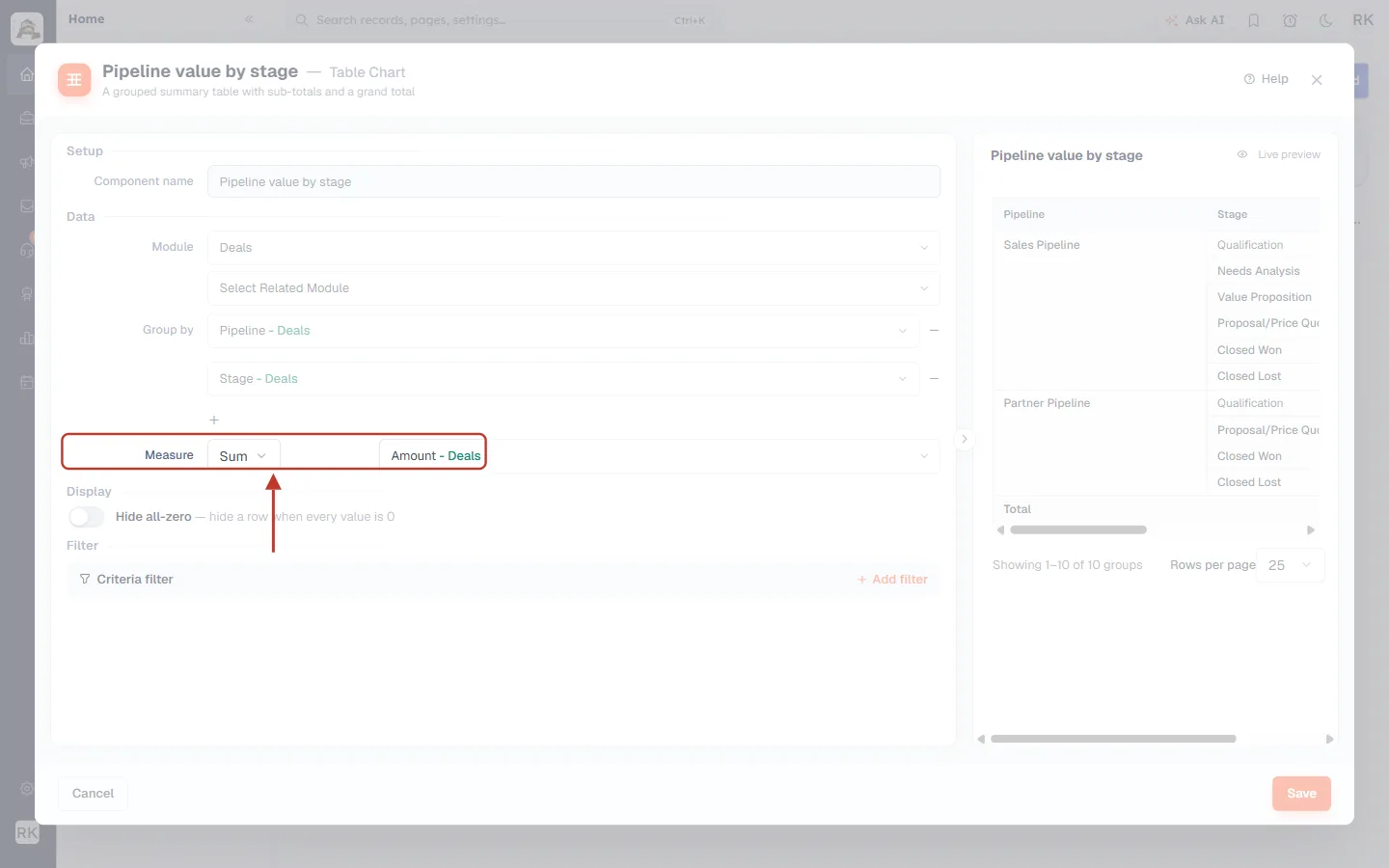
What this screenshot shows. The measure set to Sum of Amount - Deals.
When you pick anything other than Count, a second box appears: Pick a numeric field. Only number, currency and similar fields are listed.
The table’s value column is named after your choice, here Sum of Amount.
Step 9: Check the live preview#
The preview on the right shows exactly what the tile will look like. It is narrow, so scroll it sideways to see every column.
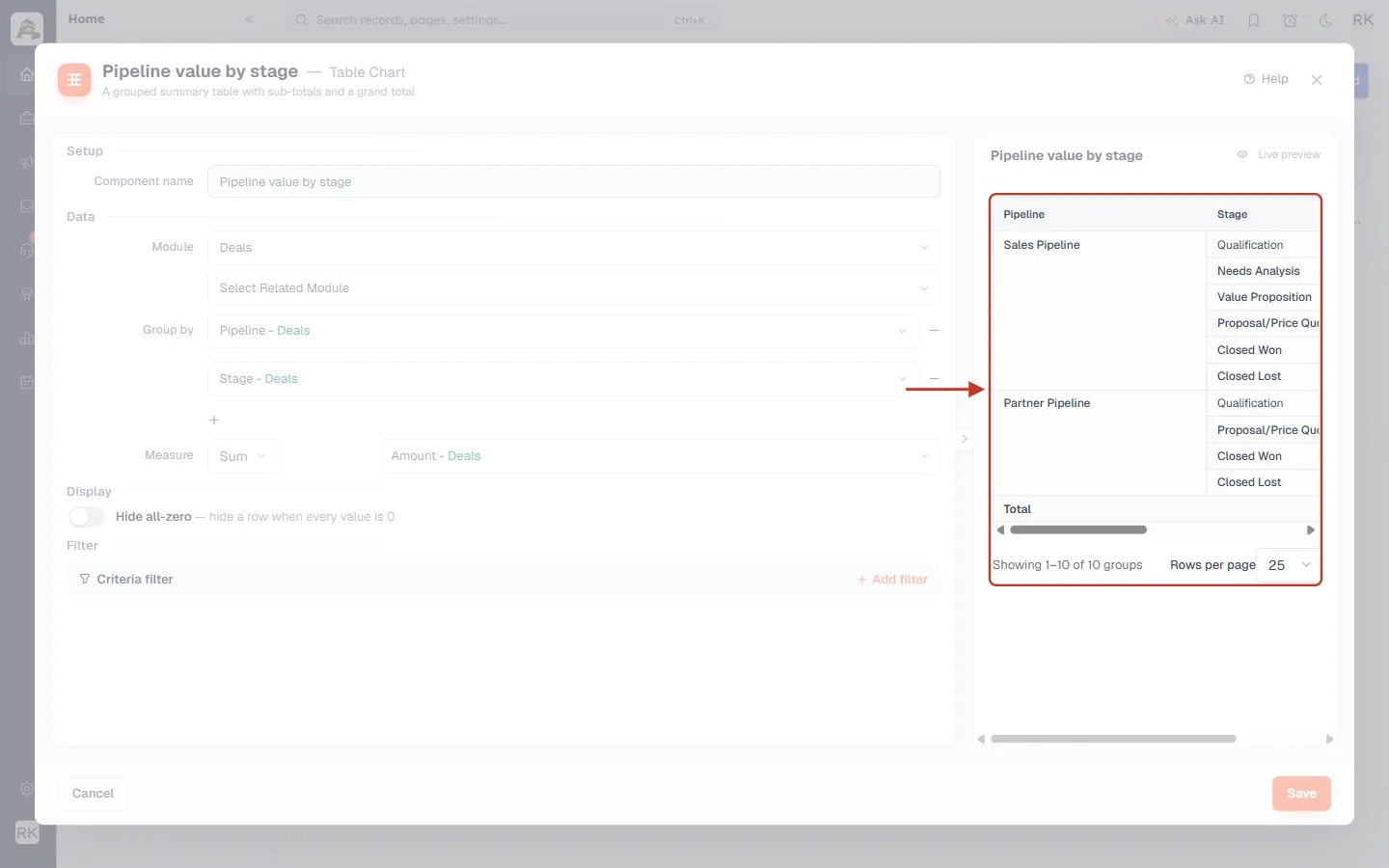
What this screenshot shows. The preview with the group columns.
Pipeline column: Sales Pipeline and Partner Pipeline. Each pipeline name is shown once and spans all of its stages (merged cells), so the table is easy to scan.
Stage column: the stages inside each pipeline, such as Qualification, Needs Analysis, Value Proposition, Proposal/Price Quote, Closed Won and Closed Lost.
Total row at the bottom.
Under the table: “Showing 1–10 of 10 groups” and Rows per page (25), with page buttons when there are more rows.
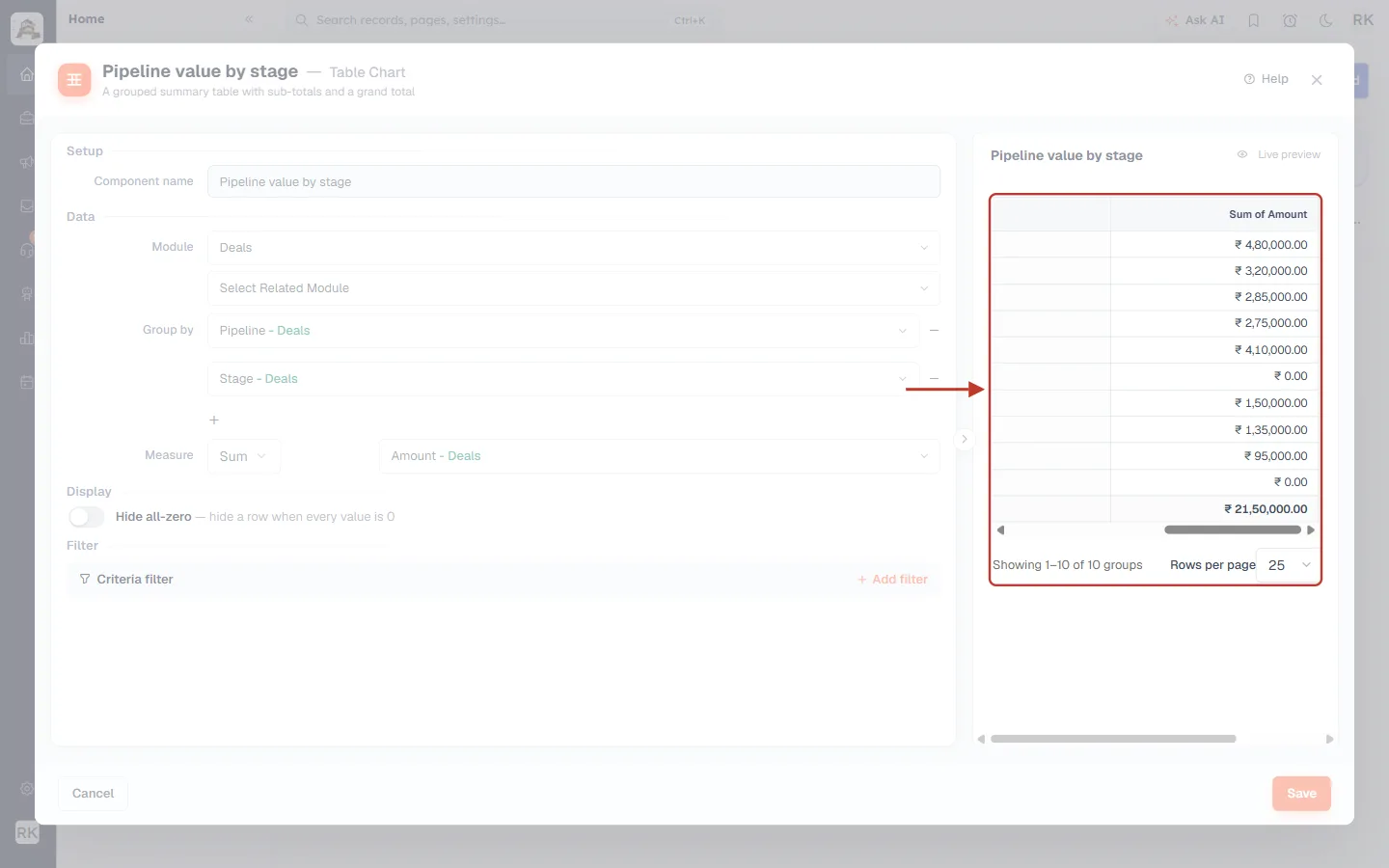
What this screenshot shows. The same preview scrolled to the right.
Sum of Amount: the total deal value in each pipeline stage, in your currency format (for example ₹ 4,80,000.00 in Qualification).
The last value, ₹ 21,50,000.00, is the grand total of all rows.
The numbers in these screenshots are sample data.
Step 10 (optional): Hide rows that are all zero#
Some groups have nothing to show, for example lost deals with no amount. Switch on Hide all-zero to leave them out.
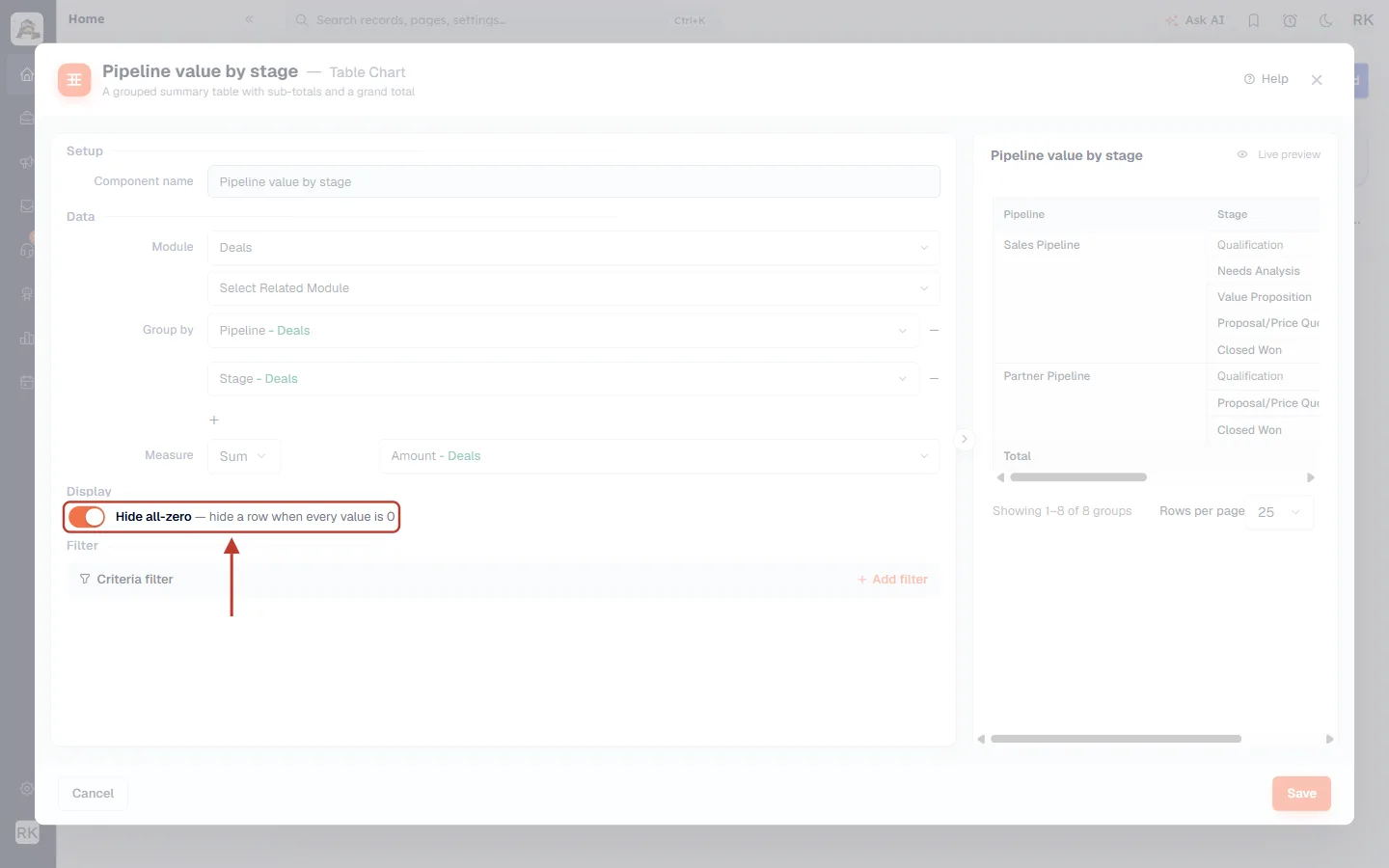
What this screenshot shows. The Display option Hide all-zero, switched on.
Its note explains the rule: “hide a row when every value is 0”. Rows with any non-zero value always stay.
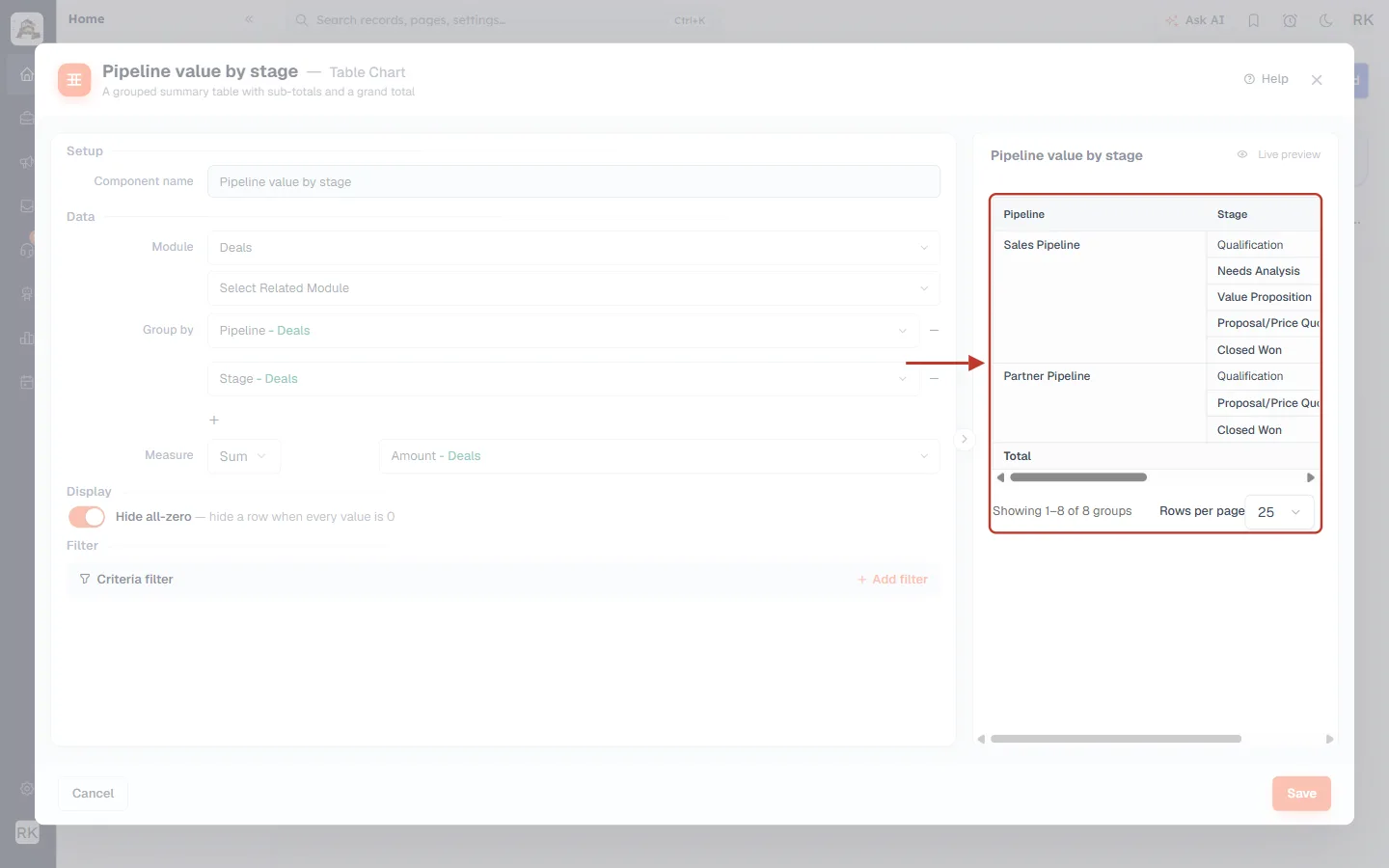
What this screenshot shows. The preview after switching it on.
The two Closed Lost rows (₹ 0.00) are gone, and the pager now reads Showing 1–8 of 8 groups.
The grand total doesn’t change, because the hidden rows were zero.
In our example we switch it off again before saving, so the dashboard shows every stage.
Step 11 (optional): Filter the records#
To summarise only some records (for example only this year’s deals, or only one team’s), click + Add filter under Filter.
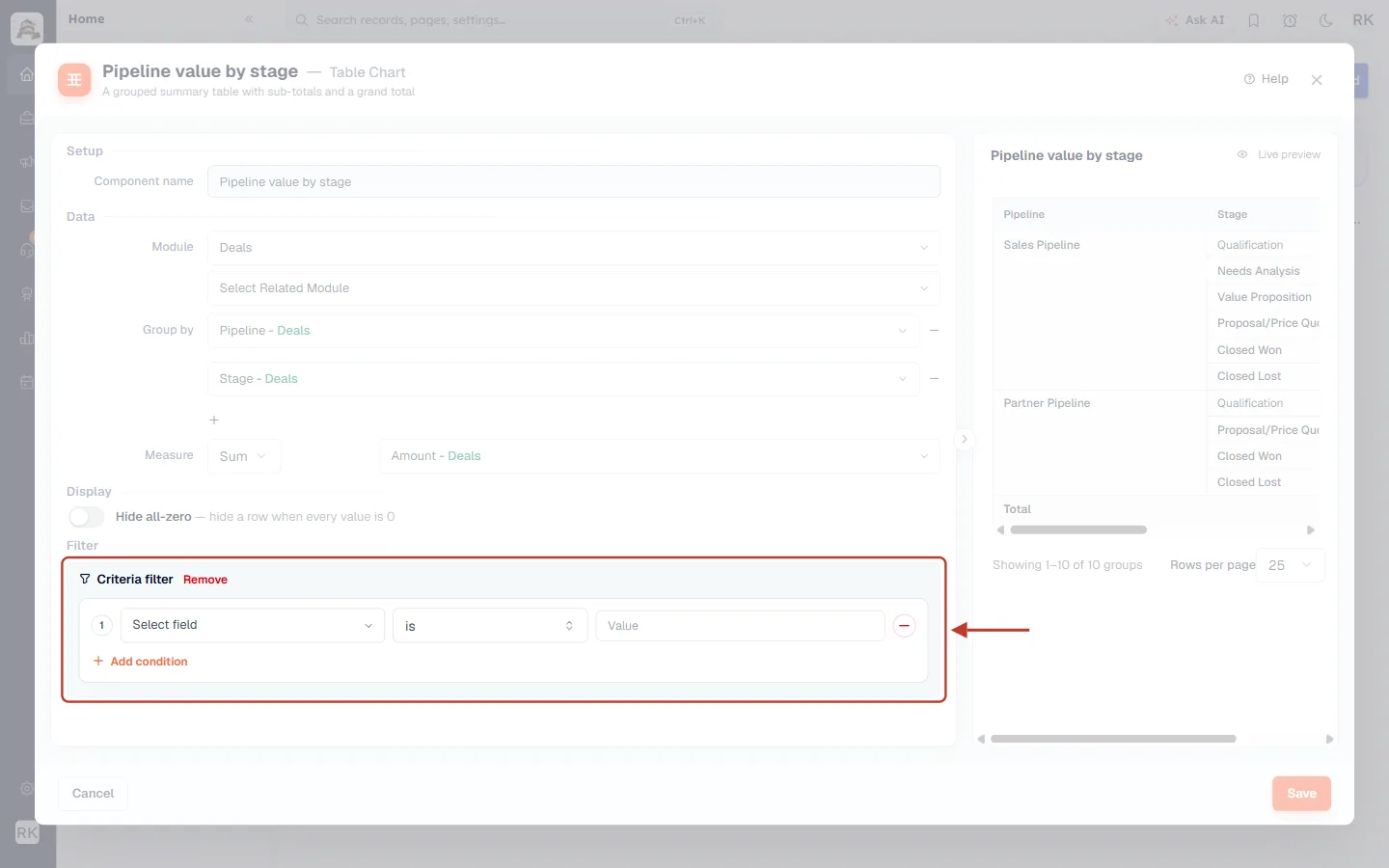
What this screenshot shows. The Criteria filter with one condition row.
1 is the condition number. Choose a field in Select field, an operator (here is), and a Value.
+ Add condition adds more conditions; the red − removes a condition; Remove (next to the title) removes the whole filter.
The preview updates as soon as the conditions are complete. Filters work the same way as in reports; see Filtering Your Reports.
Step 12: Save the Table Chart#
When the preview looks right, click Save at the bottom right.
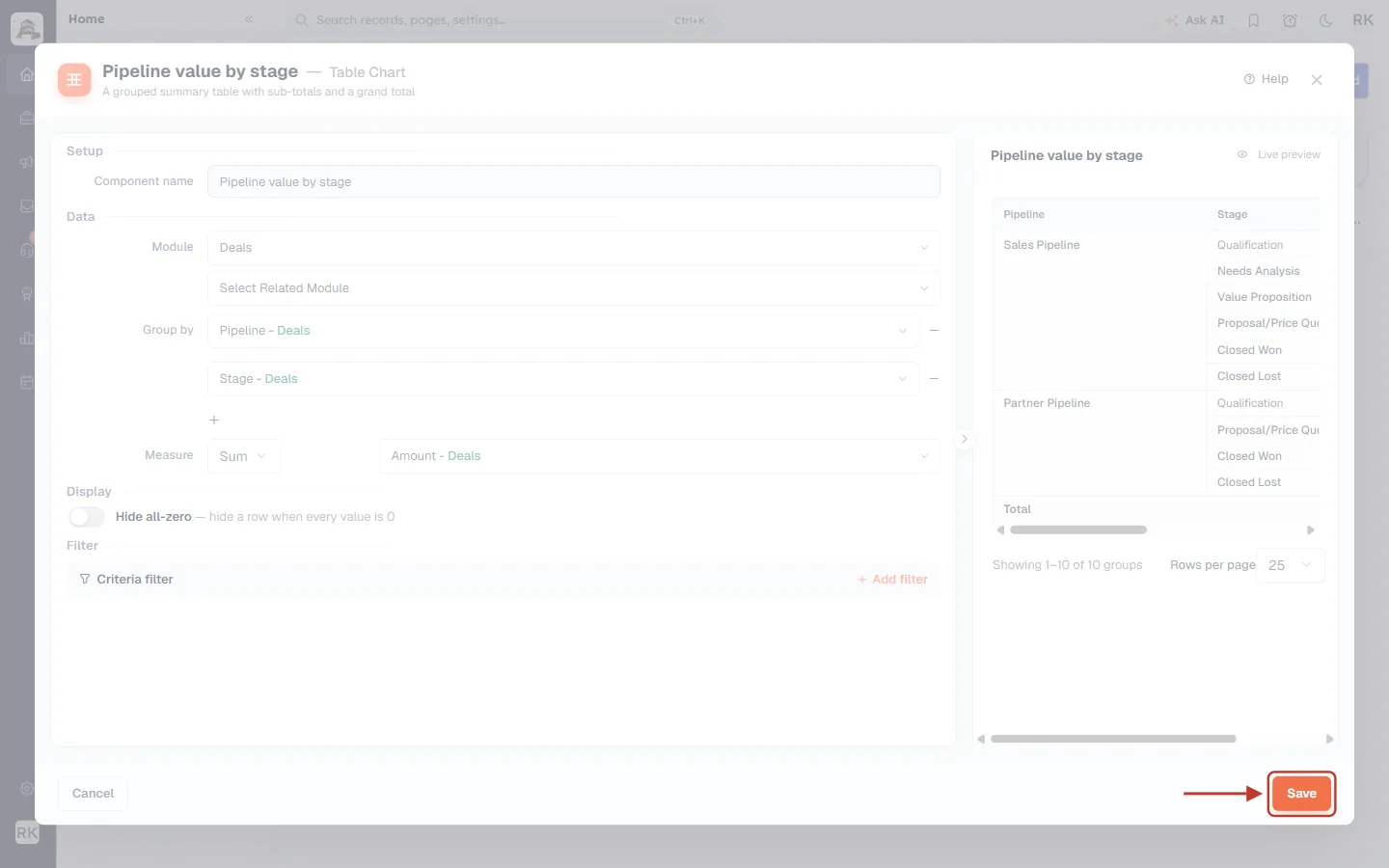
What this screenshot shows. The Save button, ringed. Cancel (bottom left) closes the builder without adding anything.
Save stays disabled until a module and at least one group-by field are chosen.
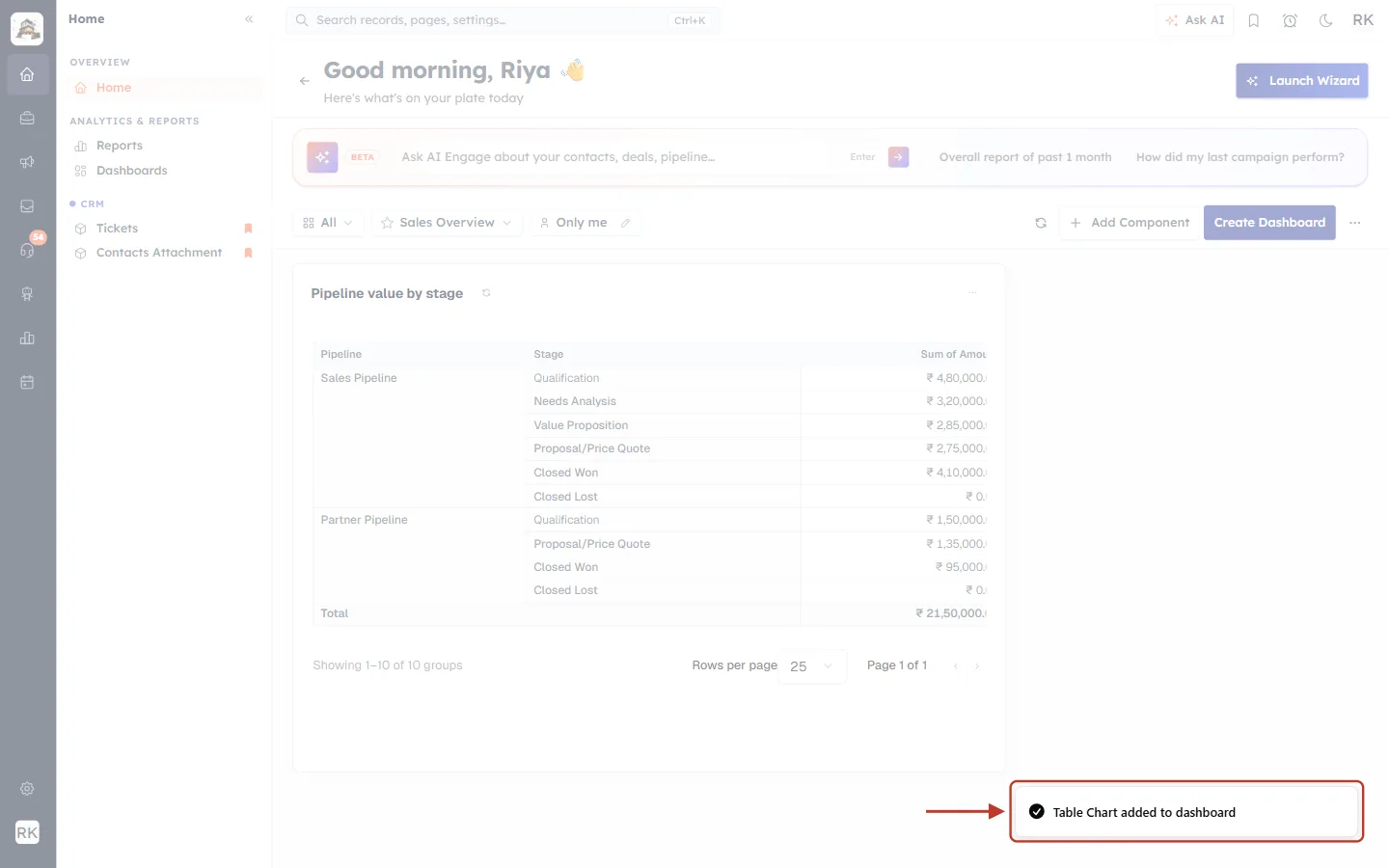
What this screenshot shows. The confirmation message “Table Chart added to dashboard”.
The builder closes and the new tile appears on the dashboard.
Step 13: Use the table on your dashboard#
The table now sits on the dashboard as a tile and refreshes with your live data. A new tile is added at a small size: drag its bottom-right corner to make it wider and taller, and drag the tile to move it.
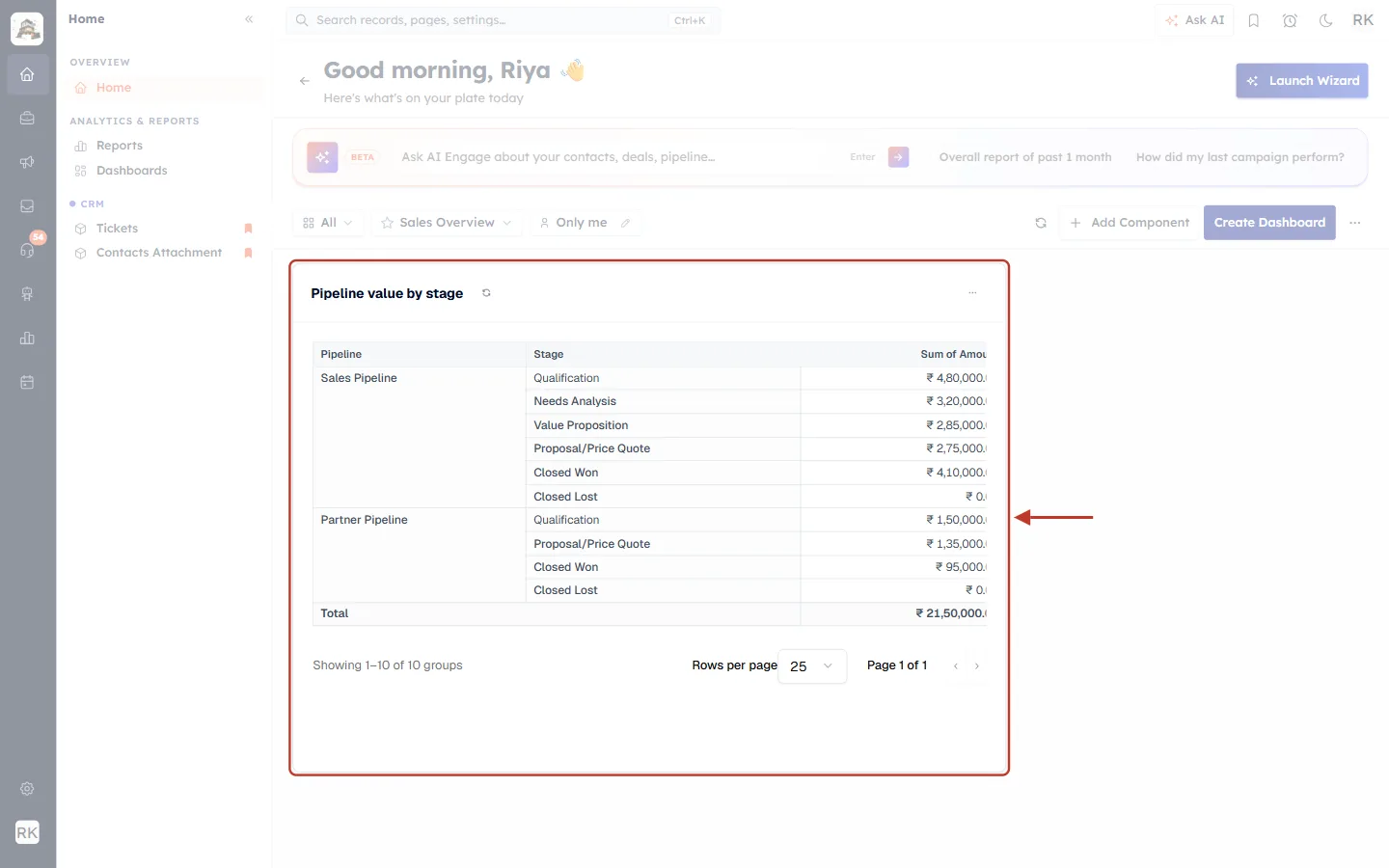
What this screenshot shows. The finished Pipeline value by stage tile, enlarged on the dashboard.
The tile title is your component name. The small circular-arrow icon next to it refreshes just this tile.
The table shows Pipeline, Stage and Sum of Amount, with merged pipeline cells and the Total row at the bottom.
Rows per page and the page arrows at the bottom let viewers page through long tables.
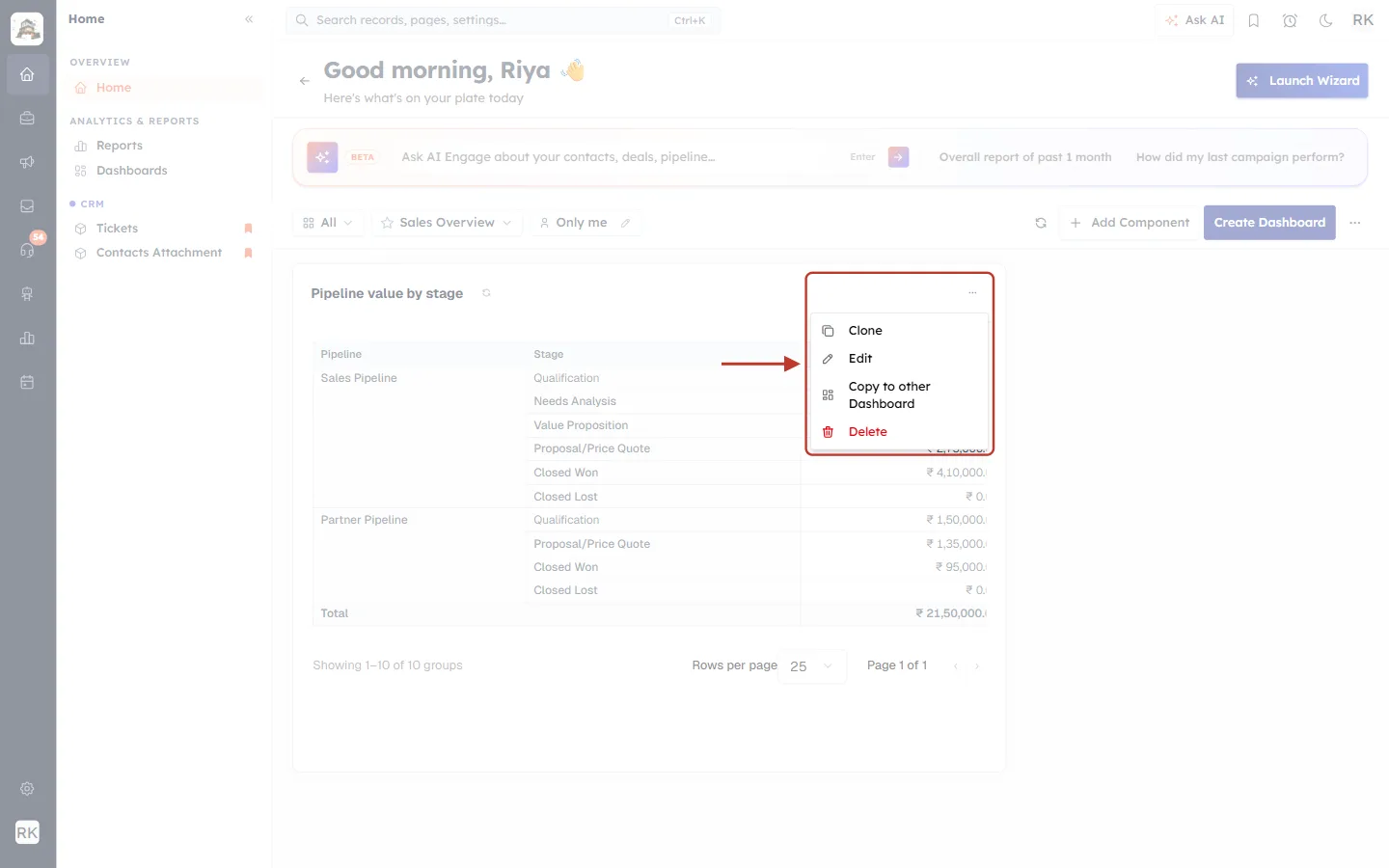
What this screenshot shows. The tile’s ⋯ menu (top right of the tile).
Clone: makes a copy of the tile on the same dashboard, handy for building a similar table with a different measure.
Edit: reopens the Table Chart builder so you can change any setting.
Copy to other Dashboard: adds the same table to another dashboard.
Delete (red): removes the tile from this dashboard.
Tips for useful tables#
Group by fields with few values. Stage, Pipeline, Owner, Lead Source and Status give compact, readable tables. Grouping by something unique, such as Deal Name, gives one row per record.
Put the broadest field first. Pipeline → Stage reads better than Stage → Pipeline, because each pipeline’s stages sit together.
Name the tile after the question it answers, for example “Pipeline value by stage” or “Open tickets by agent”.
Use Count for activity, Sum for value. Count answers “how many?”; Sum and Average answer “how much?”.
Combine with other components. Put a KPI with the grand total above the table, or a Label / Section to group related tiles. See Dashboard Labels & Sections.
Troubleshooting#
Problem | What to check |
|---|---|
Save is greyed out. | Choose a module and at least one group-by field. If the measure isn’t Count, also pick a numeric field. |
The preview says the table will appear here. | The module or group-by field is still missing. |
I can’t see the value column. | The preview is narrow. Scroll it sideways, or widen the tile on the dashboard after saving. |
The + for another grouping is missing. | You already have three grouping levels, the maximum. |
A row shows “(empty)”. | Those records have no value in the group-by field. Fill the field on the records, or filter them out. |
My numeric field isn’t in the list. | Only number-type fields (number, currency, decimal, percent) can be summed or averaged. |
Frequently asked questions#
How is a Table Chart different from a pivot report?
A pivot report lives on the Reports page and offers more layout options. A Table Chart is a quick summary table you build right on the dashboard, next to your other tiles. See Pivot Reports: Group & Summarize.
Can I change the table later?
Yes. Open the tile’s ⋯ menu and click Edit.
Does the table update by itself?
Yes, it reads your live data each time the dashboard loads. Use the refresh icon on the tile to update it on the spot.
Can I show the same table on two dashboards?
Yes. Use Copy to other Dashboard from the tile’s ⋯ menu.
Previous and next#
Previous: Dashboards & Report Components
Related#
Was this article helpful?
Ready to implement this?
OpenAI Engage and apply what you just learned to your own workspace.
Open AI Engage CRM