Loading…


KnowledgeBase
Exporting Reports
Export a report to CSV or Excel#
You can download any report to work on it in a spreadsheet. In the builder, click Export and choose Download CSV or Download Excel.
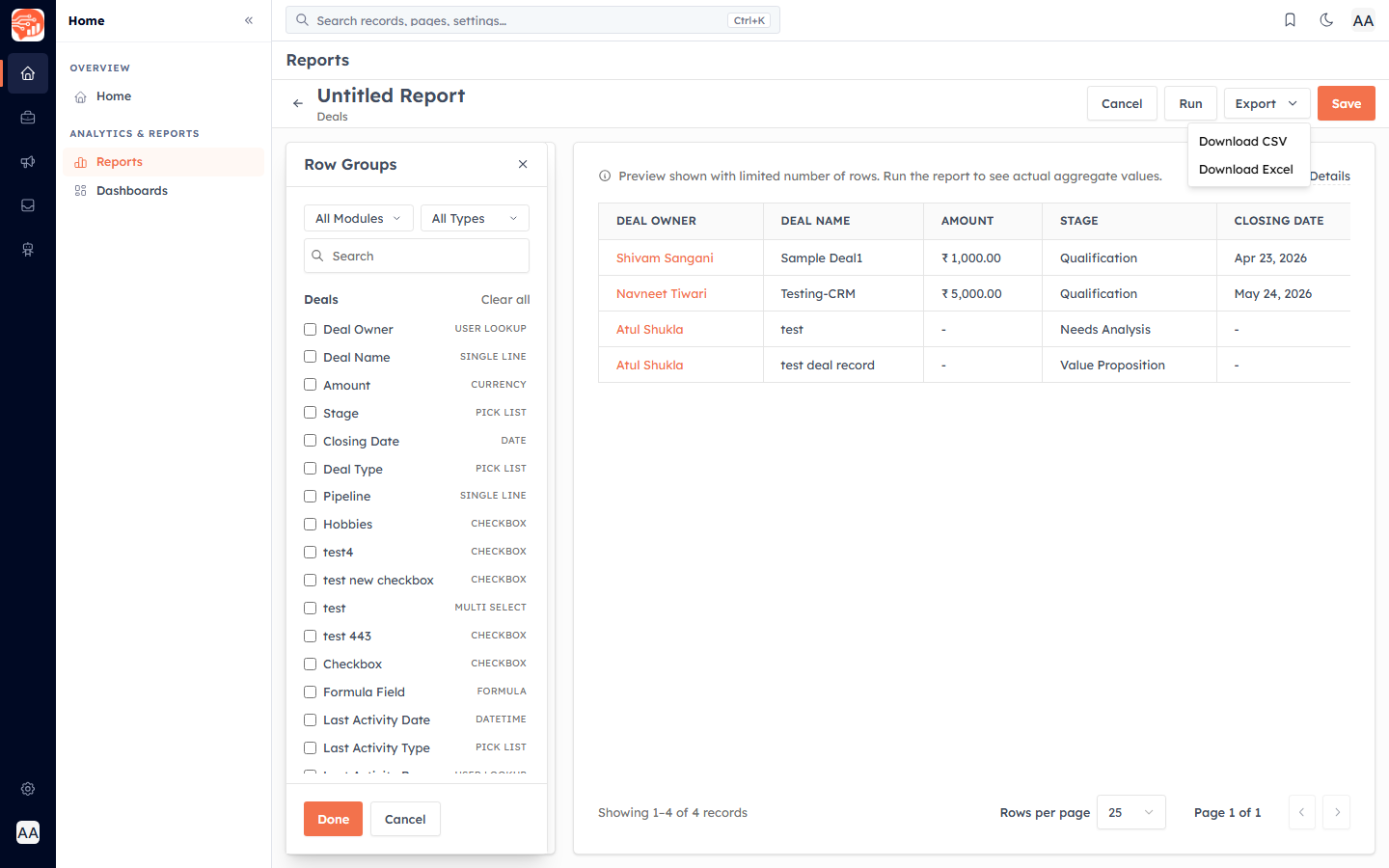
✅
Exports contain the full dataset behind the report — not just the rows visible on screen — with dates and currency formatted correctly.
Export straight from the list#
You don't have to open a report to export it. From the report list, use the row menu (three dots) → Export to download a saved report directly.
What can be exported#
Export is available for tabular and pivot reports. (KPI, comparator, and funnel components are meant to be read on a dashboard rather than exported as a file.)
Drill-down export#
When you click into a total on a pivot or comparator to see the records behind it, you can export that drill-down set on its own — handy when you only need the records for one group.
ℹ️
There is no PDF export and no scheduled email delivery of reports. To share a report, either export the file or share the report itself with your team (see Saving, Sharing & Managing Reports).
💡
Exporting may be limited on some plans. If you don't see the Export option, ask your admin about your report export permission.
🔗
Was this article helpful?
Ready to implement this?
OpenAI Engage and apply what you just learned to your own workspace.
Open AI Engage CRM