Loading…


KnowledgeBase
Introduction to Analytics & Reports
What Analytics & Reports gives you#
Analytics & Reports turns the activity in your CRM into numbers you can act on. Instead of guessing, you can see exactly how many leads came in, how much is in your pipeline, which stage deals get stuck at, and how your team is performing — as tables, grouped summaries, and charts.
The two areas: Reports and Dashboards#
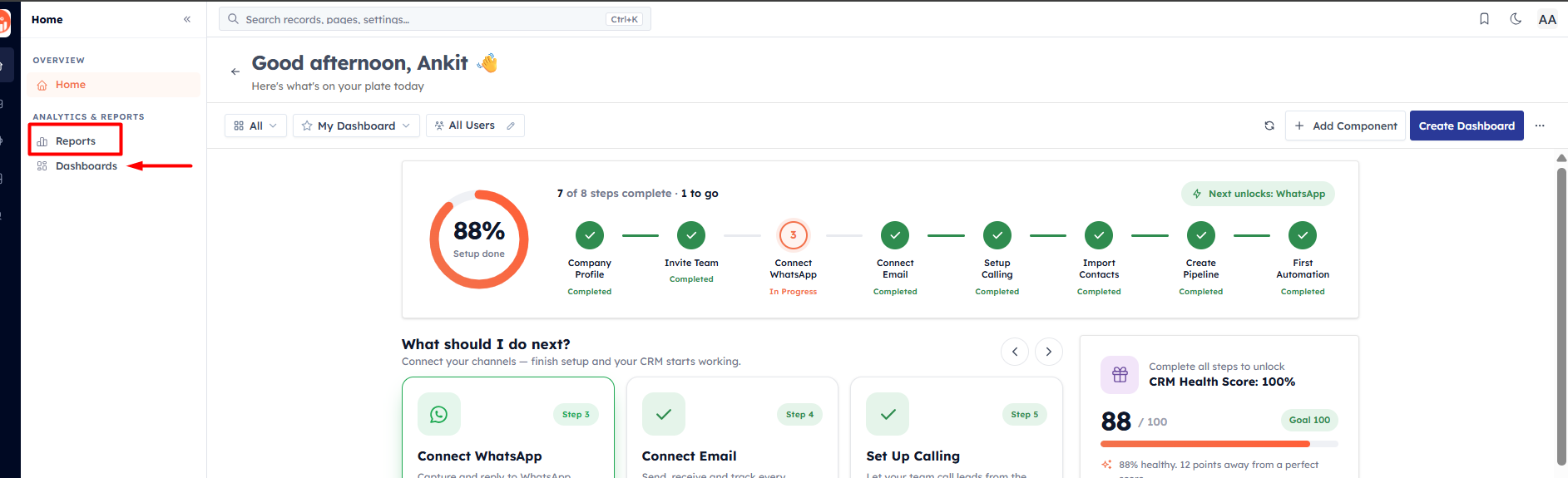
In the left sidebar, under Analytics & Reports, you will find two items:
Reports — opens the Report Builder, where you build, save, and export your own reports from any module. This is where you answer specific questions like "total pipeline by stage" or "contacts created per source."
Dashboards — a visual canvas where you pin KPI cards, charts, comparators, and funnels so you can see your most important numbers at a glance.
💡
Think of it this way: Reports are for building and analysing, Dashboards are for monitoring several numbers together on one screen.
The report types at a glance#
The Report Builder can produce several kinds of report. You do not have to learn them all at once — start with a simple table and grow from there.
Tabular — a flat list of records with the columns you choose.
Pivot — records grouped into rows and columns with totals (created automatically as soon as you add a grouping).
KPI — a single headline number, optionally with a comparison to the previous period.
Comparator — the same metric compared side by side across users, time periods, or picklist values.
Matrix — metrics down the rows and time buckets across the columns.
Funnel — ordered stages with the drop-off between them.
Chart — a bar, line, pie, or column visualisation of any measure.
What data can you report on?#
You can report on any module in your CRM — Contacts, Companies, Deals, Calls, Meetings, Tasks, Quotes, Invoices, Products, and any custom modules you have built. A report is always based on one primary module, and can optionally pull in one directly related module.
A note on permissions#
Reports only show data your profile is allowed to see. Access to the Report Builder is controlled by the Report Management permission, and the records inside every report are further filtered by your role, teams, and sharing rules. If a colleague sees numbers you cannot, ask your admin to review your profile.
Was this article helpful?
Ready to implement this?
OpenAI Engage and apply what you just learned to your own workspace.
Open AI Engage CRM