Loading…


KnowledgeBase
Filtering Your Reports
Why filter?#
Filters limit which records a report includes. Every report — tabular or pivot — uses the same two-part filter panel: a Date Range and a list of Criteria. Open it from the Filters tab in the builder.
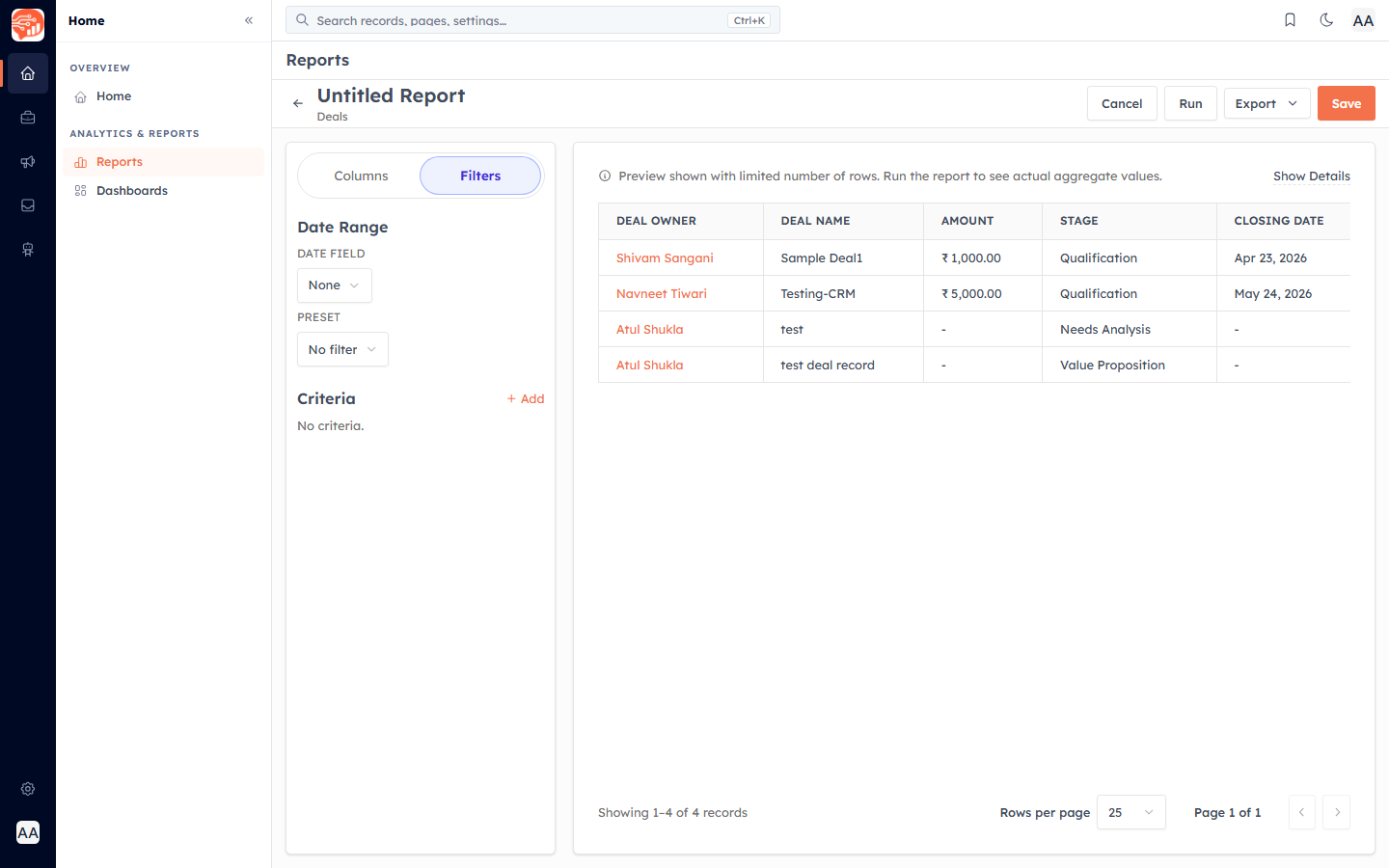
Date Range#
First choose a Date Field to filter on (Created Date and Modified Date are always available, plus any date field on the module). Then pick a Preset or a custom range:
Last 7 days
Last 30 days
Last 90 days
Month to date
Quarter to date
Year to date
Custom range — pick an exact From and To date
💡
Set the date range before you read any numbers. "10 deals closed" means very different things over 7 days versus 12 months.
Criteria#
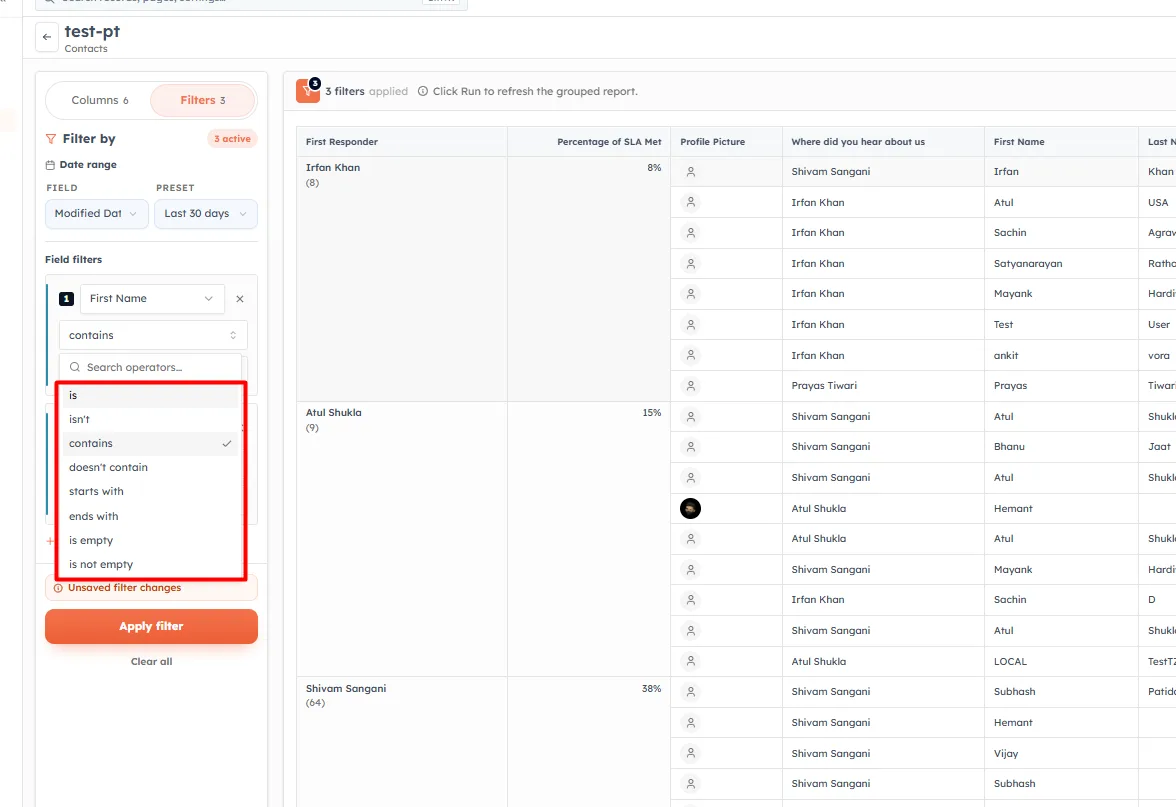
The Criteria section adds field-based conditions. Click + Add and build a rule with a field, an operator, and a value. The operators available depend on the field type:
is / is not — exact match
Contains / doesn't contain — has the values or not
Starts with / Ends with — starts or ends with the text
is empty/not empty — Is empty or not
Date fields relabel the comparison operators to calendar words such as on, after, and before.
💡
Reports are bounded for performance: a date window can span at most 24 months, and a report can filter by up to 50 users and use up to 8 metrics. If you need more, split the report or narrow the window.
💡
Start broad, confirm the data looks right, then add filters to narrow down. It is much easier to debug a report that shows too much than one that shows nothing.
Was this article helpful?
Ready to implement this?
OpenAI Engage and apply what you just learned to your own workspace.
Open AI Engage CRM