Loading…


KnowledgeBase
Set Availability & Call Preferences
The voice menu in the navbar#
When a provider is connected and you can dial, a phone menu appears in the top navigation bar with a presence dot — green when you’re Online, red when Offline. It offers Call availability and Preferences.
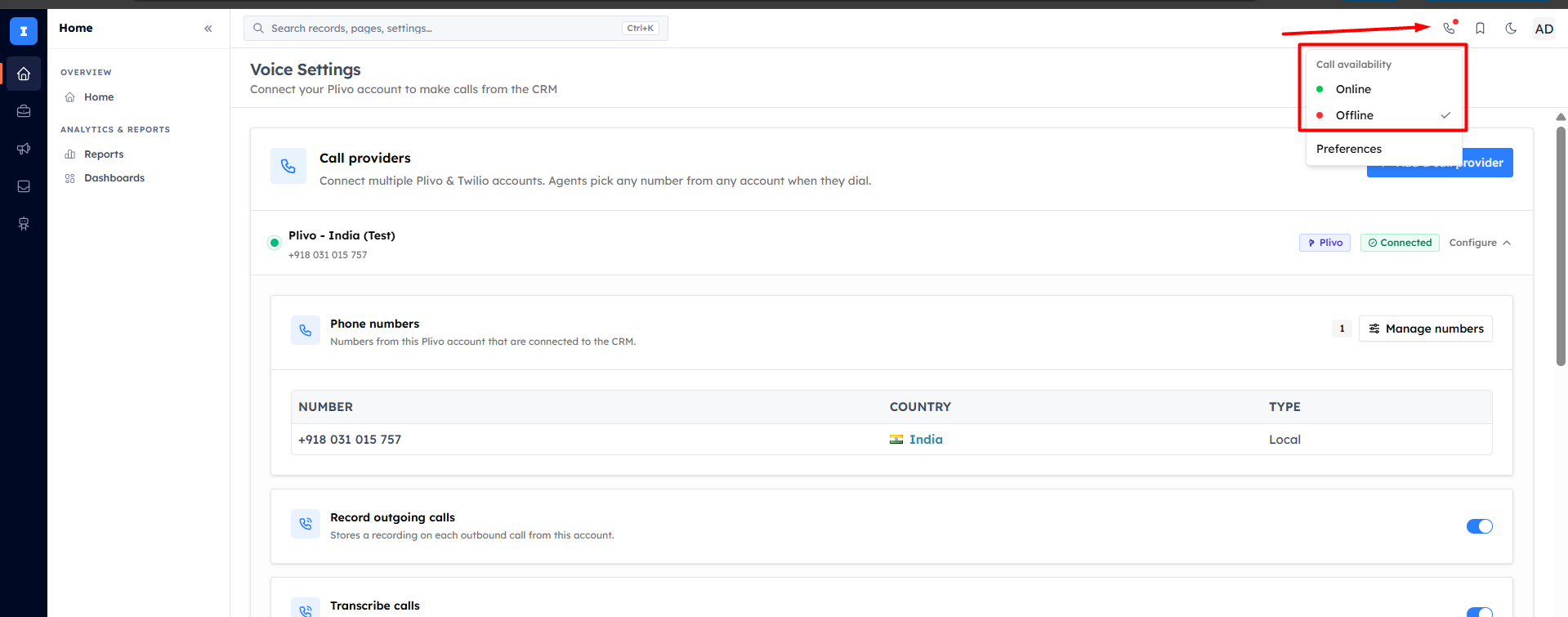
Set your availability#
Switch Online to take calls, or Offline to stop them. Going Online registers you to receive inbound calls on every connected number, primes the ringtone, and asks for microphone access (for browser calling). Your choice is remembered across refreshes.
💡
The menu adapts to your routing: if you’re set up to receive incoming calls you’ll see the full Online/Offline control; if you only have outbound caller IDs, you’ll just see Preferences.
Choose how your calls run#
Open Preferences and pick how you make calls:
Browser — calls run through the in-app softphone using your computer’s mic and speakers.
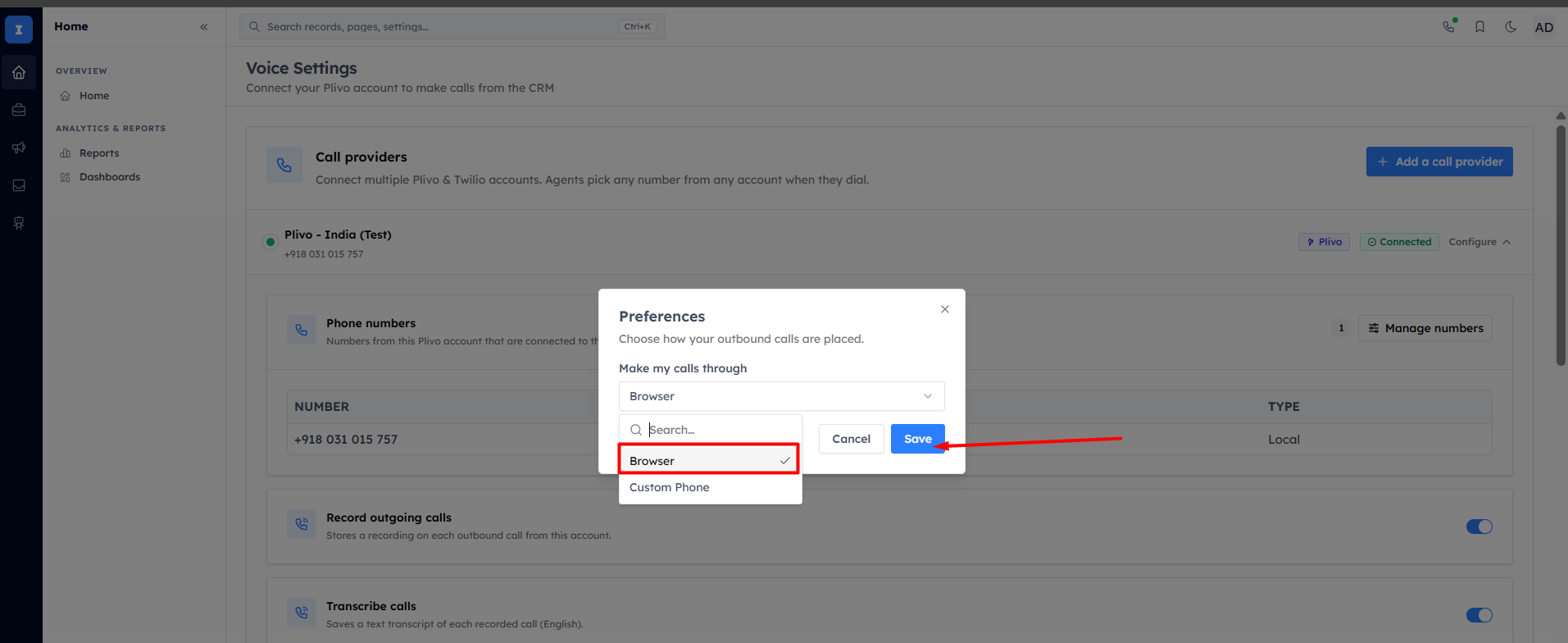
Custom Phone — calls use a real phone. Enter your phone number and choose the directions:
Inbound — incoming calls ring your phone.
Outbound — when you place a call, the CRM rings your phone first, then connects the customer.
Pick at least one direction.
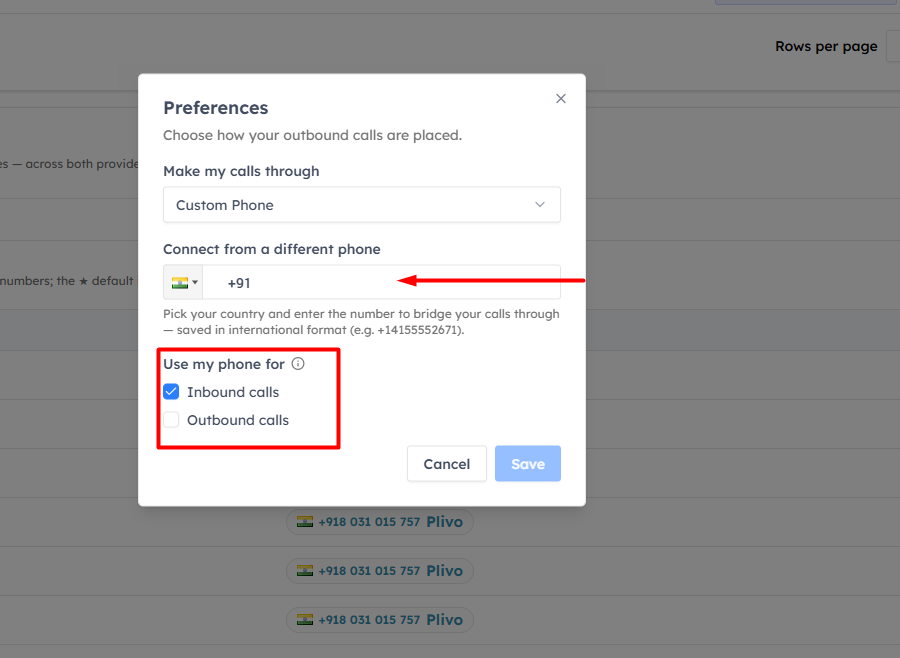
Click Save. In Custom-Phone outbound calls, the dialer hides the mute and keypad controls (the audio is on your physical phone) but still lets you put the customer on hold.
Was this article helpful?
Ready to implement this?
OpenAI Engage and apply what you just learned to your own workspace.
Open AI Engage CRM