Loading…


KnowledgeBase
Configure Incoming Call Routing
Where to configure incoming calls#
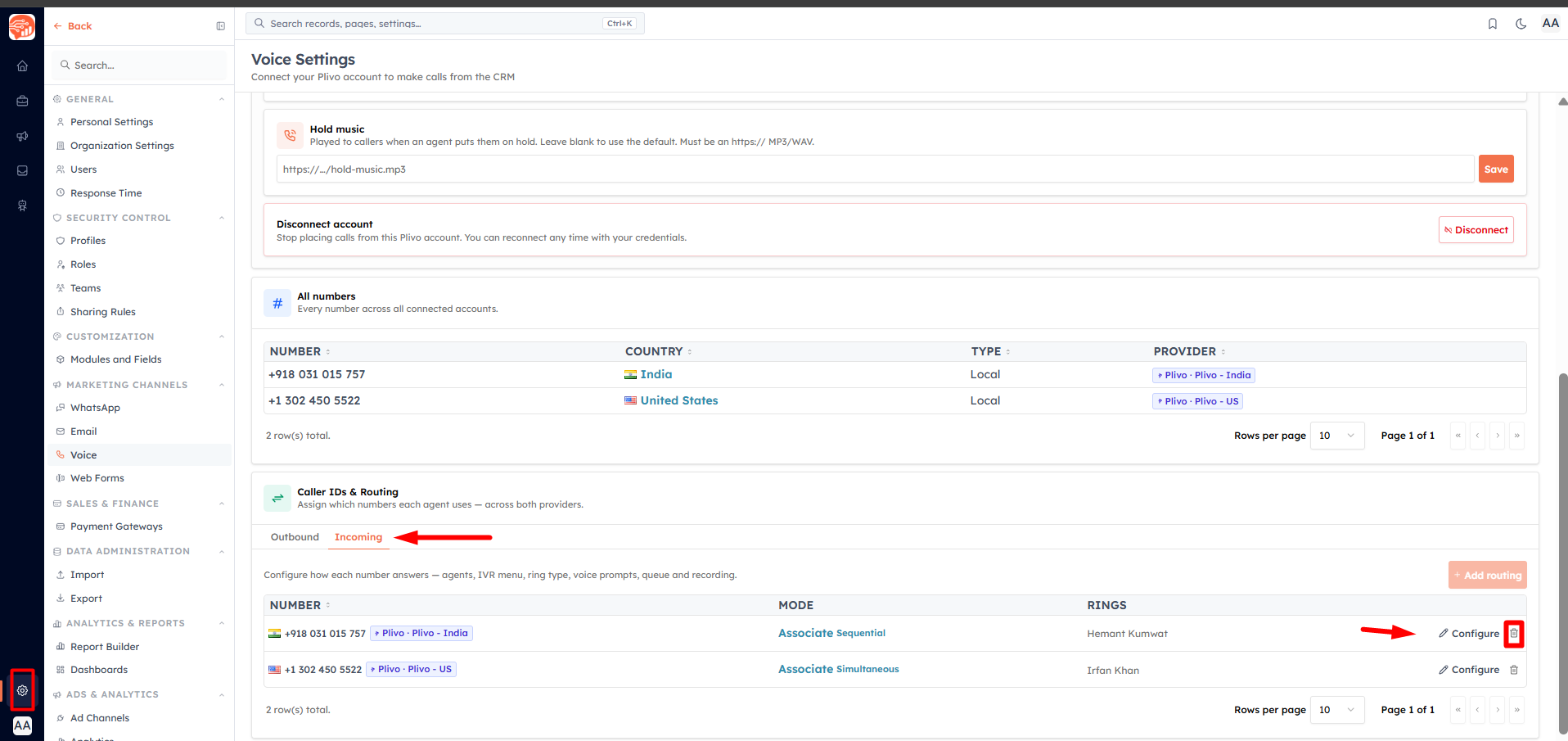
Open Settings → Voice → Caller IDs & Routing → the Incoming tab. Each row shows a number, its current mode (Associate or IVR), the agents it rings, and Configure / Remove actions. Click Add routing, pick an unconfigured number, and the configuration dialog opens.
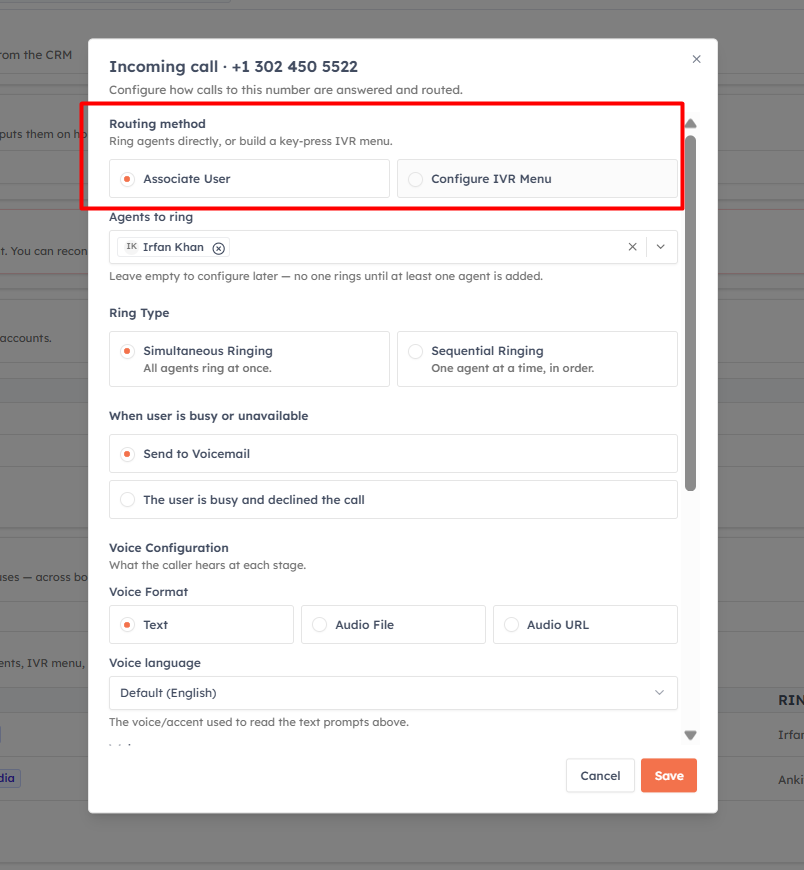
1. Choose a routing method#
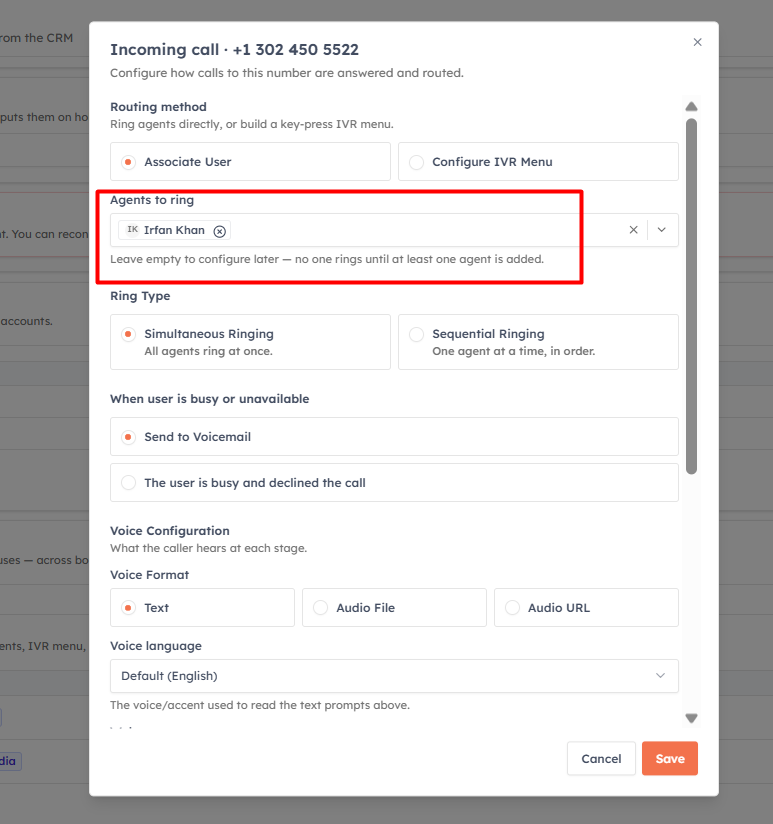
Associate User — ring one or more agents directly.
Configure IVR Menu — play a menu (“Press 1 for Sales…”) and route by the caller’s choice.
2. Build an IVR menu (optional)#
Add a menu message and option rows. Each option has a Key (1–9, no duplicates), a Label, and an Action:
Assign User — ring the chosen agents.
💡
IVR limits: up to 9 options at the top level, up to 5 options per sub-menu, and up to 5 levels deep.
3. Set the ring type#
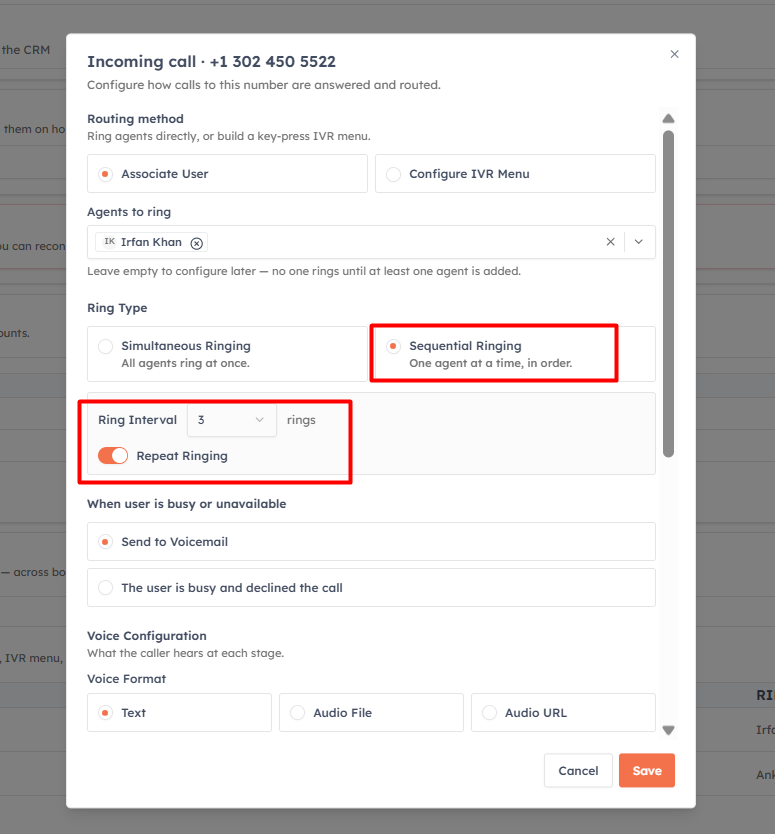
Simultaneous — ring everyone at once.
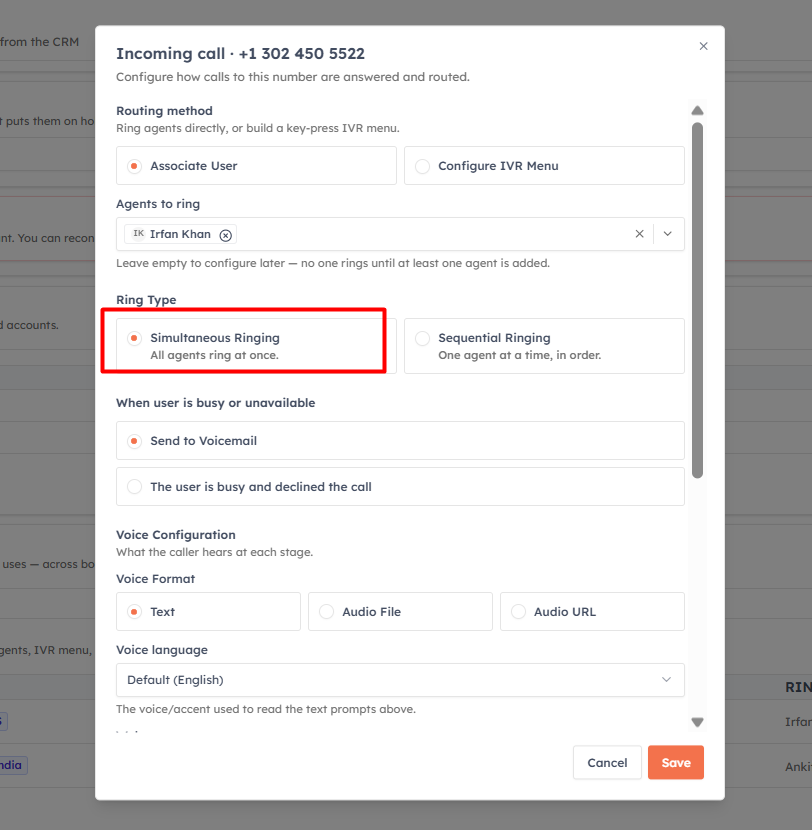
Sequential — ring one after another. Set a Ring interval (1–9 rings) and optionally Repeat ringing.
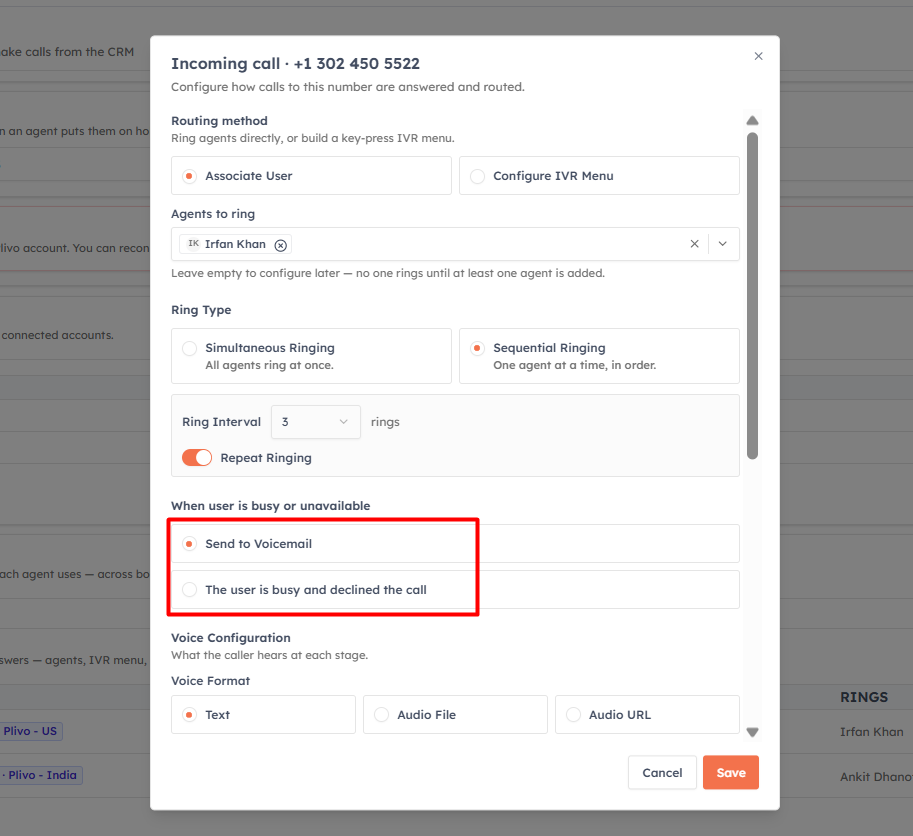
4. When an agent is busy or unavailable#
Choose Send to Voicemail or Decline the call.
5. Voice prompts#
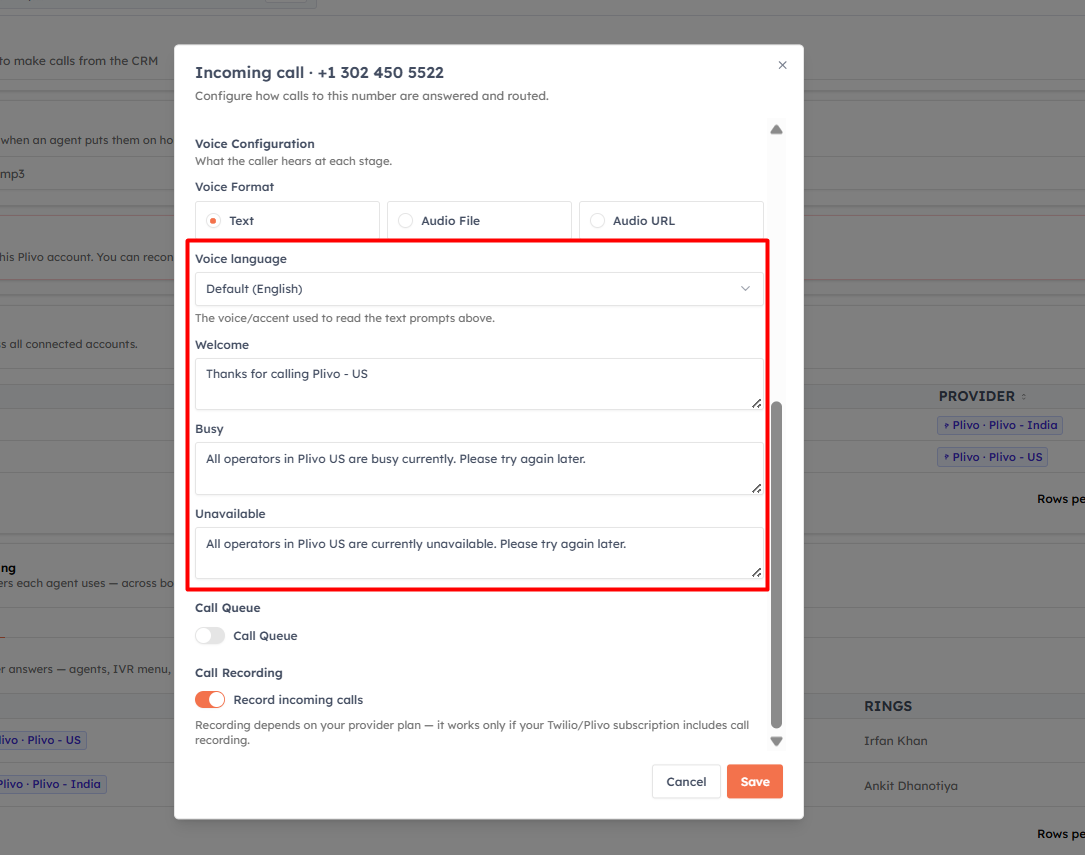
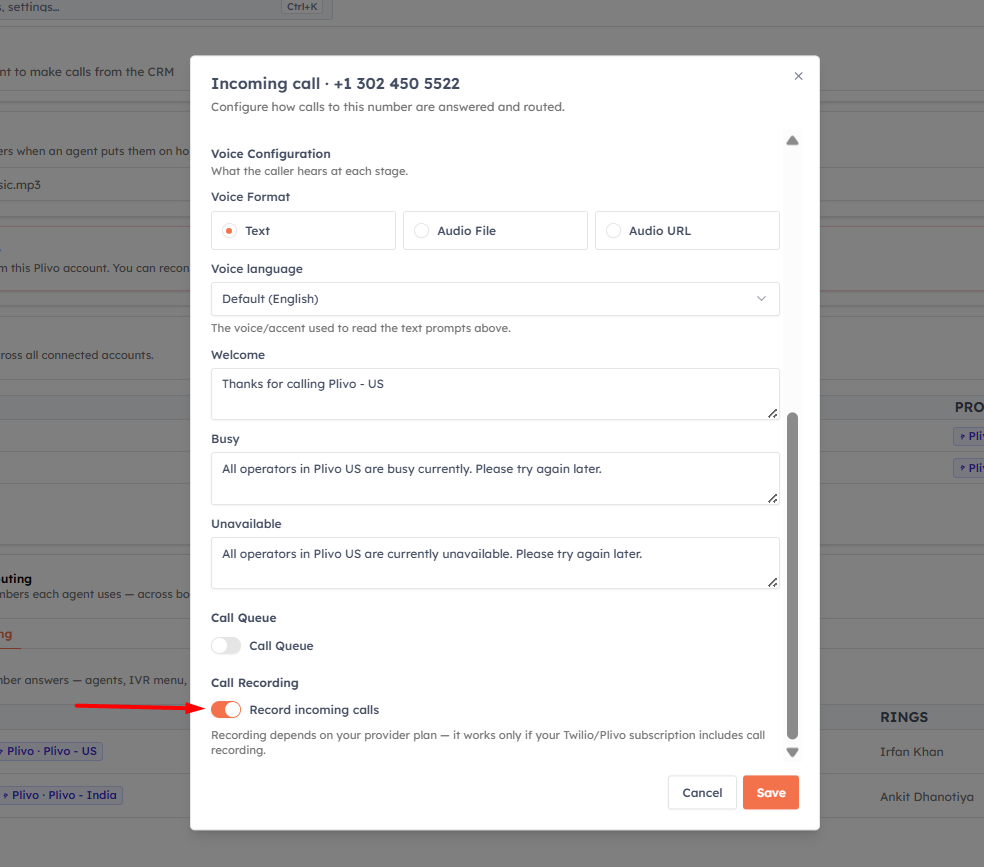
Pick a Voice format: Text, Audio file, or Audio URL. In Text mode you also choose a voice language (from 30 Amazon Polly voices). You can set three prompts:
Welcome — played when the call connects.
Busy — played when agents are busy.
Unavailable — played when no one answers.
For Audio, upload an MP3 or WAV file, or point to an https URL.
6. Call queue (optional)#
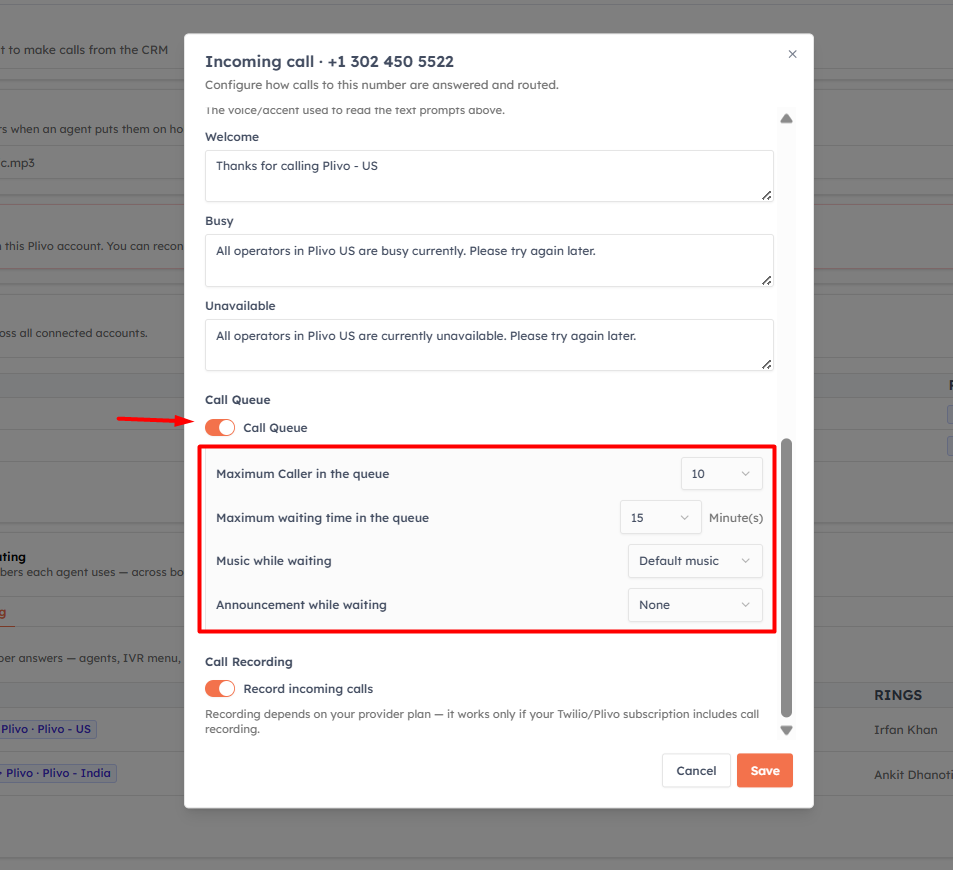
Turn on a queue to hold callers when everyone’s busy:
Max callers in queue — 1–25.
Max wait time — 1–25 minutes.
Hold music — Default or a Custom upload (with preview).
Announcement — None or an uploaded audio clip.
7. Record incoming calls#
Toggle Record incoming calls for this number. See Call Recording & Transcription for details and playback.
💡
To stop routing a number, use Remove on its row. A number that still has incoming routing can’t be removed or disconnected until you clear it here first.
Was this article helpful?
Ready to implement this?
OpenAI Engage and apply what you just learned to your own workspace.
Open AI Engage CRM