Loading…


KnowledgeBase
Connect a Call Provider (Plivo or Twilio)
Start in Settings: Voice#
Open Settings → Voice. If no provider is connected yet, you’ll see a “No call provider connected yet” card with an Add a call provider button. Click it to open the connect form.
ℹ️
This page requires the Voice configuration permission. If you can’t see it, ask an administrator. When no provider is connected, users who can configure Voice also see an “Add call provider” phone icon in the top navigation bar that jumps here.
Step 1 — Choose your provider & name the connection#
Pick Plivo or Twilio — both bring your own account. Then give the connection a name (required, up to 60 characters), for example “Plivo US · Sales line”. The name helps you tell your accounts apart when you connect more than one.
Step 2 — Enter your credentials#
Connecting Plivo#
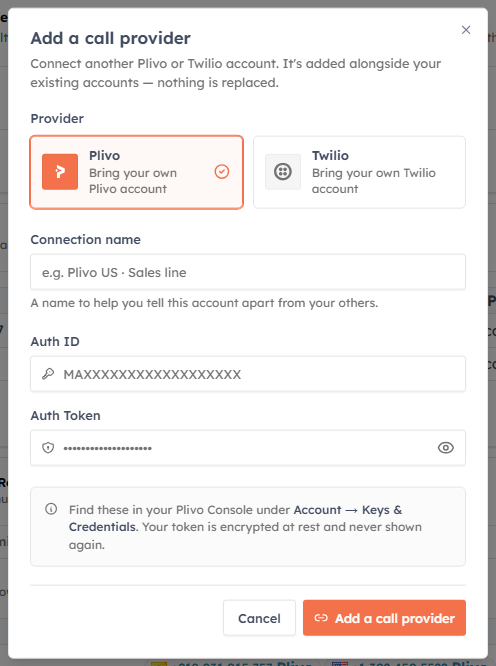
Plivo needs two values:
- Auth ID
- Auth Token
Find both in your Plivo Console under Account → Keys & Credentials. Paste them into the form. Your token is encrypted at rest and never shown again after you connect.
Connecting Twilio#
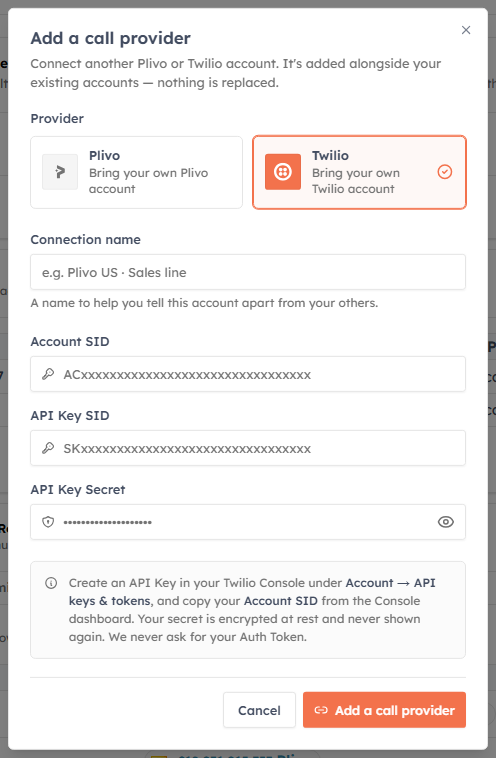
Twilio connects with an API Key (not your main Auth Token), so it needs three values:
- Account SID
- API Key SID
- API Key Secret
Create an API Key in your Twilio Console under Account → API keys & tokens, and copy your Account SID from the Console dashboard. The secret is encrypted at rest and shown only once — you’ll never be asked for your Twilio Auth Token.
✅
Use the eye icon next to any secret field to reveal what you’ve typed and double-check it before connecting.
Step 3 — Verify & choose numbers#
Click Add a call provider. The CRM first verifies your credentials with the provider (without connecting yet) and lists the phone numbers your account owns:
- If the account owns more than one number, a picker appears — tick the numbers you want to bring into the CRM (there’s a search box and a Select all / Clear all shortcut). You can change this later.
- If the account owns one number (or none), it connects straight through.
Click Connect to finish.
Finishing up: provisioning#
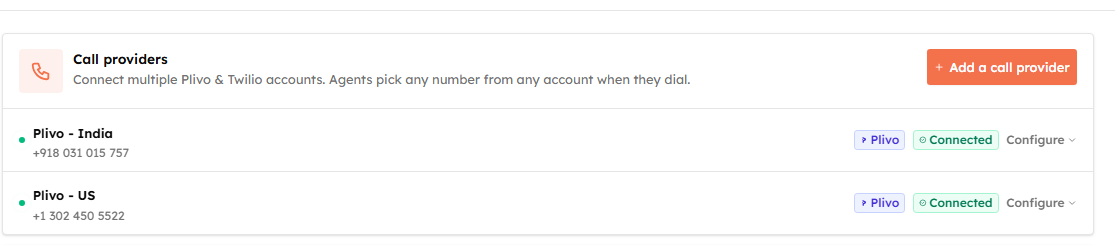
After connecting, the CRM automatically configures your provider account to route calls to the CRM. You may briefly see a “Finishing provisioning” banner — outbound calling will activate shortly. Once ready, the account shows a green Connected badge.
ℹ️
Need more than one account? You can connect multiple Plivo and Twilio accounts side by side — just click Add account and repeat these steps. Each keeps its own name and numbers.
🎉 Your provider is connected — it now appears as a card with a Connected badge and its numbers.
Next, manage which numbers are connected, then assign caller IDs to your agents so they can start dialing.
⚠️
If connecting is blocked with an upgrade prompt, your plan’s connected-number limit has been reached. See Manage Phone Numbers for how the limit works.
Was this article helpful?
Ready to implement this?
OpenAI Engage and apply what you just learned to your own workspace.
Open AI Engage CRM