Loading…


KnowledgeBase
Manage Phone Numbers & Connected Accounts
Where to manage numbers#
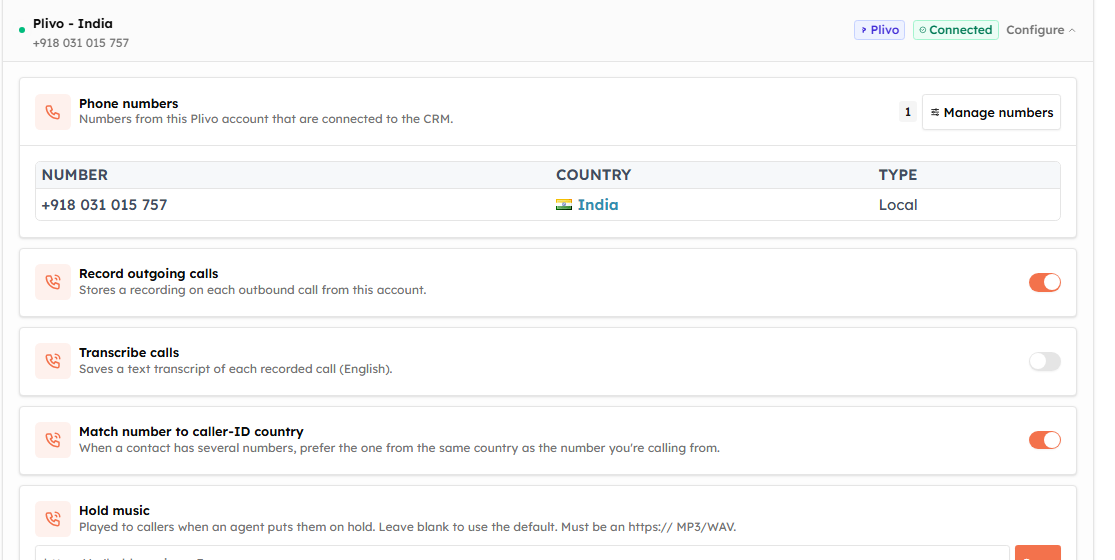
Open Settings → Voice. Each connected account appears as a card showing a status dot, its connection name, a short numbers summary, a provider badge (Plivo or Twilio), and a Connected badge. Click Configure to expand it.
Rename a connection#
Click the pencil next to the connection name to edit it in place, then press Enter or the check to save (up to 60 characters). Handy when you connect several accounts.
The phone numbers table#
Inside an expanded account, a read-only table lists the connected numbers with their Number, Country (with a flag), and Type. These are the numbers your provider account owns.
💡
You don’t buy numbers in the CRM. Add a number in your Plivo or Twilio console first, then use Manage numbers (below) to bring it in.
Change which numbers are connected#
If an account owns more than one number, a Manage numbers option lets you change the connected set: tick or untick numbers, then Save. (With only one number there’s nothing to manage — disconnect the account instead.)
When you remove a number that is in use, the CRM checks the impact first and shows one of:
Blocked — the number still has incoming routing attached. Remove that routing first (see Configure Incoming Call Routing).
Warning — one or more agents use it as a caller ID; those assignments will be cleared. The affected agents are listed so you can confirm.
See every number across accounts#
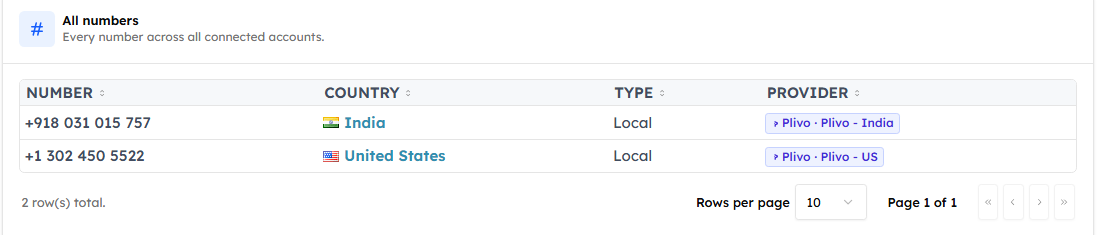
Below the account cards, an All numbers table combines every connected number from all accounts, showing the Number, Country, Type, and which provider & connection it belongs to.
Disconnect an account#
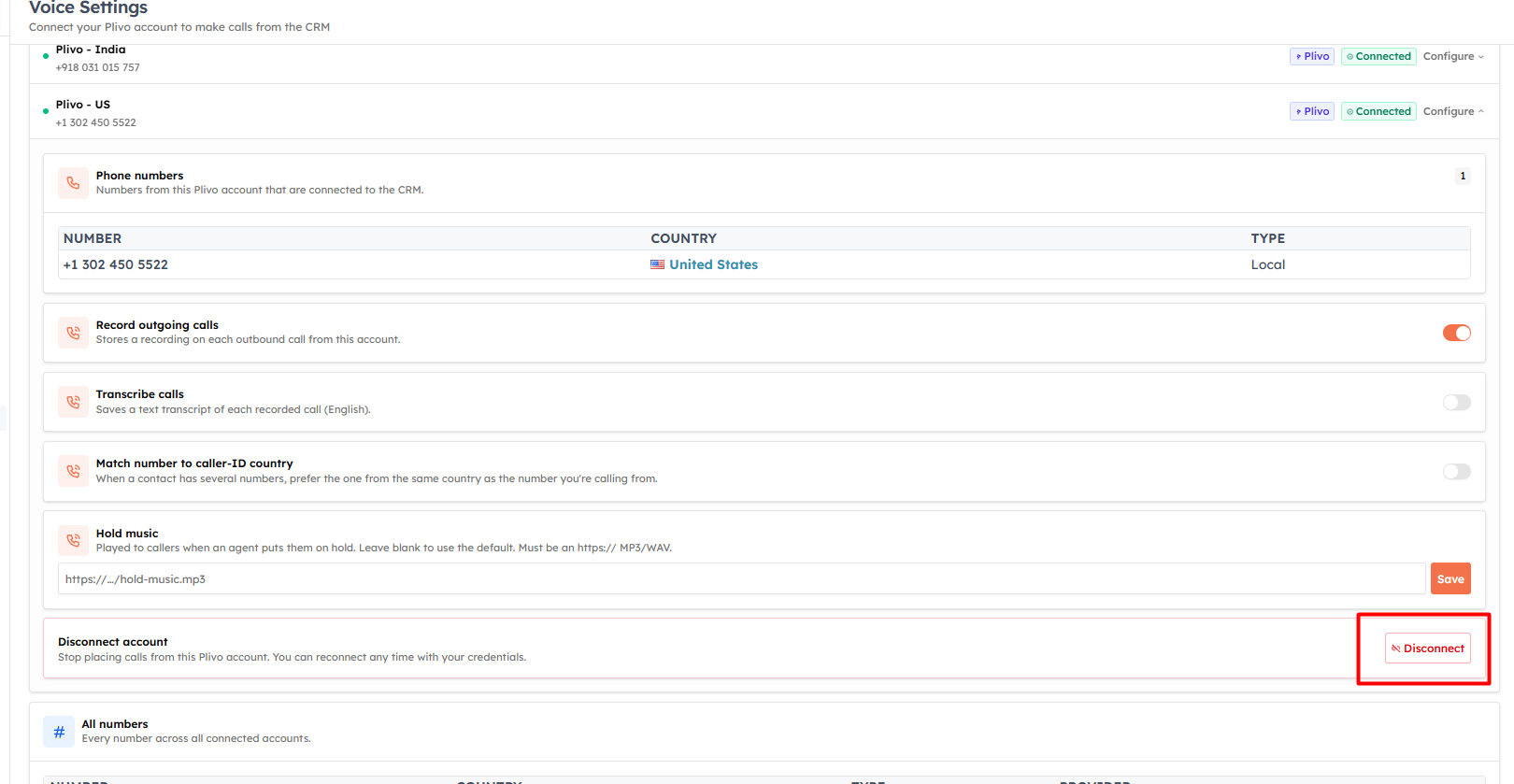
Expand the account and choose Disconnect. As with removing numbers, the CRM runs a pre-flight impact check:
Blocked if any of its numbers still have incoming routing.
Warning if agents lose caller IDs.
Otherwise a simple confirm.
Disconnecting also tears down the routing the CRM set up in your provider account, so calls stop flowing to the CRM through it.
💡
Your plan sets a connected-number limit (numbers per seat). Existing over-limit accounts keep working (grandfathered), but you can’t add numbers past the cap until you upgrade or free up seats.
Was this article helpful?
Ready to implement this?
OpenAI Engage and apply what you just learned to your own workspace.
Open AI Engage CRM