Loading…


KnowledgeBase
Send Transactional Email with the CRM API (SMTP-Style): Receipts, Codes and Invoices with cc, bcc and Test Mode
Introduction#
Some emails are not marketing. A payment receipt, a one-time login code, an invoice, a password reset or a “your order has shipped” notice must simply arrive, from your own address, the moment your system needs it. These are called transactional emails.
The AiEngage CRM API has an endpoint built exactly for this: Send Email (like SMTP), POST /contact/email/send. You use it the way you would use an SMTP server: you give it a from address, a to, optional cc and bcc, a subject and a plain-text body, and it sends the mail through AiEngage’s sending infrastructure.
What makes it different from the other email endpoints:
Nothing is written to your CRM. No contact is created, matched or updated, and no timeline entry appears. (Despite the word “contact” in the path.)
Plain text only. An HTML body is refused, not silently dropped.
cc and bcc work — up to 50 addresses in total per message, for one credit.
Test mode is on by default. Until you send
"test_mode": false, every call only checks your request and tells you what would be sent.Delivery is tracked; opens and clicks are not, because there is no HTML to carry a tracking pixel.
Use this table to pick the right email endpoint:
Endpoint | Best for | Body | cc / bcc | Touches your CRM? |
|---|---|---|---|---|
| Receipts, codes, invoices, notifications | Plain text | Yes | No |
| One formatted (HTML) email with open/click tracking | HTML (+ optional text) | No | No — logged only |
| Emailing a person you want on your CRM timeline (see Send Email through the API: Send an Email to a Contact Step by Step (POST /email/send)) | HTML (+ optional text) | No | Yes — finds or creates the contact |
In this guide you will, step by step:
Check which of your organization’s addresses can send.
Create an API key with the Transactional send scope.
Find your from addresses through the API.
Open the endpoint in the developer portal and read its rules.
Fill in your message and run a safe test-mode call.
Send the email for real and read the response.
Fix the common errors, and call the endpoint from your own code.
Steps 1 and 2 use the CRM (Setup). The other steps use the AiEngage developer portal, developer.aiengagecrm.com, which has a live Send button next to every endpoint. Each screenshot has a red ring and arrow on the part to look at, followed by a description of the whole screen. The portal screenshots use example addresses (billing@yourdomain.com, ada@example.com); your own CRM answers with your own addresses.
Before You Begin#
Your email domain must be authenticated (DKIM) in AiEngage, and the address you want to send from must be added as an Organization Email. See Authenticate Your Email Domain (DKIM) Step by Step.
To create API keys you need the API access permission (usually an administrator). The Email scopes only appear for users who are allowed to send email from the CRM. See API Keys Step by Step: Generate, Use and Revoke a Personal Access Token.
Know how to try calls in the portal. See Test the AiEngage CRM API in the API Console and Postman.
⚠️
This endpoint can deliver real email to real people. Keep
"test_mode": true (or leave it out) while you are trying things, and only switch to false when you are ready to send.Step 1: Check Your Sending Addresses in the CRM#
The API can only send from an address your organization owns and has verified. To see them:
Click the Setup (gear) icon at the bottom of the left rail.
Under Marketing Channels, click Email.
Open the Organization Emails tab.
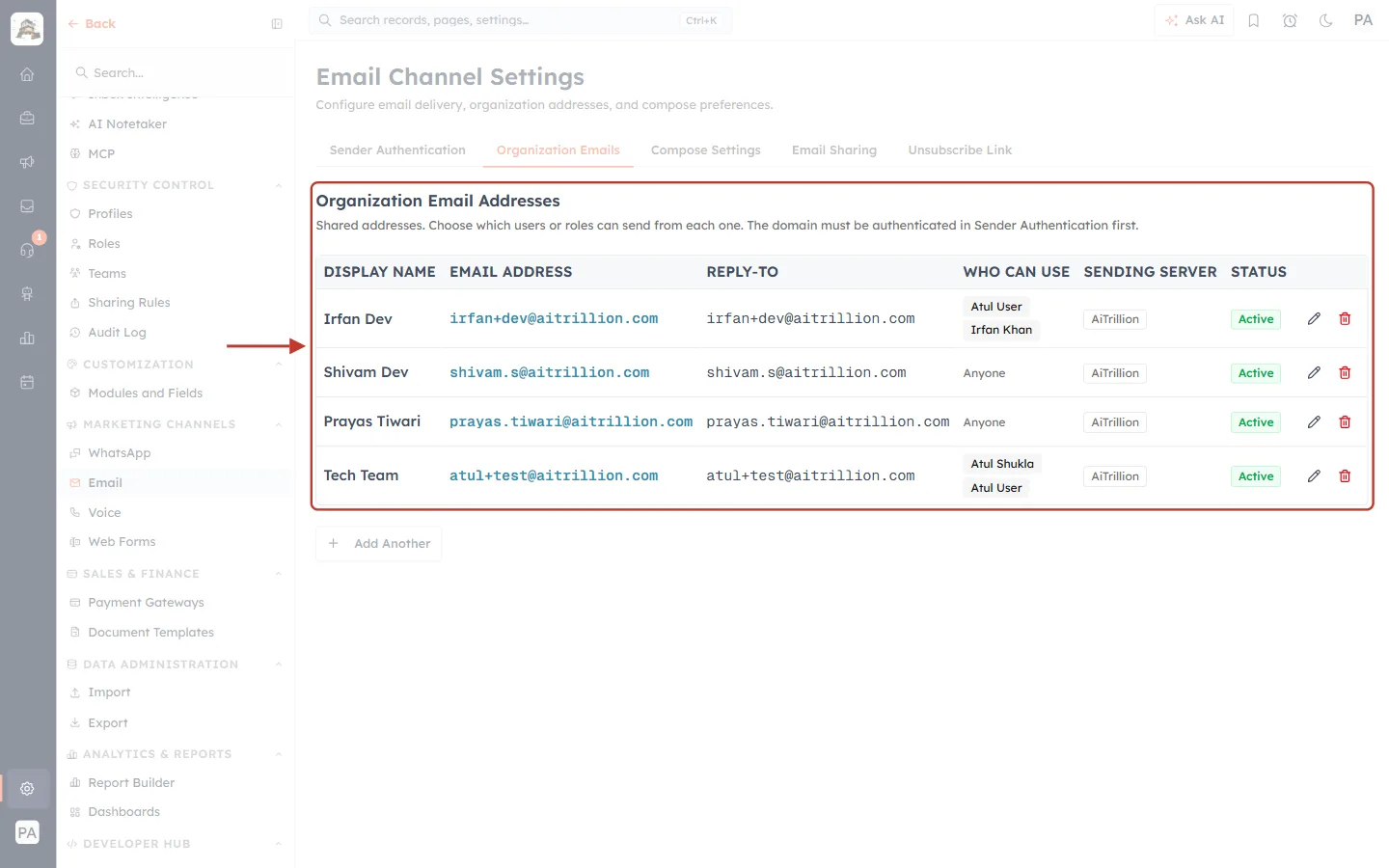
What this screenshot shows. The Email Channel Settings page on the Organization Emails tab, with the Organization Email Addresses table ringed.
Across the top are the five tabs of Email Channel Settings: Sender Authentication (where your domain is verified with DKIM), Organization Emails, Compose Settings, Email Sharing and Unsubscribe Link.
The note under the heading reminds you that “The domain must be authenticated in Sender Authentication first.” An address on an unauthenticated domain cannot be used.
DISPLAY NAME is the name recipients see (for example “Billing Team”). EMAIL ADDRESS is the address you will put in
from. REPLY-TO is where replies go unless your API call sets its ownreply_to.WHO CAN USE limits an address to certain users or roles in the CRM. An API key has no user behind it, so a key may send from any active organization address.
SENDING SERVER must be AiTrillion (AiEngage’s own sending service). An address that sends over its own SMTP server cannot be used with this endpoint, because its delivery cannot be tracked.
STATUS must be Active. Use Add Another to add a new address, and the pencil and bin icons to edit or delete one.
✅
Want receipts to come from
billing@… rather than a person’s address? Add a shared address such as Billing Team <billing@yourdomain.com> here first. Personal addresses are never usable by the API.Step 2: Create an API Key with the Transactional Send Scope#
Sending transactional email needs its own scope, email.transactional.send. A key that can already send through /campaign/send does not get it automatically, because cc and bcc can reach people your CRM has no record of — so someone has to grant it on purpose.
In Setup, under Developer Hub, click API Keys.
Click Generate API key (top right).
Type a Label that says what the key is for, for example “Billing receipts”.
Scroll the Scopes list down to the Email group and tick Transactional send. Tick Read too if your code should look up from addresses (Step 3).
Choose when the key Expires, click Generate, and copy the
cak_live_…token straight away — it is shown only once.
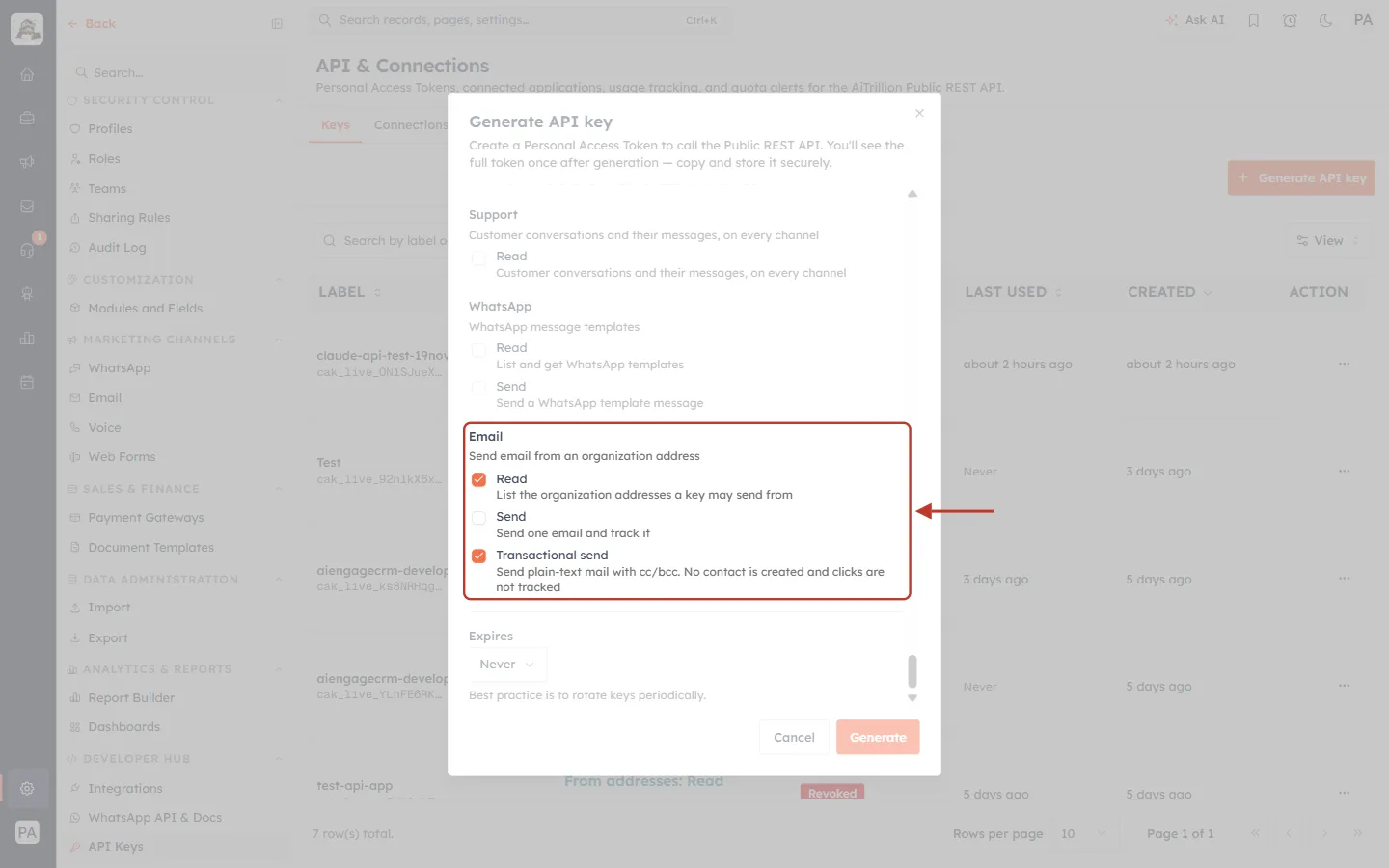
What this screenshot shows. The Generate API key dialog scrolled to the Email scope group, which is ringed, with Read and Transactional send ticked.
The group heading Email — “Send email from an organization address”.
Read (
email.from_addresses.read) — “List the organization addresses a key may send from”. Needed forGET /email/from-addresses.Send (
email.messages.send) — “Send one email and track it”. This is for/campaign/sendand/email/send; it is not needed here and is left unticked.Transactional send (
email.transactional.send) — “Send plain-text mail with cc/bcc. No contact is created and clicks are not tracked”. This is the scope this guide needs.Above are the other groups (Support, WhatsApp, and the module scopes further up). Below are Expires (Never, or a number of days) and the Cancel / Generate buttons. Behind the dialog is the list of existing keys on the Keys tab.
ℹ️
If the Email group is missing from your dialog, your own profile is not allowed to send email from the CRM, so you cannot grant it. Ask an administrator. Read more in API Token Scopes & Permissions.
Step 3: Find Your From Addresses with the API (Optional)#
You can name the sender simply by its address in from, so this step is optional. It is useful when you want your code to check which addresses are usable before sending.
Open developer.aiengagecrm.com and paste your token once in Paste your key here.
In the left menu open Email, then click List From Addresses (
GET /email/from-addresses).Press Send. This call only reads, so it is always safe.
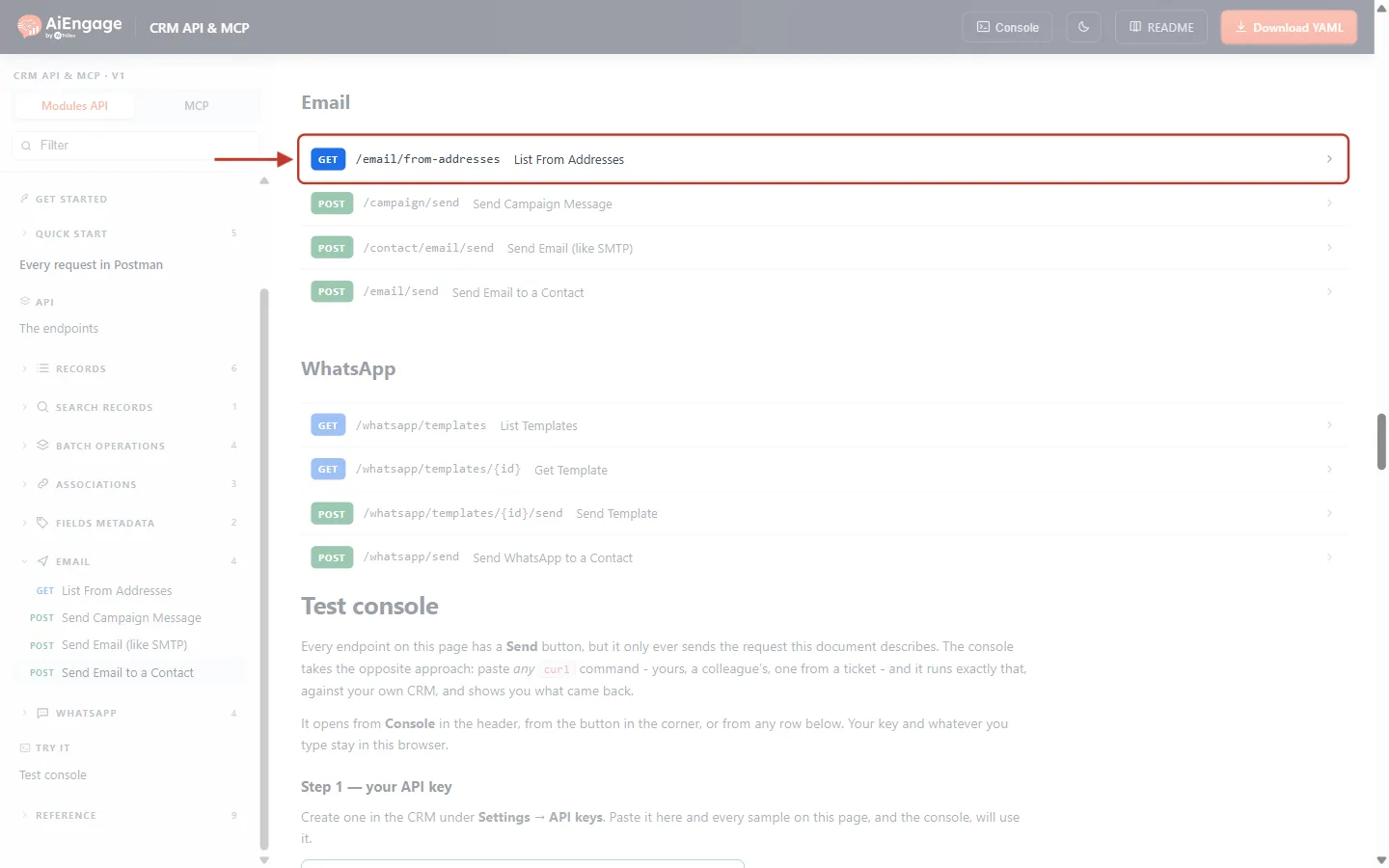
What this screenshot shows. The Email section of the portal’s endpoint list, with GET /email/from-addresses — List From Addresses ringed.
The four email endpoints are listed together: List From Addresses, Send Campaign Message (
/campaign/send), Send Email (like SMTP) (/contact/email/send, the one this guide is about) and Send Email to a Contact (/email/send).The same four appear in the left menu under EMAIL. Below is the WhatsApp section and the Test console.
Clicking a row opens the endpoint’s full description and a Send panel on the right.
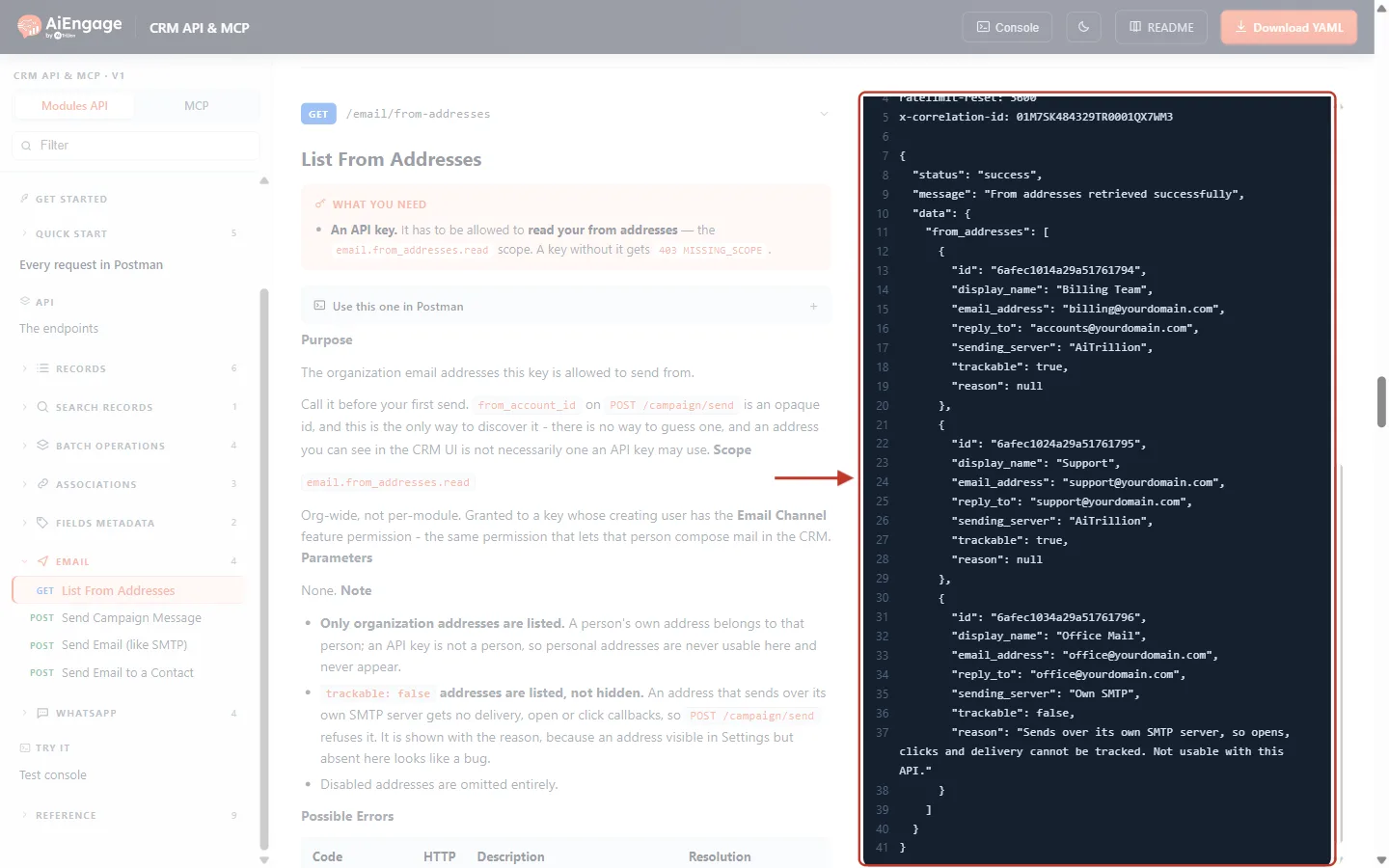
What this screenshot shows. The API result of GET /email/from-addresses, ringed: HTTP 200 with a list of addresses.
The first lines are the response headers:
ratelimit-limit,ratelimit-remaining,ratelimit-resetand thex-correlation-idto quote to support.Each entry in
from_addresseshas anid, thedisplay_name, theemail_address, itsreply_toand itssending_server."trackable": true(Billing Team, Support) means the address can be used with this endpoint."trackable": false(Office Mail, “Own SMTP”) means it cannot. Thereasonsays why: “Sends over its own SMTP server, so opens, clicks and delivery cannot be tracked. Not usable with this API.”On the left is the endpoint’s description: only organization addresses are listed (never personal ones), and disabled addresses are left out.
Step 4: Open Send Email (like SMTP) and Read Its Rules#
In the left menu under EMAIL, click Send Email (like SMTP).
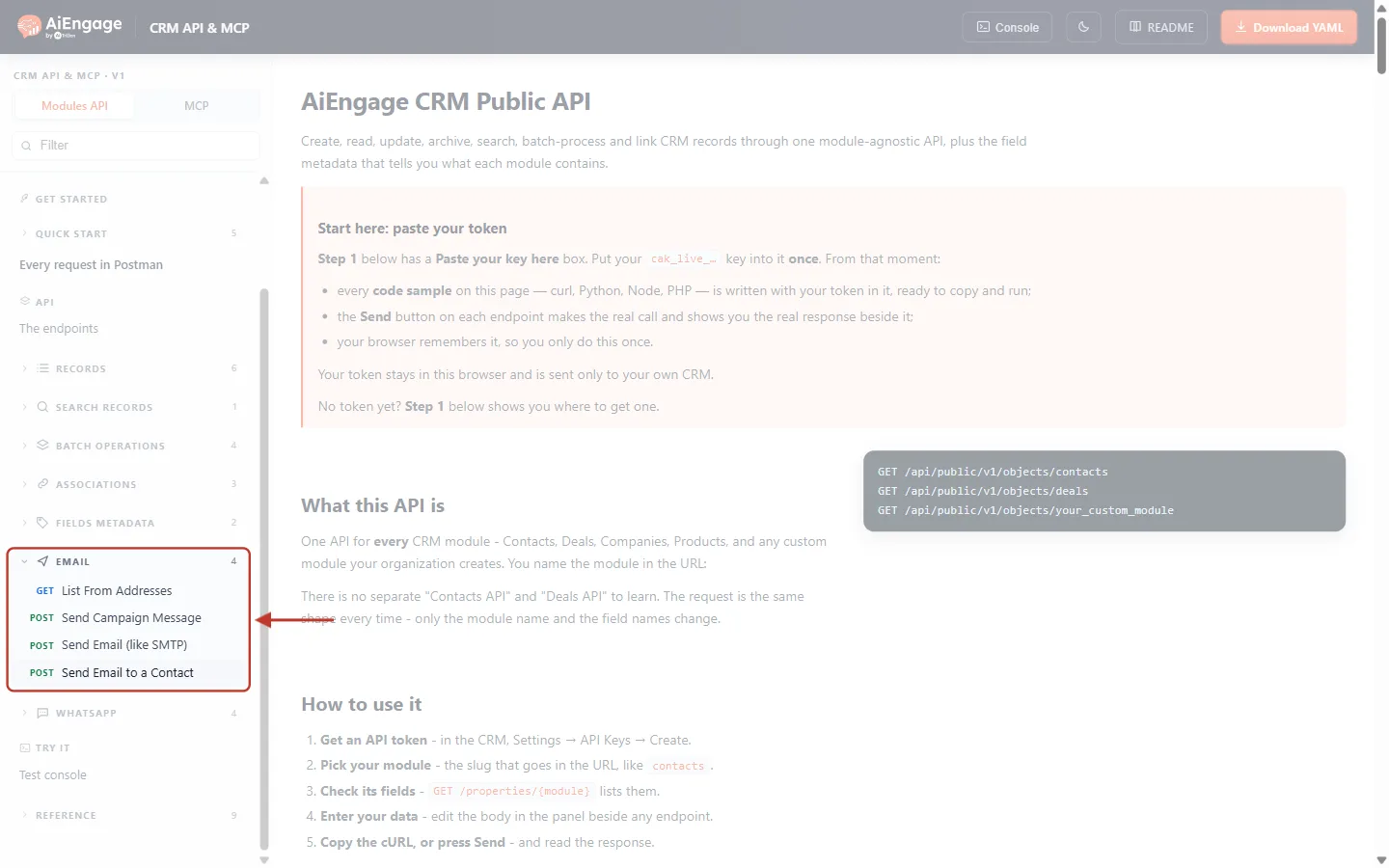
What this screenshot shows. The left menu with the EMAIL group opened and ringed.
GET List From Addresses, POST Send Campaign Message, POST Send Email (like SMTP) and POST Send Email to a Contact. The number 4 is the number of endpoints in the group.
Above are Records, Search records, Batch operations, Associations and Fields metadata; below are WhatsApp, the Test console and the Reference.
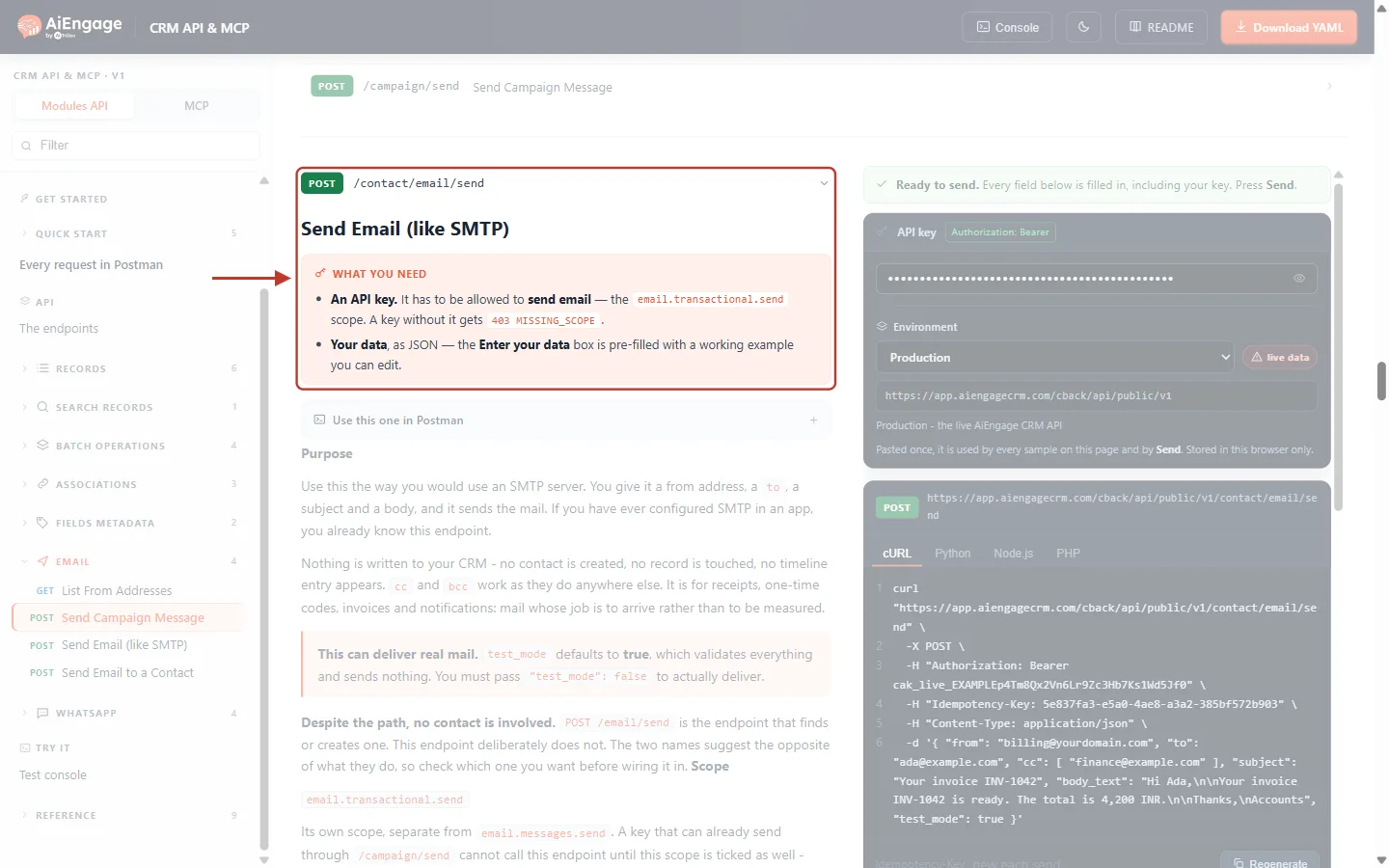
What this screenshot shows. The top of the endpoint, ringed: the method and path POST /contact/email/send, the title Send Email (like SMTP) and the WHAT YOU NEED box.
An API key that is allowed to send email — the
email.transactional.sendscope. A key without it gets403 MISSING_SCOPE.Your data, as JSON — the Enter your data box on the right is already filled with a working example you can edit.
Under it, Purpose explains the SMTP idea, and the pink note This can deliver real mail reminds you that
test_modedefaults to true.On the right is the Send panel: the green Ready to send bar, your API key (shown as dots), the Environment (Production — the live API) and ready-made code samples in cURL, Python, Node.js and PHP.
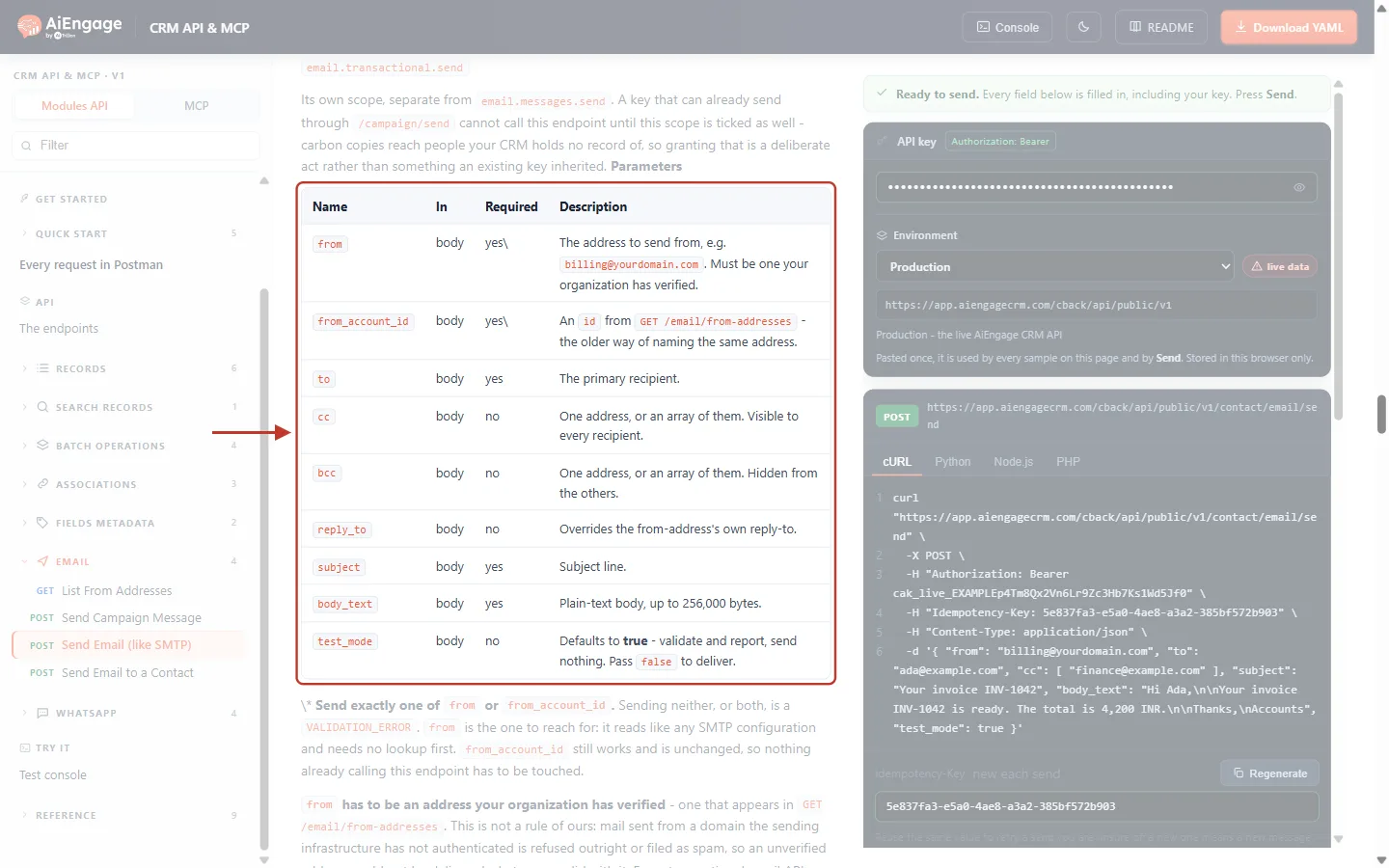
What this screenshot shows. The Parameters table, ringed. Every parameter goes in the JSON body.
from— the address to send from, e.g.billing@yourdomain.com. Must be one your organization has verified.from_account_id— anidfromGET /email/from-addresses; the older way of naming the same address. Send exactly one offromorfrom_account_id— neither, or both, is aVALIDATION_ERROR.to(required) — the main recipient. One address.cc/bcc(optional) — one address or a list. cc is visible to every recipient; bcc is hidden from the others.reply_to(optional) — overrides the from address’s own reply-to.subject(required) andbody_text(required, plain text, up to 256,000 bytes).test_mode(optional) — defaults to true: check and report, send nothing. Passfalseto deliver.
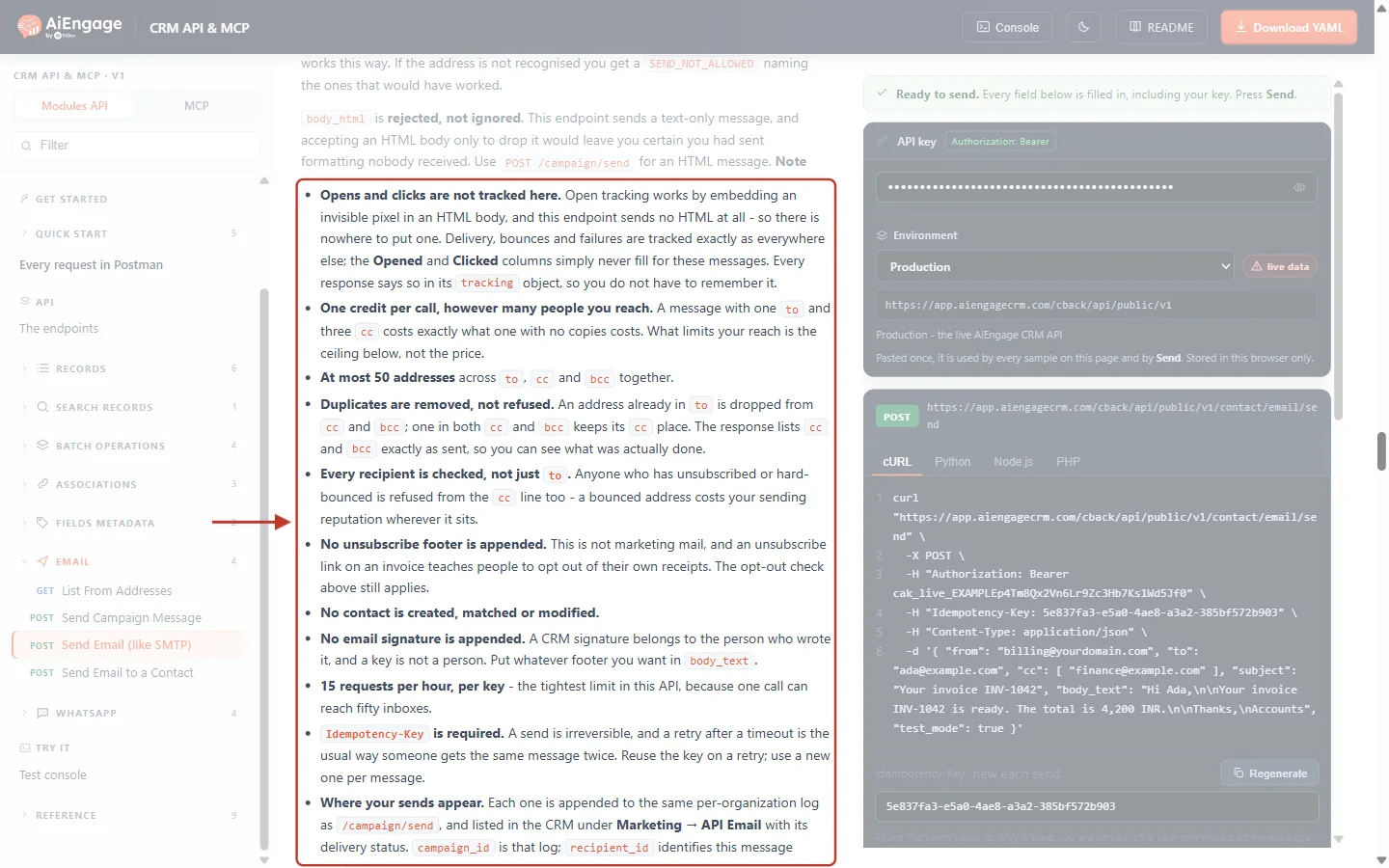
What this screenshot shows. The Note list further down the description, ringed. These are the rules to remember.
Opens and clicks are not tracked here — delivery, bounces and failures are.
One credit per call, however many people you reach. A message with one
toand threecccosts the same as one with no copies.At most 50 addresses across
to,ccandbcctogether.Duplicates are removed, not refused. An address already in
tois dropped from cc and bcc; one in both cc and bcc keeps its cc place.Every recipient is checked — anyone who has unsubscribed or hard-bounced is refused from the cc line too.
No unsubscribe footer and no email signature are added. Put any footer you want in
body_text.15 requests per hour, per key, and an
Idempotency-Keyheader is required.Where your sends appear — in the CRM under Marketing → API Email, with their delivery status.
Step 5: Fill In Your Message and Run a Test-Mode Call#
Now prepare the request in the Send panel on the right.
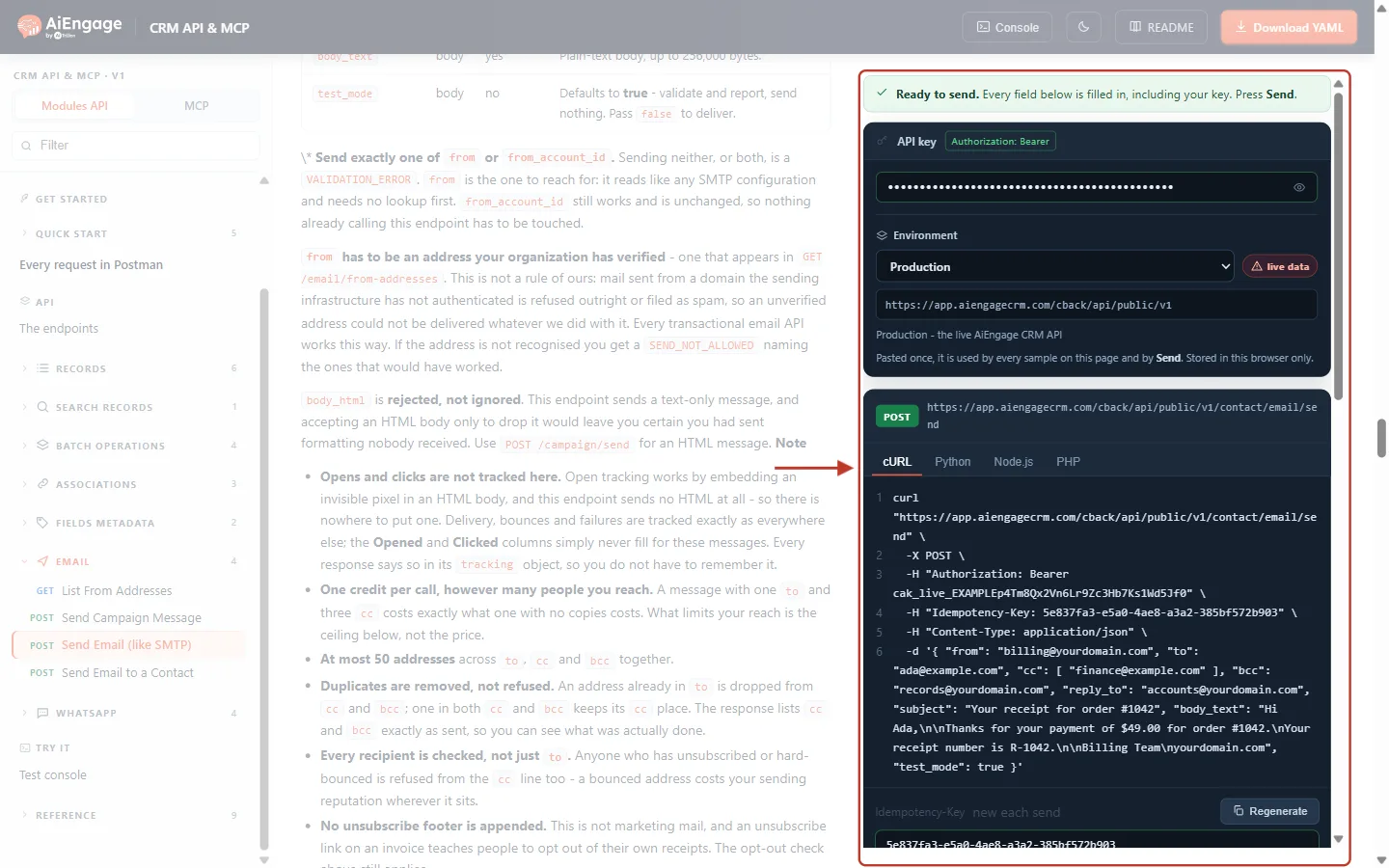
What this screenshot shows. The top of the Send panel, ringed.
Ready to send — “Every field below is filled in, including your key. Press Send.”
API key — your pasted token, sent as
Authorization: Bearer cak_live_…. It is stored only in your browser.Environment — Production is the live AiEngage CRM API (
https://app.aiengagecrm.com/cback/api/public/v1). The live data badge is a reminder that calls are real.POST and the full URL, then the request as cURL (with Python, Node.js and PHP tabs). It updates as you edit the body, so Copy always gives you exactly what you sent.
At the bottom, Idempotency-Key — a fresh value is generated for every new message. Regenerate makes a new one.
In Enter your data, replace the example with your own message. Leave "test_mode": true for now:
{
  "from": "billing@yourdomain.com",
  "to": "ada@example.com",
  "cc": [
    "finance@example.com"
  ],
  "bcc": "records@yourdomain.com",
  "reply_to": "accounts@yourdomain.com",
  "subject": "Your receipt for order #1042",
  "body_text": "Hi Ada,\n\nThanks for your payment of $49.00 for order #1042.\nYour receipt number is R-1042.\n\nBilling Team\nyourdomain.com",
  "test_mode": true
}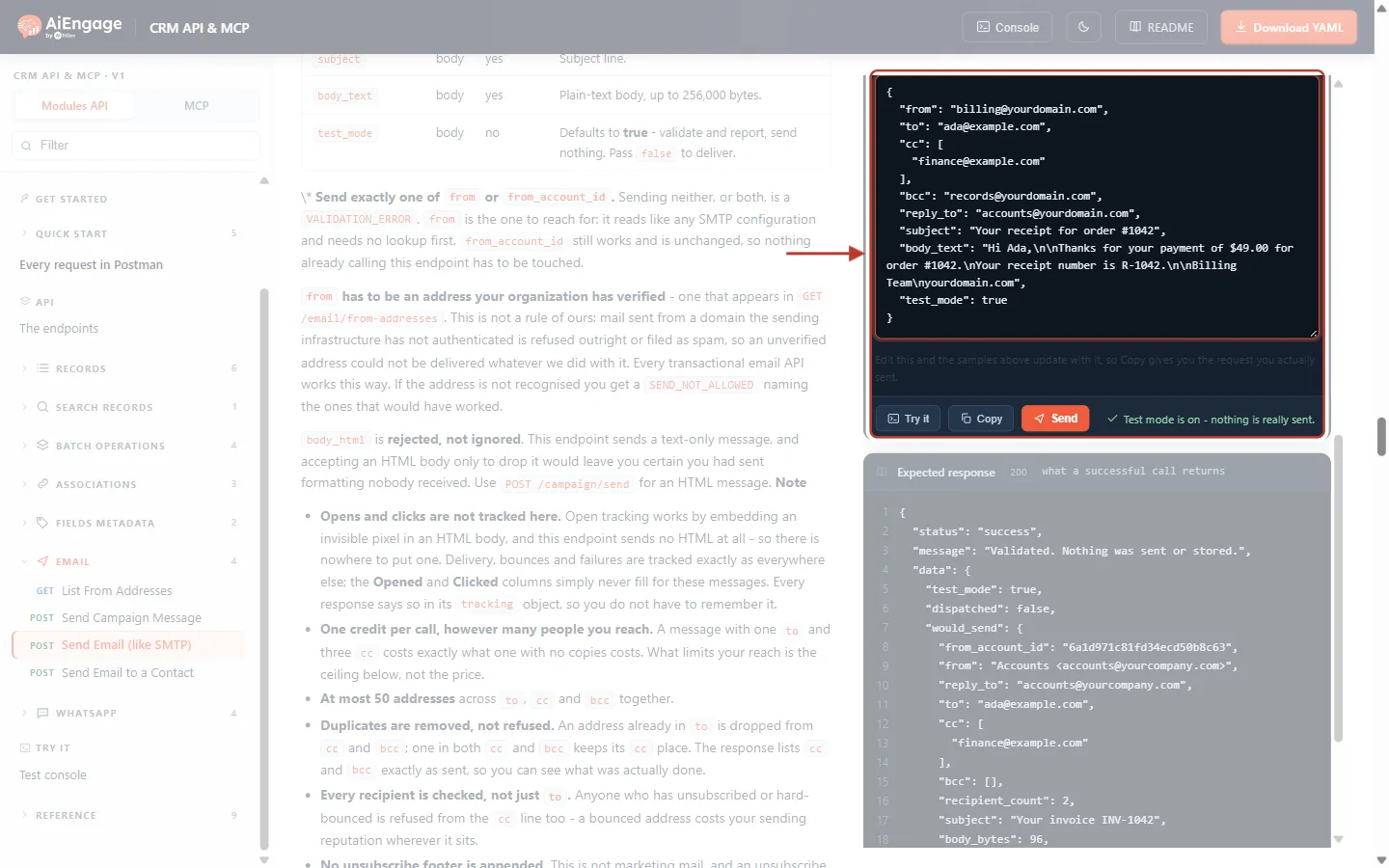
What this screenshot shows. The Enter your data box and the buttons below it, ringed.
fromis the verified Billing Team address;tois the customer.ccis a list (one address here) andbccis a single address written as a plain string — both forms are accepted.reply_tosends the customer’s replies to the accounts team instead of tobilling@.In
body_text,\nis a line break and\n\nan empty line."test_mode": true— the message under the buttons confirms “Test mode is on - nothing is really sent.”The buttons: Try it, Copy (copies the code sample) and the orange Send, which makes the call. Further down, Expected response shows what a successful call returns.
Press Send.
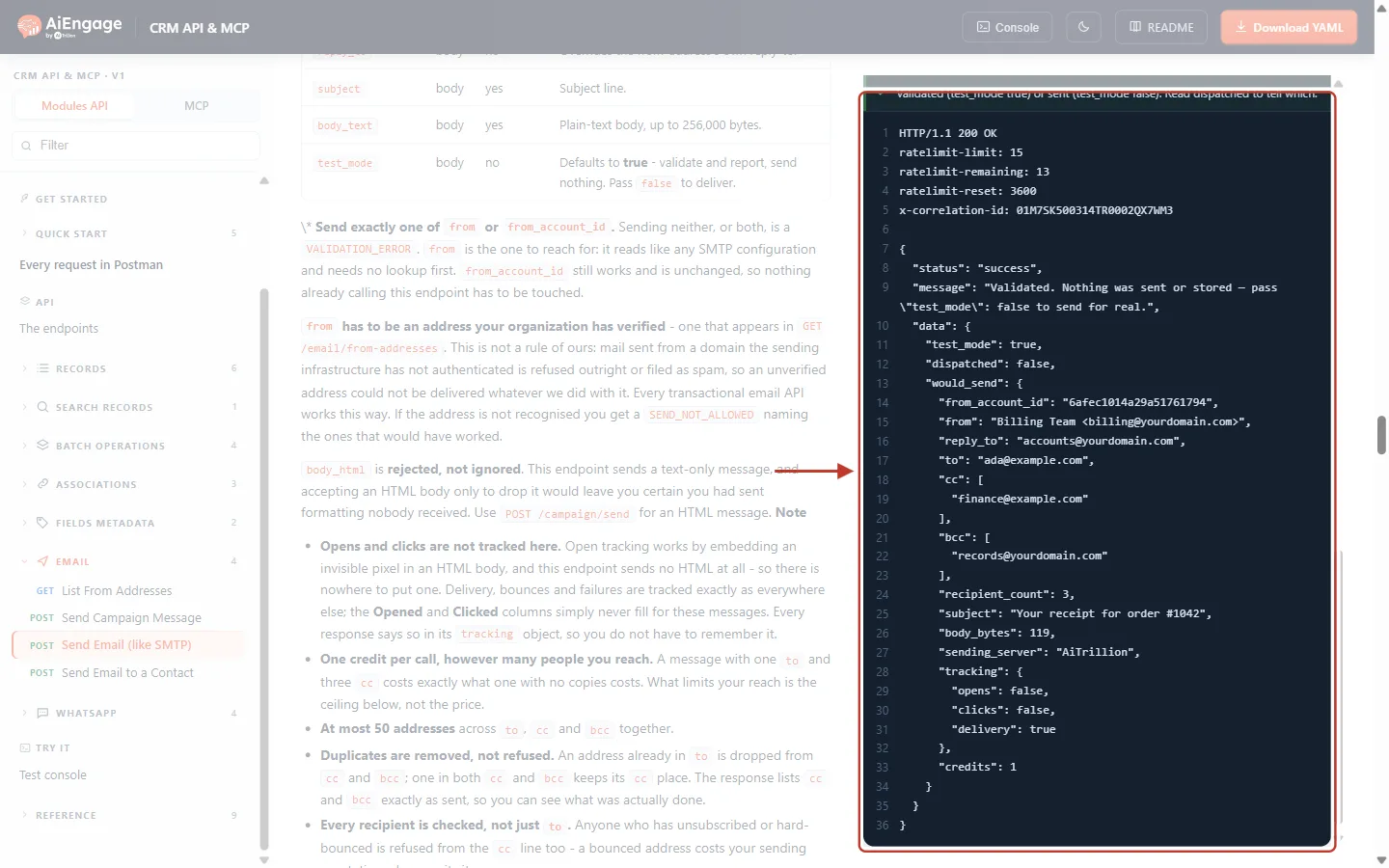
What this screenshot shows. The API result of the test-mode call, ringed: HTTP 200, and nothing was sent.
"message": "Validated. Nothing was sent or stored — pass \"test_mode\": false to send for real.""test_mode": trueand"dispatched": false— the proof that no email left.would_senddescribes the message exactly as it would go out: thefromwith its display name (Billing Team <billing@yourdomain.com>), thereply_to, theto, and the cleanedccandbcclists (lower-case, duplicates removed).recipient_countis 3 (to + cc + bcc).body_bytesis the size of your text.sending_serveris AiTrillion.trackingstatesopens: false,clicks: false,delivery: true, andcreditsis 1.Test mode runs every check a real send runs — the from address, opted-out recipients, the 50-address limit and your email allowance — so if this call passes, the real one will too.
✅
Use test mode in your own code as well: run your integration once with
"test_mode": true and compare would_send with what you expected before going live.Step 6: Send the Email for Real#
In Enter your data, change
"test_mode": trueto"test_mode": false.Make sure the Idempotency-Key is a new value (it is regenerated for each new message).
Press Send. The message under the buttons now warns “This is real - it changes data in your CRM.”
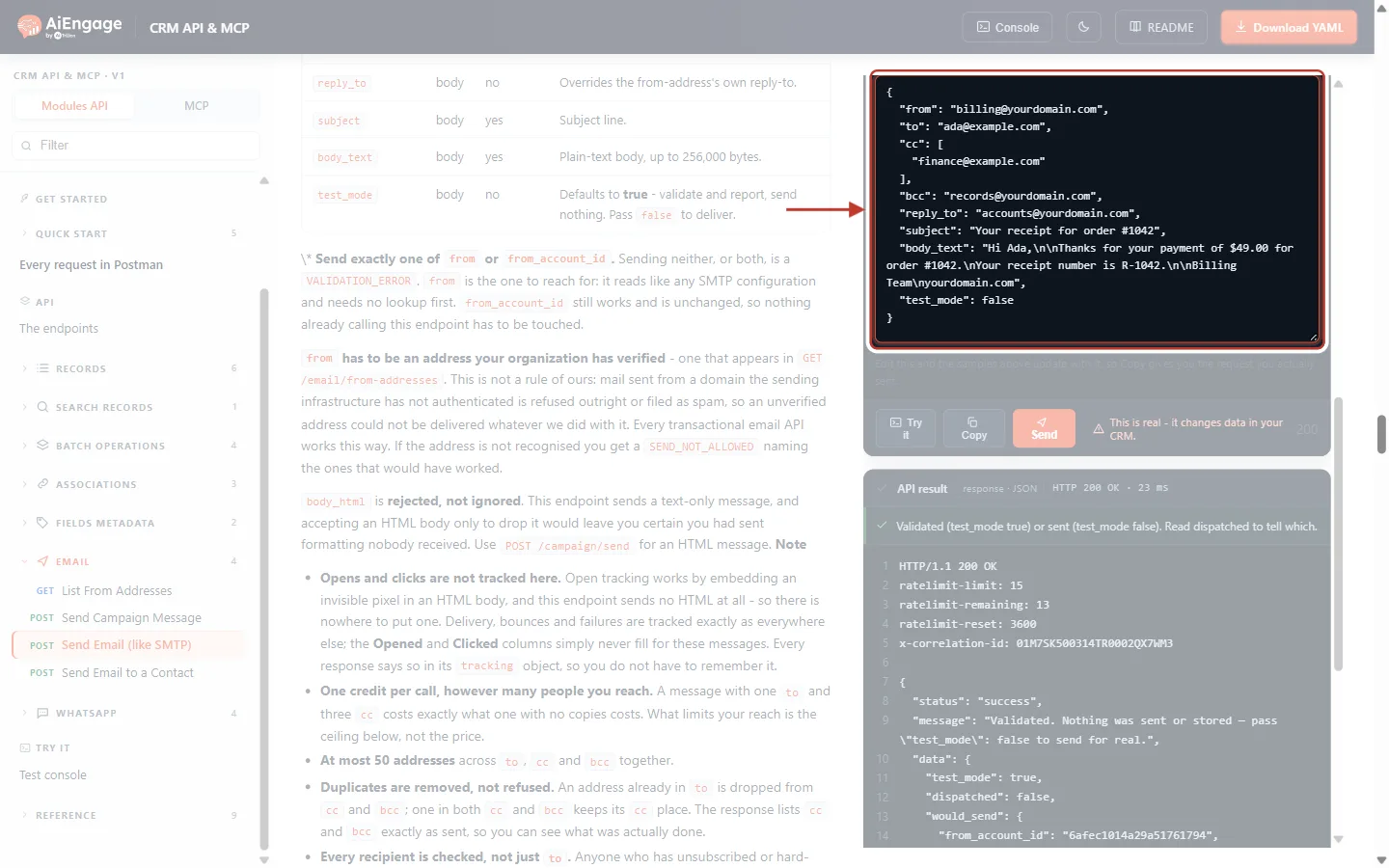
What this screenshot shows. The same request with "test_mode": false, ringed. Everything else is unchanged, so the real email is exactly the one you just tested.
Only the last line changed. This is the only switch between “check” and “deliver”.
If you leave
test_modeout completely, it counts as true — the endpoint never sends by accident.
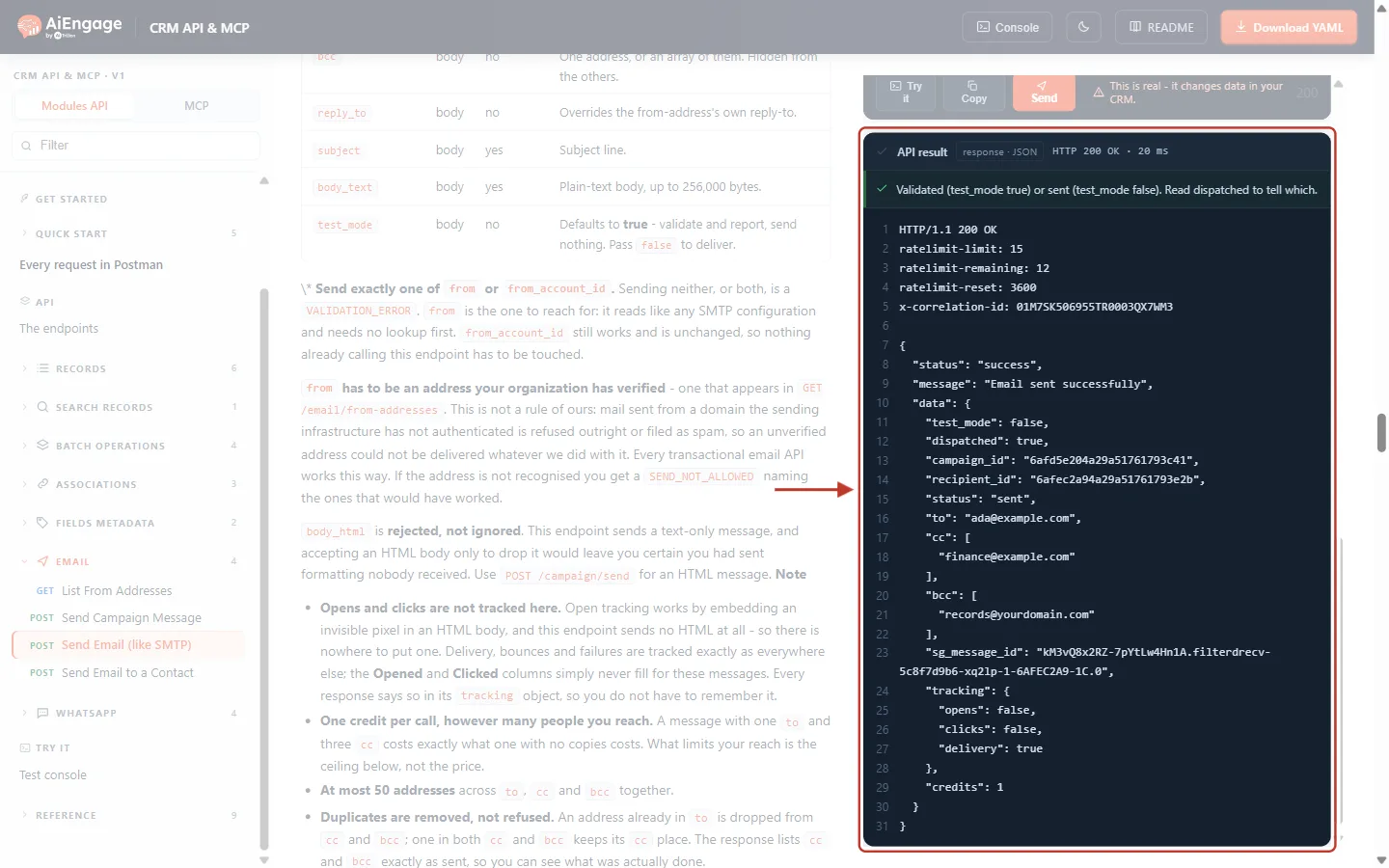
What this screenshot shows. The API result of the real send, ringed: HTTP 200, "message": "Email sent successfully".
"test_mode": falseand"dispatched": true— the email was handed to the sending service.campaign_idis your organization’s API email log, andrecipient_ididentifies this message inside it. Storerecipient_idif you want to look the message up later.statusis the delivery status at the time of the reply (for examplesent). Later changes such as delivered or bounced are recorded in the CRM.to,ccandbccare the lists as sent, after duplicates were removed — compare them with what you posted to see who was actually copied.sg_message_idis the sending provider’s message id, useful when support traces a delivery.trackingandcredits: 1are repeated, so you always know opens and clicks will not be counted.
To see the message afterwards in the CRM, go to Marketing → API Email. It lists every message sent through this endpoint with its delivery status, a search box, status tabs, a date filter and CSV export; View on a row opens the subject and text. The Opened and Clicked columns stay empty for these messages by design. Message text is cleared after 30 days; the row, subject and delivery history are kept.
⚠️
If a send times out and you are not sure whether it went, retry with the same Idempotency-Key. AiEngage recognises the key and does not send the message twice. Use a new key for every new message. See Idempotency Keys & Safe Retries: Prevent Duplicate Records and Double Sends in the CRM API.
Step 7: Fix the Common Errors#
Every error has the same shape: status, a message in plain English, a category your code can check, and a correlationId. Below are the three you are most likely to meet first.
400 VALIDATION_ERROR — an HTML body was sent#
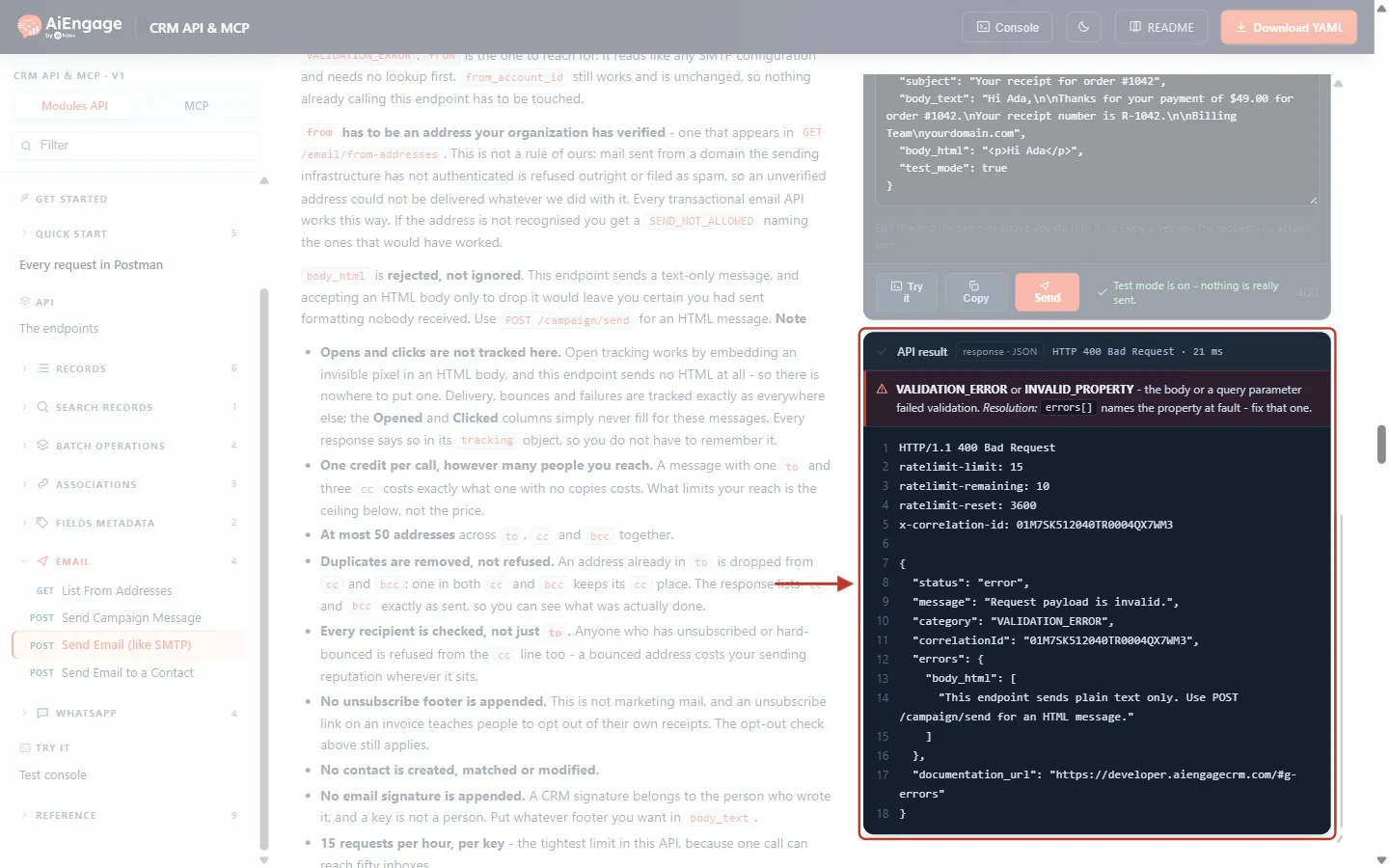
What this screenshot shows. The API result for a request that included body_html, ringed: HTTP 400 Bad Request.
The red bar explains the category: the body failed validation, and
errorsnames the field at fault."category": "VALIDATION_ERROR","message": "Request payload is invalid."errors.body_html: “This endpoint sends plain text only. Use POST /campaign/send for an HTML message.”Fix: remove
body_htmland put your text inbody_text— or, if you really need a formatted email, usePOST /campaign/sendinstead.
The same 400 is returned when a required field is missing, an address is malformed, or you send both (or neither) of from and from_account_id. errors always names the field.
422 SEND_NOT_ALLOWED — the from address is not verified#
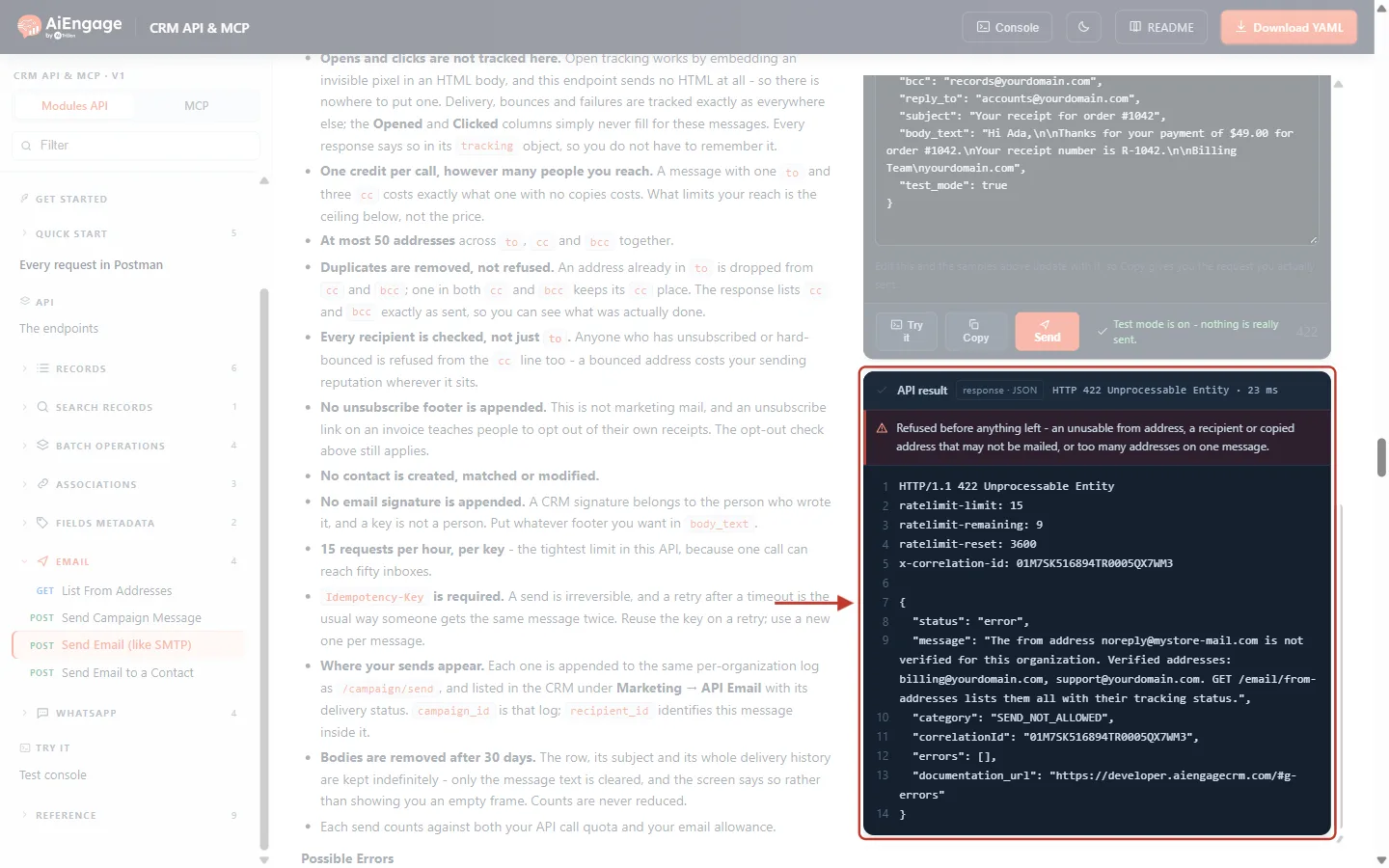
What this screenshot shows. The API result for "from": "noreply@mystore-mail.com", ringed: HTTP 422 Unprocessable Entity.
The red bar: “Refused before anything left” — nothing was sent and no credit was used.
The
messagenames the address that failed and lists the ones that would work: “Verified addresses: billing@yourdomain.com, support@yourdomain.com.” Own-SMTP addresses are not suggested, because they would be refused too.Fix: use one of the listed addresses, or add the address you want in Setup → Email → Organization Emails (Step 1) after authenticating its domain.
403 MISSING_SCOPE — the key cannot send transactional email#
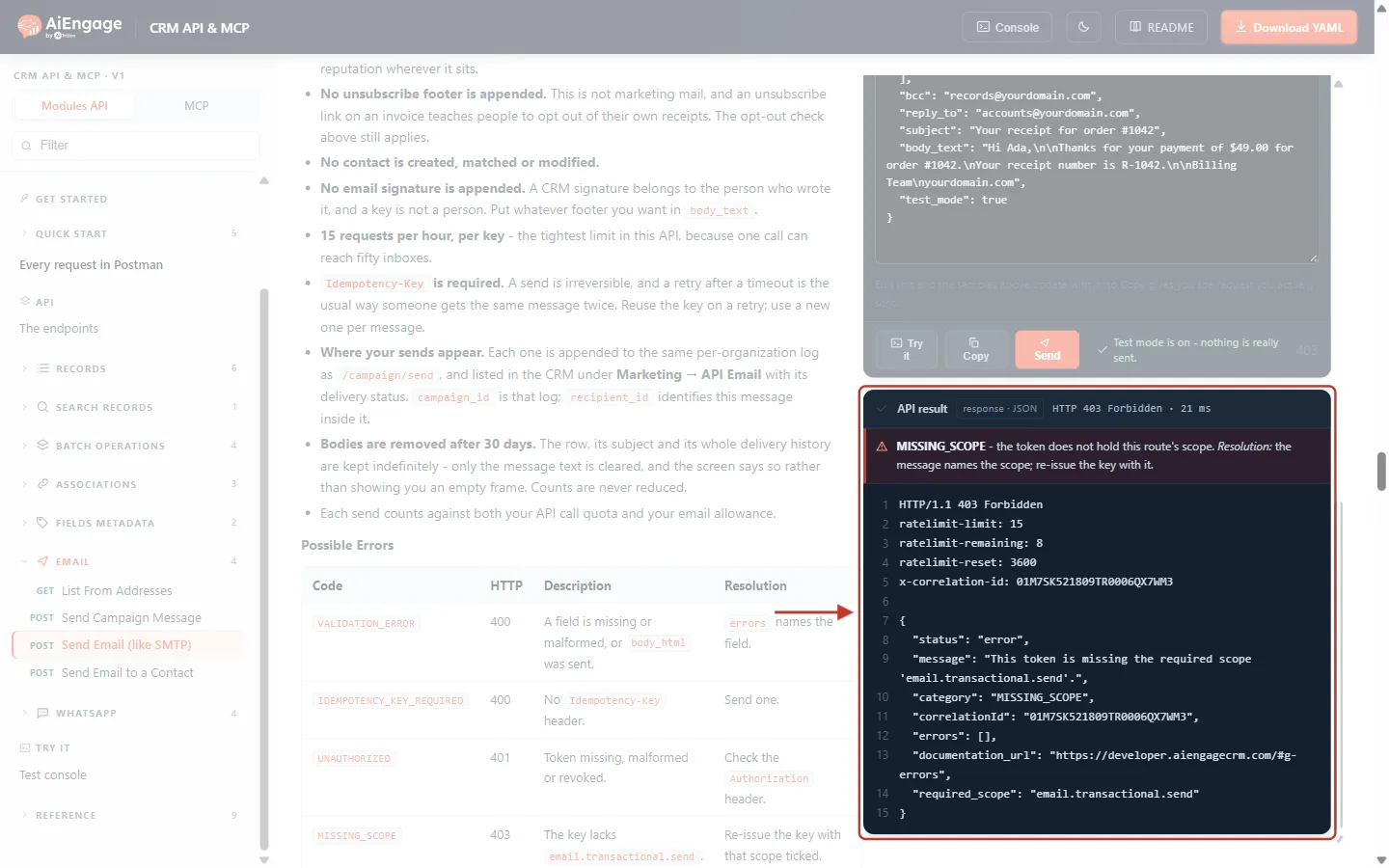
What this screenshot shows. The API result for a key without the scope, ringed: HTTP 403 Forbidden.
"message": "This token is missing the required scope 'email.transactional.send'.""category": "MISSING_SCOPE"and"required_scope": "email.transactional.send".On the left, the endpoint’s Possible Errors table lists every error with its HTTP code and resolution.
Fix: generate a key with Transactional send ticked (Step 2). Holding Send (
email.messages.send) is not enough.
All errors at a glance#
Code | HTTP | What it means | What to do |
|---|---|---|---|
| 400 | A field is missing or malformed, | Read |
| 400 | No | Send one (any unique value, e.g. a UUID). |
| 401 | Token missing, malformed or revoked. | Check the |
| 403 | The key lacks | Re-issue the key with Transactional send ticked. |
(email sending off) | 403 | Email sending is switched off for your organization. | Ask your administrator or AiEngage support. |
| 409 | The same key was reused with a different body. | Use a fresh key for a new message. |
| 422 | Unverified, personal, disabled or own-SMTP from address; a recipient (to, cc or bcc) who unsubscribed or hard-bounced; more than 50 addresses; or not enough email credits. | The message says which. Change that one thing. |
| 429 | More than 15 calls this hour or 360 today, or your daily email allowance is used up. | Wait the number of seconds in |
| 502 / 500 | The sending provider refused the message, or something failed on our side. | Read the message. Safe to retry with the same Idempotency-Key. |
More detail on every status code is in API Errors & Troubleshooting: Fix 400, 401, 403, 404, 409, 429 and 500 Errors Step by Step.
Step 8: Call the Endpoint from Your Own Code#
Click Copy in the portal to get your request in cURL, Python, Node.js or PHP. A minimal cURL call looks like this:
curl "https://app.aiengagecrm.com/cback/api/public/v1/contact/email/send" \
  -X POST \
  -H "Authorization: Bearer cak_live_YOUR_TOKEN" \
  -H "Idempotency-Key: 3f6c1b52-8a0e-4d7e-9c41-1f2a7b9d0e15" \
  -H "Content-Type: application/json" \
  -d '{
    "from": "billing@yourdomain.com",
    "to": "ada@example.com",
    "subject": "Your login code",
    "body_text": "Your one-time code is 482913. It expires in 10 minutes.",
    "test_mode": false
  }'
And in Node.js, with a safe retry on timeouts and server errors:
import { randomUUID } from 'crypto';

async function sendReceipt({ to, subject, text }) {
  const key = randomUUID();               // one key per message — reuse it on retries
  for (let attempt = 1; attempt <= 3; attempt++) {
    const res = await fetch('https://app.aiengagecrm.com/cback/api/public/v1/contact/email/send', {
      method: 'POST',
      headers: {
        Authorization: `Bearer ${process.env.AIENGAGE_TOKEN}`,
        'Idempotency-Key': key,
        'Content-Type': 'application/json',
      },
      body: JSON.stringify({ from: 'billing@yourdomain.com', to, subject, body_text: text, test_mode: false }),
    });
    const json = await res.json();
    if (res.ok) return json.data.recipient_id;          // sent
    if (res.status === 429) {                           // wait as told, then retry
      await new Promise(r => setTimeout(r, Number(res.headers.get('retry-after') || 60) * 1000));
      continue;
    }
    if (res.status >= 500) continue;                    // retry with the SAME key
    throw new Error(`${json.category}: ${json.message}`); // 4xx: fix the request, do not retry
  }
  throw new Error('Email not sent after 3 attempts');
}
ℹ️
Keep your token on your server, never in a web page or mobile app. Anyone who has the token can send email from your addresses.
Troubleshooting#
Problem | Likely cause | Solution |
|---|---|---|
The call returns 200 but no email arrives. |
| Check |
My address is in Organization Emails but is refused. | It sends over its own SMTP server, is disabled, or its domain is not authenticated. | Check SENDING SERVER and STATUS in Step 1, or call List From Addresses and look at |
A cc address is refused. | That person unsubscribed or their address hard-bounced. | Remove them from |
Someone I put in cc is missing from the response. | They were also in | Nothing to fix — duplicates are removed so nobody gets the mail twice. |
Opened and Clicked stay at 0 in API Email. | This endpoint sends plain text, so there is no tracking pixel or tracked link. | Expected. Use |
The email has no signature or unsubscribe link. | By design for transactional mail. | Add any footer you want to |
No contact appeared in my CRM. | This endpoint never creates or updates contacts. | Use |
429 after a few calls. | 15 calls per hour per key. | Batch recipients into one message with cc/bcc where it makes sense, or spread sends over time. |
Best Practices#
Always test first. Run a new integration with
"test_mode": trueand checkwould_sendbefore switching tofalse.One Idempotency-Key per message. Generate it when you create the message, store it, and reuse it only for retries of that same message.
Use a dedicated key with only the scopes it needs (Transactional send, plus Read if you list addresses), and a clear label such as “Billing receipts”.
Send from a shared, purpose-named address (billing@, no-reply@, support@) and set
reply_toto a mailbox someone reads.Keep it transactional. Receipts, codes and notices only — newsletters and promotions belong in campaigns, where unsubscribe links and tracking apply.
Keep the text short and clear, with the key information (amount, code, order number) in the first lines.
Watch your usage. Each send counts against both your API call quota and your email allowance. See Monitor API Usage & Set Quota Alerts Step by Step.
Frequently Asked Questions#
Can I send HTML email with this endpoint?
No. It sends plain text only, and an HTML body is refused with a 400 error. Use POST /campaign/send for a formatted email.
Can I send from any address, like a normal SMTP server?
No. The from must be an active organization address on a domain you have authenticated. Mail from an unverified domain would be rejected or marked as spam by receiving servers, so the API refuses it up front and tells you which addresses would work.
How many people can one email reach?
Up to 50 addresses across to, cc and bcc together, for one credit.
Can I send attachments?
No. The endpoint takes a subject and a text body only. Put a link to the document (for example your invoice page) in the text instead.
Does the email appear on the customer’s record in the CRM?
No. Nothing is written to your CRM. The message is listed only under Marketing → API Email.
Why do I need a separate scope when my key can already send email?
Because cc and bcc reach people your CRM has no record of. Granting that must be a deliberate choice, so existing keys do not gain it automatically.
What happens if I call it without an Idempotency-Key?
You get 400 IDEMPOTENCY_KEY_REQUIRED and nothing is sent.
Previous and Next Articles#
Previous: Send Email through the API: Send an Email to a Contact Step by Step (POST /email/send)
Next: API Errors & Troubleshooting: Fix 400, 401, 403, 404, 409, 429 and 500 Errors Step by Step
Related Articles#
Send Email through the API: Send an Email to a Contact Step by Step (POST /email/send)
API Keys Step by Step: Generate, Use and Revoke a Personal Access Token
Idempotency Keys & Safe Retries: Prevent Duplicate Records and Double Sends in the CRM API
API Rate Limits & Quotas: Understand the Limits, Read the Headers and Handle 429 Errors
Was this article helpful?
Ready to implement this?
OpenAI Engage and apply what you just learned to your own workspace.
Open AI Engage CRM