Loading…


KnowledgeBase
Send WhatsApp Messages via the CRM API: List Approved Templates, Fill Placeholders and Send to a Number or Contact
Introduction#
WhatsApp is often the fastest way to reach a customer: an appointment reminder, an order update, a one-time code or a welcome message. With the AiEngage CRM API, your own website, app or back-office system can send these WhatsApp messages automatically, through your organization’s connected WhatsApp Business number.
WhatsApp has one important rule: a business may only start a conversation with an approved template. So every API send names a template, and fills in its placeholders (the {{1}}, {{2}} … slots) with values such as the customer’s name.
There are four WhatsApp endpoints:
Endpoint | What it does | Scope |
|---|---|---|
| Every approved template, with its id and placeholders. |
|
| One approved template by id. |
|
| Sends a template to a phone number. Nothing is added to your CRM. |
|
| Sends a template to a person: finds or creates the contact, fills placeholders from their fields and adds the send to their timeline. |
|
⚠️
WhatsApp sends are real and cost credits. Unlike the email API, there is no test mode and no dry run on either WhatsApp send endpoint. Every accepted call reaches the recipient and uses WhatsApp credits. Test with your own phone number first.
In this guide you will, step by step:
Check that you have an approved WhatsApp template.
Create an API key with the WhatsApp scopes.
Open WhatsApp API & Docs in the CRM and copy the endpoint, headers and body.
Find the template id and read its placeholders.
Send a template to a phone number.
Send a template to a contact (and let the contact fill the placeholders).
Check the send in API Logs, fix errors and call the API from your own code.
Steps 1–3 and 7 use the CRM. Steps 4–6 use the AiEngage developer portal, developer.aiengagecrm.com, which has a Send button next to every endpoint. Each screenshot has a red ring and arrow on the part to look at, followed by a description of the whole screen. The templates shown are real approved templates from a demo CRM. Because a send cannot be undone and costs credits, the successful send responses in Steps 5 and 6 are examples of exactly what the API returns; the error responses are real.
Before You Begin#
A WhatsApp Business number must be connected to AiEngage (Setup → Marketing Channels → WhatsApp), and your organization needs WhatsApp credits.
At least one template must be approved by WhatsApp. Draft, pending, rejected and paused templates cannot be sent.
To create API keys you need the API access permission, and the WhatsApp scopes only appear for users who have the WhatsApp feature permission. See API Keys Step by Step: Generate, Use and Revoke a Personal Access Token.
The recipient must be allowed to receive the template: the same opt-in and unsubscribe rules as the inbox and campaigns apply.
Step 1: Check That Your Template Is Approved#
Open Marketing in the left rail, then Templates → WhatsApp.
Click the My Templates (Saved) tab.
Find the template you want to send and check its status.
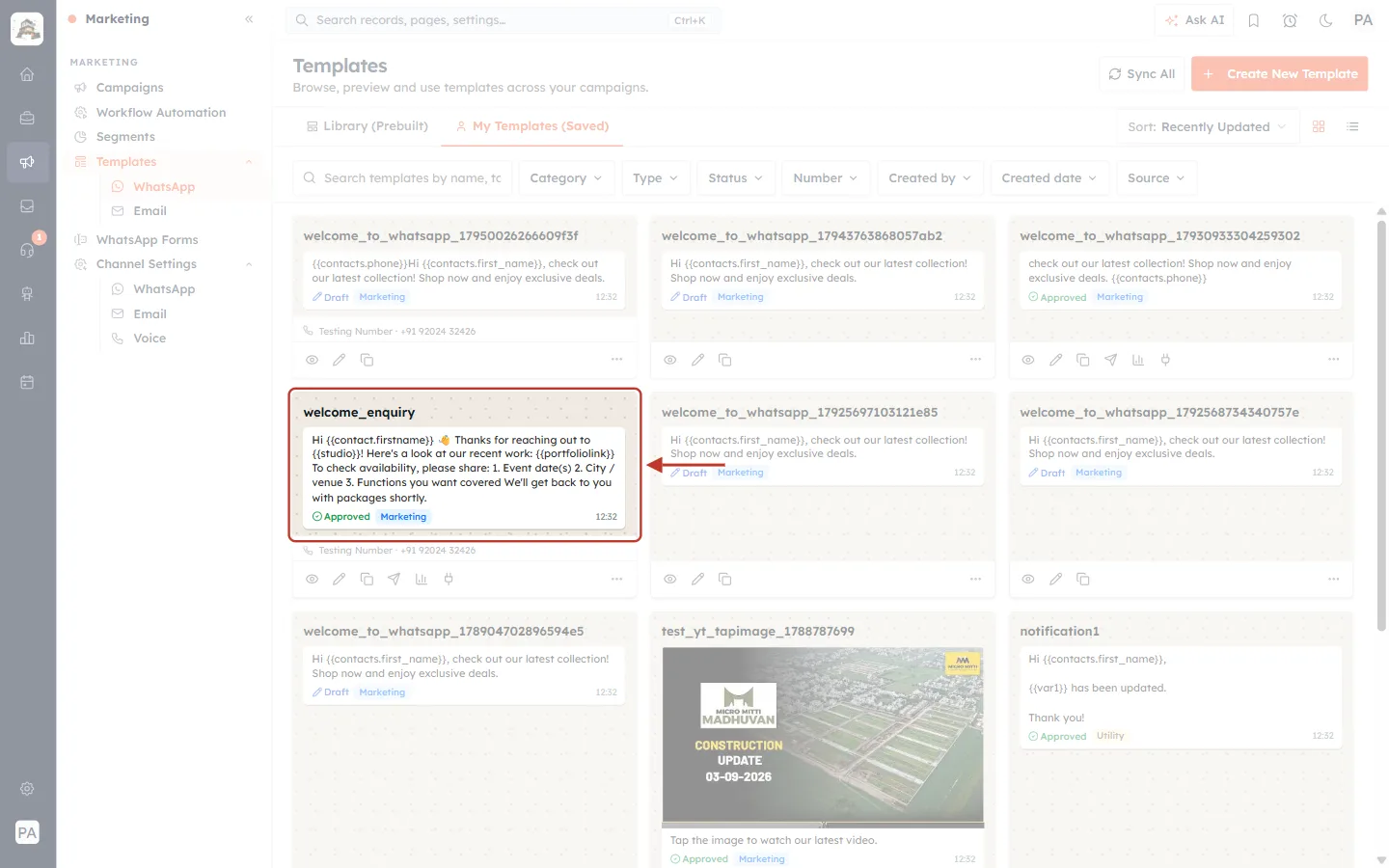
What this screenshot shows. The WhatsApp Templates page on the My Templates (Saved) tab. The welcome_enquiry template card is ringed.
Each card shows the template name (this is the
namethe API returns), a preview of its text with the placeholders in double braces, its status, its category (Marketing, Utility or Authentication) and the time it was last updated.The ringed card shows a green Approved badge — only templates like this can be sent through the API. Cards marked Draft (with a pencil) are not approved yet and will not appear in the API at all.
Under a card, “Testing Number · +91 …” is the WhatsApp number (sender) the template is registered under.
The filters at the top (Category, Type, Status, Number, Created by, Created date, Source) help you find a template quickly. Sync All refreshes statuses from WhatsApp, and Create New Template starts a new one.
ℹ️
If you can see a template here but not in the API, it is a status problem, not a key problem: the API only returns templates with status Approved.
Step 2: Create an API Key with the WhatsApp Scopes#
Go to Setup → Developer Hub → API Keys and click Generate API key.
Enter a Label, for example “Order updates on WhatsApp”.
Scroll the Scopes list to the WhatsApp group and tick Read and Send.
Choose when the key Expires, click Generate and copy the
cak_live_…token straight away — it is shown only once.
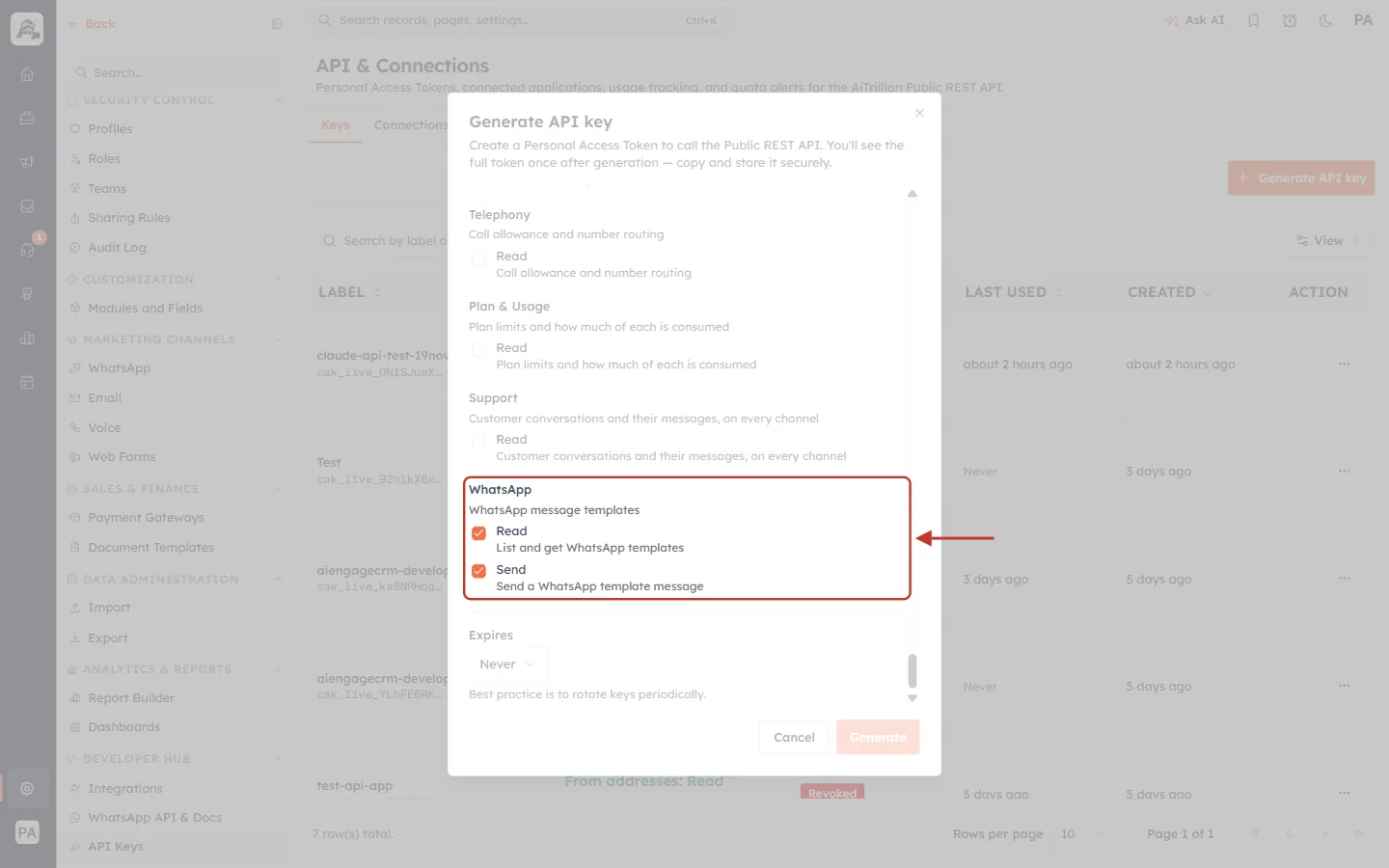
What this screenshot shows. The Generate API key dialog scrolled to the WhatsApp scope group, ringed, with both scopes ticked.
Group heading: WhatsApp — “WhatsApp message templates”.
Read (
whatsapp.templates.read) — “List and get WhatsApp templates”. Needed for List Templates and Get Template.Send (
whatsapp.templates.send) — “Send a WhatsApp template message”. Needed for both send endpoints.Above is the Support group; below are Expires and the Cancel / Generate buttons. Behind the dialog is the list of your existing keys.
✅
Give each integration its own key with only the scopes it needs. If a key is ever exposed you can revoke it without breaking anything else. See API Token Scopes & Permissions.
Step 3: Open WhatsApp API & Docs in the CRM#
The CRM has its own quick reference for the WhatsApp API. Go to Setup → Developer Hub → WhatsApp API & Docs.
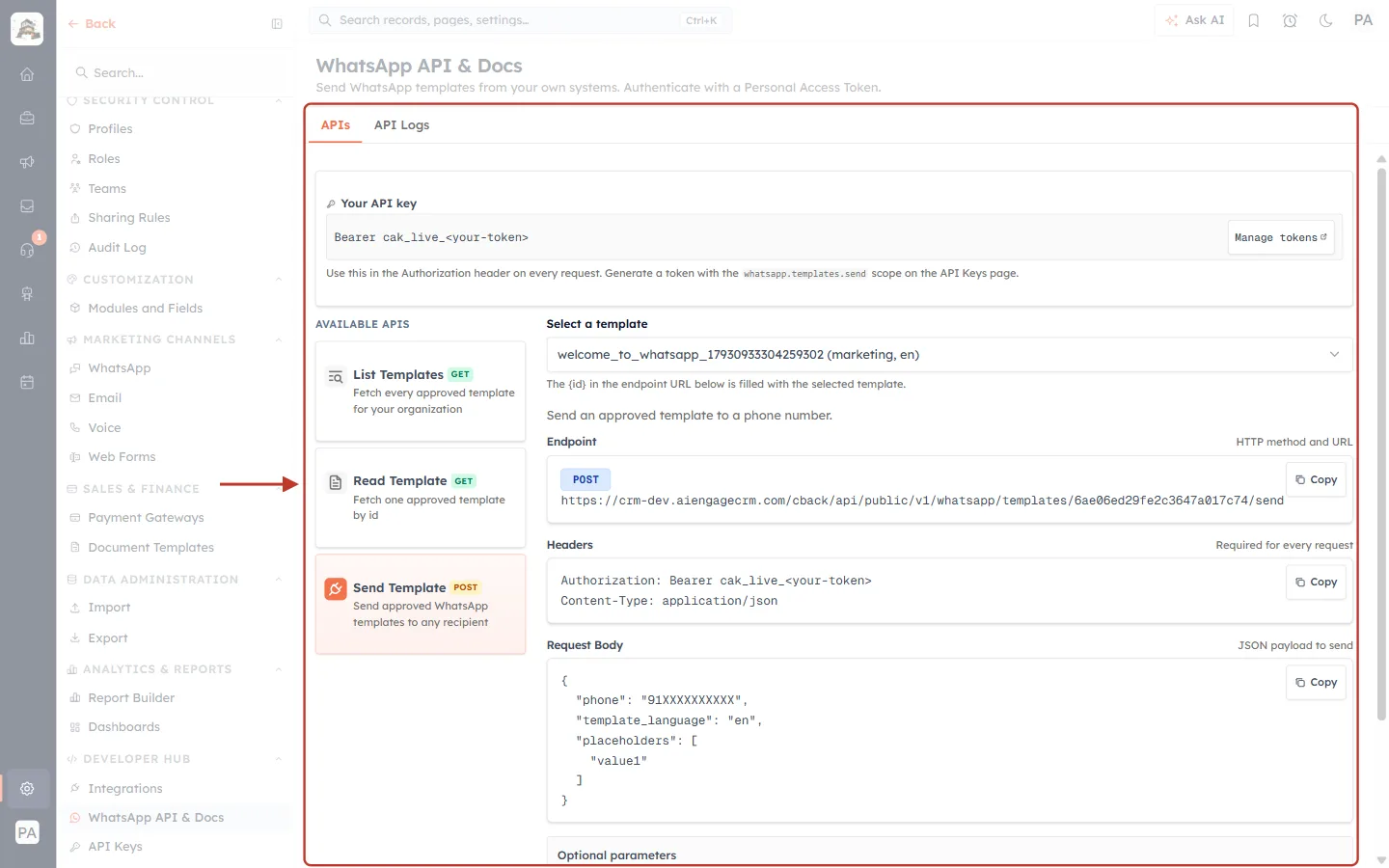
What this screenshot shows. The WhatsApp API & Docs page on the APIs tab, ringed.
The subtitle explains the page: “Send WhatsApp templates from your own systems. Authenticate with a Personal Access Token.”
Two tabs: APIs (this reference) and API Logs (every API send, Step 7).
Your API key shows the header to use on every request —
Bearer cak_live_<your-token>— with a Manage tokens link to the API Keys page. The note reminds you the token needs thewhatsapp.templates.sendscope.AVAILABLE APIS lists three cards: List Templates (GET), Read Template (GET) and Send Template (POST). The selected card is highlighted in orange.
On the right, the details of the selected API: Select a template, the Endpoint, the Headers and the Request Body, each with a Copy button.
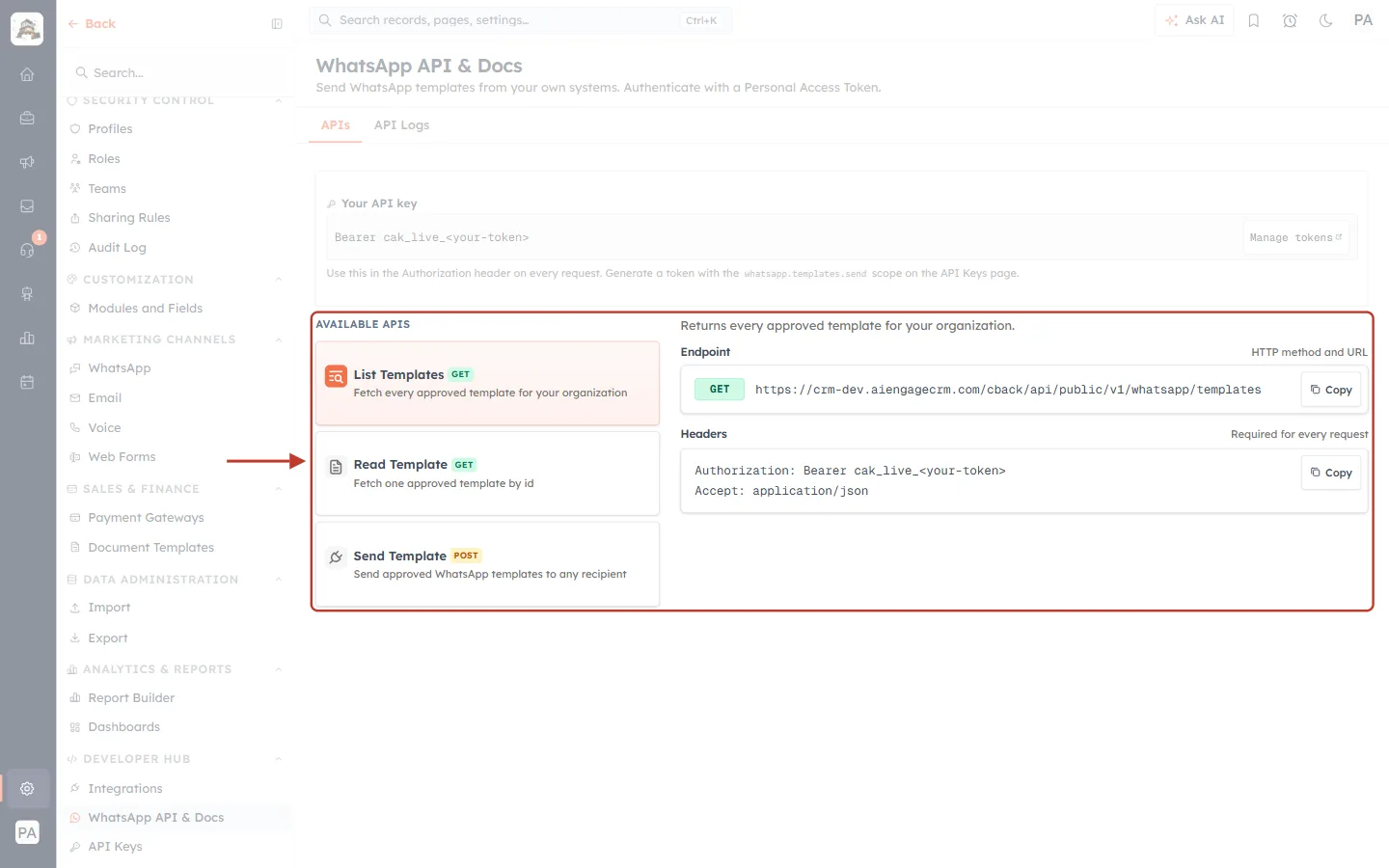
What this screenshot shows. The List Templates card selected, with its details ringed.
“Returns every approved template for your organization.”
Endpoint: GET
…/cback/api/public/v1/whatsapp/templates. The address starts with your own CRM’s web address.Headers:
Authorization: Bearer cak_live_<your-token>andAccept: application/json.There is no request body — this call only reads.
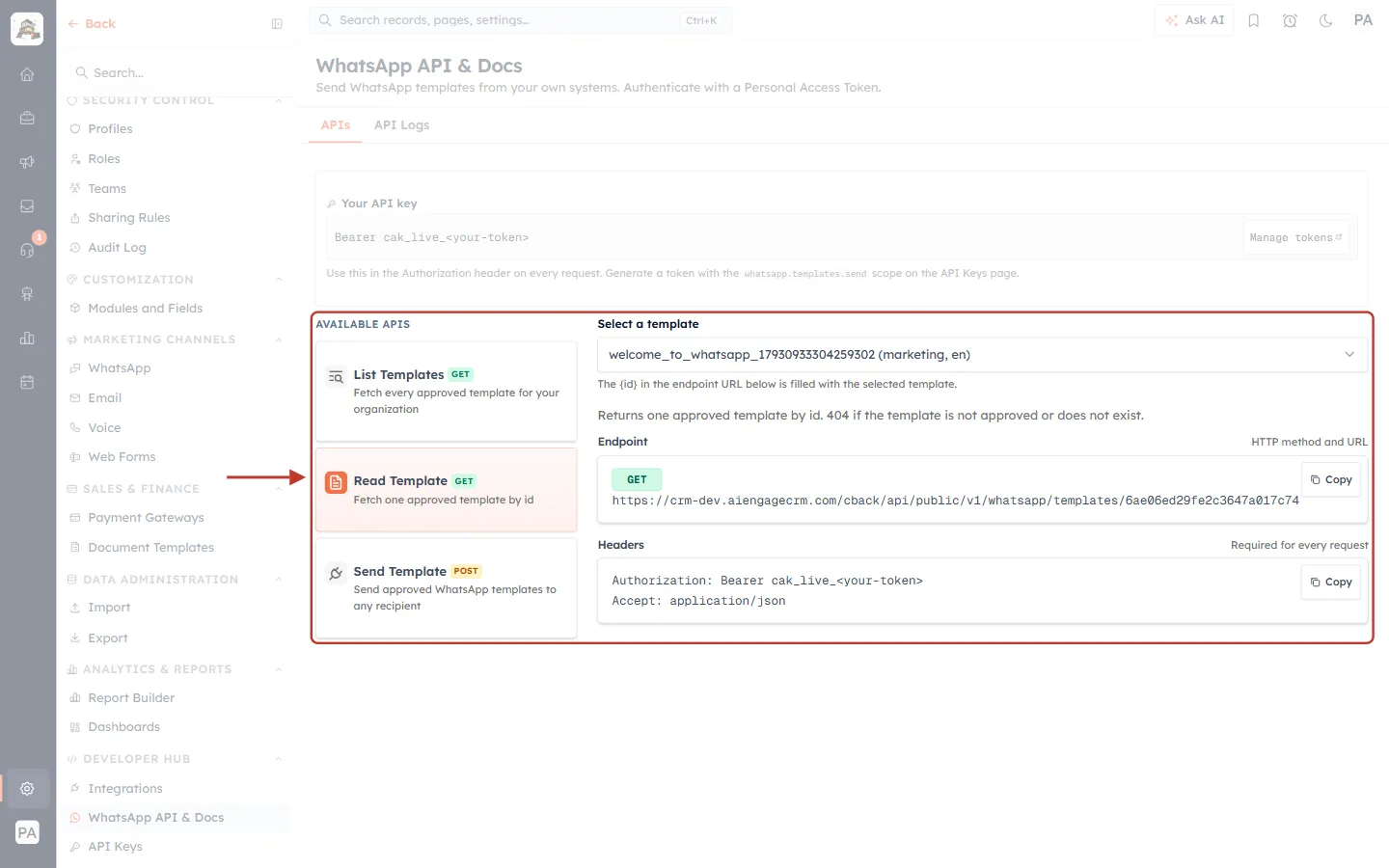
What this screenshot shows. The Read Template card selected, with its details ringed.
Select a template — a drop-down of your approved templates, showing name, category and language, e.g. “welcome_to_whatsapp_… (marketing, en)”.
“The {id} in the endpoint URL below is filled with the selected template” — so the URL already contains the right template id.
“Returns one approved template by id. 404 if the template is not approved or does not exist.”
Endpoint: GET
…/whatsapp/templates/<template id>, plus the same Headers.
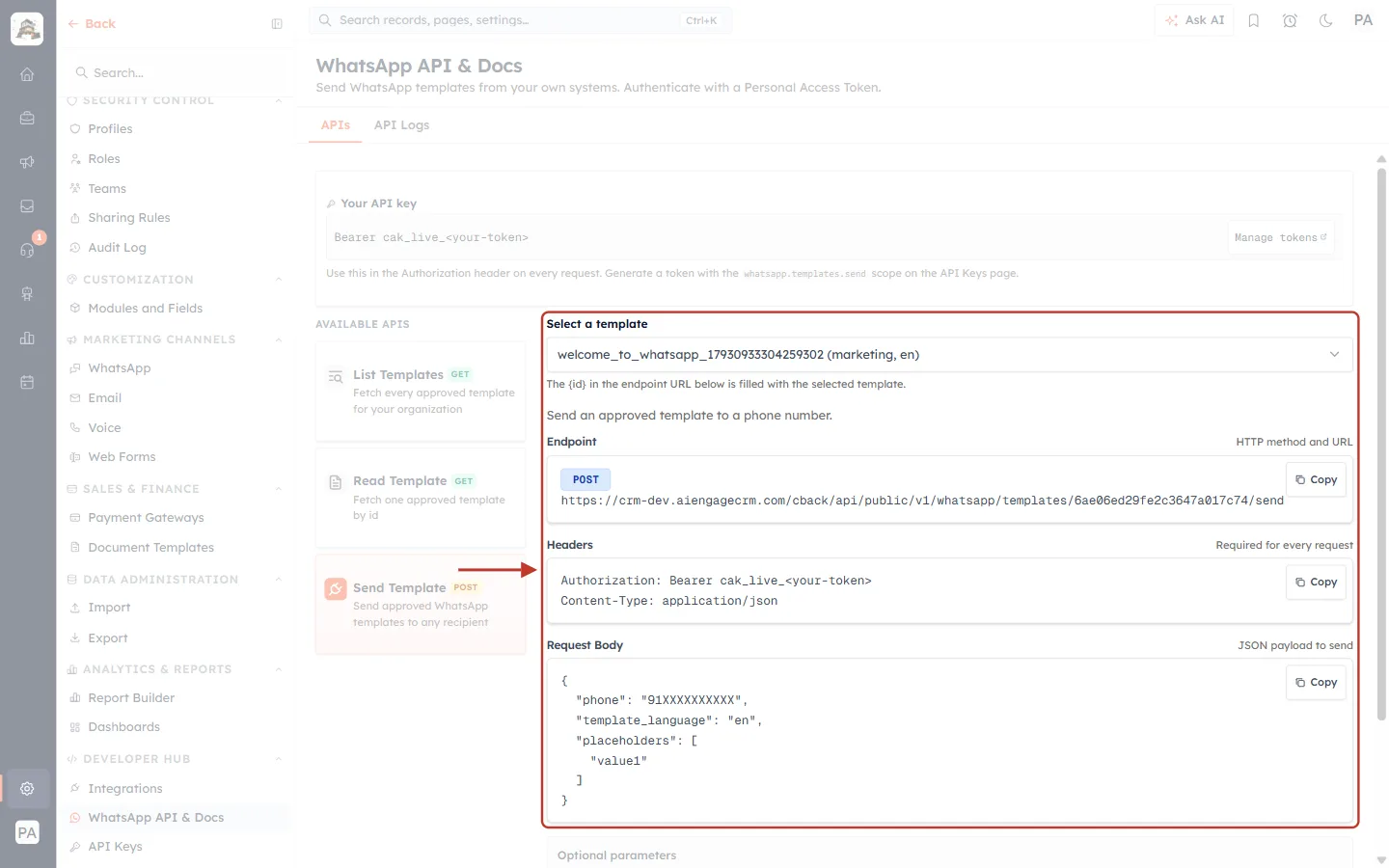
What this screenshot shows. The Send Template card selected, with the template picker, endpoint, headers and request body ringed.
Select a template — pick the template to send; its id is placed in the URL.
“Send an approved template to a phone number.”
Endpoint: POST
…/whatsapp/templates/<template id>/send.Headers:
Authorization: Bearer …andContent-Type: application/json.Request Body:
phone(with country code, e.g.91XXXXXXXXXX),template_language(e.g.en) andplaceholders(a list of values). Click Copy on each box to paste it into your code or Postman.
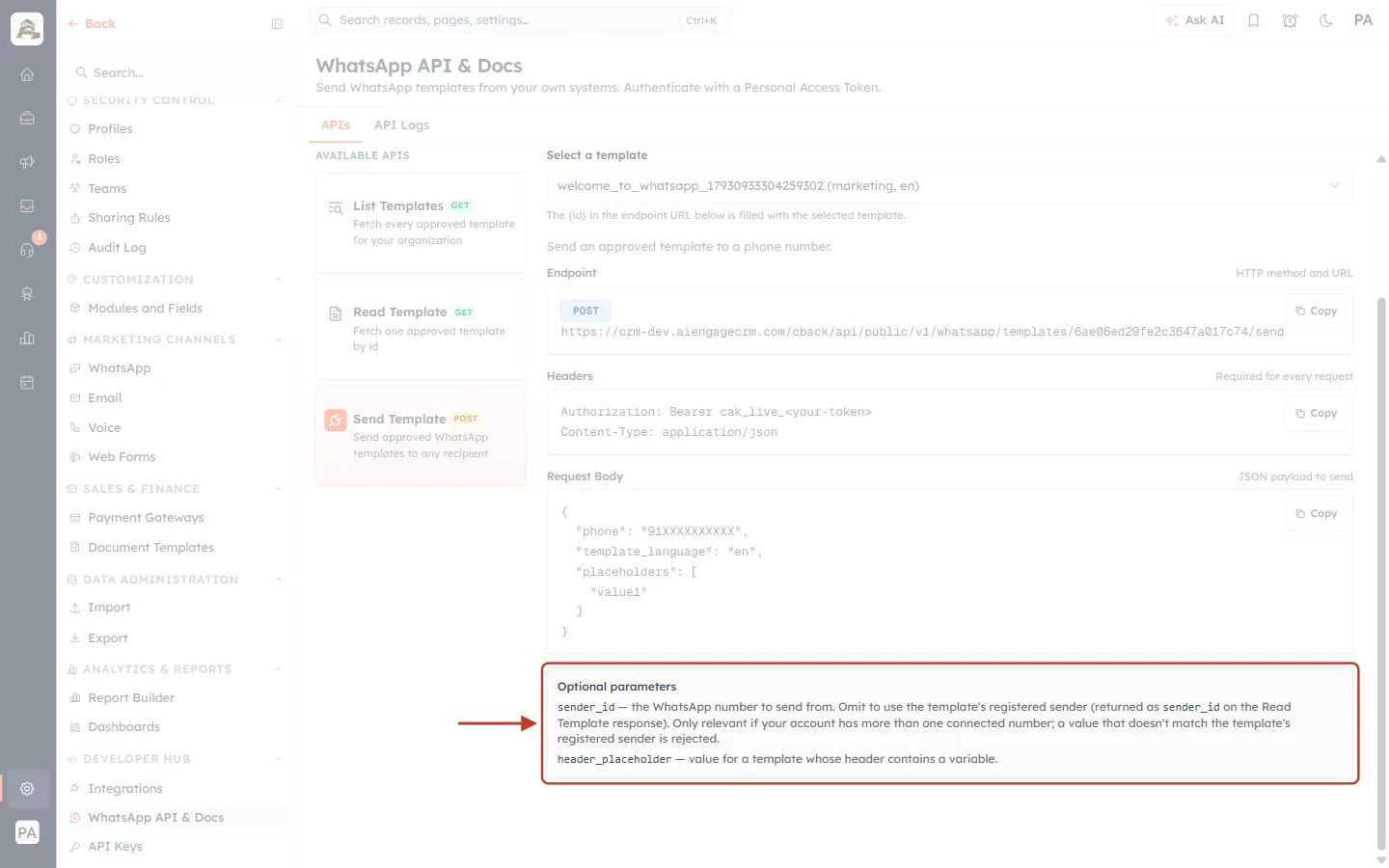
What this screenshot shows. Further down, the Optional parameters box, ringed.
sender_id— the WhatsApp number to send from. Omit it to use the template’s registered sender (returned assender_idby Read Template). It only matters if your account has more than one connected number, and a value that does not match the template’s registered sender is rejected.header_placeholder— the value for a template whose header contains a variable (for example a text header or a media link).
Step 4: Find the Template Id and Read Its Placeholders#
To send, you need the template’s id and the order of its placeholders. Open developer.aiengagecrm.com, paste your token once in Paste your key here, and open the WhatsApp group in the left menu.
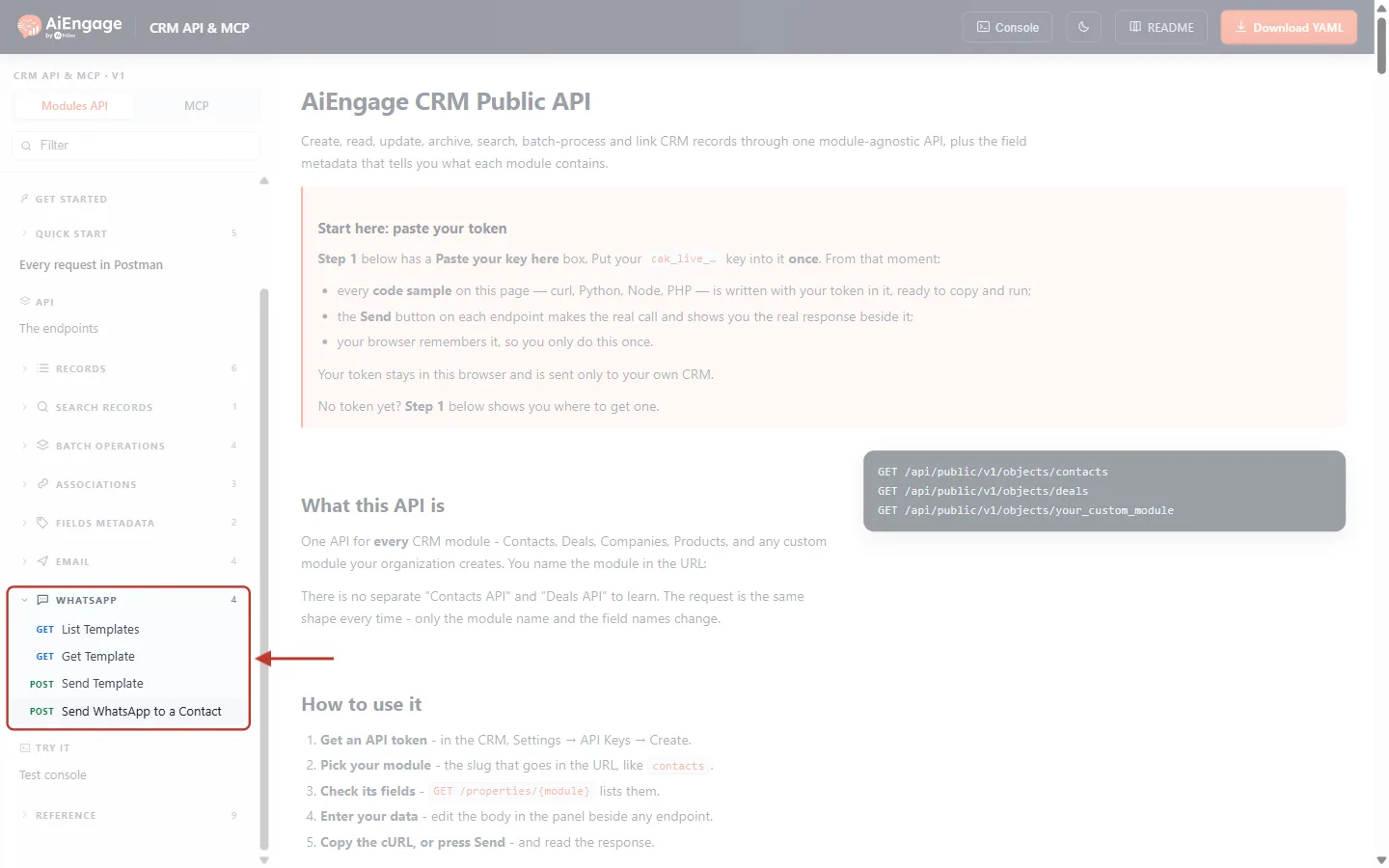
What this screenshot shows. The developer portal’s left menu with the WHATSAPP group opened and ringed.
GET List Templates, GET Get Template, POST Send Template and POST Send WhatsApp to a Contact. The number 4 is the number of endpoints.
Above is the EMAIL group; below are the Test console and the Reference.
Click List Templates and press Send. This call only reads, so it is always safe.
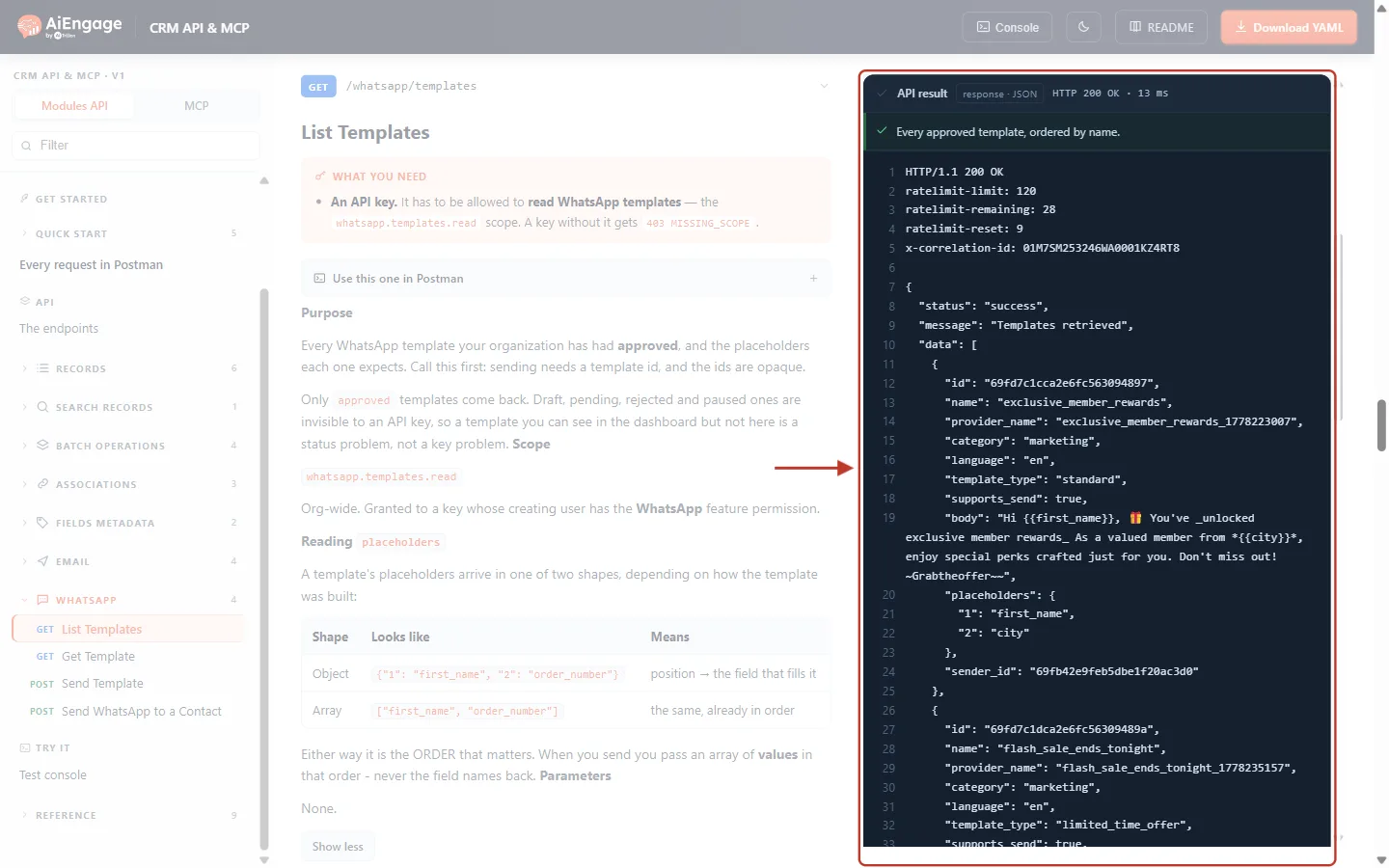
What this screenshot shows. The API result of GET /whatsapp/templates, ringed: HTTP 200, “Templates retrieved”.
The first lines are the headers:
ratelimit-limit,ratelimit-remaining,ratelimit-resetand thex-correlation-id.datais a list of templates, ordered by name. Each has anid(what you send with), aname, aprovider_name(the name registered with WhatsApp), acategory, alanguageand atemplate_type(standard,carousel,limited_time_offer…).supports_sendis alwaystrue: every approved template type can be sent through the API.bodyis the template text, andplaceholderstells you which value goes in which slot.
Copy the id of your template, then open Get Template, put the id in the URL parameter, and press Send:
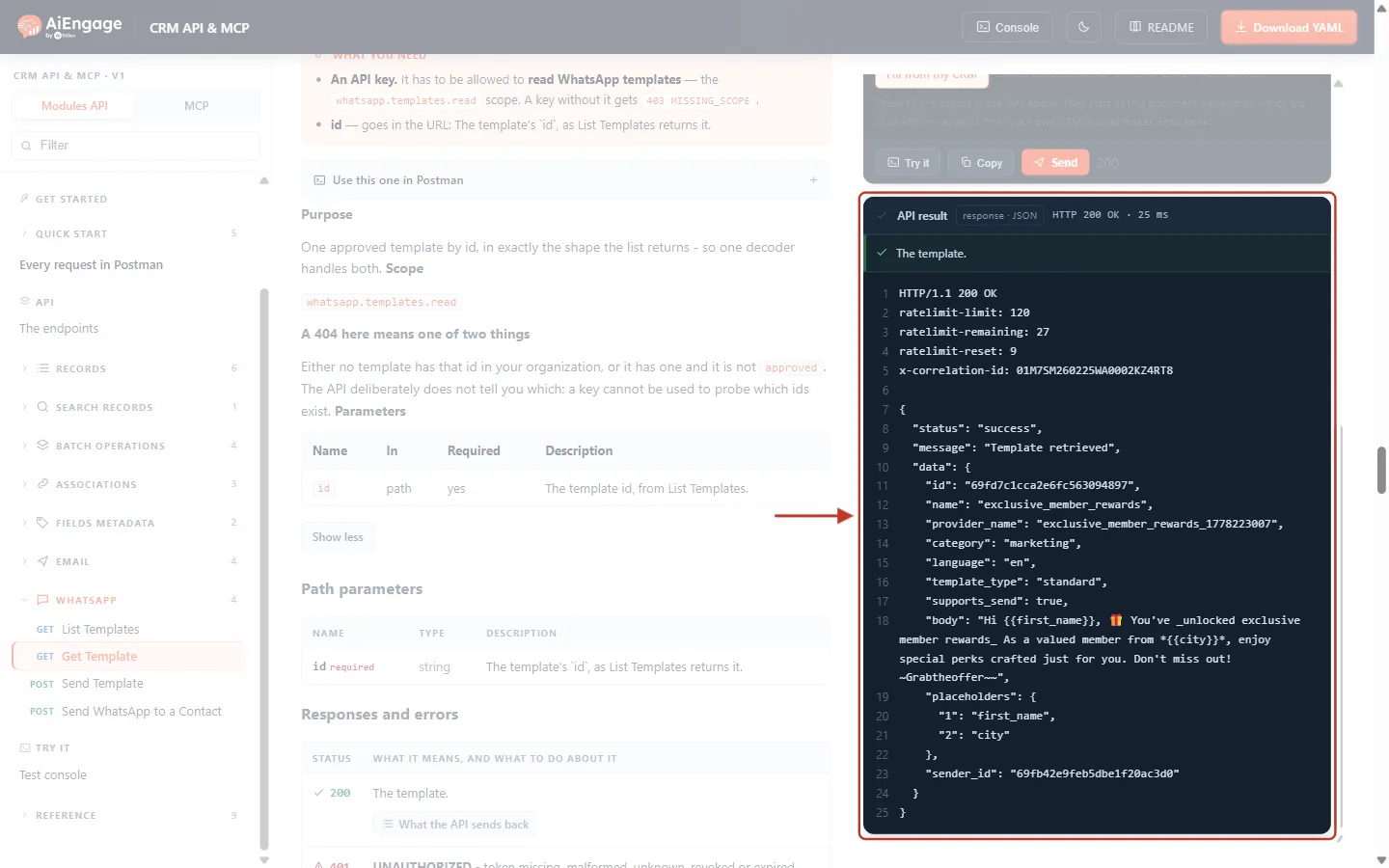
What this screenshot shows. The API result of GET /whatsapp/templates/69fd7c1cca2e6fc563094897, ringed: the template exclusive_member_rewards.
"category": "marketing","language": "en","template_type": "standard".body: “Hi {{first_name}}, 🎁 You’ve unlocked exclusive member rewards. As a valued member from *{{city}}* …”.placeholders:{"1": "first_name", "2": "city"}— slot 1 is the first name and slot 2 is the city. When you send, you pass the values in this order, e.g.["Ada", "Mumbai"]— never the field names.sender_idis the WhatsApp number this template is registered under. You normally leavesender_idout when sending.On the left, the description explains that a 404 means the id does not exist or the template is not approved — the API deliberately does not say which.
ℹ️
placeholders can come in two shapes: an object such as {"1": "first_name", "2": "city"}, or a list such as ["first_name", "city"]. Either way, it is the order that matters.Step 5: Send a Template to a Phone Number#
Use Send Template when you just have a phone number — for example a one-time code or a notification to someone who may not be in your CRM.
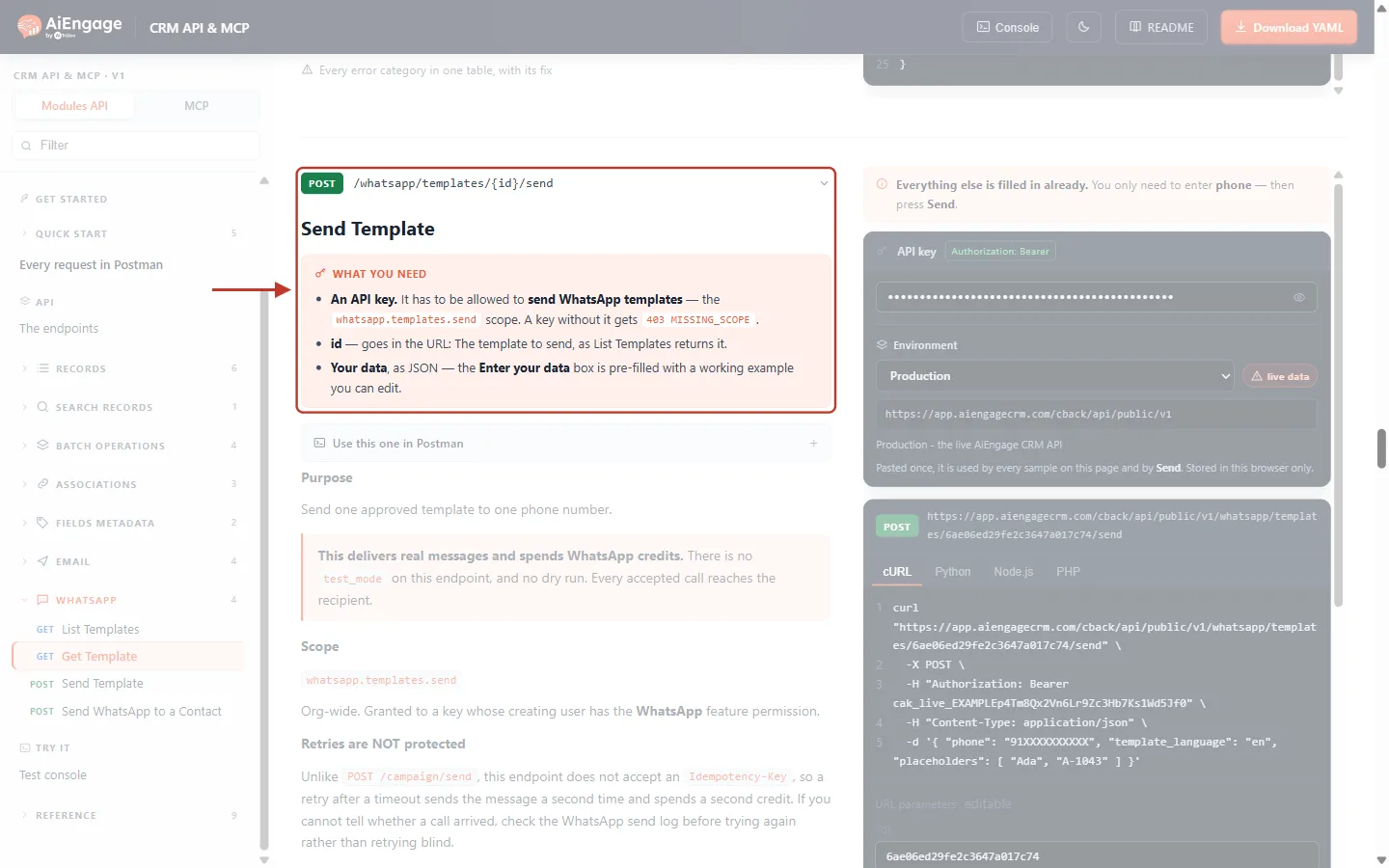
What this screenshot shows. The top of Send Template, ringed: POST /whatsapp/templates/{id}/send and the WHAT YOU NEED box.
An API key allowed to send WhatsApp templates — the
whatsapp.templates.sendscope; without it you get403 MISSING_SCOPE.id — goes in the URL: the template to send, as List Templates returns it.
Your data, as JSON, in the Enter your data box.
Below, the pink note “This delivers real messages and spends WhatsApp credits. There is no test_mode on this endpoint, and no dry run.”
Further down: Retries are NOT protected — this older endpoint does not accept an Idempotency-Key, so a blind retry sends twice.
In the Send panel, enter the template id in the URL parameter, then fill in the body:
{
  "phone": "+91 98765 43210",
  "template_language": "en",
  "placeholders": [
    "Ada",
    "Mumbai"
  ]
}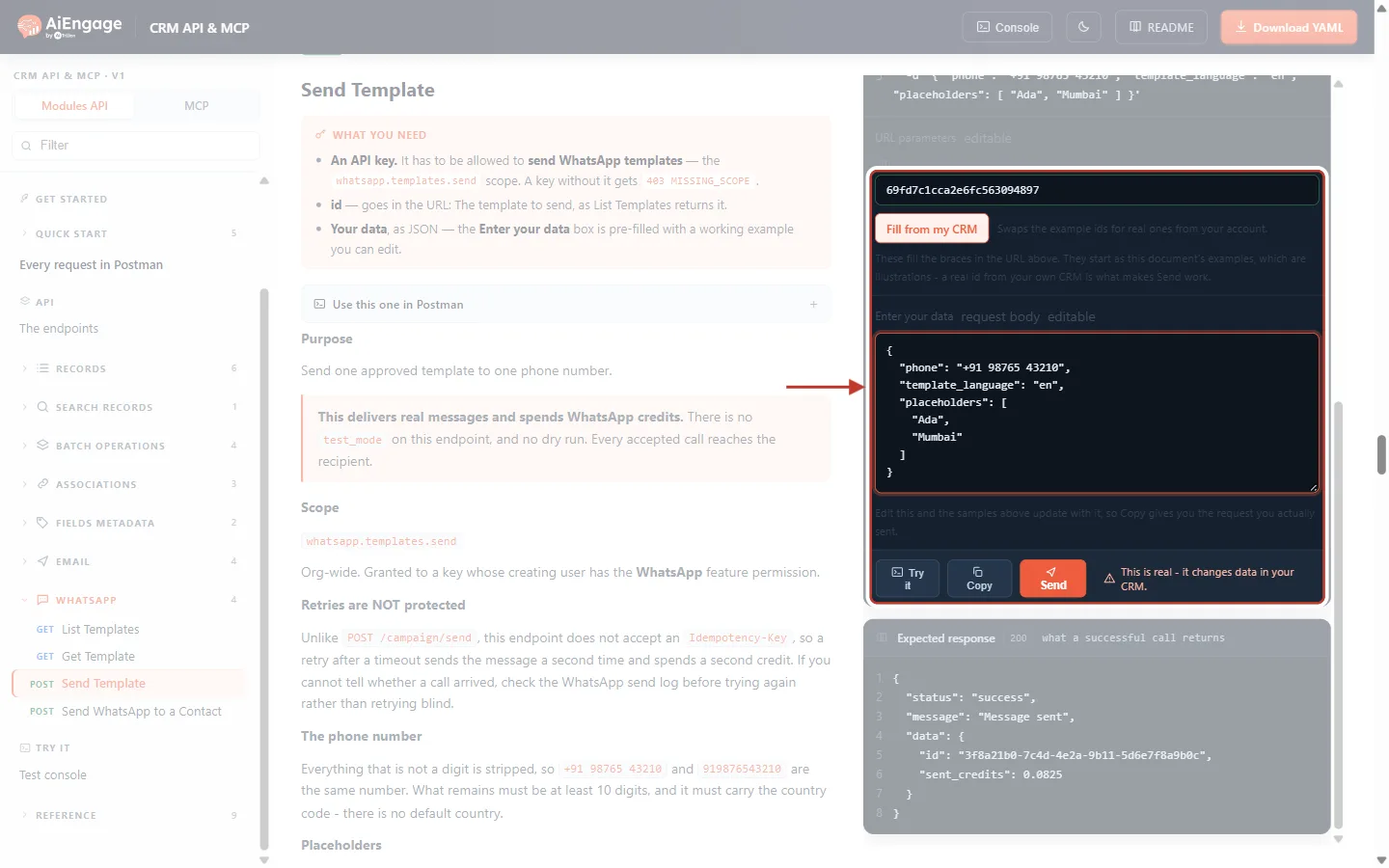
What this screenshot shows. The Send panel with the template id and the request body, ringed.
The top box is the URL parameter — the template id. Fill from my CRM swaps the example ids for real ones from your account.
phone— the recipient with country code. Spaces, “+” and dashes are removed automatically, so+91 98765 43210and919876543210are the same. At least 10 digits must remain.template_language— optional; defaults to the template’s own language.placeholders— the values for slot 1 and slot 2, in order: “Ada” and “Mumbai”.The warning next to Send says “This is real - it changes data in your CRM.” Pressing Send here delivers a real message.
Below, Expected response shows what a successful call returns.
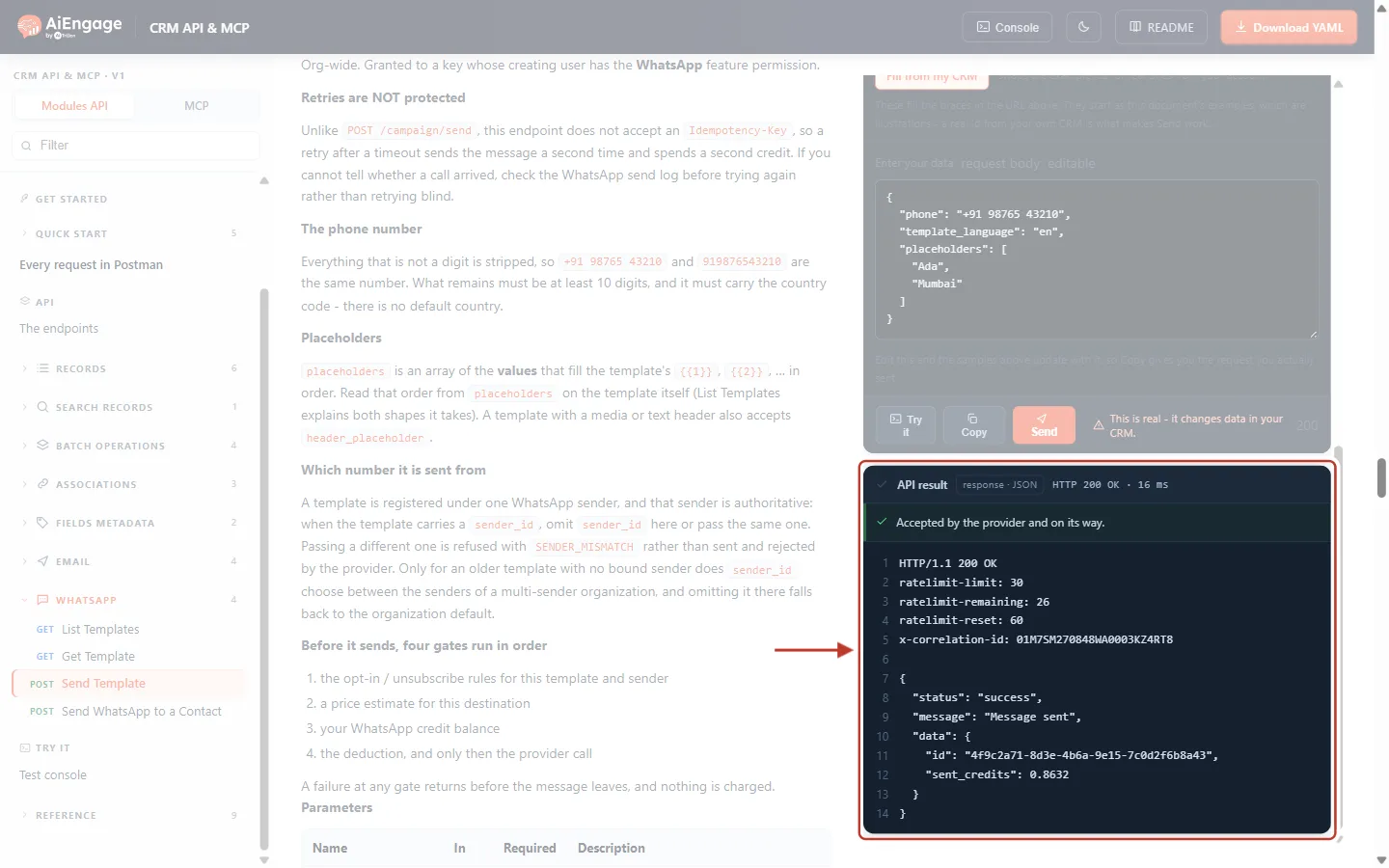
What this screenshot shows. The API result of a successful send, ringed: HTTP 200, "message": "Message sent".
The green bar: “Accepted by the provider and on its way.”
data.idis the WhatsApp message id. Keep it to match delivery updates and to look the message up in API Logs.data.sent_creditsis how many WhatsApp credits this message cost. The price depends on the template category and the recipient’s country.The headers show the send limit:
ratelimit-limit: 30per minute for WhatsApp sends.
Before the message leaves, four checks run in order: the opt-in / unsubscribe rules, a price estimate for the destination, your credit balance, and only then the deduction and the provider call. If any check fails, nothing is sent and nothing is charged. If WhatsApp’s provider refuses the message, the credits are returned.
⚠️
Because this endpoint has no Idempotency-Key, a retry after a timeout can send the message twice and charge twice. If you are unsure whether a call arrived, check API Logs (Step 7) before retrying — or use Send WhatsApp to a Contact, which does support safe retries.
Step 6: Send a Template to a Contact#
Use Send WhatsApp to a Contact (POST /whatsapp/send) when the recipient is someone your CRM should know. It sends the same message, but also:
Looks the phone number up in your Contacts, and creates a contact if it is new.
Fills the placeholders from the contact’s fields — you can leave
placeholdersout completely.Adds the send to the contact’s timeline.
Requires an
Idempotency-Keyheader, so a retry with the same key never sends twice.
Here the template id goes in the body, and an optional contact object gives the fields to create or update the contact with:
{
  "phone": "+91 98765 43210",
  "template_id": "69fd7c1cca2e6fc563094897",
  "contact": {
    "first_name": "Ada",
    "last_name": "Lovelace",
    "city": "Mumbai"
  }
}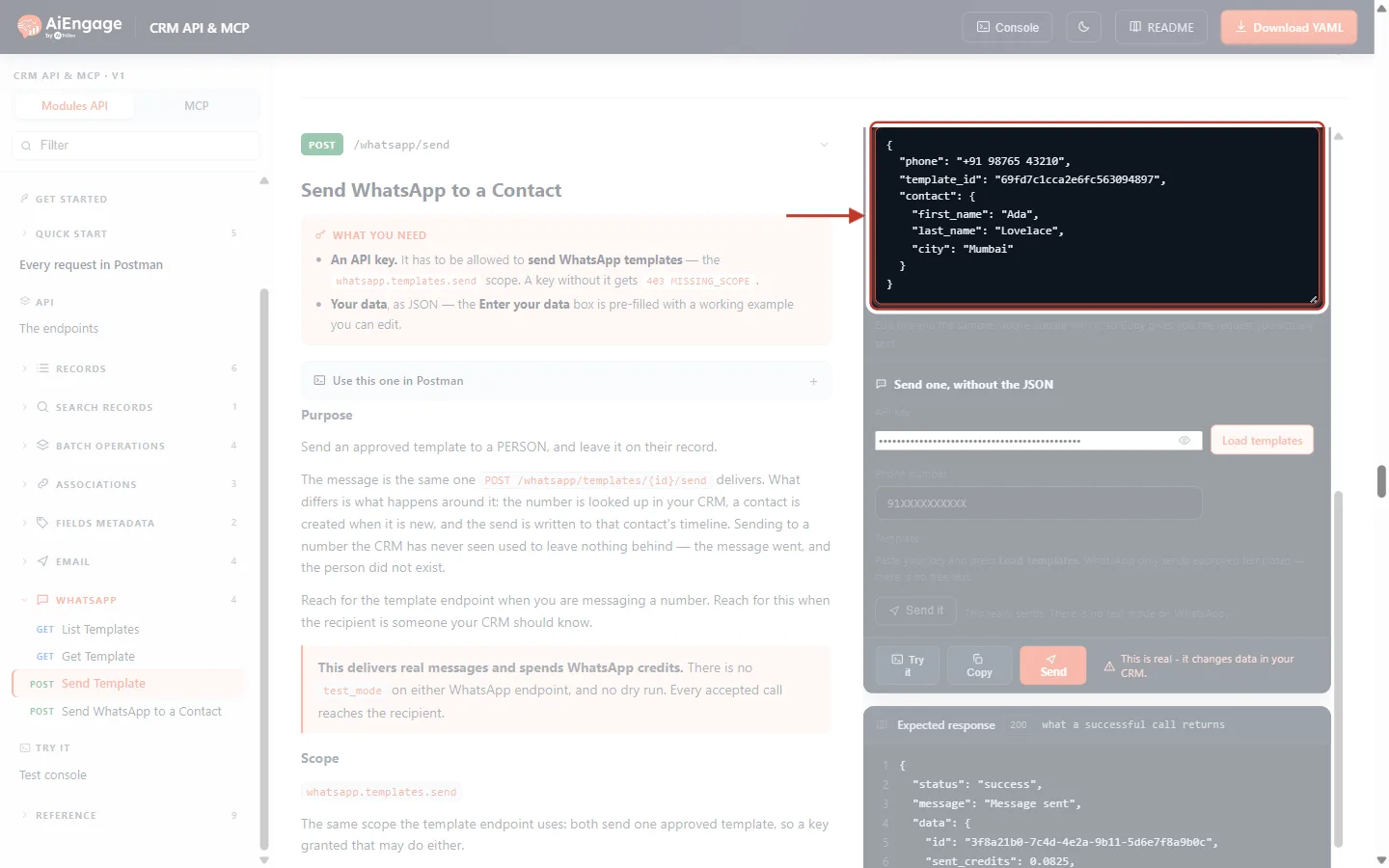
What this screenshot shows. The Send WhatsApp to a Contact endpoint with the request body ringed.
phone— the person’s number with country code (the same cleaning rules as Step 5).template_id— the template to send.contact— optional contact fields (use the API names from Fields Metadata). If the contact is new, they are created with these values; if they exist, these fields are updated. Without a name, a new contact is named after the phone number.No
placeholdersare sent: slot 1 (first_name) and slot 2 (city) are filled from the contact.On the left, the description repeats that there is no test mode and that an Idempotency-Key is required. Below the body, Send one, without the JSON offers a simple form (API key, phone number, template) for a quick send.
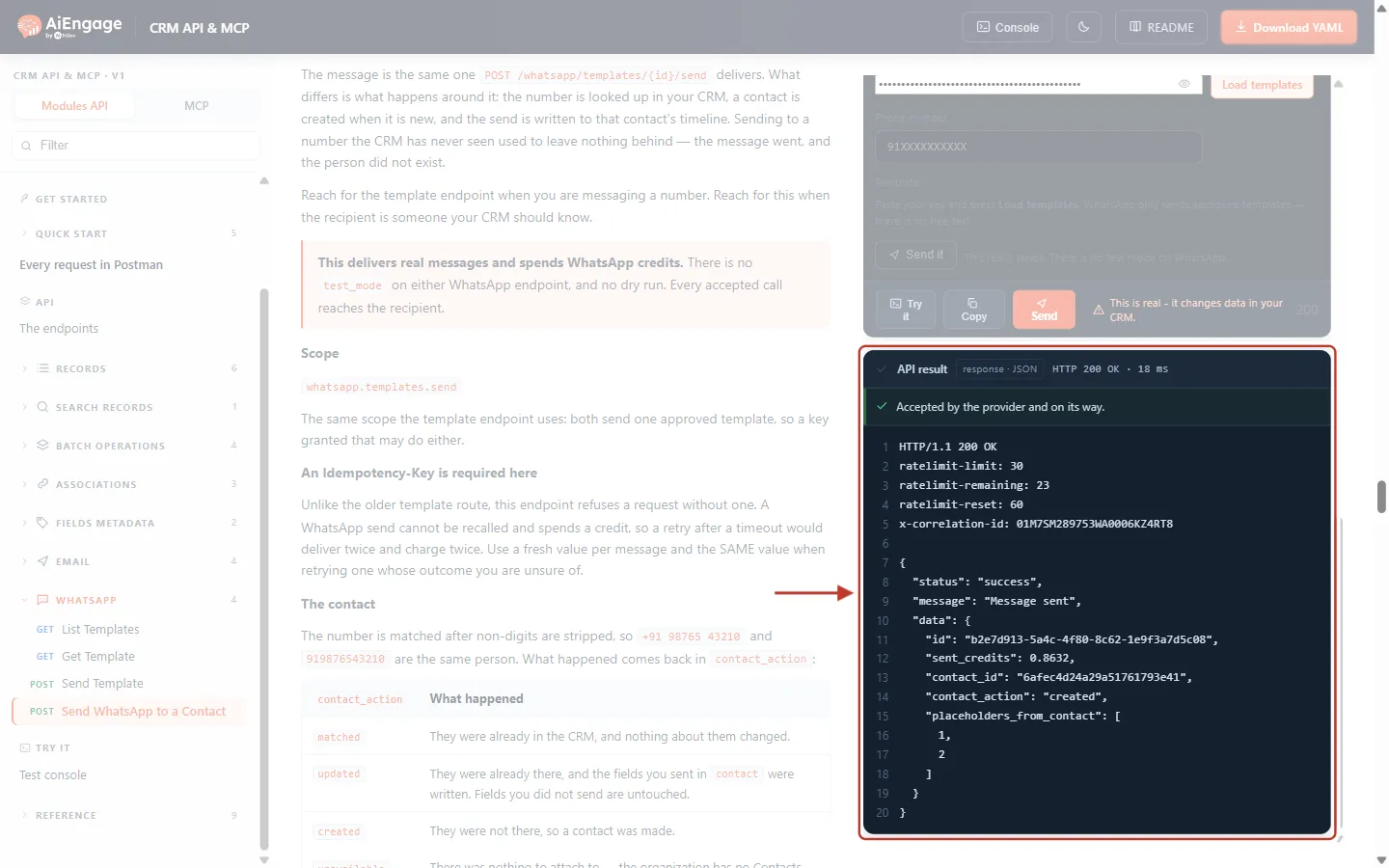
What this screenshot shows. The API result of a successful contact send, ringed: HTTP 200, “Message sent”.
idandsent_credits— the same as Step 5.contact_id— the CRM contact the message was sent to.contact_action— what happened to the person:created(new contact),matched(already there, unchanged),updated(already there, yourcontactfields were written) orunavailable(no Contacts module; the message is still sent).placeholders_from_contact:[1, 2]— slots 1 and 2 were filled from the contact’s fields.
Placeholder rules for this endpoint:
Anything you do send wins, slot by slot. For example
"placeholders": ["", "A-1043"]lets the contact fill slot 1 and uses your value for slot 2.A slot the contact has no value for is sent empty, never as a literal
{{2}}.The contact is found or created before sending, so even if the send is then refused (for example no credits), the contact stays — your next attempt finds the same record.
If several contacts share the number, the oldest one is used.
Read more about safe retries in Idempotency Keys & Safe Retries: Prevent Duplicate Records and Double Sends in the CRM API.
Step 7: Check Your Sends in API Logs#
Every message sent through the API is listed in the CRM. Go to Setup → Developer Hub → WhatsApp API & Docs and open the API Logs tab.
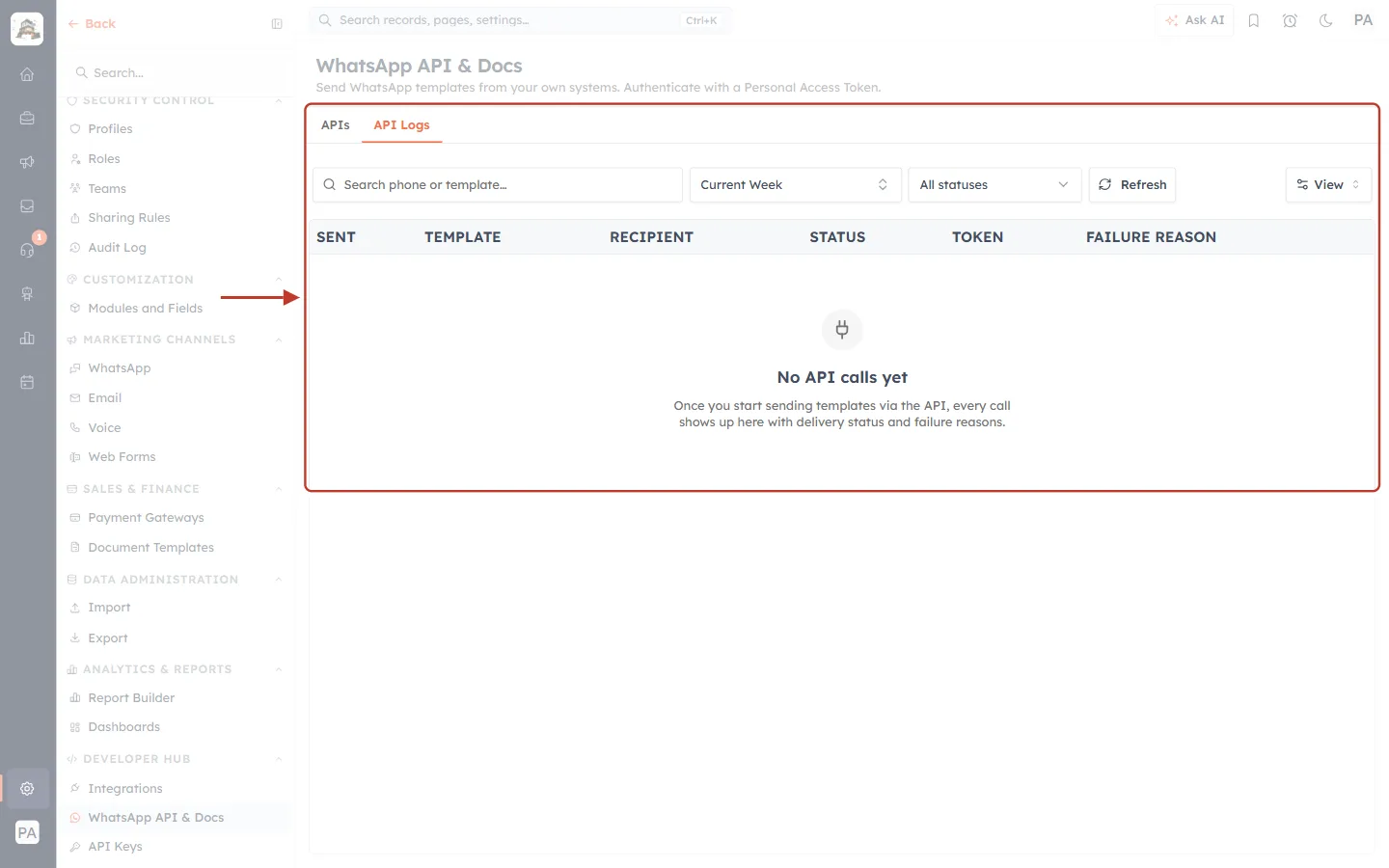
What this screenshot shows. The API Logs tab, ringed. In this demo account no API sends have been made yet, so it shows its empty state.
Search phone or template… finds a send by recipient number or template name.
Current Week sets the date range, All statuses filters by delivery status, Refresh reloads the list and View chooses the columns.
The columns: SENT (date and time), TEMPLATE, RECIPIENT (phone number), STATUS (delivery status), TOKEN (which API key sent it) and FAILURE REASON (why a send failed).
The empty state says: “No API calls yet — Once you start sending templates via the API, every call shows up here with delivery status and failure reasons.”
ℹ️
An API send also appears in the WhatsApp inbox if a conversation with that number already exists. A one-off API send never starts a new inbox chat; if the customer replies, the conversation is created and your message is shown in it.
Step 8: Fix the Common Errors#
400 INVALID_PHONE — the phone number is too short#
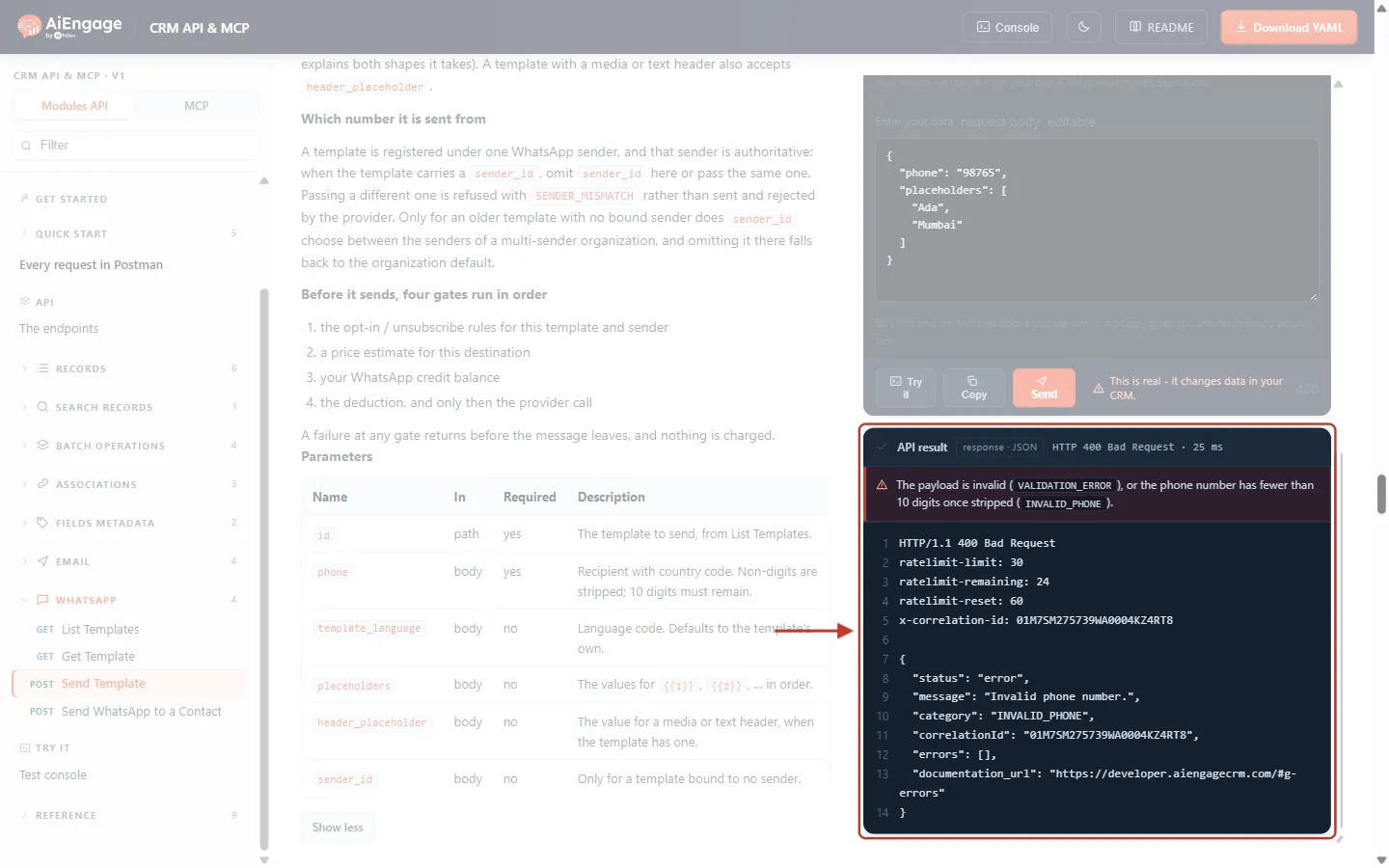
What this screenshot shows. The API result for "phone": "98765", ringed: HTTP 400 Bad Request.
"message": "Invalid phone number.","category": "INVALID_PHONE".The red bar explains: fewer than 10 digits remain once spaces and symbols are removed.
Fix: send the full number with country code, e.g.
919876543210. If thephonefield is missing entirely you getVALIDATION_ERRORwith “The phone field is required.”
404 TEMPLATE_NOT_FOUND — wrong id or not approved#
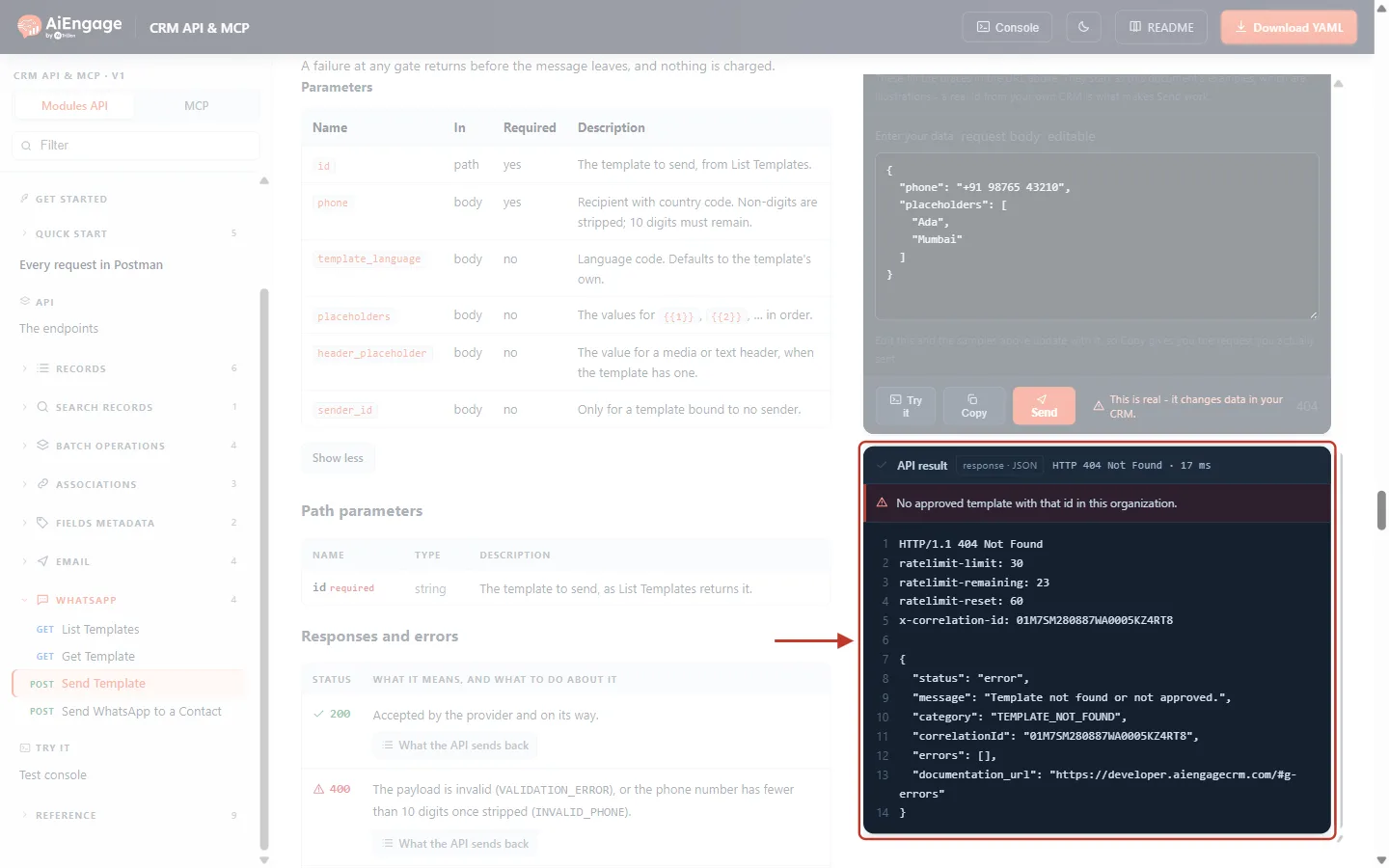
What this screenshot shows. The API result for a template id that does not exist, ringed: HTTP 404 Not Found.
"message": "Template not found or not approved.","category": "TEMPLATE_NOT_FOUND".Fix: copy the id again from List Templates. If the template is in the CRM, check that its status is Approved (Step 1).
All errors at a glance#
Code | HTTP | What it means | What to do |
|---|---|---|---|
| 400 | A field is missing or malformed (e.g. no |
|
| 400 | Fewer than 10 digits after cleaning. | Use the full number with country code. |
| 400 | No Idempotency-Key on | Send a unique key per message. |
| 401 | Token missing, malformed or revoked. | Check the Authorization header. |
| 402 | Not enough WhatsApp credits. The response shows | Top up WhatsApp credits. |
| 403 | The key lacks the WhatsApp Read or Send scope. | Generate a key with the right scope (Step 2). |
| 404 | Unknown id, or the template is not approved. | Check the id and the status. |
| 422 | The recipient has not opted in or has unsubscribed for this template. | Only message people who agreed to receive it. |
| 422 |
| Leave |
| 422 | Several WhatsApp numbers and the template has no registered sender. | Pass |
| 422 | The sender is not connected (or no longer connected). | Reconnect it, or choose another sender. |
| 422 | No WhatsApp number is connected. | Connect WhatsApp in Setup. |
| 422 | No price could be found for the destination. | Check the country code; contact support if it persists. |
| 429 | More than 30 sends per minute or 2,000 per day for this key. | Wait |
| 502 | WhatsApp’s provider refused the message. Credits are returned. | Read the message; check the template and number. |
More on every status code in API Errors & Troubleshooting: Fix 400, 401, 403, 404, 409, 429 and 500 Errors Step by Step.
Step 9: Call the API from Your Own Code#
Send a template to a phone number with cURL:
curl "https://app.aiengagecrm.com/cback/api/public/v1/whatsapp/templates/69fd7c1cca2e6fc563094897/send" \
  -X POST \
  -H "Authorization: Bearer cak_live_YOUR_TOKEN" \
  -H "Content-Type: application/json" \
  -d '{ "phone": "919876543210", "placeholders": ["Ada", "Mumbai"] }'
Send to a contact from Node.js, with a safe retry:
import { randomUUID } from 'crypto';

async function whatsappContact(phone, templateId, contact) {
  const key = randomUUID();                 // one key per message, reused on retries
  for (let attempt = 1; attempt <= 3; attempt++) {
    const res = await fetch('https://app.aiengagecrm.com/cback/api/public/v1/whatsapp/send', {
      method: 'POST',
      headers: {
        Authorization: `Bearer ${process.env.AIENGAGE_TOKEN}`,
        'Idempotency-Key': key,
        'Content-Type': 'application/json',
      },
      body: JSON.stringify({ phone, template_id: templateId, contact }),
    });
    const json = await res.json();
    if (res.ok) return json.data;           // { id, sent_credits, contact_id, contact_action, ... }
    if (res.status === 429) { await new Promise(r => setTimeout(r, Number(res.headers.get('retry-after') || 60) * 1000)); continue; }
    if (res.status >= 500) continue;        // safe: same Idempotency-Key
    throw new Error(`${json.category}: ${json.message}`); // 4xx: fix the request
  }
  throw new Error('WhatsApp not sent after 3 attempts');
}
ℹ️
Keep your token on your server, never in a web page or mobile app. Anyone with the token can send WhatsApp messages that spend your credits.
Troubleshooting#
Problem | Likely cause | Solution |
|---|---|---|
My template is missing from List Templates. | It is not Approved (Draft, pending, rejected or paused). | Check its status in Marketing → Templates → WhatsApp; use Sync All to refresh. |
The message arrived with empty parts. | A placeholder value was missing, or (contact send) the contact has no value for that field. | Pass all placeholder values in order, or fill the contact’s fields. |
The customer received the message twice. | A timed-out call to Send Template was retried. | Check API Logs before retrying, or use Send WhatsApp to a Contact with an Idempotency-Key. |
OPT_IN_REQUIRED for a customer. | They have not opted in, or unsubscribed from WhatsApp marketing. | Respect their choice; use a template category they agreed to. |
The send does not show in the inbox. | There was no existing conversation with that number. | Expected. It appears in API Logs, and in the inbox once the customer replies. |
SENDER_REQUIRED. | Your account has several WhatsApp numbers and the template has no registered sender. | Pass |
Best Practices#
Test with your own number first — there is no test mode.
Prefer Send WhatsApp to a Contact for customers: it keeps your CRM up to date and supports safe retries.
Read placeholders from Get Template in your code instead of hard-coding their order; templates can change.
Store the message
idwith your order or ticket so you can find the send in API Logs.Use the right category. Utility and authentication templates suit receipts, reminders and codes; marketing templates need marketing opt-in.
Watch your credits. Each send reports
sent_credits; plan for402 INSUFFICIENT_CREDITSin your code.
Frequently Asked Questions#
Can I send a free-text WhatsApp message through the API?
No. WhatsApp only allows businesses to start conversations with approved templates, so every API send names a template.
Is there a test mode?
No. Every accepted call is a real message and uses credits. Send to your own number while testing.
Which number does the message come from?
From the WhatsApp number the template is registered under (its sender_id). You only need sender_id for an older template with no registered sender in an account with several numbers.
Can I send carousel or limited-time-offer templates?
Yes. Every approved template type can be sent; supports_send is always true.
Does Send Template add anything to my CRM?
No, it only sends the message (it is listed in API Logs). Use Send WhatsApp to a Contact if the send should be on a contact’s timeline.
How fast can I send?
Up to 30 send calls per minute and 2,000 per day for each key.
Previous and Next Articles#
Previous: Send Transactional Email with the CRM API (SMTP-Style)
Next: API Errors & Troubleshooting: Fix 400, 401, 403, 404, 409, 429 and 500 Errors Step by Step
Related Articles#
API Keys Step by Step: Generate, Use and Revoke a Personal Access Token
Fields Metadata API: List a Module’s Fields, Their Types, Required Rules and Picklist Values
Idempotency Keys & Safe Retries: Prevent Duplicate Records and Double Sends in the CRM API
API Rate Limits & Quotas: Understand the Limits, Read the Headers and Handle 429 Errors
Was this article helpful?
Ready to implement this?
OpenAI Engage and apply what you just learned to your own workspace.
Open AI Engage CRM