Loading…


KnowledgeBase
Marketing Channel Credits & Auto-Recharge
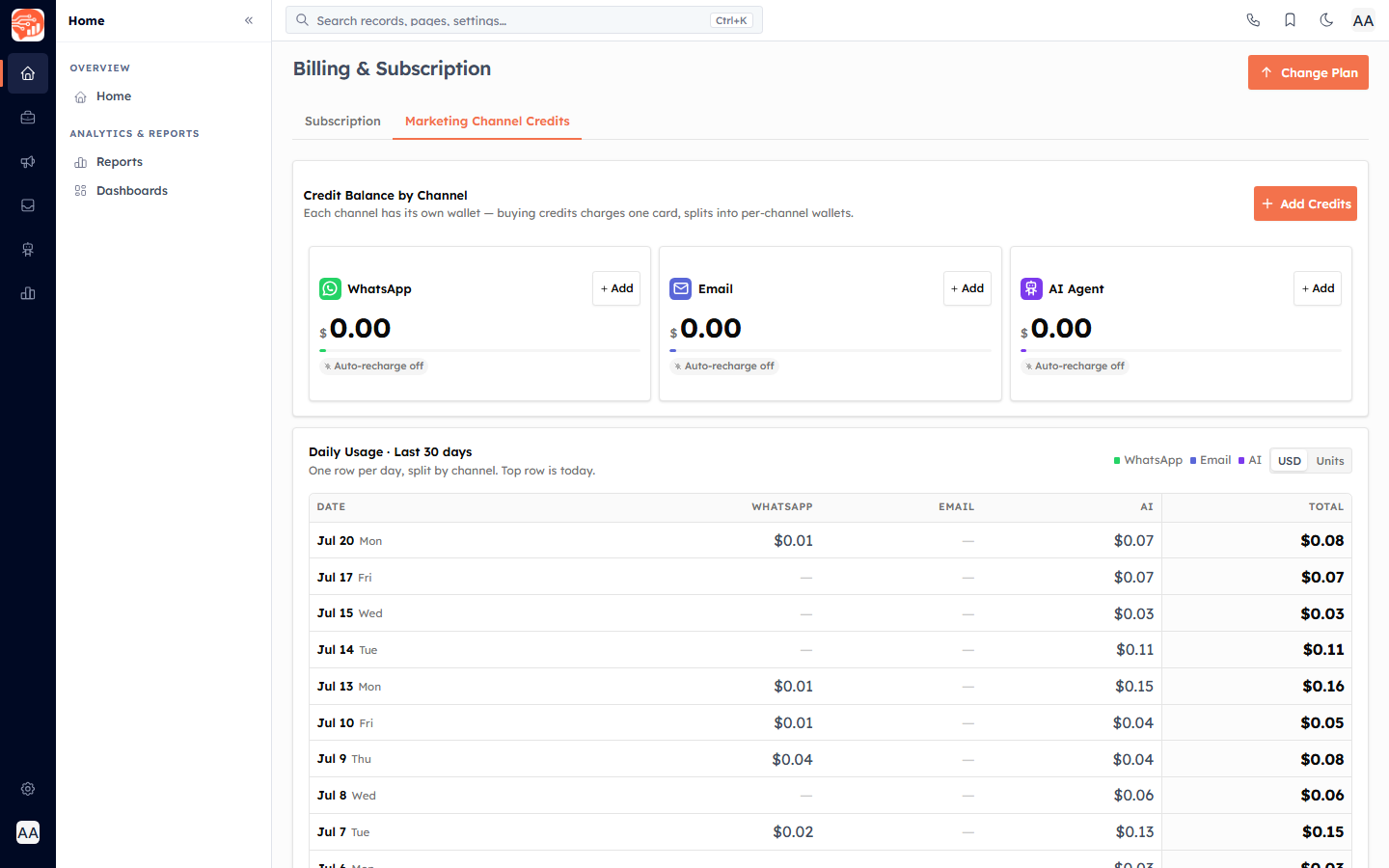
Your organization pays for outbound marketing using per-channel credit wallets. Each channel keeps its own balance, and every message you send draws down that channel's wallet. Everything lives on the Marketing Channel Credits tab of your billing page: top up credits, watch daily usage, review a credit log of every top-up and refund, and set up automatic recharges. Buying credits charges one card and splits the amount into the per-channel wallets you chose.
Before you start#
Adding credits and changing auto-recharge is a billing action. The Add Credits button and the per-channel Add buttons only appear for users whose profile has the manage billing permission — typically the organization owner and admins. Everyone else can view balances and usage but cannot buy credits or edit auto-recharge.
💡
Open Billing → Marketing Channel Credits. The tab opens on Credit Balance by Channel, followed by the daily usage table and the credit log.
The channels you can buy credits for#
Three channels are live today, each billed at the rate shown in the Add Credits dialog:
WhatsApp — charged per message (the dialog shows a rate of $0.012/msg).
Email — charged per email (shown as $0.0008/email).
AI Agent — Usage-based, drawn down as the agent works.
Only WhatsApp, Email, and AI Agent wallets can be topped up today. Other channels (SMS, Voice / IVR, RCS, Push) are on the roadmap and are hidden until they go live.
Read a channel card#
Each channel card in the Credit Balance by Channel grid shows the same set of signals:
Available balance — the remaining credit in that wallet, shown in dollars to two decimals.
Usage bar — a thin progress bar comparing what is left against what you have spent in the last 30 days.
Low balance — an amber warning appears when a channel drops below $5 so you can top up before sends fail.
Auto-recharge pill — either shows your recharge amount and threshold, or reads Auto-recharge off.
Add — opens the Add Credits dialog focused on topping up.
Add credits#
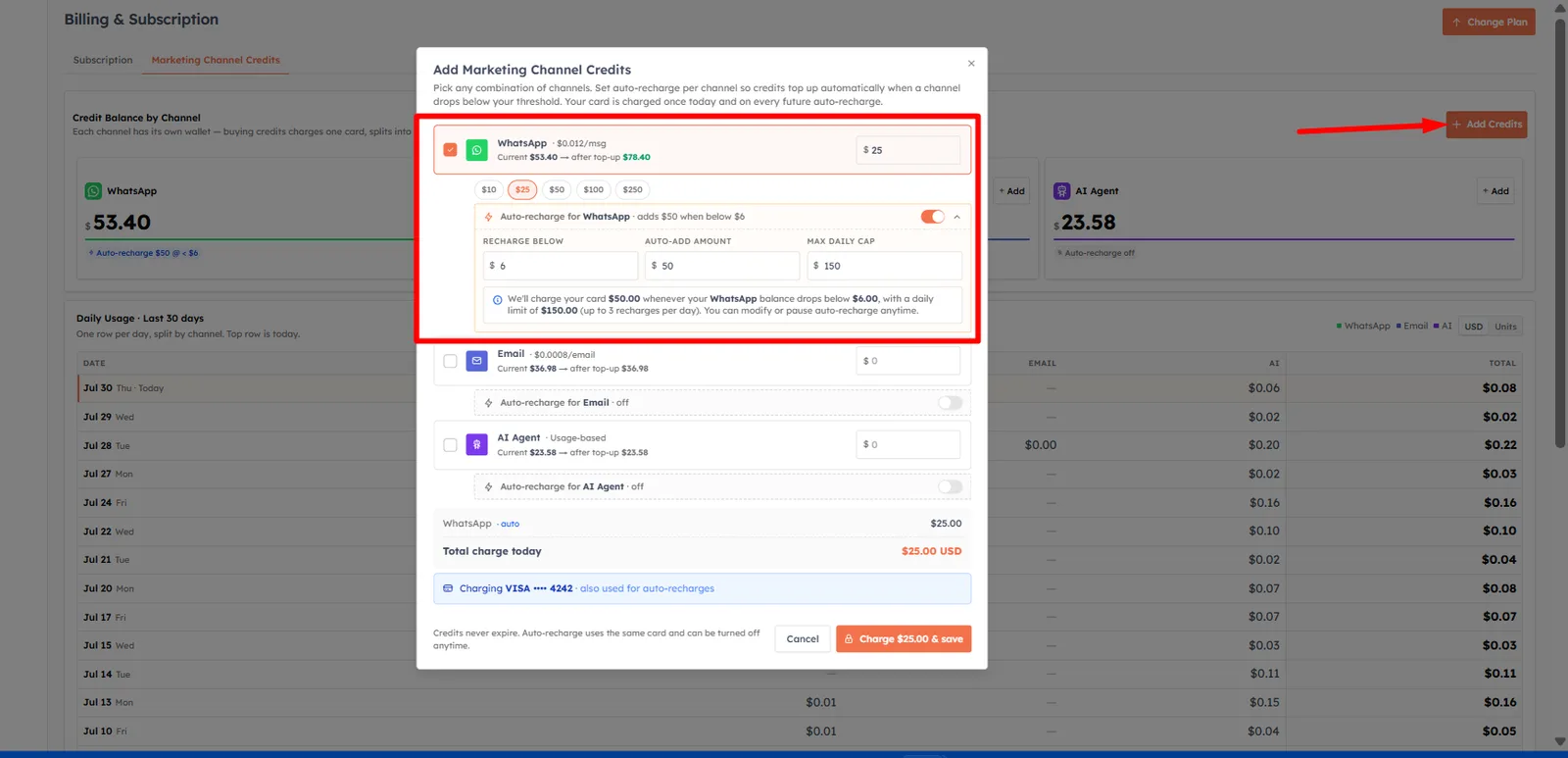
Click Add Credits (top-right of the balance card) or Add on any channel. The Add Marketing Channel Credits dialog opens.
Tick one or more channels. Ticking a channel seeds an amount of $25, which you can change.
Type a dollar amount, or click a quick-pick chip: $10, $25, $50, $100 or $250. Each channel line previews the current balance and the balance after top-up.
Review the summary. It lists each selected channel and a Total charge today in USD. There is no tax row.
Confirm your card in the blue banner (or click Add Card if none is on file), then click Charge $X & save.
Your card is charged once. For cards that need extra authentication (for example, the India eMandate flow), you may be asked to confirm before the top-up completes. On success, you see Charged $X successfully.
✅
Credits never expire, and the same card is reused for any future auto-recharge. You can change or turn off auto-recharge at any time.
Set up auto-recharge#
Every purchasable channel row in the dialog has its own expandable auto-recharge panel. Turn on the switch and set three values:
Recharge below — the threshold balance that triggers a top-up (defaults to $20).
Auto-add amount — how much to add each time (defaults to $50).
Max daily cap — the most that can be auto-added to that channel in a single day (defaults to $150).
The panel spells out the result, for example: we will charge your card the auto-add amount whenever that channel's balance drops below your threshold, up to the number of recharges the daily cap allows. You can save auto-recharge changes on their own — if you have not entered any top-up amount, the button reads Save settings and no charge is made today.
⚠️
Auto-recharge uses the card on file and runs unattended. Set the Max daily cap deliberately — it is your ceiling on how much a single busy day can charge.
Daily usage, last 30 days#
The Daily Usage · Last 30 days table shows one row per day (today at the top), split by channel with a Total column. Use the USD / Units toggle to switch between dollars spent and message counts. Only days with real spend are listed, so a quiet stretch simply does not appear. Before you have sent anything, the panel reads No usage yet.
The credit log#
The Credit Log records every top-up, refund and auto-reload across all channels. Columns are Date, Description, Channels, By (a person shows as User; automatic entries show as System), and Amount — credits are green with a plus sign, deductions and refunds are red. Change the page size with the Rows selector (10, 20 or 50) and page through with the arrows.
Related#
Email Credits — managing your email sending balance in depth.
WhatsApp Credits — managing your WhatsApp messaging balance.
AI Credits & Pricing — how AI Agent usage is metered and billed.
Was this article helpful?
Ready to implement this?
OpenAI Engage and apply what you just learned to your own workspace.
Open AI Engage CRM