Loading…


KnowledgeBase
Change Your Plan: Upgrade, Downgrade & Yearly Billing
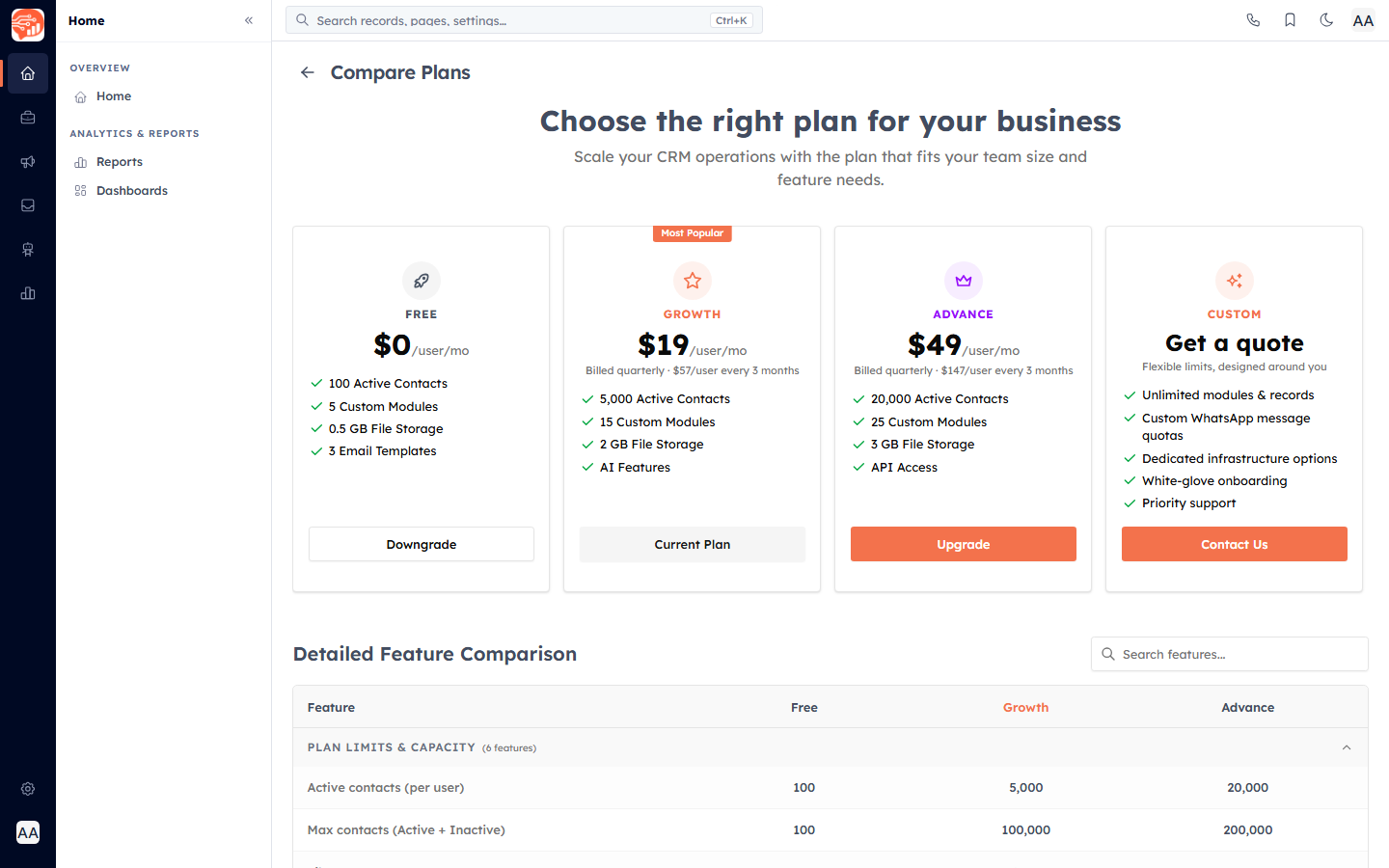
The Compare Plans page is where you move between plans. It shows every plan as a card, a searchable feature-comparison table, and — depending on your situation — a monthly/yearly billing choice. Upgrades and downgrades each run through their own guided dialog so you always see what will be charged, or what needs fixing, before you commit.
Before you start#
Changing plans is restricted to users whose profile has the manage billing permission (the organization owner and admins). Everyone else sees an information banner reading that only organization owners and admins can change plans, and the action buttons are hidden. This is a profile-level permission — there is no separate owner override.
💡
Open the page from the Change Plan button on Billing & Subscription, or go straight to Compare Plans. Organizations still on the Free plan are taken here automatically.
Monthly vs yearly billing#
A Monthly / Yearly toggle appears only for first-time subscribers (organizations currently on Free) and for paid organizations that need to activate or reactivate. It carries a Save up to X% badge, and the upgrade dialog notes yearly billing as 2 months free. Organizations with a live paid subscription do not see this toggle — switching an existing subscription's cycle is handled by the support team on request rather than self-serve.
Read the plan cards#
Plans are laid out left to right in order, with the current one marked and a Most Popular badge on the recommended tier. Each card shows the per-user price for the chosen cycle plus a short list of highlights. If more cards exist than fit on screen, left/right arrows let you scroll. A final Custom card reads Get a quote and its Contact Us button opens the sales page — it is not a self-serve plan.
Each card's button reflects what the change would be:
- Current Plan — your active plan (not clickable).
- Upgrade — a higher tier; opens the upgrade dialog.
- Downgrade — a lower tier; opens the downgrade dialog.
- Activate / Reactivate — shown on your current plan when there is no live subscription (a lapsed or never-activated paid plan).
The feature comparison table#
Below the cards, Detailed Feature Comparison lays every plan out column by column. Sections such as Plan Limits & Capacity and CRM Core & Data Model are collapsible; the first two are open by default. Type in Search features… to filter — matching sections expand automatically, and a tick or a dash shows whether each plan includes a feature, with numeric limits shown as values.
Upgrading#
Choosing a higher plan opens the Upgrade to … dialog. What happens next depends on whether you already have a live subscription:
- Free to paid (or activating a lapsed plan): the dialog collects card details through the secure Stripe card form, or offers one-tap pay if a card is already on file. The button reads Pay $X with the real first-invoice amount.
- Paid to paid: the dialog fetches a proration preview and shows Prorated charge today — the difference charged to your card on file. Click Confirm Upgrade to apply it.
On success the plan updates immediately and you are returned to the billing page to manage seats.
✅
After upgrading, set how many people can use the workspace — see Manage Seats & Per-User Billing.
Downgrading#
Downgrading is a two-step, safety-checked flow. The first screen warns that the lower plan may reduce your available limits and that your current usage will be checked first. When you continue, the system runs a pre-check:
- If your usage fits the new plan, the change proceeds.
- If it does not, the dialog switches to Action Required and lists each conflict — what you currently have versus what the target plan allows — often with a link to go and resolve it (for example, reducing records or seats). Fix the items, then click Resolve & Retry.
⚠️
You cannot downgrade past your real usage. If you are over the lower plan's limits, clear the conflicts listed under Action Required first — the check must pass before the plan will change.
Good to know#
- Prices on the cards and dialogs are pulled live from your account, so they always reflect your organization's actual pricing and cycle.
- The yearly option is a first-time-subscriber choice; existing paid subscriptions keep their stored cycle.
- For an overview of your current plan, invoices and payment method, see Billing & Subscription.
Was this article helpful?
Ready to implement this?
OpenAI Engage and apply what you just learned to your own workspace.
Open AI Engage CRM