Loading…


KnowledgeBase
How to Cancel Your Subscription (and What Happens Next)
The cancellation page lets you tell us why you want to leave and, depending on the reason, offers a way to fix the problem instead. It is important to understand one thing up front: submitting this form files a request. Nothing is cancelled the moment you click submit — the team receives your request, your subscription stays active in the meantime, and someone follows up with you.
Before you start#
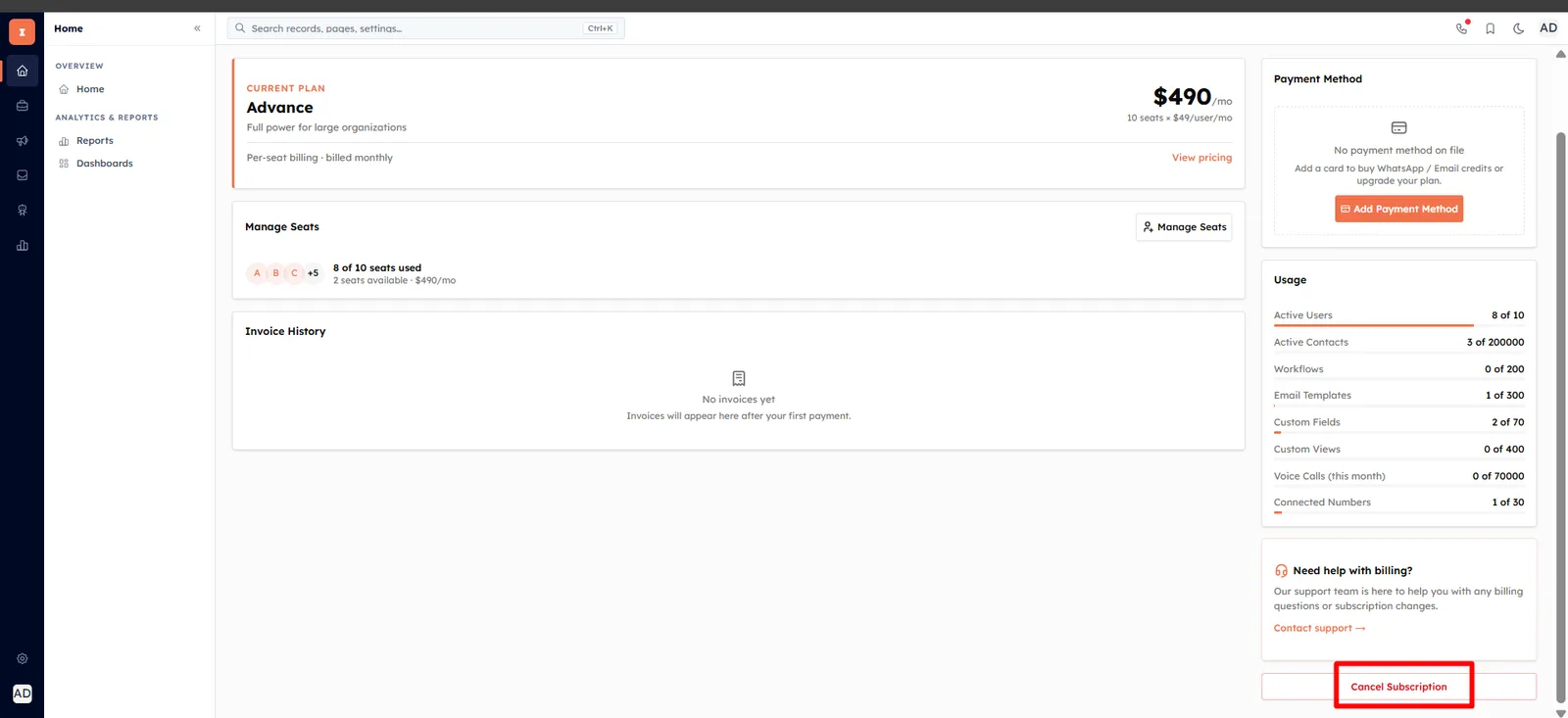
Cancellation is a billing action, so the page is only actionable for users whose profile has the manage billing permission (owner and admins). The Cancel Subscription entry point appears on the billing page only for paid organizations; users without permission see a note that only organization owners and admins can manage the subscription, and the submit button is disabled.
💡
Reach it from the Cancel Subscription button at the bottom of Billing & Subscription, which opens Cancel Subscription.
What the page shows#
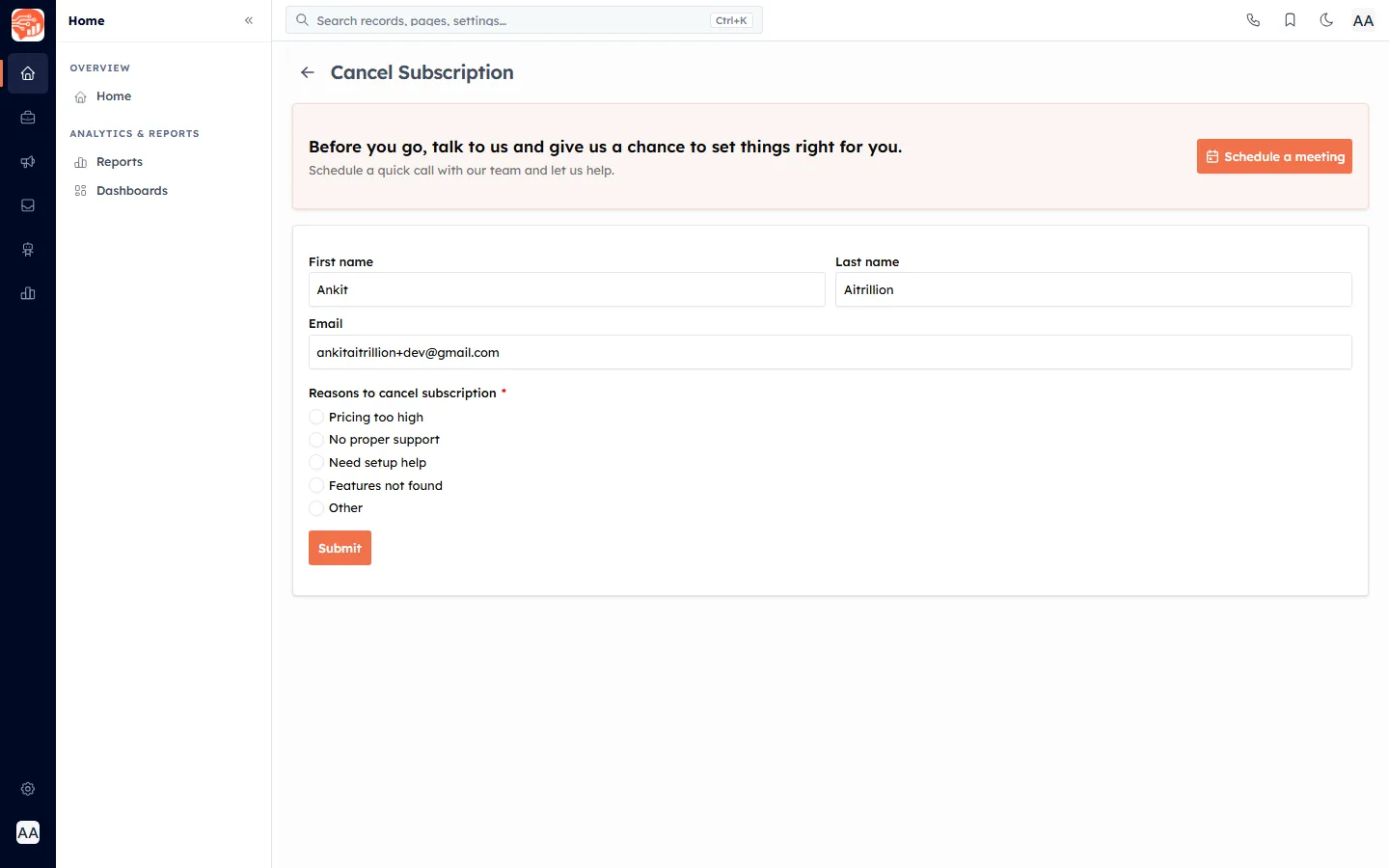
At the top, a retention banner headed Before you go, talk to us and give us a chance to set things right for you. invites you to Schedule a meeting — a button that opens the support site in a new tab. Below it, a form pre-fills your first name, last name and email (all read-only, taken from your profile) and asks you to pick a required reason before you can submit.
Choose a reason#
Pick one of the five reasons. Each one behaves a little differently:
Pricing too high — on submit, opens a retention offer (see below). No free-text is required.
No proper support — opens a support modal where you can write a message directly to the Founder.
Need setup help — opens a setup-help modal with a link to the Knowledge Base and a message box.
Features not found — reveals an inline box to describe the feature you needed.
Other — reveals an inline box to describe your reason.
⚠️
For every reason except Pricing too high, your written explanation must be at least 10 characters. Anything shorter is rejected with Please describe in at least 10 characters.
The retention offers#
Discount offer (Pricing too high) — a modal offers 10% off for the next 3 months. Click Accept offer to stay: you are told the discount will be automatically added to your account within 24 hours. Or click No thanks, I still want to cancel to submit the cancellation request anyway.
Message the Founder (No proper support) — a modal headed We're here to assist you! links to support and the Knowledge Base and lets you write a message directly to the Founder.
Setup help (Need setup help) — a modal headed Need setup help! links to the Knowledge Base and lets you send the team a message.
Submit the request#
Select your reason.
Complete any modal or inline description that appears (minimum 10 characters where required).
Click Submit (or Accept offer to take the discount instead).
You land on a Request received confirmation: the team will reach out shortly and your subscription remains active in the meantime. Use Back to Billing to return.
✅
Because this files a request rather than cancelling instantly, you keep full access while the team follows up — there is no risk of losing data the moment you submit.
Good to know#
The form never cancels anything on its own — the request is recorded server-side and emailed to the team for follow-up.
Each modal has its own Cancel button, and while a request is being submitted the modals stay open so you never lose your message mid-send.
Your name and email are taken from your profile and cannot be edited on this form.
To review what you are paying before deciding, see Billing & Subscription.
Was this article helpful?
Ready to implement this?
OpenAI Engage and apply what you just learned to your own workspace.
Open AI Engage CRM