Loading…


KnowledgeBase
Organization Settings
Where to find it#
Open Setup → General → Organization Settings. This page manages your company’s identity, contact details, address, and currency. Editing it requires the Manage Organization permission. Click Save changes to apply edits (you’ll be warned if you try to leave with unsaved changes).
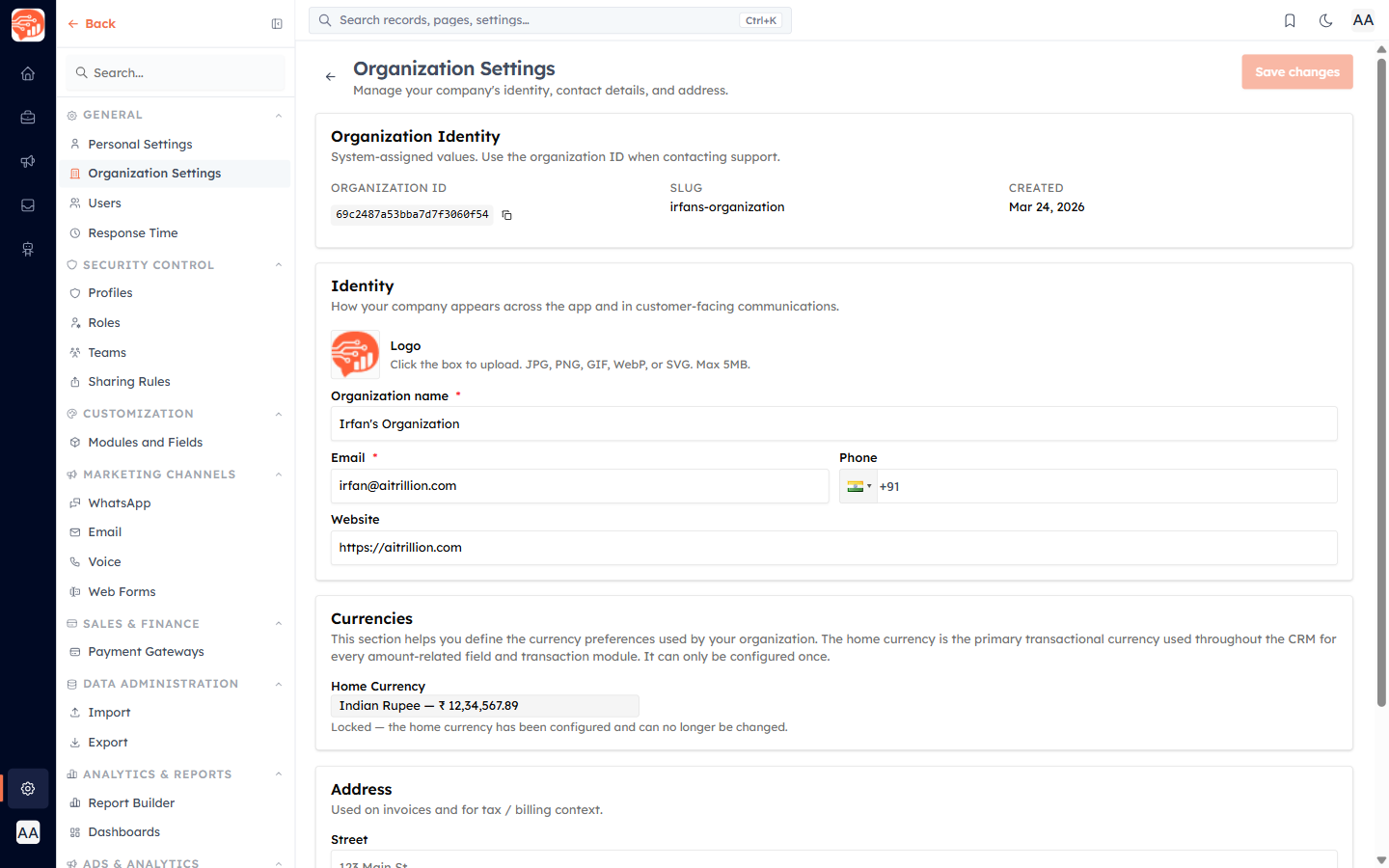
Identity#
- Organization ID, Slug, and Created date — system-assigned and read-only. Quote the Organization ID when you contact support.
- Logo — click to upload (JPG, PNG, GIF, WebP, or SVG, max 5 MB); it appears across the app and on customer-facing documents.
- Organization name (required), Email (required), Phone, and Website.
Address#
Street, Country (required), State/Province, City, and Postal code. This address is used on invoices and for tax/billing context.
Home currency — configure once#
⚠️
The home currency is the primary currency used for every amount field and transaction across the CRM. It can be set only once and cannot be changed afterwards.
In the Currencies card you either confirm the suggested currency with Yes, Confirm Home Currency, or click Change Home Currency to pick the currency and its display format:
- Currency — e.g. Indian Rupee (INR), US Dollar (USD), Euro (EUR)…
- Code or Symbol (e.g. INR vs ₹), Symbol Position (before/after), Digit Separators (1,234,567.89 vs 12,34,567.89), and Decimal Places (0–3) — with a live preview.
Confirm to lock it in. Once locked, the field shows "Locked — the home currency has been configured and can no longer be changed."
🔗
For the full step-by-step, see Set Your Home Currency in the Quotes & Invoices collection.
Was this article helpful?
Ready to implement this?
OpenAI Engage and apply what you just learned to your own workspace.
Open AI Engage CRM