Loading…


KnowledgeBase
Manage Seats & Per-User Billing
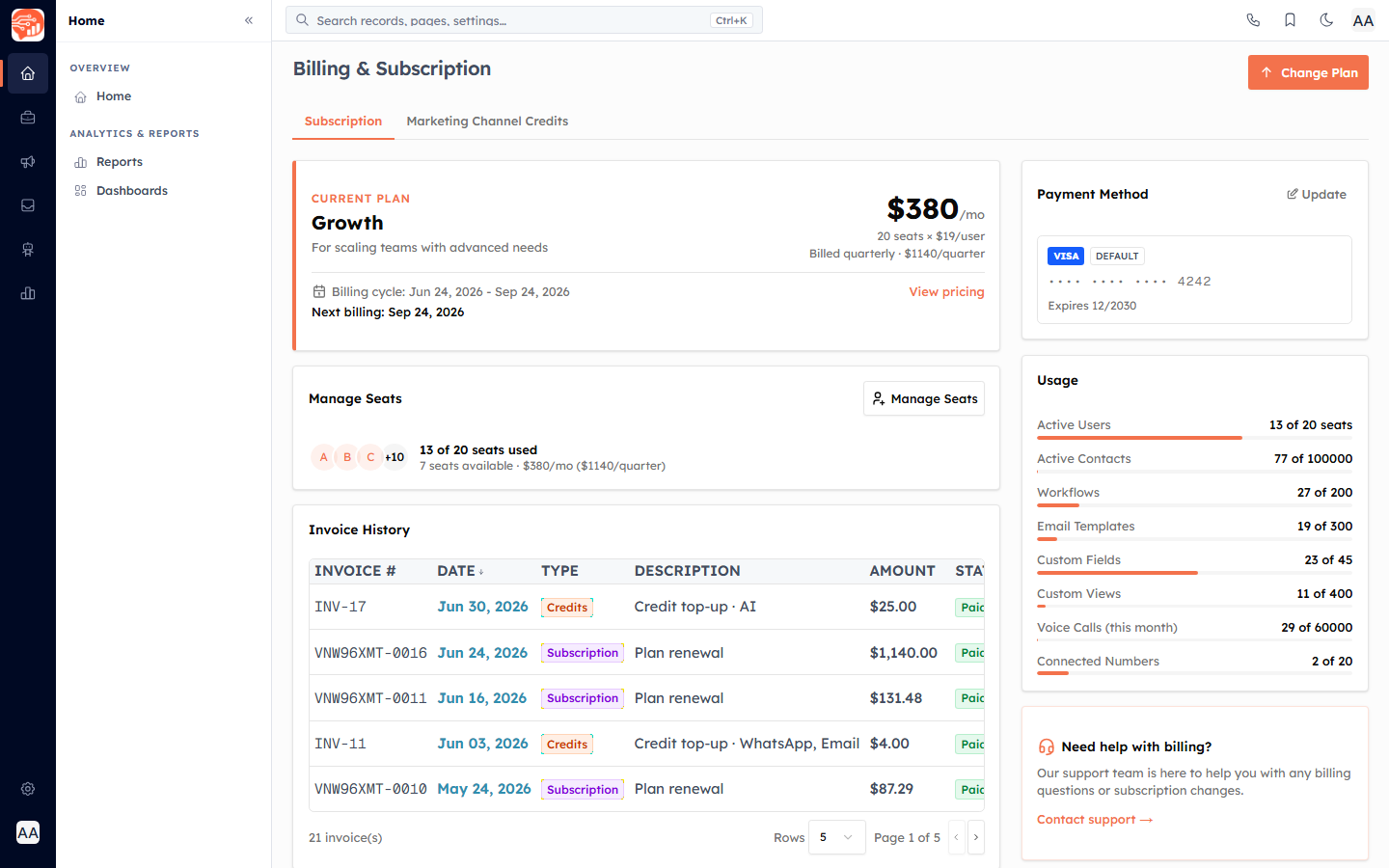
AI Engage CRM bills per user seat: your monthly (or per-cycle) cost is the number of purchased seats multiplied by your plan's per-user price. The Manage Seats card on your billing page shows how many seats you own and how many are in use, and the Manage User Seats dialog lets you scale that number up or down with a live cost preview.
Before you start#
Adding or removing seats is a billing action, so the Manage Seats button only appears for users whose profile has the manage billing permission (owner and admins). A seat is consumed by each active user and by each pending invitation — an invite reserves its seat as soon as it is sent.
💡
Find it on Billing & Subscription under Manage Seats, or jump straight in with the Manage Seats link.
Read the Manage Seats card#
The card summarises your seat position at a glance:
Seats used of purchased — for example 3 of 5 seats used, counting active users plus pending invites.
Availability — how many seats are free (2 seats available) or All seats are in use.
Cost — your current per-period charge; on non-monthly cycles the per-cycle total is shown alongside the monthly figure.
Change your seat count#
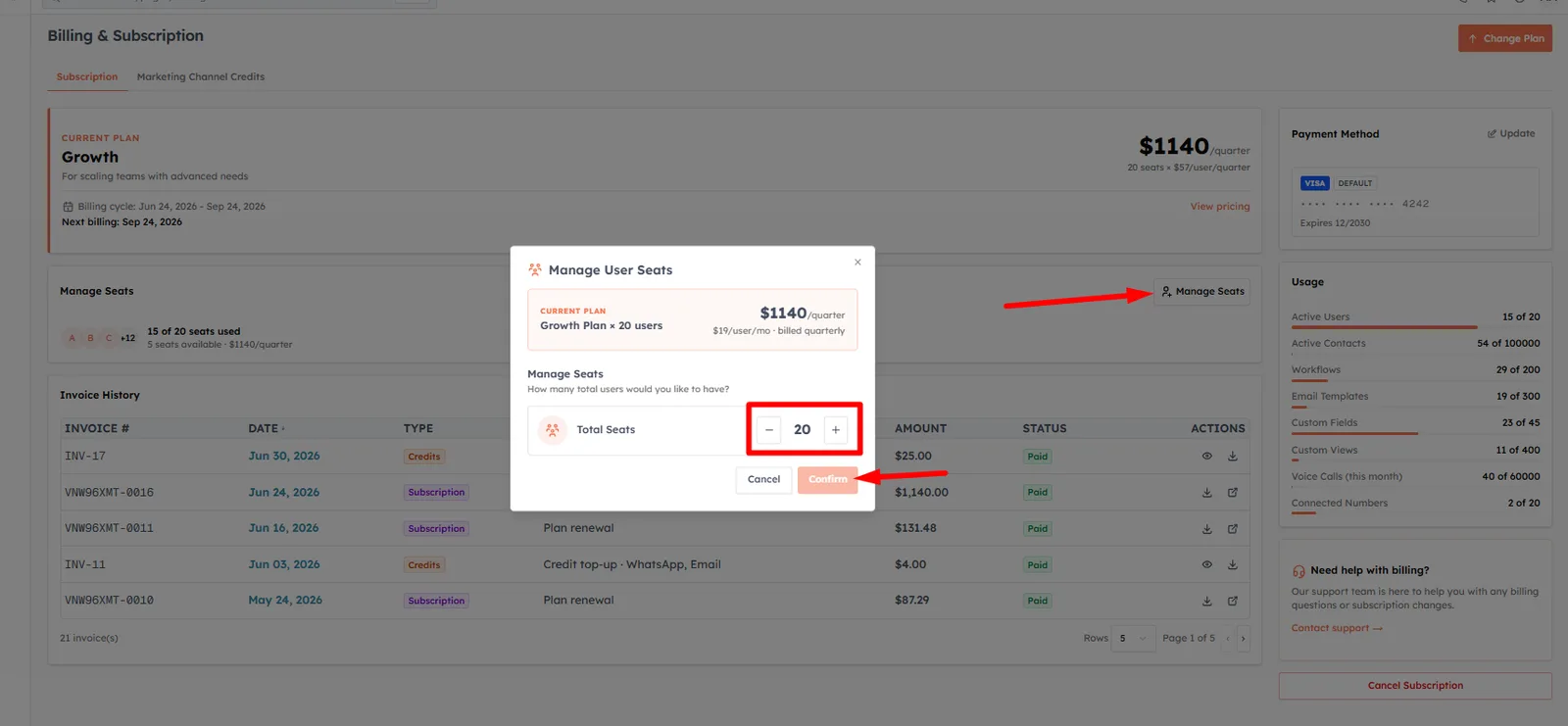
Click Manage Seats to open the Manage User Seats dialog. A banner confirms your current plan, seat count and the per-user price.
Use the + and − buttons next to Total Seats to set how many total users you want. The minimum is 1.
Review the Billing Summary. It lists your current seats, the seats added or removed, and the cost impact for your billing cycle.
For an increase, the dialog fetches a live figure from Stripe and shows Amount to be charged. For a decrease it shows Credit to be applied.
Click Confirm Addition or Confirm Reduction. On success your seats and cost update immediately.
Every state explained#
Additional cost / savings — computed from your per-user price times the seat change times your cycle length (a quarterly plan multiplies by three, and so on).
Amount to be charged — the real prorated charge from Stripe for adding seats now, fetched after a short debounce as you click.
Credit to be applied — shown when you reduce seats.
Reduction timing — a note reminds you that a reduction takes effect from the next billing cycle, and that you should deactivate the users first.
When you cannot reduce seats#
You cannot drop below the seats you are actually using. If you set a number lower than your seats in use, the dialog blocks the change with a warning that spells out how many seats are in use (and how many of those are active users versus pending invites) and how many you must free up first. A Go to User Management button takes you to Settings → Users to deactivate a user or revoke an invitation.
⚠️
A pending invitation holds a seat. To reduce your seat count you may need to revoke an invite as well as deactivate active users — the floor is the total seats in use, not just active logins.
✅
Buying a seat is only half the job — you still need to invite the person into it. See Invite Your Team for adding and managing users.
Good to know#
Increases are charged prorated and take effect right away; reductions apply from the next cycle.
The cost preview is best-effort — if Stripe cannot return a figure, the action is still allowed, and the exact amount settles on your invoice.
For the full picture of your plan and charges, see Billing & Subscription.
Was this article helpful?
Ready to implement this?
OpenAI Engage and apply what you just learned to your own workspace.
Open AI Engage CRM