Loading…


KnowledgeBase
Web Forms + Workflows: Automate Lead Follow-Up
From submission to follow-up — automatically#
Capturing a lead is only half the job. The real power of web forms comes from pairing them with a workflow so that every submission kicks off an instant, consistent follow-up — a welcome email, a task for the rep, an owner assignment — with no one lifting a finger.
How the connection works#
When a form submission is accepted, it creates a record in the form's target module. That record creation is an event a workflow can trigger on:
Build a workflow on the same module your form feeds (for example, Contacts).
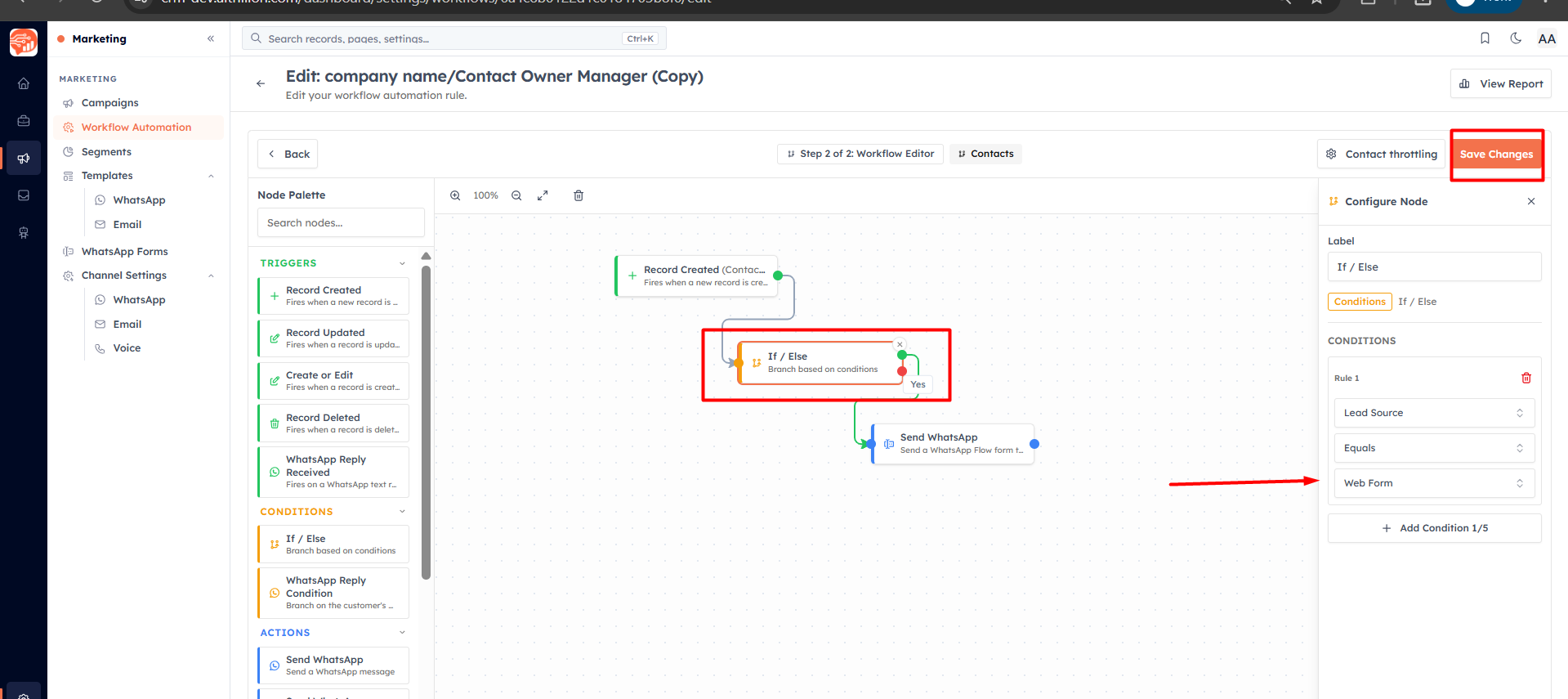
Use the Record Created trigger — it fires for each new record, including those from your form.
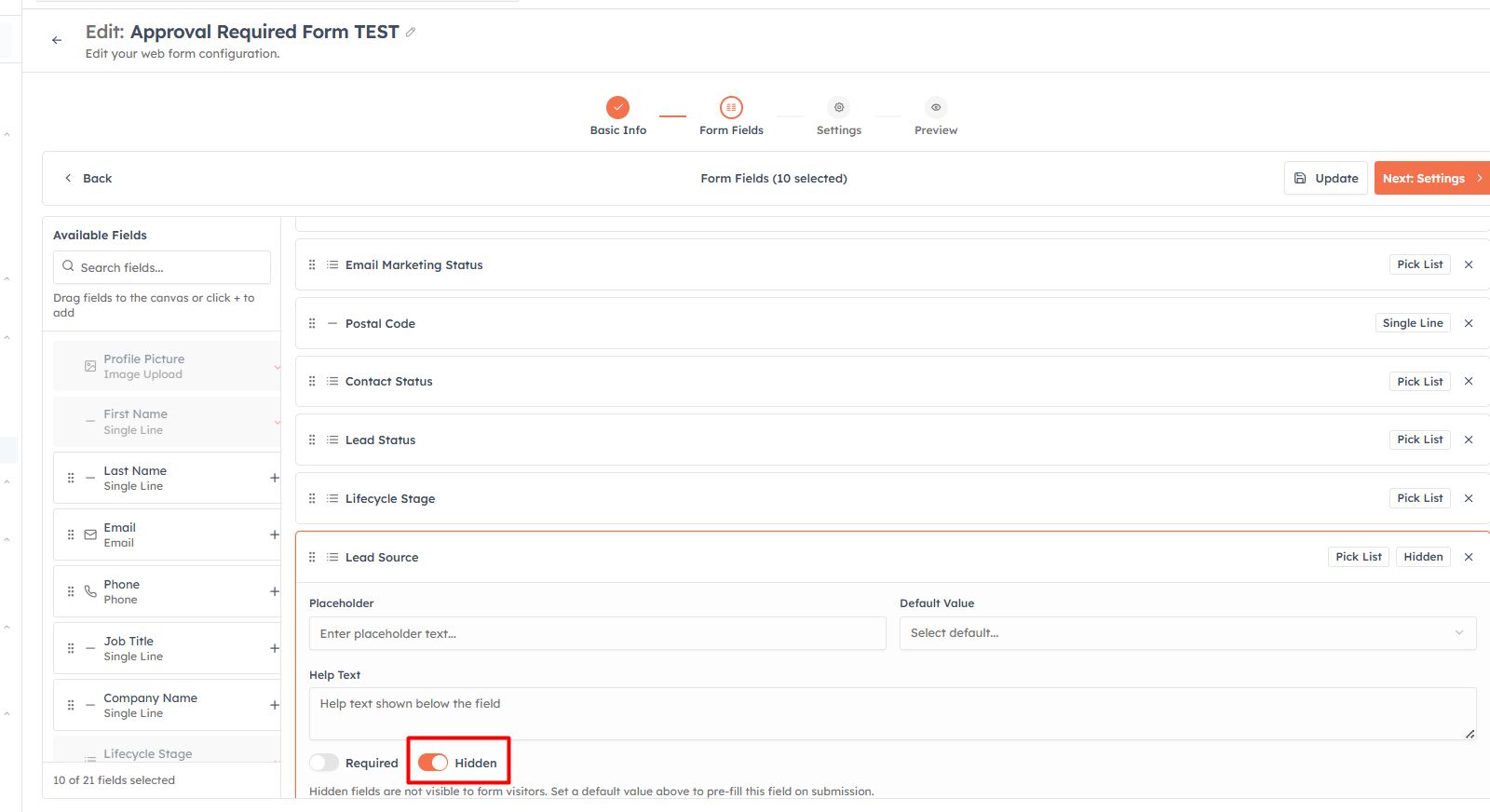
Add an If / Else condition to target just this form's leads — for example Lead Source Equals "Website" (set via a hidden default field on the form).
Add actions: Send Email (a welcome), Assign Owner (round-robin to your sales team), and Create Record (a follow-up task).
💡
The hidden "Lead Source" field is the glue. Because every submission from this form is stamped with the same value, your workflow condition can reliably pick out exactly these leads and treat them differently from records created any other way.
Example: a complete inbound flow#
Form: "Contact Us" → target module Contacts, hidden Lead Source = "Website", auto-response on.
Workflow trigger: Record Created (Contacts).
Condition: Lead Source Equals "Website".
Actions: Assign Owner (Team round-robin) → Send Email (welcome) → Create Record (task: "Call new website lead", due in 2 hours).
The result: a website visitor submits the form, immediately gets a confirmation, is assigned to the next rep in rotation, and that rep has a call task waiting — all within seconds, day or night.
Test before you rely on it#
Before going live, submit the form yourself with a test email and confirm:
A new record appears in the target module with your test data.
The auto-response email arrives.
The workflow fired — check its report for the run.
The right person was notified and assigned.
💡
A form + workflow combination turns your website into a 24/7 sales engine: leads are captured, acknowledged, assigned, and queued for follow-up automatically — so nothing slips and every lead gets a fast, consistent response.
Was this article helpful?
Ready to implement this?
OpenAI Engage and apply what you just learned to your own workspace.
Open AI Engage CRM