Loading…


KnowledgeBase
Web Form Notifications & Auto-Response Emails
Getting notified about submissions#
The Notifications tab in Step 3 controls who hears about a new submission — your team, and optionally the person who submitted the form. Set these up so a fresh lead never goes unnoticed.
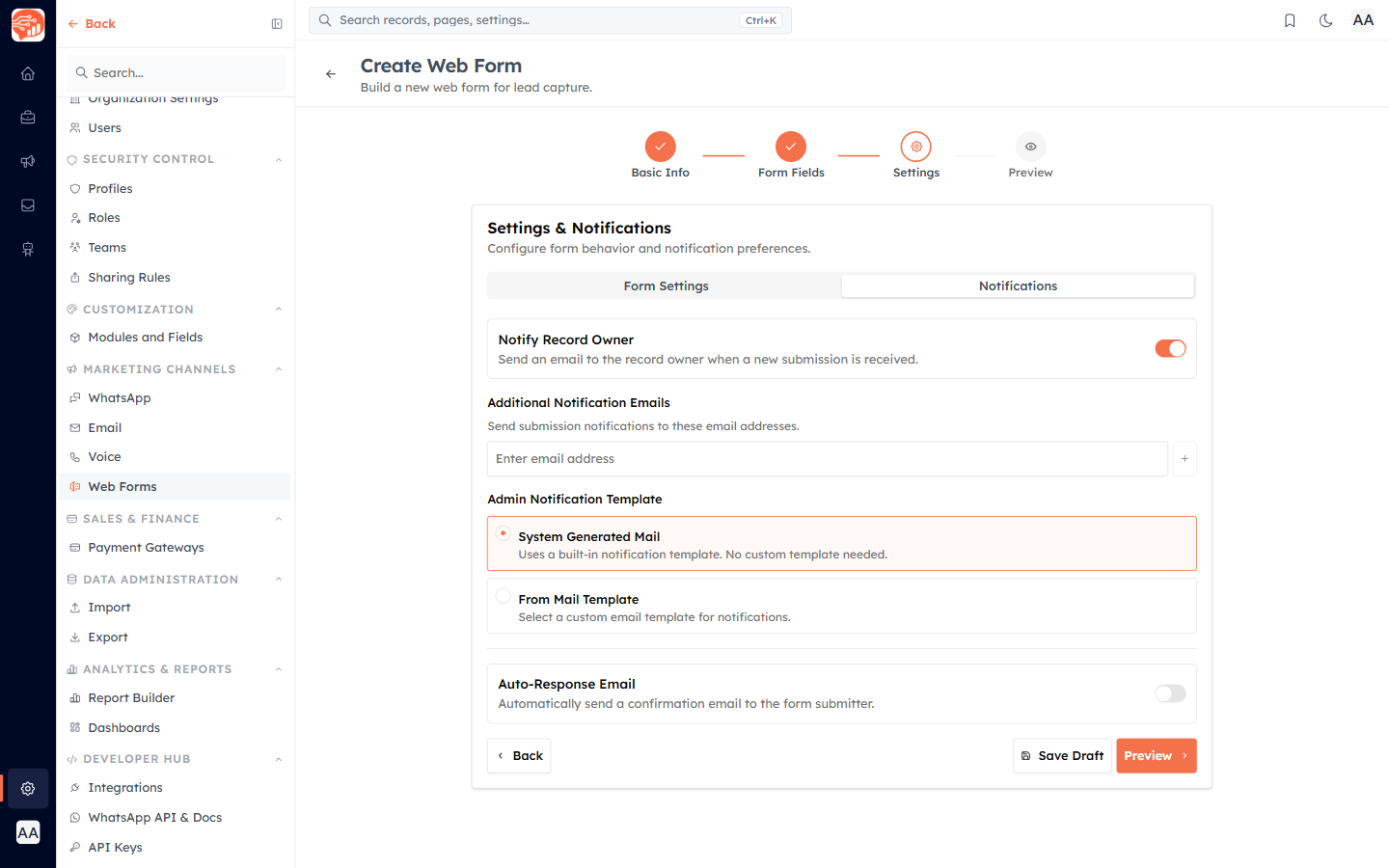
Notify your team#
Notify Record Owner — when on (the default), the record's owner gets an email the moment a submission comes in. Combined with the Record Ownership setting, this means the responsible rep is alerted instantly.
Additional Notification Emails — add any number of extra email addresses that should also receive submission alerts (a shared sales inbox, a manager, a partner). Type an address and add it as a chip.
Admin Notification Template — choose System Generated Mail (a built-in notification, nothing to set up) or From Mail Template to use one of your own email templates for the alert.
ℹ️
Notification emails to your team are separate from the auto-response to the visitor. You can use either, both, or neither.
Auto-response to the submitter#
Turn on Auto-Response Email to automatically send a confirmation email to the person who filled in the form — a warm "thanks, we've got your message" the instant they submit.
Email Field — which form field holds the submitter's email address. If your form has exactly one email field, it is selected automatically.
Auto-Response Template — System Generated Mail for a built-in confirmation, or From Mail Template to send one of your branded email templates.
💡
An auto-response sets expectations and buys you time: "Thanks! We'll reply within 2 hours." It also reassures the visitor their submission worked — reducing duplicate submissions and "did you get my message?" follow-ups.
⚠️
The auto-response needs an email field on the form to send to. If you turn it on but have no email field, add one in the Form Fields step first.
🔗
Next: Publish & Embed Your Form.
Was this article helpful?
Ready to implement this?
OpenAI Engage and apply what you just learned to your own workspace.
Open AI Engage CRM