Loading…


KnowledgeBase
Web Form Settings: Success Message, Redirect, Approval & Bot Protection
Form settings#
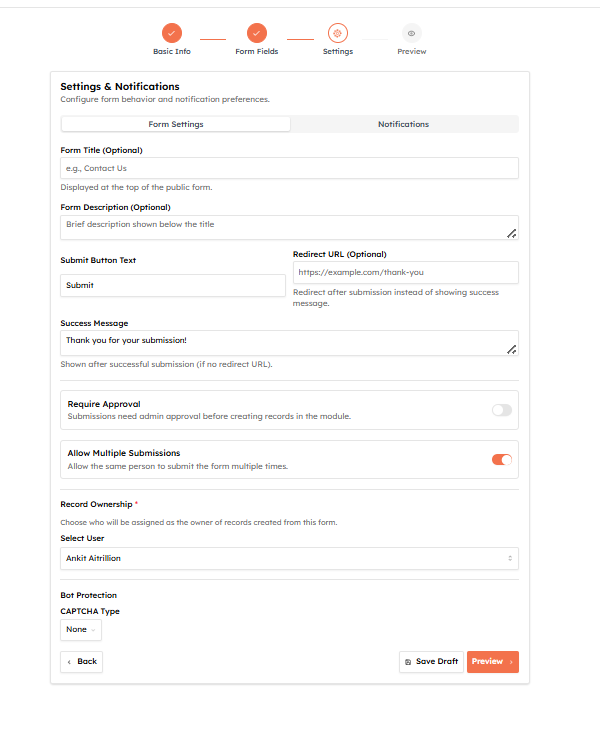
Step 3 of the Webform builder has two tabs: Form Settings and Notifications. This article covers Form Settings — how the form looks, what happens after a submission, who owns the new record, and how to keep bots out. (Notifications are covered in Notifications & Auto-Response Emails.)
Presentation#
Form Title (optional) — the heading shown at the top of the public form.
Form Description (optional) — a short line beneath the title.
Submit Button Text — defaults to "Submit"; change it to something specific like "Request my demo".
What happens after submission#
You have two options for what a visitor sees once they submit:
Success Message — the confirmation shown in place of the form. Defaults to "Thank you for your submission!" — make it specific and useful.
Redirect URL (optional) — send visitors to a page of your own instead of showing the success message (for example a thank-you page or a download link). Must be a full https:// address. If set, it takes priority over the success message.
💡
A redirect to a dedicated thank-you page lets you track conversions in Google Analytics and offer a next step — a case study, a calendar link, or a download.
Submission controls#
Require Approval — when on, submissions do not create records automatically. They wait as Pending until someone approves them on the Submissions page. Good for filtering spam or vetting applications.
Allow Multiple Submissions — when on (the default), the same person can submit the form more than once. Turn it off to accept only one submission per person.
Record Ownership#
Record Ownership (required) decides who is set as the owner of records created from this form. Pick the user who should own and follow up on every lead this form captures — for example, your inbound sales rep or a shared queue owner.
💡
For fair distribution across a whole team rather than a single owner, set a default owner here and use an Assign Owner workflow with round-robin — see Web Forms + Workflows.
Bot Protection (CAPTCHA)#
Stop spam submissions with a CAPTCHA. Choose a CAPTCHA Type:
None — no challenge.
Standard CAPTCHA — a built-in image challenge; visitors type the characters shown. Nothing to configure.
Google reCAPTCHA v2 — the familiar "I'm not a robot" checkbox. Paste your reCAPTCHA Site Key and Secret Key (get them free from the Google reCAPTCHA admin console).
💡
If your form is public and getting spam, turn on a CAPTCHA. Standard CAPTCHA needs no setup; Google reCAPTCHA is stronger but requires you to register your site with Google first.
Was this article helpful?
Ready to implement this?
OpenAI Engage and apply what you just learned to your own workspace.
Open AI Engage CRM