Loading…


KnowledgeBase
View & Manage Web Form Submissions
Where submissions live#
There are two places to see who filled in your forms:
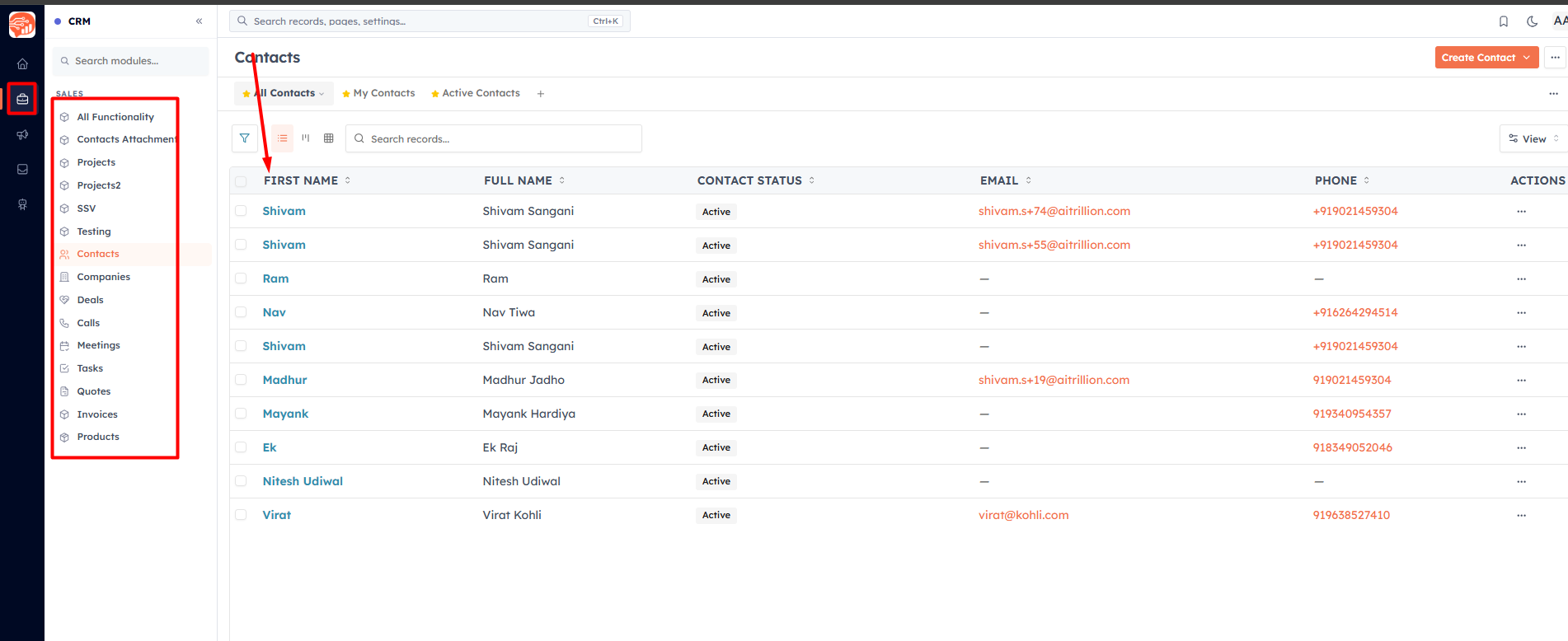
The target module — each accepted submission creates a record in the module the form is tied to (Contacts, Leads, etc.), so leads appear right alongside the rest of your data. To check it, go to CRM → click the module you selected while creating the form, and you will be able to find the form submission details.
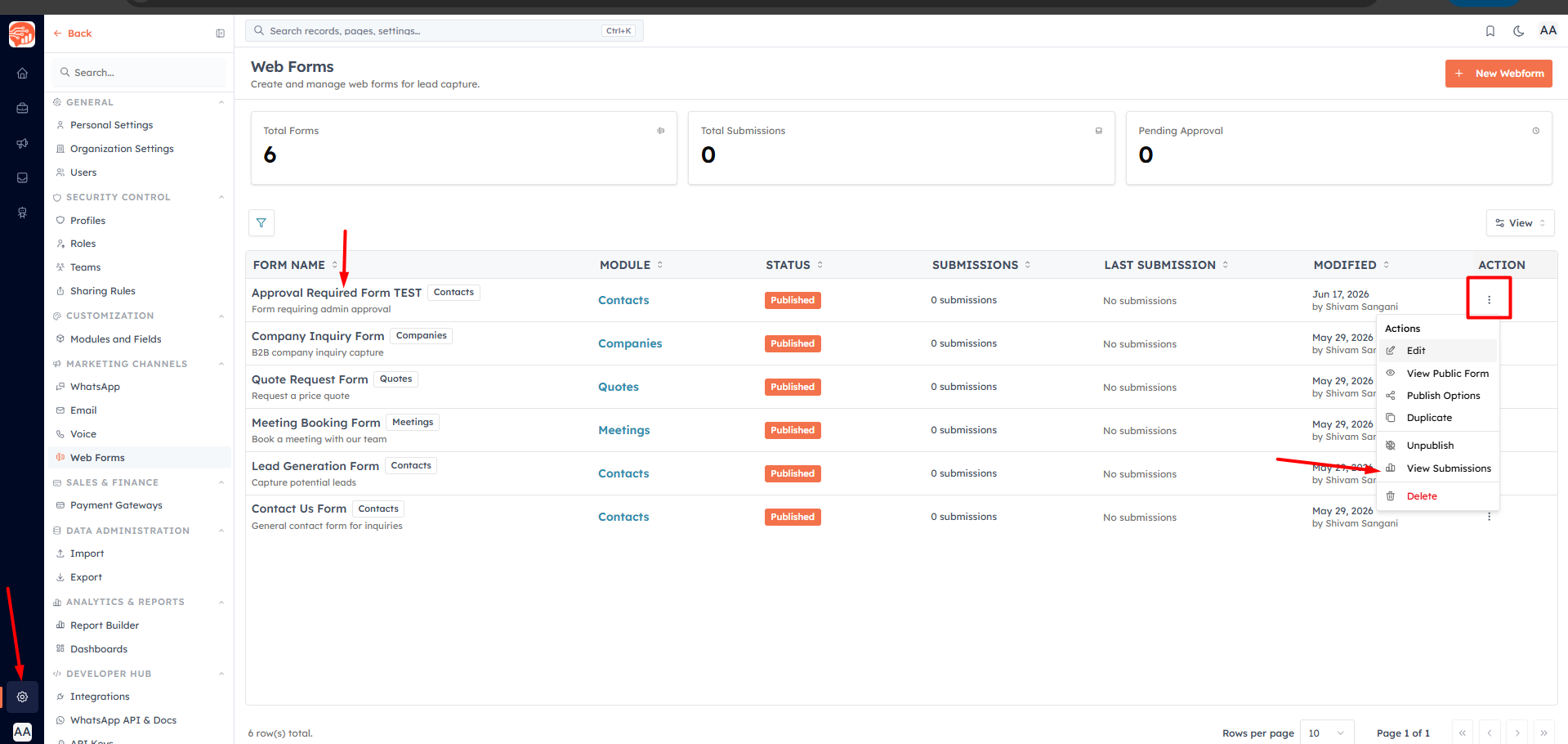
The Submissions page — a per-form log of every submission. Open a form's menu and click View Submissions. To check it, go to Settings → Web forms → click on the Menu icon and click on Form submission.
Reading the Submissions page#
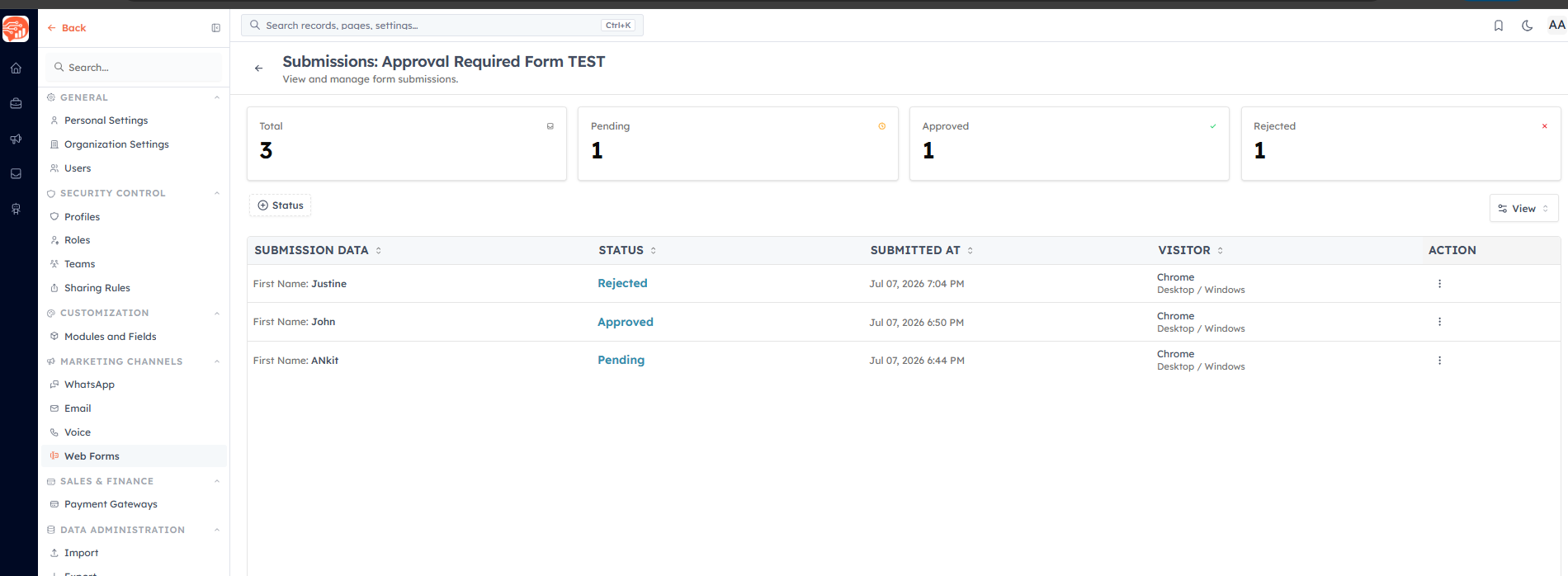
The page shows four stat cards — Total, Pending, Approved, and Rejected — above a table of every submission. Click any row to open the full submission detail and see exactly what the visitor entered.
💡
The Submissions log keeps a record of every submission, so if someone says they filled in your form you can always check what came through and when.
Approving and rejecting#
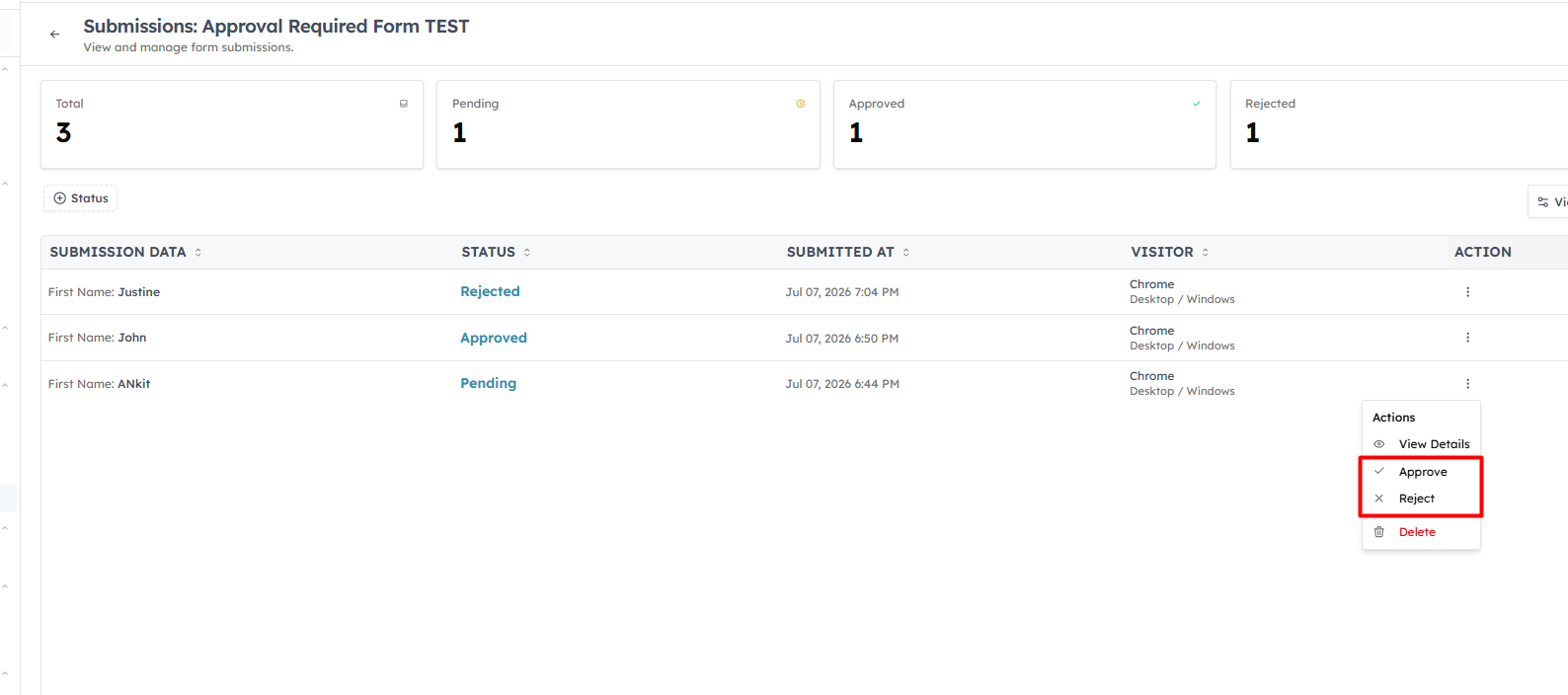
If the form has Require Approval switched on, new submissions arrive as Pending and do not create a record until you act on them:
Approve — accept the submission and create the record in the target module.
Reject — decline it, optionally with a reason. No record is created.
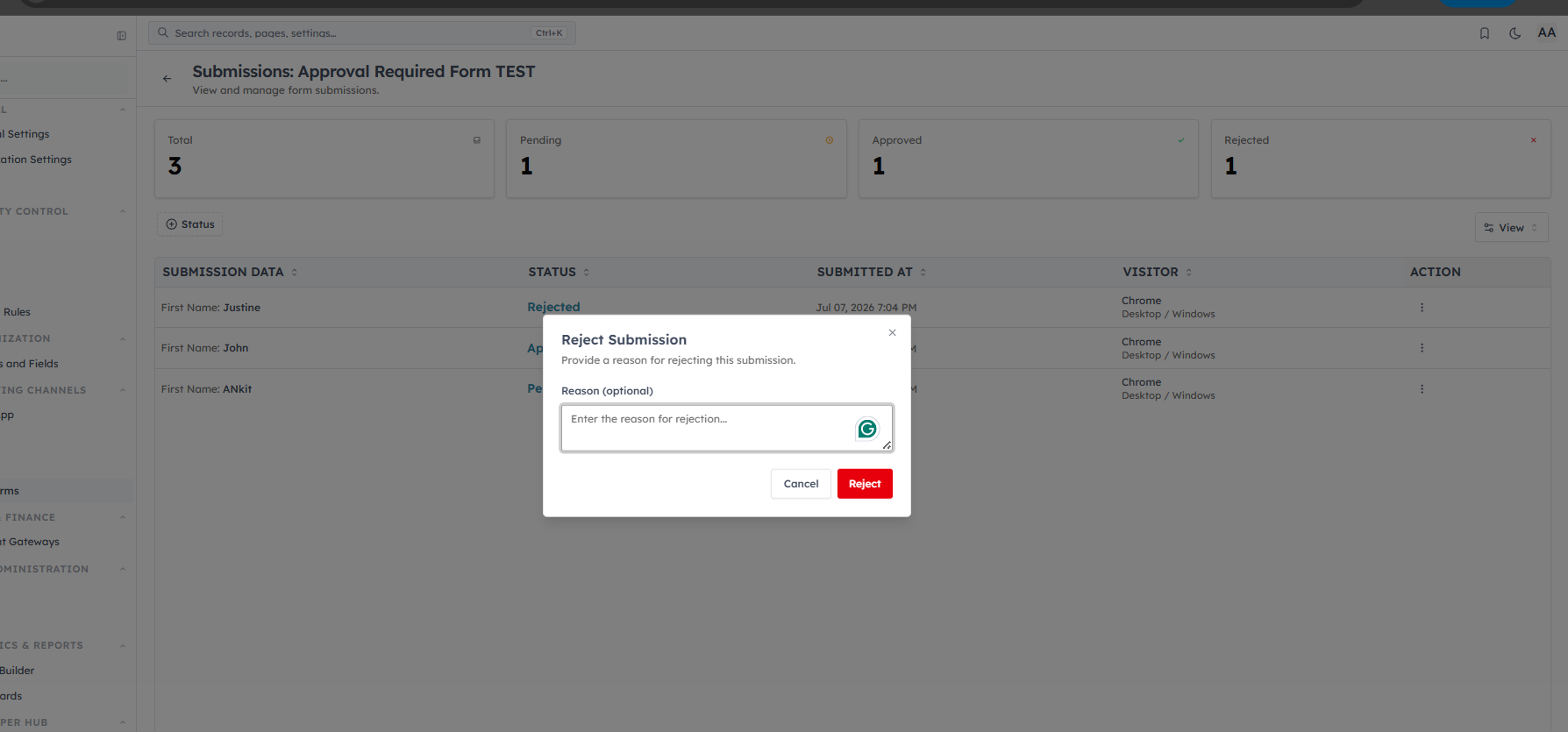
Use the stat cards to focus — clear the Pending queue to process new submissions, and watch Rejected to spot spam patterns. If Require Approval is off, submissions are accepted automatically and this queue stays empty.
💡
Turn on Require Approval for high-spam public forms or anything that needs vetting (job applications, partnership requests). Leave it off for trusted lead forms where you want records created instantly.
Was this article helpful?
Ready to implement this?
OpenAI Engage and apply what you just learned to your own workspace.
Open AI Engage CRM