Loading…


KnowledgeBase
Publish & Embed Your Web Form on a Website or Landing Page
Publish first#
A form must be published before anyone can use it. From the Web Forms list, open a form's action menu and click Publish (you can Unpublish later to take it offline). Once published, the sharing options and the public form become available.
The Publish Options dialog#
From a published form's menu, click Publish Options. The dialog — "Choose how to share your web form with visitors" — offers four ways to publish, each on its own tab:
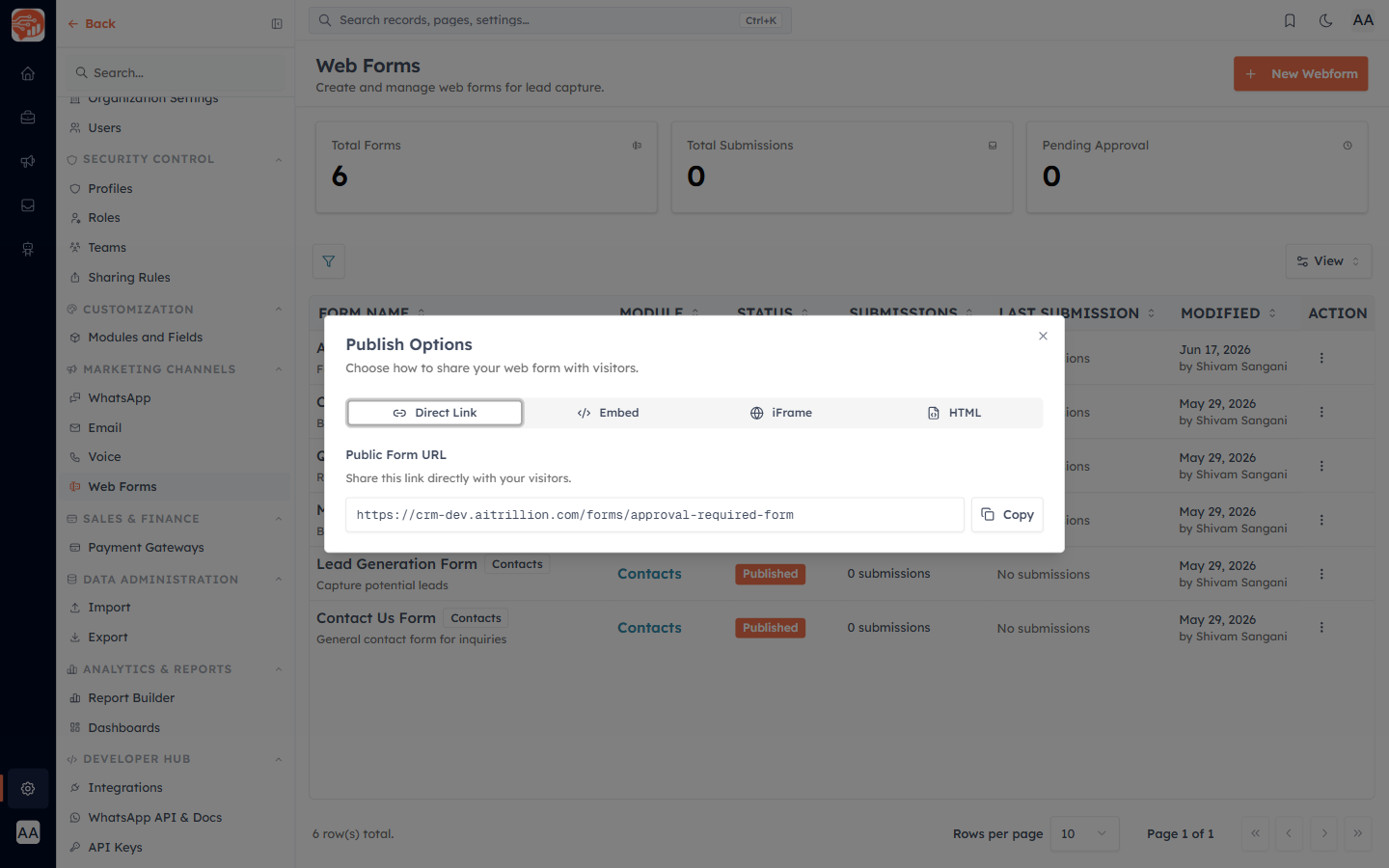
Direct Link — a ready-to-share public URL for the form (for example yourdomain/forms/contact-us). Share it in emails, social posts, ad destinations, or a link-in-bio. The form opens on its own hosted page.
Embed — a small JavaScript snippet that drops the form inline on your website and auto-resizes to fit its content. This is the best choice for most websites.
iFrame — a simple iframe tag you can size yourself. Use it when you want a fixed-size embed or your CMS blocks scripts.
HTML — the raw HTML source of the form, so a developer can restyle it to match your site exactly.
Each tab has a Copy button — copy the code or link and paste it where you need it.
Embedding on common platforms#
WordPress — paste the Embed snippet into a Custom HTML block.
Webflow — use an Embed component and paste the snippet.
Wix / Squarespace — use an HTML / Custom Code block and paste the Embed or iFrame code.
ℹ️
The embedded form loads live from AI Engage CRM. Any change you make to the form in the CRM appears on your website immediately — you never need to re-paste the code.
💡
Use the Direct Link in email campaigns and social bios; use the Embed snippet on your own website pages. You can use both for the same form at once.
Was this article helpful?
Ready to implement this?
OpenAI Engage and apply what you just learned to your own workspace.
Open AI Engage CRM