Loading…


KnowledgeBase
Advanced Filtering: Filter Groups & Association Filters
Beyond a single list of conditions#
A flat list of AND/OR conditions covers most segments. But sometimes you need real Boolean logic — "customers in Mumbai or Delhi who have also spent over ₹50,000". That is what filter groups are for.
Filter groups#
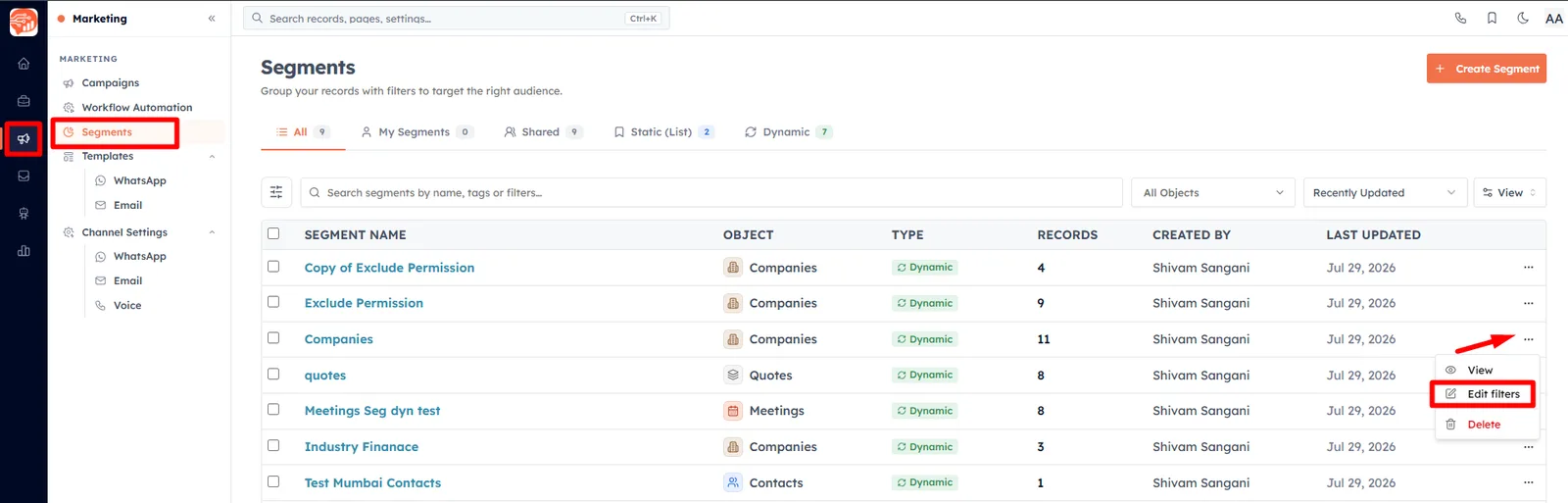
To check the filters, go to Marketing → Segments → click on Edit filters
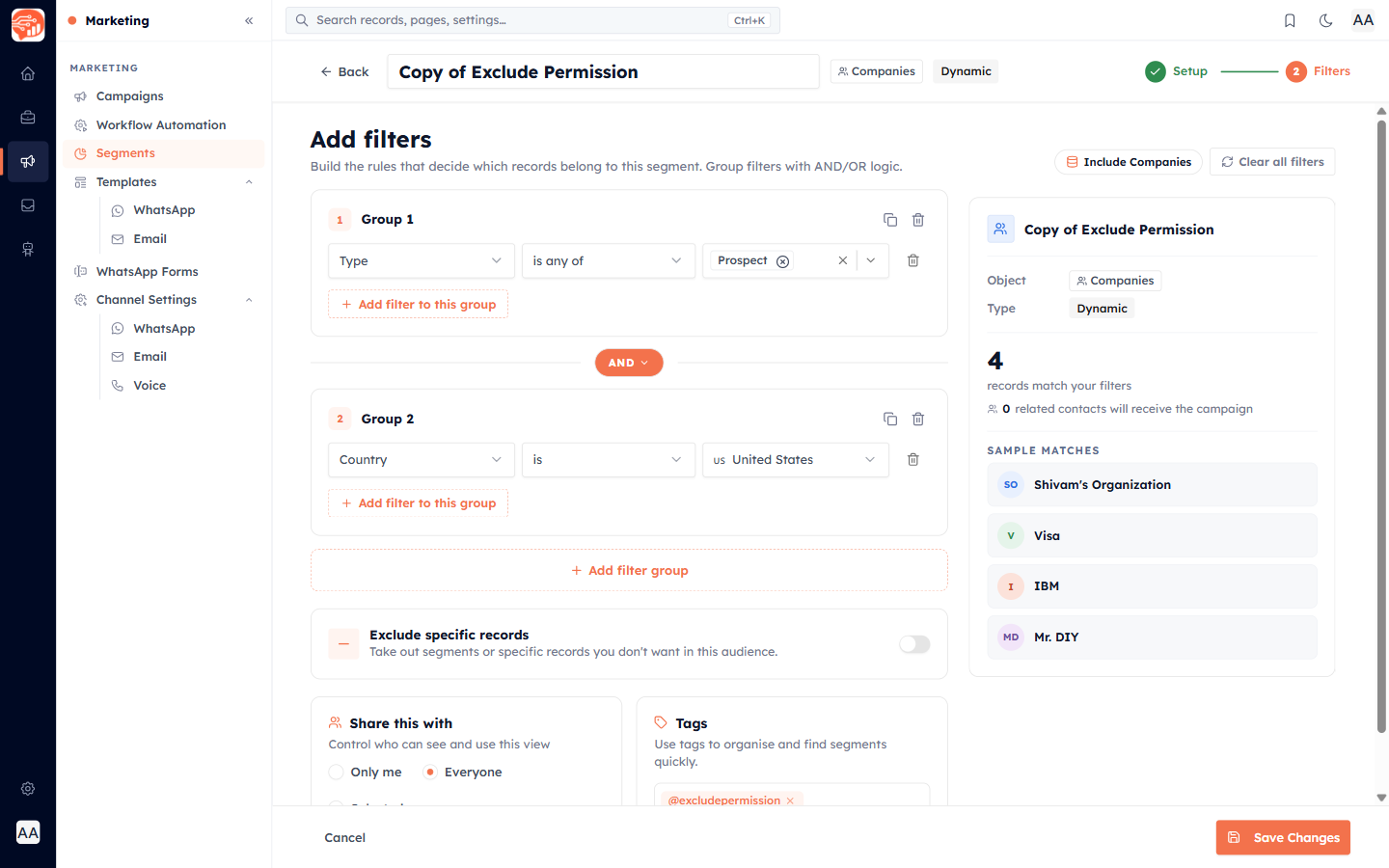
A group is a set of conditions wrapped together. You can add several groups, and the builder gives you two levels of logic:
Within a group — conditions are joined by AND or OR (you set this per condition).
Between groups — each group is joined to the next by AND or OR (default is OR).
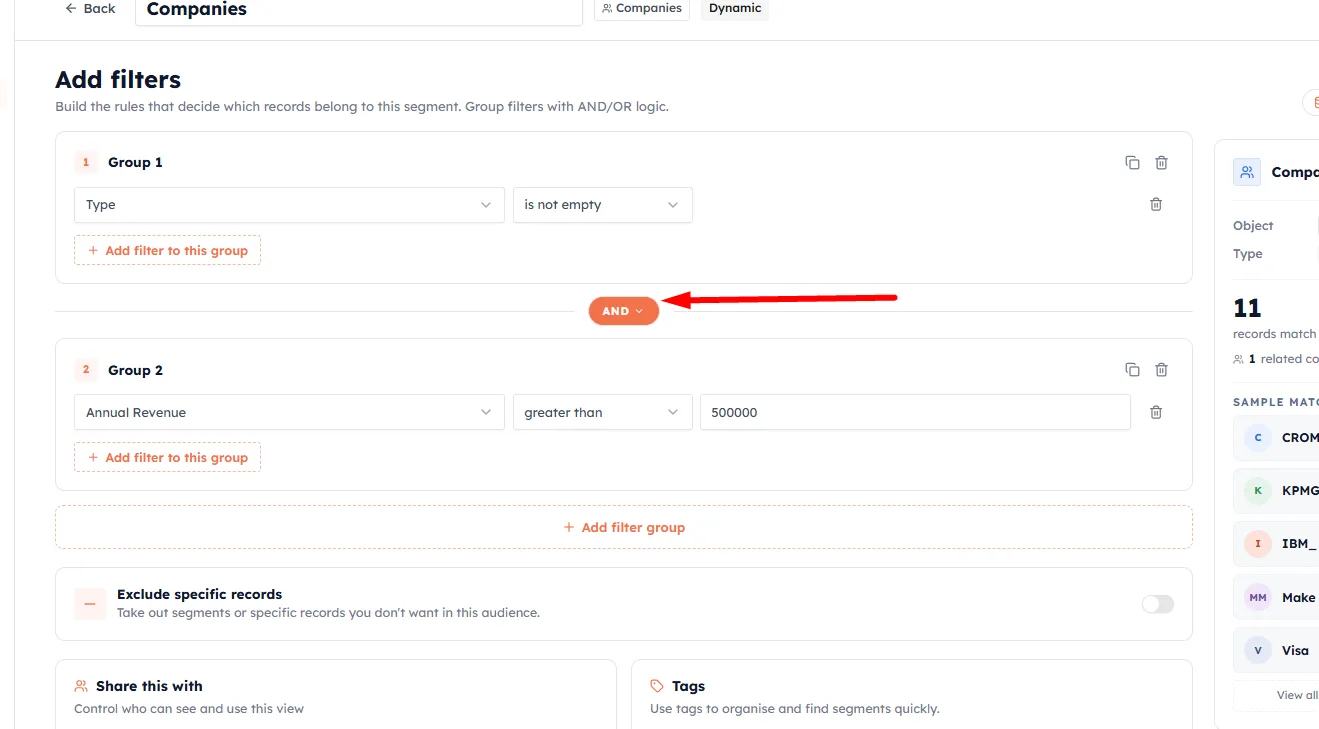
This lets you express logic like (City is Mumbai OR City is Delhi) AND (Total Spend greater than 50000) — the first group holds the two city conditions, the second group holds the spend condition, and the groups are joined with AND.
Each group card shows a numbered "Group 1", "Group 2" title with options to Clone group or Delete group. Use Add filter group to add another, and Clear all filters to start over.
💡
Think of each group as a set of parentheses. Put your "OR" alternatives inside one group, then AND that group with your must-have conditions in another group.
Association filters (cross-module)#
Sometimes the condition you need lives on a related record, not the primary one. For example: "Contacts whose Company is in Healthcare" or "Contacts who have an open Deal". This is where association filters come in.
In a group's Add filter popover, alongside "This group" you will see "Associated records" — with the option "Association to: {Module}". Pick a related module, and you can filter on its fields:
Scope — choose Any (the record has at least one associated record matching) or None (the record has no associated record matching).
Inner conditions — add conditions on the associated module's fields. The builder shows "And associated {Module} has all of:" — inner conditions are combined with AND.
💡
Association filters are how you build audiences based on related activity — for example, Contacts linked to a Deal in a certain stage, or Companies with an associated open Task. Choose None as the scope to find records that are missing a relationship, like "Contacts with no associated Deal".
💡
There is no dedicated "opened email" or "clicked link" filter in the segment builder today. To segment on engagement, filter on the relevant field (for example a "Last Activity" date) or use an association filter to a related activity module such as Calls or Tasks.
Excluding records#
The builder also lets you define an exclusion — records that should be pulled out of the segment even if they match your filters. This is handy for carving out a sub-group you never want to include, such as staff accounts or existing customers.
💡
Combine groups, associations, and exclusions to build genuinely precise audiences. Keep an eye on the live match count as you go — complex logic is easy to get subtly wrong, and the count is your safety check.
Was this article helpful?
Ready to implement this?
OpenAI Engage and apply what you just learned to your own workspace.
Open AI Engage CRM