Loading…


KnowledgeBase
Building a Static List: Manual Contacts & CSV Import
When to build a static list#
A static segment — labelled "Static (List)" in the CRM — is a fixed group of contacts that does not change on its own. It is the right choice when you have a specific, hand-picked set of people rather than a rule-based audience: booth visitors, webinar attendees, a VIP invite list, or any group you imported from a spreadsheet.
💡
A static list is frozen at the moment you save it. New contacts are never added automatically — you add them yourself. If you want an audience that updates itself, use a Dynamic segment instead.
Starting a static list#
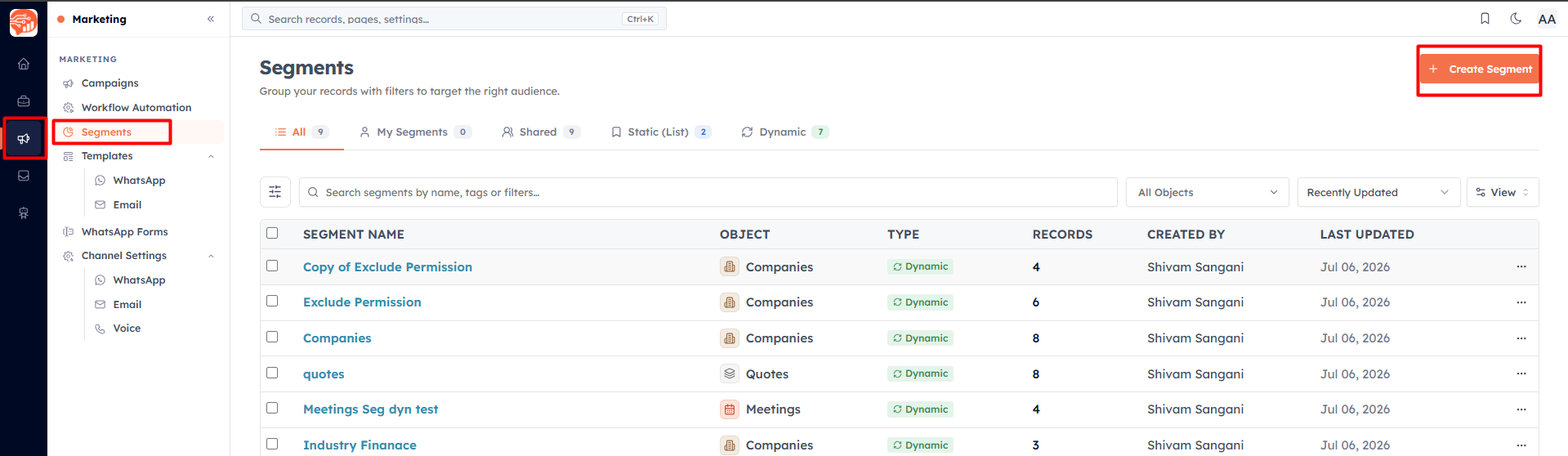
Go to Marketing → Segments → Create Segment.
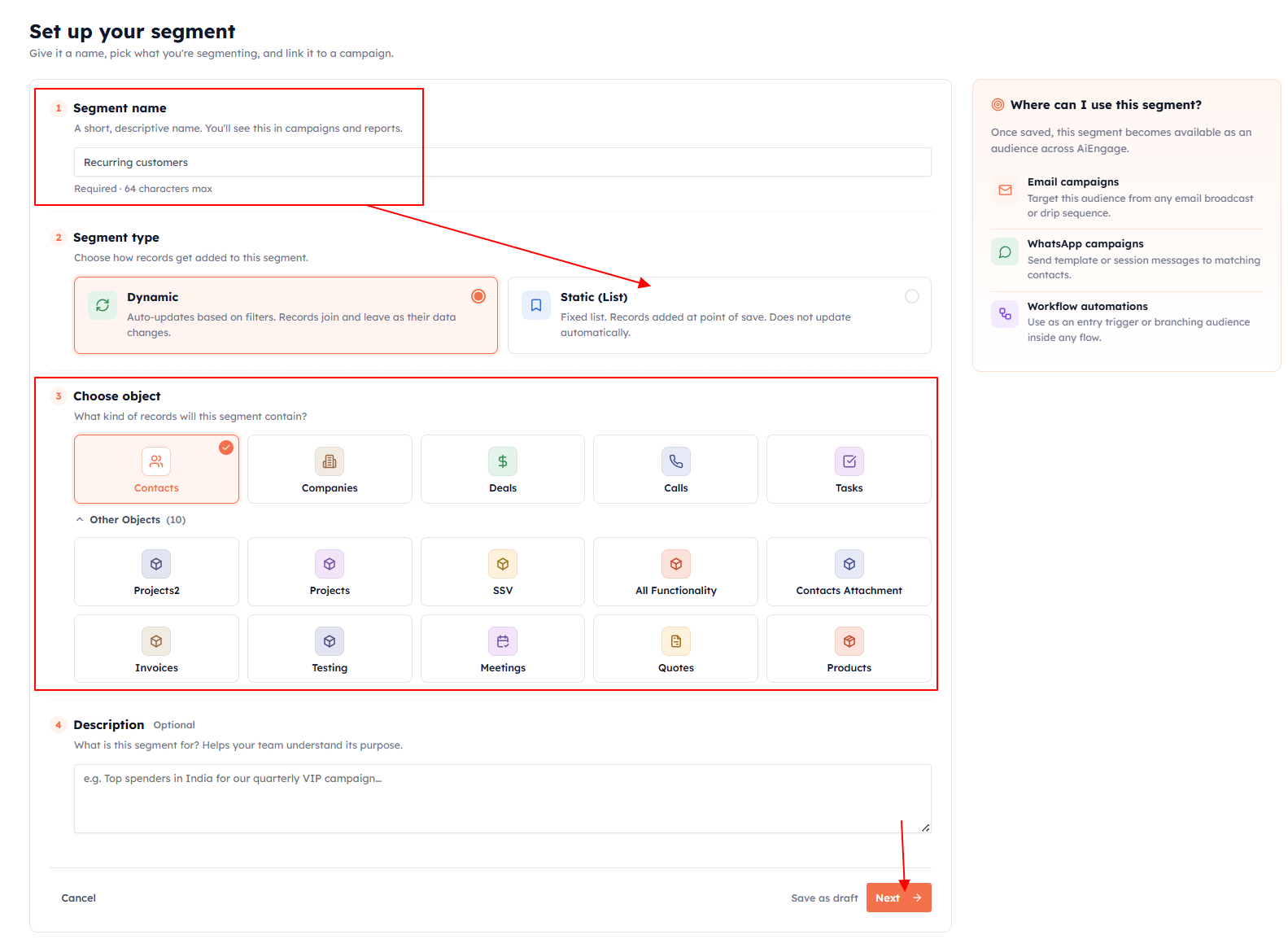
Name your segment, choose Static (List) as the type, and leave the object unset (or choose Contacts). Click Next.
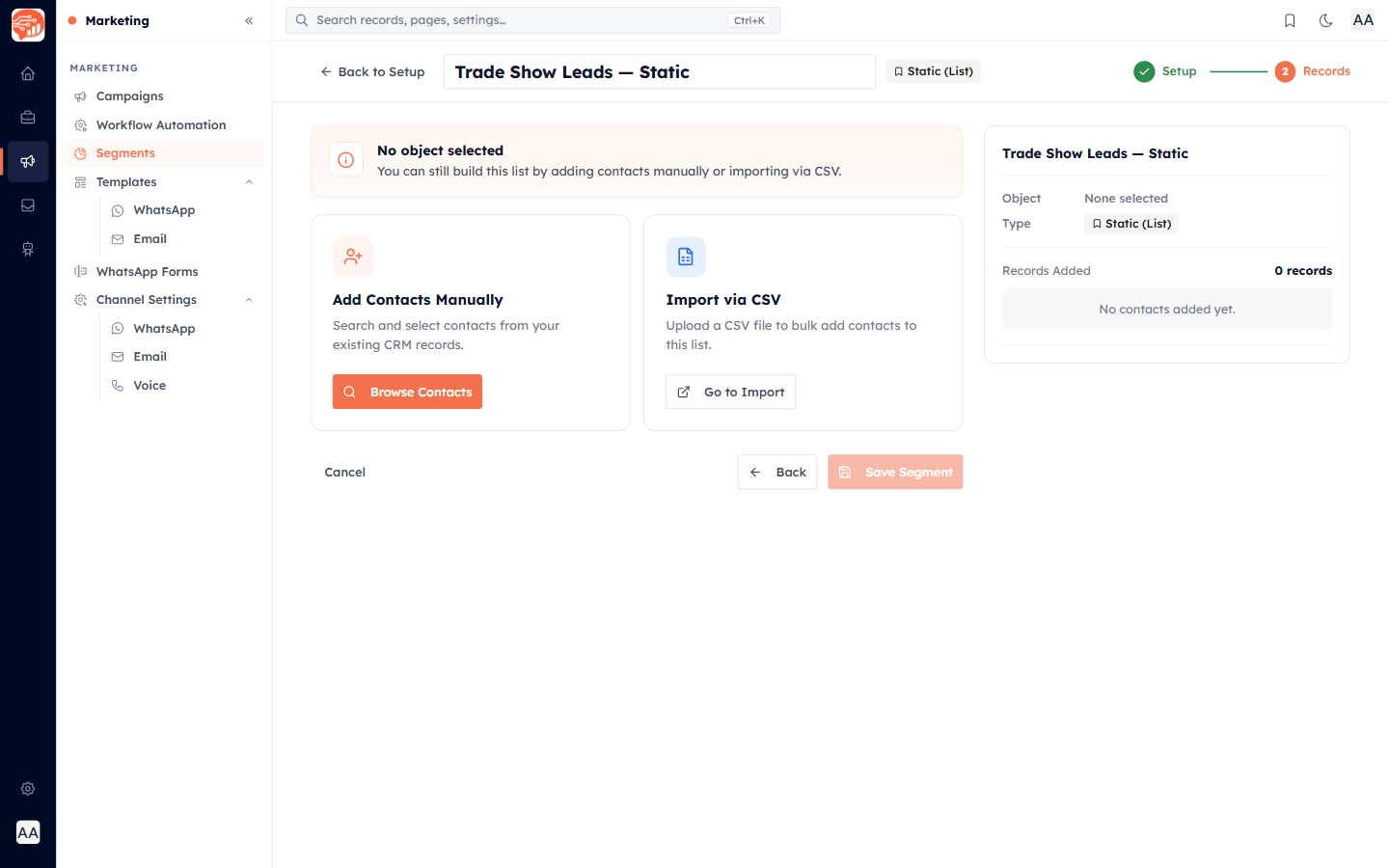
Because there are no filters to build, the CRM takes you to the Manual Records screen with two ways to add contacts.
Option 1 — Add contacts manually#
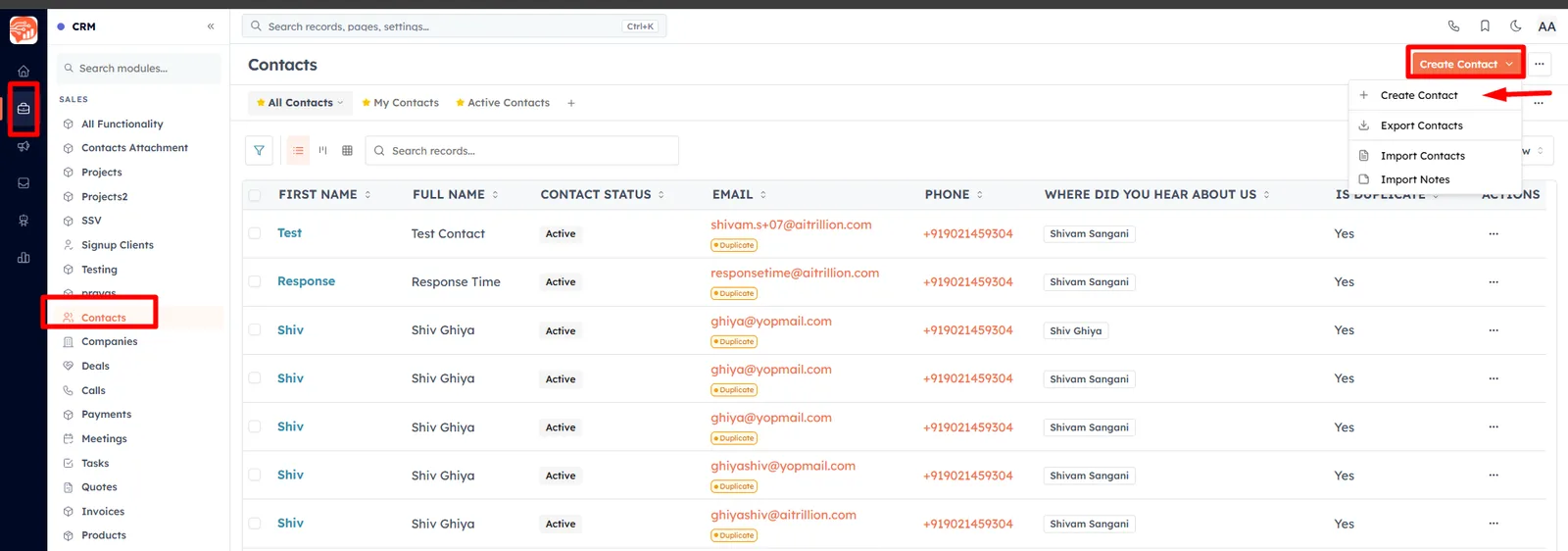
Choose Add Contacts Manually — "Search and select contacts from your existing CRM records." A searchable contact picker opens. Search by name or email, tick the contacts you want, and add them to the list.
💡
The manual picker lets you add up to 50 contacts at a time. For larger lists, use the CSV import instead — it has no such limit.
Option 2 — Import via CSV#
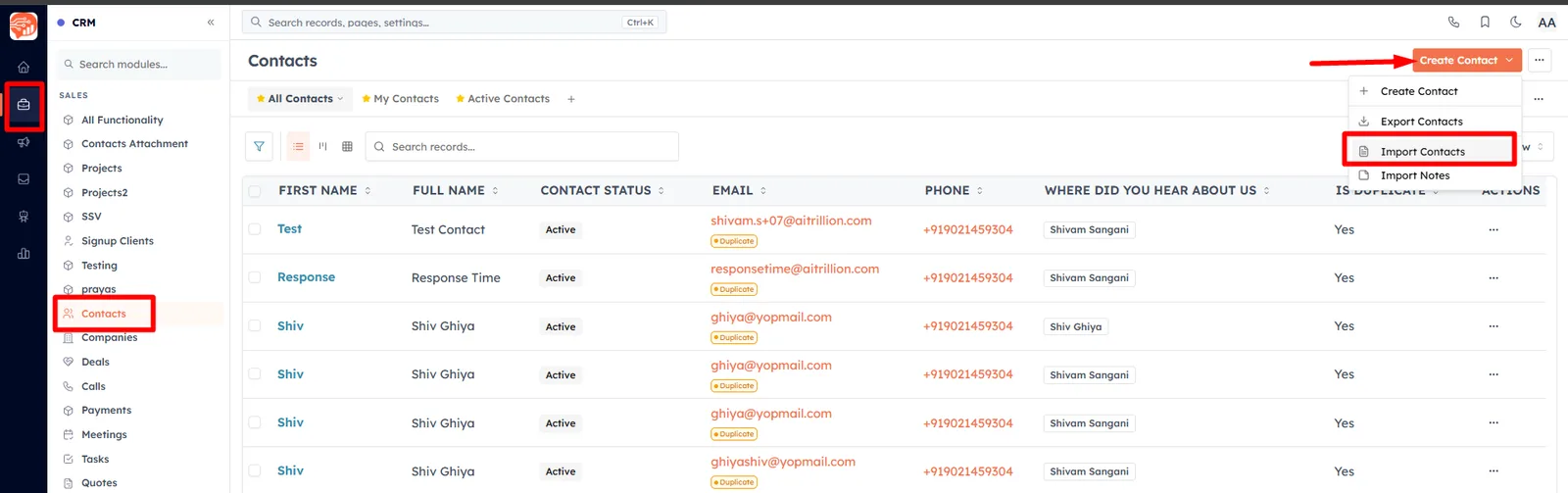
Choose Import via CSV — "Upload a CSV file to bulk add contacts to this list." The CRM opens a short guide explaining the four-step flow, then sends you to the main import page:
Open the module Import wizard (from the module you are importing into — for example Contacts → Import).
Upload your CSV file of contacts.
During import, select this segment as the target list so imported contacts are added to it.
Finish the import — the contacts are created (or matched) and added to your static list.
💡
CSV import for a segment is handled by the CRM's general import tool, which also maps columns to contact fields and de-duplicates against existing records. For a full walkthrough of importing, see the Contacts & Lead Management collection.
Managing members later#
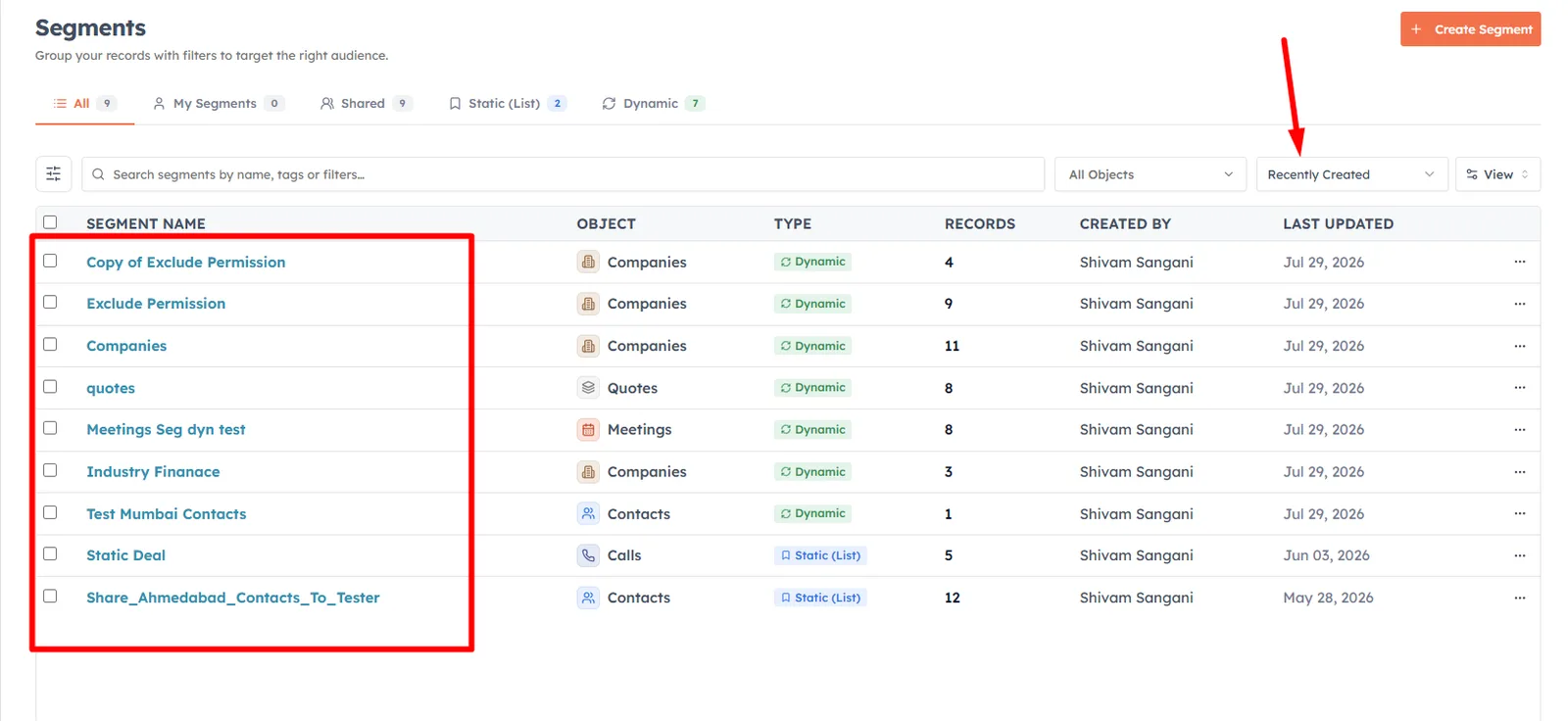
Open the static segment any time to view its members on the Recently created view — a searchable, sortable table. The details at the top show the total record count and how many were added today. Because the list is static, membership stays exactly as you left it until you add or remove contacts yourself.
💡
Static lists are perfect for point-in-time audiences. Build one from an event attendee export, send your follow-up campaign, and the list stays a permanent record of exactly who was included.
Was this article helpful?
Ready to implement this?
OpenAI Engage and apply what you just learned to your own workspace.
Open AI Engage CRM