Loading…


KnowledgeBase
Managing Segments: Edit, Clone, Export, Share & Delete
The segment detail page#
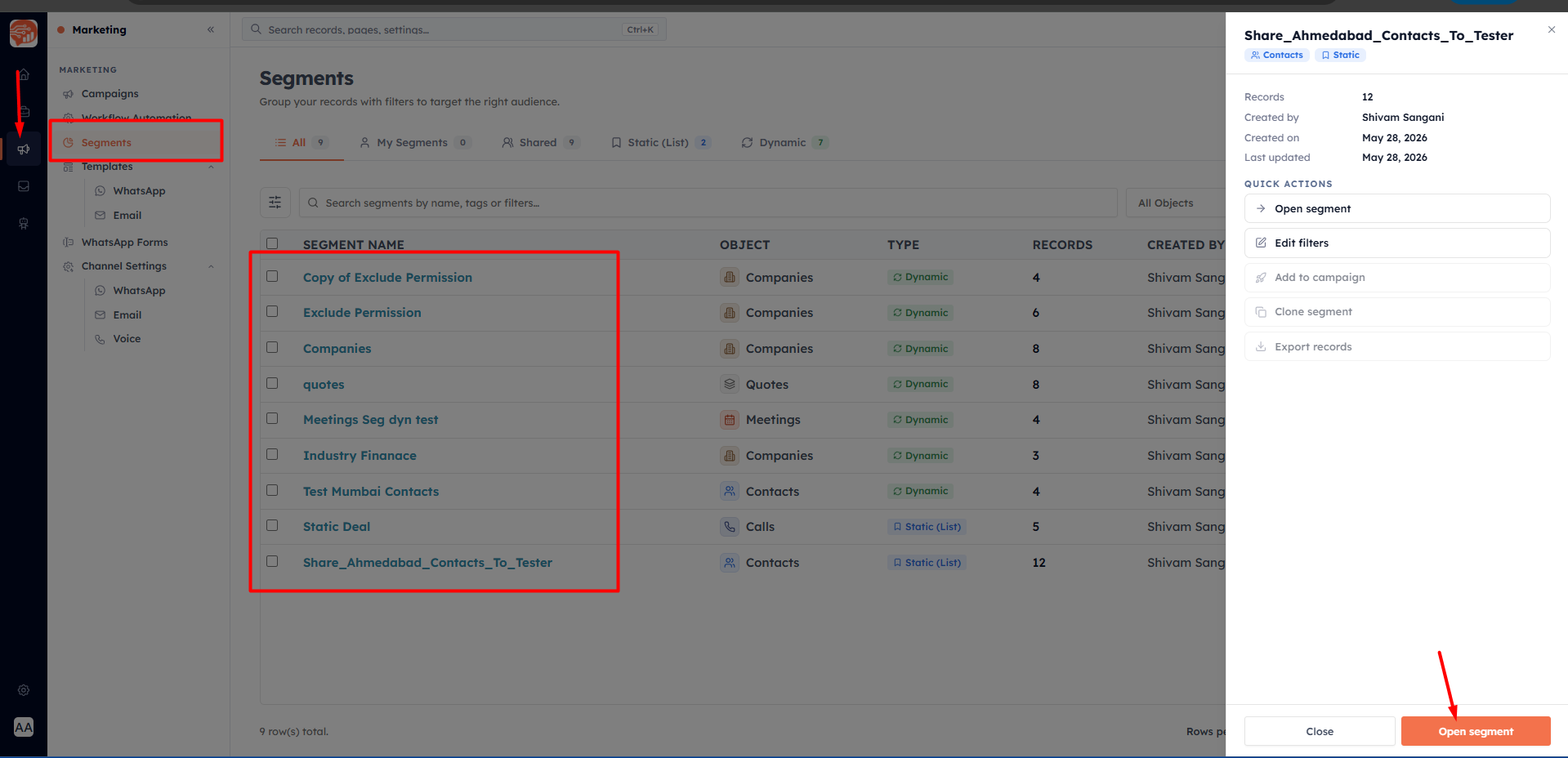
Click any segment in the list to open its detail page.
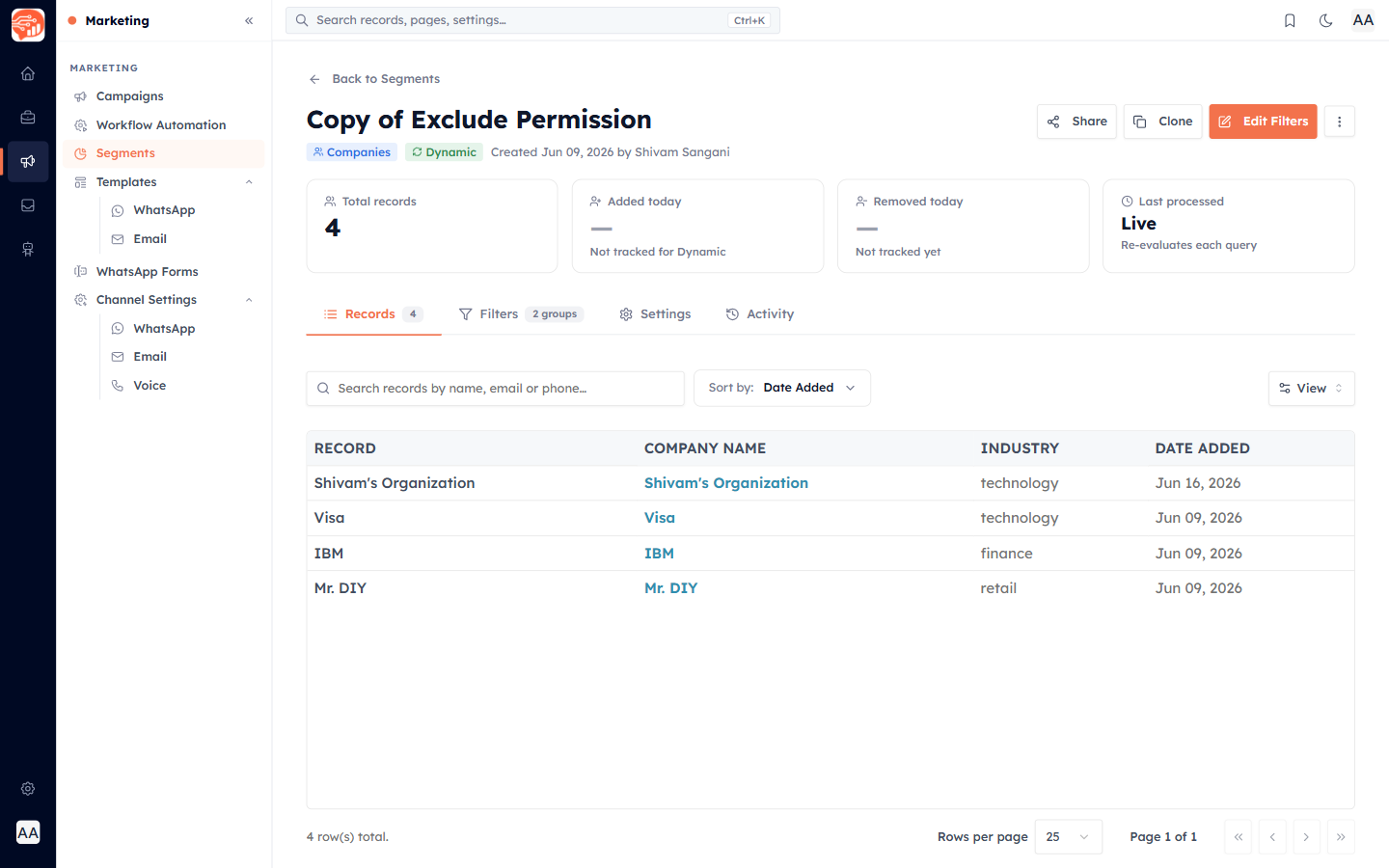
At the top, a KPI bar summarises the segment, and a set of tabs — Records, Filters, Settings, and Activity — lets you dig in. From here you can rename, edit, clone, share, export, or delete the segment.
Understanding the KPI bar#
The KPI bar shows four cards:
Total records — how many records are currently in the segment.
Added today — new members added today (tracked for static lists).
Removed today — members removed today.
Last processed — shows "Live" for a dynamic segment (it re-evaluates on every query) or a relative time for a static one.
Viewing members#
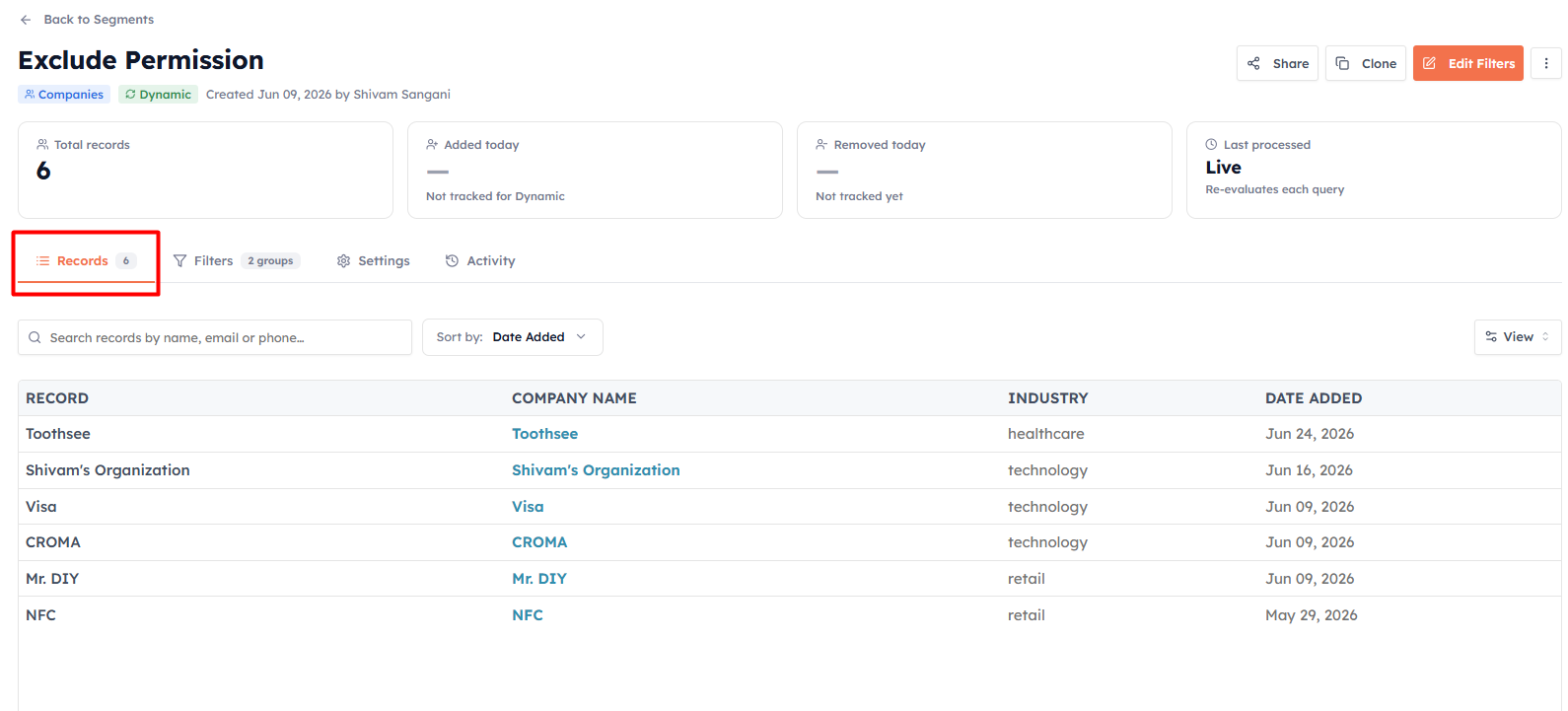
The Records tab lists everyone in the segment — a paginated, searchable, sortable table with columns tailored to the object (name plus a couple of key fields, and the date each record was added). Use it to spot-check that your audience looks right.
Editing filters#
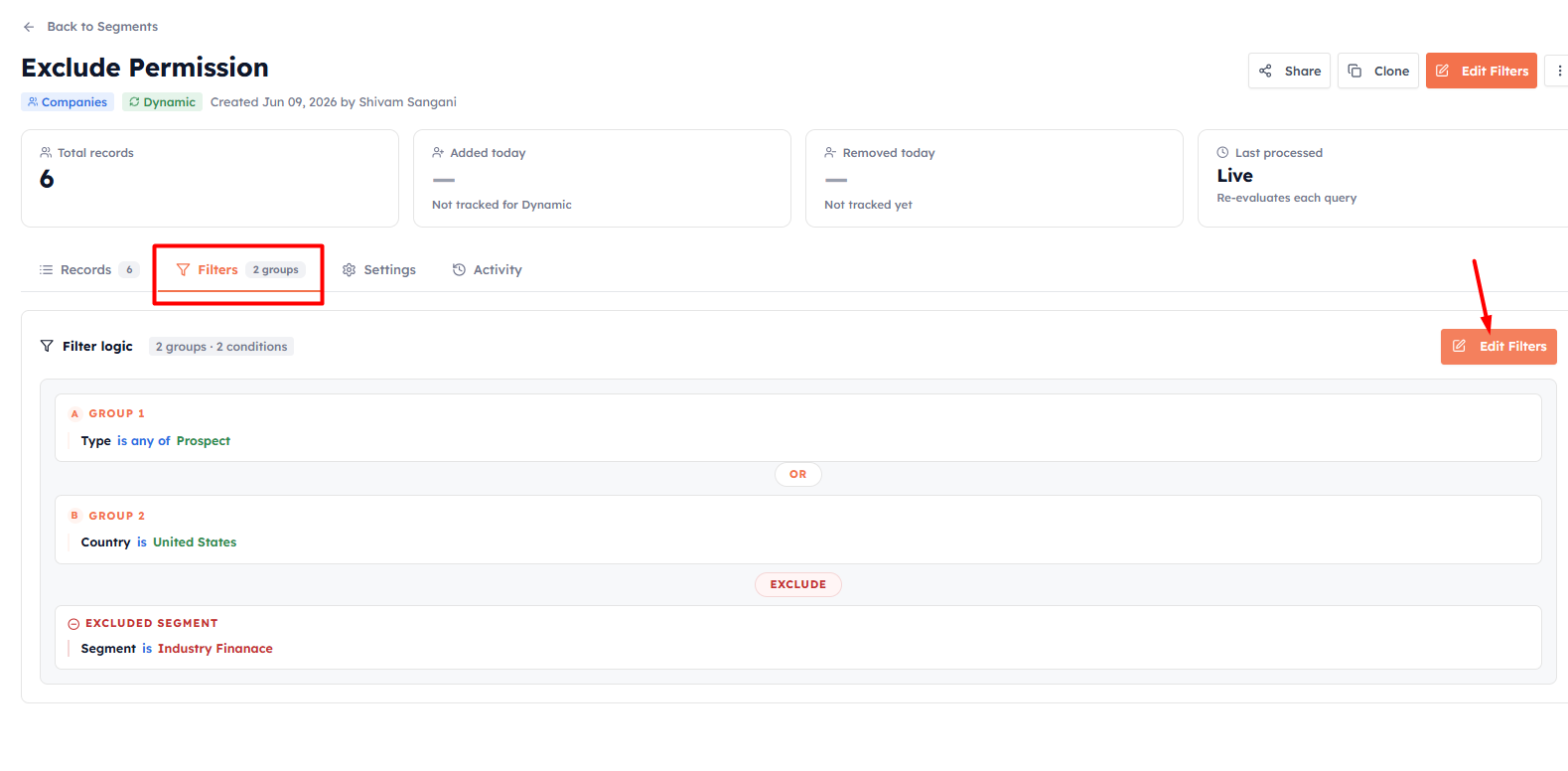
Click Edit Filters (or the Filters tab) to change a dynamic segment's conditions. Save, and the membership updates immediately on the next use. For a static list, editing is about adding or removing specific records rather than rules.
Cloning#
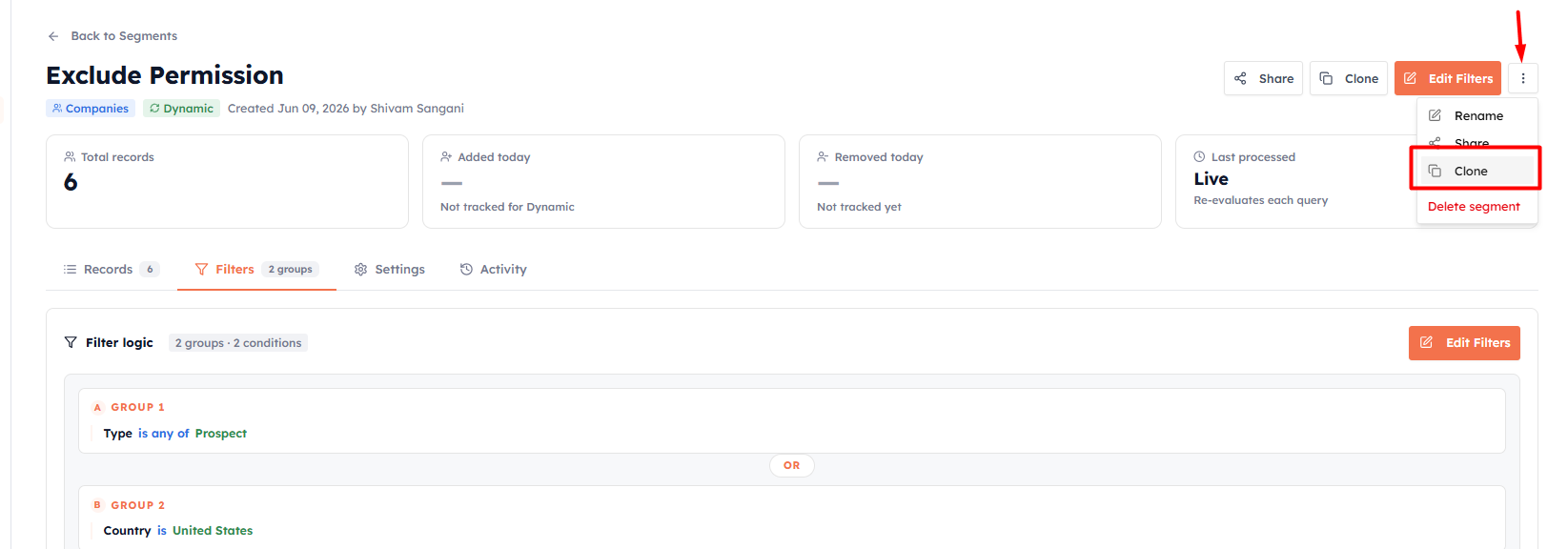
Use Clone to duplicate a segment — filters, exclusions, tags, and (for static) the member roster are all copied. The copy is named "Copy of {name}" and opens in edit mode so you can tweak it. Cloning is the fastest way to build a variation of an existing audience without starting from scratch.
💡
Cloned segments reset their sharing to Only me. If teammates need access to the copy, re-share it after cloning.
Sharing & permissions#
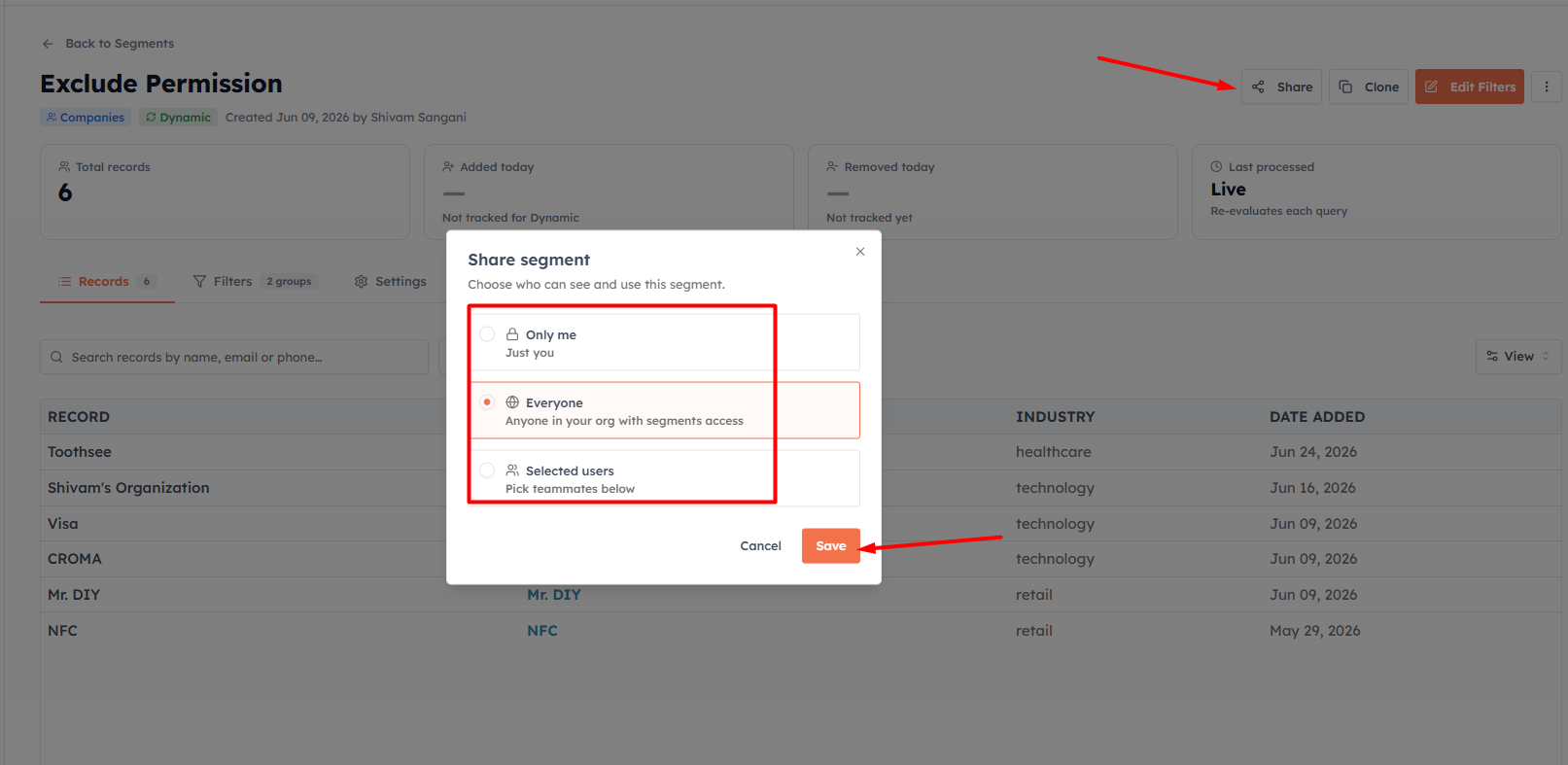
Use Share to control who else can use the segment. There are three levels:
Only me — private to you.
Everyone — all teammates can view and use it, but not edit or delete it.
Selected users — chosen teammates become co-owners who can edit it alongside you.
💡
Only the segment's creator and its co-owners (Selected users) can edit or delete it. Sharing with Everyone grants view-and-use access only, which keeps shared audiences safe from accidental changes.
Quick actions from the list#
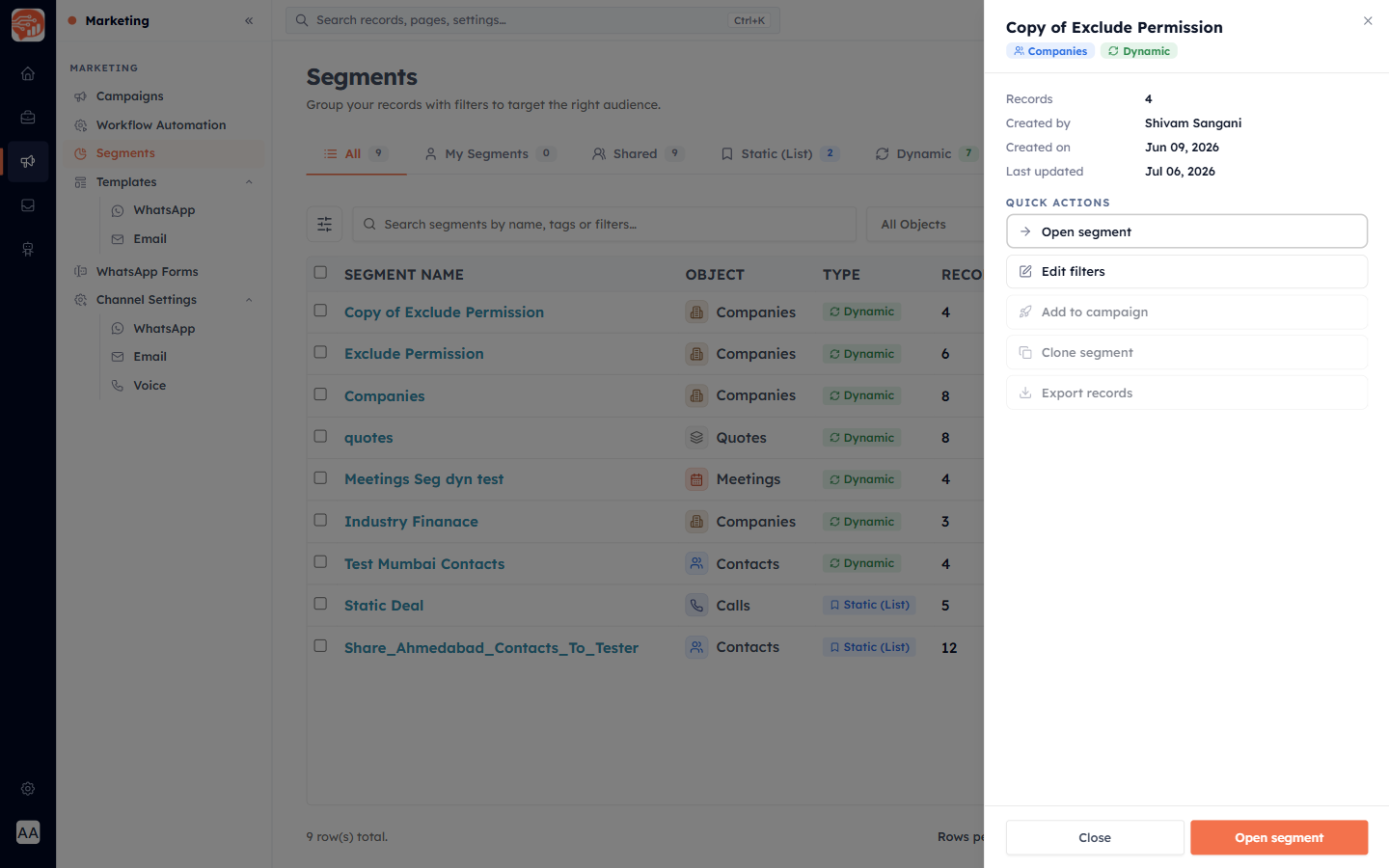
You do not always need to open a segment fully. Click any row in the Segments list to open a preview drawer showing the segment's key details and quick actions like Open segment and Edit filters. The row's "⋮" menu also offers View, Edit filters, Export records, Add segment to campaign, and Delete directly.
Deleting#
Use Delete from the row menu or the detail page. You will be asked to confirm. Deleting a segment does not delete the contacts inside it — only the segment definition is removed.
💡
Any campaign that uses a segment as its audience will lose that audience if you delete the segment. Check where a segment is used before removing it.
💡
Refreshing a count, cloning for variations, and exporting for external tools are everyday actions — none of them affect the underlying contact records, so you can use them freely.
💡
Next: Using Segments in Campaigns.
Was this article helpful?
Ready to implement this?
OpenAI Engage and apply what you just learned to your own workspace.
Open AI Engage CRM