Loading…


KnowledgeBase
The Segment Filter Builder: Building Precise Audiences
What the filter builder does#
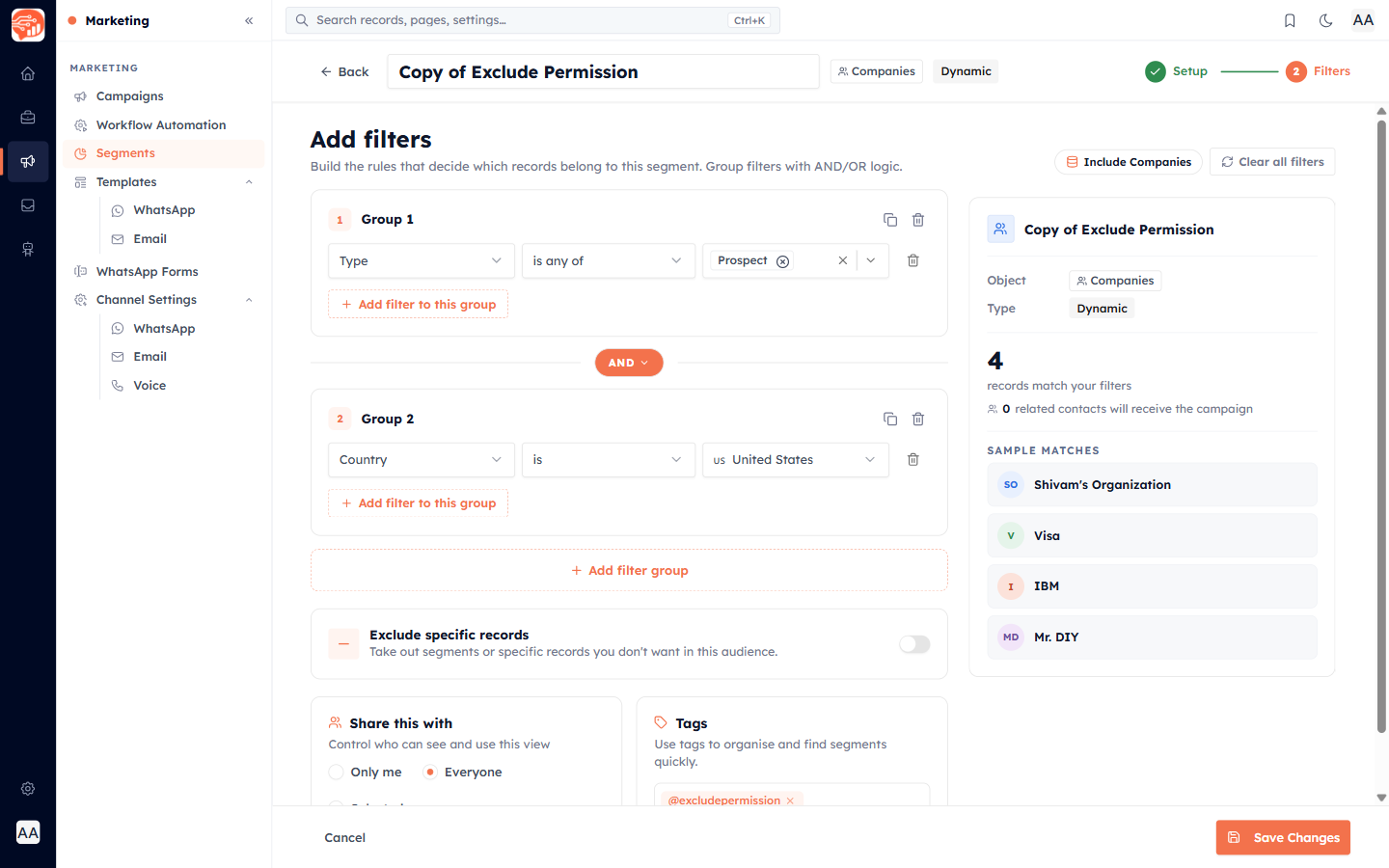
The filter builder is where you describe exactly who belongs in a segment. Its heading reads "Build the rules that decide which records belong to this segment. Group filters with AND/OR logic." This article covers the fields, operators, and logic you can use.
Choosing the object#
Every segment is built on one primary object — the type of record it contains. The primary options are:
- Contacts
- Companies
- Deals
- Calls
- Tasks
Any other module in your CRM is also available under "Other objects". You can change the object later with Change object — but note that doing so clears your existing filters.
ℹ️
Most segments are for Contacts — that is who you send campaigns to. Build Company segments for account-based targeting, or Deal segments for pipeline analysis.
Adding a condition#
Click Add filter. Each condition has three parts:
Field (property) — every field on the chosen object is available: standard fields like City, Lead Source, or Created Date, plus any custom field you have added.
Operator — how to compare. The available operators depend on the field type (see below).
Value — what to match against.
Operators by field type#
The CRM shows only the operators that make sense for each field type:
Text (name, email, phone, URL): is, isn't, contains, doesn't contain, starts with, ends with, is empty, is not empty
Number (number, currency, percent): is, isn't, greater than, less than, greater than or equal, less than or equal, is empty, is not empty
Date & time: is, isn't, before, after, between, in range, more than X days ago, less than X days ago, more than X days from now, less than X days from now, is empty, is not empty
Dropdown / picklist: is, isn't, is any of, is none of, is empty, is not empty
Multi-select: includes, doesn't include, includes all, is empty, is not empty
Checkbox / yes-no: is (True or False)
User / lookup: is, isn't, is any of, is none of, is empty, is not empty
💡
is empty and is not empty need no value — great for finding records missing data, like contacts with no phone number. between takes two values (a low and a high).
Relative date filters#
Date fields unlock powerful relative operators that keep working over time without editing:
more than X days ago — e.g. "Last Activity more than 30 days ago" finds dormant contacts
less than X days ago — e.g. "Created less than 7 days ago" finds this week's new records
less than / more than X days from now — for upcoming dates like renewal or appointment fields
The in range operator also offers quick presets: Today, Yesterday, Current Week, Last Week, Current Month, Last Month, Current Quarter, Last Quarter, Current Year, or a custom date range.
AND vs OR logic#
When you add more than one condition, you control how they combine:
AND (all conditions) — a record must match every filter. More targeted, smaller audience.
OR (any condition) — a record only needs to match one filter. Wider reach.
ℹ️
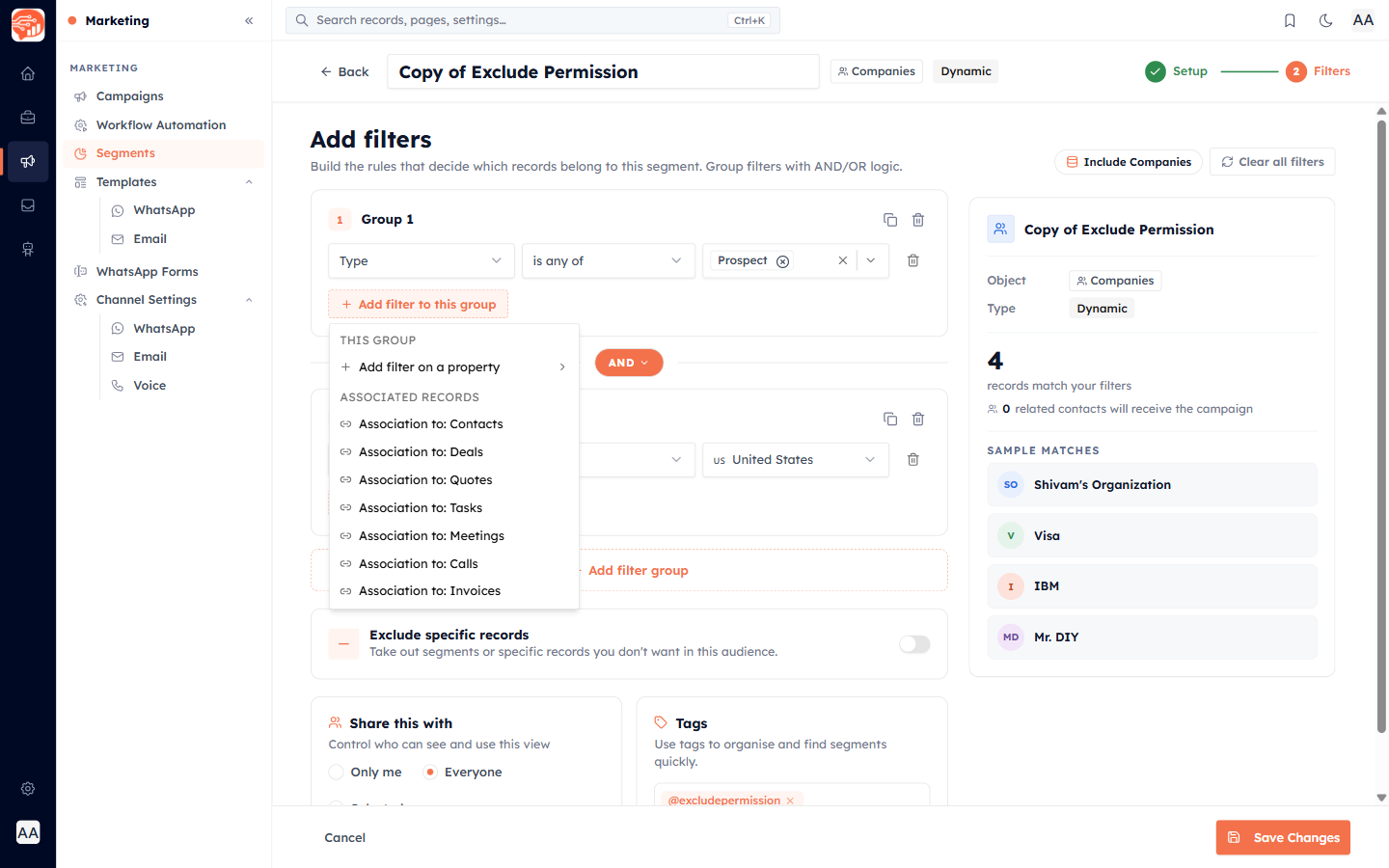
Need something more advanced — like "(A AND B) OR (C AND D)"? You can group conditions and mix AND/OR between groups. That is covered in Filter Groups & Association Filters.
Preview before you save#
The builder shows a live count of matching records and a handful of sample names as you work. "View all matching records" becomes available after you save the segment.
✅
Always glance at the live count before saving. It is the fastest way to catch a filter that is too strict (count near zero) or too loose (count near your whole database).
🔗
Next: Advanced Filtering: Filter Groups & Association Filters — nested logic and cross-module conditions.
Was this article helpful?
Ready to implement this?
OpenAI Engage and apply what you just learned to your own workspace.
Open AI Engage CRM