Loading…


KnowledgeBase
How to Create a Segment
Opening Segments#
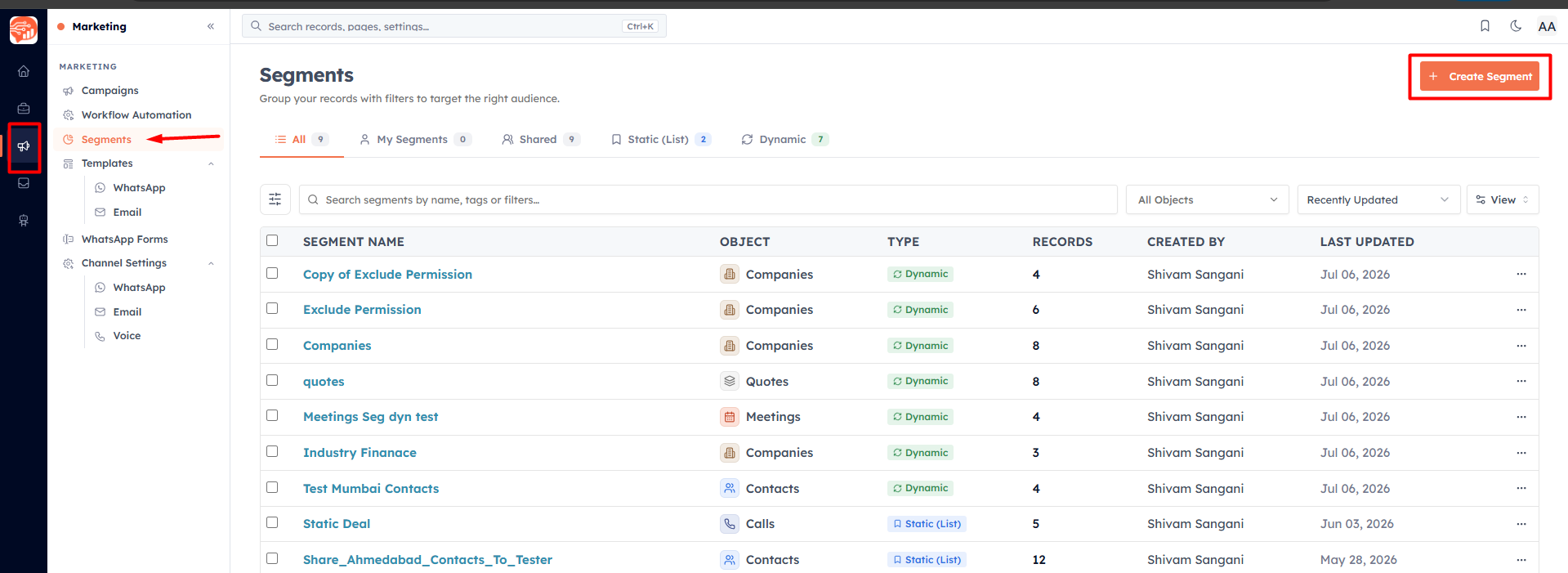
Click Marketing in the left sidebar, then click Segments. The list shows every segment you have, with its type, record count, and when it was last updated. Click Create Segment at the top right to start.
Step 1 — Set up the segment#
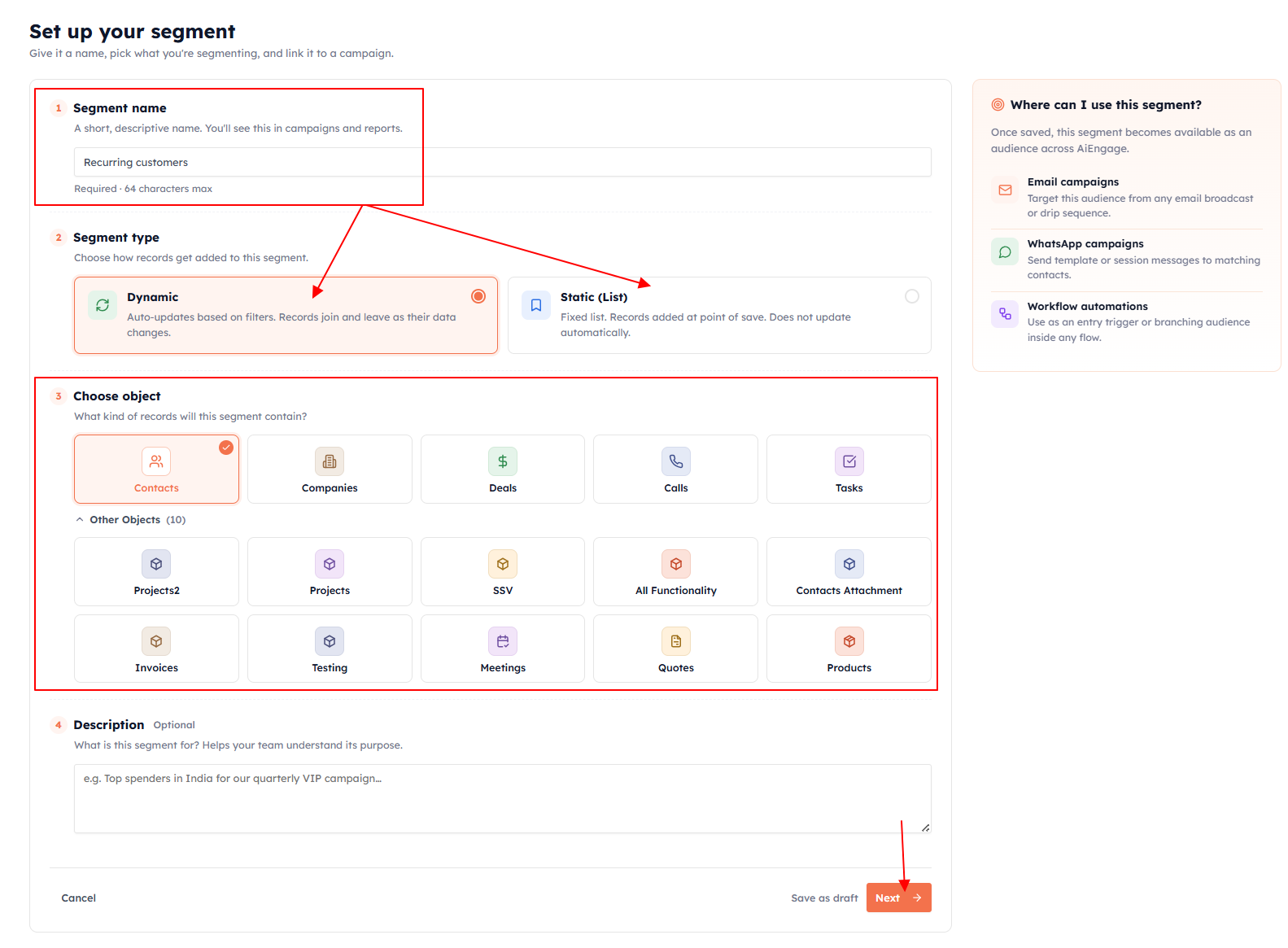
The setup screen has four parts:
Segment name (required) — a short, descriptive name, up to 64 characters. You will see this in campaigns and reports, so make it clear: "High-value contacts in Mumbai" beats "Segment 3".
Segment type — choose Dynamic (auto-updates from filters) or Static (List) (a fixed list). See Dynamic vs Static Segments if you are unsure.
Choose object — what kind of record this segment contains: Contacts, Companies, Deals, Calls, Tasks, or any other module. This is required for dynamic segments. Most segments are Contacts.
Description (optional) — a note about the segment's purpose, up to 1000 characters.
Click Next to continue.
💡
If you choose Static and do not select an object, the next screen lets you add contacts manually or import a CSV instead of building filters. See Building a Static List.
Step 2 — Build your filters#
This is where you define who belongs in the segment. Click Add filter and set up your first condition. Each condition has three parts:
Field — what you are filtering on (City, Lead Source, Created Date, any custom field)
Operator — how to compare (is, contains, greater than, is empty, more than X days ago…)
Value — what to match against ("Mumbai", "Facebook Ads", "30")
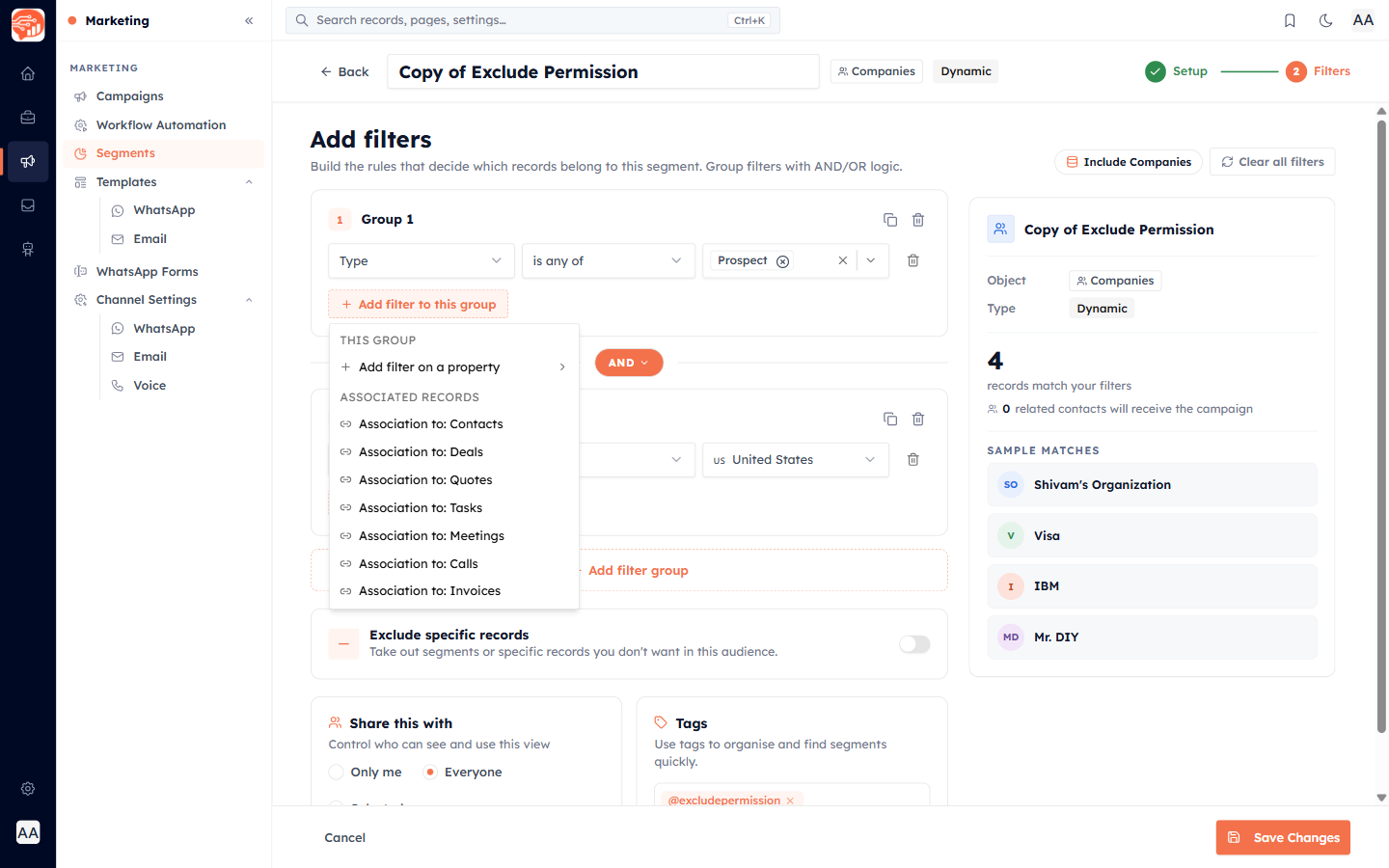
Add as many conditions as you need and combine them with AND (must match all) or OR (match any). For the full detail on operators, filter groups, and cross-module filters, see The Segment Filter Builder.
Step 3 — Exclude specific records#
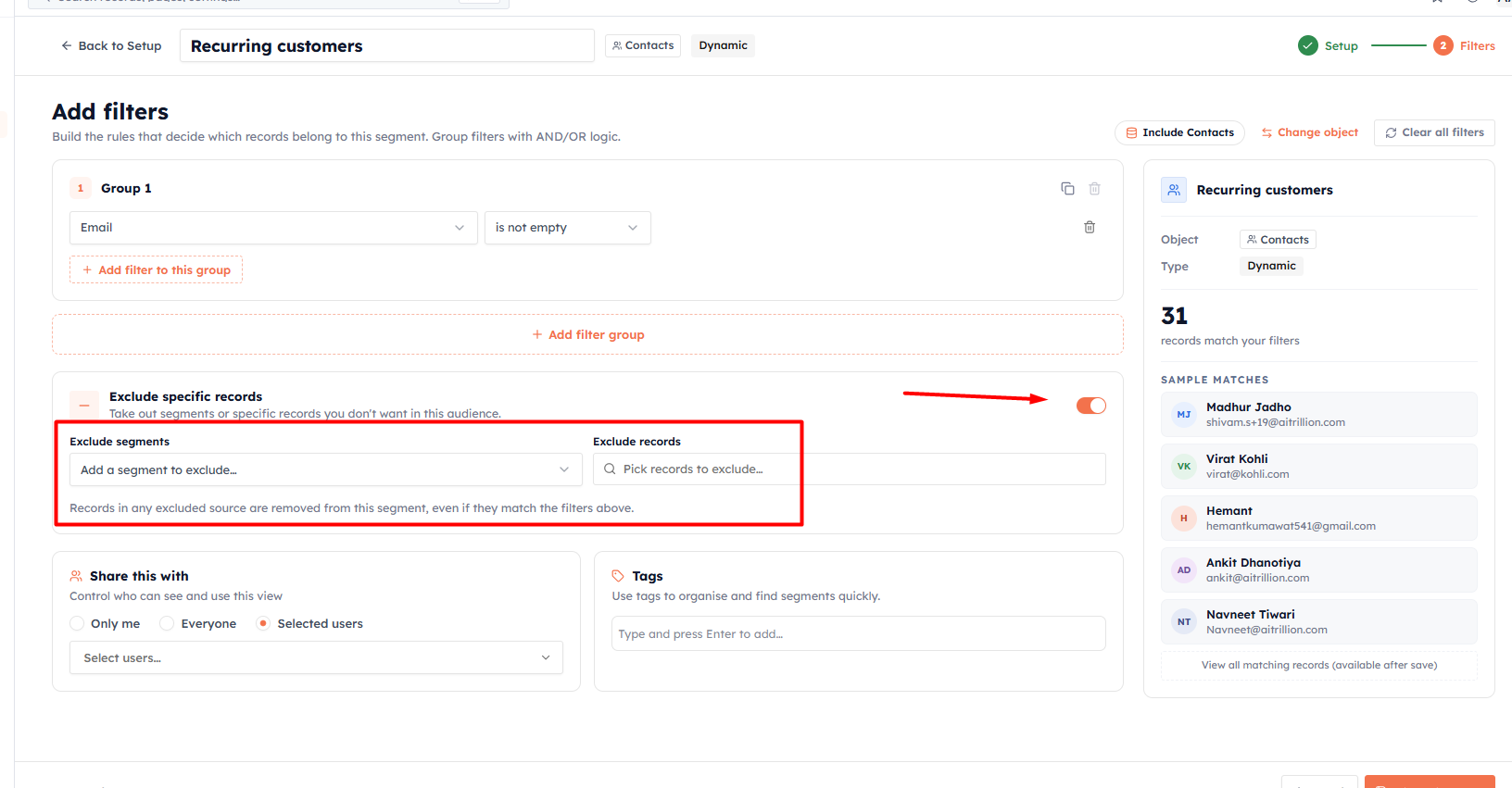
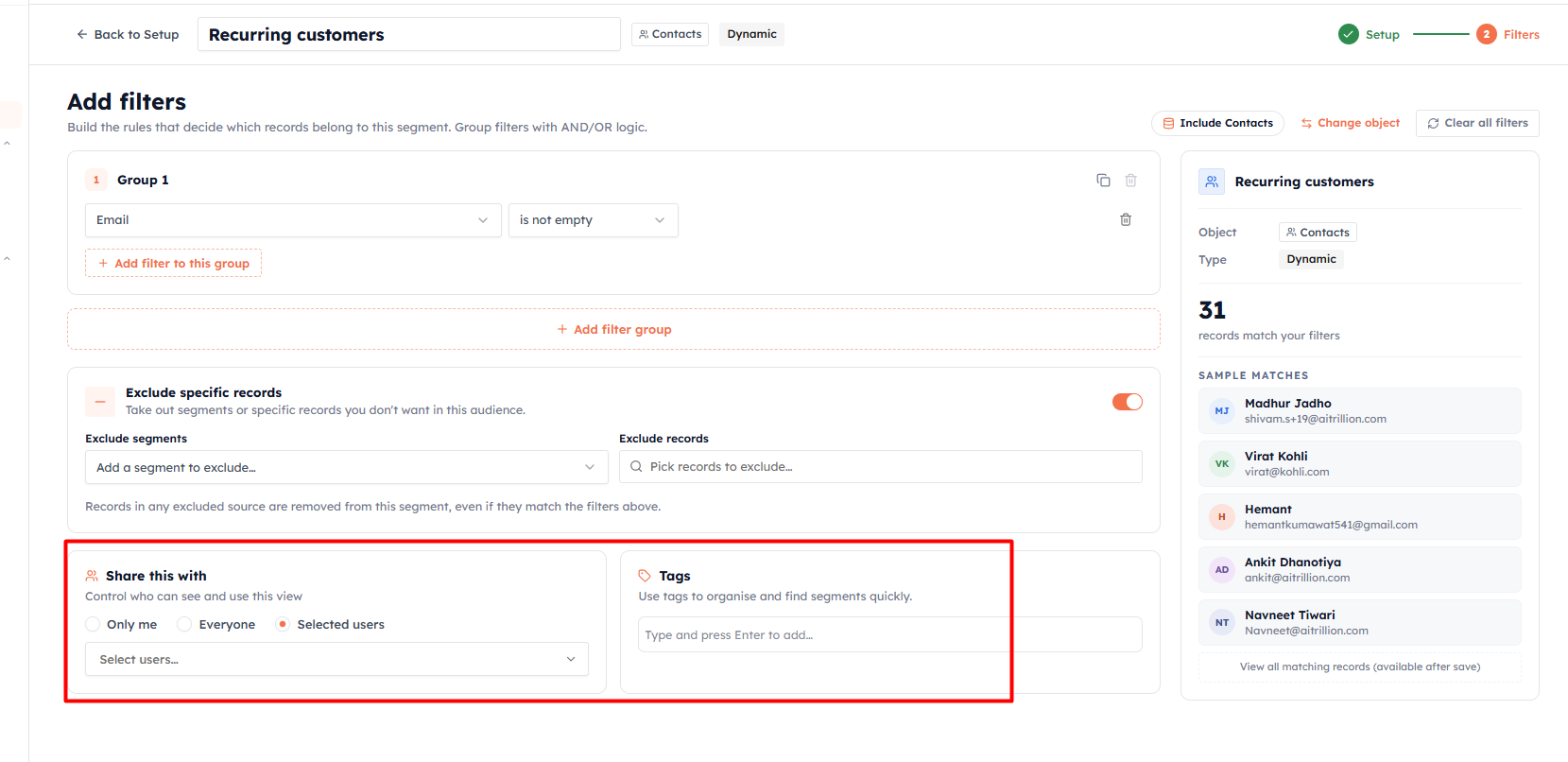
If you don't want specific audience or records to be added, you can enable the setting - Exclude specific records to exclude the specific records or audience. The available settings are:
Exclude segment — Create a filter, or skip this step, create a segment, then create a new filter and add that segment to exclude the audience.
Exclude record — Pick a specific record from the list or search a specific record from the list to exclude the record.
Step 4 — Sharing settings and tags#
There are two settings available which are:
Share this with — This setting allows you to control who can see the segment.
Tags — Add the tags to filter to identify unique segments.
Step 3 — Preview the matches#
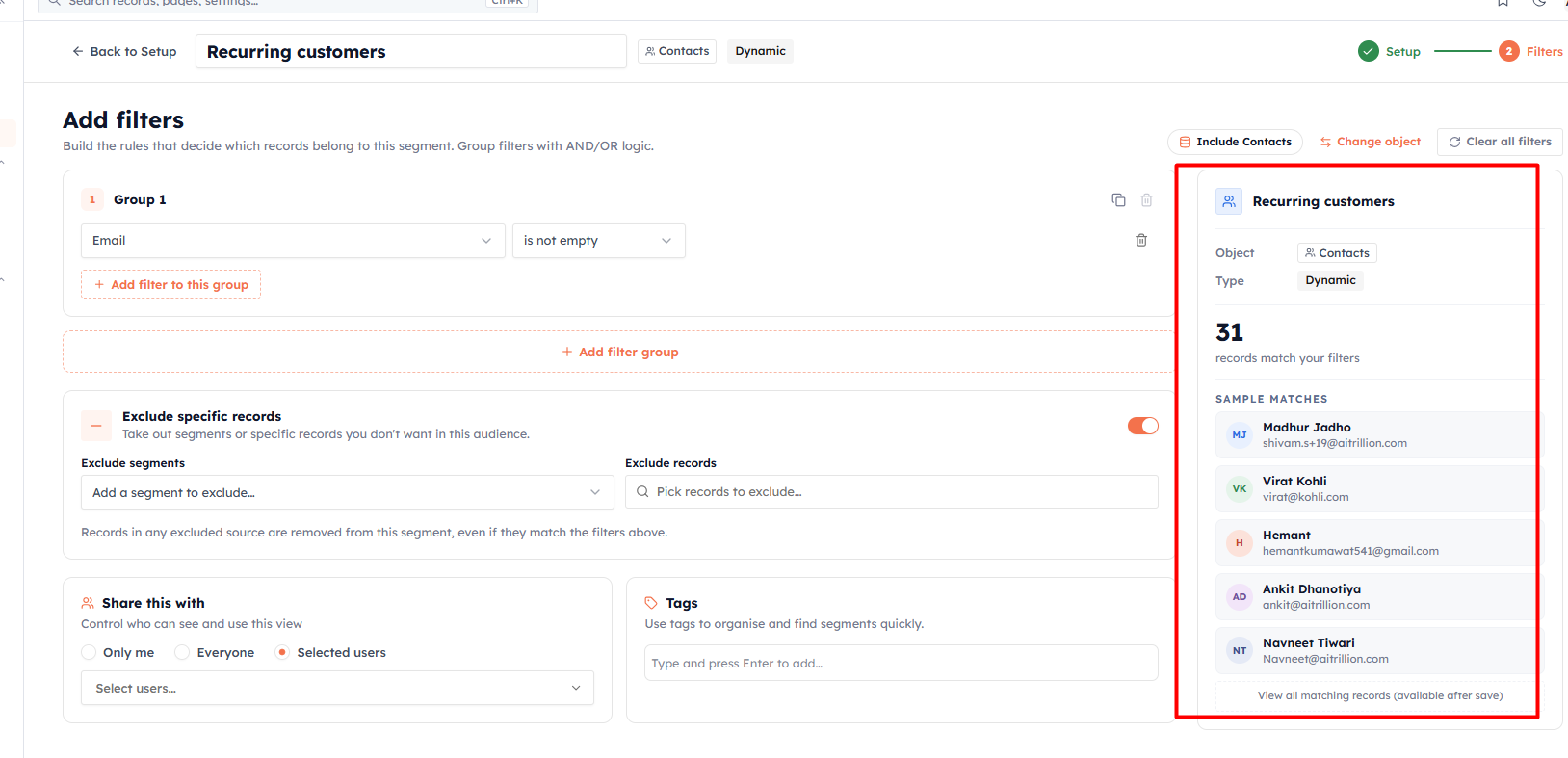
As you build, a live summary shows how many records currently match your filters, along with a few sample names. Use this to sanity-check your audience before saving — if the count looks wildly off, revisit your conditions.
💡
If your segment comes out empty or tiny, you may be using AND where you meant OR, or a value that never matches (check spelling and exact option names). Loosen one condition at a time and watch the count.
Step 4 — Save#
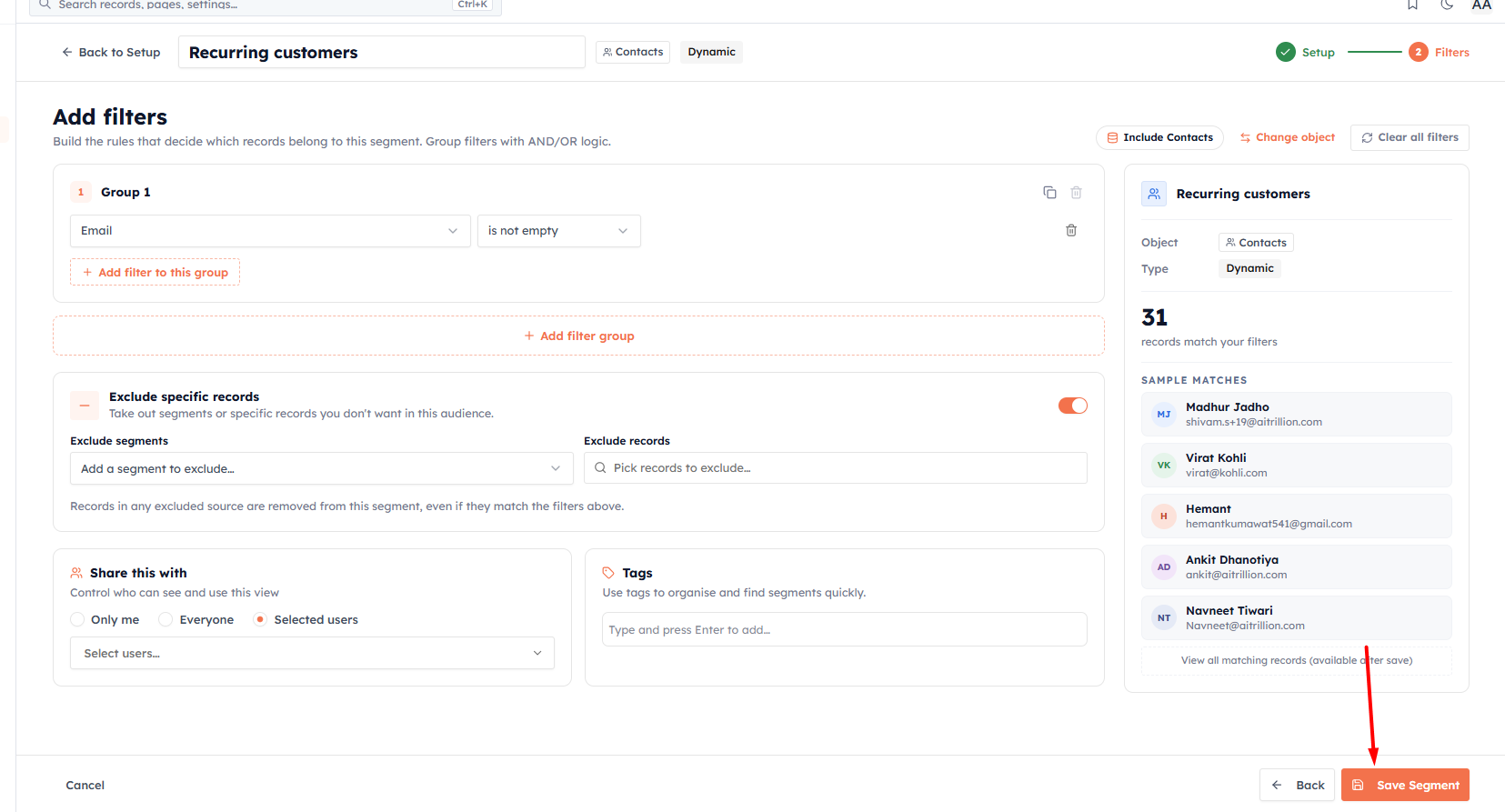
Click Save Segment. Your segment is created and immediately available to use as a campaign audience. You land on the segment's detail page, where you can view its members, edit filters, clone, export, or share it.
💡
A dynamic segment starts working immediately — the count you see is live and will keep updating as your data changes.
💡
Next: The Segment Filter Builder: Building Precise Audiences — master fields, operators, and AND/OR logic.
Was this article helpful?
Ready to implement this?
OpenAI Engage and apply what you just learned to your own workspace.
Open AI Engage CRM