Loading…


KnowledgeBase
Speed-to-Lead: Response-Time Tracking & Business Hours
Why speed-to-lead matters#
The faster you reply to a new lead, the more likely you are to win them. Response Time measures how long your team takes to make its first response to a lead, and holds them to a target you set.
Turn it on#
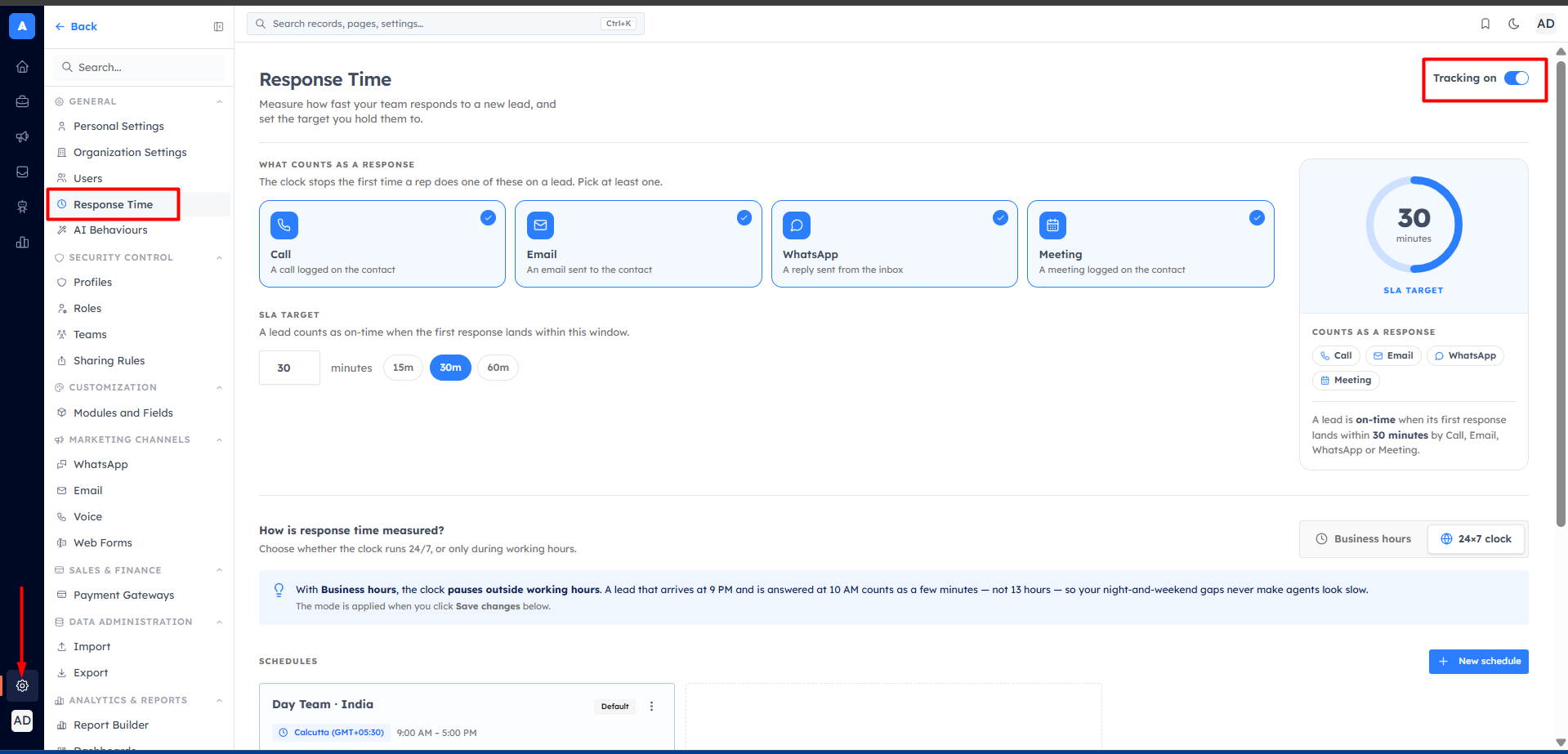
Open Settings → Response Time and switch Tracking on.
What counts as a response#
Choose which activities stop the clock (pick at least one): Call, Email, WhatsApp, or Meeting. The first time a rep does one of these on a lead, their response time is recorded.
💡
Only human responses count — automated WhatsApp/workflow blasts and system messages don’t stop the clock, so your numbers reflect real rep effort.
Set your SLA target#
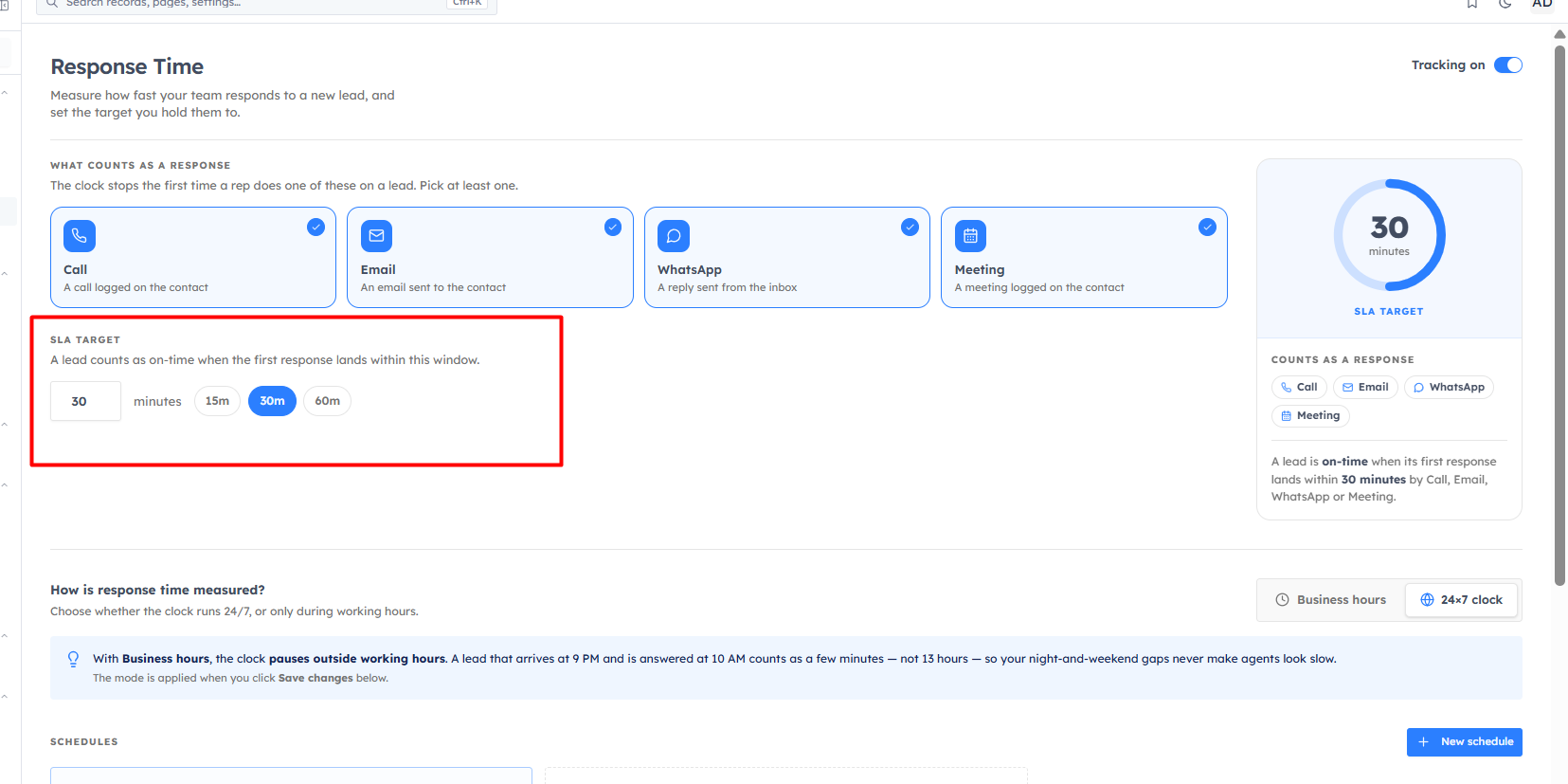
Set the window a first response must land within to count as on-time — in minutes, with quick presets (15m, 30m, 60m; the default is 30 minutes). A live dial previews your target.
24×7 or business hours#
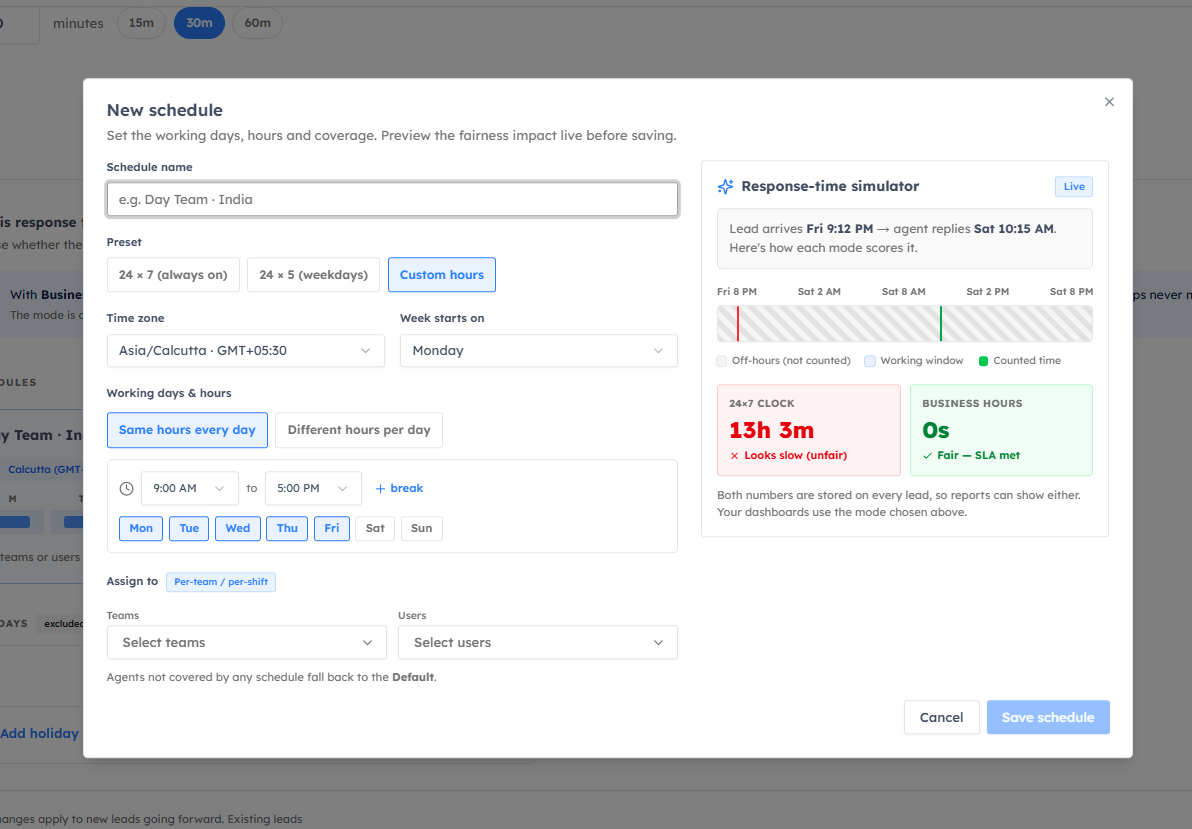
Decide how the clock runs:
24×7 clock — time counts around the clock.
Business hours — the clock pauses outside working hours. Set up one or more Schedules (name, timezone, per-day working hours, and which team/users they apply to; the first becomes the Default), and add Holidays (one-off or recurring dates that are excluded from the clock).
Click Save changes. Changes apply to new leads going forward.
What you’ll see on contacts#
Response Time fills in read-only fields on each lead you can filter and report on — First Response At, First Response Channel, First Responder, Responded, SLA Met, and a Response Speed bucket (≤ 5 min, 6–30 min, 31–60 min, > 60 min, No Response). Use these to report your team’s SLA % and average speed-to-lead.
💡
These fields are system-managed — the CRM sets them automatically; you can’t edit them by hand.
Was this article helpful?
Ready to implement this?
OpenAI Engage and apply what you just learned to your own workspace.
Open AI Engage CRM