Loading…


KnowledgeBase
The Contact Detail Page: Timeline, Notes & Activities
The contact detail page#
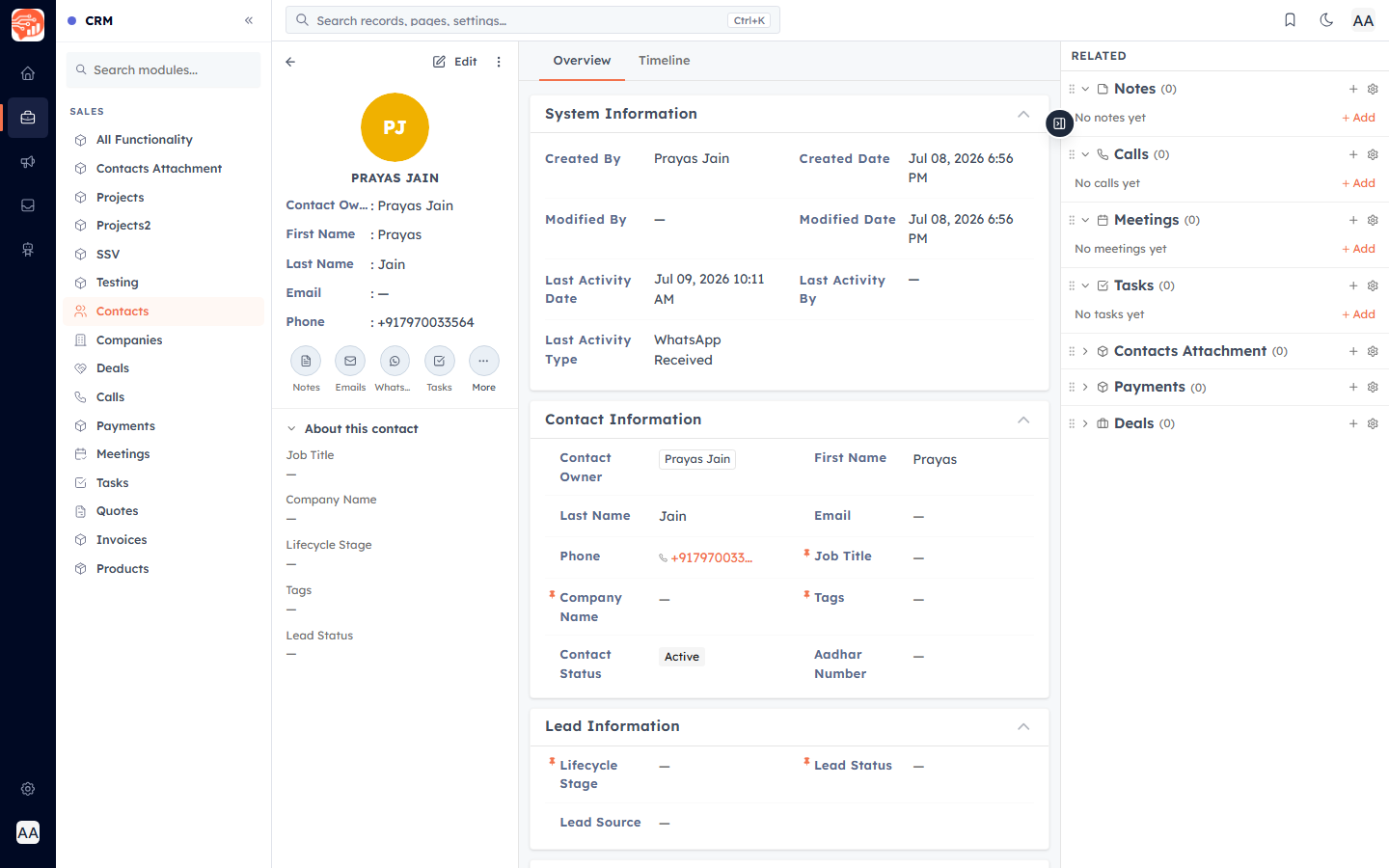
Click a contact’s name to open their record — everything the CRM knows about them in one place. Two tabs run across the top: Overview (all their fields, grouped into sections) and Timeline (every interaction in date order).
Quick actions#
The left panel has quick actions to add a Note, compose an Email, send a WhatsApp, or create a Task — and More for logging calls and meetings. Each one is recorded against the contact.
Notes#
The Notes area has two views: Notes shows notes written on this contact, while All Related Notes also pulls in notes from every record linked to them (their deals, tasks, and so on) — so you get the full context in one feed.
💡
Notes are visible to everyone on your team who can see the contact. Keep them factual.
Related records#
The right side lists related records — Deals, Calls, Meetings, Tasks, Emails, Attachments, and more. Add items directly from here, and they stay linked to the contact.
Timeline#
The Timeline tab is a chronological log of every activity — calls, emails, WhatsApp, notes, meetings, status changes — and can be filtered by type.
Change the owner#
Use the record actions to reassign the contact to a different owner. Deleting shows a preview of what is linked before you confirm.
Was this article helpful?
Ready to implement this?
OpenAI Engage and apply what you just learned to your own workspace.
Open AI Engage CRM