Loading…


KnowledgeBase
How to Create and Edit a Contact
Create a contact#
Open Contacts and click Create Contact (top right). A form opens with the contact fields grouped into sections.
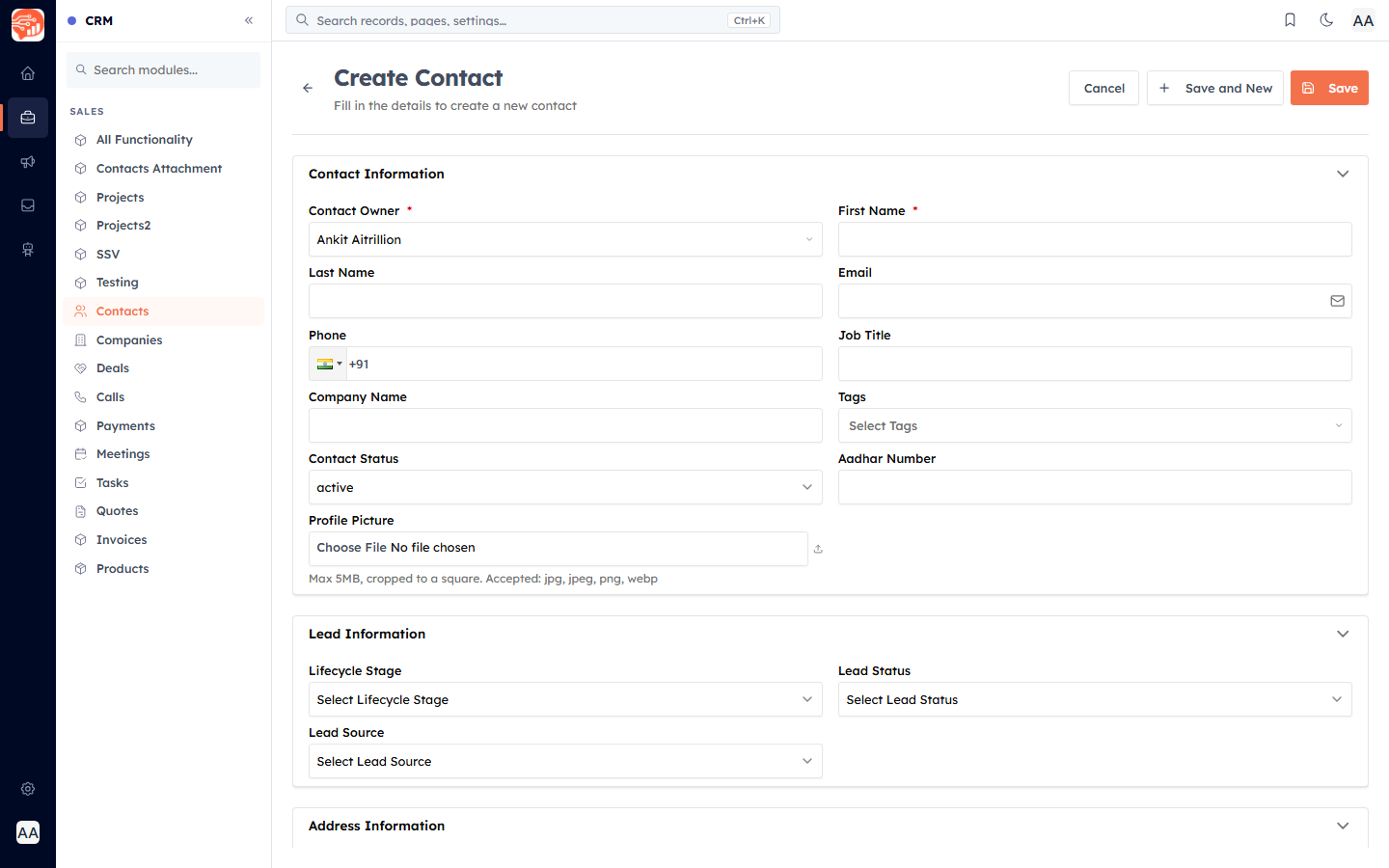
Contact Information:
Contact Owner (required) — the team member responsible; defaults to you.
First Name (required), Last Name.
Email — used for campaigns, tracking, and duplicate detection. It must be unique.
Phone, Job Title, Company Name.
Contact Status — defaults to Active.
Profile Picture — optional (max 5 MB).
Lead Information (Lifecycle Stage, Lead Status, Lead Source) and Address Information follow below — fill in what you know. See Managing Leads for what those fields mean.
💡
You only need a First Name (and the owner, which is pre-filled) to save. Everything else can be added later.
Duplicate protection#
If you enter an email that already exists, the CRM flags it so you do not create two records for the same person. If your admin has set up duplicate detection on other fields too, you will see a warning listing possible matches — you can open the existing record or choose Save anyway.
💡
See Find & Merge Duplicate Contacts to clean up duplicates that already exist.
Edit a contact#
Open a contact and click Edit to change details in the full form, or click a field value directly on the record to edit it inline without opening the whole form. Every change is timestamped.
Was this article helpful?
Ready to implement this?
OpenAI Engage and apply what you just learned to your own workspace.
Open AI Engage CRM