Loading…


KnowledgeBase
Set Up Company Fields: Industry & Type
Start in Settings: the Module Builder#
Companies ship with sensible fields, but two pick-lists are worth tailoring to your business first: Industry and Type. You edit them in the Module Builder.
Open Settings → Customization → Modules and Fields, find Companies, and click Configure.
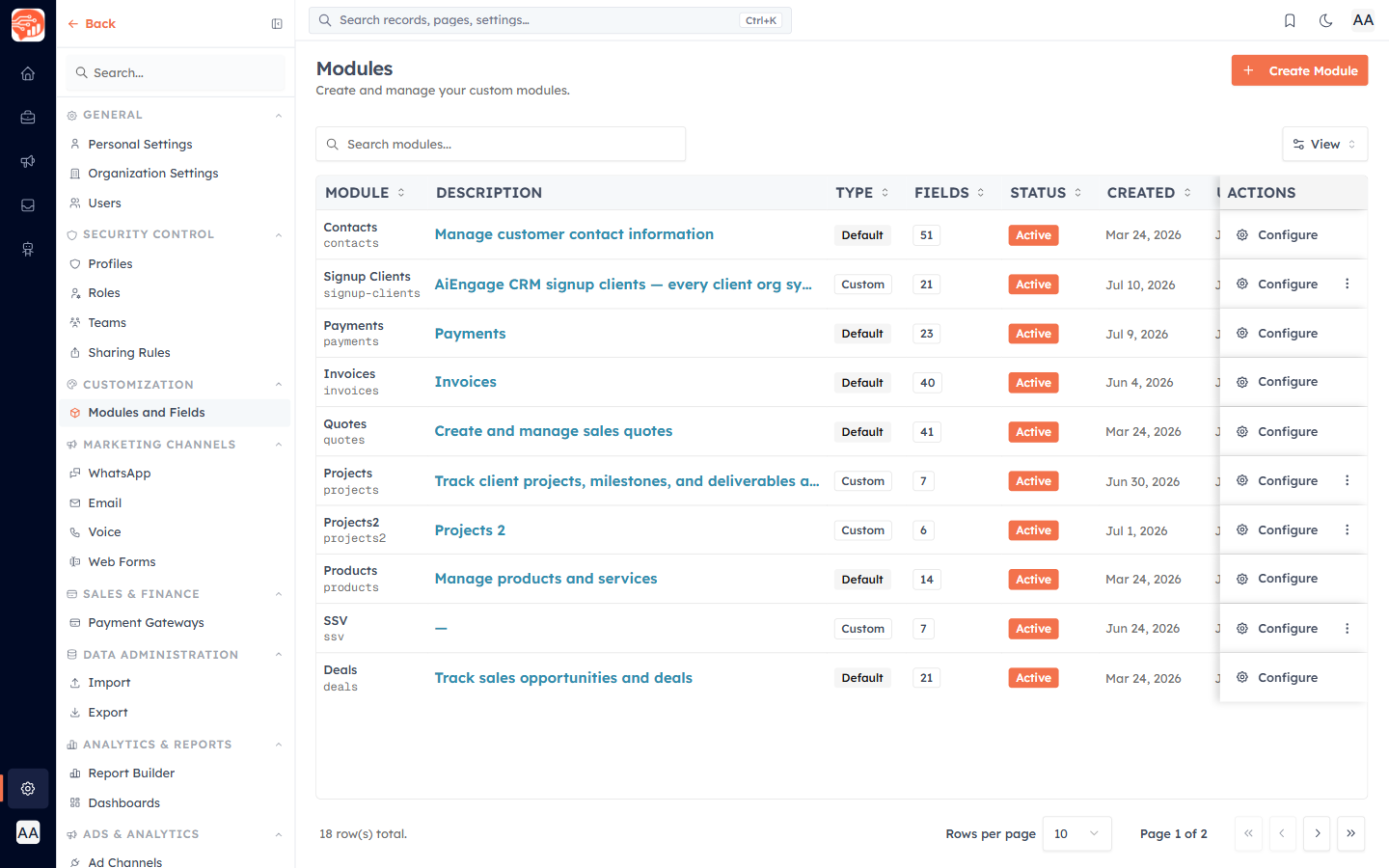
Edit the Industry & Type options#
In the builder, click the Industry field on the canvas. The Field Configuration panel opens on the right with an Options list.
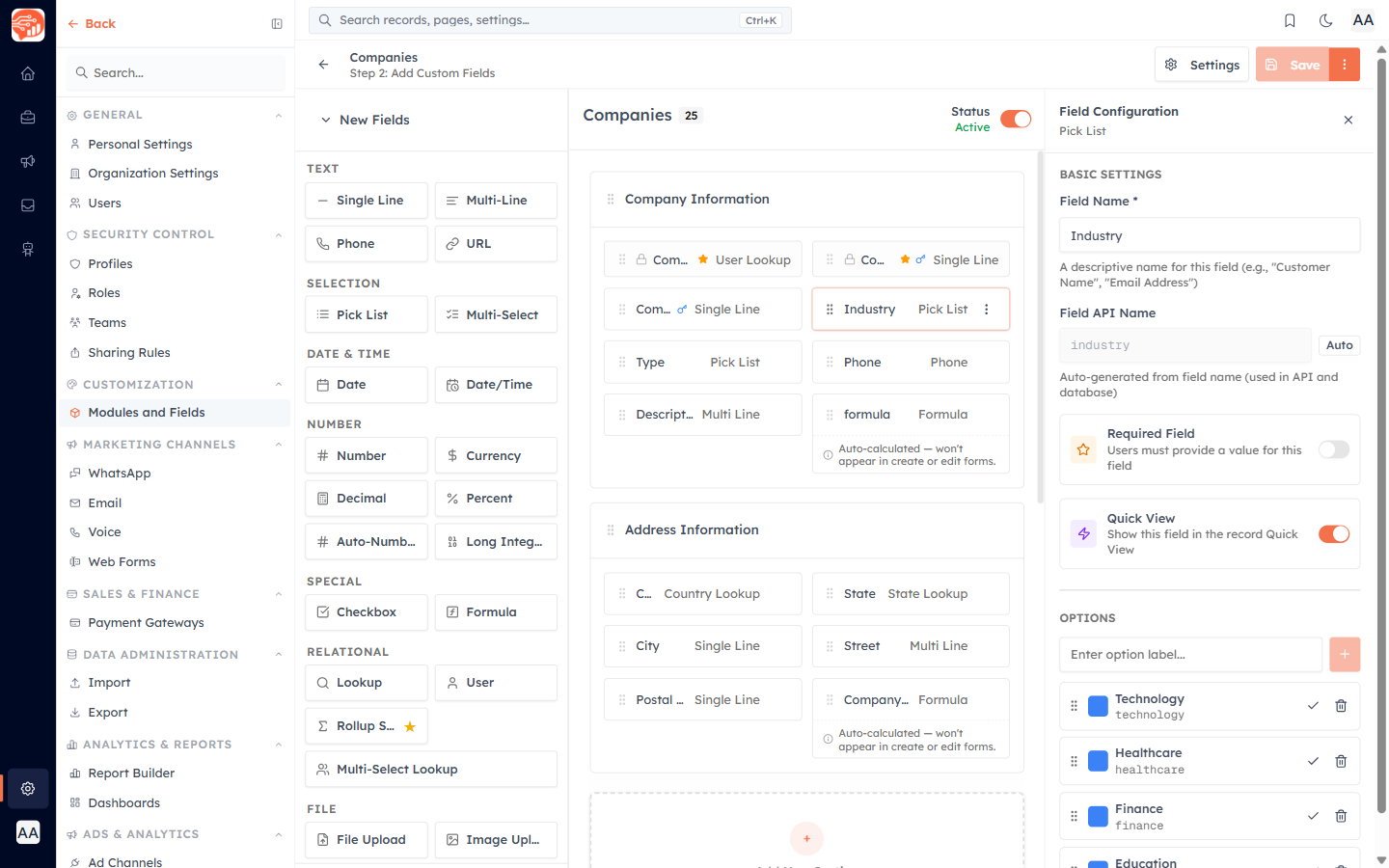
- Add an option — type a label in "Enter option label…" and click +.
- Rename — click a label to edit it.
- Reorder — drag the handle.
- Set a default or delete options you added.
Do the same for the Type field (default options: Prospect, Partner, Reseller, Vendor, Customer, Other). Click Save at the top when you are done.
ℹ️
The same builder is where you can rename, hide, reorder, or add other company fields (website, phone, employees, revenue, address, and more). Only Company Name is protected and cannot be removed.
Was this article helpful?
Ready to implement this?
OpenAI Engage and apply what you just learned to your own workspace.
Open AI Engage CRM