Loading…


KnowledgeBase
CRM API & MCP FAQ and Glossary: Plain-English Answers and Definitions for API Keys, Permissions, Limits, Errors and AI Assistants
Working with the AiEngage CRM API or connecting an AI assistant through MCP introduces a lot of new words — tokens, scopes, endpoints, quotas, status codes. This page puts them all in one place.
It has three parts:
Part 1 — Glossary: every term explained in plain English, in alphabetical order.
Part 2 — Where you see these terms in your CRM: screenshots of the CRM screens where each term appears, with every part explained.
Part 3 — Frequently asked questions: short answers grouped by topic, each linking to the full step-by-step guide.
ℹ️
Tip: press Ctrl + F (Windows) or Cmd + F (Mac) and type a word to jump straight to it on this page.
Part 1: Glossary of API and MCP Terms#
Term | What it means in plain English |
|---|---|
API (Application Programming Interface) | A way for two pieces of software to talk to each other. The AiEngage CRM API lets your other systems read and update CRM data automatically. |
API key / Personal Access Token | A long secret code (starting |
Archive (soft delete) | What “Delete” does through the API: the record is hidden from lists and searches but can be recovered for 90 days. |
Association | A link between two records — for example a contact linked to a company or a deal. |
Authorization header / Bearer token | The line every API request carries to prove who is calling: |
Base URL | The address every API request starts with: |
Batch | Doing many records in one request — up to 100 at a time — instead of one request per record. |
Connection | An app (such as an AI assistant) that a person approved through a sign-in screen. Listed on the Connections tab; always read-only. |
Correlation ID | A unique reference attached to every API response. Give it to support and they can find your exact request. |
Developer portal | The technical documentation at developer.aiengagecrm.com, with every endpoint, code samples and a Send button to try calls. |
Endpoint | One specific thing the API can do, such as “create a record” or “search records”. In the Usage tab it appears as a name like |
Expiry | The date after which a key stops working on its own (Never, 30 days, 90 days, 1 year or 2 years). Its status then shows Expired. |
Field API name | The fixed, computer-friendly name of a field (for example |
Idempotency key | A unique value your developer can attach to a request so that, if it is retried after a network problem, it is not carried out twice. |
JSON | The text format the API uses to send and receive data — labels and values in curly brackets. |
Label | The name you give an API key so you remember what it is for, such as “Website lead form”. |
MCP (Model Context Protocol) | An open standard that lets AI assistants such as Claude, Cursor or VS Code read information from other systems. AiEngage CRM’s MCP connector is read-only and needs no API key. |
MCP server address | The address you paste into your AI assistant to connect it: |
Method | The kind of action a request performs: GET reads, POST creates or runs, PUT creates-or-updates (upsert), PATCH updates, DELETE archives. |
Module and module API name | A type of record (Contacts, Deals, Tickets or a custom module). Each has an API name — the grey lower-case name under it on Modules and Fields, such as |
Pagination / cursor | Large lists come back in pages of up to 100 records. Each page includes a cursor (“after” value) that fetches the next page. |
Prefix | The first few characters of an API key (for example |
Quota | The total number of API calls your organisation may make per day and per month, set by your plan and shared by all keys and connections. |
Rate limit | How many calls one key may make in a few seconds, to prevent sudden bursts (for example 100 calls every 10 seconds on most endpoints). |
Record | A single item in a module — one contact, one deal, one ticket. |
Revoke | Switching an API key off permanently. It cannot be undone. |
Scope (permission) | What a key is allowed to do, ticked when you create it — for example Contacts: Read. Read, Write and Delete are separate. |
Status code | The number the API returns with each answer: 200/201 success, 400 bad request, 401 not signed in, 403 not allowed, 404 not found, 409 conflict, 429 too many calls, 5xx server problem. |
Upsert | “Update or insert”: update the record if a matching one exists (for example by email), otherwise create it. Prevents duplicates. |
Usage | The tab that shows how many calls have been made against your quota and lists the last 100 calls. |
Part 2: Where You See These Terms in Your CRM#
All API settings live in Settings (the gear icon at the bottom of the left menu bar). The screenshots below show each screen and which glossary terms it contains.
The API keys list (API key, label, prefix, scope, status)#
Open Settings → Developer Hub → API Keys. The page is called API & Connections and opens on the Keys tab.
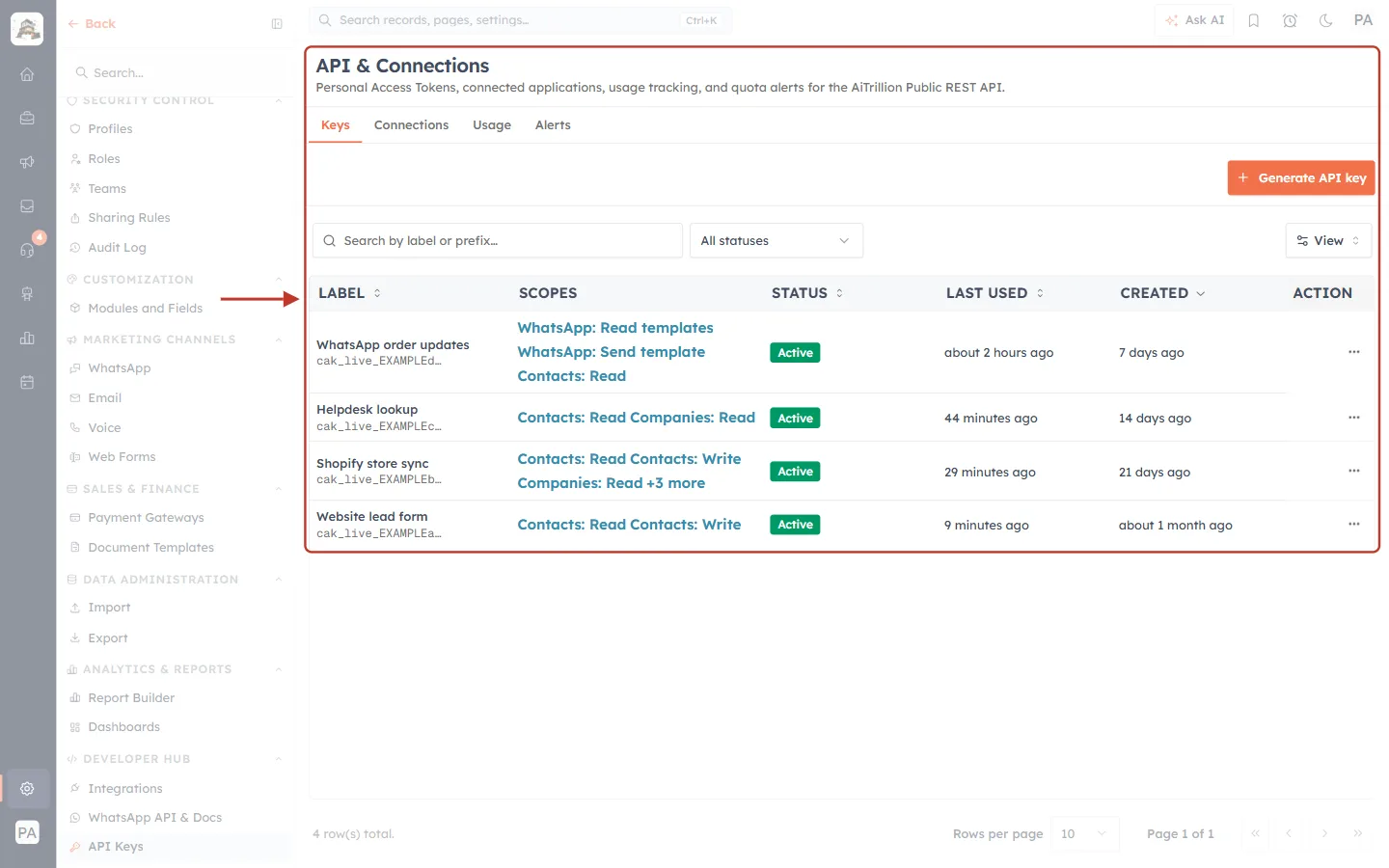
What this screenshot shows. The API & Connections page on the Keys tab, listing four example keys. (These are example keys for illustration.)
Tabs — Keys (your API keys), Connections (approved AI assistants and apps), Usage (calls and quota) and Alerts (quota warnings).
Generate API key (orange, top right) creates a new key.
LABEL — each key’s name (for example “Website lead form”), with its prefix underneath in grey (
cak_live_EXAMPLEa…).SCOPES — the key’s permissions, such as Contacts: Read or WhatsApp: Send template. “+3 more” means it has further permissions.
STATUS — Active means the key works; other values are Revoked and Expired.
LAST USED and CREATED — when the key last made a call and when it was made. The ⋯ under ACTION lets you revoke a key.
Scopes: Read, Write and Delete#
Scopes are chosen in the Generate API key window when you create a key.
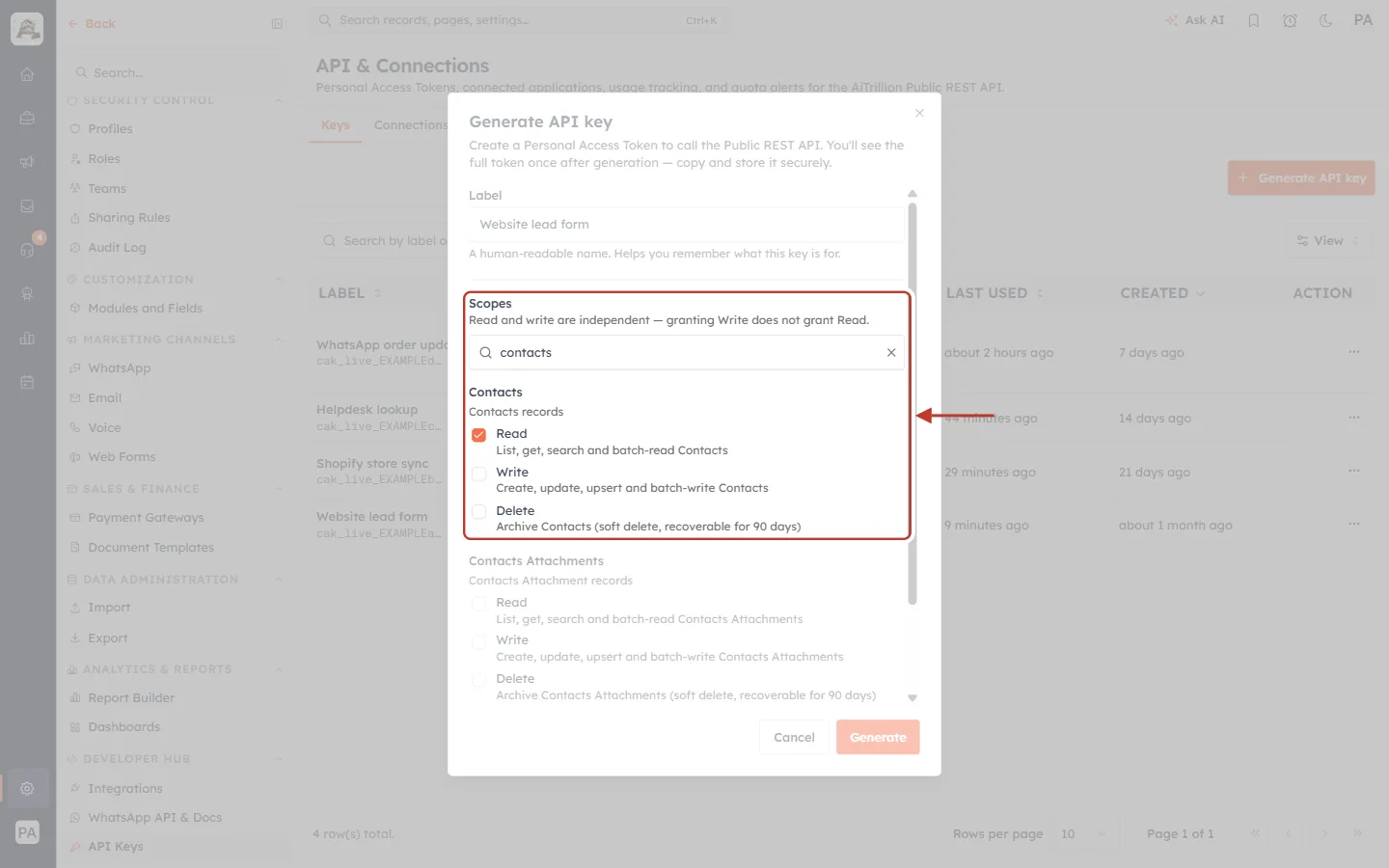
What this screenshot shows. The Scopes section of the Generate API key window, filtered to “contacts”, with Read ticked.
The heading Scopes and the reminder “Read and write are independent — granting Write does not grant Read.”
Search permissions… narrows the long list — here to “contacts”.
Read — “List, get, search and batch-read Contacts”.
Write — “Create, update, upsert and batch-write Contacts” (this is where upsert and batch come in).
Delete — “Archive Contacts (soft delete, recoverable for 90 days)”.
Module API names#
Open Settings → Customization → Modules and Fields to see every module and its API name.
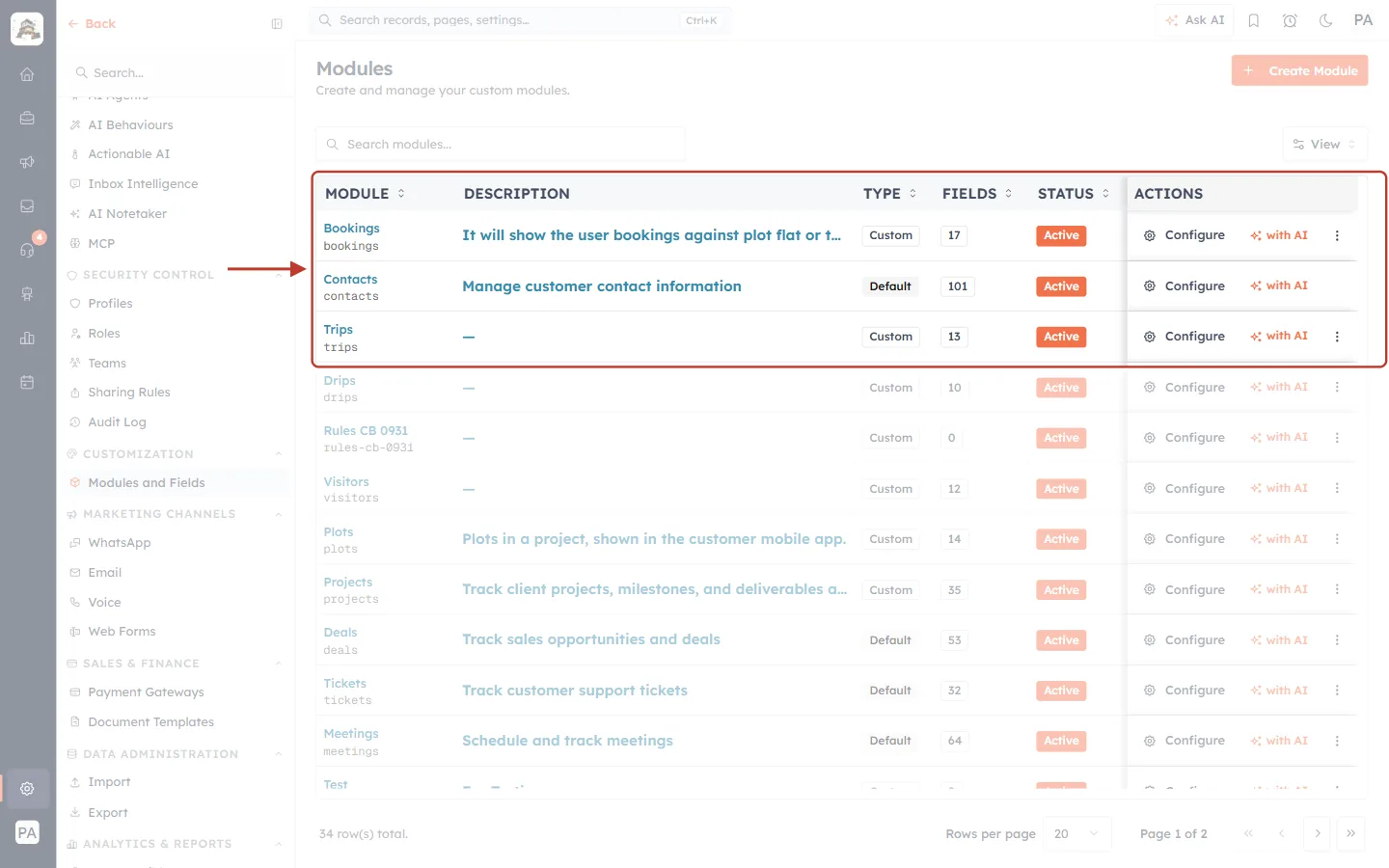
What this screenshot shows. The Modules list, with the first three modules highlighted.
MODULE — the name you see in the CRM in blue (Bookings, Contacts, Trips) and, underneath in grey, its API name (
bookings,contacts,trips). Developers use the grey name.TYPE — Default modules come with the CRM; Custom modules were created by your organisation. Both work with the API in the same way.
FIELDS — how many fields the module has. Configure opens the module, where each field’s API name is shown.
STATUS — Active modules can be used.
Quota and usage#
Click the Usage tab on the API & Connections page.
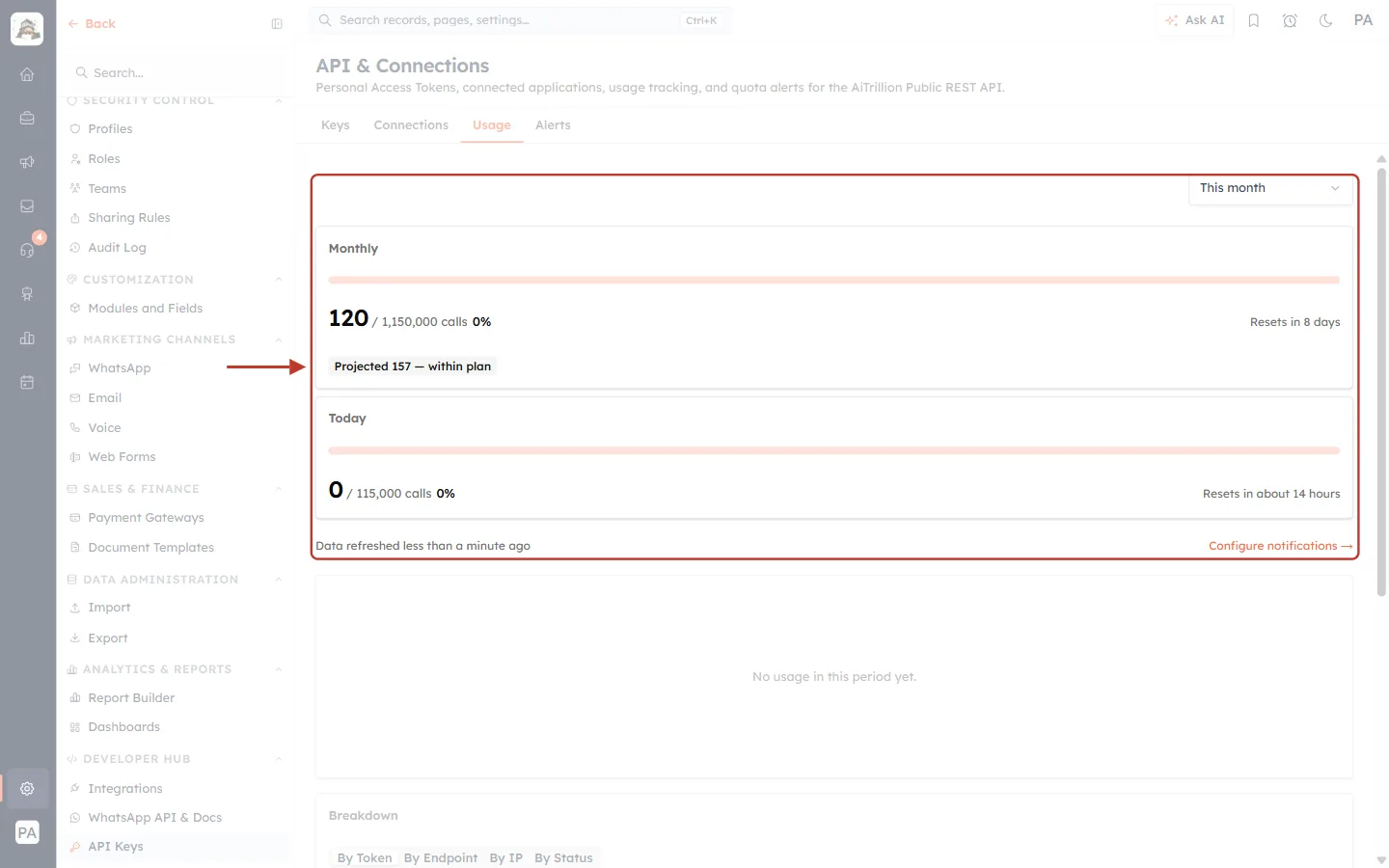
What this screenshot shows. The quota cards at the top of the Usage tab.
Monthly — calls made this month out of your plan’s monthly quota (for example “120 / 1,150,000 calls”), the percentage, and when it resets.
Projected … — within plan estimates your month-end total.
Today — calls made today out of the daily quota, and when it resets.
Data refreshed… shows how up to date the figures are. Configure notifications → opens the Alerts tab. This month (top right) changes the period.
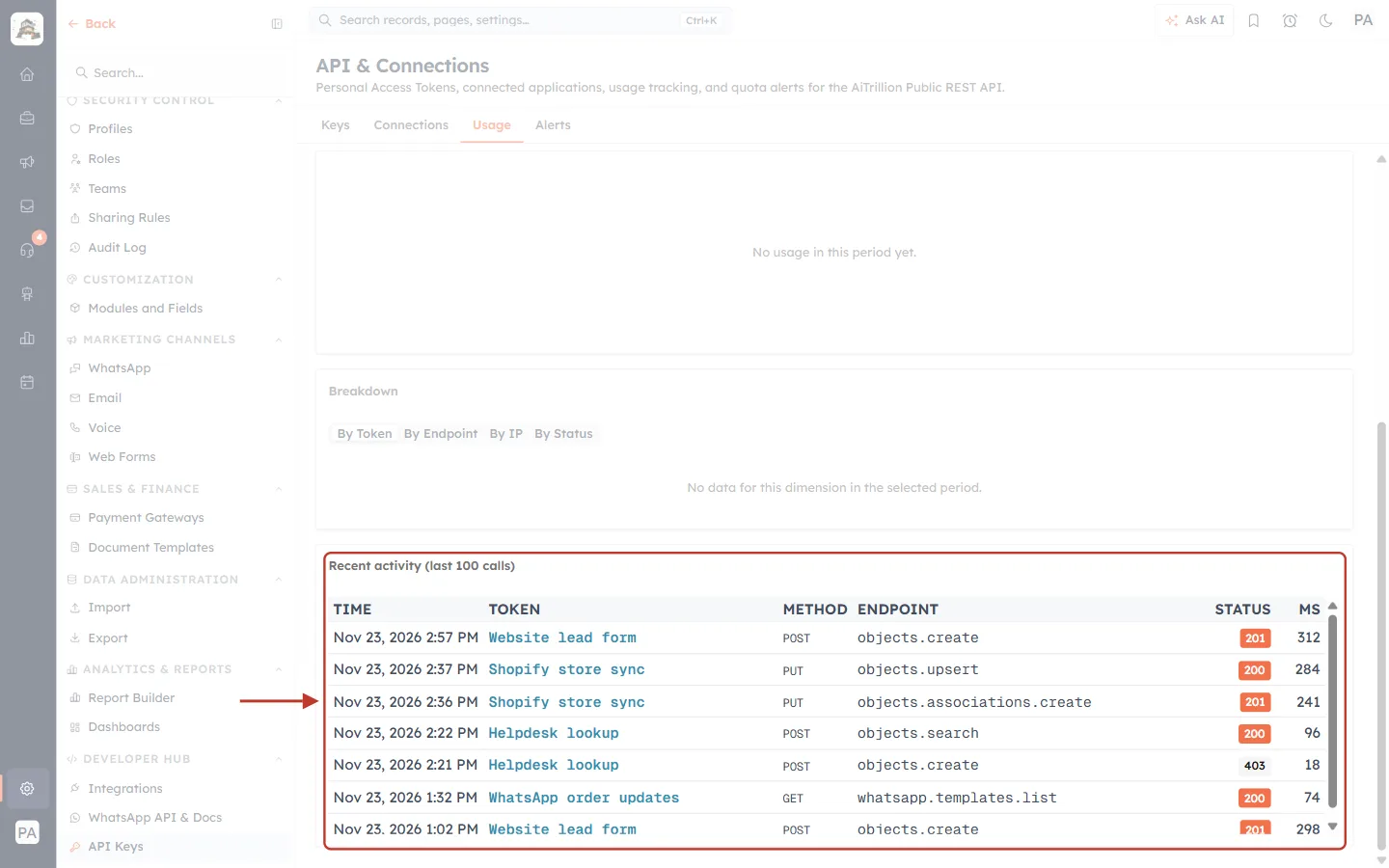
What this screenshot shows. The Recent activity table further down the Usage tab. (Example data.)
TOKEN — the label of the key that made the call.
METHOD — GET, POST, PUT and so on (see “Method” in the glossary).
ENDPOINT — which action was called, for example
objects.create,objects.upsert,objects.searchorwhatsapp.templates.list.STATUS — the status code. 200 and 201 are successes; the 403 row is a key trying to do something its scopes don’t allow.
MS — how long the call took, in milliseconds.
Quota alerts#
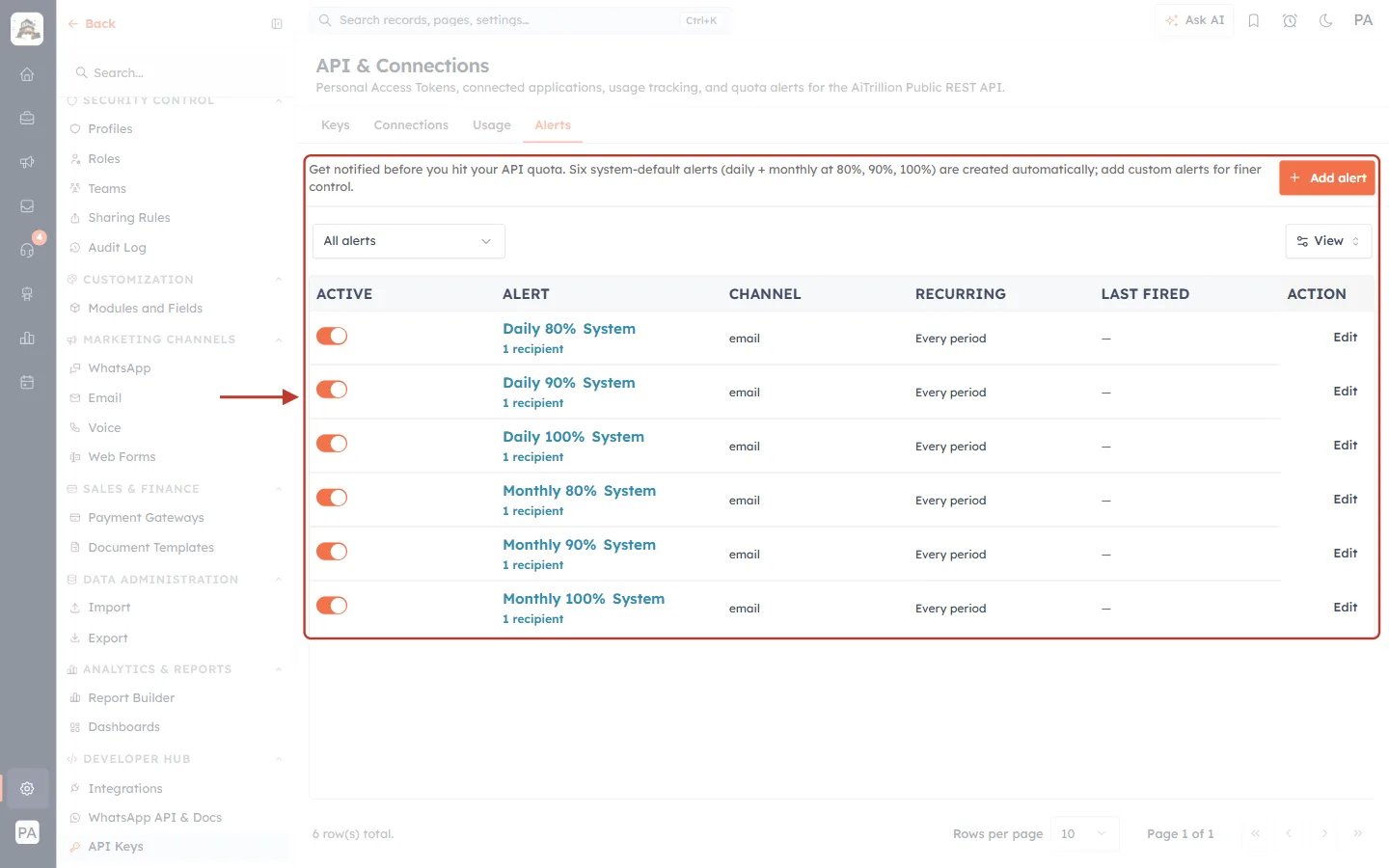
What this screenshot shows. The Alerts tab of API & Connections.
The description reads: “Get notified before you hit your API quota. Six system-default alerts (daily + monthly at 80%, 90%, 100%) are created automatically; add custom alerts for finer control.”
The six System alerts — Daily 80%, 90%, 100% and Monthly 80%, 90%, 100% — each email 1 recipient and repeat Every period.
The orange switch under ACTIVE turns an alert on or off. Edit changes it. LAST FIRED shows when it last sent a warning (— means never).
Add alert (top right) creates your own alert.
MCP and connections#
MCP settings have their own page under Settings → AI Centre Hub → MCP.
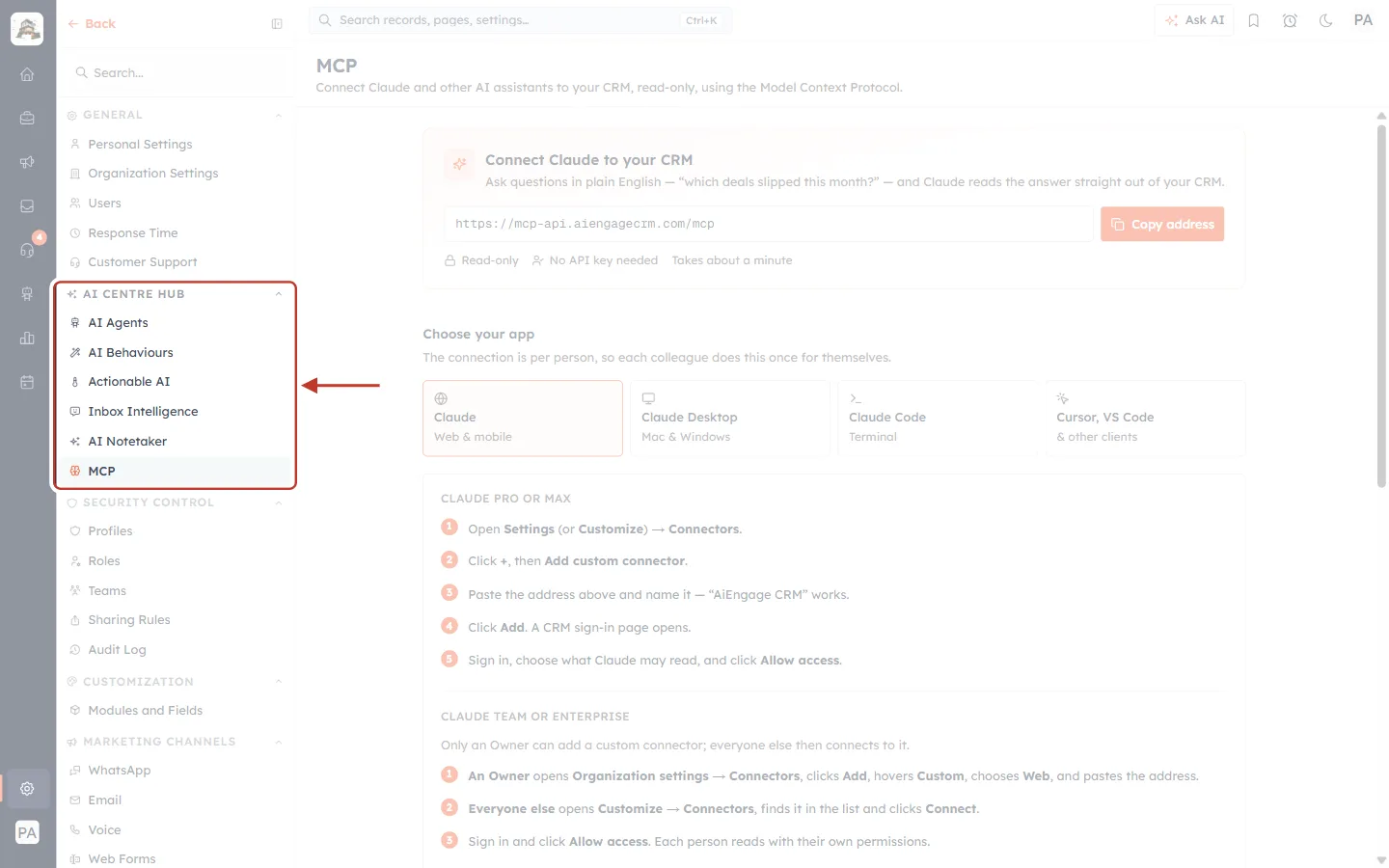
What this screenshot shows. The AI CENTRE HUB group of the Settings menu, with MCP selected.
AI CENTRE HUB contains AI Agents, AI Behaviours, Actionable AI, Inbox Intelligence, AI Notetaker and MCP.
Click MCP to open the page that explains how to connect an AI assistant.
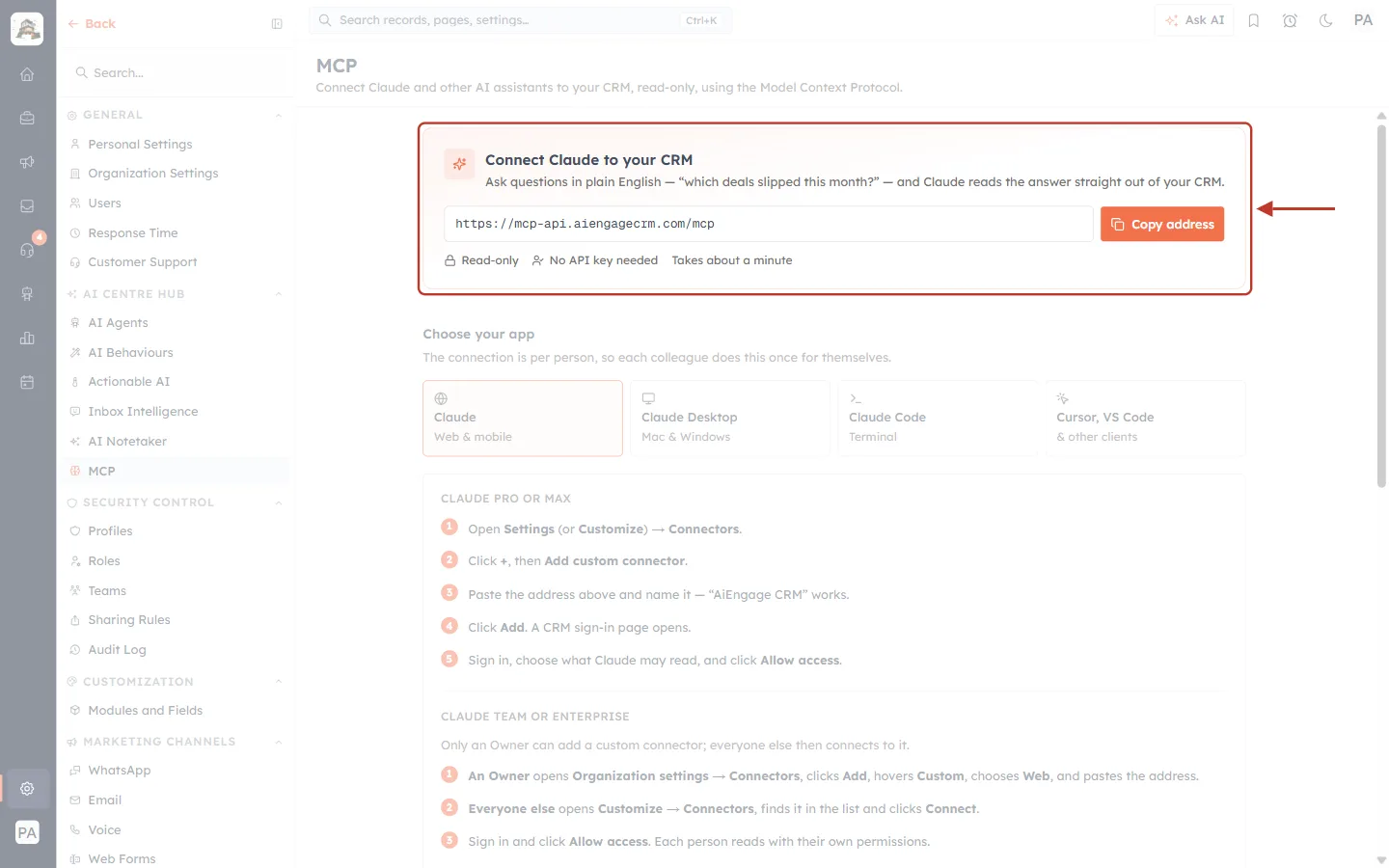
What this screenshot shows. The “Connect Claude to your CRM” box at the top of the MCP page.
The page subtitle reads: “Connect Claude and other AI assistants to your CRM, read-only, using the Model Context Protocol.”
The box contains the MCP server address
https://mcp-api.aiengagecrm.com/mcpand a Copy address button.Three badges sum it up: Read-only, No API key needed and Takes about a minute.
Below the box, Choose your app gives step-by-step instructions for Claude (web & mobile), Claude Desktop, Claude Code and Cursor / VS Code. Each person connects once for themselves.
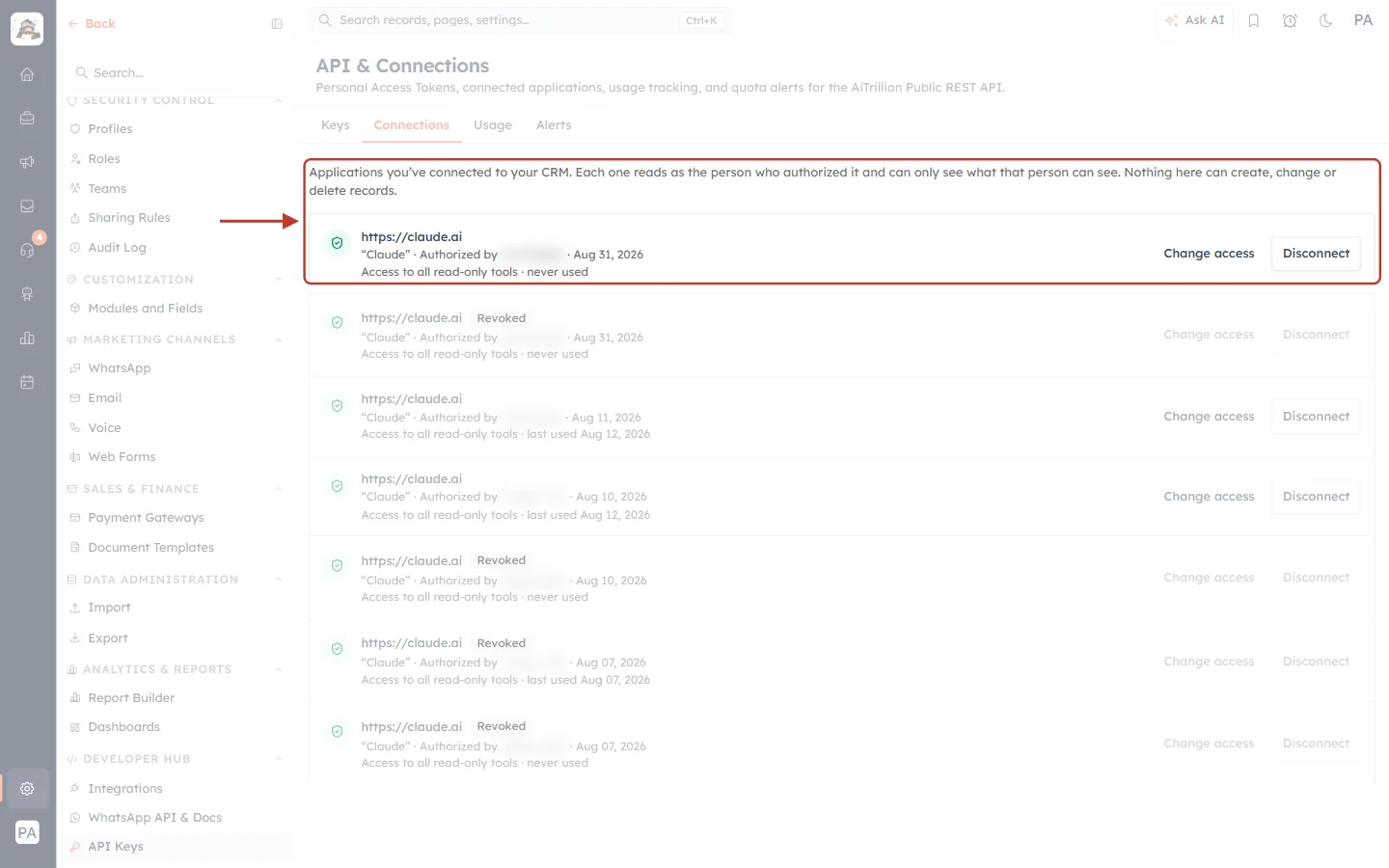
What this screenshot shows. The Connections tab, listing AI assistants people have approved. The names of the people are blurred.
The description explains that each connected app reads as the person who authorised it, sees only what that person can see, and cannot create, change or delete records.
Each card shows the app (here https://claude.ai), who authorised it and when, and Access to all read-only tools with when it was last used.
Change access limits what it may read. Disconnect removes it. Disconnected apps show a grey Revoked badge.
Part 3: Frequently Asked Questions#
Getting started#
What is the difference between the CRM API and MCP?#
Both read the same CRM data and follow the same user permissions, but they are for different people. The API is for developers and tools: it uses an API key and can read, create, update, archive and search records and send WhatsApp templates. MCP is for anyone using an AI assistant: you sign in with your own CRM login, no key is needed, and it is read-only. See What Is the AiEngage CRM API and MCP?.
Does my plan include API access?#
The API and MCP are available on plans that include API access. Without it, API calls are refused with status 403. Ask your account owner or AiEngage support if you are not sure.
Do I need to know how to code?#
Not to create keys, choose permissions, connect an AI assistant or watch usage — all of that is done in the CRM. Building an integration usually needs a developer or a tool that supports AiEngage CRM. To try a request yourself without code, see Run Your First API Request Without Writing Code.
Where is the technical documentation?#
At developer.aiengagecrm.com. It lists every endpoint with examples, and you can paste your key once to try calls with a Send button.
Is there a sandbox or test key?#
Not yet — test keys (cak_test_) are refused. To test safely, use a test record (for example a contact with your own email address) and read before you write.
API keys and permissions#
How do I create an API key?#
Go to Settings → Developer Hub → API Keys, click Generate API key, give it a label, tick its scopes, choose an expiry and click Generate. Full steps: Create and Manage API Keys.
I lost my key. Can I see it again?#
No. The full key is shown only once. Generate a new key, update your integration, and revoke the old one.
Which scopes should I tick?#
Only what the integration needs: Read to list, view and search; Write to create and update; Delete to archive. Read and Write are separate — tick both if the integration must look records up before changing them. See API Token Scopes & Permissions and Common Ways to Use the AiEngage CRM API.
Whose permissions does a key use?#
The permissions of the person who created it. A key can never see or do more than its creator can in the CRM — profiles, roles and sharing rules still apply. If the creator is deactivated, their keys stop working (401).
Can I change a key’s scopes, label or expiry?#
No. Create a new key with the settings you want, switch your integration over, then revoke the old key from its ⋯ menu.
What is the difference between Revoked and Expired?#
Both mean the key no longer works. Revoked means someone switched it off; Expired means its expiry period ended. Neither can be switched back on.
Records, modules and fields#
Which module name does my developer use?#
The module’s API name — the grey lower-case name under each module on Settings → Modules and Fields (for example contacts or deals), not the display label. Custom modules work the same way.
Which field names are used?#
Each field’s API name, which you can see in the module builder (Configure). A key with Schema: Read can also list every field, its type and its allowed drop-down values.
Does deleting through the API remove a record for good?#
No. It archives the record: it disappears from lists and searches but can be recovered for 90 days.
How do I avoid duplicates?#
Use upsert with a matching field such as email: it updates the record if one matches and creates it if none does. If several records match, the API returns 409 instead of guessing.
How many records come back at once?#
Up to 100 per page. Your developer uses the cursor in each response to fetch the next page. Batch requests can also create or update up to 100 records in one go.
Limits, quotas and usage#
How many calls can we make?#
Two kinds of limit apply. Rate limits per key stop bursts — for example 100 calls every 10 seconds on most endpoints and 5 per second for searches; WhatsApp template sends have their own limit of 30 per minute. Your quota, set by your plan, is the total per day and per month shared by all keys and connections — shown on the Usage tab.
What happens when we reach the quota?#
Further calls are refused with status 429 until the quota resets — daily at midnight UTC, monthly at the start of the next month. Calls that fail with a server error (5xx) and calls with an invalid key (401) are not counted.
Can we be warned before we run out?#
Yes. Six alerts (daily and monthly at 80%, 90% and 100%) are set up automatically on the Alerts tab, and you can add your own with Add alert. See Monitor API Usage & Set Quota Alerts.
Errors#
Status | Most common cause | First thing to try |
|---|---|---|
400 | A field is missing or in the wrong format. | Read the error message — it names the field. |
401 | The key is missing, mistyped, revoked or expired, or its creator was deactivated. | Check the header is |
403 | The key lacks a scope, the creator lacks a CRM permission, or the plan has no API access. | The message says what is missing — create a key with the right scope. |
404 | Wrong record id or module API name, or the module is switched off for the API. | Check the module’s API name and the id. |
409 | Upsert matched more than one record, or an idempotency key was reused with different data. | Use a more specific match, or a new idempotency key. |
429 | Too many calls too quickly, or the quota is used up. | Wait the number of seconds the response suggests, then try again. |
5xx | A temporary problem on the server. | Retry after a short wait (with the same idempotency key). |
What should I send support when something goes wrong?#
The correlation ID from the response, the time of the call, the key’s label (never the key itself) and the status code. With the correlation ID, support can find your exact request.
MCP and AI assistants#
Which AI assistants can connect?#
Claude (web and mobile), Claude Desktop, Claude Code, and other MCP clients such as Cursor and VS Code. Step-by-step instructions are on Settings → AI Centre Hub → MCP and in Connect Claude, ChatGPT and Other AI Assistants with MCP.
Can an AI assistant change or delete my data?#
No. The MCP connection is read-only: it cannot create, change, delete or send anything.
Does everyone in my team need to connect separately?#
Yes. The connection is per person, and each person’s assistant sees only what that person can see in the CRM. On Claude Team or Enterprise, an Owner adds the connector once and everyone else clicks Connect.
How do I disconnect an AI assistant?#
Open Settings → Developer Hub → API Keys, click the Connections tab and click Disconnect on its card.
Does MCP use our API quota?#
Yes. MCP connections and API keys share your organisation’s daily and monthly quota.
Security#
How should we store API keys?#
In a password manager or the secure settings of the tool you connect — never in emails, chat messages, documents or code that others can see.
What if a key may have leaked?#
Revoke it immediately from its ⋯ menu on the Keys tab, create a new one, and update the integration. Revoking takes effect on the very next call.
How can we keep access under control?#
Use one key per integration with the fewest scopes, set expiry dates, check the Keys and Connections tabs regularly, and revoke anything that is no longer used.
⚠️
Never paste a full API key into a support ticket, chat or screenshot. Share only its label or prefix.
✅
Can’t find your answer? Contact AiEngage support with the correlation ID, the time of the call and the key’s label, and we will help.
Previous and Next Articles#
Previous: Common Ways to Use the AiEngage CRM API
Next (back to the start): What Is the AiEngage CRM API and MCP?
Related Articles#
Was this article helpful?
Ready to implement this?
OpenAI Engage and apply what you just learned to your own workspace.
Open AI Engage CRM