Loading…


KnowledgeBase
API Usage, Limits and Troubleshooting: Track Your API Calls, Understand Your Limits and Fix Common Errors (Step by Step)
Introduction#
Every time an integration, such as your website form, Zapier, a data sync or an AI assistant, talks to AiEngage CRM through the API, that counts as one API call. Your plan includes a set number of calls per day and per month, and there are also limits on how fast calls can be sent.
This guide shows you, step by step, how to:
See your usage: how many calls you have used today and this month, and how much is left.
Find out what is using your calls, broken down by API key, request type, IP address and result.
Understand the limits: daily and monthly allowances, and how fast calls may be sent.
Get warned by email before you reach a limit.
Fix common errors, such as a rejected key (401), missing permission (403) or "too many requests" (429).
You don't need to be a developer. Everything here happens in the CRM's own settings screens.
ℹ️
About the screenshots. The numbers, key names (such as "Website lead form" and "Zapier integration") and IP addresses are examples that show what a busy account looks like. The limits shown, 1,150,000 calls a month and 115,000 a day, are the test account's plan. Your limits depend on your plan and are always shown on your own Usage tab.
Before you start#
You need access to Settings → Developer Hub → API Keys. Administrators have it, as do users whose profile allows API access. If you can't see it, ask your administrator.
The API allowance is shared by your whole organization. Every key and every connected app draws from the same daily and monthly totals.
Part 1: Check how many API calls you have used#
Step 1: Open Settings → API Keys → Usage#
In AiEngage CRM, click the gear icon (Settings), scroll the Settings menu to Developer Hub and click API Keys. On the API & Connections page, click the Usage tab.
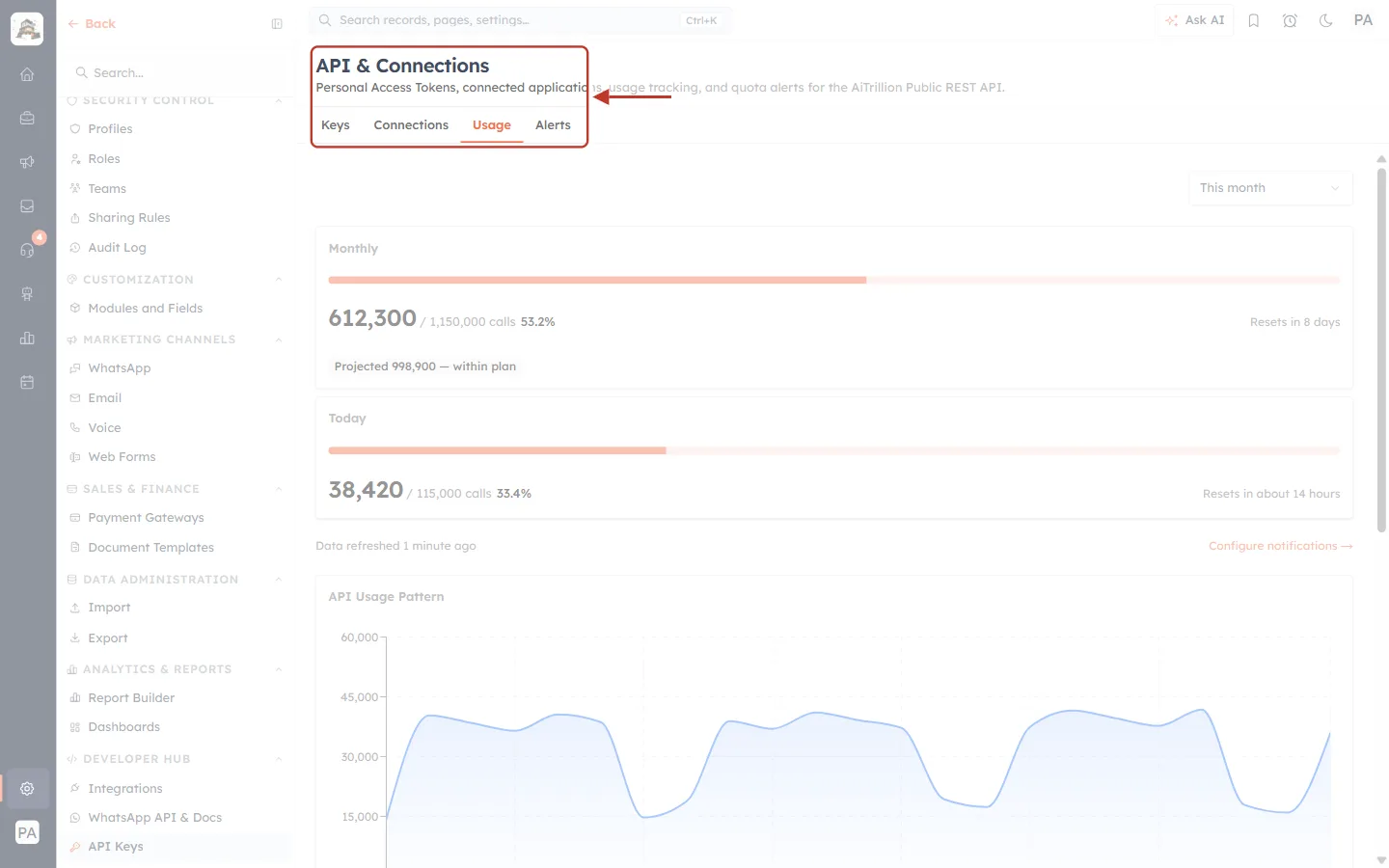
What this screenshot shows. The top of the API & Connections page. The red box marks the title and the four tabs.
API & Connections is the page for everything about the API: keys, connected apps, usage and alerts.
Keys lists your API keys. You'll use it when fixing key problems (Part 4).
Connections lists AI assistants and apps connected by signing in (MCP). Their calls count too.
Usage shows how many calls you've used. This is the tab for Parts 1 and 2.
Alerts sends warnings before you reach a limit (Part 3).
In the left Settings menu, API Keys is highlighted under Developer Hub.
Step 2: Read the Monthly and Today cards#
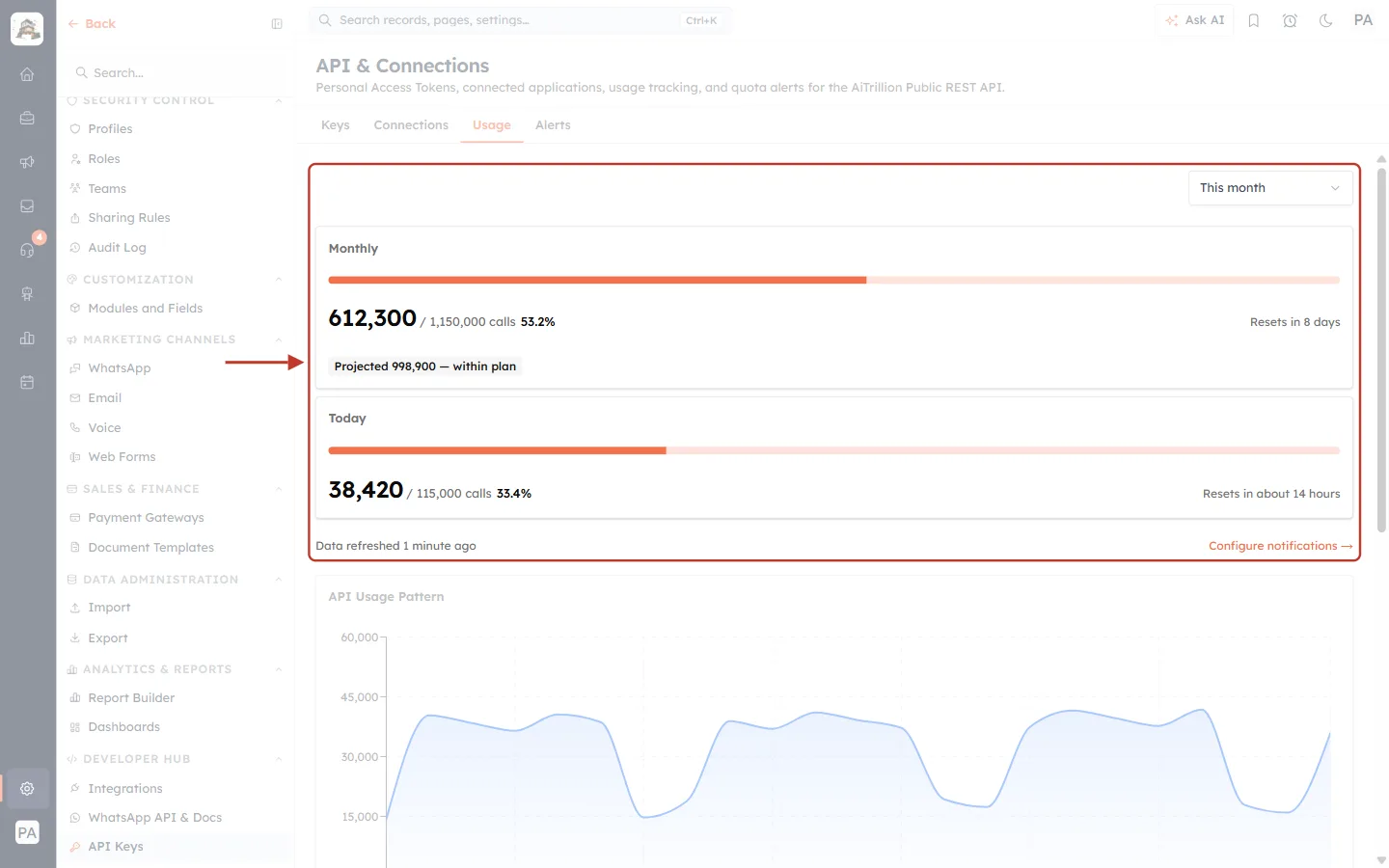
What this screenshot shows. The top of the Usage tab. The red box marks the period selector, the two allowance cards, the refresh time and the notifications link.
Monthly card: 612,300 / 1,150,000 calls (53.2%) means 612,300 calls have been used this month out of an allowance of 1,150,000. The orange bar fills up as you use more.
Resets in 8 days shows when the monthly count starts again from zero (at the end of the month, UTC time).
Projected 998,900 — within plan is the CRM's estimate of where you'll end the month if you keep going at today's pace. "Within plan" means you should stay under the limit.
Today card: 38,420 / 115,000 calls (33.4%) is today's usage against the daily allowance. Resets in about 14 hours is when the daily count goes back to zero (midnight UTC).
Data refreshed 1 minute ago shows how fresh these numbers are. They update automatically.
This month (top right) chooses the period for the chart and breakdown lower down. It doesn't change the two cards.
Configure notifications → jumps to the Alerts tab (Part 3).
✅
Quick health check: if both bars are well below full and the badge says within plan, you have nothing to worry about.
Step 3: Spot a warning early#
When you are using calls faster than your plan allows, the badge on the Monthly card turns red.
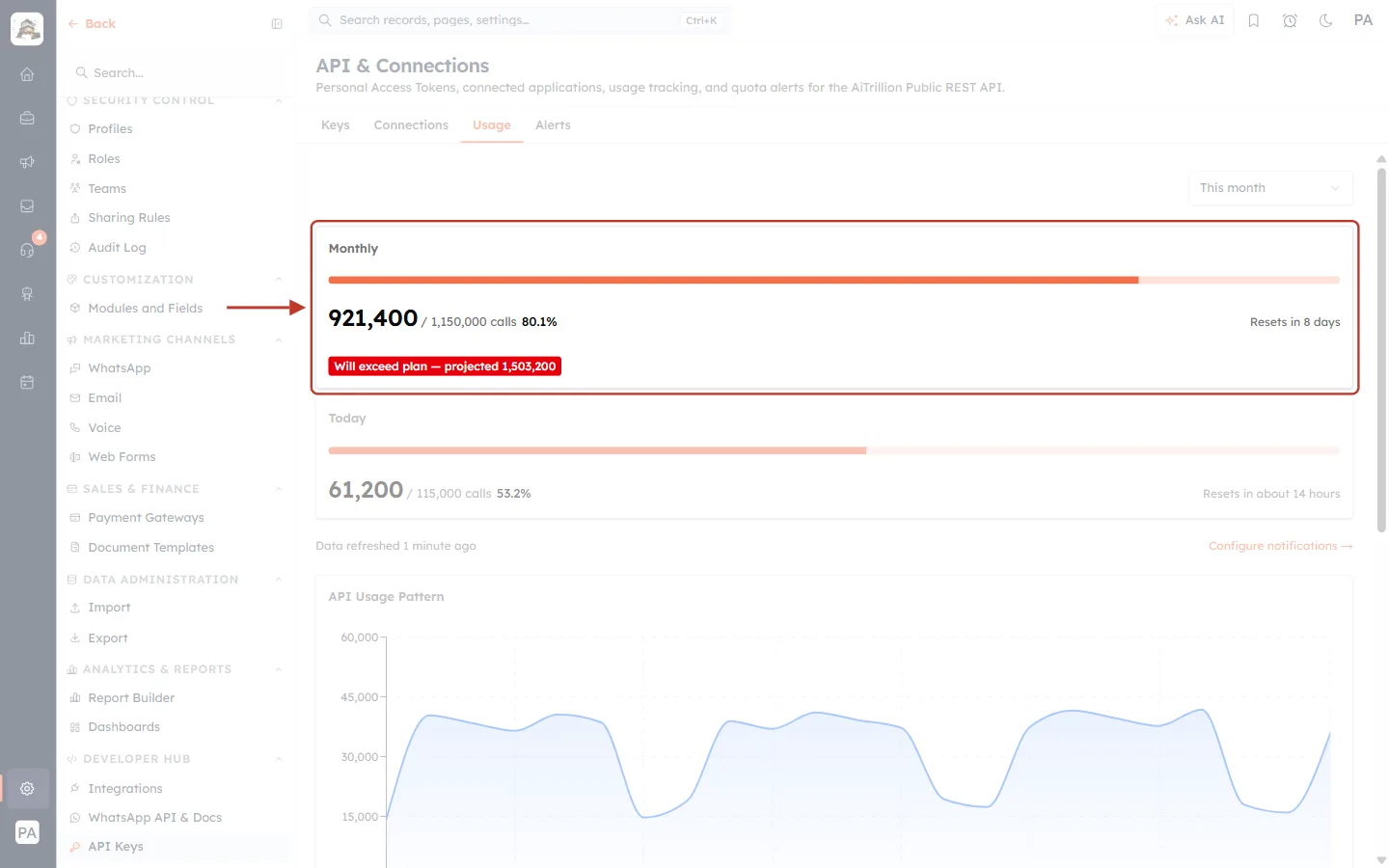
What this screenshot shows. The Monthly card for an account that is using calls quickly. The red box marks the card.
921,400 / 1,150,000 calls (80.1%): 80% of the month's allowance is used, with days still left in the month.
The red badge Will exceed plan — projected 1,503,200 means that at the current pace the account would need about 1.5 million calls, more than the 1,150,000 allowed.
This is your cue to act before requests start failing: find what is using the calls (Part 2), slow down or fix that integration, or upgrade your plan.
Part 2: Find out what is using your API calls#
Step 4: Look at the usage pattern#
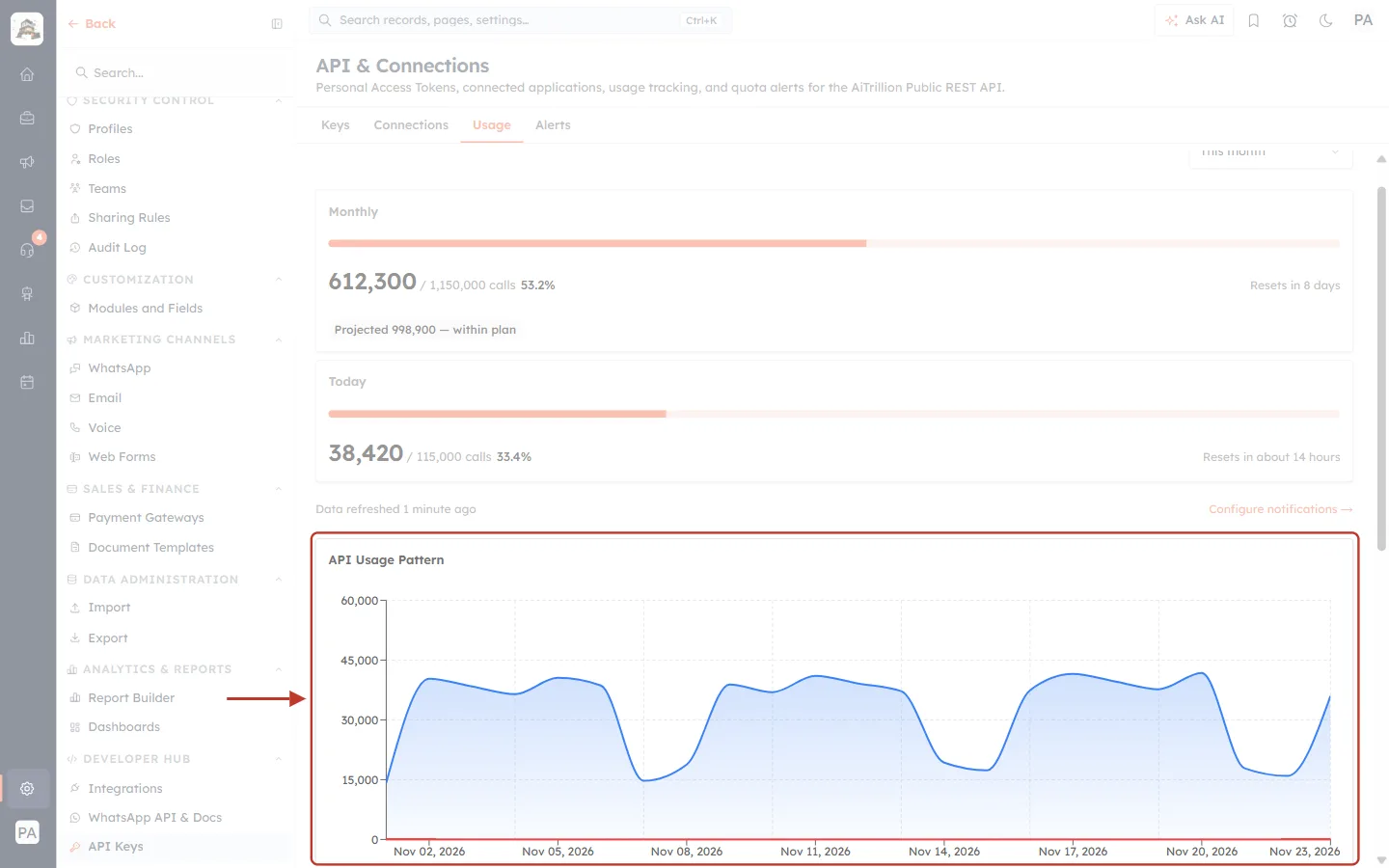
What this screenshot shows. The API Usage Pattern chart below the cards. The red box marks it.
The blue line shows how many calls were made each day. The left axis is the number of calls, and the bottom axis shows the dates.
In the example, weekdays reach about 40,000 calls and weekends drop to about 15,000. That is a normal business pattern.
A sudden spike usually means an integration started looping or importing a lot of data. A sudden drop to zero often means an integration stopped working, for example because its key was revoked.
Hover over the line to see the exact number for a day.
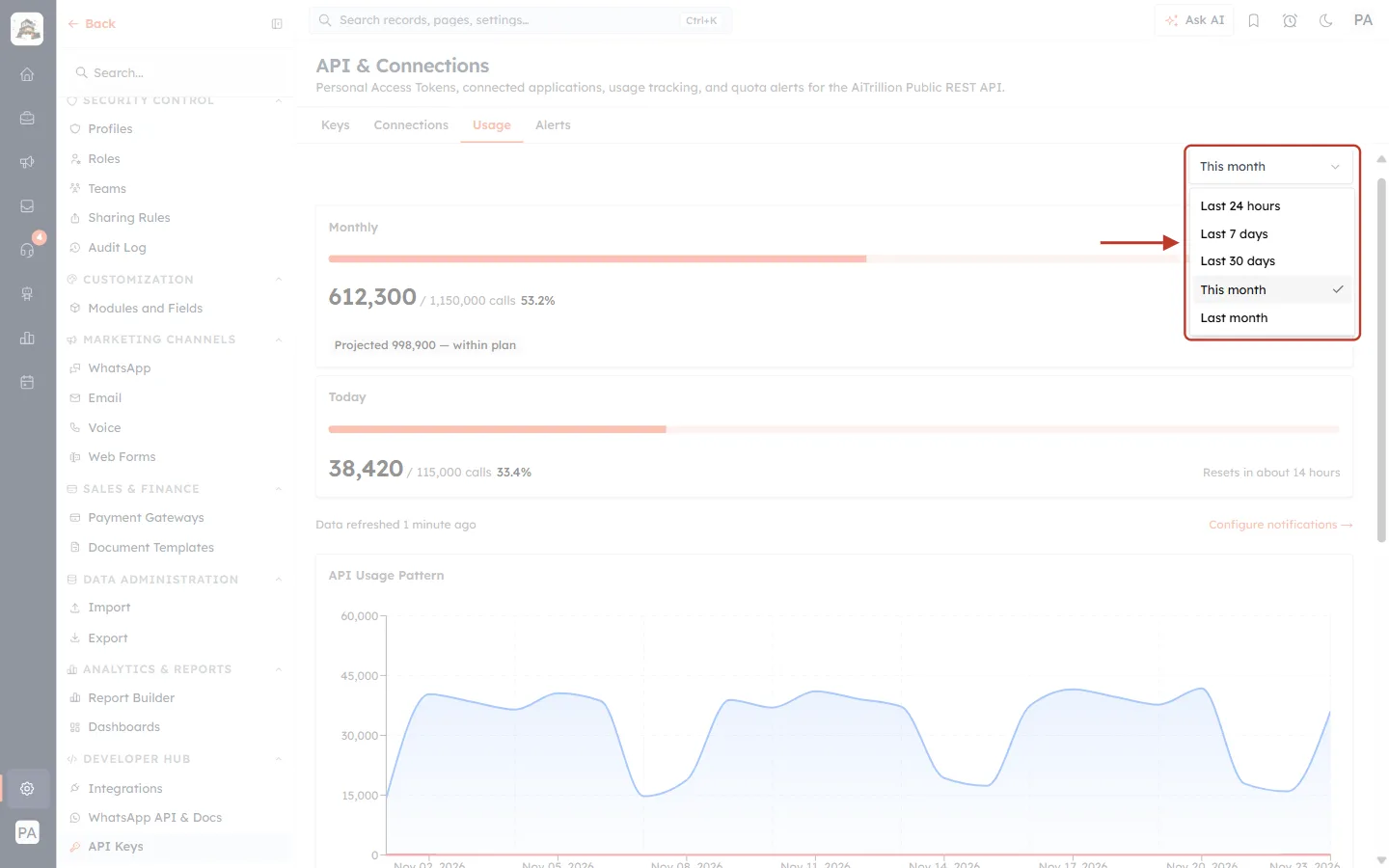
What this screenshot shows. The period menu, opened. The red box marks the menu and its options.
Last 24 hours shows calls per hour. It is useful for finding the moment a problem started.
Last 7 days and Last 30 days show calls per day for a rolling window.
This month (ticked by default) and Last month line up with the monthly allowance.
The period applies to the chart and the Breakdown table. The Monthly and Today cards always show the current month and day.
Step 5: Break usage down by key, request, IP and result#
Scroll down to Breakdown. Its four tabs answer "who or what is using my calls?"
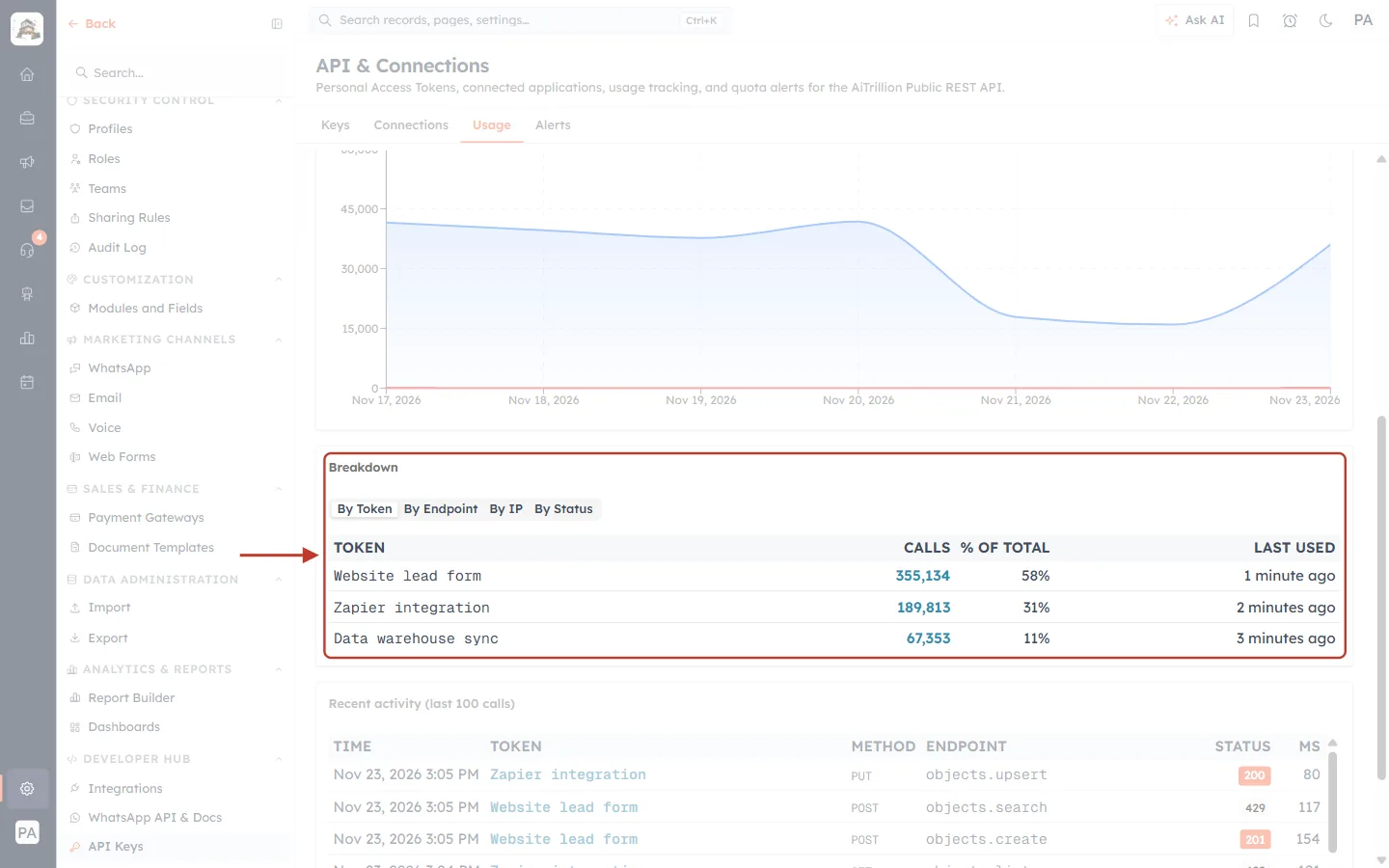
What this screenshot shows. The Breakdown card with By Token selected. The red box marks the tabs and the table.
Token is the label of each API key (or connected app) that made calls: here "Website lead form", "Zapier integration" and "Data warehouse sync".
Calls is how many calls each key made in the selected period. % of total is its share. "Website lead form" made 58% of all calls.
Last used shows when the key was last active.
If one key is using far more than you expect, that is the integration to look at first. Clear key labels make this table easy to read.
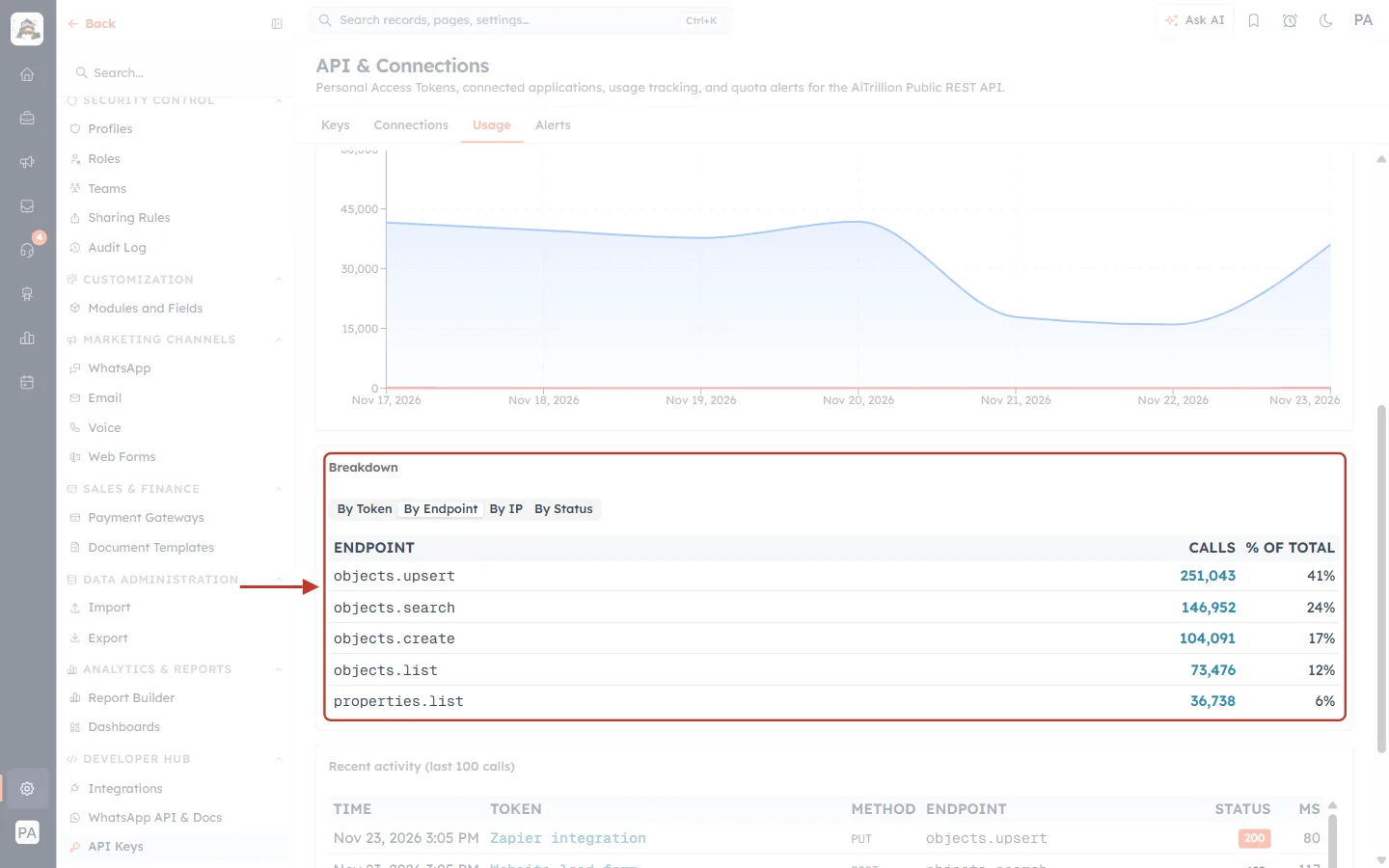
What this screenshot shows. The same card with By Endpoint selected. The red box marks the table.
Endpoint is the type of request:
objects.upsert(create or update a record),objects.search(search records),objects.create(create a record),objects.list(list records, "Get Records") andproperties.list(list a module's fields).In the example,
objects.upsertmakes up 41% of calls. That is typical of a sync that sends every record on a schedule.A high share of
properties.listusually means an integration asks for the field list on every run. A developer can store that list instead and save calls.
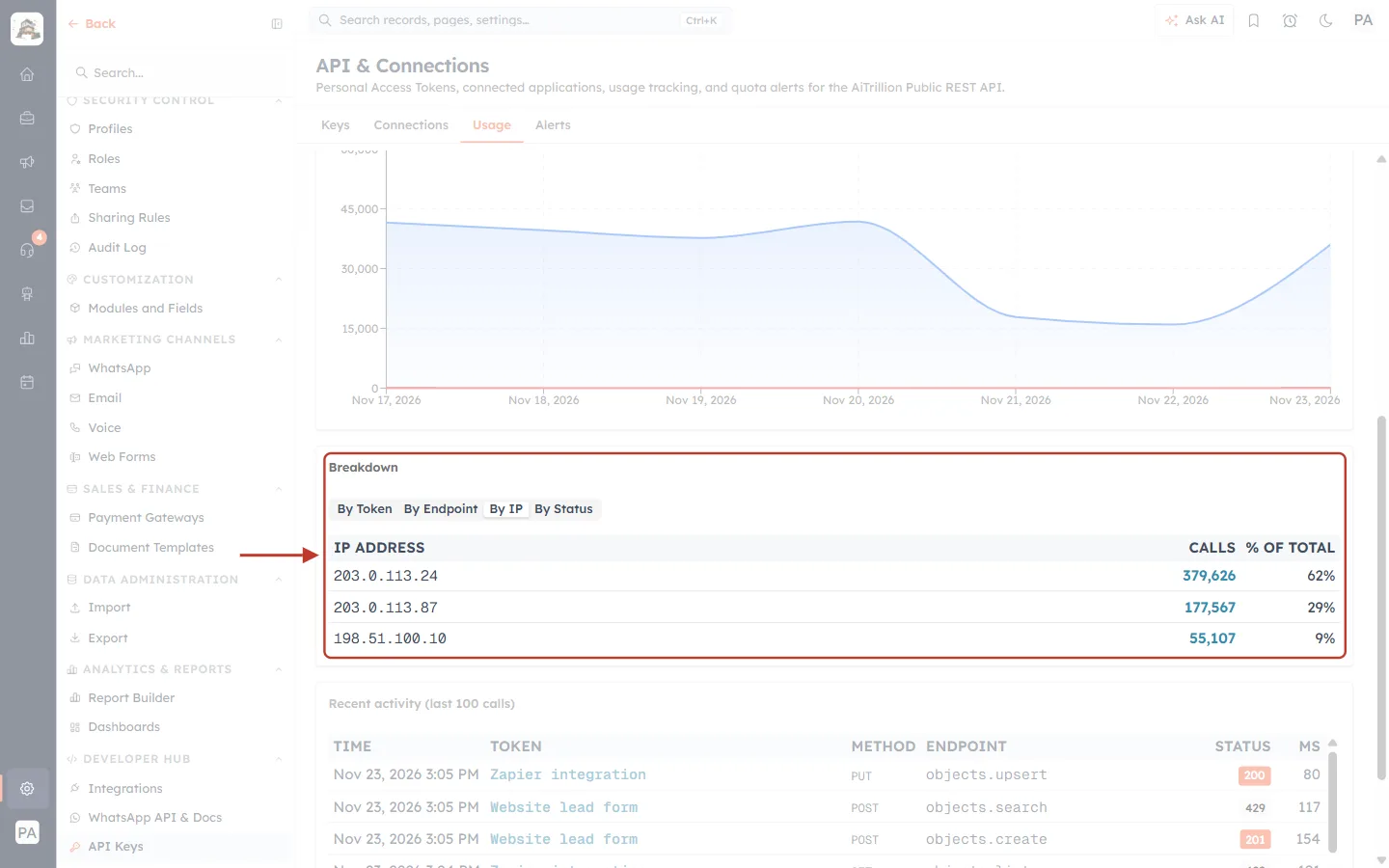
What this screenshot shows. The same card with By IP selected. The red box marks the table.
IP is the internet address the calls came from, usually a server, Zapier's servers, or someone's computer.
Use it to spot calls from somewhere unexpected. An IP you don't recognise could mean a key has leaked. If so, revoke that key on the Keys tab.
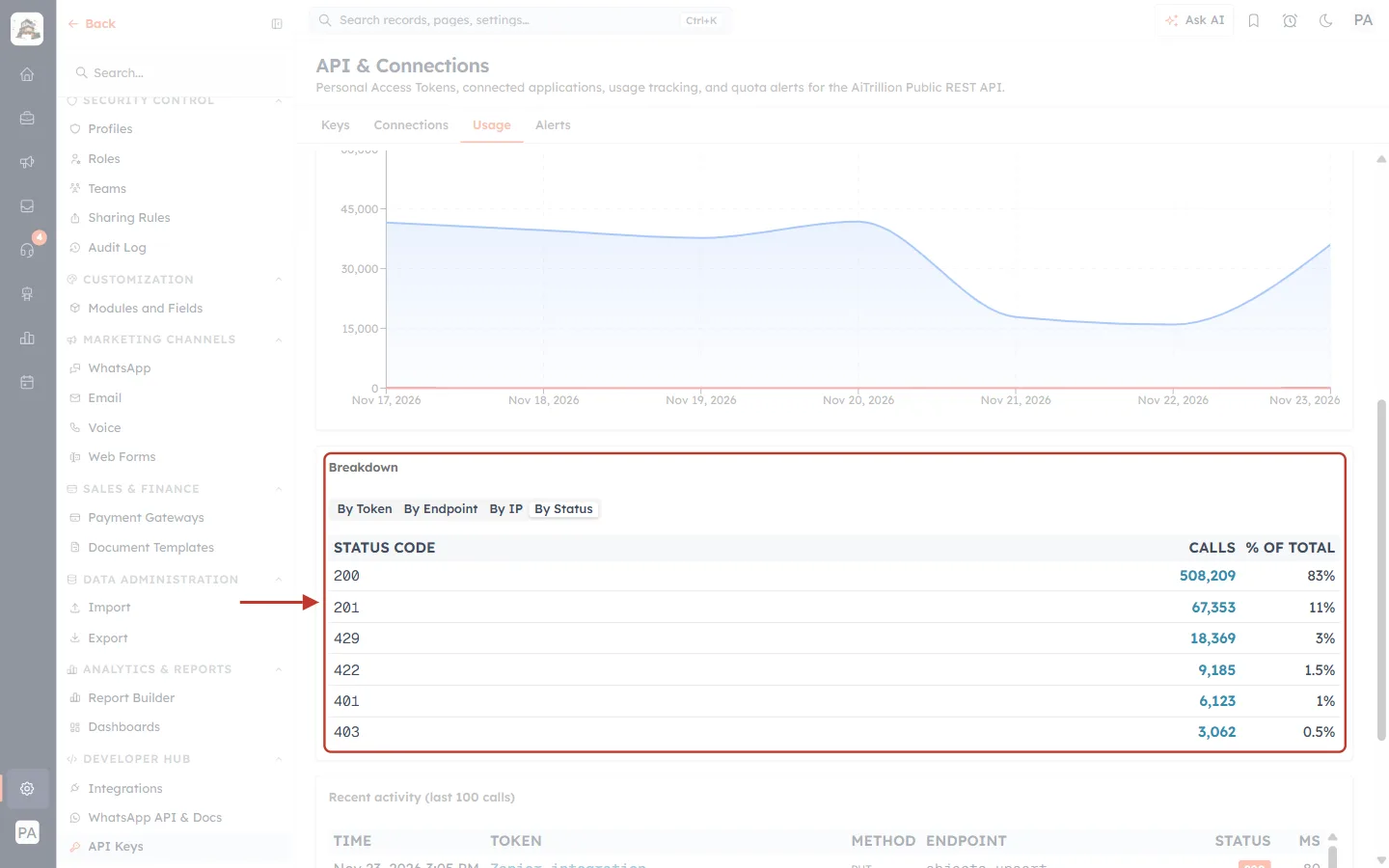
What this screenshot shows. The same card with By Status selected. The red box marks the table.
Status code is the result of each call. 200 and 201 mean success (201 = something was created).
429 (3% in the example) means calls were turned away for going too fast or for reaching a limit.
422 means the data sent wasn't valid, for example a wrong field name or value.
401 means the key wasn't accepted. 403 means the key isn't allowed to do that.
A healthy account is almost all 200/201. Any noticeable share of 4xx codes points to an integration that needs fixing. See Part 4 for each code.
Step 6: Check the most recent calls#
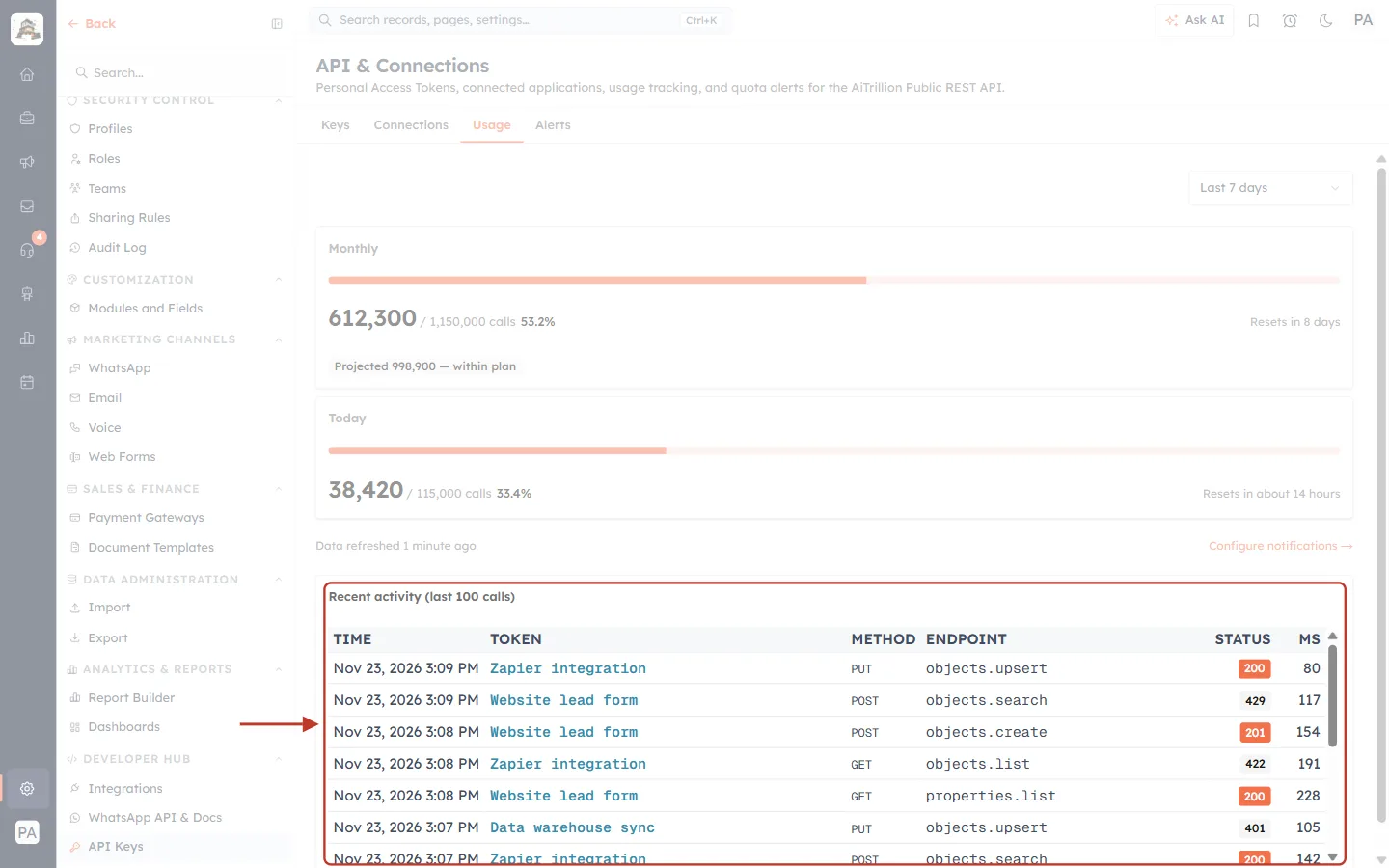
What this screenshot shows. The Recent activity (last 100 calls) table at the bottom of the Usage tab. The red box marks it.
Time: when the call arrived. The newest is at the top.
Token: which key made it.
Method:
GETreads,POSTcreates or searches,PUTcreates-or-updates,PATCHupdates.Endpoint: the type of request, as in the Breakdown.
Status: orange 200/201 badges are successes. Plain numbers such as 429, 422 and 401 are failures to investigate.
MS: how long the CRM took to answer, in milliseconds (117 = about a tenth of a second).
Scroll inside the table to see up to the last 100 calls. This is the quickest way to confirm whether an integration's latest call worked.
Understand the limits#
There are two kinds of limit. Knowing which one you hit tells you how to fix it.
1. Daily and monthly allowance (for the whole organization)#
Your plan includes a number of calls per day and per month, shown on the Today and Monthly cards. All keys and connected apps share them.
The daily count resets at midnight UTC. The monthly count resets at the end of the month (UTC).
When either allowance reaches 100%, further calls are blocked with error 429 until it resets. There is no automatic overage.
Not everything counts: calls that fail because the key was rejected (401), calls turned away for going too fast, and calls that fail because of a problem on AiEngage's side (5xx errors) are not taken from your allowance.
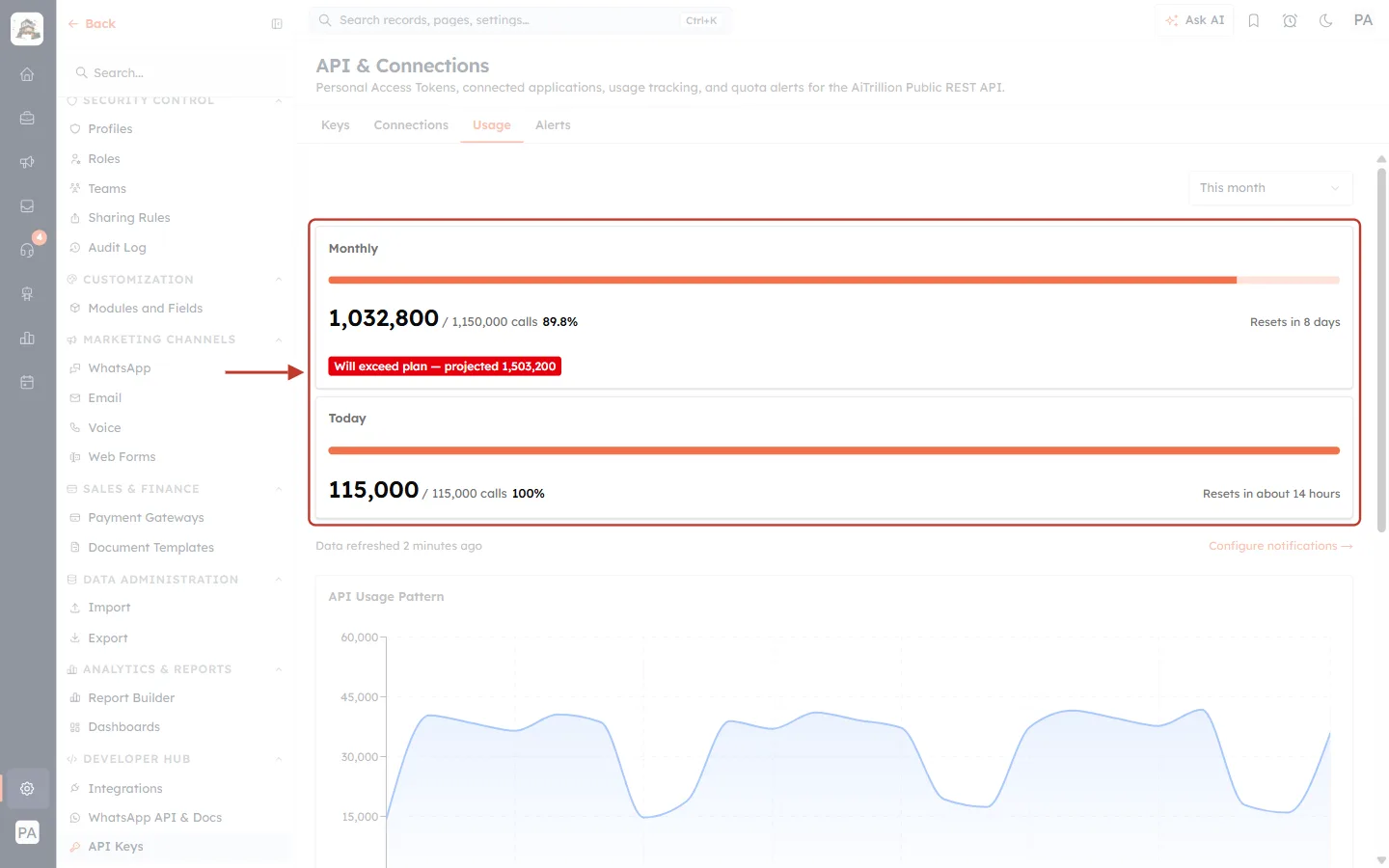
What this screenshot shows. The Usage tab of an account that has used its whole daily allowance. The red box marks both cards.
Today: 115,000 / 115,000 calls (100%). The bar is completely full. From now until the reset, API calls are refused with a 429 error.
Resets in about 14 hours: the allowance comes back at midnight UTC, and calls start working again by themselves.
Monthly: 1,032,800 / 1,150,000 (89.8%) with Will exceed plan. This account is also close to its monthly limit, which would block calls until the end of the month.
What to do: find the busiest key in Breakdown → By Token, pause or fix it, and consider upgrading your plan if this level of use is normal for your business.
2. Speed limits (per API key)#
To keep the CRM fast for everyone, each key may only send a certain number of calls in a short time:
Type of request | Limit per key |
|---|---|
Most requests (read, create, update, archive) | 100 calls every 10 seconds |
Search, batch reads and reports | 5 calls per second |
Sending email through the API | 5 per minute |
Sending WhatsApp messages through the API | 30 per minute |
Go faster and the extra calls get a 429 error. Waiting a moment and trying again fixes it. Integration tools such as Zapier usually retry automatically. For developers, every answer carries ratelimit-limit, ratelimit-remaining and ratelimit-reset headers, and a 429 also includes a Retry-After header saying how many seconds to wait. The full details are on developer.aiengagecrm.com.
✅
How to tell the two 429s apart: if the Today or Monthly card is at 100%, you have hit the allowance and must wait for the reset (or upgrade). If the cards are not full, you are just sending too fast. Slow the integration down and it works again within seconds.
Part 3: Get warned before you reach a limit#
Step 7: Review the built-in alerts#
Click Configure notifications → on the Usage tab, or click the Alerts tab.
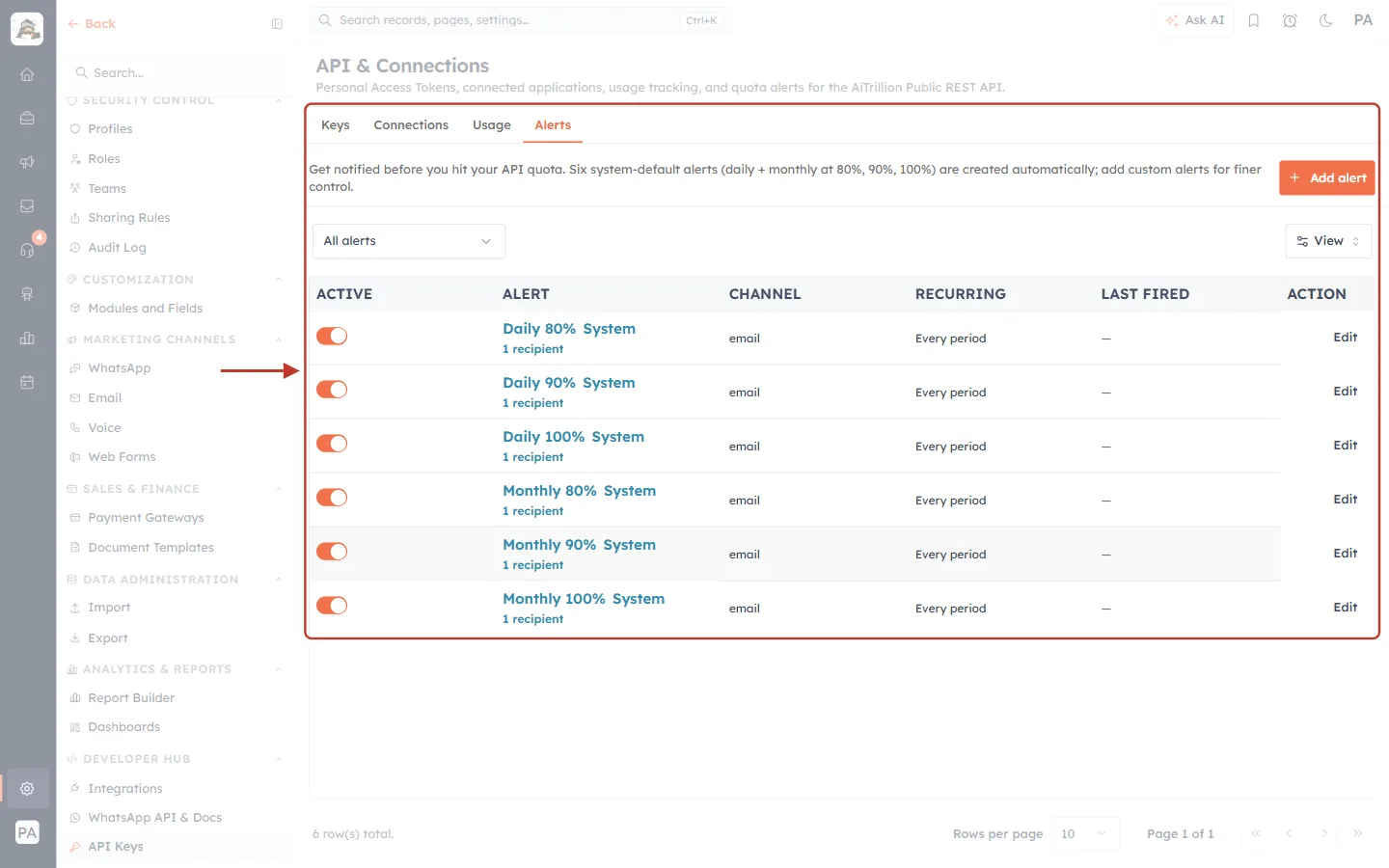
What this screenshot shows. The Alerts tab. The red box marks the description, the Add alert button and the alert list.
The description explains that six system-default alerts are created automatically (daily and monthly at 80%, 90% and 100%), and that you can add custom alerts for finer control.
Active: the orange switch turns each alert on or off. All six are on by default.
Alert: for example Daily 80% · System. "1 recipient" shows who receives it. System alerts go to the organization's main contact.
Channel: email.
Recurring: Every period means the alert can fire again each new day or month.
Last fired: when the alert was last sent ("—" means never).
Edit lets you change an alert, for example its recipients. + Add alert (top right) creates your own.
Step 8: Add your own alert (optional)#
Click + Add alert to be warned at a different level, or to send the warning to more people, such as your developer.
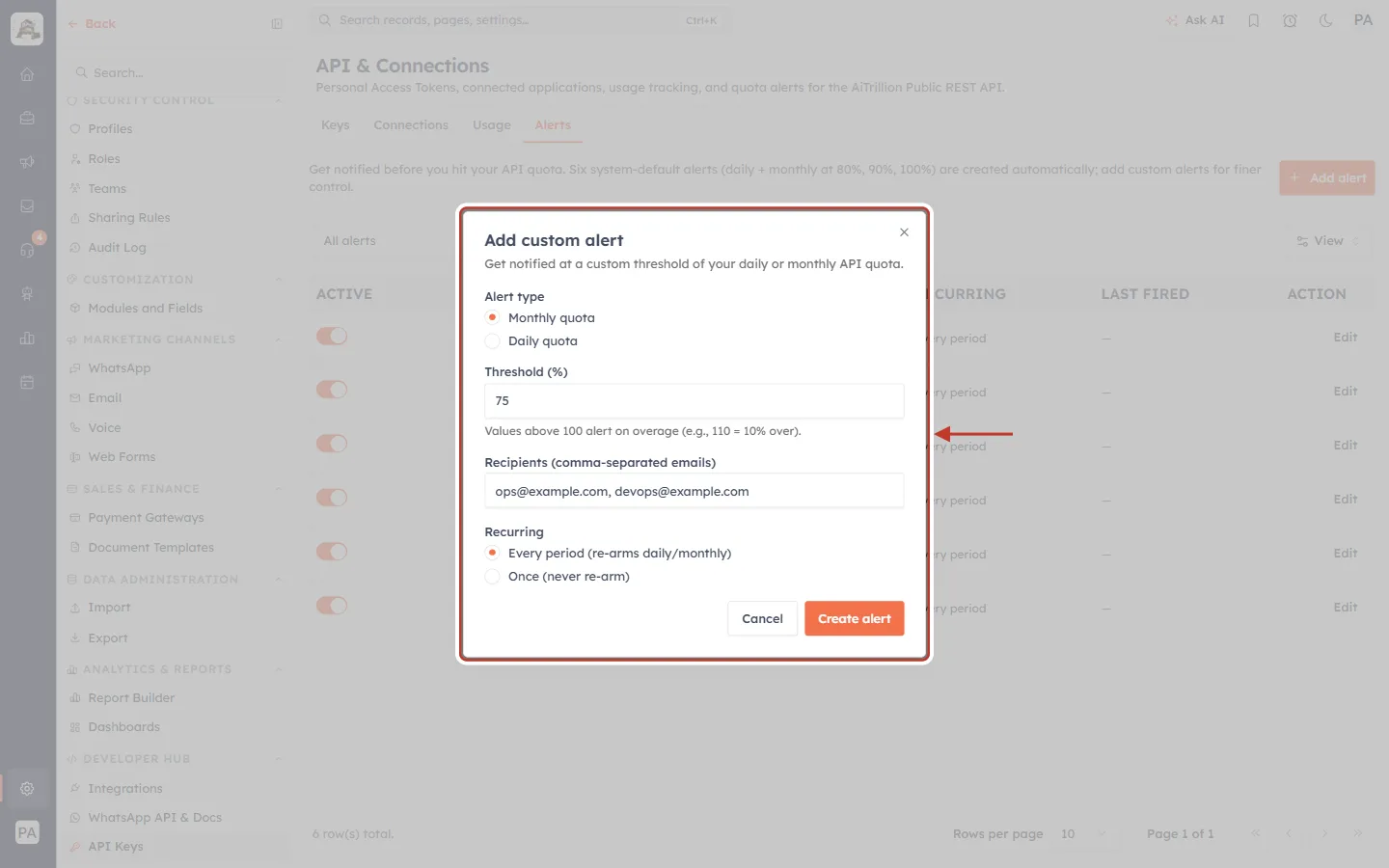
What this screenshot shows. The Add custom alert window, filled in. The red box marks the whole form.
Alert type: Monthly quota watches the monthly allowance. Daily quota watches today's.
Threshold (%): 75 means "warn me when 75% is used". You can enter 1 to 200. Values above 100 only make sense if your plan ever allows overage (for example 110 = 10% over).
Recipients: one or more email addresses, separated by commas. The example uses ops@example.com and devops@example.com.
Recurring: Every period re-arms the alert each day or month. Once sends it a single time and never again.
Create alert saves it. Cancel closes the window without saving.
Part 4: Troubleshoot common API errors#
When an integration stops working, check Usage → Recent activity or Breakdown → By Status for the status code, then use this table.
Status code | What it means | How to fix it |
|---|---|---|
401 Unauthorized | The API key wasn't accepted. It is missing, mistyped, revoked or expired. | On the Keys tab, check the key's Status. If it says Revoked or Expired, generate a new key and paste it into the integration. If it is Active, re-paste the key carefully: it must start with |
403 Forbidden ( | The key works, but it doesn't have permission for this action, for example writing to Deals with a key that only has "Contacts: Read". | Look at the key's Scopes on the Keys tab. Keys can't be edited, so generate a new key with the scopes the integration needs, update the integration, then revoke the old key. |
403 (other) | The person who created the key isn't allowed to see or change that record. A key acts with its creator's permissions. | Check that user's profile and sharing rules, or have a user with the right access create the key. |
404 Not Found | The module or record doesn't exist, isn't available through the API, or was archived. | Check the module's API name (for example |
422 Unprocessable | The data sent wasn't valid, for example an unknown field name, a required field missing, or a wrong value for a dropdown or date. | Compare the field names with Settings → Modules and Fields. The error message names the field that failed. |
429 Too Many Requests | Either the key is sending too fast, or the daily/monthly allowance is used up. | If the Today/Monthly card is at 100%, wait for the reset or upgrade. Otherwise, slow the integration down and let it retry after a few seconds. |
500 / 503 | A temporary problem on AiEngage's side. These calls aren't taken from your allowance. | Try again after a short wait. If it continues, contact support. |
Step 9: Work through a problem in order#
Is the integration making calls at all? Look for its key in Breakdown → By Token or Recent activity. If it is missing, the integration isn't reaching the CRM. Check its settings, the API address (
https://app.aiengagecrm.com/cback/api/public/v1) and its internet connection.What status do its calls get? Read the Status column and use the table above.
Are you at a limit? Check the Today and Monthly cards.
Is the key still active? Check the Keys tab: Active, Revoked or Expired, and its Last used time.
Still stuck? Contact support. Include the time of a failed call, the key's label (never the full key), the status code, and the
correlationIdfrom the error message if your integration shows it.
⚠️
Never share a full API key, not even with support. The label and the first characters shown on the Keys tab (such as
cak_live_EXAMPLEw…) are enough to identify it.Frequently asked questions#
Do calls from Claude, ChatGPT and other AI assistants count?#
Yes. MCP connections read through the API, so their calls count towards the same daily and monthly allowance. If the allowance runs out, the assistant's questions are refused until it resets.
Do failed calls count?#
Calls rejected because of a bad key (401), calls turned away for going too fast, and server errors (5xx) don't count. Other failed calls, such as 403, 404 and 422, do count, so fixing a broken integration also saves allowance.
What time do the limits reset?#
The daily limit resets at midnight UTC and the monthly limit at the end of the month (UTC). The cards show exactly how long is left.
How do I get a higher limit?#
Allowances come with your plan. Upgrading to a higher plan raises them. Contact your account manager or support if you need help choosing.
Can I limit how much one integration uses?#
Give each integration its own key with a clear label. Then you can see exactly what each one uses in Breakdown → By Token, and revoke a key instantly if it misbehaves.
Related articles#
Full technical reference (headers, error codes): developer.aiengagecrm.com
Previous and next#
Was this article helpful?
Ready to implement this?
OpenAI Engage and apply what you just learned to your own workspace.
Open AI Engage CRM